How to fix
KB5039299 fails to install
on Windows
Resolve the KB5039299 installation issue on Windows 10 effortlessly with our expert-tested solutions. Get your system running smoothly again!

What causes How to fix KB5039299 fails to install in Windows 10?
- Third-party security software interfering with updates
- Corrupted system files
- Bugged cache files
- Issues with relevant services
- Generic update error messages
Repairs Windows system files, removes malware, and restores a clean OS state — without reinstalling.
I keep trying to install the KB5039299 update on my Windows 10, but it always fails, and the message I get is "Try again later." I try later but it still doesn't work. Can anyone help me with steps to fix this problem?
Windows updates used to be seen as something of a nuisance because they used to take a long time to download and cause issues for some people. While inconveniences of older times are gone, the internet is overall faster, and users are more keep on receiving new updates, they might still sometimes face issues while trying to update their systems.
KB5039299 failing to install is one of the problems that some people might run into, and regardless of how many times they try, they are always faced with a generic error, which says that they should try later or that updates failed.
KB5039299 is a post-Patch Tuesday update released on June 27, 2024, for Windows 10 version 22H2. Similarly to the Windows 11 update KB5039302, it mainly focuses on bug fixes, implements several new features, and does not include any security improvements. So what can you do to successfully receive these updates to your system?
To fix KB5039299 failing to install, you will likely have to check several troubleshooting methods that we provide below. This might include running a troubleshooter, checking relevant services, fixing corrupted files, clearing bugged caches, installing the update manually, etc.
The resolution you are seeking will highly depend on the cause of the update failure, so go through the steps one by one until you find the method that works for you. If you are a person who doesn't like to waste time or you are less IT-savvy, we recommend trying a powerful PC repair application [d1] - it can automatically perform all the troubleshooting steps for you when you have issues with your Windows OS.
Fix 1. Disable third-party security software
Disabling third-party security software or similar programs can sometimes resolve Windows update errors. These applications often include firewalls and antivirus tools that might mistakenly identify and block parts of the update process as potential threats. Temporarily turning off such programs allows Windows Update to access necessary internet resources and system files without interference, improving the likelihood of a successful update.
Fix 2. Run Windows update troubleshooter
Troubleshooters are automatic tools that are built-in - they can often provide automatic fixes to certain issues you might have on Windows.
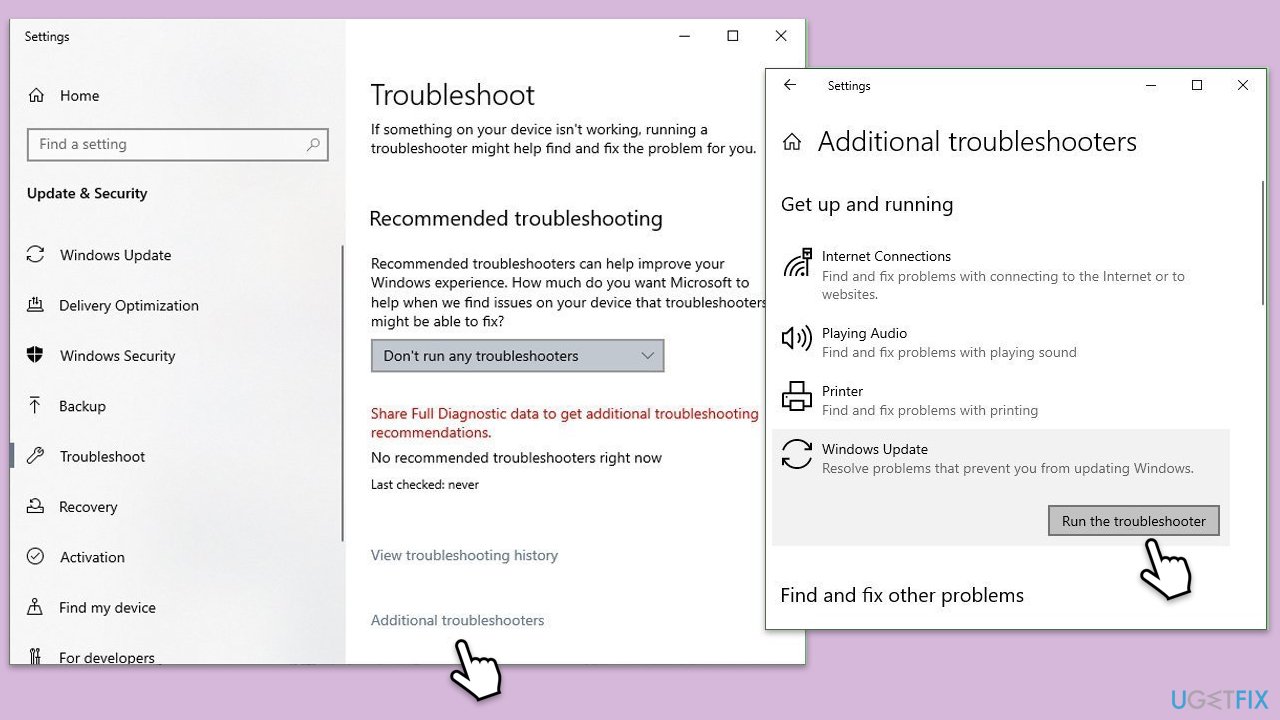
- Type in Troubleshoot in Windows search and hit Enter.
- Go to Additional Troubleshooters.
- Select Windows update and click Run the troubleshooter.
- Wait till the scan is finished, and then apply the recommendations.
- Restart your computer.
Fix 3. Check relevant services
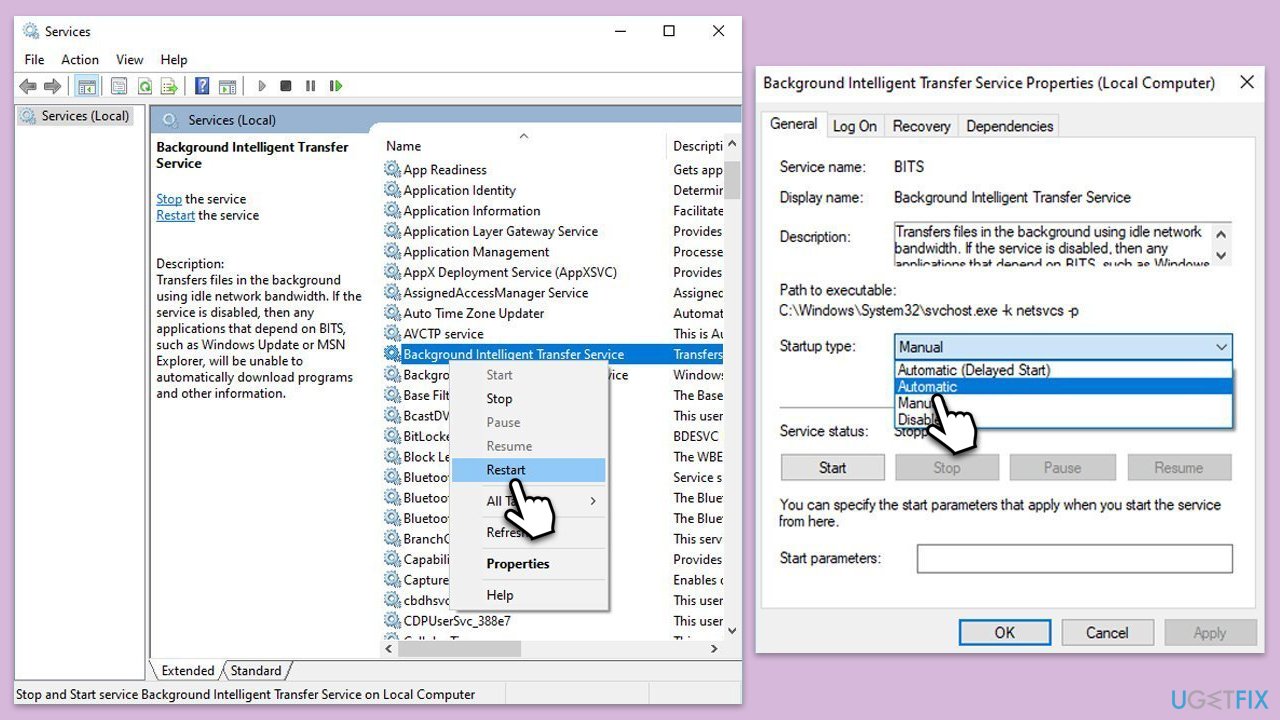
- Type in Services in Windows search and press Enter.
- Locate Windows Update.
- If it is already running, right-click and select Restart.
- if the service is not running, double-click it, select Automatic under the Startup type from the drop-down menu
- Click Start, Apply, and OK.
- Repeat the process with the Background Intelligent Transfer Service (BITS), Cryptographic, and Windows Installer services
Fix 4. Repair system file corruption
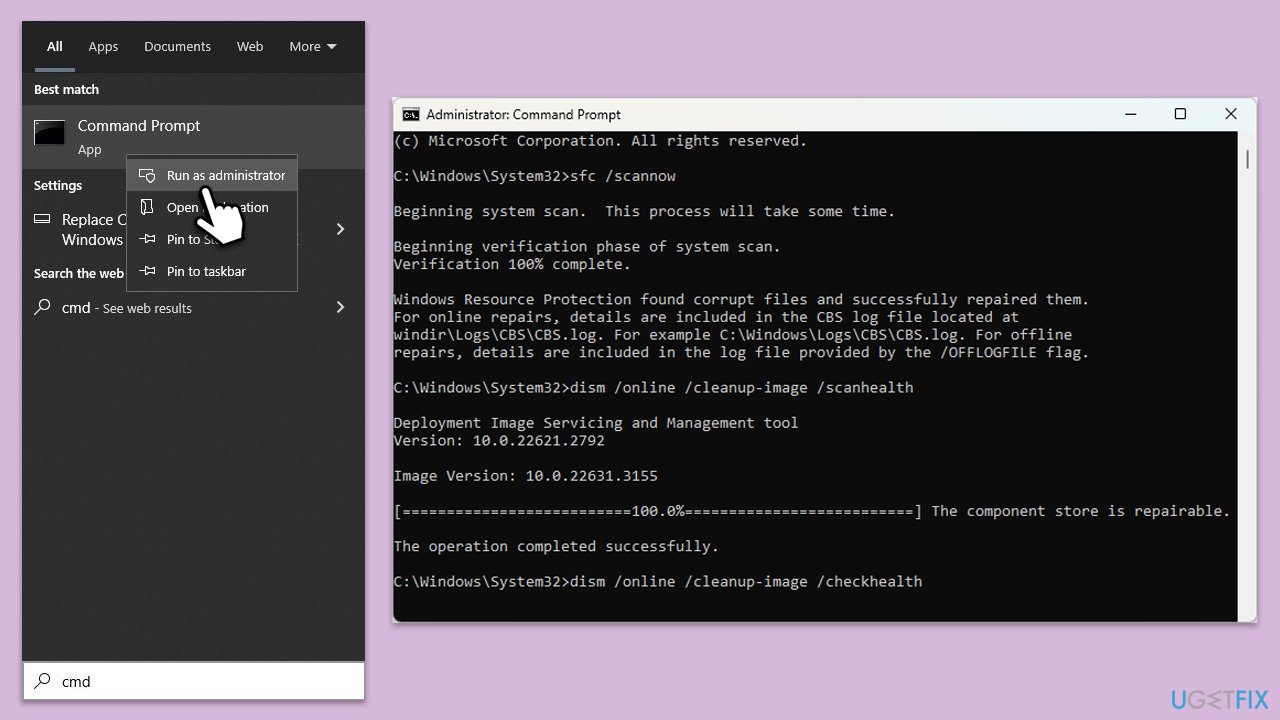
- Type cmd in Windows search.
- Right-click on Command Prompt and pick Run as administrator.
- The User Account Control window will ask whether you want to allow changes - click Yes.
- In the Command Prompt window, paste the following command and hit Enter:
sfc /scannow - Once the scan is complete, use the following commands and press Enter after each:
Dism /Online /Cleanup-Image /CheckHealth
Dism /Online /Cleanup-Image /ScanHealth
Dism /Online /Cleanup-Image /RestoreHealth - (Note: if you get an error executing this last command, add /Source:C:\RepairSource\Windows /LimitAccess to it and try again).
- Restart your system.
Fix 5. Perform Disk Cleanup
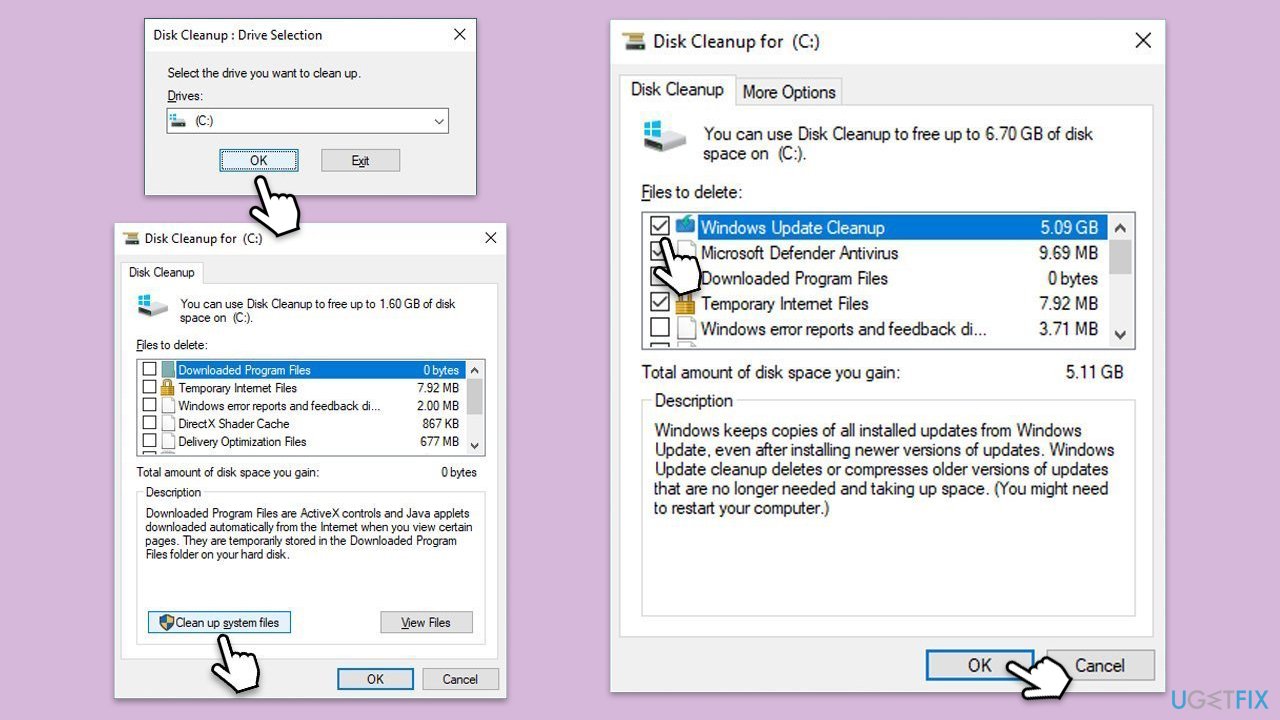
- Type Disk Cleanup in Windows search and press Enter to open the Disk Cleanup utility.
- In the Disk Cleanup window, click Clean up system files.
- Select the drive (usually, C:) again and click OK.
- It is important to clear up sections related to Windows updates (Windows Update Cleanup, Windows upgrade log files, Delivery optimization files), as well as other temp files -Temporary Internet Files, Temporary Files, etc.
- Click OK to begin the cleanup process.
Fix 6. Reset Windows update components
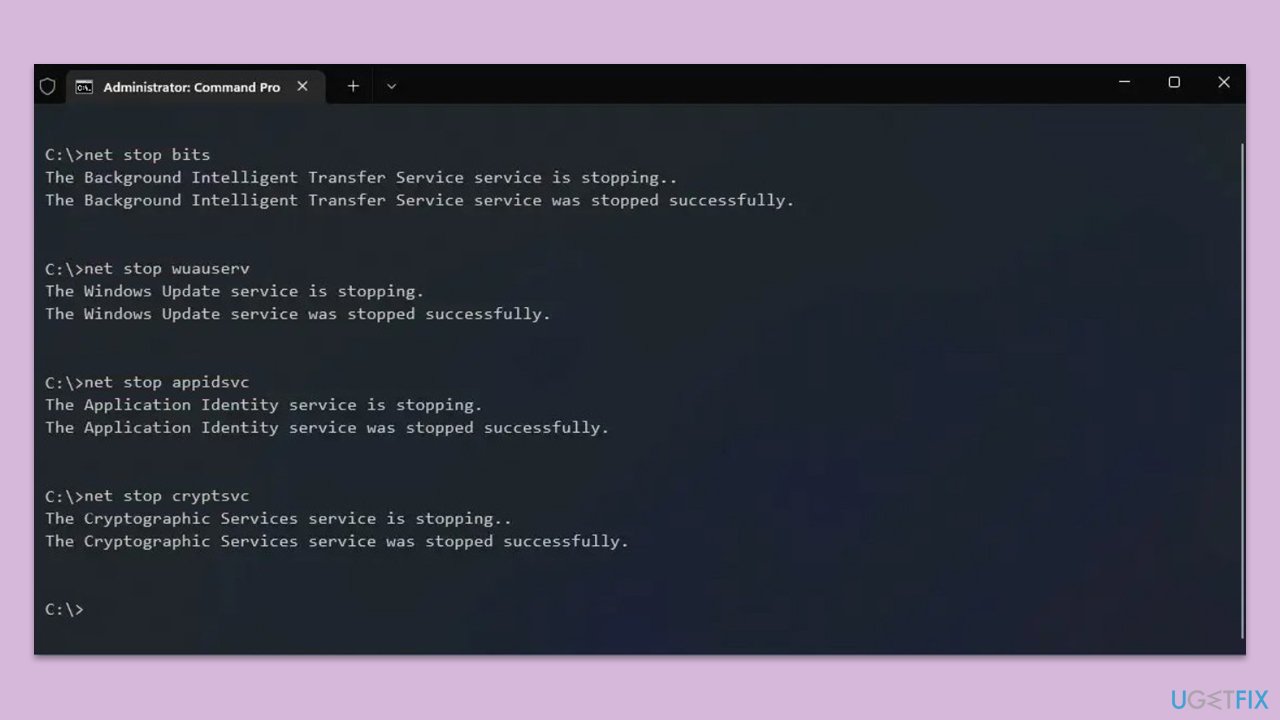
- Open Command Prompt as administrator.
- Type the following commands, pressing Enter after each:
- net stop bits
- net stop wuauserv
- net stop appidsvc
- net stop cryptsvc
- Del “%ALLUSERSPROFILE%\Application Data\Microsoft\Network\Downloader\*.*”
- rmdir %systemroot%\SoftwareDistribution /S /Q
- rmdir %systemroot%\system32\catroot2 /S /Q
- regsvr32.exe /s atl.dll
- regsvr32.exe /s urlmon.dll
- regsvr32.exe /s mshtml.dll
- netsh winsock reset
- netsh winsock reset proxy
- net start bits
- net start wuauserv
- net start appidsvc
- net start cryptsvc
- Close the Command Prompt and restart your device.
Fix 7. Install the update manually
- Open your browser and go to Microsoft Update Catalog.
- In the search bar, type in the KB number (KB5039299) and click Search or hit Enter.
- Find the correct version of the update for your operating system (to check this, right-click on Start and pick System. Under Device specifications and check the System type) and click Download.
- Use on-screen instructions to finish the installation process and restart your system.
Bottom line
To fix the KB5039299 installation failure, you can disable third-party security software, run a troubleshooter, check relevant services, fix corrupted files, and clear bugged caches. If these methods do not resolve the issue, consider installing the update manually or using a powerful PC repair application for assistance.
Frequently asked questions
First, try running the Windows Update Troubleshooter which can identify and fix issues related to updates. If that doesn't work, consider manually downloading the update from the Microsoft Update Catalog.
Yes, third-party antivirus programs can interfere with the installation of Windows updates, including KB5039299. Temporarily disabling the antivirus may help resolve the issue.
Make sure your Windows 10 system is fully updated with the latest patches and that there is enough free disk space. Checking for any pending updates before attempting to install KB5039299 can also help.




Report an issue
What's wrong with this guide? We review every report and update or remove content.
Report received — thank you. We'll review and fix it.
You need a free account to submit a report.
Be the first to comment