How to fix
KB5040427 fails to install
on Windows
Troubleshoot and resolve the KB5040427 installation error in Windows 10 quickly and effectively, with expert-tested solutions for hassle-free updates.

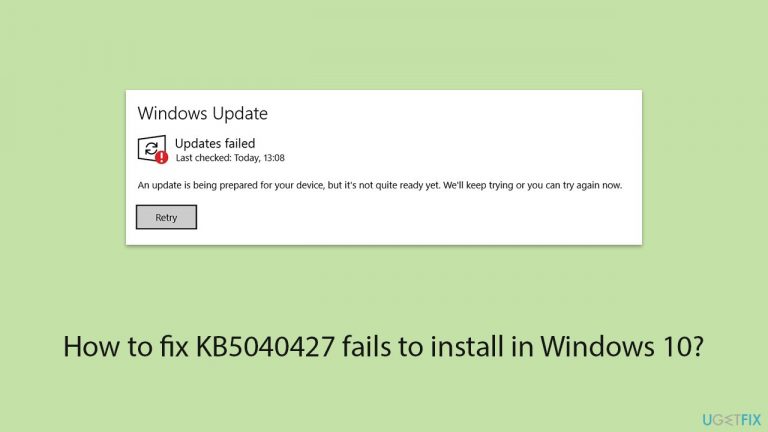
What causes How to fix KB5040427 fails to install in Windows 10?
- Corrupted update files
- Limited disk space
- Conflicts with other software
- System settings obstructing the update process
Repairs Windows system files, removes malware, and restores a clean OS state — without reinstalling.
Hi, I can't seem to be able to install the latest Windows update KB5040427. It always fails and says to try again later, which has been happening for almost a week now. Any idea why is this and what should I do to fix it?
Several Windows 10 users have come across a problem wherein KB5040427 is unable to install despite multiple tries. This update is crucial as it incorporates important improvements and fixes necessary for the operating system's functionality and safety. Identifying the reasons behind the failure of this specific update can aid in diagnosing the issue and resolving it.
Nature of the problem
KB5040427 installation failure is typically marked by error messages during the update process, which might indicate issues such as "Update failed to install," "We will try later," or specific error codes.
The occurrence of failures can be attributed to a multitude of issues, such as corrupted update files, limited disk space, conflicts with other software, and system settings that obstruct the update process.
When KB5040427 fails to install, it not only deprives the system of important security patches and system improvements but can also lead to further instability and vulnerabilities.
Moreover, frequent update notifications and failed installation attempts can be disruptive and cause significant inconvenience to users. This ongoing issue requires attention to ensure the operating system remains reliable and secure.
To fix KB5040427 failing to install, you should try multiple solutions we provide below - keep in mind that you might have to try several methods before one works for you, as the resolution relies on the reason for the update error.
If you would rather leave your Windows problems to somebody else, we recommend you employ a comprehensive PC repair tool [d1]. It can easily fix corrupted system files, clear bugged caches, and fix broken registries.
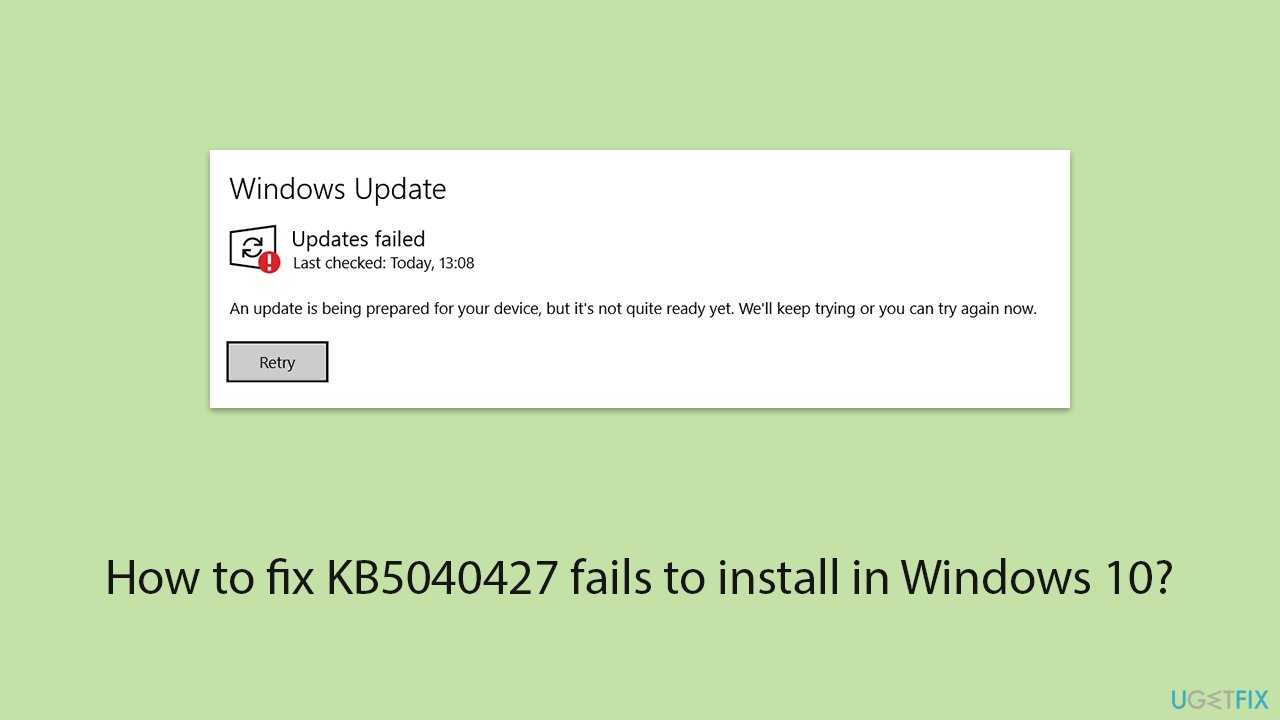
Fix 1. Perform Disk Cleanup
- Type Disk Cleanup in Windows search and hit Enter.
- If your Windows is installed on drive C, pick it from the list (it should be by default) and press OK.
- Click Clean up system files.
- Select your main disk again and click OK.
- Here, select the largest portions of the data used - these typically include Temporary Internet Files, Windows Update, Temporary Files, Recycle Bin, Delivery Optimization Files, and others.
- Click OK - the process should be finished shortly.
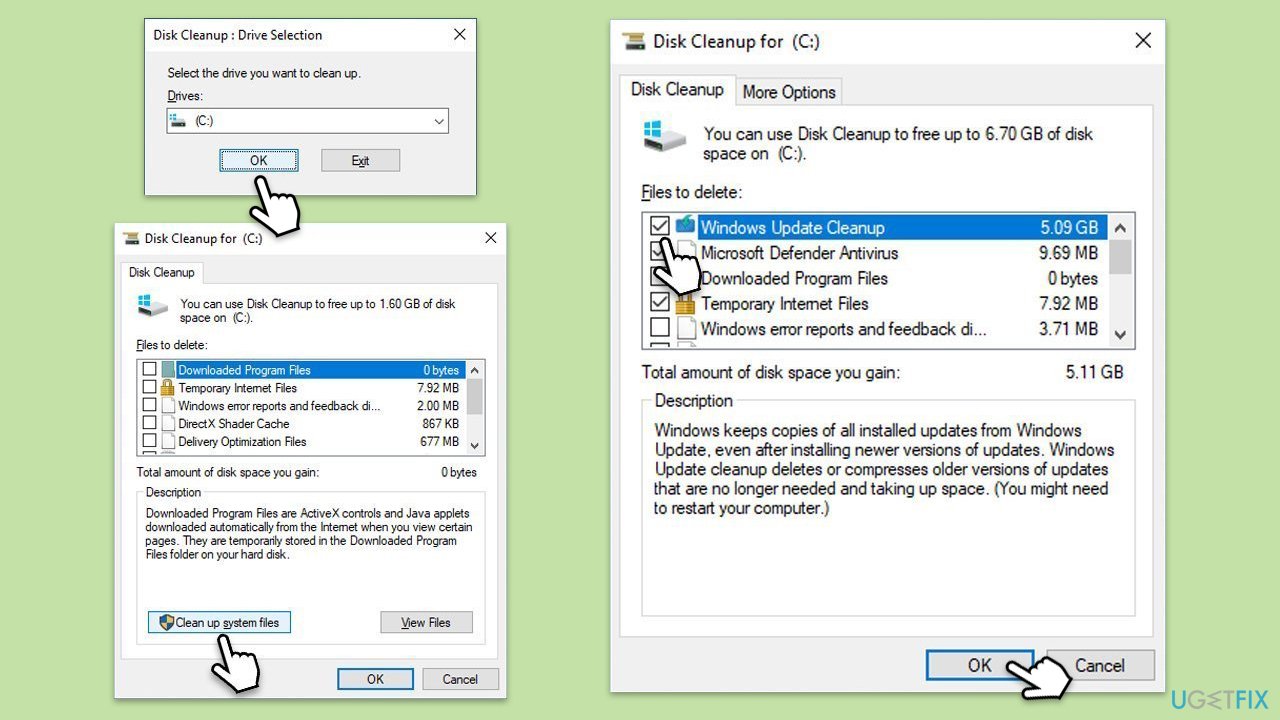
Fix 2. Run the troubleshooter
- Type Troubleshoot in Windows search and hit Enter.
- Select /Other troubleshooters.
- Find Windows Update from the list and select Run.
- Wait till the scan is finished - you will be provided with potential causes so you can proceed with fixes.
- If no suggestions were given, proceed with the solutions below.
Fix 3. Repair system file corruption
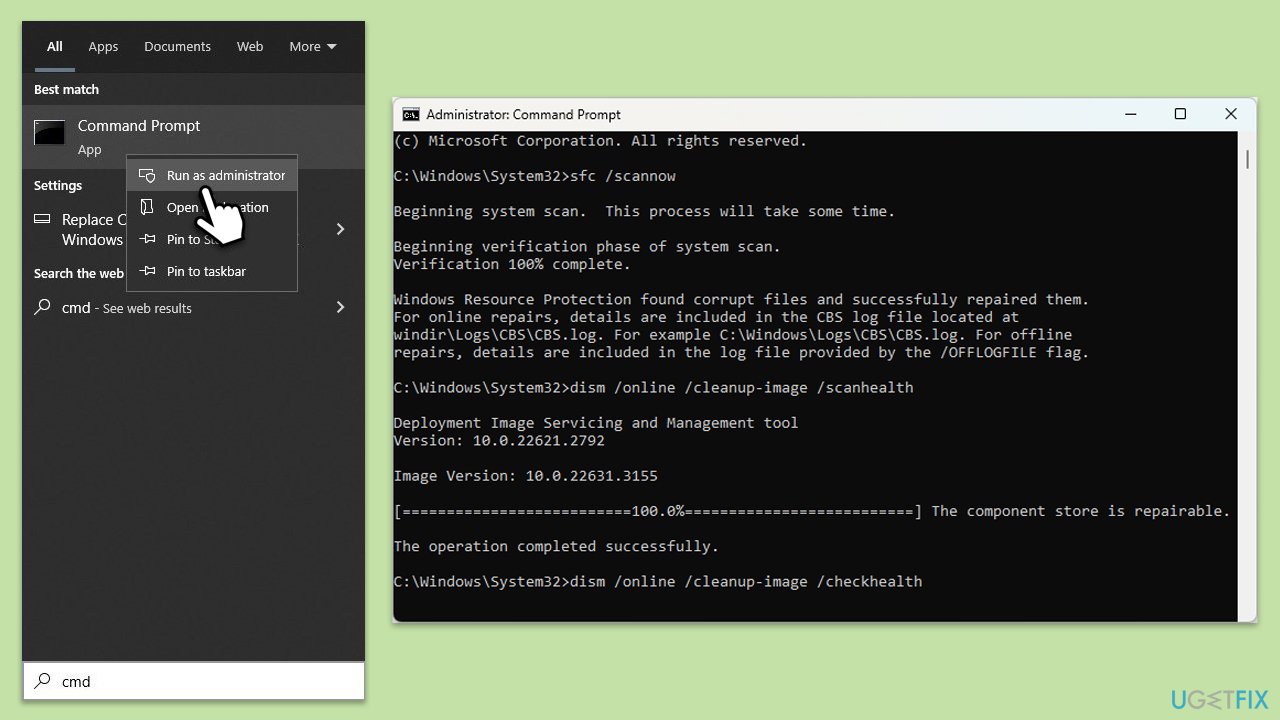
- Type cmd in Windows search.
- Right-click on Command Prompt and pick Run as administrator.
- When User Account Control shows up, click Yes.
- Then, copy and paste the following command, pressing Enter after:
sfc /scannow - Wait till the scan is finished. If Windows finds system file integrity violations, it will attempt to fix them. After this, use the set of the following commands, pressing Enter each time:
DISM /Online /Cleanup-Image /CheckHealth
DISM /Online /Cleanup-Image /ScanHealth
DISM /Online /Cleanup-Image /RestoreHealth - (Note: if you get an error executing this last command, add /Source:C:\RepairSource\Windows /LimitAccess to it and try again).
- Close down the Command Prompt and restart your system.
Fix 4. Reset Windows update components
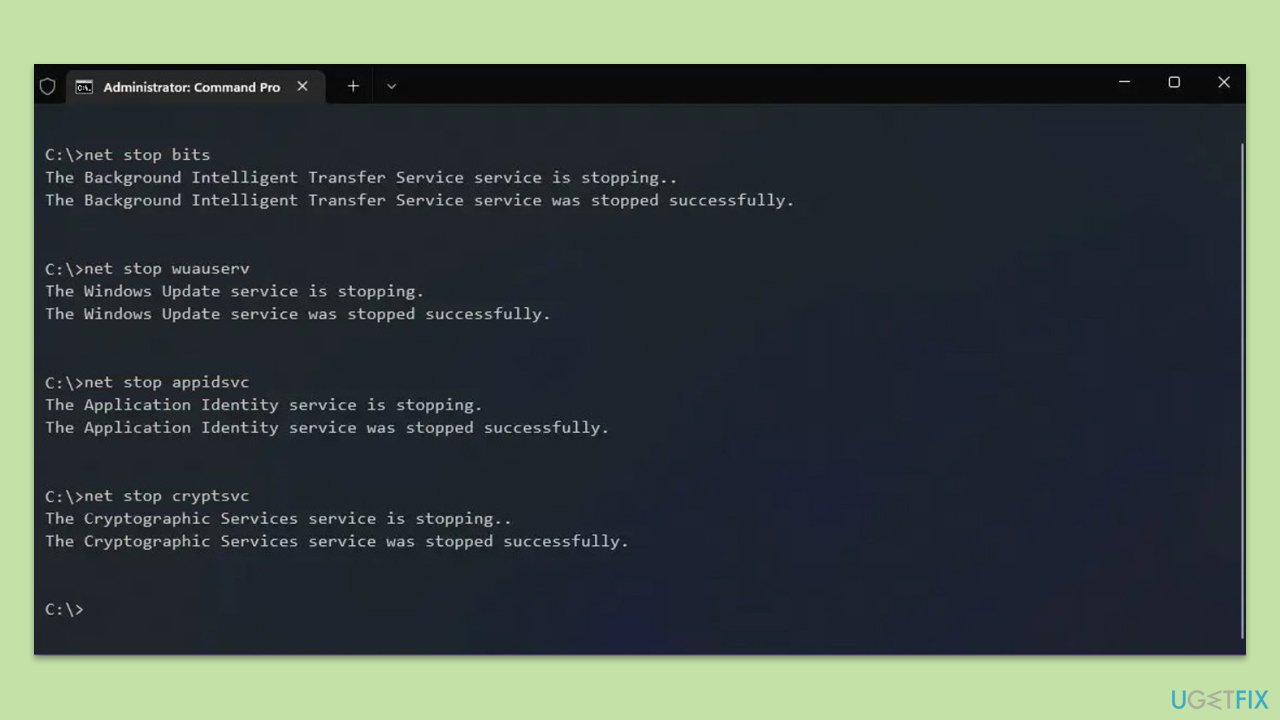
- Open Command Prompt as administrator.
- Stop the Windows Update-related services by running the following commands one at a time, pressing Enter after each one:
net stop wuauserv
net stop cryptSvc
net stop bits
net stop msiserver - Rename the SoftwareDistribution and Catroot2 folders by running the following commands:
ren C:\Windows\SoftwareDistribution SoftwareDistribution.old
ren C:\Windows\System32\catroot2 Catroot2.old
Note: If your Windows installation is not on the C drive, replace "C" with the appropriate drive letter. - Restart the Windows Update-related services by running the following commands:
net start wuauserv
net start cryptSvc
net start bits
net start msiserver - Reboot your computer.
Fix 5. Scan for malware
You can employ trusted third-party security software, although Microsoft Safety Scanner or the built-in Windows Defender can do the job just as well:
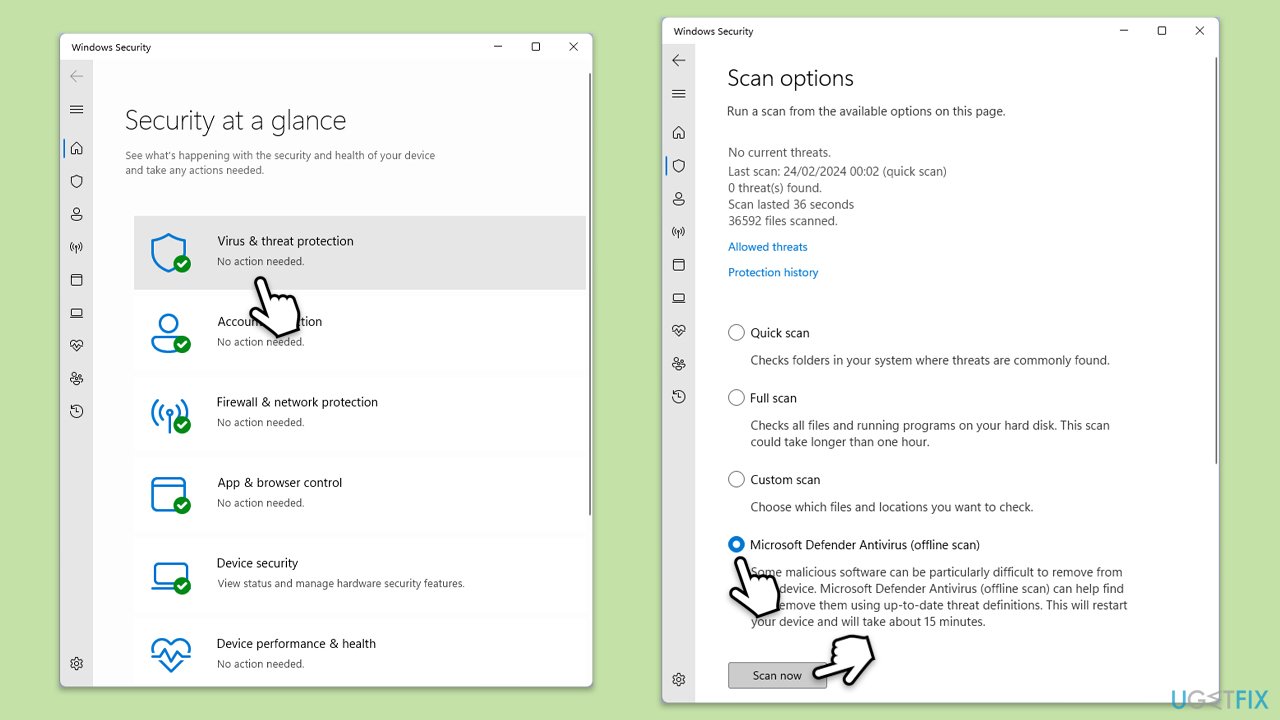
- Type Windows Security in the Windows search bar and hit Enter.
- Select Virus & threat protection.
- Pick Scan options.
- Choose Microsoft Defender Offline scan and click Scan now.
- Your computer will immediately reboot and begin a deep scan.
Fix 6. Try Clean Boot
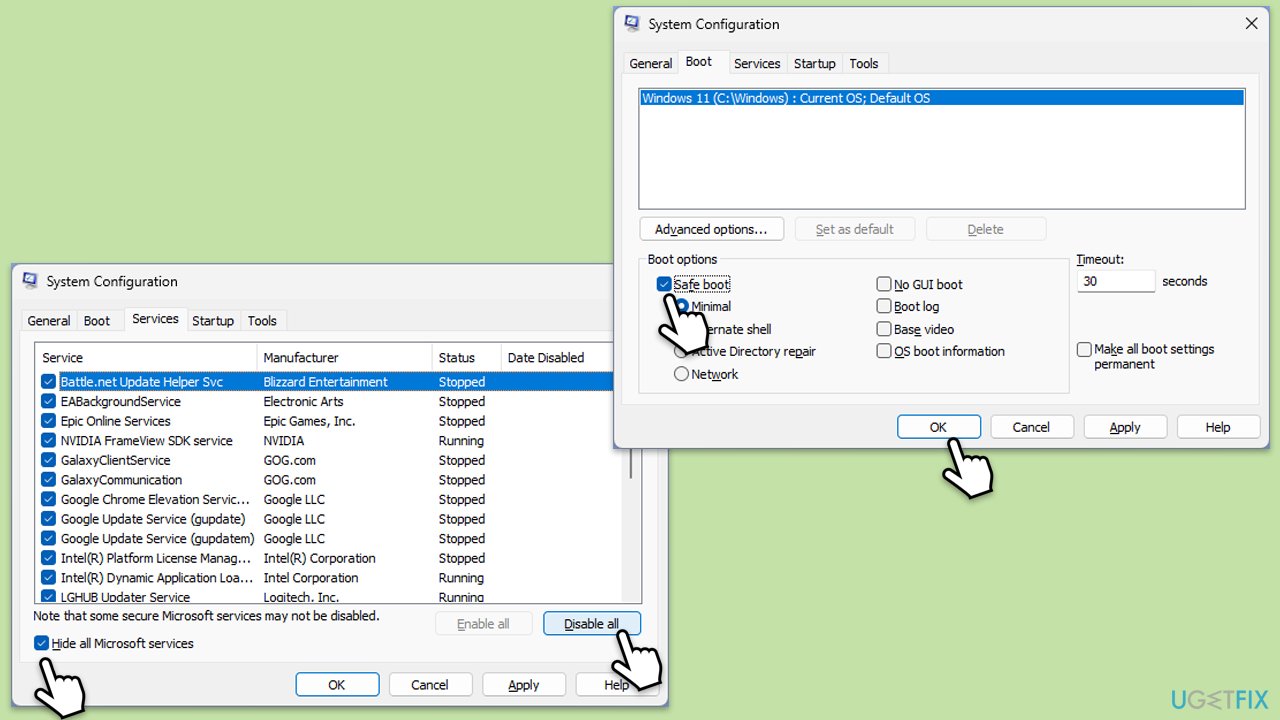
- Type msconfig in Windows search, then press Enter.
- Select the Services tab and tick the Hide all Microsoft services checkbox.
- Pick Disable all.
- Go to the Startup tab and click Open Task Manager.
- Here, right-click on each of the non-Windows entries and select Disable.
- Close down the Task Manager.
- Go to the Boot tab and tick the Safe boot option.
- Restart your computer.
- Try updating again.
Fix 7. Install the update manually
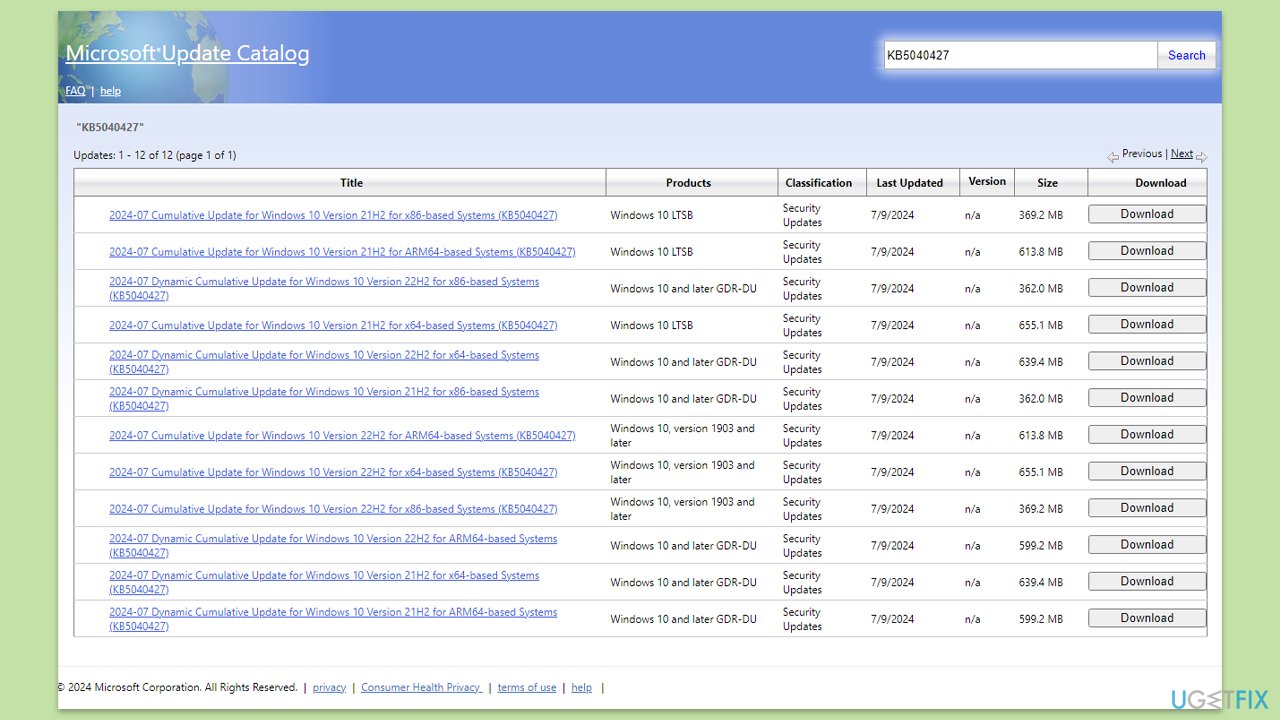
- Go to the official Microsoft Update Catalog website - a database of all available updates for Windows.
- In the search box, type KB5040427 and hit Enter or click Search.
- You will find many different versions on the update – you need to find the one that matches your PC specs and Windows version (as a home user, ignore Windows server versions).
- Right-click on Start and pick System.
- Under Device specifications, check the System type section: it should either be 64-bit or 32-bit.
- Scroll down to Windows specifications and check the Version section.
- Return to the Microsoft Update catalog, download the correct version, and install it.
- Restart your computer.
Related: How to fix KB5040442 fails to install in Windows 11?
Bottom line
To fix the KB5040427 installation failure, you can perform a Disk Cleanup, check for software conflicts, and ensure sufficient disk space. If these methods do not resolve the issue, consider using a comprehensive PC repair tool to fix corrupted system files and other potential problems.
Frequently asked questions
Try running the Windows Update Troubleshooter to automatically detect and fix issues related to updates. You can access this tool through Settings > Update & Security > Troubleshoot.
Yes, you can manually download the update from the Microsoft Update Catalog website and install it by following the provided instructions. Make sure to choose the correct version for your system architecture.
Common reasons include insufficient disk space, corrupted system files, or conflicts with third-party antivirus software. Ensuring your system is updated and free of errors can help resolve these issues.




Report an issue
What's wrong with this guide? We review every report and update or remove content.
Report received — thank you. We'll review and fix it.
You need a free account to submit a report.
Be the first to comment