How to fix
KB5040442 fails to install
on Windows
Resolve the KB5040442 installation error on Windows 11 quickly and easily. Follow our expert-tested guide for a hassle-free fix!

What causes How to fix KB5040442 fails to install in Windows 11?
- Corrupted system files
- Issues with Windows update components
- Third-party security software interference
- Cache file problems
- Relevant services not running
Repairs Windows system files, removes malware, and restores a clean OS state — without reinstalling.
I was wondering if anyone could help me with KB5040442 failing to install. I am using Windows 11 Home and, frankly, I have never had problems with Windows updates before.
KB5040442 is a July 2024 update for all Windows 11 versions 22H2 and 23H2, which was released as a part of the Patch Tuesday program used by Microsoft. These are the monthly updates users can patch their systems with every second or sometimes third Tuesday of every month.
KB5040442 is a security update that includes improvements to the previous month's update KB5039302, after which some Windows N edition users were unable to interact with a taskbar - an issue that this update fixes. Additionally, problems with Remote Desktop MiltiPoint Server and Remote Authentication Dial-In User Service (RADIUS) protocol were also addressed. Besides these fixes, users can also use new hidden features of Windows Installer.
While many people might be looking forward to improvements and bug fixes the update brings, KB5040442 fails to install for some of them. This problem is not unique, as we have seen it being prominent through the years. While for most users this resolves on its own after a few days of waiting, others might not be able to install an update for a prolonged period of time.
For the most part, you can usually fix KB5040442 failing to install issues by performing simple troubleshooting steps, such as running Windows Update troubleshooter, clearing cache files, disabling third-party security software, or ensuring that relevant services are running.
If these solutions don't work for you, you might have to resort to more complex methods, including fixing corrupted system files, resetting Windows update components, or using the Media Creation Tool as an additional aid.
If KB5040442 fails to install for you and these solutions seem too complicated or you simply want to save time, you can always employ the aid of the [d1] repair app, which can fix underlying Windows issues in a few minutes, potentially addressing Windows update installation issues.
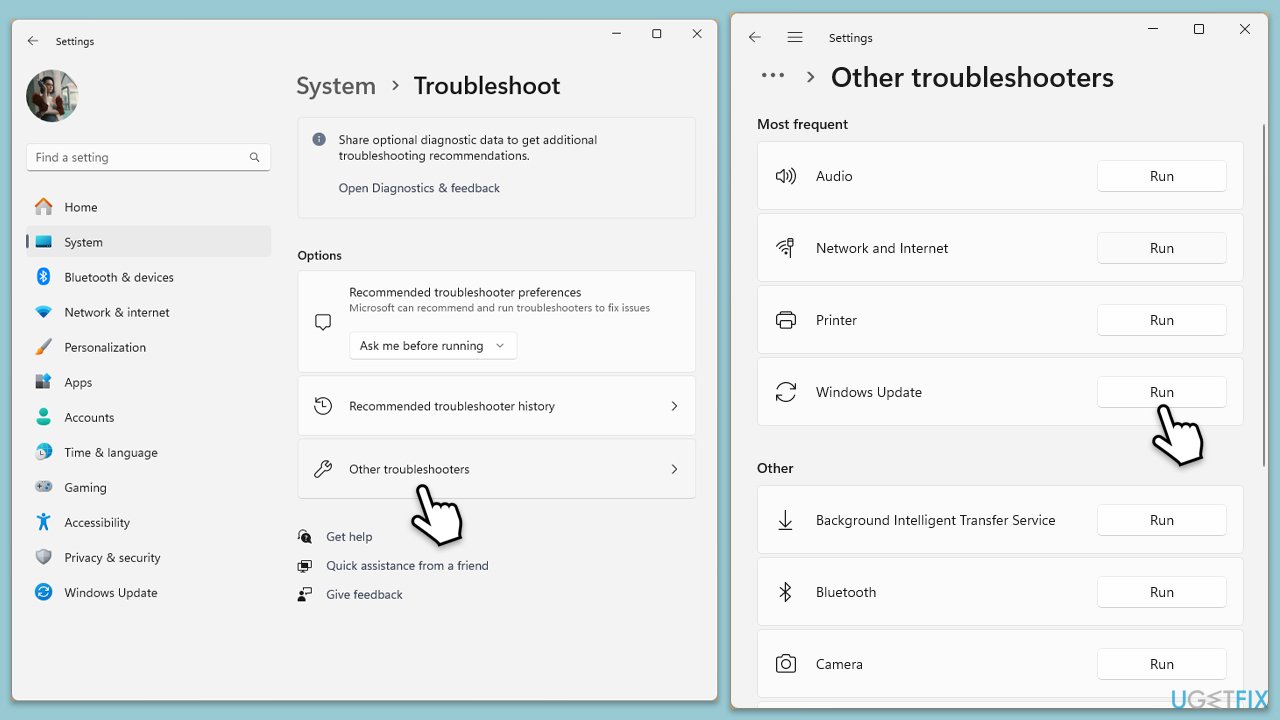
Fix 1. Run Windows update troubleshooter
Windows update troubleshooter is your go-to tool when having problems with Windows updates, as it's easy to use and can often find why the issue is persistent.
- Type Troubleshoot in Windows search and hit Enter.
- Select Other troubleshooters.
- Find Windows Update from the list and click Run.
- The troubleshooter will automatically scan your system and show any issues it finds.
- If the troubleshooter finds any problems, it will provide recommended solutions.
- Follow the on-screen instructions to apply them and then restart your PC if required.
Fix 2. Clear cache files
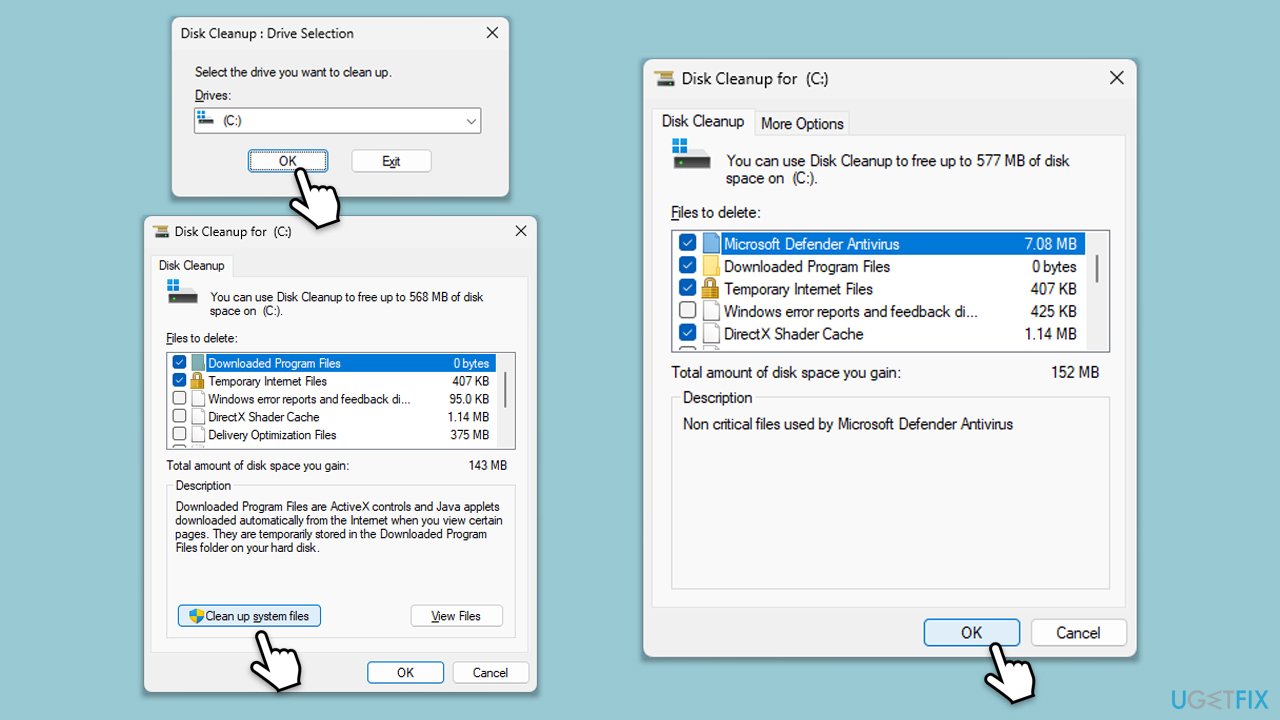
Your second step should be ensuring that bugged cache files are deleted from your system. This can be easily done with Disk Cleanup.
- Type Disk Cleanup in Windows search and hit Enter.
- If your Windows is installed on drive C, pick it from the list (should be by default) and press OK.
- Click Clean up system files.
- Select your main drive again and click OK.
- Here, select the largest portions of the data used - these typically include Temporary Internet Files, Windows Update, Temporary Files, Recycle Bin, Delivery Optimization Files, and others. Marking Windows Update is vital here.
- Click OK - the process should be finished shortly.
Fix 3. Check services
You should ensure that these services are running; if they are, restart them instead.
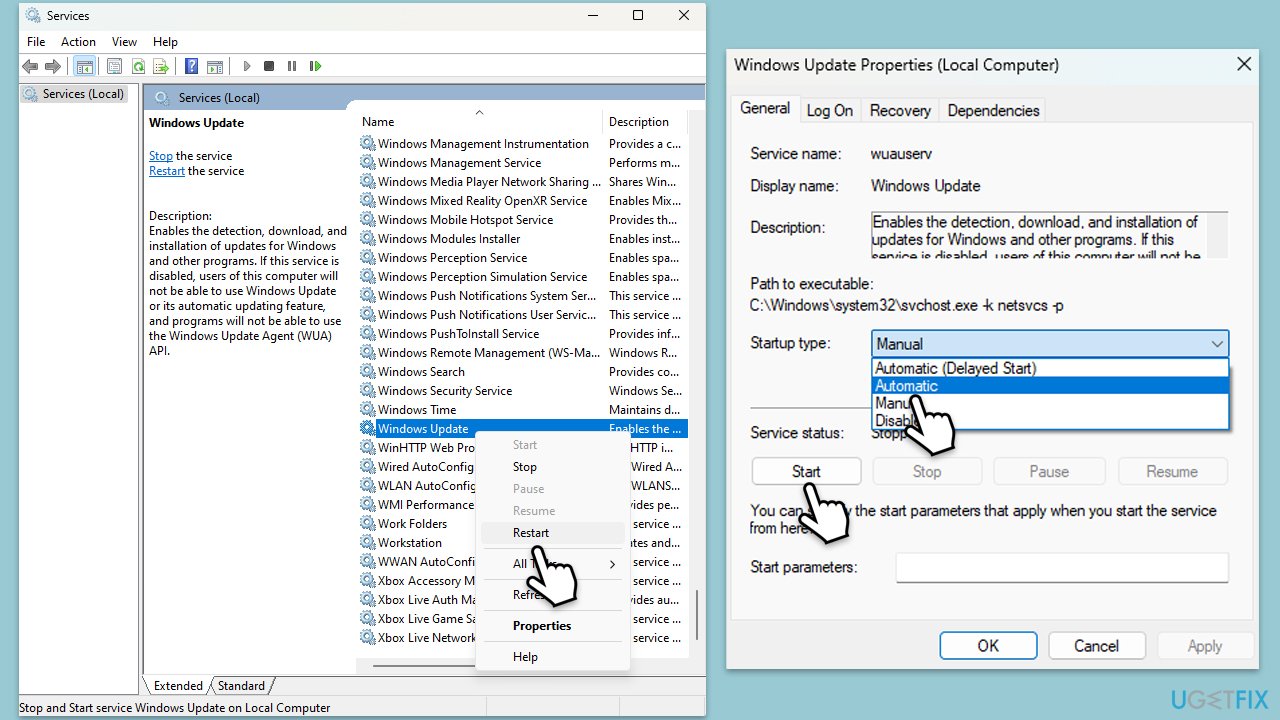
- Type in Services in Windows search and hit Enter.
- Scroll down a bit to find Background Intelligent Transfer Service (BITS).
- If it is already running, right-click and select Restart.
- If the service is not running, double-click it, pick Automatic under the Startup type drop-down menu.
- Click Start, Apply, and OK.
- Repeat this process for Windows Update and Cryptographic services.
Fix 4. Disable security software
Disabling third-party security software, such as antivirus programs or firewall applications, can often resolve issues related to Windows updates. These security tools are designed to protect your system by closely monitoring and controlling system changes, including file downloads and modifications.
However, during a Windows update, these interventions can inadvertently block or interfere with the update process. Security software may see some update actions as suspicious or malicious, blocking the connections from the server.
Fix 5. Reset Windows update components
- Type cmd in Windows search.
- Right-click on Command Prompt and select Run as administrator.
- The User Account Control (UAC) window will ask whether you want to allow changes to your computer - click Yes.
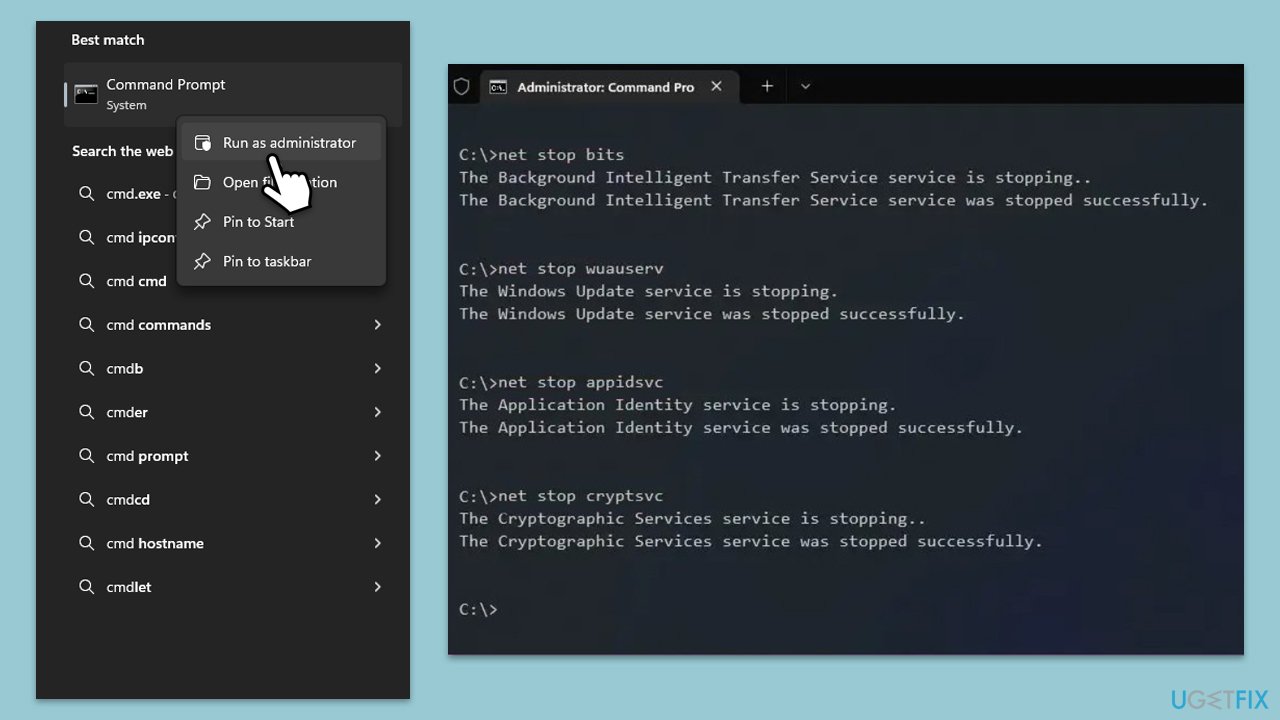
- Type the following commands one by one in Command Prompt and press Enter after each:
net stop wuauserv
net stop cryptSvc
net stop bits
net stop msiserver
Del “%ALLUSERSPROFILE%\Application Data\Microsoft\Network\Downloader\*.*”
rmdir %systemroot%\SoftwareDistribution /S /Q
rmdir %systemroot%\system32\catroot2 /S /Q
regsvr32.exe /s atl.dll
regsvr32.exe /s urlmon.dll
regsvr32.exe /s mshtml.dll
netsh winsock reset
netsh winsock reset proxy - When these commands are performed, re-enable related services:
net start wuauserv
net start cryptSvc
net start bits
net start msiserver - Reboot your device.
Fix 6. Repair corrupted files
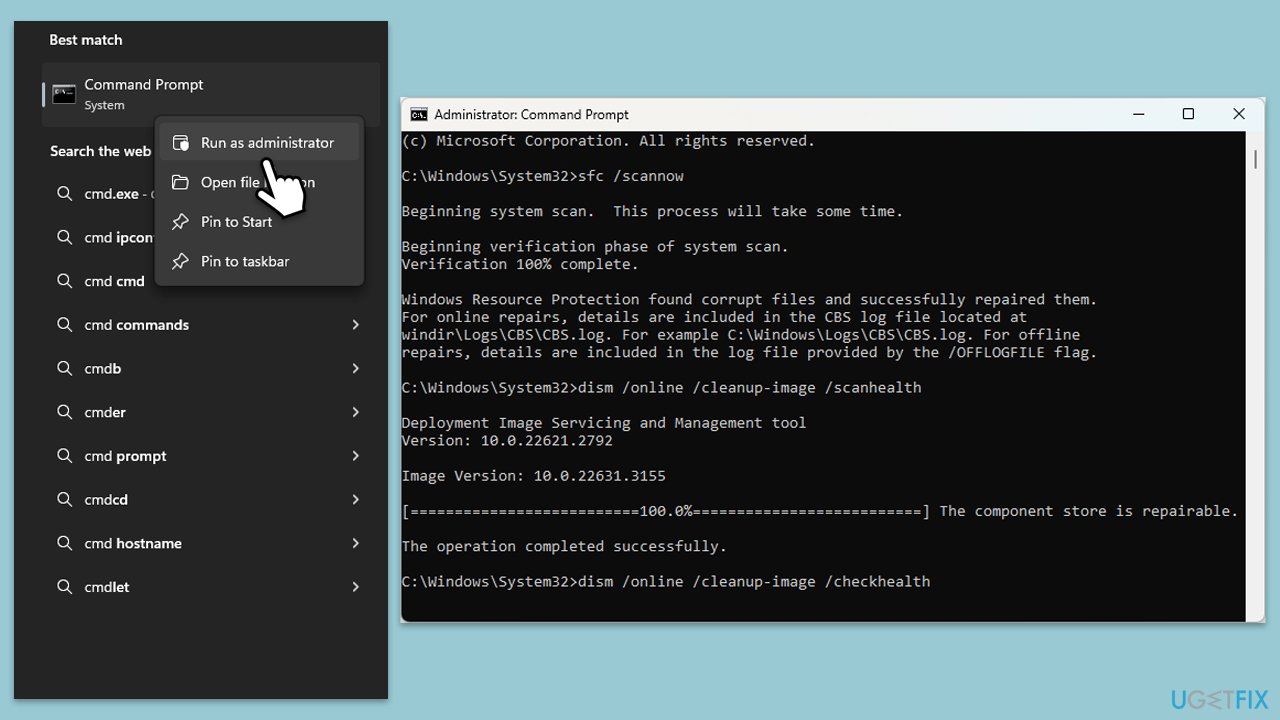
- Open Command Prompt as administrator.
- In the Command Prompt window, paste the following command and hit Enter:
sfc /scannow - Next, use the following commands, pressing Enter each time:
Dism /Online /Cleanup-Image /CheckHealth
Dism /Online /Cleanup-Image /ScanHealth
Dism /Online /Cleanup-Image /RestoreHealth
(Note: if you get an error executing this last command, add /Source:C:\RepairSource\Windows /LimitAccess to it and try again). - Reboot your PC.
Fix 7. Use Media Creation Tool
You can always rely on the Media Creation Tool to update the system to the latest version while repairing Windows installation. Make sure you have uninstalled third-party security software, disconnected all devices apart mouse and keyboard, and backed up your files as a precautionary measure.
- Visit the official Microsoft website and download the Windows installation media.
- Double-click the installer and select Yes when UAC shows up.
- Agree to the terms and click Next.
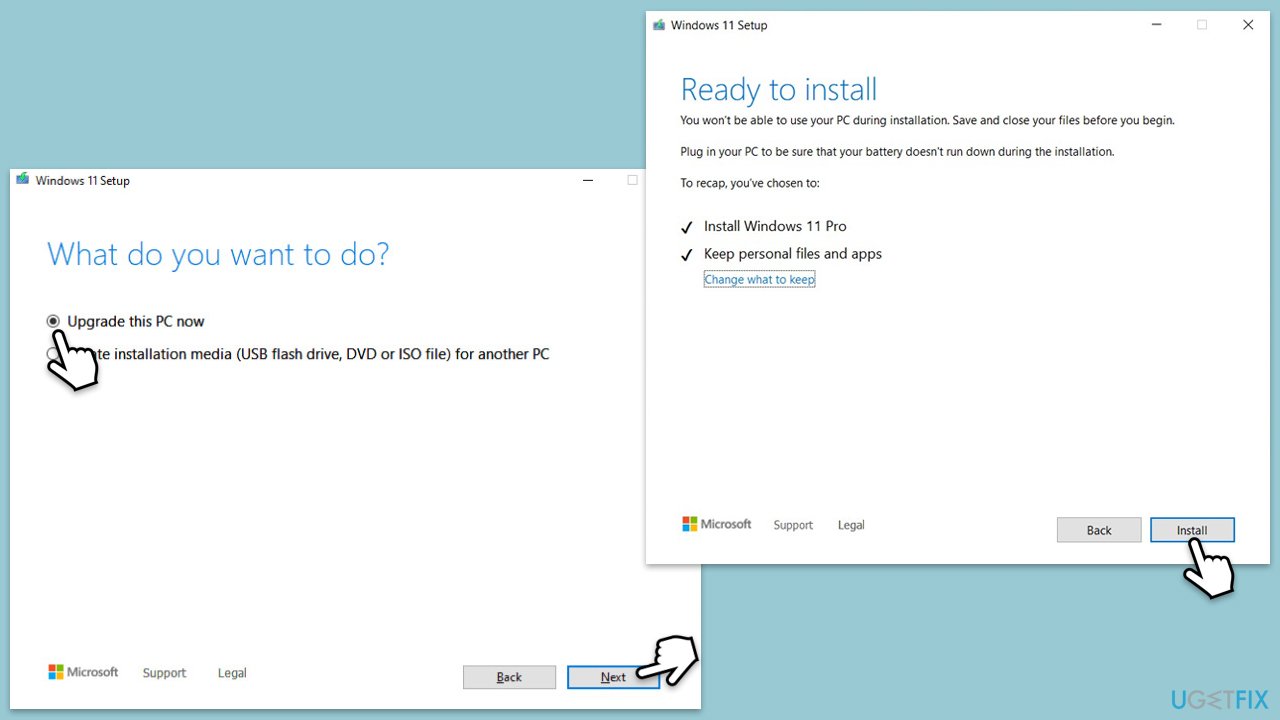
- Select Upgrade this PC now and select Next
- Windows will now download all the necessary files, which might take some time.
- Agree to the terms once again and click Next.
- Before installing, ensure you are happy with your choices (otherwise, you can click Change what to keep option).
- Click Install to begin the upgrade process.
- Your computer will restart as required.
Bottom line
To fix KB5040442 failing to install, you can try running the Windows Update troubleshooter, clearing cache files, disabling third-party security software, or ensuring that relevant services are running. If these solutions do not resolve the issue, consider more complex methods like fixing corrupted system files or resetting Windows update components. Alternatively, you can use a repair app to address underlying Windows issues.
Frequently asked questions
First, try running the Windows Update Troubleshooter to fix any underlying issues. If that doesn't work, consider manually downloading the update from the Microsoft Update Catalog.
Yes, third-party antivirus or security software can cause conflicts during the update process. Temporarily disabling such software may help resolve the installation failure.
You can check the error code by going to Settings > Update & Security > Windows Update > View update history, then look for the specific error linked to KB5040442.




Report an issue
What's wrong with this guide? We review every report and update or remove content.
Report received — thank you. We'll review and fix it.
You need a free account to submit a report.
Be the first to comment