How to fix
KB5040525 fails to install
on Windows
Struggling with KB5040525 installation issues on Windows 10? Discover proven solutions to fix the error quickly and hassle-free. Expert-tested!

What causes How to fix KB5040525 fails to install in Windows 10?
- Corrupted Windows update cache
- Corrupted system files
- Corrupted registry files
- Issues with automatic update services
Repairs Windows system files, removes malware, and restores a clean OS state — without reinstalling.
Hello, I was wondering if maybe you could help me with a problem. Since yesterday KB5040525 is not installing for me. The message keeps saying that the update failed and it will try again later, only to fail once again. Any advice?
Windows updates are essential for keeping your computer secure and running smoothly. Each update is identified by a unique KB (Knowledge Base) number, which details what changes are included. KB5040525 (preview build) is one of these updates, released in July 2024 as a part of Microsoft's Patch Tuesday routines. However, for some people, KB5040525 fails to install on their Windows 10 computers.
It is not uncommon that the same problem can occur for different people and stem from different causes. For example, some users might not be able to install the KB5040525 update because their Windows update caches are corrupted, while for others it could be corrupted system or registry files or issues with services related to the automatic update process.
If KB5040525 fails to install for you, you can try several things to fix it. First, make sure your computer meets the update requirements, like having enough free space and a good internet connection. As a general rule, running a built-in troubleshooter related to the problem is always a recommended first step.
Then, you can move on to more advanced solutions, such as cleaning the Windows Update cache or using tools like SFC (System File Checker) and DISM (Deployment Imaging Service and Management Tool) to repair corrupted files.
If you are more of a hands-off approach person, using the [d1] PC repair tool can be a great solution for you, as it can automatically fix underlying Windows issues and help with the update process.
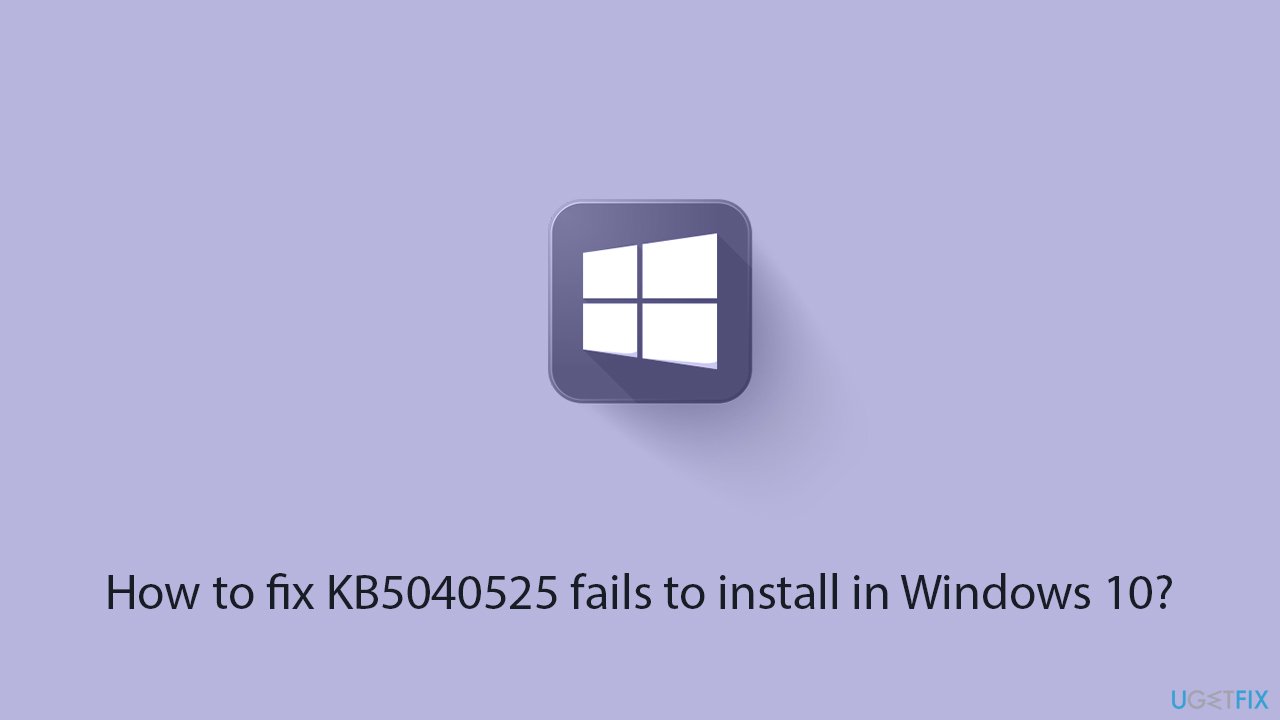
Fix 1. Run the troubleshooter
- Type Troubleshoot in Windows search and press Enter.
- Click Additional troubleshooters if you can't see them listed.
- Scroll down to find the Windows Update option.
- Click and select Run the troubleshooter.
- Apply the offered changes and close down the troubleshooter - see if that helps solve your problem.
Fix 2. Temporarily disable security software
If you are running a third-party security software, you should temporarily disable it and see if that allows you to install the update. Note that this applies to any third-party software that can tamper with internet connection, such as VPN or download manager.
- Open your antivirus software application.
- Look for the option to disable the software, which is usually found in Settings. This is typically a temporary action; you can turn it back on after the update.
- Try to install the Windows update again.
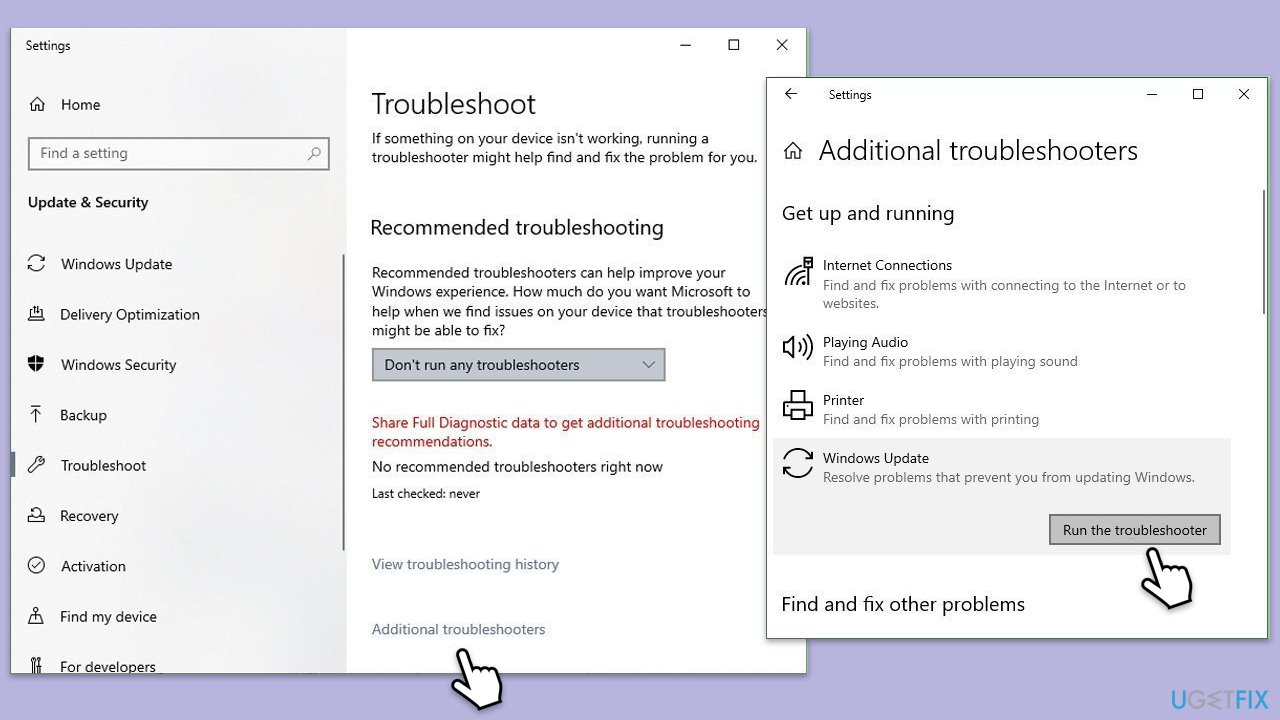
Fix 3. Reset Windows update components
- Type cmd in Windows search.
- Right-click on Command Prompt and pick Run as administrator.
- User Account Control window will show up - click Yes when prompted.
- Stop the BITS, Windows Update, and Cryptographic services by typing the following commands, and pressing Enter after each:
- net stop bits
- net stop wuauserv
- net stop appidsvc
- net stop cryptsvc
- To rename the SoftwareDistribution and Catroot2 folders (where Windows stores update files) and reset your connection components, type the following commands:
- ren %systemroot%\SoftwareDistribution SoftwareDistribution.old
- ren %systemroot%\system32\catroot2 catroot2.old
- regsvr32.exe /s atl.dll
- regsvr32.exe /s urlmon.dll
- regsvr32.exe /s mshtml.dll
- netsh winsock reset
- netsh winsock reset proxy
- Restart the services stopped earlier by typing the following commands:
- net start bits
- net start wuauserv
- net start appidsvc
- net start cryptsvc
- Close the Command Prompt and restart your computer, then try updating Windows again.
Fix 4. Install the update manually
You can always try to install the update manually as follows:
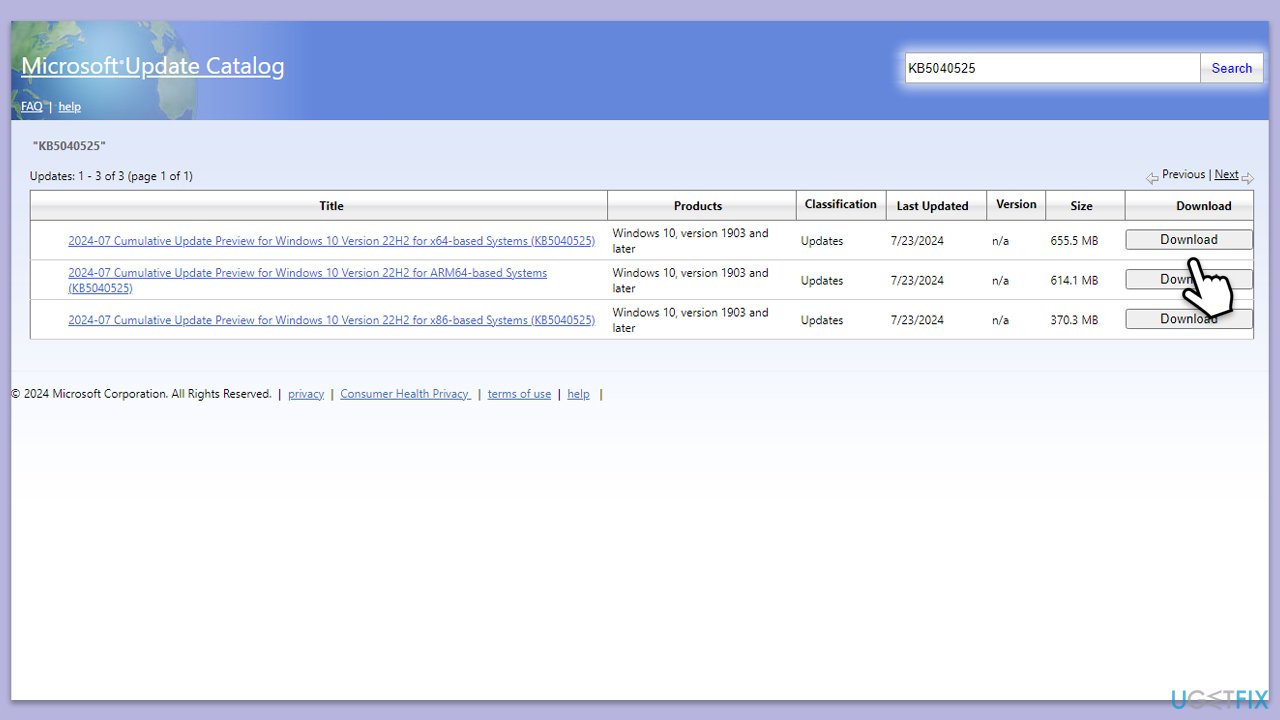
- Go to the official Microsoft Update Catalog website.
- Type the KB5040525 into the search bar, and press Enter or click Search.
- You will find many different versions on the update – you need to find the one that matches your PC specs and Windows version (as a home user, ignore Windows server versions).
- Right-click on Start and pick System.
- Under Device specifications, check the System type section: it should either be 64-bit or 32-bit.
- Scroll down to Windows specifications and check the Version section.
- Return to the Microsoft Update catalog, download the correct version, and install it.
- Restart your system.
Fix 5. Perform SFC and DISM scans
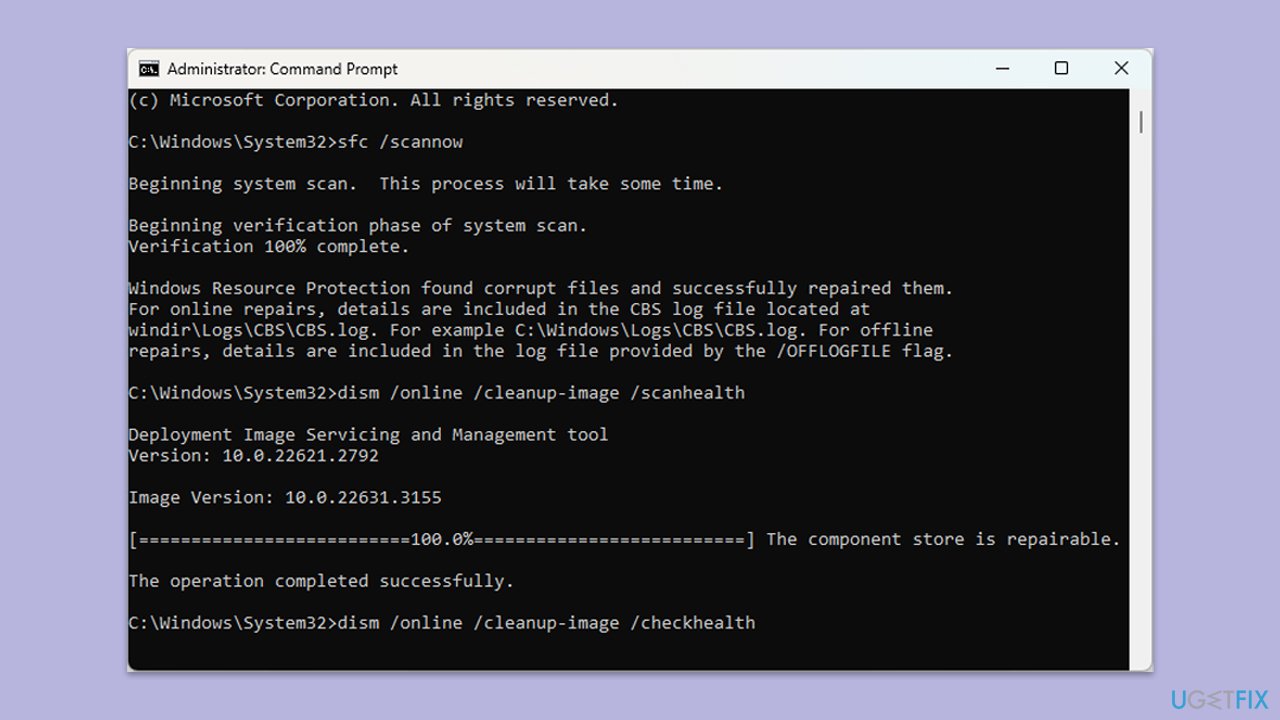
If the issue lies in corrupted system files, you can repair them by using SFC and DISM tools:
- Open Command Prompt as administrator.
- Type this command and press Enter:
sfc /scannow - Wait for the scan to finish.
- As soon as the scan finishes, Windows will report whether integrity violations were found and if they could be fixed. Regardless of the outcome, use these commands next, pressing Enter after each:
Dism /Online /Cleanup-Image /CheckHealth
Dism /Online /Cleanup-Image /ScanHealth
Dism /Online /Cleanup-Image /RestoreHealth
(Note: if you get an error executing this last command, add /Source:C:\RepairSource\Windows /LimitAccess to it and try again). - Close down the Command Prompt and restart your computer.
Fix 6. Use Media Creation Tool
For more serious and persistent issues, you can use the Media Creation Tool from Microsoft to repair your installation of Windows. Ensure you don't have third-party anti-malware software installed and that all unnecessary peripherals are disconnected from your computer.
- Visit the official Microsoft website and download Windows 10 installation media.
- Double-click the installer and select Yes when UAC shows up.
- Agree to terms.
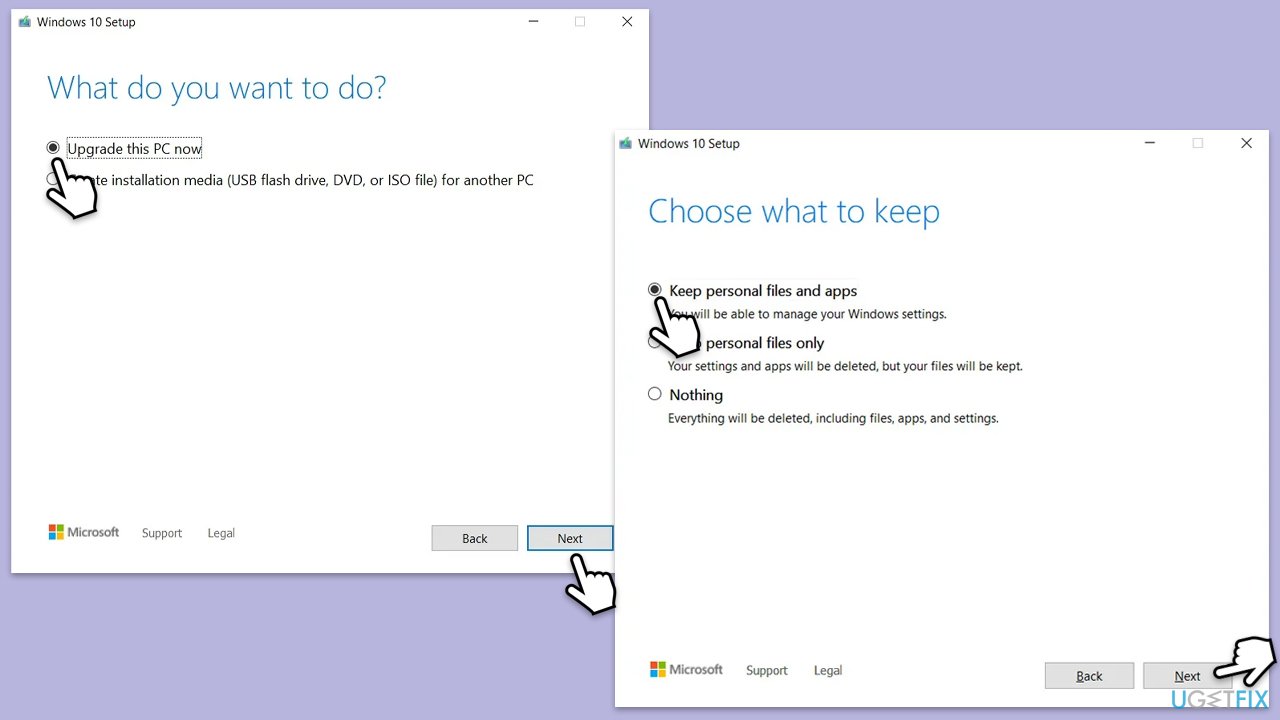
- Select Upgrade this PC now and select Next.
- Windows will now download all the necessary files – it might take a while.
- Agree to the terms once again and click Next.
- Before installing, ensure you are happy with your choices (otherwise, you can click the Change what to keep option).
- Click Install to begin the upgrade process.
Bottom line
To fix the KB5040525 installation failure, you can start by running the built-in troubleshooter for Windows Update. If that doesn't resolve the issue, consider cleaning the Windows Update cache or using tools like SFC and DISM to repair corrupted files. If none of these solutions work, you may want to try a PC repair tool for automatic fixes.
Frequently asked questions
Common reasons include insufficient disk space, corrupted system files, or conflicts with third-party software that may prevent the update from completing.
You can check the Windows Update history in the Settings app to see if KB5040525 is listed as failed, and you can also review the error code for more specific troubleshooting steps.
Try running the Windows Update Troubleshooter, ensuring your system is fully updated, or manually downloading and installing the update from the Microsoft Update Catalog.




Report an issue
What's wrong with this guide? We review every report and update or remove content.
Report received — thank you. We'll review and fix it.
You need a free account to submit a report.
Be the first to comment