How to fix
KB5040527 fails to install
on Windows
Fix the KB5040527 installation error on Windows 11 effortlessly. Our expert-tested solutions ensure a quick resolution with zero traces left.

What causes How to fix KB5040527 fails to install in Windows 11?
- Corrupted system files
- Insufficient disk space
- Conflicts with existing software
- Repeated failed attempts to install the update
Repairs Windows system files, removes malware, and restores a clean OS state — without reinstalling.
I can't install KB5040527 (I'm using Windows 11), and it's been going on for a few days now. I never even had a similar problem before so I'm not sure what to do next.
KB5040527 update for Windows 11, released on July 25, 2024, targets OS Builds 22621.3958 and 22631.3958, bringing enhancements in security, performance, and stability. Despite its benefits, you may encounter issues with the KB5040527 update failing to install, a common problem reported by many.
KB5040527 might fail to install due to several reasons, such as corrupted system files, insufficient disk space, or conflicts with existing software. You might see an error message indicating the installation has failed, preventing you from benefiting from the latest improvements and fixes. For instance, the update aims to address various system enhancements and bug fixes, yet installation failure bars these advantages.
Typically, you might face this error when Windows Update attempts to apply the update, only to fail partway through the process. This can be particularly frustrating as it interrupts the normal update routine and leaves your system without the latest security patches and performance enhancements. The problem might manifest as repeated failed attempts to install the update, leaving you with persistent notifications and potential system vulnerabilities.
To resolve this issue, several troubleshooting steps can be taken. Ensuring enough disk space is available and checking for system file integrity are initial steps. Temporarily disabling conflicting software, such as third-party antivirus programs, can also help. If these methods do not work, using [d1] repair app can help identify and fix underlying Windows issues that might be causing the installation failure. This tool can provide a comprehensive solution to ensure successful installation of the KB5040527 update, allowing your system to stay secure and up-to-date.

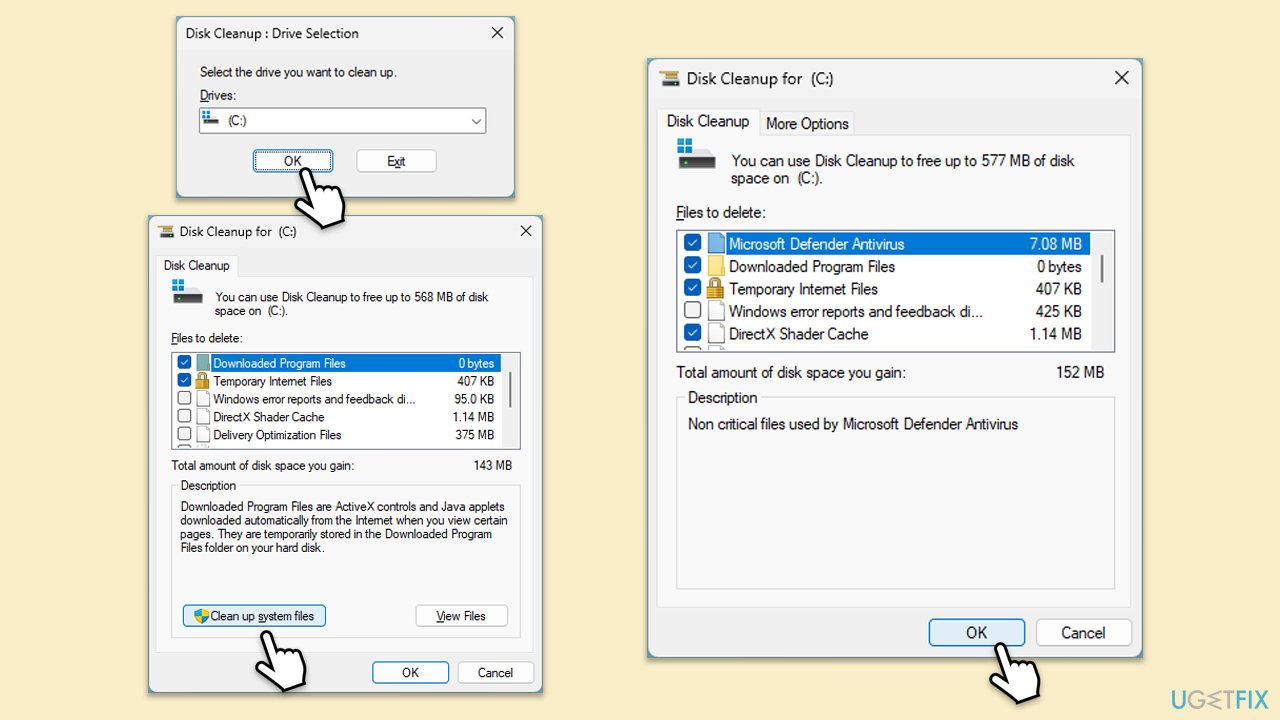
Fix 1. Perform Disk Cleanup
- Type Disk Cleanup in Windows search and hit Enter.
- If your Windows is installed on drive C, pick it from the list (it should be by default) and press OK.
- Click Clean up system files.
- Select your main disk again and click OK.
- Here, select the largest portions of the data used - these typically include Temporary Internet Files, Windows Update, Temporary Files, Recycle Bin, Delivery Optimization Files, and others.
- Click OK - the process should be finished shortly.
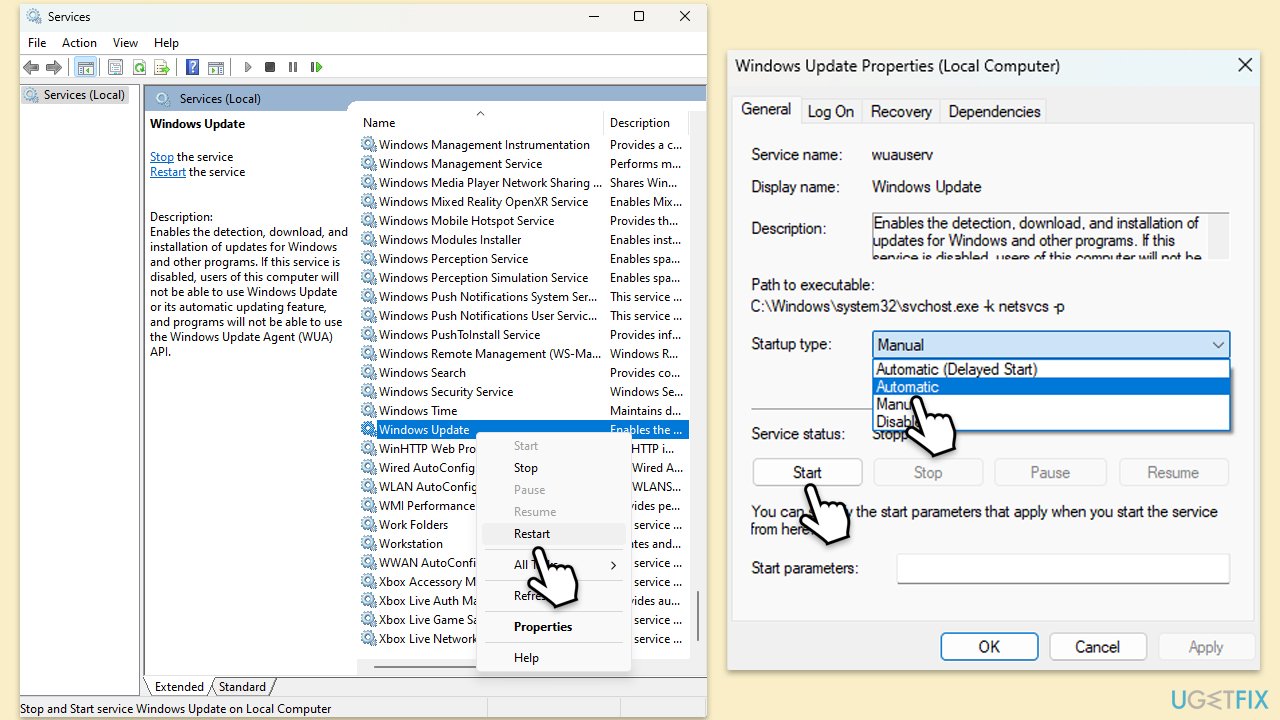
Fix 2. Check relevant services
- Type Services in Windows search and press Enter.
- Locate Microsoft Store Install Service.
- If it is already running, right-click and select Restart.
- if the service is not running, double-click it, and pick Automatic under the Startup type from the drop-down menu.
- Click Start, Apply, and OK.
- Repeat this process with the following services:
Windows Update
Background Intelligent Transfer Service (BITS)
Windows Update
Cryptographic
Windows Installer - Restart your device.
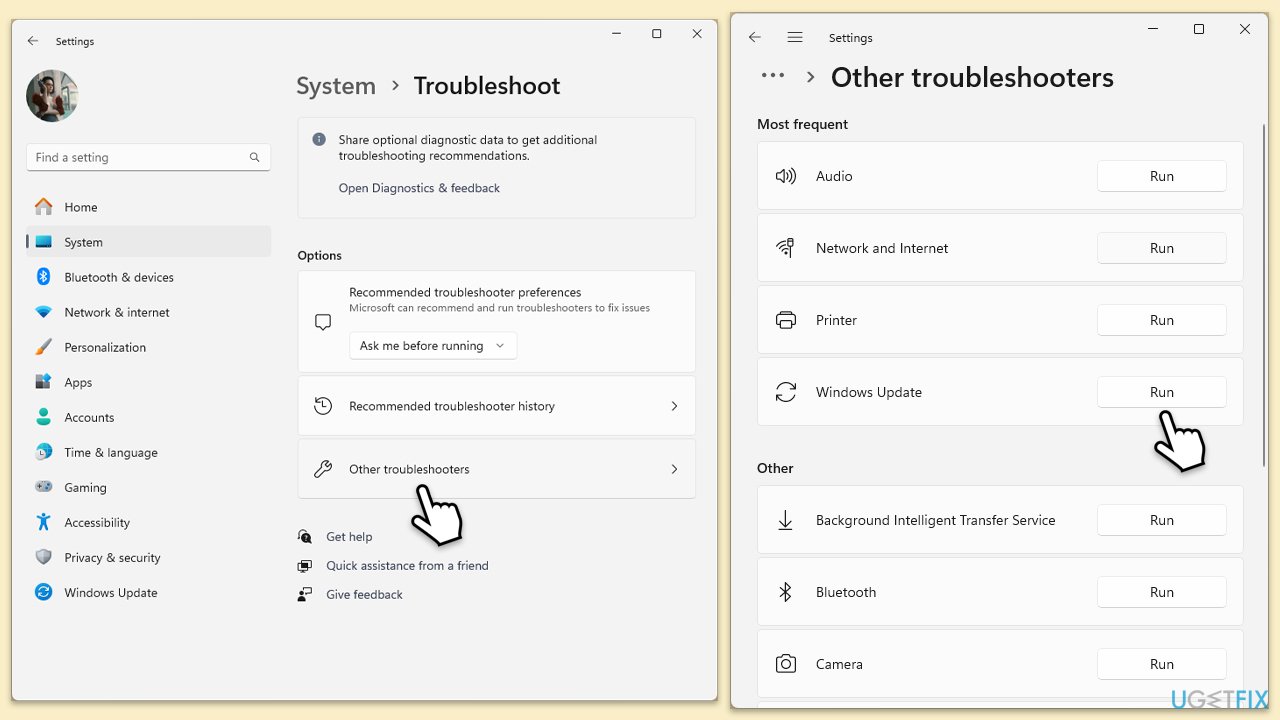
Fix 3. Run Windows update troubleshooter
- Type Troubleshoot in Windows search and press Enter.
- Go to Other troubleshooters.
- Find Windows Update from the list and click Run.
- The troubleshooter will automatically scan your system for potential problems and display any issues it finds.
- If the troubleshooter finds any issues, it will provide recommended solutions.
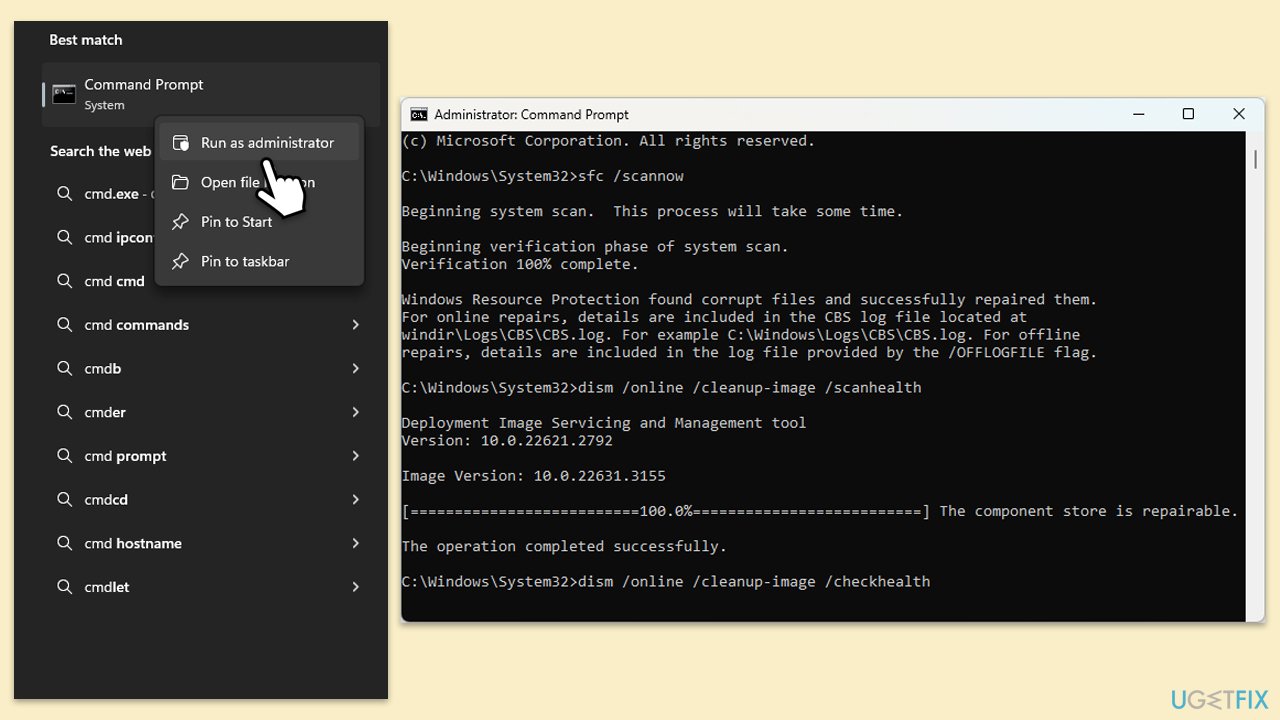
Fix 4. Repair corrupted files
- Type in cmd in Windows search.
- Right-click on Command Prompt and select Run as administrator.
- When User Account Control shows up, click Yes.
- In the Command Prompt window, paste the following command and hit Enter:
sfc /scannow - Next, use the following commands, pressing Enter each time:
Dism /Online /Cleanup-Image /CheckHealth
Dism /Online /Cleanup-Image /ScanHealth
Dism /Online /Cleanup-Image /RestoreHealth
(Note: if you get an error executing this last command, add /Source:C:\RepairSource\Windows /LimitAccess to it and try again). - Reboot your computer.
Fix 5. Install the update in Clean Boot state
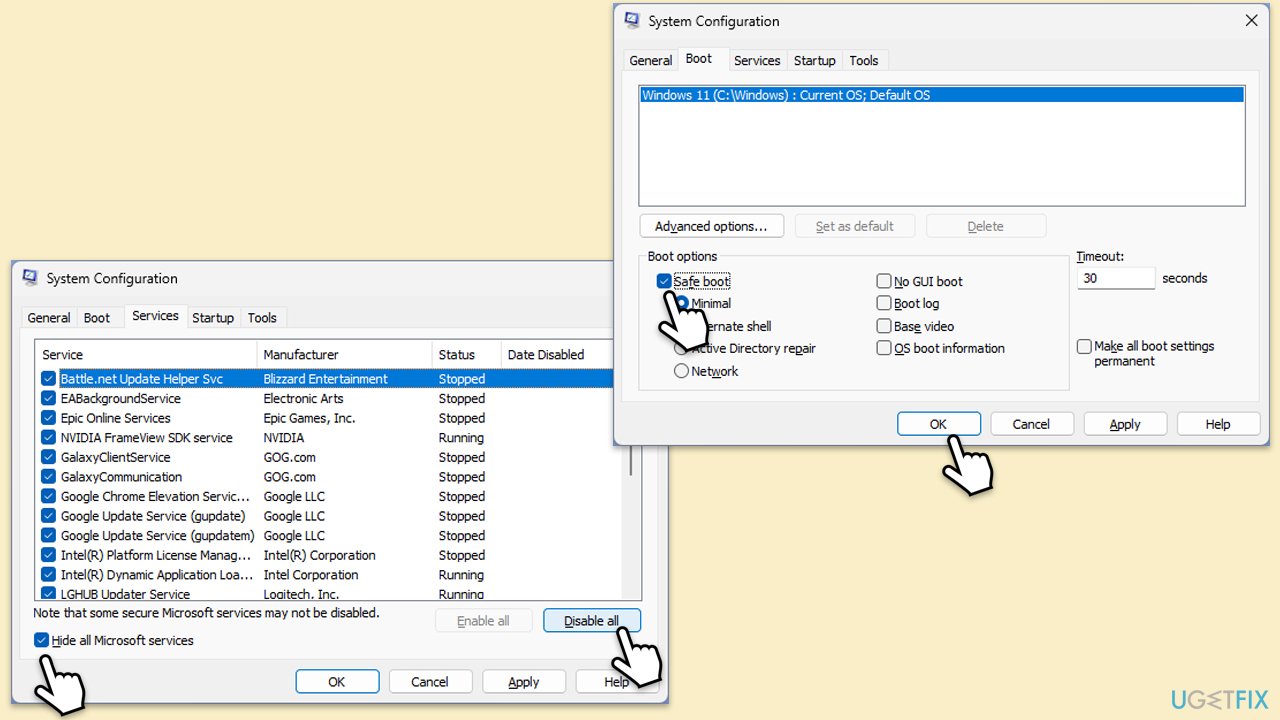
- Type msconfig inWindows Search and press Enter to open the System Configuration window.
- Click on the Services tab and check the Hide all Microsoft Services box.
- Click Disable all to disable non-Microsoft services, then click the Startup tab.
- Open the Task Manager, disable all startup items, and close the Task Manager.
- Go to the Boot tab and mark the Safe boot option.
- Click OK on the System Configuration window and restart your computer.
- Try installing the update again.
Fix 6. Install the update manually
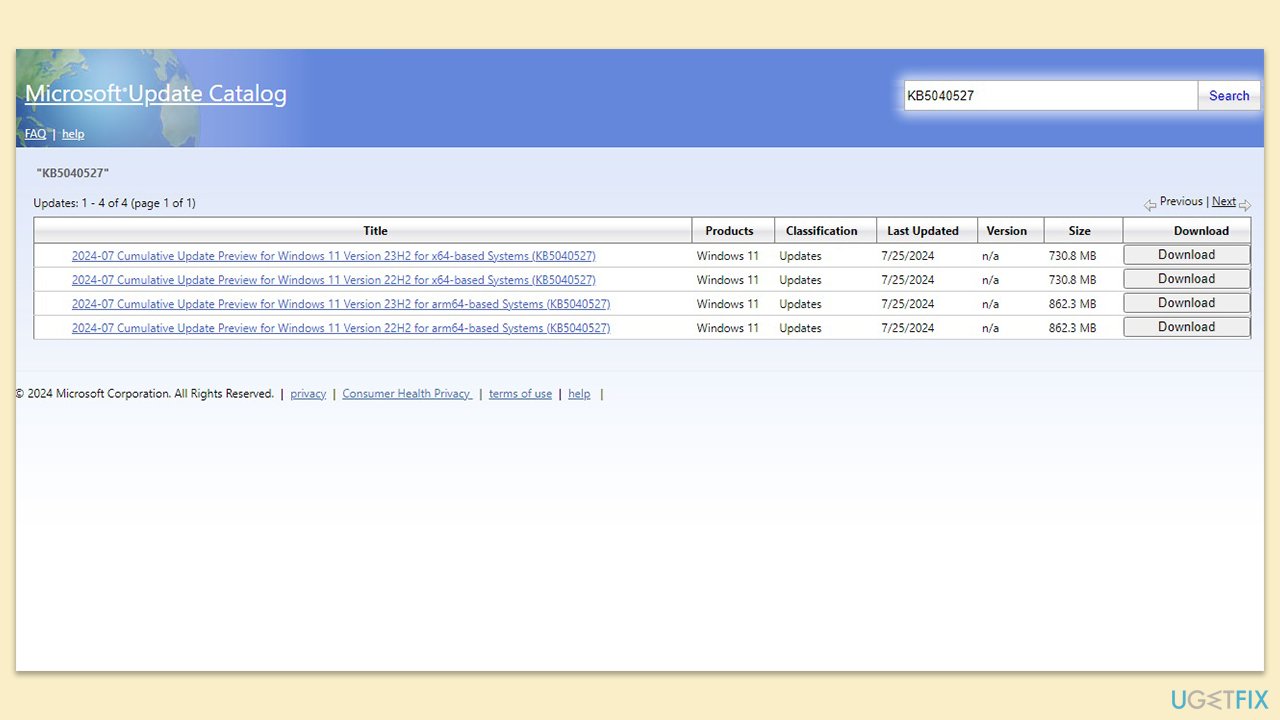
- Open your web browser and navigate to the Microsoft Update Catalog where you can find the KB5040527 update.
- Locate the correct version of the update for your operating system by checking your System type (Right-click on Start and select System. Under Windows specifications, check the Version).
- Click on Download and follow the prompts to complete the process.
- Once the update is installed, reboot your system.
Fix 7. Reset Windows update components
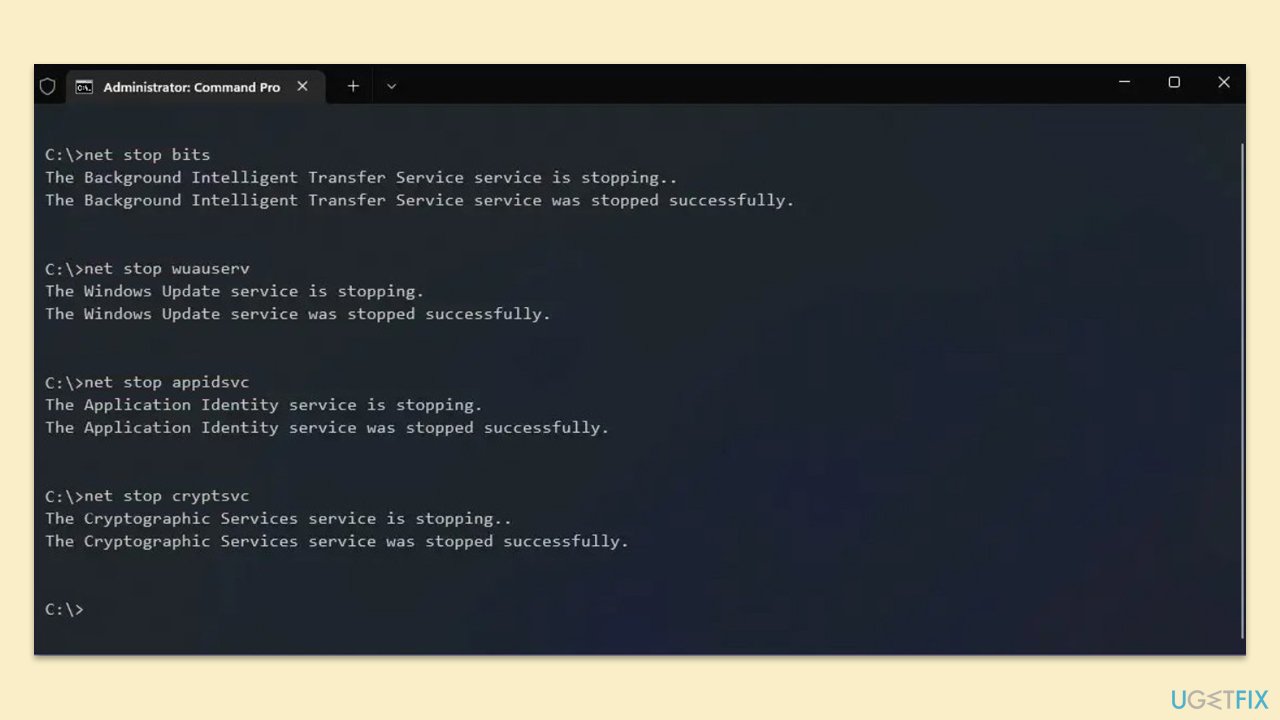
- Open Command Prompt as administrator.
- Type the following commands, pressing Enter after each:
- net stop bits
- net stop wuauserv
- net stop appidsvc
- net stop cryptsvc
- Del “%ALLUSERSPROFILE%\Application Data\Microsoft\Network\Downloader\*.*”
- rmdir %systemroot%\SoftwareDistribution /S /Q
- rmdir %systemroot%\system32\catroot2 /S /Q
- regsvr32.exe /s atl.dll
- regsvr32.exe /s urlmon.dll
- regsvr32.exe /s mshtml.dll
- netsh winsock reset
- netsh winsock reset proxy
- net start bits
- net start wuauserv
- net start appidsvc
- net start cryptsvc
- Close the Command Prompt and restart your PC.
Bottom line
To resolve the installation failure of KB5040527, you can perform Disk Cleanup, ensure enough disk space is available, check for system file integrity, and temporarily disable conflicting software like third-party antivirus programs. If these methods do not work, consider using a repair app to identify and fix underlying Windows issues.
Frequently asked questions
First, ensure that your system has enough storage space and that your Windows 11 is up to date. If the issue persists, try running the Windows Update Troubleshooter from the Settings app.
Yes, you can manually download the KB5040527 update from the Microsoft Update Catalog website and install it. Make sure to select the correct version that matches your system architecture.
Common reasons include insufficient disk space, corrupted Windows Update components, or conflicts with third-party software. Running the System File Checker and resetting Windows Update components can help resolve these issues.




Report an issue
What's wrong with this guide? We review every report and update or remove content.
Report received — thank you. We'll review and fix it.
You need a free account to submit a report.
Be the first to comment