How to fix
KB5041580 fails to install
on Windows
Resolve the KB5041580 installation error in Windows 10 quickly and effectively. Get your system updated smoothly with expert-tested solutions.

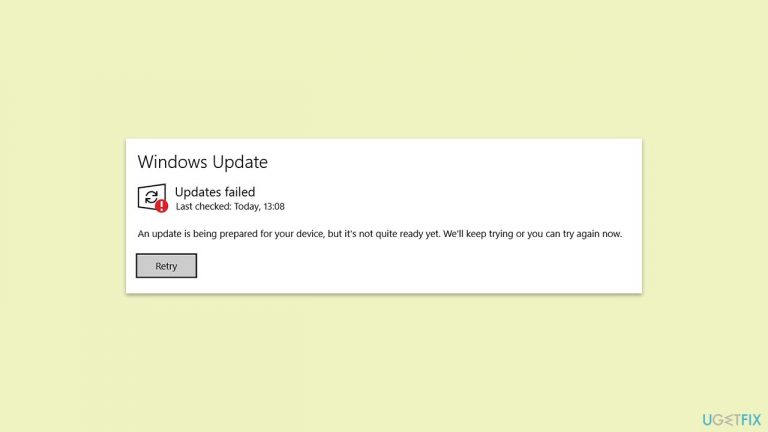
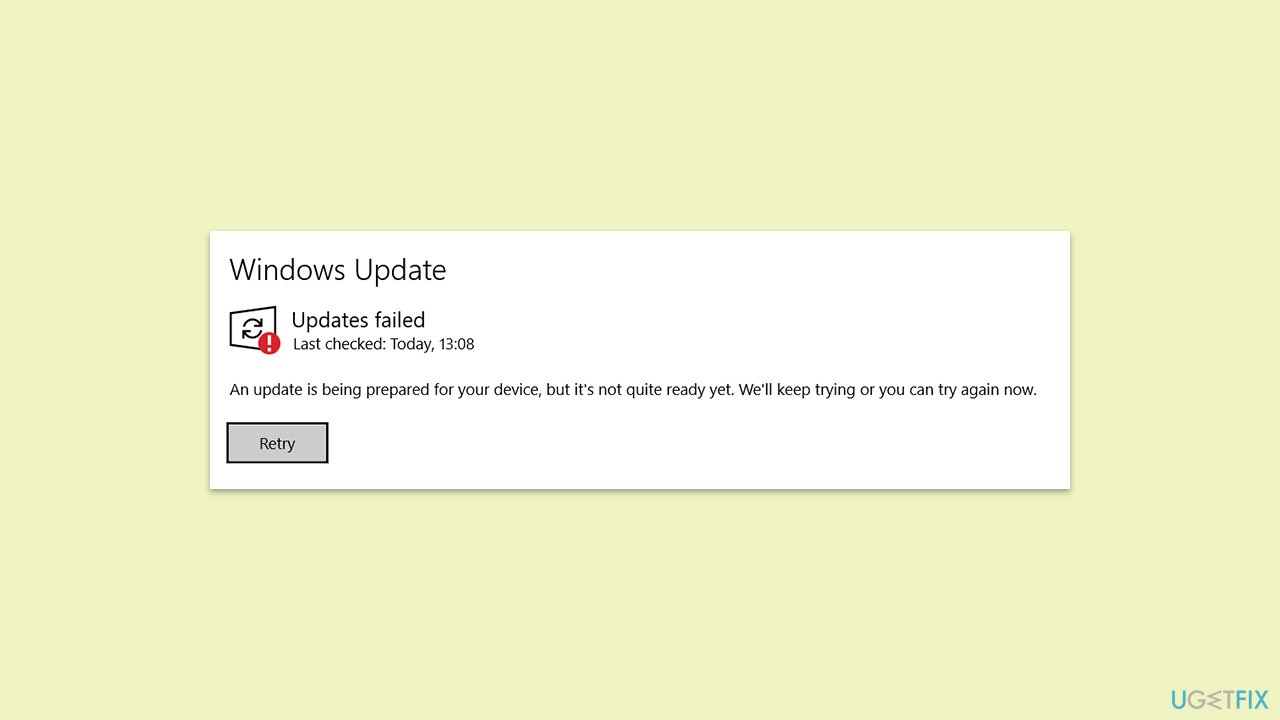
What causes How to fix KB5041580 fails to install in Windows 10?
- Corrupted system files
- Inactive essential services like Windows Update
- Inactive Background Intelligent Transfer Service (BITS)
- Networking issues
- Improperly installed prior updates
Repairs Windows system files, removes malware, and restores a clean OS state — without reinstalling.
Hey, I wonder if you could help me with KB5041580 failing to install for me. Please help me with steps I could take to resolve this - I have never dealt with something like this before.
Microsoft consistently releases updates every second Tuesday of the month, an event sometimes referred to as "Patch Tuesday." These updates often bring essential bug fixes, security enhancements, user interface adjustments, and feature upgrades. Additionally, since Windows operates under a service model, new OS versions are rolled out on a regular basis.
Nevertheless, updates don't always proceed smoothly. Some users experience issues where new updates disrupt existing features, leading to hesitancy when it comes to installing these patches. Still, it's crucial to continue updating as the benefits outweigh the risks, with only a small fraction of users encountering problems. More often than not, any issues that do arise are promptly addressed by Microsoft.
On another note, some users face challenges with installing updates, such as the specific issue of update KB5041580 not installing on Windows 10. While many of these problems are resolved by Microsoft or dissipate on their own, users frequently need to take matters into their own hands.
Typically, update failures can be attributed to corrupted system files, inactive essential services like Windows Update or BITS, networking issues, or improperly installed prior updates. Below, you’ll find various strategies to overcome the KB5041580 installation challenges, though you might need to attempt several solutions before finding success.
For those looking to bypass complex troubleshooting steps to resolve KB5041580 failing to install, consider using repair software like [d1]. This tool can automatically identify and fix damaged Windows components, effectively resolving issues like blue screens of death, registry errors, and more, streamlining the update process.
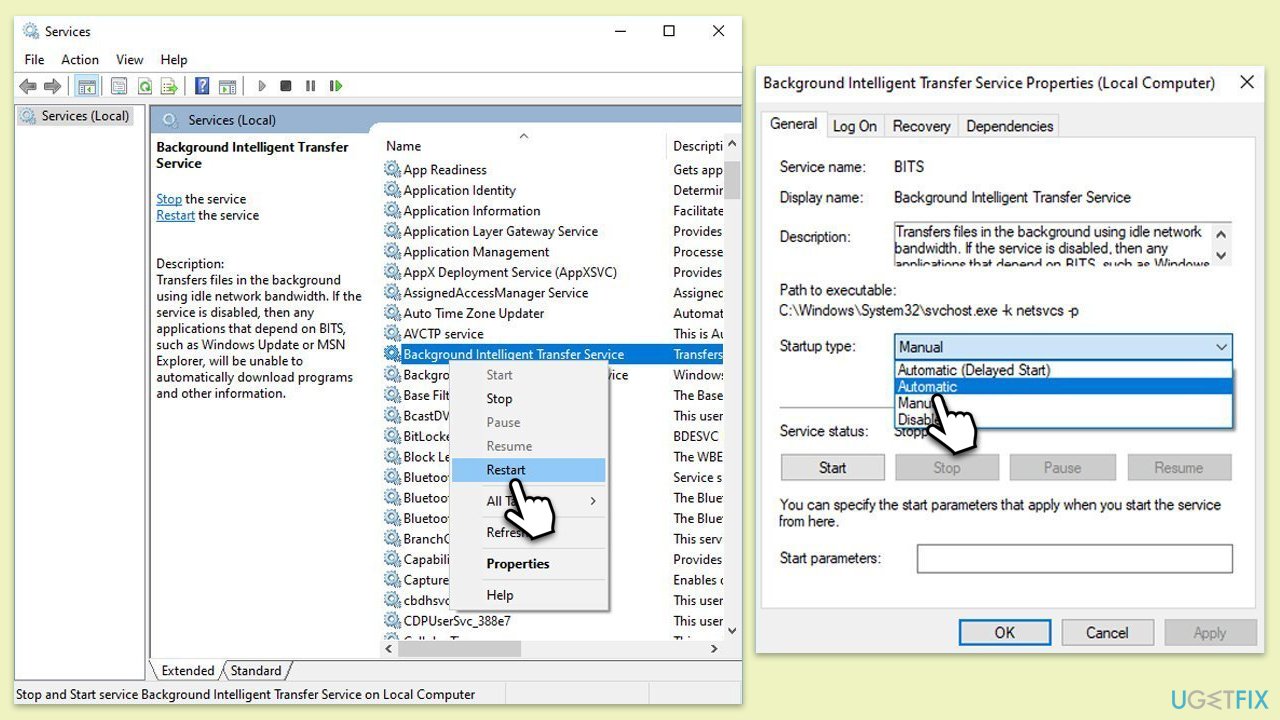
Fix 1. (Re)start relevant services
For Windows update to be successful, several services must be running.
- Type in Services in Windows search and press Enter.
- Find Background Intelligent Transfer Service (BITS).
- If it is already running, right-click and pick Restart.
- If the service is not running, double-click it, and select Automatic under the Startup type from the drop-down menu.
- Click Start, Apply, and OK.
- Repeat this process for Windows Update and Cryptographic services.
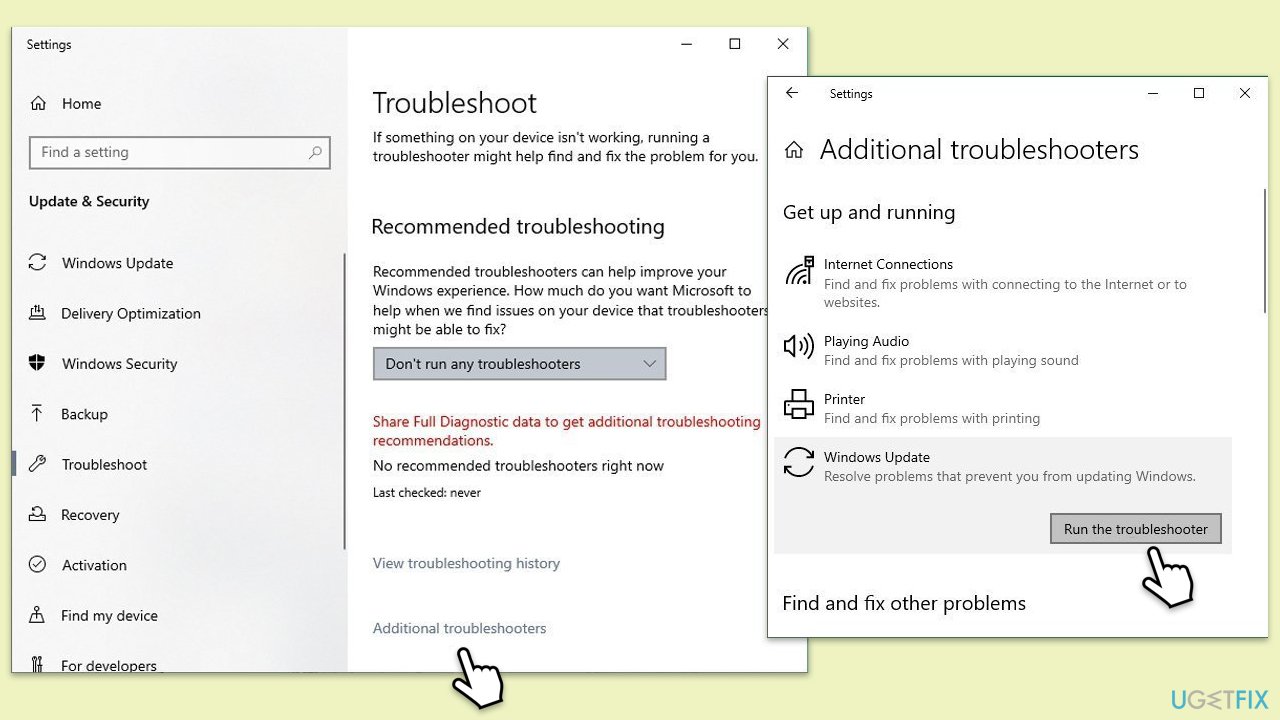
Fix 2. Run the troubleshooter
Windows update troubleshooter is one of the easier ways to get to the root cause of the issue.
- Type Troubleshoot in Windows search and press Enter.
- Click Additional troubleshooters if you can't see them listed.
- Scroll down to find the Windows Update option.
- Click and select Run the troubleshooter.
- Apply the offered changes and close down the troubleshooter - see if that helps solve your problem.
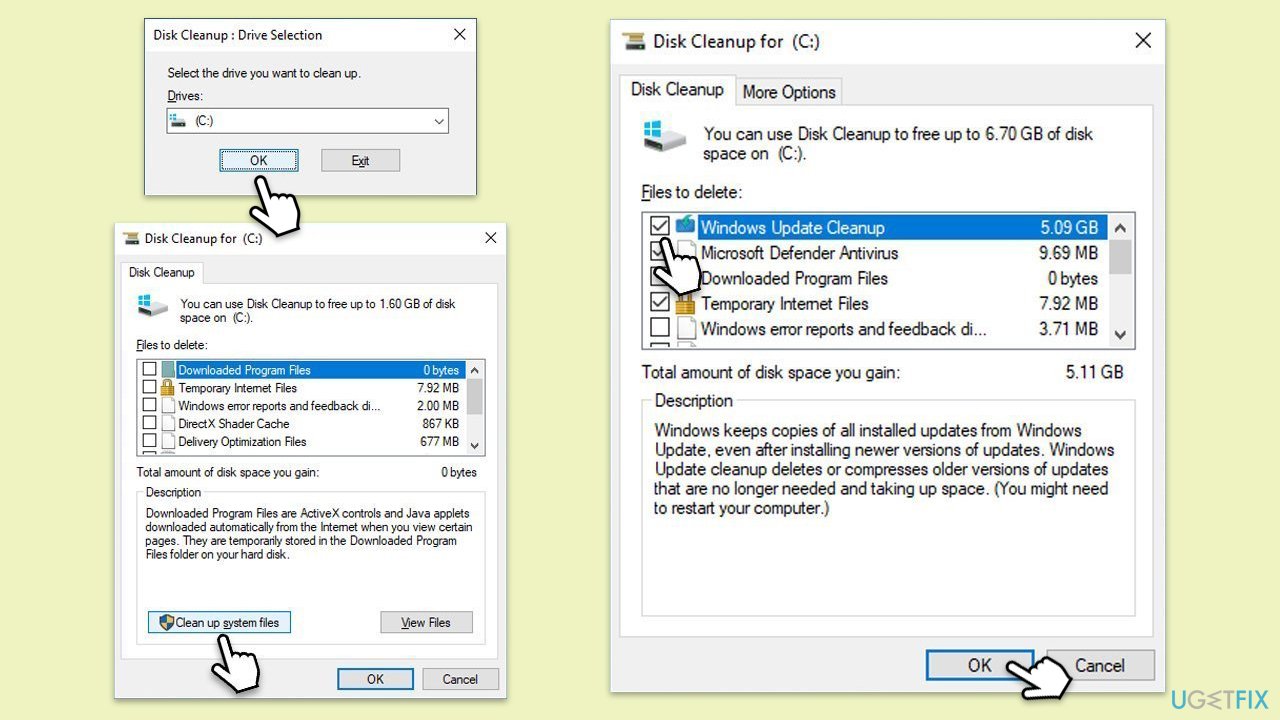
Fix 3. Perform Disk Cleanup
Disk Cleanup can not only free up the space on your system but also potentially get rid of bugged cache files related to Windows updates.
- Type Disk Cleanup in Windows search and hit Enter.
- If your Windows is installed on drive C, pick it from the list (should be by default) and press OK.
- Click Clean up system files.
- Select your main drive again and click OK.
- Here, select the largest portions of the data used - these typically include Temporary Internet Files, Windows Update, Temporary Files, Recycle Bin, Delivery Optimization Files, and others. Marking Windows Update is vital here.
- Click OK - the process should be finished shortly.
Fix 4. Install the update manually
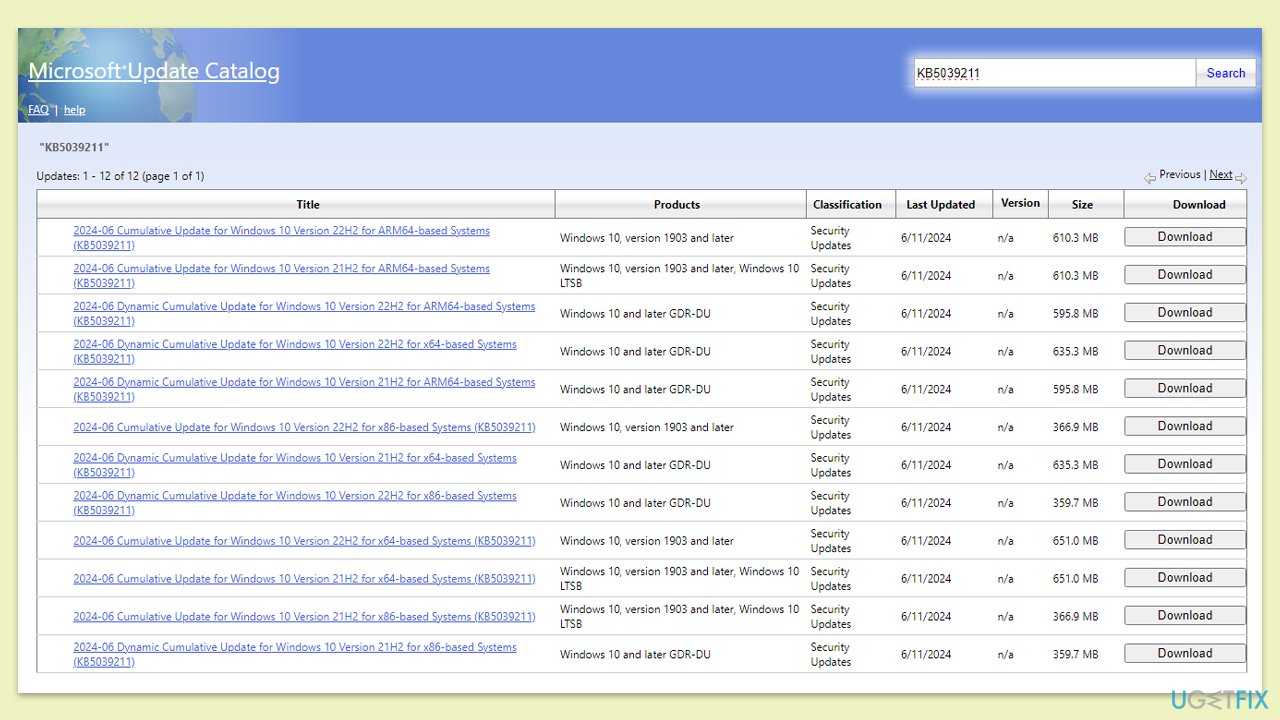
- Go to the official Microsoft Update Catalog website.
- Type the KB number into the search bar, and click Search.
- You will find many different versions on the update – you need to find the one that matches your PC specs and Windows version (as a home user, ignore Windows server versions).
- After picking the correct version, click the Download button and proceed with the on-screen instructions.
- Restart your computer to implement the new updates.
Fix 5. Reset Windows update components
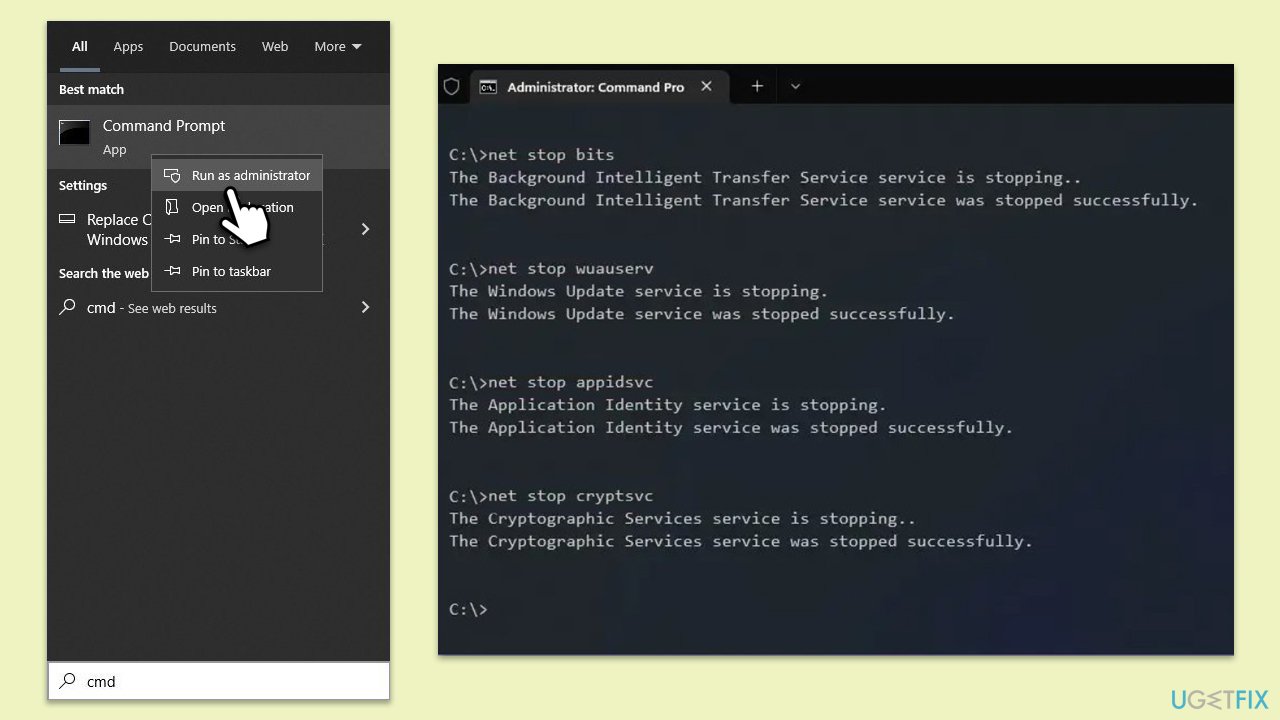
- Type in cmd in Windows search.
- Right-click on Command Prompt and select Run as administrator.
- User Account Control will ask you whether you want to allow changes – click Yes.
- Copy and paste each of these commands, pressing Enter each time:
net stop bits
net stop wuauserv
net stop appidsvc
net stop cryptsvc
Del “%ALLUSERSPROFILE%\Application Data\Microsoft\Network\Downloader\*.*”
rmdir %systemroot%\SoftwareDistribution /S /Q
rmdir %systemroot%\system32\catroot2 /S /Q
regsvr32.exe /s atl.dll
regsvr32.exe /s urlmon.dll
regsvr32.exe /s mshtml.dll
netsh winsock reset
netsh winsock reset proxy
net start bits
net start wuauserv
net start appidsvc
net start cryptsvc - Restart your computer.
Fix 6. Run SFC and DISM
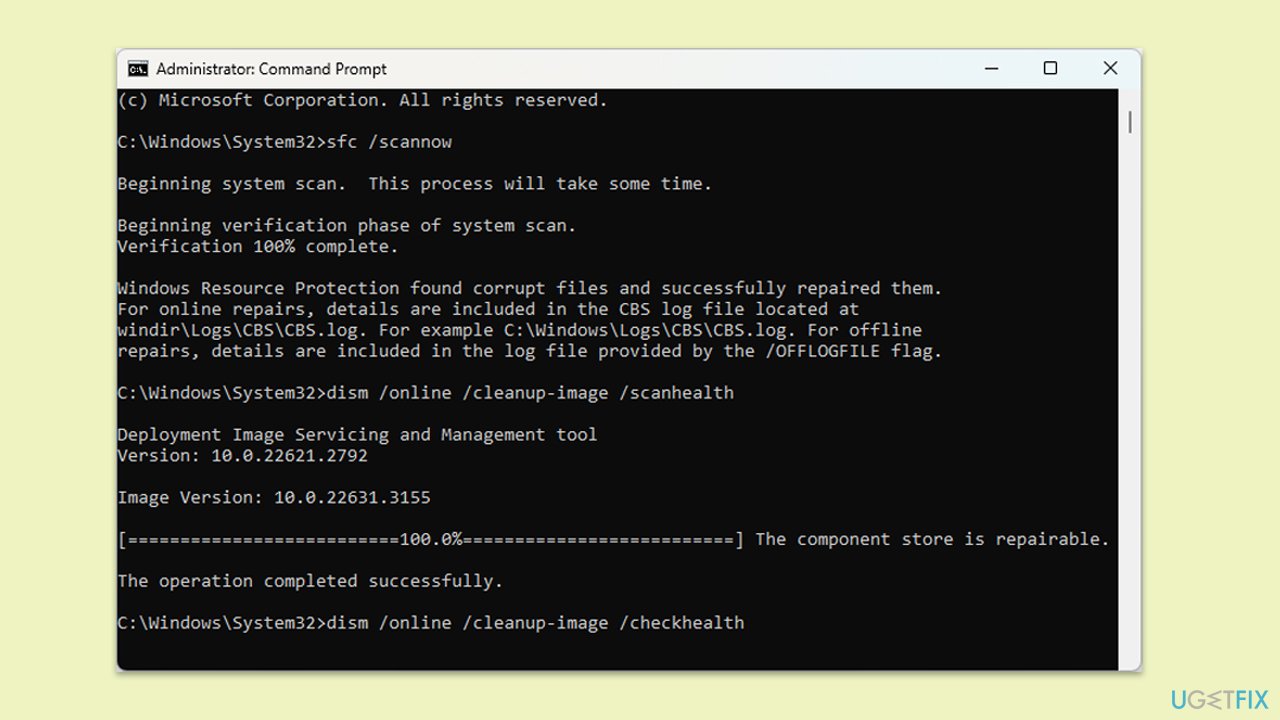
- Open Command Prompt as administrator.
- Copy and paste this command and hit Enter:
sfc /scannow - Wait for the scan to finish.
- As soon as it finishes, Windows will report whether integrity violations were found and if they could be fixed. Regardless of the outcome, use these commands next, pressing Enter after each:
Dism /Online /Cleanup-Image /CheckHealth
Dism /Online /Cleanup-Image /ScanHealth
Dism /Online /Cleanup-Image /RestoreHealth - Close down the Command Prompt and restart your PC.
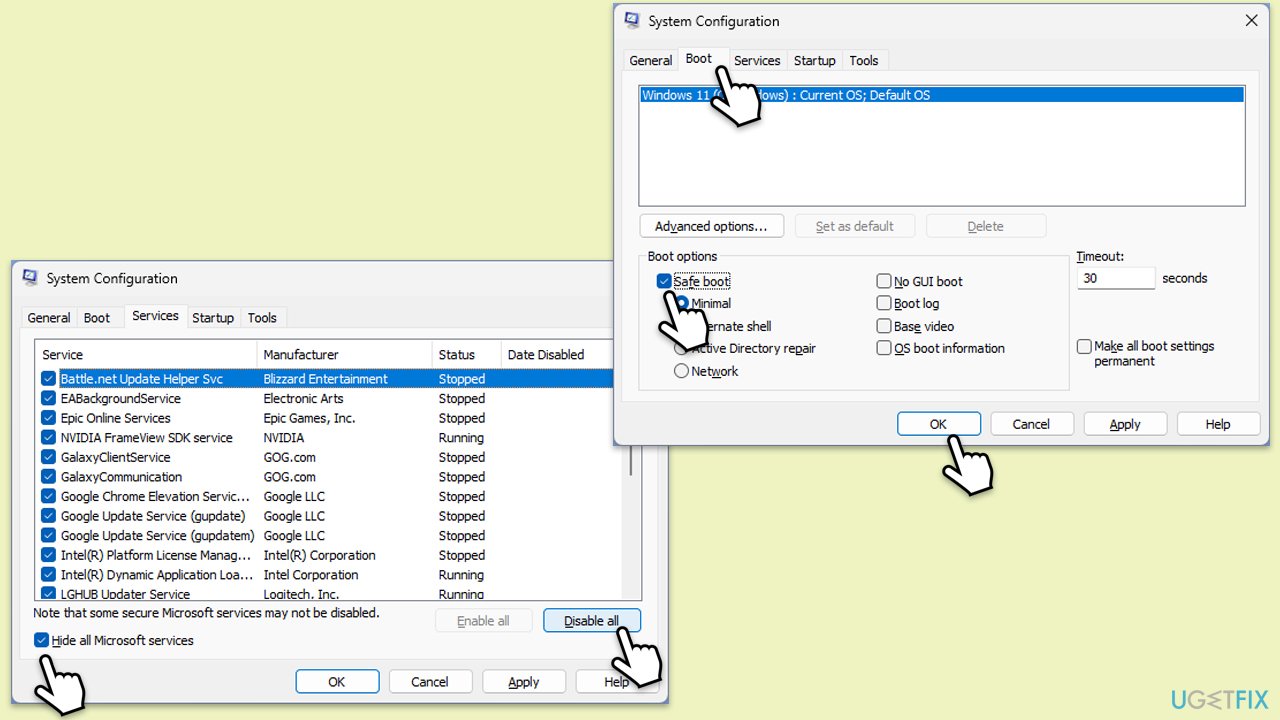
Fix 7. Perform Clean Boot
You can first try disabling third-party security software and if the update still fails, use Clean Boot to determine which software is conflicting.
- Type msconfig in Windows search and hit Enter.
- Go to the Services tab and tick the Hide all Microsoft services checkbox.
- Select Disable all.
- Go to the Startup tab and click Open Task Manager.
- Here, right-click on each of the non-Windows entries and select Disable.
- Close down the Task Manager.
- Go to the Boot tab and tick the Safe boot option.
- Restart your device.
- Attempt to update Windows again.
Bottom line
To resolve the KB5041580 installation issue, you can try restarting the relevant services, ensuring that Windows Update and BITS are active. If these steps do not work, consider using repair software to automatically fix damaged Windows components.
Frequently asked questions
First, try running the Windows Update Troubleshooter by going to Settings > Update & Security > Troubleshoot. If that doesn't work, consider manually downloading the update from the Microsoft Update Catalog.
Yes, corrupted system files can prevent updates like KB5041580 from installing properly. You can run the System File Checker tool by executing 'sfc /scannow' in the Command Prompt as an administrator to fix any issues.
Temporarily disabling your antivirus can help if it's interfering with the installation, but make sure to enable it again immediately after the update process.




Report an issue
What's wrong with this guide? We review every report and update or remove content.
Report received — thank you. We'll review and fix it.
You need a free account to submit a report.
Be the first to comment