How to fix
KB5041582 fails to install
on Windows
Resolve the KB5041582 installation error on Windows 10 quickly. Get expert-tested solutions that ensure your system runs smoothly. Fixed in minutes!

What causes How to fix KB5041582 fails to install in Windows 10?
- Inconsistencies in internet connection
- Microsoft server problems
- Corrupted system files
- Software conflicts
- Memory leaks associated with Bluetooth devices and Input Method Editors (IME)
Repairs Windows system files, removes malware, and restores a clean OS state — without reinstalling.
Hello. Today I saw that KB5041582 for Windows 10 is available and I attempted to install it. However, I got an error saying that updates couldn't be installed and I'm at a loss. Is there something I can do?
The monthly Patch Tuesday updates are extremely important for every Windows operating system to remain stable and secure. Unfortunately, with the release of the latest Windows 10 22H2 update, users noticed several issues, which caused the machines to crash due to memory leaks, among others.
KB5041582 update for Windows in the beta channel and Preview resolves memory leaks associated with Bluetooth devices and Input Method Editors (IME), particularly noticeable when closing combo boxes with input focus.
Additionally, the update fixes a bug in the Bind Filter Driver that led to system freezes when accessing symbolic links. It also rectifies a restart problem where a deadlock prevented a Microsoft System Center Configuration Manager (SCCM) task from re-enabling the Unified Write Filter (UWF).
Despite this update being rather critical for those suffering from these issues, for some users, KB5041582 fails to install, preventing them from having these fixes applied.
Usually, Windows update failures resolve themselves within several hours or days due to issues such as inconsistencies in internet connection or due to Microsoft server problems. However, if this does not apply to you, there are several ways you could fix KB5041582 installation issues, including running the troubleshooter, repairing corrupted system files, resolving software conflicts, and more.
To install KB5041582 successfully, please follow the manual guide below. If you are more of a hands-off person or simply want to save time, we recommend using [d1] for automatic Windows troubleshooting and error fixes.
Fix 1. Run the troubleshooter
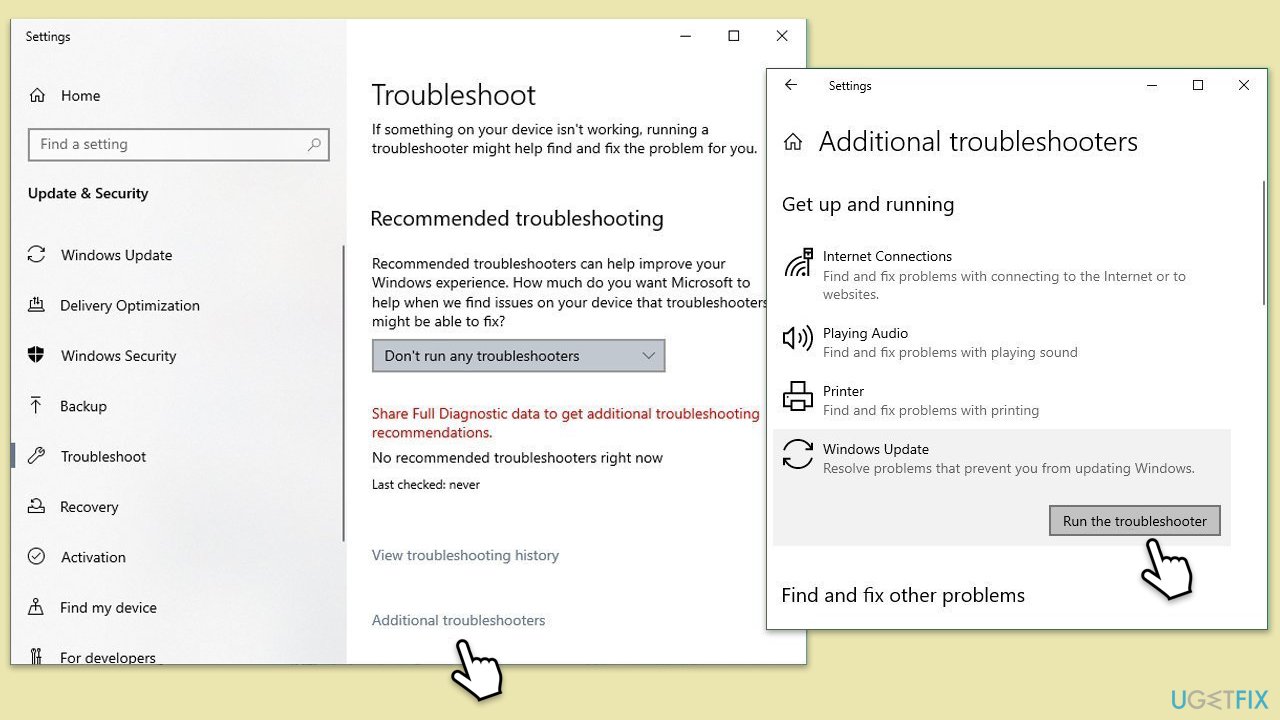
Let's start with the easiest solution - running the troubleshooter:
- Type Troubleshoot in Windows search.
- Select Additional troubleshooters.
- Find Windows Update from the list.
- Click it and select Run the troubleshooter.
- Apply the suggested fixes and restart your device.
Fix 2. Run SFC and DISM scans
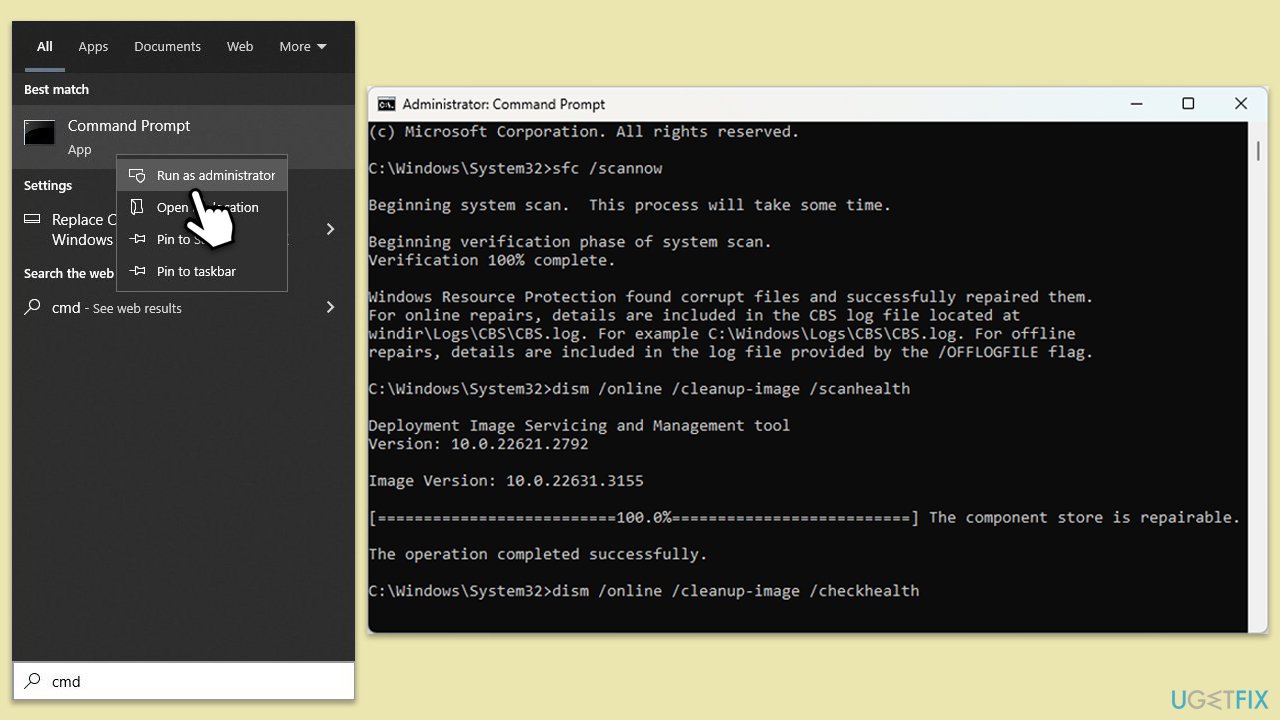
In case the update process is hindered by corrupted files, running SFC and DISM commands will most likely resolve these issues.
- Type cmd in Windows search.
- Right-click on the Command Prompt result and select Run as administrator.
- User Account Control will ask whether you want to allow changes - click Yes.
- Copy and paste the following commands, pressing Enter after each:
- sfc /scannow
DISM /Online /Cleanup-Image /CheckHealth
DISM /Online /Cleanup-Image /ScanHealth
DISM /Online /Cleanup-Image /RestoreHealth
(Note: if you get an error executing the last command, add /Source:C:\RepairSource\Windows /LimitAccess to it and try again.) - Restart your device.
Fix 3. Try Clean Boot
If you haven't done so, please disable any thrid-party security, VPN, firewall, or similar software that is running on your machine and try updating again. Alternatively, you can run a Clean Boot to determine which software is causing conflicts.
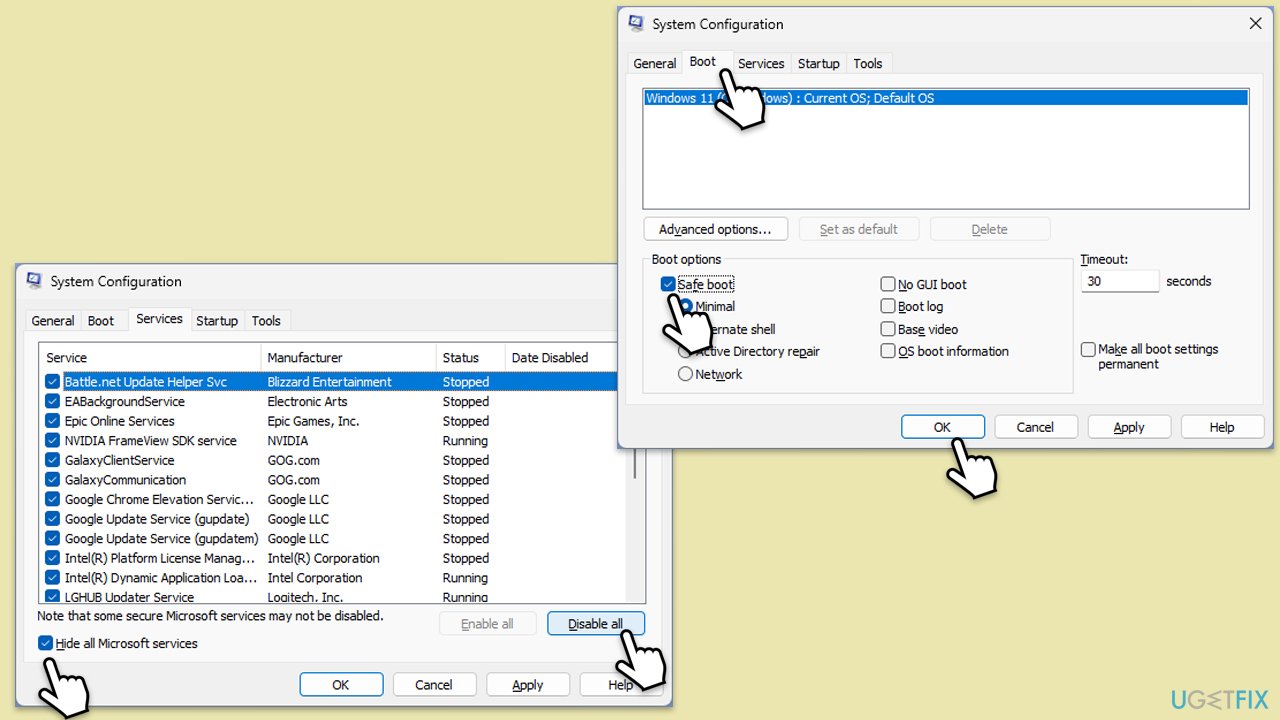
- Press Win + R, type msconfig, and press Enter.
- In the System Configuration window, select the Services tab.
- Check Hide all Microsoft services and then click Disable all.
- Go to the Startup tab and click Open Task Manager.
- Disable all startup items, then close Task Manager.
- Go to the Boot tab and tick the Safe boot option.
- Click OK in the System Configuration window and restart your computer.
- Attempt to install the KB5041582 update again.
Fix 4. Check the services
For Windows updates to be installed successfully, some services, such as BITS, should be running.
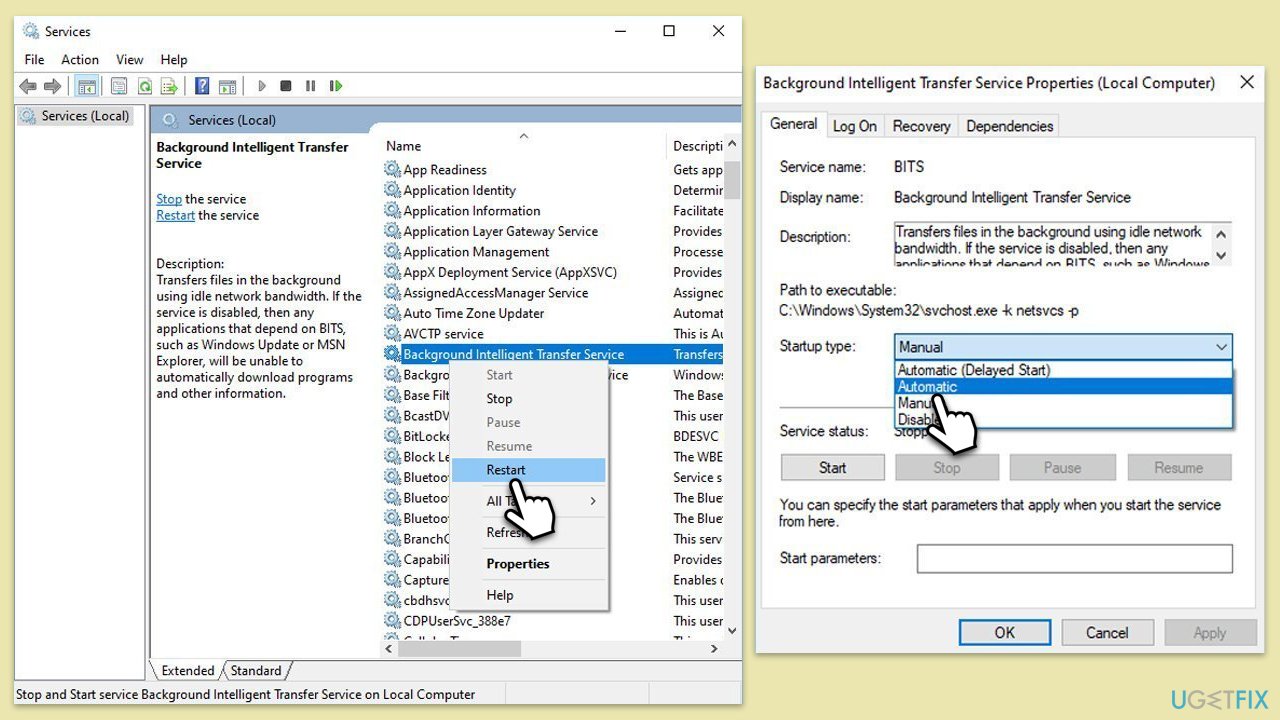
- Press Win + R, type services.msc, and press Enter.
- Locate Background Intelligent Transfer Service (BITS).
- If it is already running, right-click and select Restart.
- If the service is not running, double-click it, and select Automatic under the Startup type from the drop-down menu.
- Click Start, Apply, and OK.
- Repeat the process with the Windows Update, Cryptographic, and Windows Installer services.
Fix 5. Perform Disk Cleanup
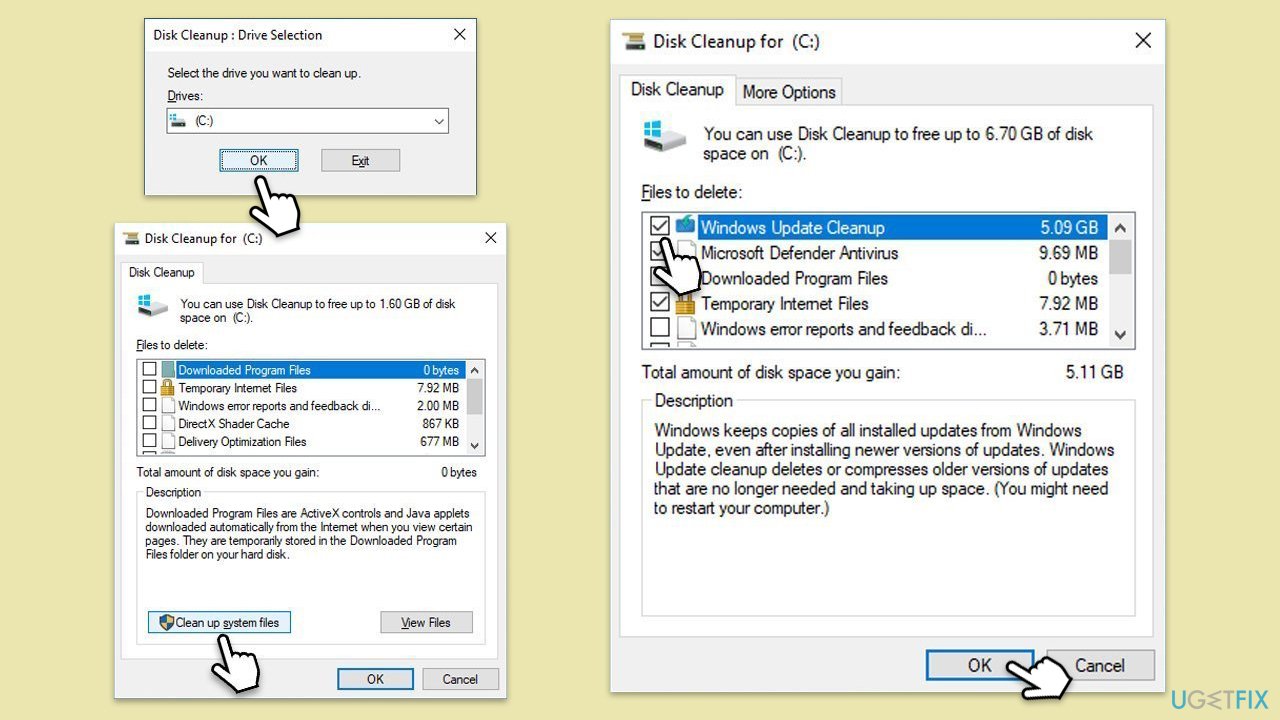
- Type Disk Cleanup in Windows search and hit Enter.
- If your Windows is installed on drive C, pick it from the list (should be by default) and press OK.
- Click Clean up system files.
- Select your main disk again and click OK.
- Here, select the largest portions of the data used - these typically include Temporary Internet Files, Windows Update, Temporary Files, Recycle Bin, Delivery Optimization Files, and others.
- Click OK - the process should be finished shortly.
Fix 6. Reset Windows update components
This step deletes Software distribution folders and resets other various components related to the Windows update process.
- Open Command Prompt as administrator, as previously explained
- Copy and paste each of these commands, pressing Enter each time:
net stop bits
net stop wuauserv
net stop appidsvc
net stop cryptsvc
Del “%ALLUSERSPROFILE%\Application Data\Microsoft\Network\Downloader\*.*”
rmdir %systemroot%\SoftwareDistribution /S /Q
rmdir %systemroot%\system32\catroot2 /S /Q
regsvr32.exe /s atl.dll
regsvr32.exe /s urlmon.dll
regsvr32.exe /s mshtml.dll
netsh winsock reset
netsh winsock reset proxy
net start bits
net start wuauserv
net start appidsvc
net start cryptsvc - Reboot your PC.

Bottom line
To fix the KB5041582 installation issue, you can run the troubleshooter, repair corrupted system files using SFC and DISM scans, and resolve any software conflicts. If these solutions do not work, consider using automatic troubleshooting tools for further assistance.
Frequently asked questions
Try running the Windows Update Troubleshooter to identify and fix issues preventing the installation of KB5041582. You can access it through Settings > Update & Security > Troubleshoot.
Yes, you can manually download the KB5041582 update from the Microsoft Update Catalog and install it on your Windows 10 system.
You can check the Windows Update logs for errors by using the Event Viewer or by using the DISM and SFC commands to scan and repair any corrupted system files in Windows 10.




Report an issue
What's wrong with this guide? We review every report and update or remove content.
Report received — thank you. We'll review and fix it.
You need a free account to submit a report.
Be the first to comment