How to fix
KB5043064 fails to install
on Windows
Resolve the KB5043064 installation issue on Windows 10 effortlessly. Follow our expert-tested guide for quick fixes and a seamless upgrade experience.

What causes How to fix KB5043064 fails to install in Windows 10?
- Damaged system files
- Conflicts with installed programs
- Issues with the update system
- Third-party security software interference
Repairs Windows system files, removes malware, and restores a clean OS state — without reinstalling.
Hello, I'm wondering if you could help me to install the latest Windows 10 update? KB5043064 keeps failing to install and I am tired of trying again and again without resolution. Thanks.
Windows updates help keep your computer safe, fast, and useful. There are three main kinds of updates. Security updates stop hackers from hurting your system. Feature updates add new tools or make things better. Cumulative updates put all past updates together in one place. A very important update day is "Patch Tuesday." It happens every month when Microsoft sends out updates to fix big problems and speed things up. These updates really help your computer stay safe by fixing issues and making it work better.
Problems sometimes happen when updates get installed, frustrating users. One such problem is with KB5043064, an update released on September 10, 2024, for Windows 10. These updates are supposed to improve security, speed up systems, and fix bugs. Yet, some users struggle to install KB5043064, stopping their systems from getting these vital upgrades. Errors show up on the screen, or the update simply fails again and again.
Why does KB5043064 fail? Damaged system files often disrupt the update process. Conflicts with programs already installed, especially antivirus apps, block updates too. Sometimes, issues with the update system itself cause failure by handling files incorrectly.
To fix it, try easier steps first, like turning off third-party security for a while or running the Windows Update troubleshooter. If that didn't help, more advanced fixes are necessary - these include checking and fixing system files with SFC or DISM tools, manually downloading from Microsoft, or resetting the update components. For tougher problems, upgrading the system through the Media Creation Tool could solve the issue.
Looking for something easier? Use a [d1] PC repair program that addresses deeper Windows problems, letting KB5043064 install without trouble.
Quick solutions:
- Restart your computer if you haven't done so yet.
- Scan your system for malware.
- Ensure the time and date are set correctly.
- Disable third-party security software and try updating then.
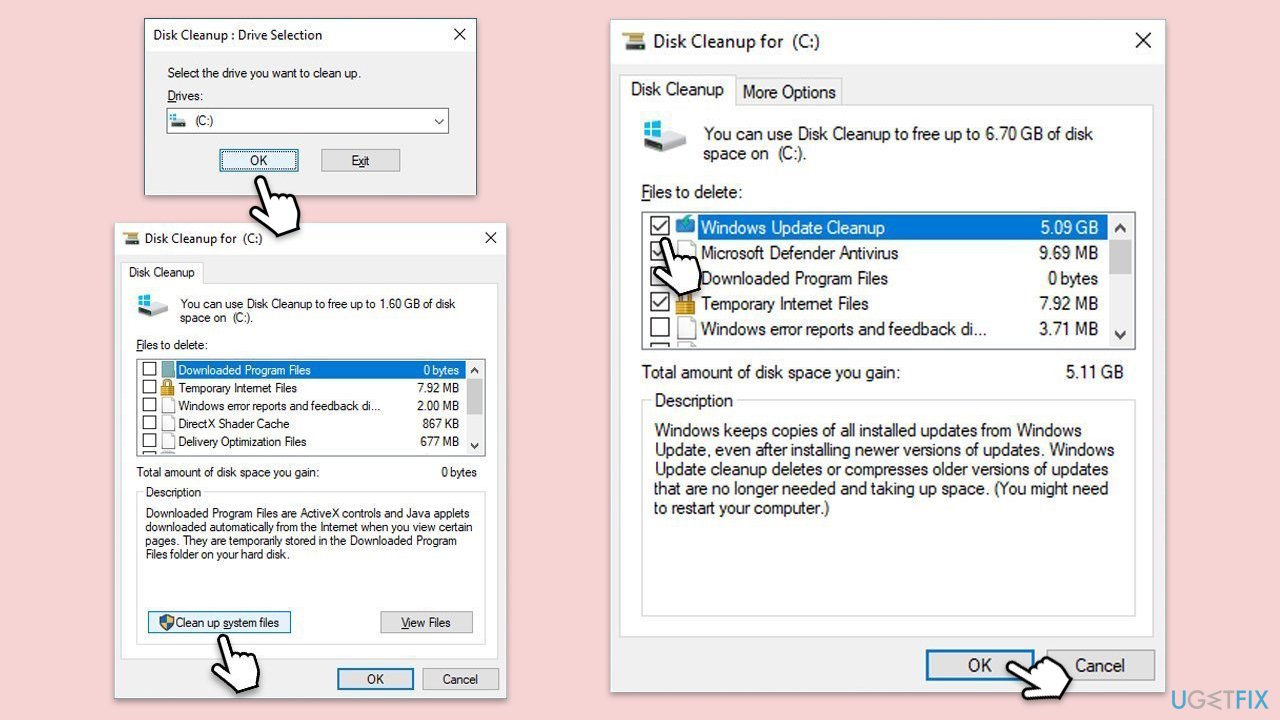
Fix 1. Perform Disk Cleanup
- Type Disk Cleanup in Windows search and hit Enter.
- If your Windows is installed on drive C, pick it from the list (it should be by default) and press OK.
- Click Clean up system files.
- Select your main disk again and click OK.
- Here, select the largest portions of the data used - these typically include Temporary Internet Files, Windows Update, Temporary Files, Recycle Bin, Delivery Optimization Files, and others.
- Click OK - the process should be finished shortly.
Fix 2. Run Windows update troubleshooter
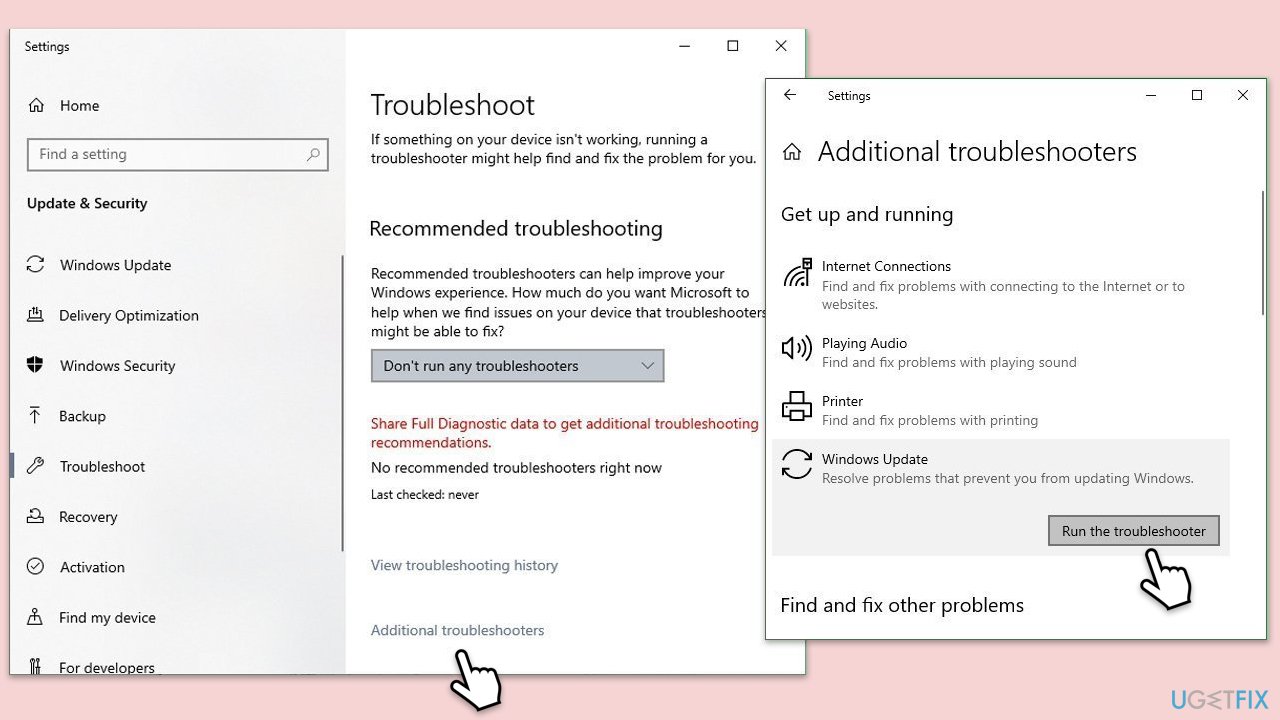
- Type Troubleshoot in Windows search and press Enter.
- Click Additional troubleshooters if you can't see them listed.
- Scroll down to find the Windows Update option.
- Click and select Run the troubleshooter.
- Apply the offered changes and close down the troubleshooter - see if that helps solve your problem.
Fix 3. Enable or restart relevant services
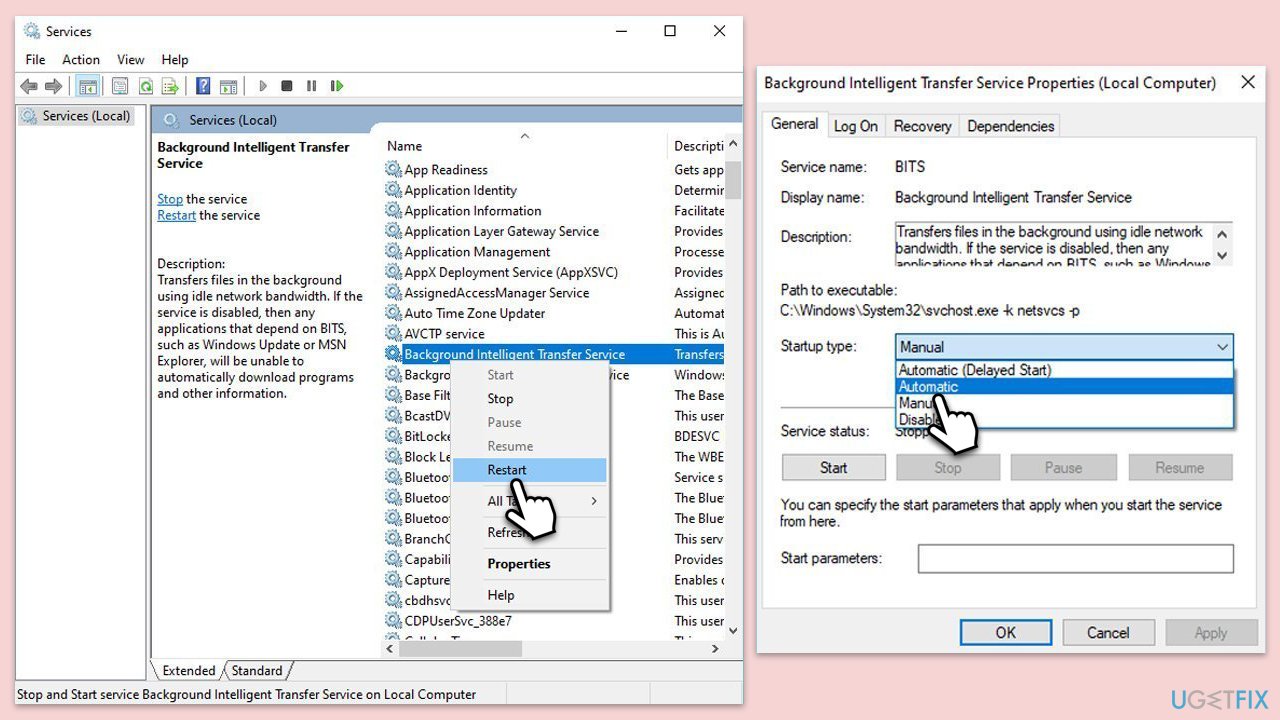
- Type Services in Windows search and hit Enter.
- Locate the following services: Background Intelligent Transfer Service, Windows Update, and Cryptographic Services.
- Right-click each service and select Restart.
- If any service is not running, double-click the service to open Properties.
- Under the Startup type, select Automatic from the drop-down menu.
- Click Start, Apply, and OK.
Fix 4. Install the update manually
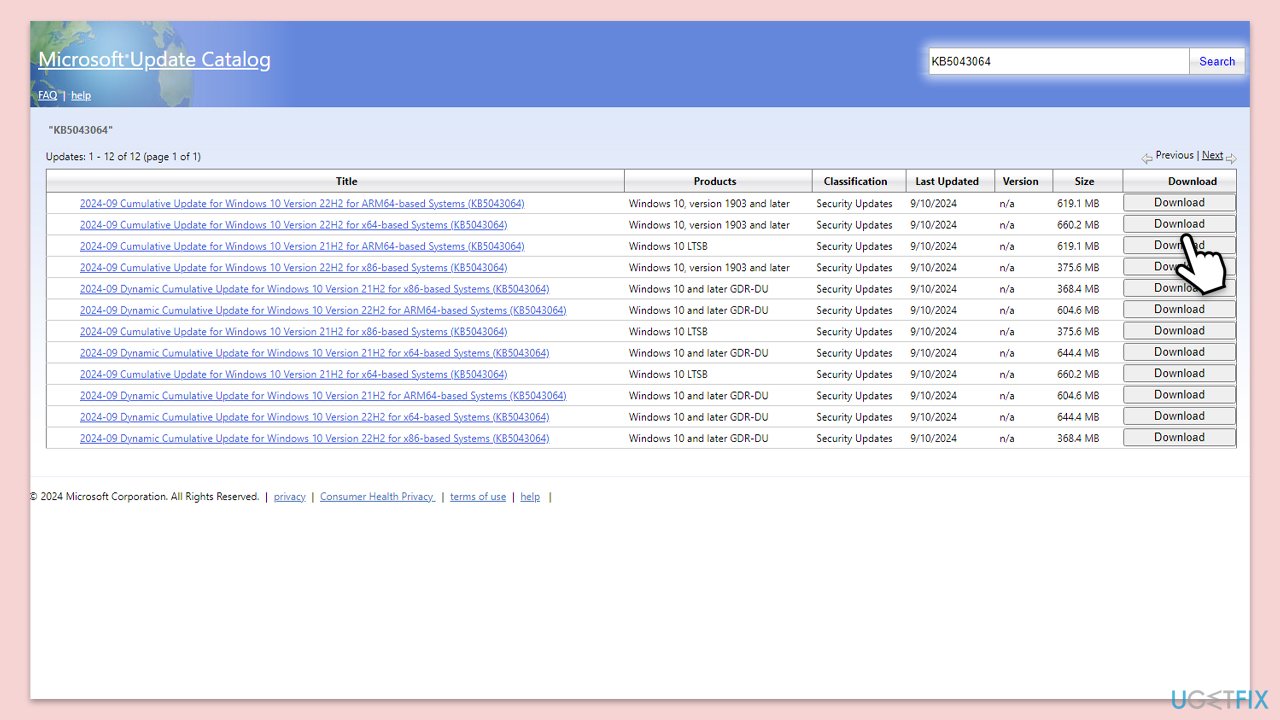
- Open your web browser and navigate to the Microsoft Update Catalog.
- In the search box, type in KB5043064 and click Search.
- Locate the correct version of the update for your operating system by checking your System type (Right-click on Start and pick System. Under Windows specifications, check the Version).
- Click on Download and follow the prompts to complete the process.
- Once the update is installed, restart your device.
Fix 5. Repair corrupted files
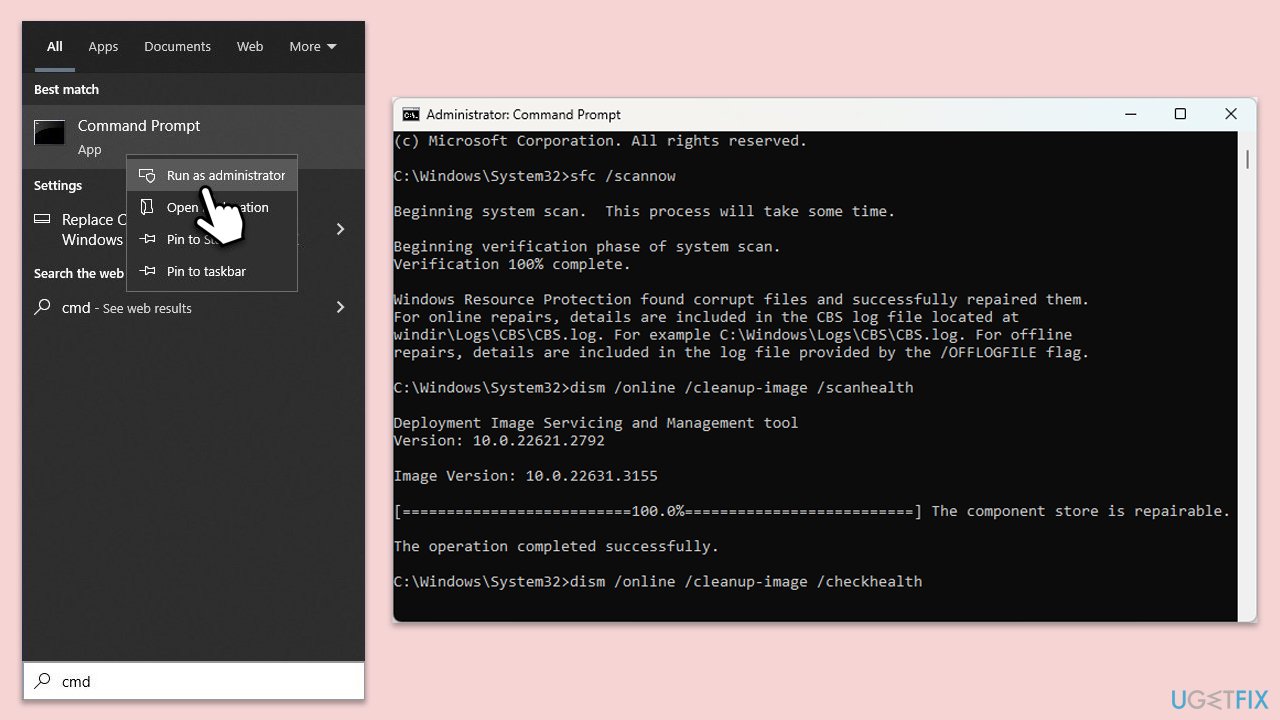
- Type cmd into Windows search.
- Right-click on Command Prompt and select Run as administrator.
- When the User Account Control (UAC) window shows up, click Yes.
- Copy and paste this command and hit Enter:
sfc /scannow - Wait for the scan to finish.
- As soon as it finishes, Windows will report whether integrity violations were found and if they could be fixed. Regardless of the outcome, use these commands next, pressing Enter after each:
Dism /Online /Cleanup-Image /CheckHealth
Dism /Online /Cleanup-Image /ScanHealth
Dism /Online /Cleanup-Image /RestoreHealth - Close down the Command Prompt and restart your computer.
Fix 6. Reset Windows update components
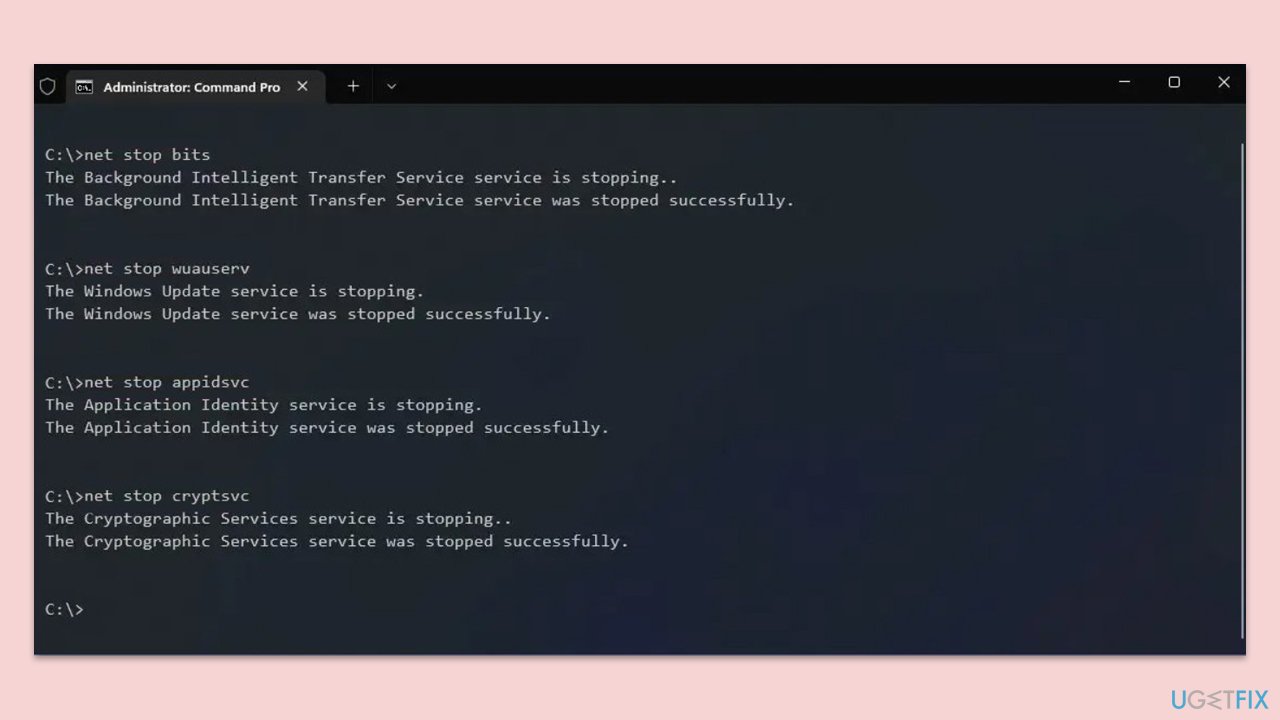
- Open Command Prompt as an administrator.
- Type the following commands one by one in Command Prompt and press Enter after each:
net stop wuauserv
net stop cryptSvc
net stop bits
net stop msiserver
Del "%ALLUSERSPROFILE%\Application Data\Microsoft\Network\Downloader\*.*"
rmdir %systemroot%\SoftwareDistribution /S /Q
rmdir %systemroot%\system32\catroot2 /S /Q
regsvr32.exe /s atl.dll
regsvr32.exe /s urlmon.dll
regsvr32.exe /s mshtml.dll - When these commands are executed, the last thing to do is to re-enable relevant services:
net start wuauserv
net start cryptSvc
net start bits
net start msiserver - Reboot your PC.
Fix 7. Use Media Creation Tool
- Visit the official Microsoft website and download Windows 10 installation media.
- Double-click the installer and click Yes when the User Account Control window shows up.
- Agree to the terms and click Next.
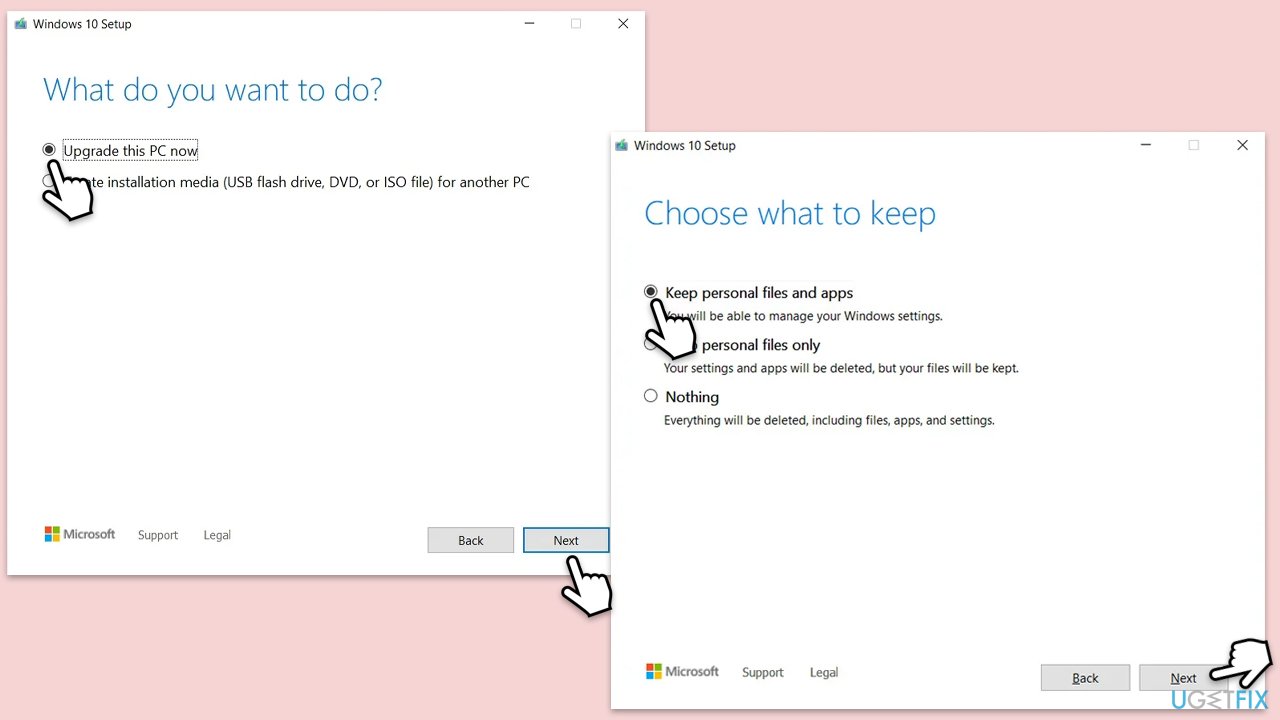
- Select Upgrade this PC now and click Next.
- Wait for Windows to download files.
- Agree to the terms once again and click Next.
- Before installing, ensure you are happy with your choices (otherwise, you can click the Change what to keep option).
- Click Install to begin the upgrade process.
Bottom line
To fix the KB5043064 installation issue, try restarting your computer, scanning for malware, ensuring the correct time and date, and disabling third-party security software. If these steps do not resolve the problem, consider using the SFC or DISM tools, manually downloading the update, or resetting the update components.
Frequently asked questions
Common reasons include corrupted system files, insufficient disk space, or conflicts with third-party antivirus software.
You can run the Windows Update Troubleshooter and perform a system file check using the 'sfc /scannow' command in the Command Prompt.
Yes, you can download the standalone update package from the Microsoft Update Catalog and install it manually.




Report an issue
What's wrong with this guide? We review every report and update or remove content.
Report received — thank you. We'll review and fix it.
You need a free account to submit a report.
Be the first to comment