How to fix
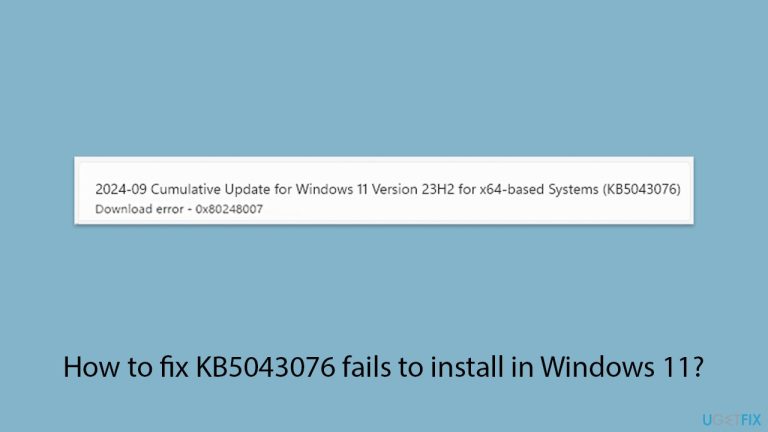
KB5043076 fails to install
on Windows
Resolve KB5043076 installation issues in Windows 11 quickly and easily. Get expert-tested solutions and fix your update errors in minutes!

What causes How to fix KB5043076 fails to install in Windows 11?
- Conflict with certain files or programs
- Outdated drivers
- Background apps causing issues
- Broken system files
- Insufficient disk space
- Antivirus software blocking the update
Repairs Windows system files, removes malware, and restores a clean OS state — without reinstalling.
I can't install the latest update KB5043076 on Windows 11. I have tried several times, even after rebooting - to no avail. Is there anything I can do to fix this or should I just wait? The message says that the update failed and I should try later, and not much else.
KB5043076 is an update for Windows 11, released on September 10, 2024, targeting OS builds 22621.4169 and 22631.4169, and focuses on key security improvements and bug fixes to keep the system safe and functioning better, while also bringing changes to Windows components and updated features; however, some users notice that KB5043076 fails to install, causing problems with their system updates.
One common reason for this failure is the conflict between KB5043076 and certain files or programs on the system, as outdated drivers or background apps can create issues during installation, while broken system files or insufficient disk space may also prevent the update from completing; in some cases, antivirus software wrongly flags the update as harmful and blocks it, leading to error messages, system restarts, or repeated failed installation attempts.
To fix the issue where KB5043076 fails to install, consider freeing up disk space, running the built-in troubleshooters, or temporarily disabling conflicting apps. Checking system files for errors or resetting Windows update components may also help resolve the problem; for more precise guidance, follow the steps provided below.
Using a PC repair tool [d1] may automatically fix deeper Windows problems (as it is designed to deal with underlying issues such as corrupted system files, registry errors, overloaded disks, etc)., allowing KB5043076 to install without further trouble.
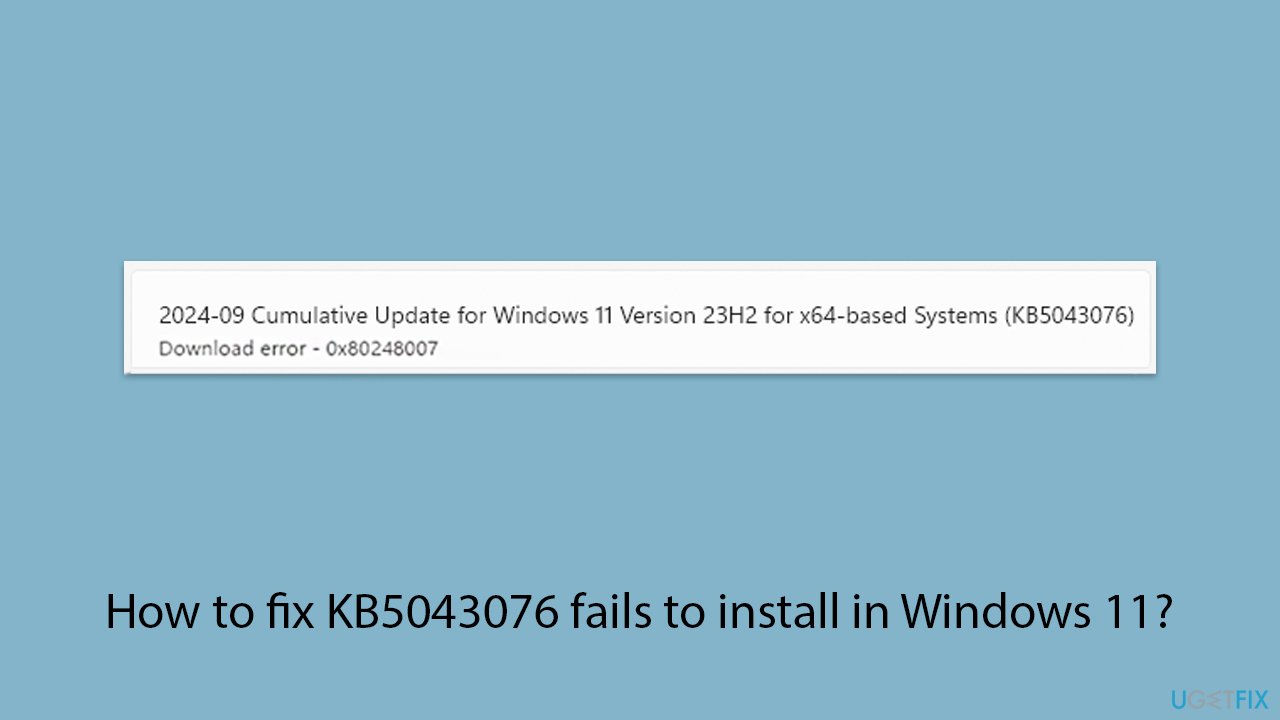
Fix 1. Run the Windows update troubleshooter
This built-in tool is designed to automatically detect and resolve common issues preventing updates from installing. By running the troubleshooter, you can let the system scan for known problems and attempt fixes.
- Type Troubleshoot in Windows search and hit Enter.
- Select Other troubleshooters.
- Find Windows Update from the list and click Run.
- The troubleshooter will automatically scan your system for potential problems and display any issues it finds.
- If the troubleshooter finds any issues, it will provide recommended solutions - follow the instructions.
- Repeat this process with Network troubleshooter.
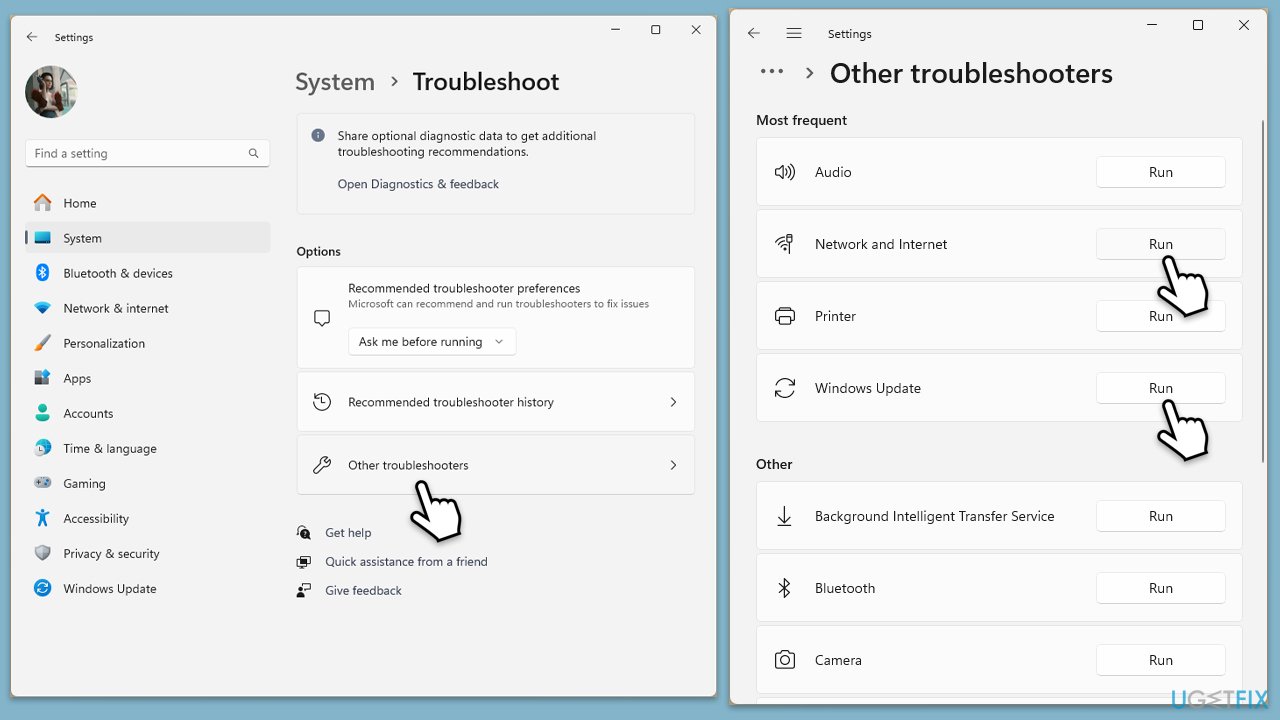
Fix 2. Use the Check Disk utility
If there are issues with the hard drive, running Check Disk can identify and correct disk errors that may be blocking the update installation. This scan checks your drive for file system errors and repairs them if necessary.
- Type cmd in Windows search.
- Right-click on Command Prompt and pick Run as administrator.
- When User Account Control asks you whether you want to allow changes, click Yes.
- In the new window, type in the following command and press Enter after:
chkdsk c: /f
(Note: use chkdsk c: /f /r /x command if you are using SSD as your primary partition) - If you receive an error, type in Y, close down Command Prompt and restart your system.
- Wait until the scan is finished - you can find the results in the Event Viewer.
Fix 3. Perform a Clean Boot
Starting Windows in a Clean Boot state can help identify if background processes are interfering with the update installation. This method minimizes active services, making it easier to troubleshoot any conflicting programs.
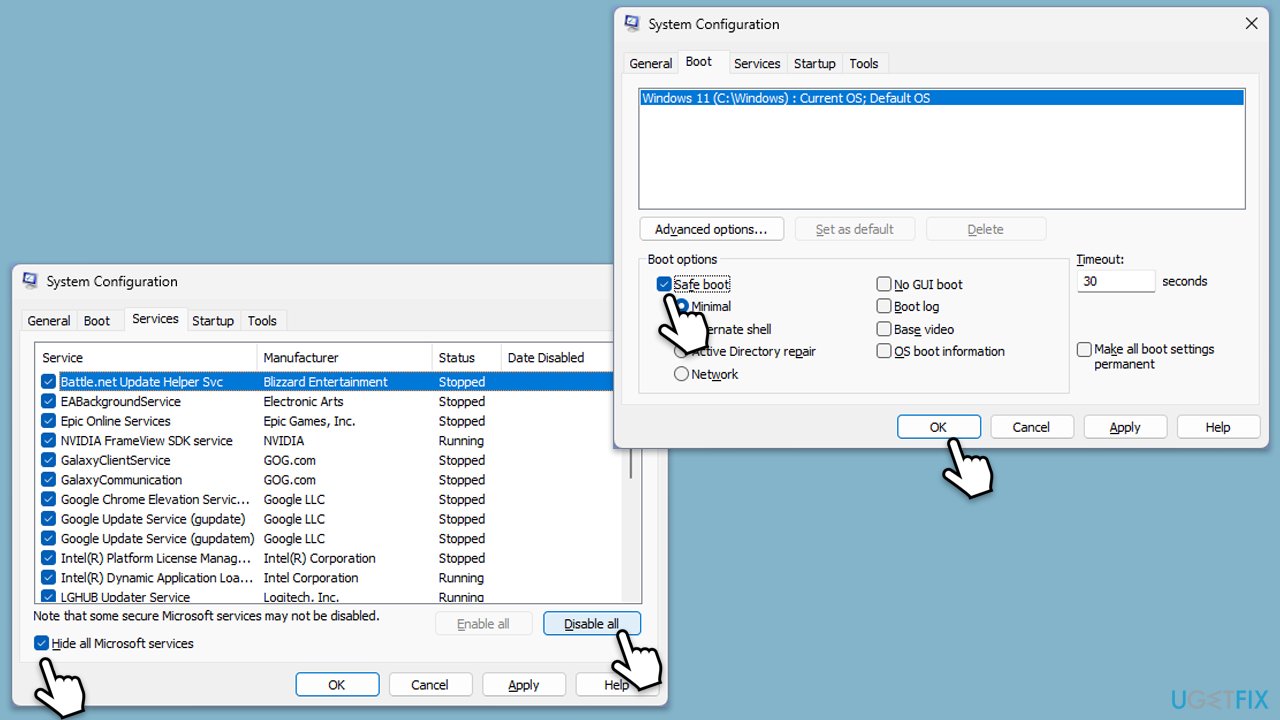
- Type msconfig inWindows Search and press Enter to open the System Configuration window.
- Click on the Services tab and check the Hide all Microsoft Services box.
- Click Disable all to disable non-Microsoft services, then click the Startup tab.
- Open the Task Manager, disable all startup items, and close the Task Manager.
- Go to the Boot tab and mark the Safe boot option.
- Click OK on the System Configuration window and restart your computer.
- Try installing update again.
Fix 4. Reset Windows Update components
When other solutions fail, resetting the Windows Update components can clear out potential conflicts or corrupted files in the update process. This involves restarting critical services and renaming update-related folders.
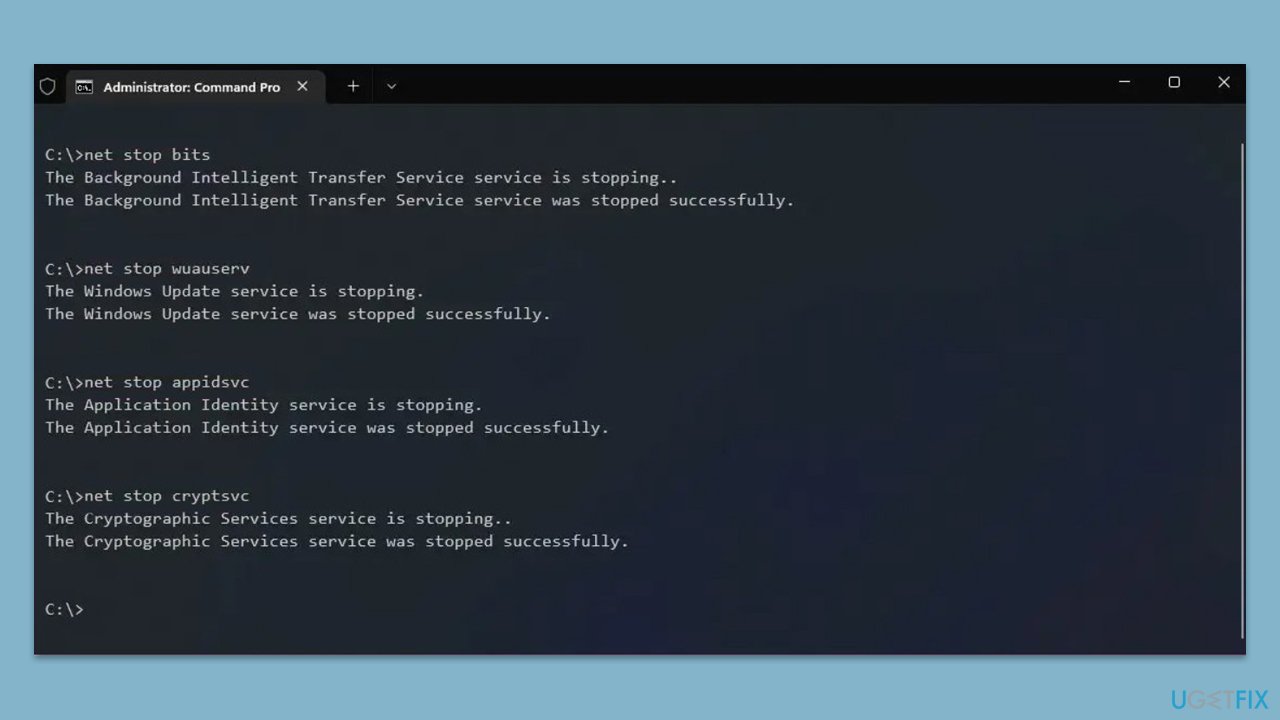
- Open Command Prompt as administrator.
- In the new window, copy and paste the following commands, pressing Enter after each to execute them:
net stop bits
net stop wuauserv
net stop appidsvc
net stop cryptsvc
Del “%ALLUSERSPROFILE%\Application Data\Microsoft\Network\Downloader\*.*”
rmdir %systemroot%\SoftwareDistribution /S /Q
rmdir %systemroot%\system32\catroot2 /S /Q
regsvr32.exe /s atl.dll
regsvr32.exe /s urlmon.dll
regsvr32.exe /s mshtml.dll
netsh winsock reset
netsh winsock reset proxy
net start bits
net start wuauserv
net start appidsvc
net start cryptsvc - Restart your device.
Fix 5. Check and restart critical Windows services
Windows Update relies on several essential services running in the background. Ensuring these services are active and configured correctly can resolve issues with failed updates.
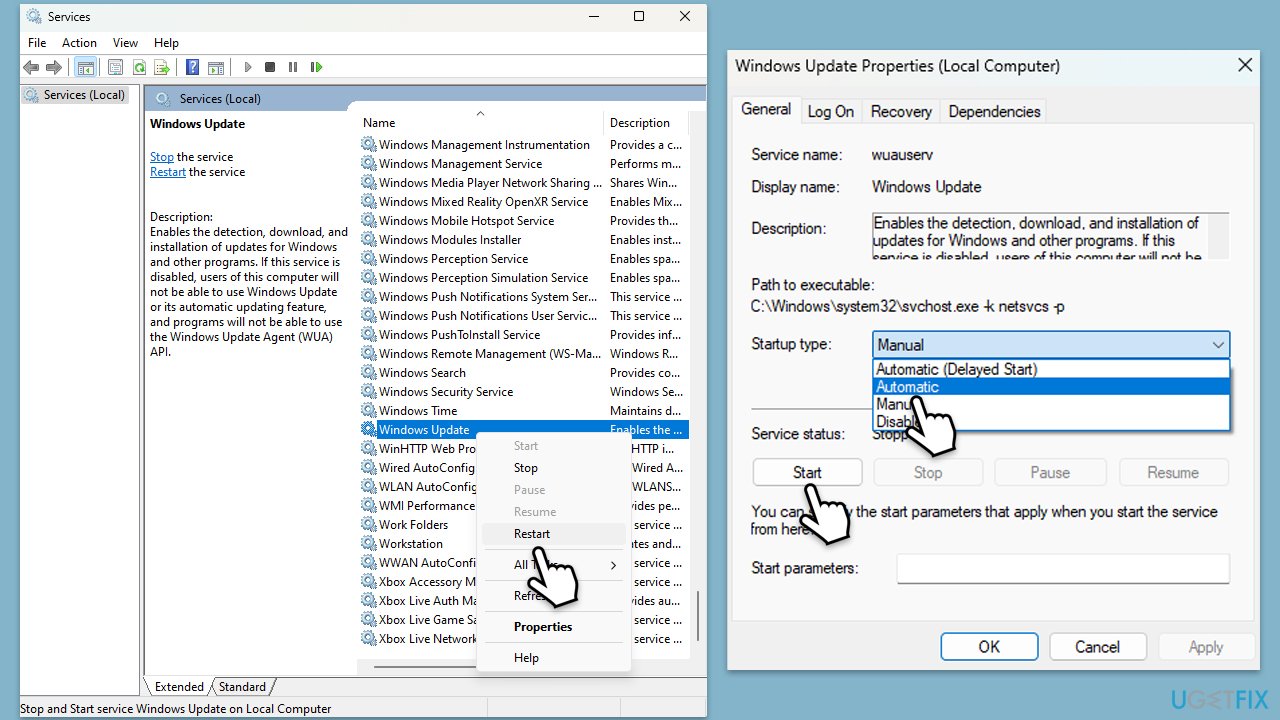
- Type Services in Windows search and hit Enter.
- Scroll down to locate Windows Update.
- If it is already running, right-click and pick Restart.
- If the service is not running, double-click it, and select Automatic under the Startup type from the drop-down menu.
- Click Start, Apply, and OK.
- Repeat this process for Background Intelligent Transfer Service (BITS) and Cryptographic services.
Fix 6. Repair corrupt system files
Corrupt system files can block updates from installing correctly. Using built-in Windows tools, you can scan and repair these files to restore system health and resolve update issues.
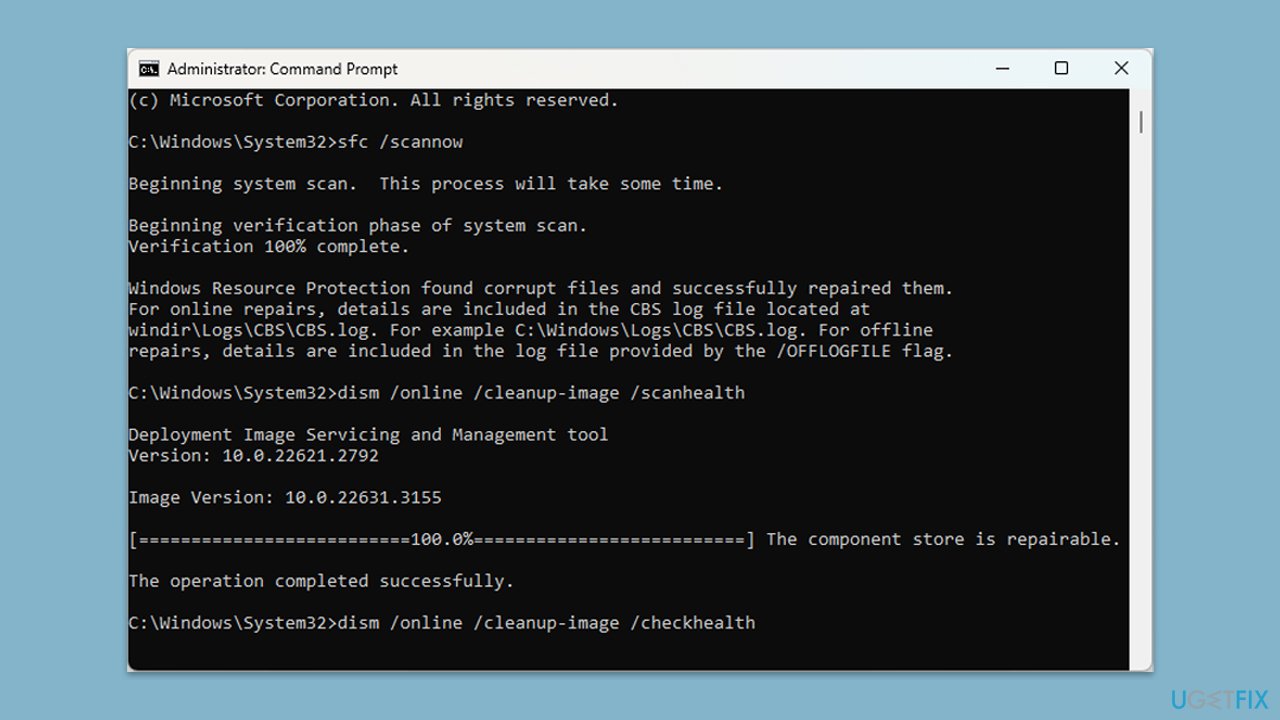
- Open Command Prompt as administrator.
- Copy and paste the following command, pressing Enter after:
sfc /scannow - Wait till the scan is finished. If Windows finds system file integrity violations, it will attempt to fix them. After this, use the set of the following commands, pressing Enter each time:
DISM /Online /Cleanup-Image /CheckHealth
DISM /Online /Cleanup-Image /ScanHealth
DISM /Online /Cleanup-Image /RestoreHealth - (Note: if you get an error executing this last command, add /Source:C:\RepairSource\Windows /LimitAccess to it and try again).
- Close down the Command Prompt and restart your computer.
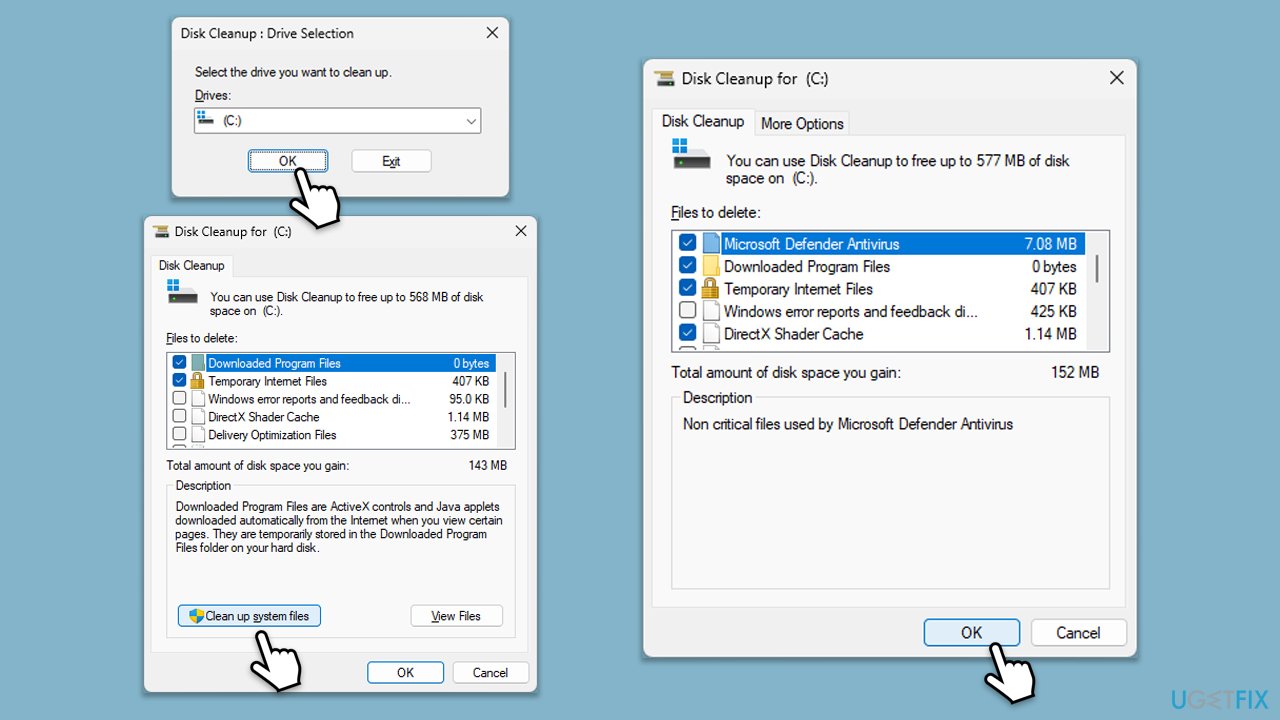
Fix 7. Clean up disk space
Accumulated temporary files and other unnecessary data can sometimes interfere with updates. Running Disk Cleanup removes these junk files and frees up space, potentially resolving the issue.
- Type Disk Cleanup in Windows search and hit Enter.
- If your Windows is installed on drive C, pick it from the list (it should be by default) and press OK.
- Click Clean up system files.
- Select your main disk again and click OK.
- Here, select the largest portions of the data used - these typically include Temporary Internet Files, Windows Update, Temporary Files, Recycle Bin, Delivery Optimization Files, and others.
- Click OK - the process should be finished shortly.
Bottom line
To fix the issue with KB5043076 failing to install, consider freeing up disk space, running the Windows update troubleshooter, or temporarily disabling conflicting apps. Additionally, checking system files for errors or resetting Windows update components may help. If none of these solutions work, using a PC repair tool may automatically fix deeper Windows problems.
Frequently asked questions
Common reasons include corrupted system files, insufficient disk space, or conflicts with third-party software. Ensuring your Windows 11 is updated and performing a clean boot can help resolve these issues.
You can manually download KB5043076 from the Microsoft Update Catalog website and install it by running the downloaded file. Make sure to choose the correct version for your Windows 11 system architecture.
If basic fixes fail, try running the Windows Update Troubleshooter and executing the DISM and SFC commands to repair system files. Additionally, checking for any pending updates and ensuring your device has enough storage can also help.




Report an issue
What's wrong with this guide? We review every report and update or remove content.
Report received — thank you. We'll review and fix it.
You need a free account to submit a report.
Be the first to comment