How to fix
KB5043131 fails to install
on Windows
Resolve KB5043131 installation issues in Windows 10 quickly and easily. Get expert-tested solutions to fix the problem and enjoy a seamless update exper…

What causes How to fix KB5043131 fails to install in Windows 10?
- Corrupted system files
- Software or driver conflict
- Lack of space
- Problems with Windows Update services
- Interference from third-party antivirus programs
- Connectivity issues during download or installation
Repairs Windows system files, removes malware, and restores a clean OS state — without reinstalling.
Hey. I was wondering if you could help me to solve a problem with KB5043131 failing to install?
Some users reported that Windows 11's KB5043131 update did not successfully install and may leave your update incomplete or unsuccessful. As a result, this might be quite an annoying issue, especially when the update keeps failing multiple times - this article should help you address the issue at hand.
Cumulative update KB5043131, dated September 24, 2024, is a preview build for Windows 10, version 22H2, to all editions of the OS - updates of this nature often feature a number of improvements and fixes.
Among key improvements are enhanced support for Microsoft Intune, several updates regarding Defender for Endpoint, and enhanced system performance coupled with security features. But most importantly, this update contains several non-security quality improvements that focus on the operating system's overall stability.
Despite these benefits, some users have encountered difficulties when attempting to install KB5043131. The installation process may freeze, fail, or revert changes after attempting to apply the update. This issue appears to affect a subset of users without a clear pattern regarding hardware or system configuration, though certain factors may increase the likelihood of installation failure.
KB5043131 installation failure could be caused by several factors: corrupted system files, some sort of software or driver conflict, lack of space, or problems with Windows Update services. Sometimes, interference from third-party antivirus programs affects the process. Besides, connectivity issues during the download or installation phase could result in an incomplete or corrupted update file.
To address these problems, several troubleshooting steps can be considered, such as checking for system file corruption, ensuring adequate disk space, and disabling antivirus software temporarily during the update. For more complex issues, using [d1] repair tools might help resolve underlying system problems and restore normal update functionality.
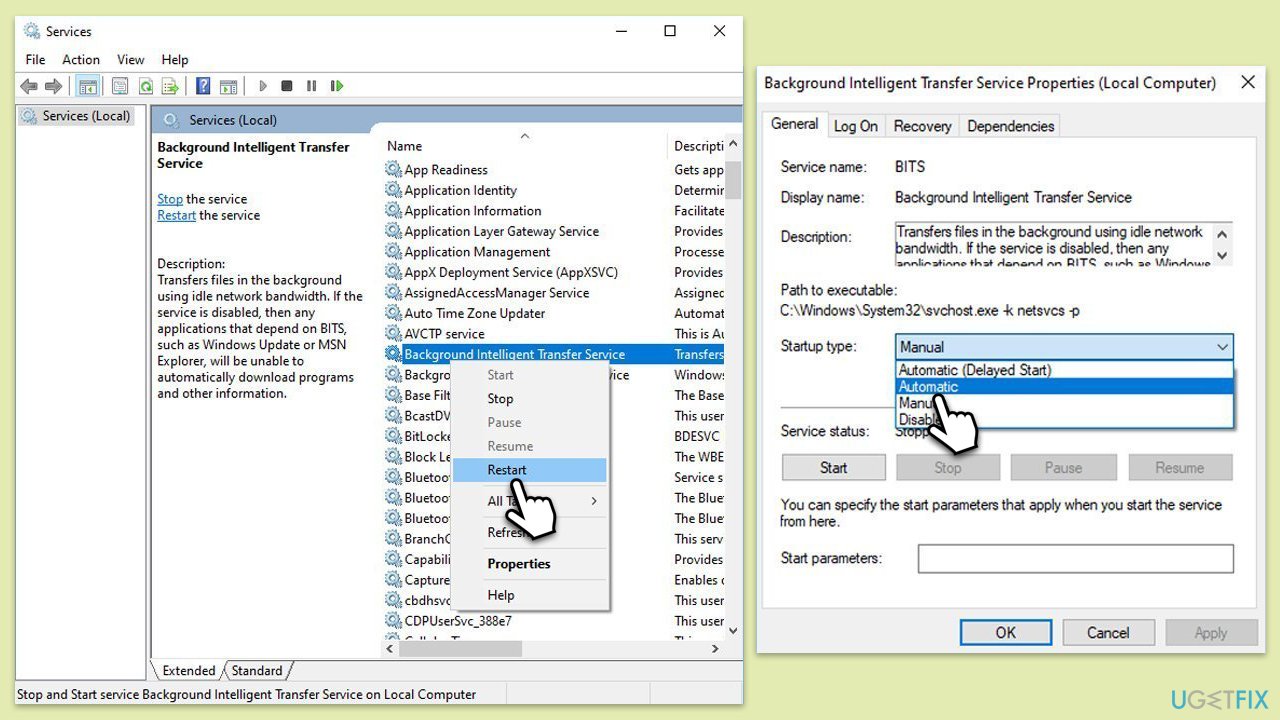
Fix 1. Check Windows services
- Type in Services in Windows search and press Enter.
- Locate Background Intelligent Transfer Service (BITS).
- If it is already running, right-click and select Restart.
- If the service is not running, double-click it, and pick Automatic under the Startup type from the drop-down menu.
- Click Start, Apply, and OK.
- Repeat this process with Windows Update and Cryptographic services.
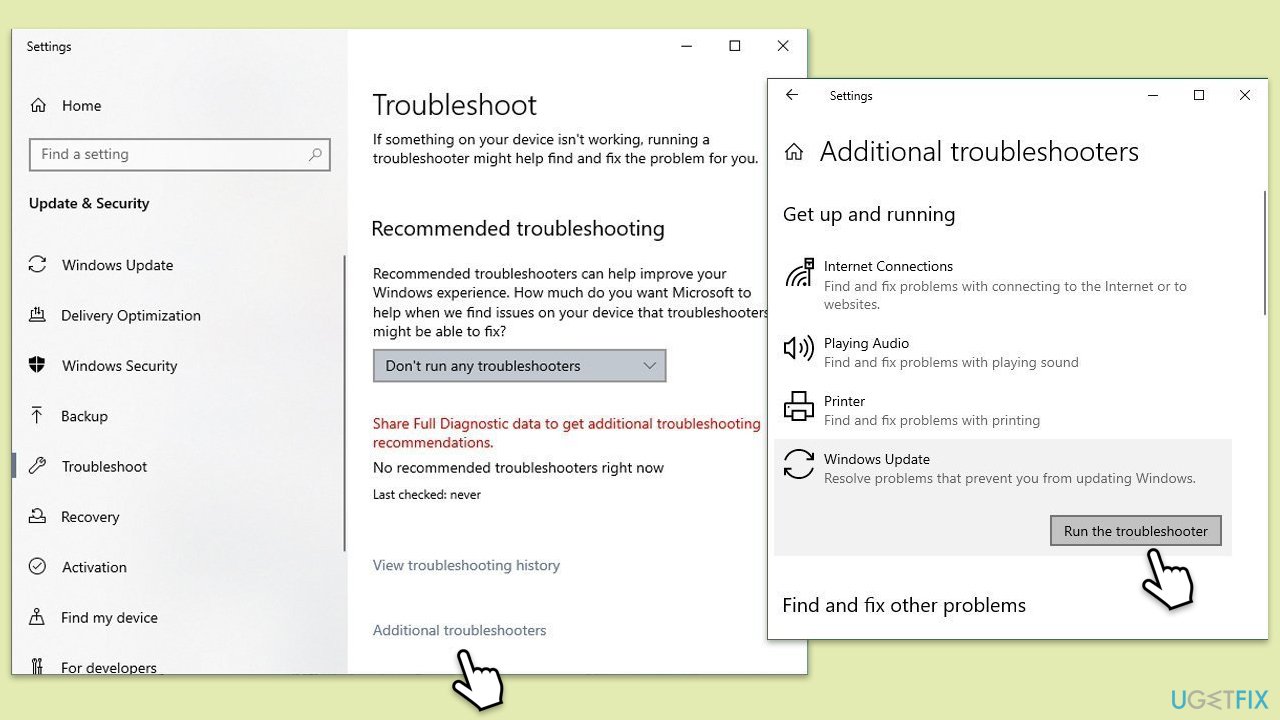
Fix 2. Run Windows update troubleshooter
- Type Troubleshoot in Windows search and press Enter.
- Select Additional troubleshooters.
- Find Windows Update from the list.
- Select it and click Run the troubleshooter.
- Restart your computer when the update process finishes.
Fix 3. Disable anti-virus or run Clean Boot
- Disable your anti-malware software temporarily and try the update again.
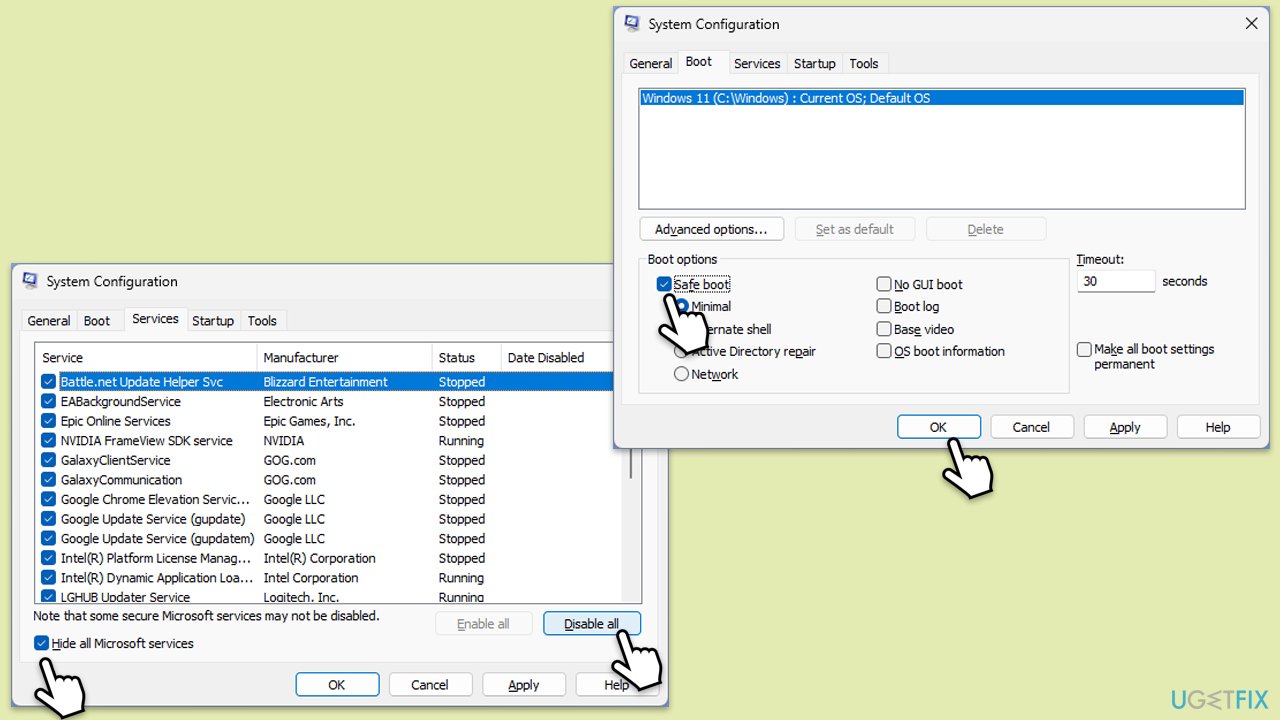
- If the problem persists, press Win + R, type msconfig, and hit Enter.
- Go to the Services tab and tick the Hide all Microsoft services checkbox.
- Select Disable all.
- Go to the Startup tab and click Open Task Manager.
- Here, right-click on each of the non-Windows entries and select Disable.
- Close down the Task Manager.
- Go to the Boot tab and tick the Safe boot option.
- Restart your device and attempt to apply the update.
Fix 4. Reset Windows update components
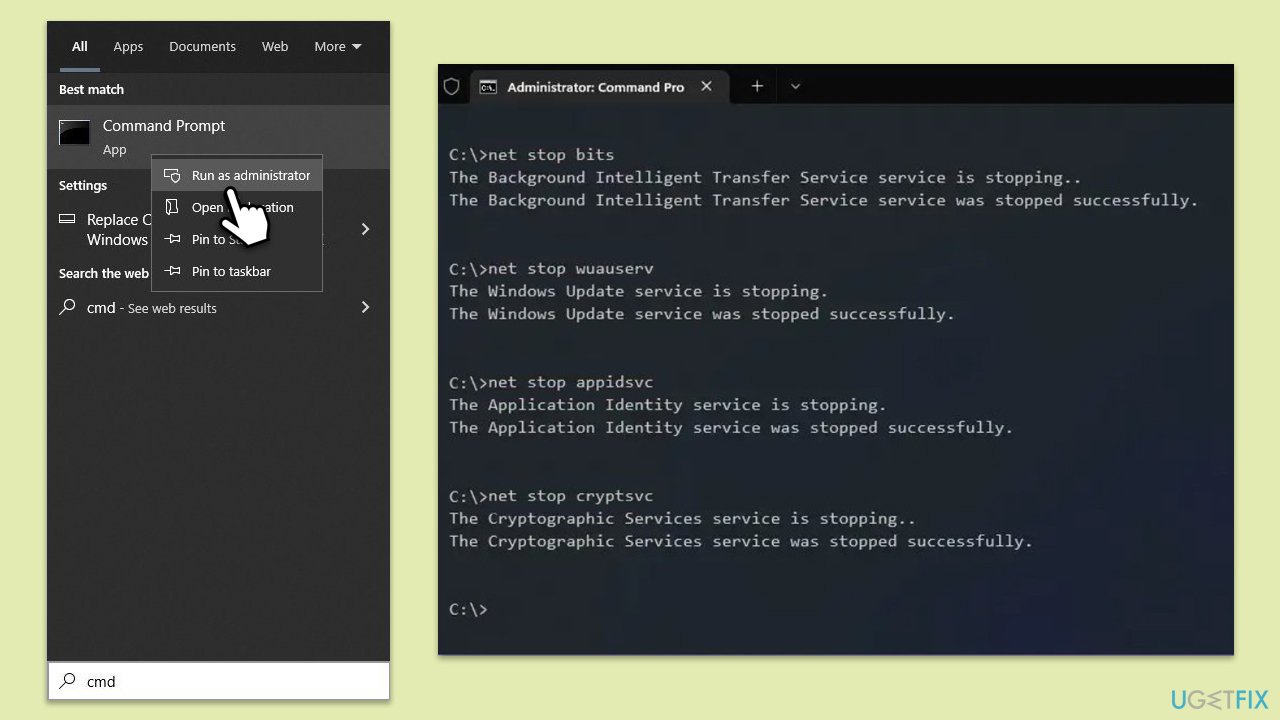
- Type cmd in Windows search.
- Right-click on Command Prompt and pick Run as administrator.
- User Account Control window will show up - click Yes when prompted.
- Stop the BITS, Windows Update, and Cryptographic services by typing the following commands, and pressing Enter after each:
- net stop bits
- net stop wuauserv
- net stop appidsvc
- net stop cryptsvc
- To rename the SoftwareDistribution and Catroot2 folders (where Windows stores update files) and reset your connection components, type the following commands:
- ren %systemroot%\SoftwareDistribution SoftwareDistribution.old
- ren %systemroot%\system32\catroot2 catroot2.old
- regsvr32.exe /s atl.dll
- regsvr32.exe /s urlmon.dll
- regsvr32.exe /s mshtml.dll
- netsh winsock reset
- netsh winsock reset proxy
- Restart the services stopped earlier by typing the following commands:
- net start bits
- net start wuauserv
- net start appidsvc
- net start cryptsvc
- Close the Command Prompt and restart your computer, then try updating Windows again.
Fix 5. Perform Disk Cleanup
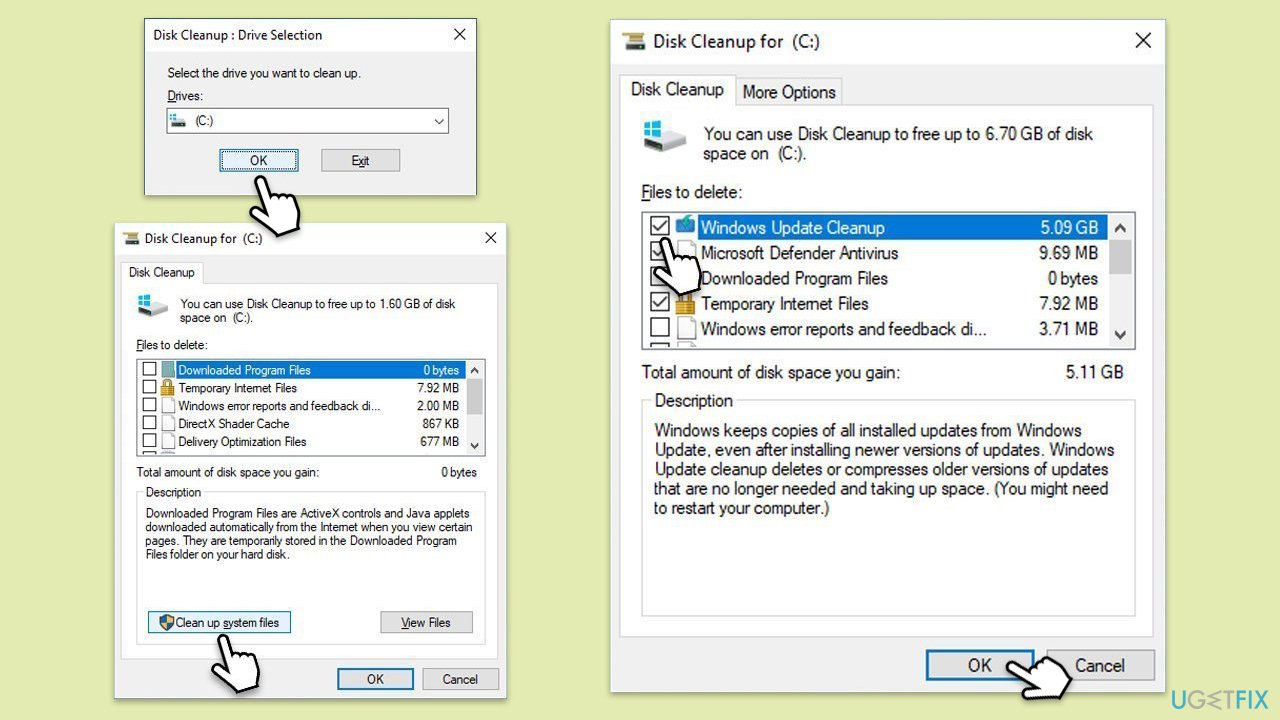
- Type Disk Cleanup in Windows search and press Enter.
- Select your main drive (C: by default).
- Select appropriate fields (Temporary files, Recycle Bin, etc.) and click OK.
- If you want a more thorough cleanup and require even more space, select Clean system files in the Disk Cleanup window.
- Select your main drive again - Windows will compute how much space can be retrieved.
- The largest data dumps are usually accumulated in Windows Update and Delivery Optimization sections, although Temp files can also take a lot if it hasn't been cleaned.
- Select appropriate fields and click OK - Windows will remove all these files from your device and free up space.
Fix 6. Repair corrupted files
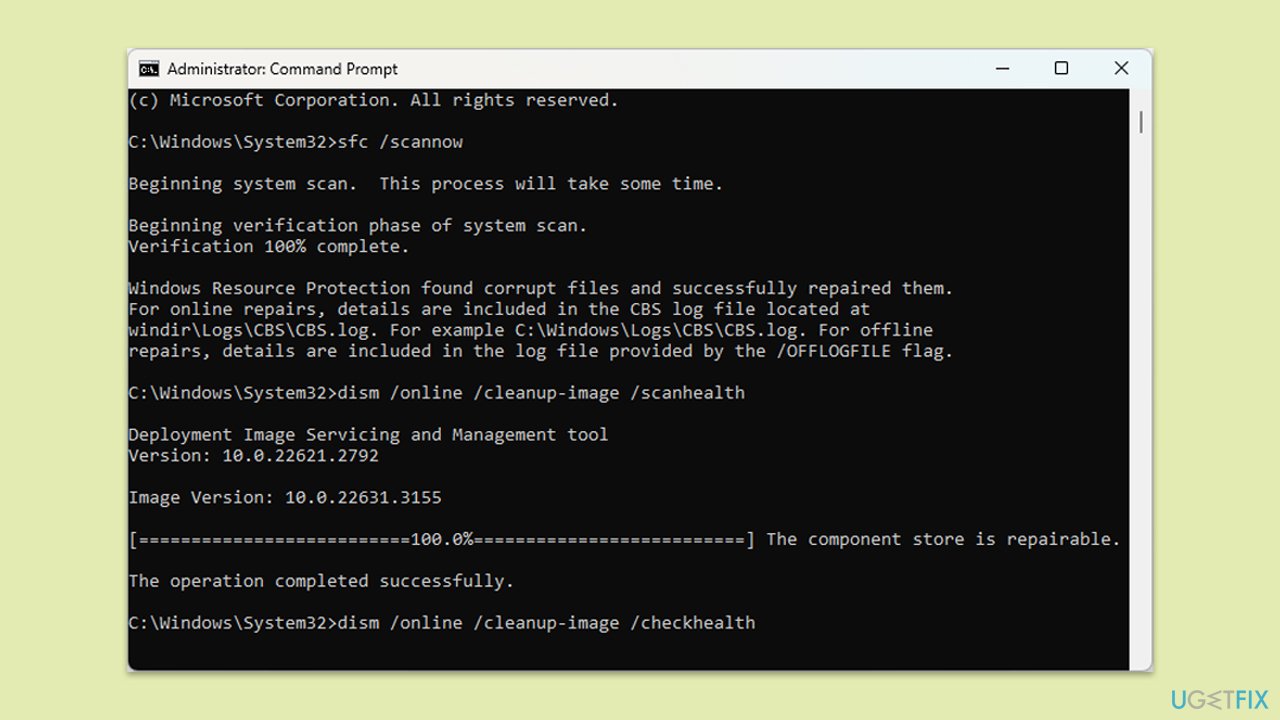
- Open Command Prompt as administrator.
- Type in the following command and press Enter:
sfc /scannow - When done, run the following commands as well:
dism /online /cleanup-image /scanhealth
dism /online /cleanup-image /checkhealth
dism /online /cleanup-image /restorehealth
(Note: if you get an error executing the last command, add /Source:C:\RepairSource\Windows /LimitAccess to it and try again.) - Restart your device.
Fix 7. Install the update manually
- Visit the Microsoft Update Catalog website.
- In the search bar, type the update number (in this case, KB5043131) and press Enter or click Search.
- Find the update that matches your system type (32-bit or 64-bit) and click Download.
- In the pop-up window, click the link to download the update.
- Once downloaded, run the update file and follow the on-screen instructions.
- Restart your device once done.
Bottom line
To fix the KB5043131 installation failure, you can check for system file corruption, ensure adequate disk space, and temporarily disable antivirus software. If these steps do not resolve the issue, consider using repair tools to address underlying system problems.
Frequently asked questions
Try running the Windows Update Troubleshooter, which can help identify and fix issues preventing the update from installing.
Yes, you can manually download the update from the Microsoft Update Catalog and install it on your Windows 10 system.
You can use the Disk Cleanup tool to remove unnecessary files and free up space for the update installation.




Report an issue
What's wrong with this guide? We review every report and update or remove content.
Report received — thank you. We'll review and fix it.
You need a free account to submit a report.
Be the first to comment