How to fix
KB5043145 fails to install
on Windows
Fix KB5043145 installation issues in Windows 11 quickly and effectively. Expert-tested solutions ensure smooth updates with zero traces left.

What causes How to fix KB5043145 fails to install in Windows 11?
- Corrupted update files
- Conflicts with security software
- Problems within the Windows Update service
- Issues with the servicing stack
- Insufficient system resources
- Unresolved system conflicts from previous updates
Repairs Windows system files, removes malware, and restores a clean OS state — without reinstalling.
Today, I noticed that an update was pending on my Windows machine, so I tried to install it, as I usually do. However, KB5043145 failed to install. It's a preview build, so it is not mandatory for me, but it's weird how it fails and I was wondering if there's something I can do to address it.
The KB5043145 update, released on September 26, 2024, is a preview build for Windows 11 versions 23H2 and 22H2, aiming to introduce new features and fixes ahead of the official October release. This update is significant for users on both Home and Pro editions, especially with the upcoming End of Service (EOS) for version 22H2 in October.
Among the highlights of KB5043145 are several interface enhancements, such as the ability to share local files directly from the search results in the taskbar and a redesigned Delivery Optimization settings page that aligns with the latest Windows 11 design.
Additionally, media playback controls have been moved to a more prominent position on the lock screen for easier access. The update also addresses key issues like freezing in Microsoft Edge when using IE mode and a Task Manager bug that caused unresponsiveness when switching themes.
However, some users have reported issues with the KB5043145 update failing to install. This failure may result from corrupted update files, conflicts with security software, or problems within the Windows Update service itself. In some instances, the update error may be linked to the servicing stack, which manages the installation of updates. Other causes could include insufficient system resources or unresolved system conflicts from previous updates.
When the installation failure occurs, users may encounter repeated attempts by Windows to install the update, only to see the process fail each time. This can be frustrating, especially when essential improvements and features are being missed.
Addressing the issue usually requires diagnosing and resolving the underlying cause, whether it's related to software conflicts or update file corruption. In more complex cases, using a reliable PC repair tool like [d1] can help automatically identify and fix deeper system issues, ensuring smooth update installations.
Fix 1. Run Windows Update troubleshooter
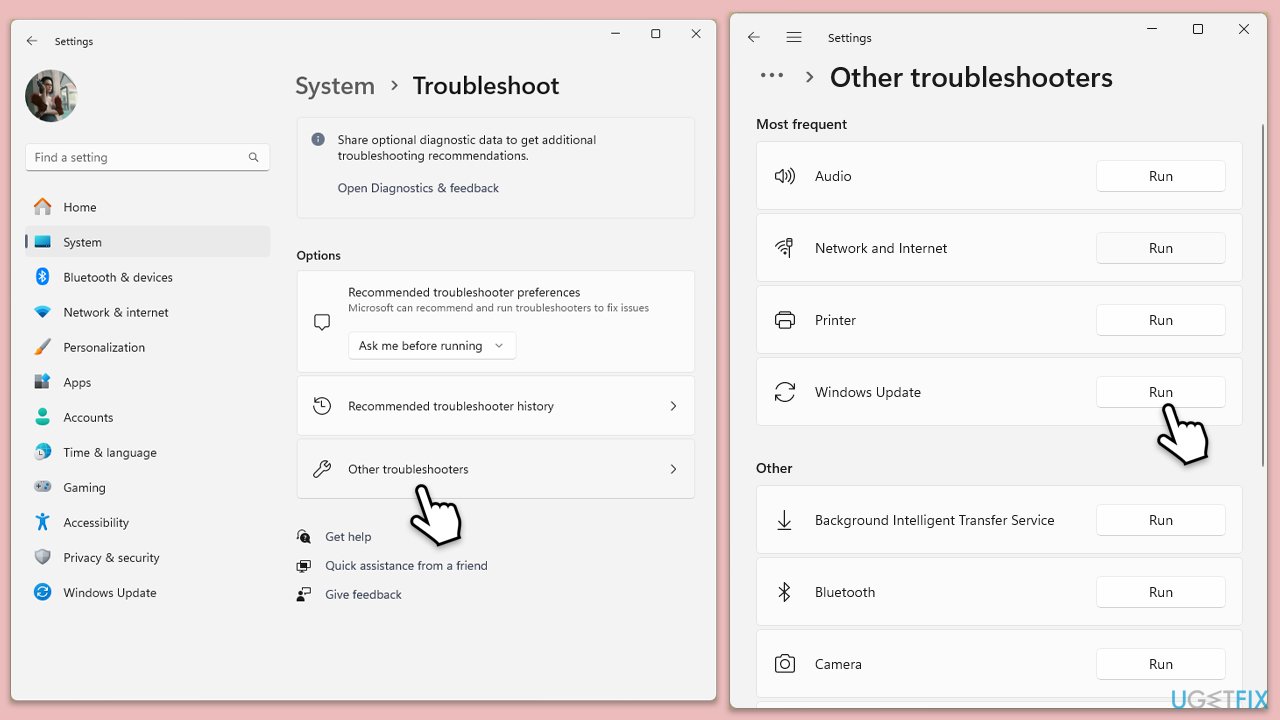
The Windows Update troubleshooter can automatically detect and fix common update problems, including those causing the KB5043145 installation failure.
- Type troubleshoot in Windows search and press Enter or go to Start > Settings > System > Troubleshoot.
- From the list of Options, pick Other troubleshooters.
- Scroll down to locate the Windows Update and click Run.
- Wait for it to finish, then apply changes and restart the device.
Fix 2. Check and repair corrupted system files
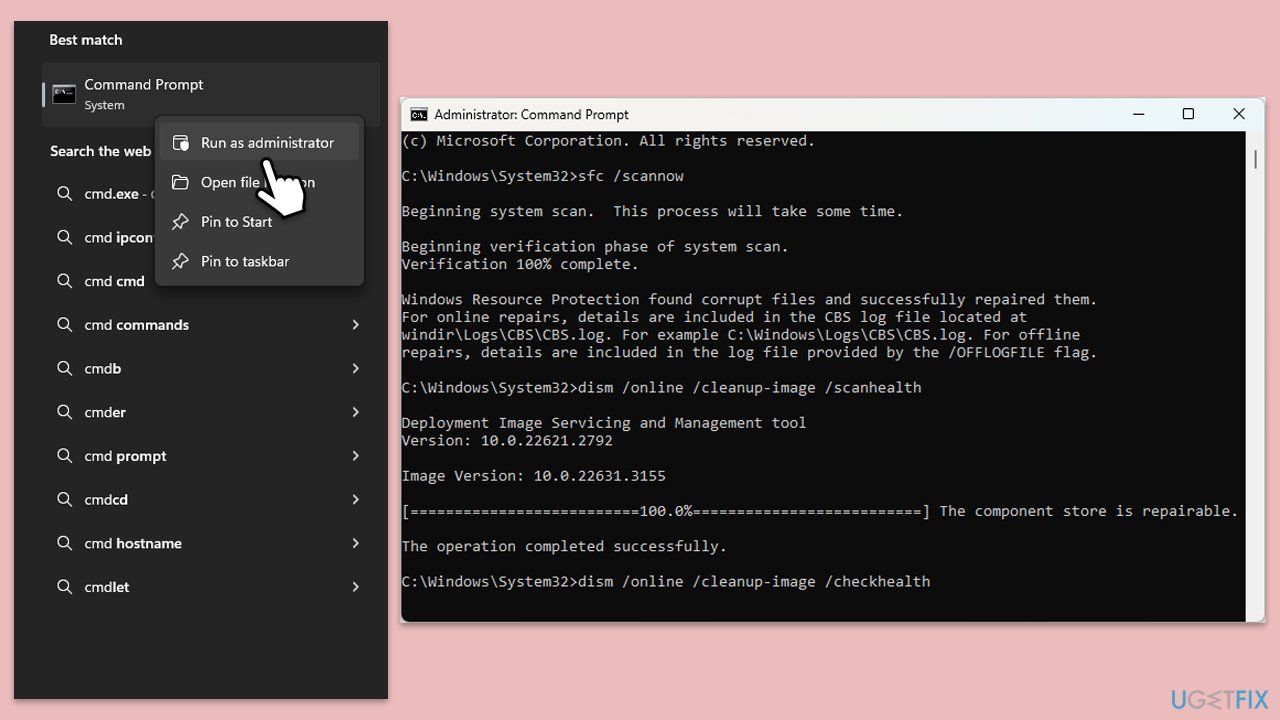
Corrupted system files can prevent updates from installing. Running the System File Checker (SFC) and DISM commands can help repair these files.
- Type in cmd in Windows search.
- Right-click on Command Prompt and select Run as administrator.
- User Account Control window will show up - click Yes when prompted.
- In the Command Prompt window, paste the following command and press Enter:
sfc /scannow - Wait for the scan to complete.
- Once the SFC scan is finished, run the following set of DISM commands, pressing Enter after each one:
DISM /Online /Cleanup-Image /CheckHealth
DISM /Online /Cleanup-Image /ScanHealth
DISM /Online /Cleanup-Image /RestoreHealth
(Note: if you get an error executing this last command, add /Source:C:\RepairSource\Windows /LimitAccess to it and try again). - After completing the DISM commands, restart your computer.
Fix 3. Disable third-party antivirus software
Third-party antivirus programs can interfere with the Windows update process, leading to installation failures. Temporarily disabling these programs may resolve the issue.
- Open your antivirus software.
- Disable the real-time protection.
- Try installing the update again.
Fix 4. Ensure sufficient disk space
Lack of available disk space can prevent updates from being installed. Freeing up space on your system drive may allow the update to proceed.
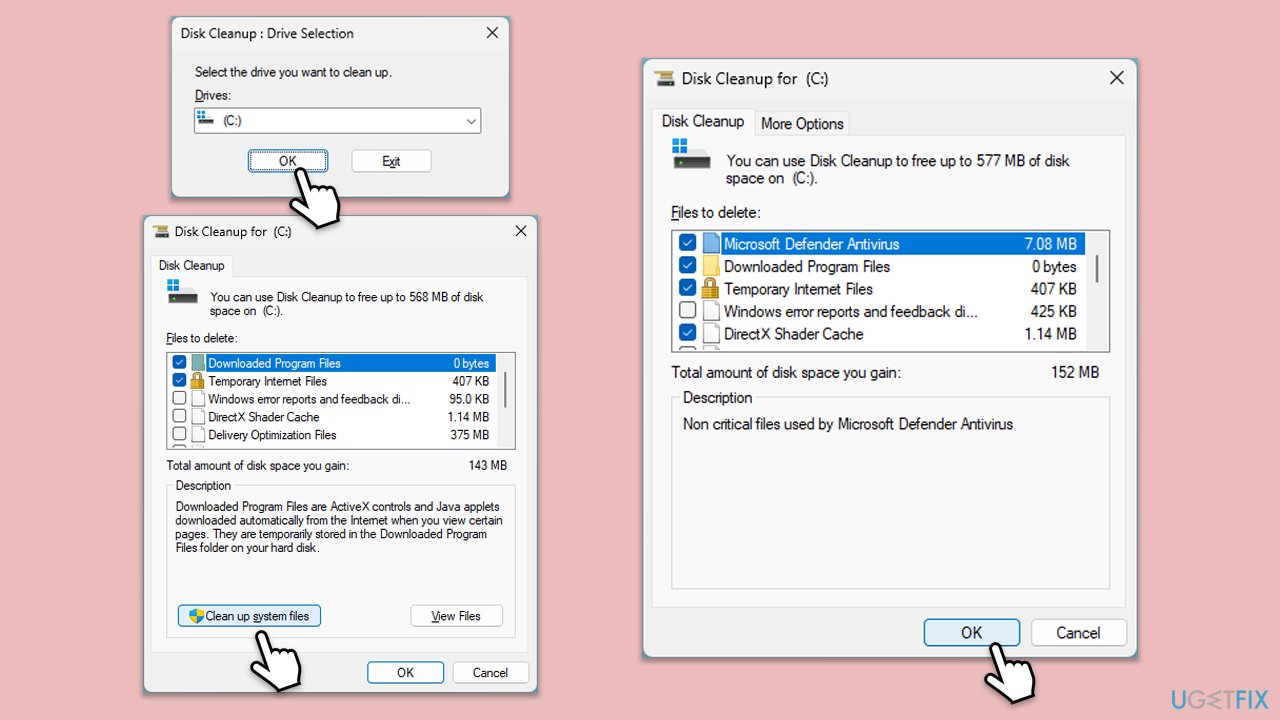
- Type Disk Cleanup in Windows search and hit Enter.
- If your Windows is installed on drive C, pick it from the list (it should be by default) and press OK.
- Click Clean up system files.
- Select your main disk again and click OK.
- Here, select the largest portions of the data used - these typically include Temporary Internet Files, Windows Update, Temporary Files, Recycle Bin, Delivery Optimization Files, and others.
- Click OK - the process should be finished shortly.
Fix 5. Reset Windows Update components
Resetting the Windows Update components can help resolve persistent update errors by refreshing the update process.
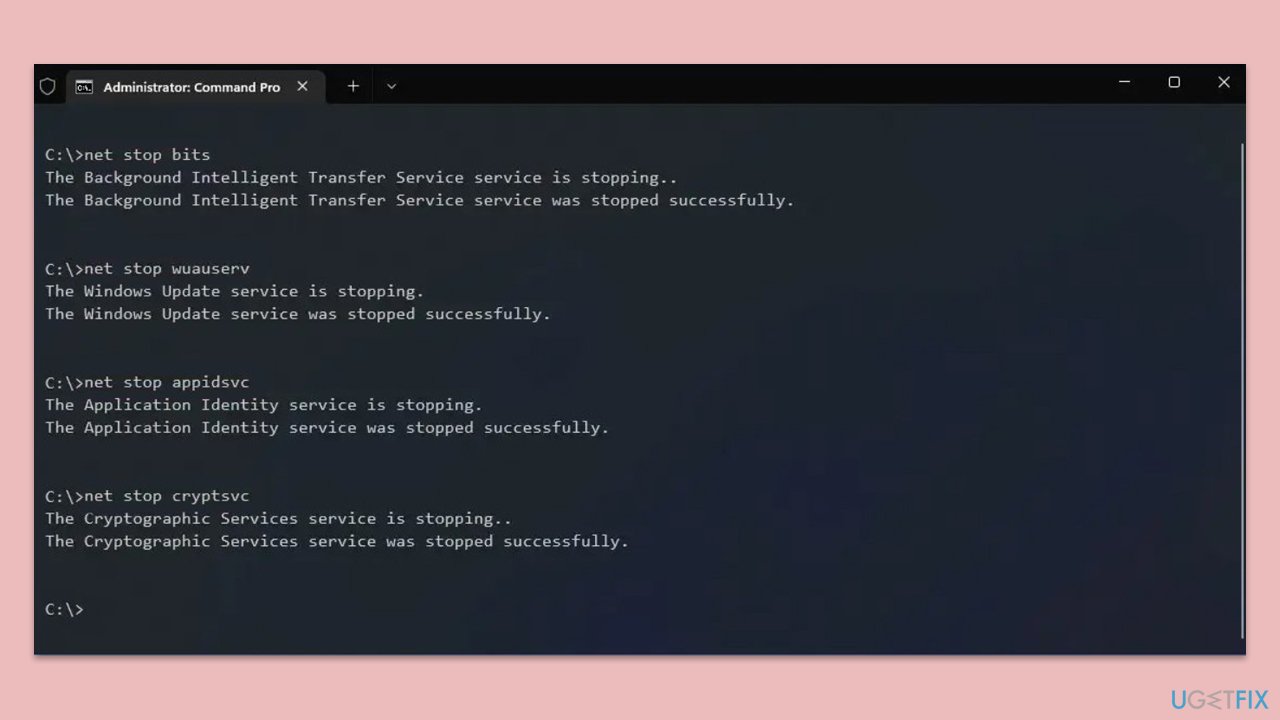
- Open Command Prompt as administrator.
- Copy and paste each of these commands, pressing Enter each time:
net stop bits
net stop wuauserv
net stop appidsvc
net stop cryptsvc
Del “%ALLUSERSPROFILE%\Application Data\Microsoft\Network\Downloader\*.*”
rmdir %systemroot%\SoftwareDistribution /S /Q
rmdir %systemroot%\system32\catroot2 /S /Q
regsvr32.exe /s atl.dll
regsvr32.exe /s urlmon.dll
regsvr32.exe /s mshtml.dll
netsh winsock reset
netsh winsock reset proxy
net start bits
net start wuauserv
net start appidsvc
net start cryptsvc - Restart your system.
Fix 6. Download and install the update manually
If automatic updates continue to fail, manually downloading and installing the KB5043145 update can bypass certain issues.
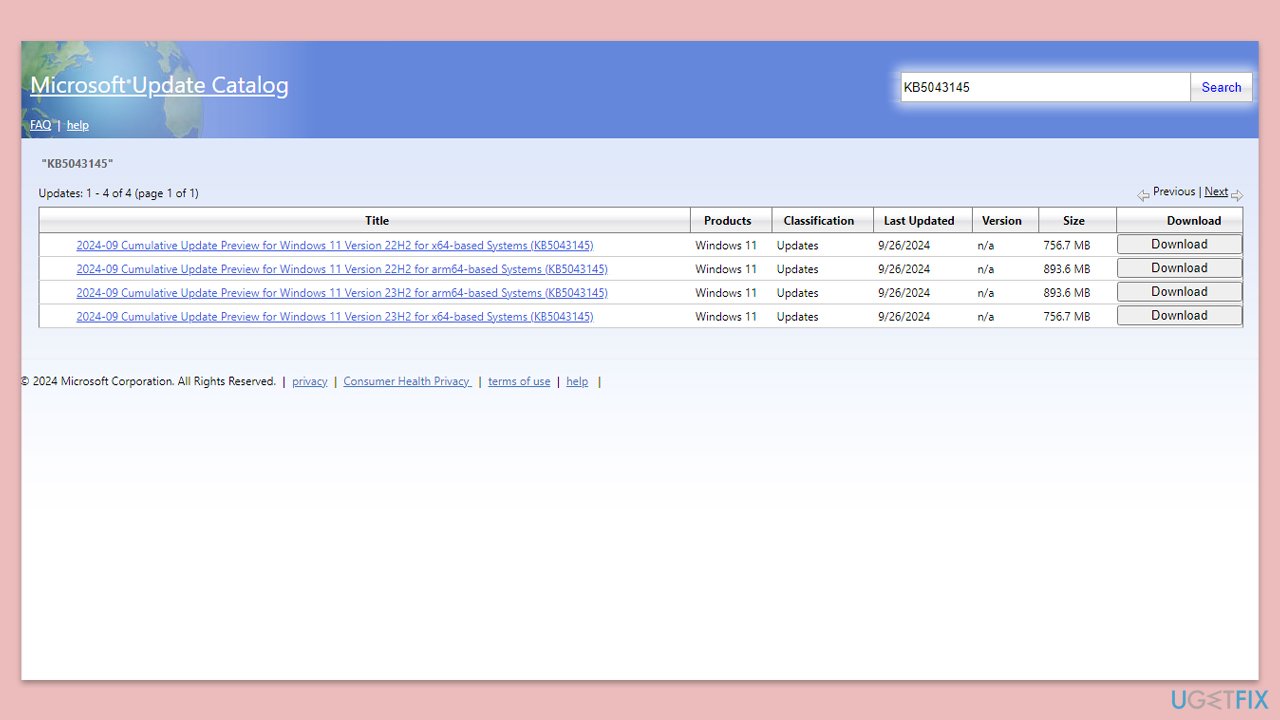
- Open your web browser and navigate to the Microsoft Update Catalog.
- Type KB5043145 in the search box and click Enter.
- Locate the correct version of the update for your operating system by checking your System type (Right-click on Start and select System. Under Windows specifications, check the Version).
- Click on Download and follow the prompts to complete the process.
- Once the update is installed, reboot your system.
Bottom line
To address the installation failure of KB5043145, users should diagnose and resolve underlying causes such as software conflicts or update file corruption. In more complex cases, utilizing a reliable PC repair tool can help identify and fix deeper system issues. If none of these solutions work, further troubleshooting may be required.
Frequently asked questions
Common reasons include corrupted system files, insufficient storage space, or conflicts with third-party software. Ensure your system is updated and check for any pending updates before trying again.
You can run the Windows Update Troubleshooter, reset Windows Update components, or perform a clean boot to identify conflicts. Additionally, running the System File Checker (SFC) can help repair any corrupted files.
Yes, you can manually download the update from the Microsoft Update Catalog website and install it. Make sure to select the correct version for your Windows 11 architecture.




Report an issue
What's wrong with this guide? We review every report and update or remove content.
Report received — thank you. We'll review and fix it.
You need a free account to submit a report.
Be the first to comment