How to fix
KB5044273 fails to install
on Windows
Solve the KB5044273 installation issue on Windows 10 quickly and efficiently. Get expert-tested solutions and tips for a seamless update experience.

What causes How to fix KB5044273 fails to install in Windows 10?
- Corrupted system files
- Insufficient disk space
- Conflicts with third-party software
- Problems with the Windows Update components
Repairs Windows system files, removes malware, and restores a clean OS state — without reinstalling.
Hey, could you help me to install KB5044273 on Windows 10? I tried myself as per usual but it did not work. I rebooted the PC and it was still the same. It just says "Updates failed."
Most of the Windows updates are identified with a "KB" number, short for "Knowledge Base." In general, these numbers are used for tracking certain updates and patches released by Microsoft for various reasons.
Microsoft generally releases these updates during "Patch Tuesday," a monthly event where updates are pushed to fix vulnerabilities and bugs across Windows versions. For October 2024, one of these updates is KB5044273, which addresses several issues and brings enhancements.
About KB5044273
Released on October 8, 2024, KB5044273 is a cumulative update for Windows 10 versions 21H2 and 22H2. This update brings the operating system builds to 19044.5011 and 19045.5011, respectively.
The update brings critical security patches, improvements related to stability issues, and concrete bug fixes, including fixing File Explorer issues and improving the performance of Windows Server when using various features like the Taskbar.
Common installation issues
Despite its importance, some users have reported KB5044273 failing to install. These installation issues can occur for various reasons, including:
- Corrupted system files.
- Insufficient disk space.
- Conflicts with third-party software.
- Problems with the Windows Update components, etc.
Suggested solutions
To resolve these issues, users may need to try several approaches, such as running the Windows Update Troubleshooter to identify and fix problems automatically, or manually resetting Windows Update components to refresh the service. Clearing disk space can also be effective if storage constraints are causing the error.
Alternatively, users might opt to download and install the update manually from the Microsoft Update Catalog. For those who still encounter difficulties, using the Media Creation Tool offers another way to apply the update.
For users who prefer automated assistance, a [d1] repair tool can help diagnose and resolve update issues efficiently, ensuring that your system is up-to-date without manually troubleshooting every step.
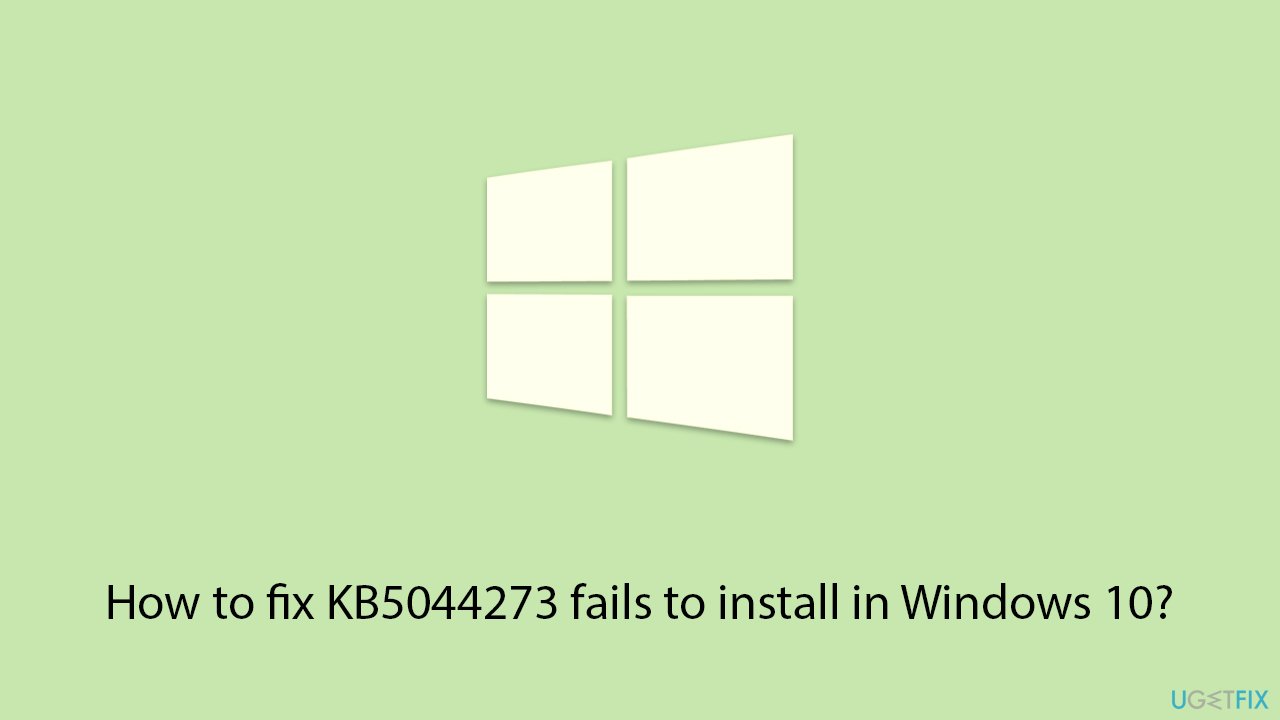
Fix 1. Run the Windows Update troubleshooter
The Windows Update Troubleshooter is a built-in tool designed to detect and automatically resolve common issues with Windows updates.
- Type Troubleshoot in Windows search.
- Select Additional troubleshooters.
- Find Windows Update from the list.
- Click it and pick Run the troubleshooter.
- Apply the suggested steps and restart your device.
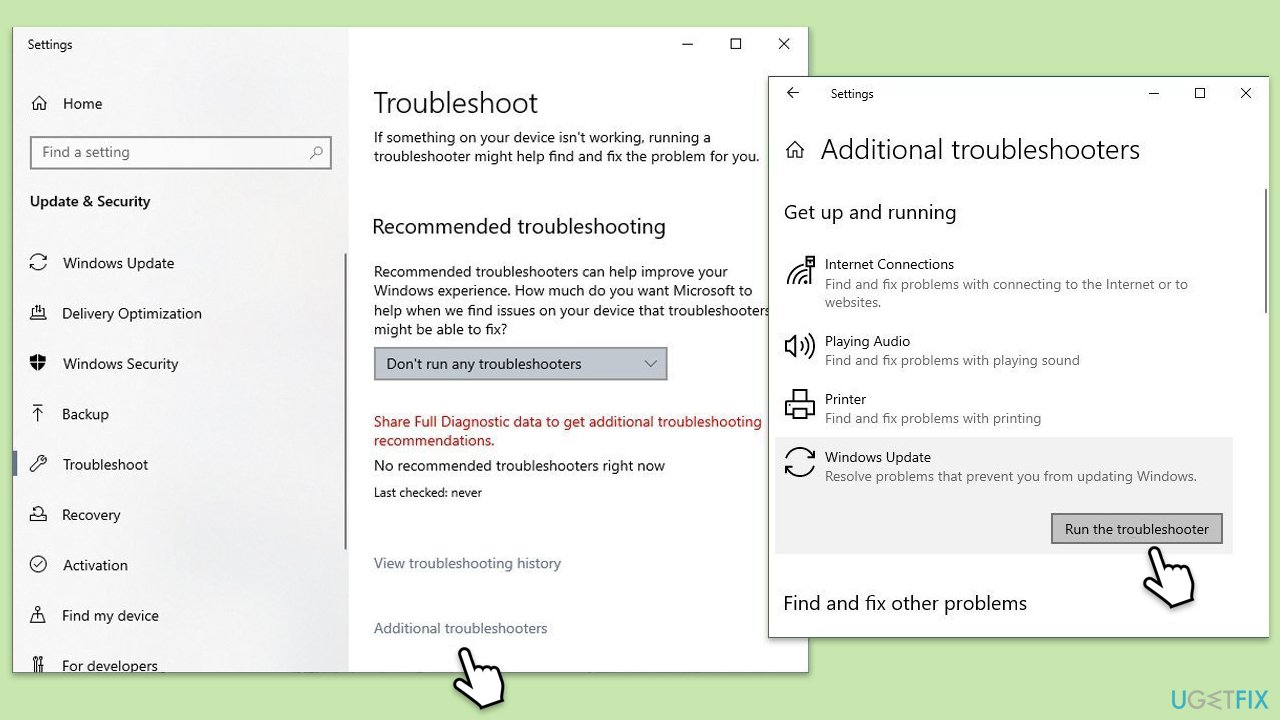
Fix 2. Reset Windows Update components
Corrupted Windows Update components can prevent updates from installing properly. Resetting these components can resolve the issue.
- Type cmd in Windows search.
- Right-click on Command Prompt and pick Run as administrator.
- User Account Control window will show up - click Yes when prompted.
- Stop the BITS, Windows Update, and Cryptographic services by typing the following commands, and pressing Enter after each:
- net stop bits
- net stop wuauserv
- net stop appidsvc
- net stop cryptsvc
- To rename the SoftwareDistribution and Catroot2 folders (where Windows stores update files), type the following commands:
- ren %systemroot%\SoftwareDistribution SoftwareDistribution.old
- ren %systemroot%\system32\catroot2 catroot2.old
- Restart the services stopped earlier by typing the following commands:
- net start bits
- net start wuauserv
- net start appidsvc
- net start cryptsvc
- Close the Command Prompt and restart your computer, then try updating Windows again.
Fix 3. Clear disk space
Insufficient disk space can block updates from installing. Freeing up space on your system can help.
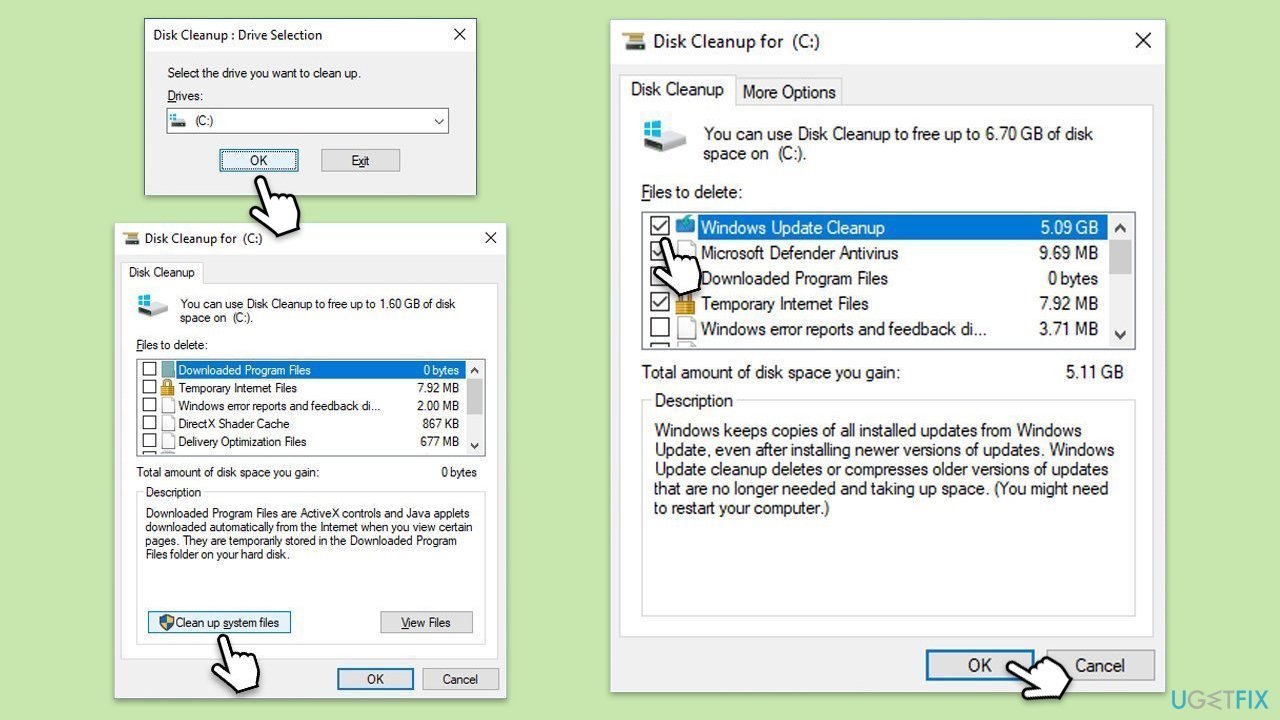
- Type Disk Cleanup in Windows search and hit Enter.
- If your Windows is installed on drive C, pick it from the list (it should be by default) and press OK.
- Click Clean up system files.
- Select your main disk again and click OK.
- Here, select the largest portions of the data used - these typically include Temporary Internet Files, Windows Update, Temporary Files, Recycle Bin, Delivery Optimization Files, and others.
- Click OK - the process should be finished shortly.
Fix 4. Install the update manually
If the update fails to install through Windows Update, downloading it manually from the Microsoft Update Catalog can bypass the issue.
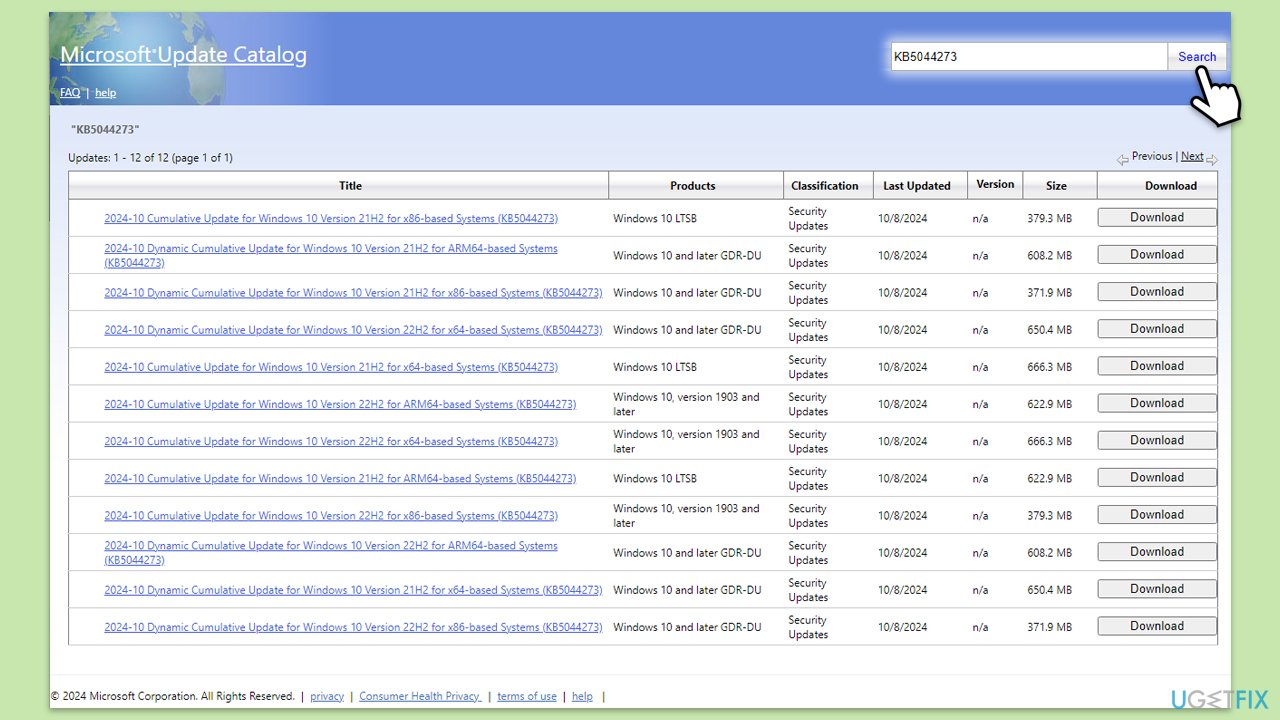
- Go to the official Microsoft Update Catalog website.
- Type the KB5044273 into the search bar, and press Enter or click Search.
- You will find many different versions on the update – you need to find the one that matches your PC specs and Windows version (as a home user, ignore Windows server versions).
- Right-click on Start and pick System.
- Under Device specifications, check the System type section: it should either be 64-bit or 32-bit.
- Scroll down to Windows specifications and check the Version section.
- Return to the Microsoft Update catalog, download the correct version and install it.
- Restart your computer.
Fix 5. Check for driver updates
Outdated or incompatible drivers can interfere with Windows updates. Ensuring your drivers are up to date can help resolve installation issues.
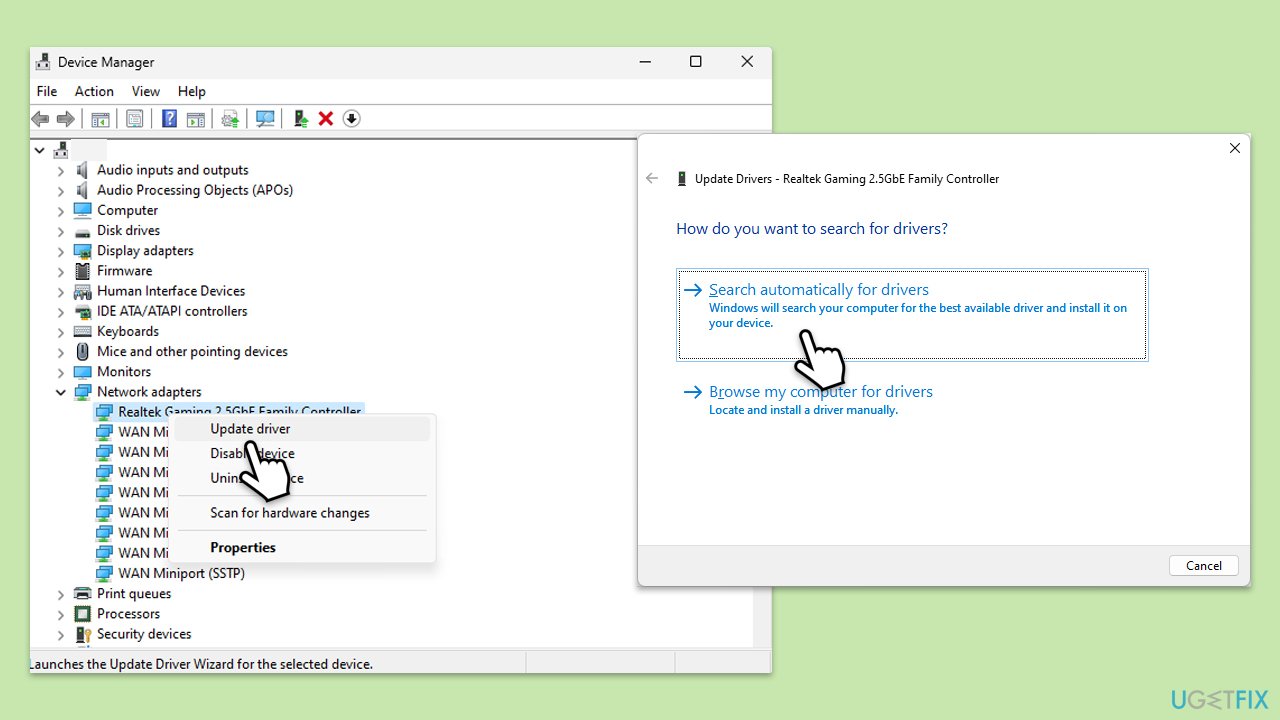
- Right-click on Start and select Device Manager.
- Right-click on each critical device (e.g., Display adapters, Network adapters) and select Update driver.
- Choose Search automatically for drivers.
- Restart your PC once all drivers are updated and try the update again.
- For a quicker process, try using [rev id="DriverFix"] instead.
Fix 6. Disable antivirus or firewall temporarily
Antivirus programs or firewalls might interfere with Windows updates. Temporarily disabling them can allow the update to install.
- Open your antivirus software and locate the option to disable it.
- Turn off the firewall by going to Settings > Update & Security > Windows Security > Firewall & network protection.
- Turn off each network profile.
- Try installing the update again. Re-enable your antivirus and firewall after the update.
Fix 7. Use the Media Creation Tool
The Media Creation Tool can help install updates if standard methods fail. It refreshes the OS while keeping your files and applications intact.
- Visit the official Microsoft website and download Windows 10 installation media.
- Double-click the installer and click Yes when the User Account Control window shows up.
- Agree to the terms and click Next.
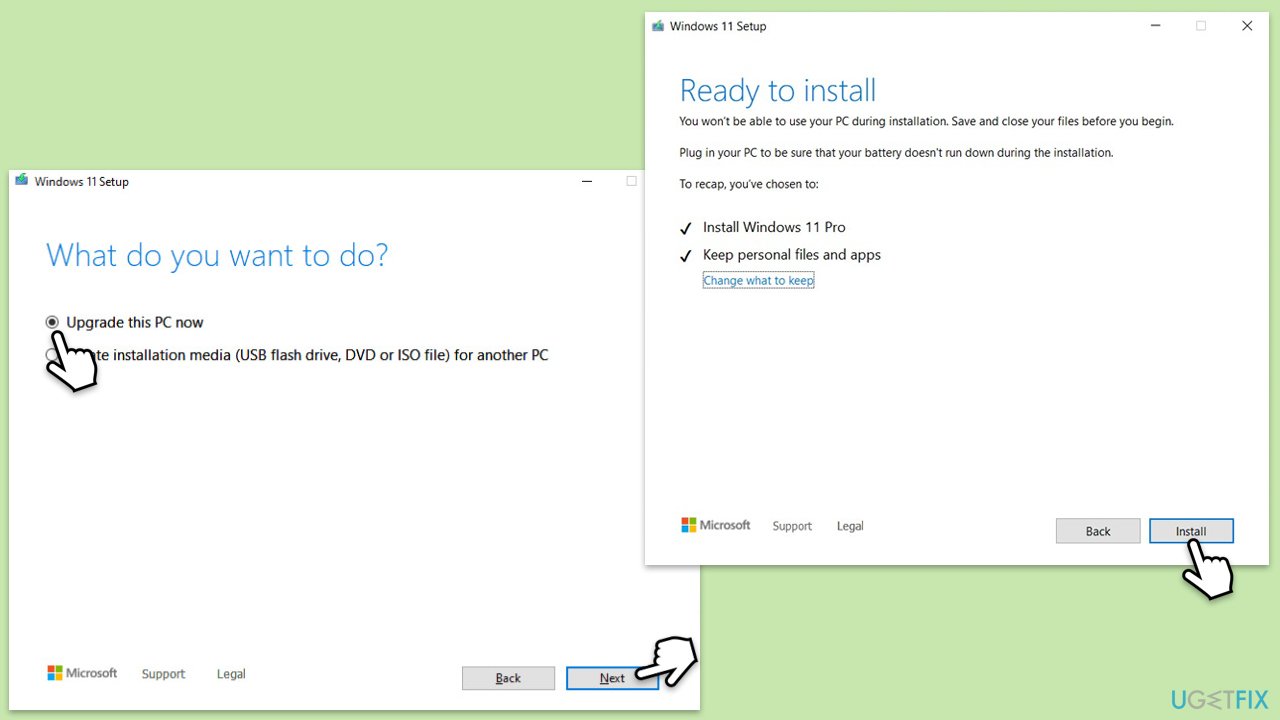
- Select Upgrade this PC now and click Next.
- Wait for Windows to download files.
- Agree to the terms once again and click Next.
- Before installing, ensure you are happy with your choices (otherwise, you can click the Change what to keep option).
- Click Install to begin the upgrade process.
Bottom line
To resolve the installation issues with KB5044273, users can run the Windows Update Troubleshooter, reset Windows Update components, clear disk space, or manually download the update from the Microsoft Update Catalog. If these solutions do not work, using the Media Creation Tool or a repair tool may provide further assistance.
Frequently asked questions
Try running the Windows Update Troubleshooter, which can often identify and fix issues preventing the installation of updates like KB5044273.
Yes, common error codes include 0x800f0922 and 0x80073701; you can look up these codes for tailored troubleshooting steps.
You can download the standalone update package for KB5044273 from the Microsoft Update Catalog and install it manually.




Report an issue
What's wrong with this guide? We review every report and update or remove content.
Report received — thank you. We'll review and fix it.
You need a free account to submit a report.
Be the first to comment