How to fix
KB5044284 fails to install
on Windows
Resolve KB5044284 installation issues in Windows 11 effortlessly. Get expert-tested solutions and fix your update problems in minutes.

What causes How to fix KB5044284 fails to install in Windows 11?
- Corrupted system files
- Conflicts with existing software
- Conflicts with hardware drivers
- Network connectivity issues
- Insufficient disk space
Repairs Windows system files, removes malware, and restores a clean OS state — without reinstalling.
Hey, I wonder if you could help me with KB5044284 failing to install on my PC? The message just keeps saying "We couldn't install this update, but you can try again (0x80248014)." I have no clue what this code means. Help.
Windows Updates are essential to system stability, performance, and security, bringing improvements and fixes to various features. Although Microsoft already began the rollout of Windows 11 version 24H2 on October 1, 2024, most devices still run version 23H2 yet many devices remain on version 23H2 due to the gradual nature of the release.
In this context, users on the 23H2 version were recently presented with the Patch Tuesday update KB5044284, an important update designed to address several issues. However, some individuals have encountered difficulties, as the update fails to install on their systems.
KB5044284 provides a handful of enhancements and fixes to improve performance and reliability on Windows 11. Key highlights features for this update include some changes that involve network security, adjusted authentication protocols, and other optimizations that make the operating system more stable through various hardware configurations.
The update also addresses specific vulnerabilities that could affect system security, aiming to keep devices protected against potential threats. Despite these improvements, KB5044284 fails to install for some, leading to errors and incomplete updates.
There are several reasons why KB5044284 may fail to install. Commonly, this issue arises from corrupted system files or conflicts with existing software and hardware drivers, which prevent the update process from executing correctly. Occasionally, problems with network connectivity or insufficient disk space can also interrupt the installation.
While solutions may involve verifying system components or resetting update components, further steps will depend on the specific error codes displayed. For addressing any such underlying Windows issues, using [d1] PC repair app can automatically fix these problems and ensure smoother operation.
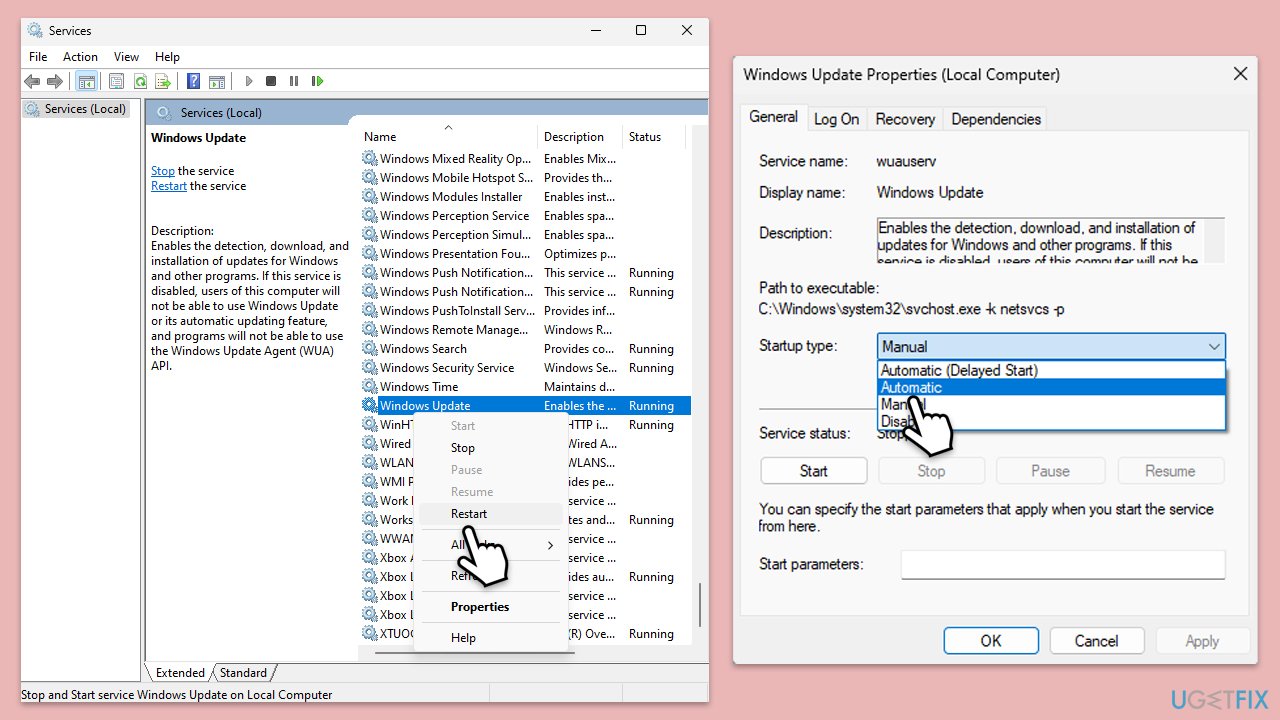
Fix 1. (Re)start relevant services
Certain Windows services, such as Windows Update and Background Intelligent Transfer Service (BITS), are essential for the update process to function correctly. If these services are not running or have encountered errors, restarting them may resolve the issue by reinitializing the update mechanism.
- Type Services in Windows search and press Enter.
- In the Services window, locate and double-click on the following services one by one (if these are already running, right-click and hit Restart):
- Windows Update
- Background Intelligent Transfer Service (BITS)
- Cryptographic Services
- For each service, ensure that the Startup type is set to Automatic. If it's not, select Automatic from the drop-down menu.
- Check the Service status. If the service is not running, click the Start button to start it.
- Click Apply and then OK for each service.
- Close the Services window and restart your computer.
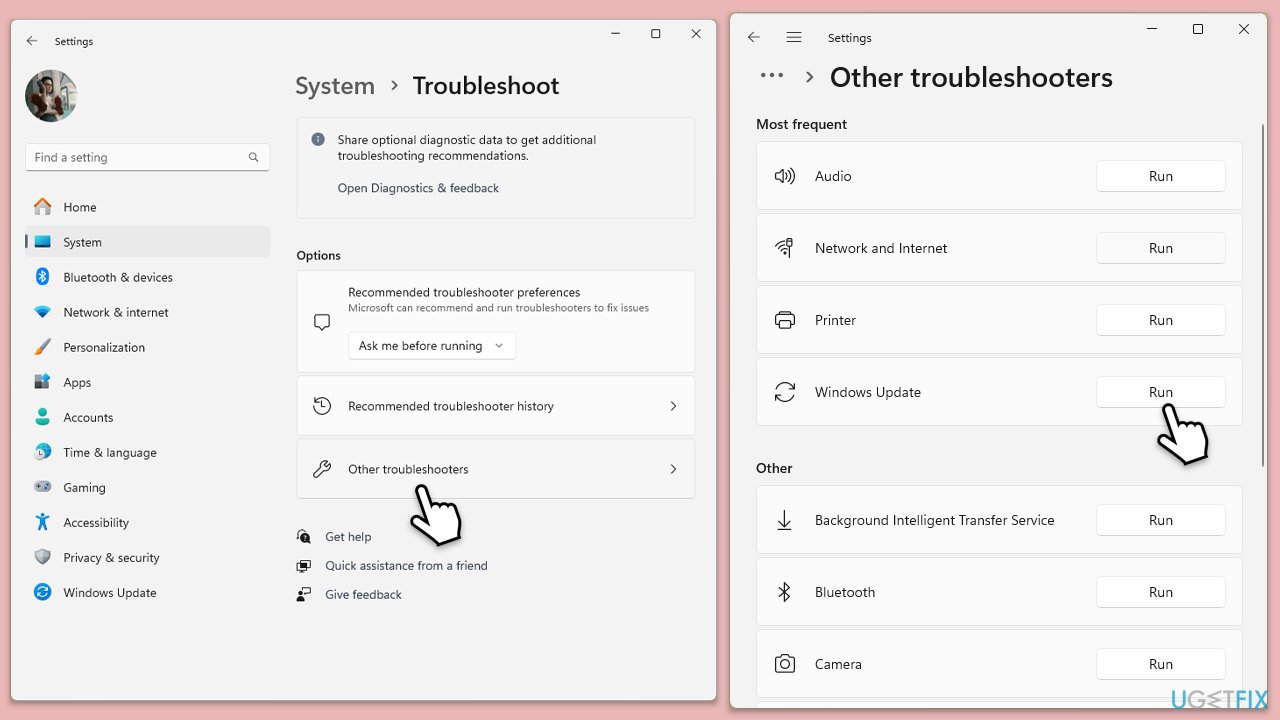
Fix 2. Run Windows update troubleshooter
The Windows update troubleshooter is designed to automatically detect and resolve common issues that may prevent updates from installing properly. It can identify problems related to corrupted files, misconfigured settings, or update components that are not functioning correctly.
- Type Troubleshoot in Windows search and hit Enter.
- Select Other troubleshooters.
- Find Windows Update from the list and click Run.
- The troubleshooter will automatically scan your system for potential problems and display any issues it finds.
- If the troubleshooter finds any issues, it will provide recommended solutions - follow the instructions.
- Repeat this process with Network troubleshooter.
Fix 3. Perform Check Disk
Errors on the hard drive can sometimes interfere with the update installation process. Running a Check Disk scan helps detect and repair any disk errors, ensuring that the update can install without being obstructed by file system issues.
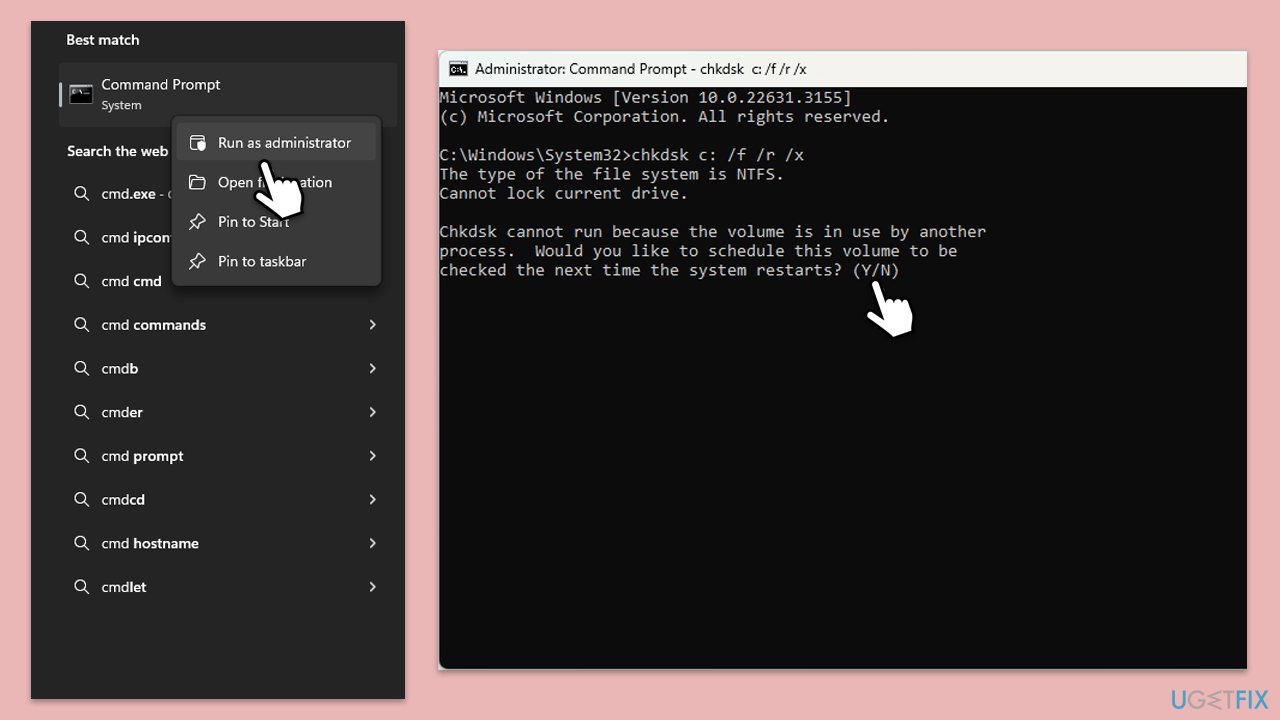
- Type cmd in Windows search.
- Right-click on Command Prompt and select Run as administrator.
- User Account Control will ask whether you want to make changes - click Yes.
- When User Account Control asks you whether you want to allow changes, click Yes.
- In the new window, type in the following command and press Enter after:
chkdsk c: /f
(Note: use chkdsk c: /f /r /x command if you are using SSD as your primary partition) - If you receive an error, type in Y, close down Command Prompt and restart your system.
- Wait until the scan is finished - you can find the results in the Event Viewer.
Fix 4. Repair file corruption
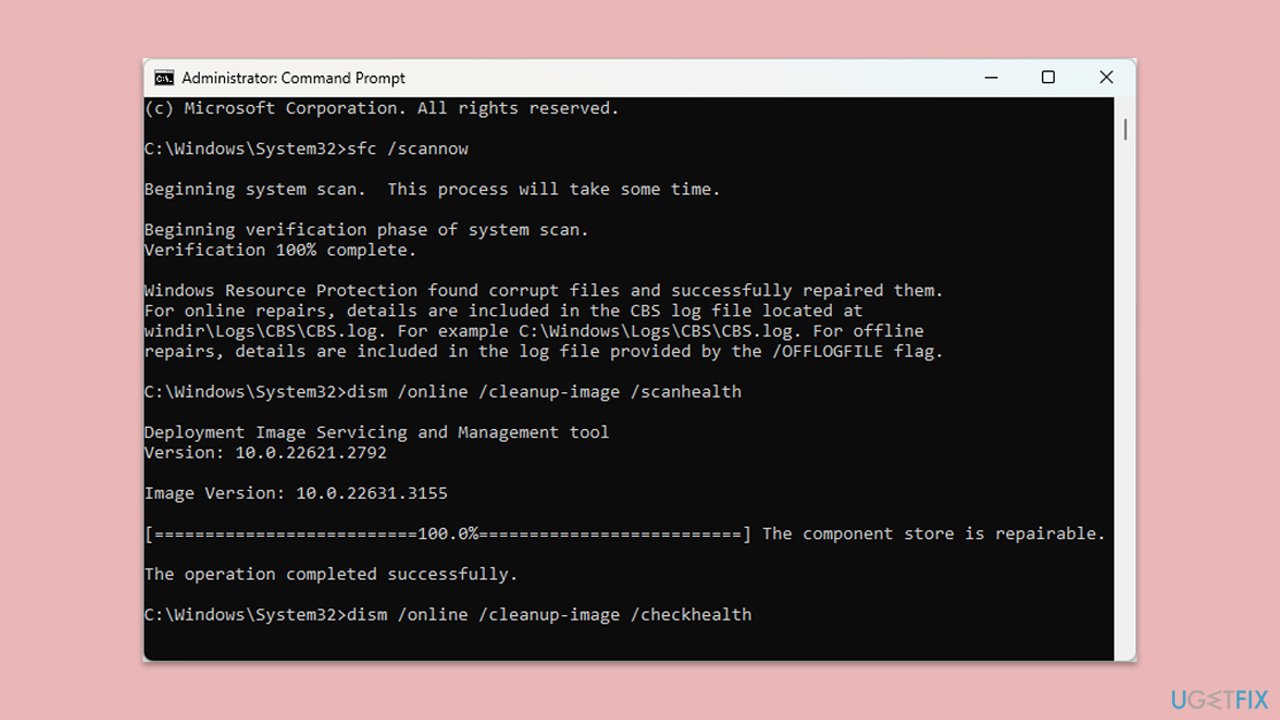
System File Checker (SFC) and Deployment Imaging Service Management (DISM) are tools that repair corrupted system files. Running these tools can resolve issues preventing the update from installing by restoring essential components to their correct state.
- Open Command Prompt as administrator.
- Use the following command lines, pressing Enter each time:
sfc /scannow - After the scan is done, copy the following commands and press Enter:
DISM /Online /Cleanup-Image /CheckHealth
DISM /Online /Cleanup-Image /ScanHealth
DISM /Online /Cleanup-Image /RestoreHealth
(Note: if you get an error executing this last command, add /Source:C:\RepairSource\Windows /LimitAccess to it and try again). - Restart your device.
Fix 5. Install the update manually
If the update fails through automatic installation, manually downloading and installing it from the Microsoft Update Catalog may bypass issues related to the automatic update service.
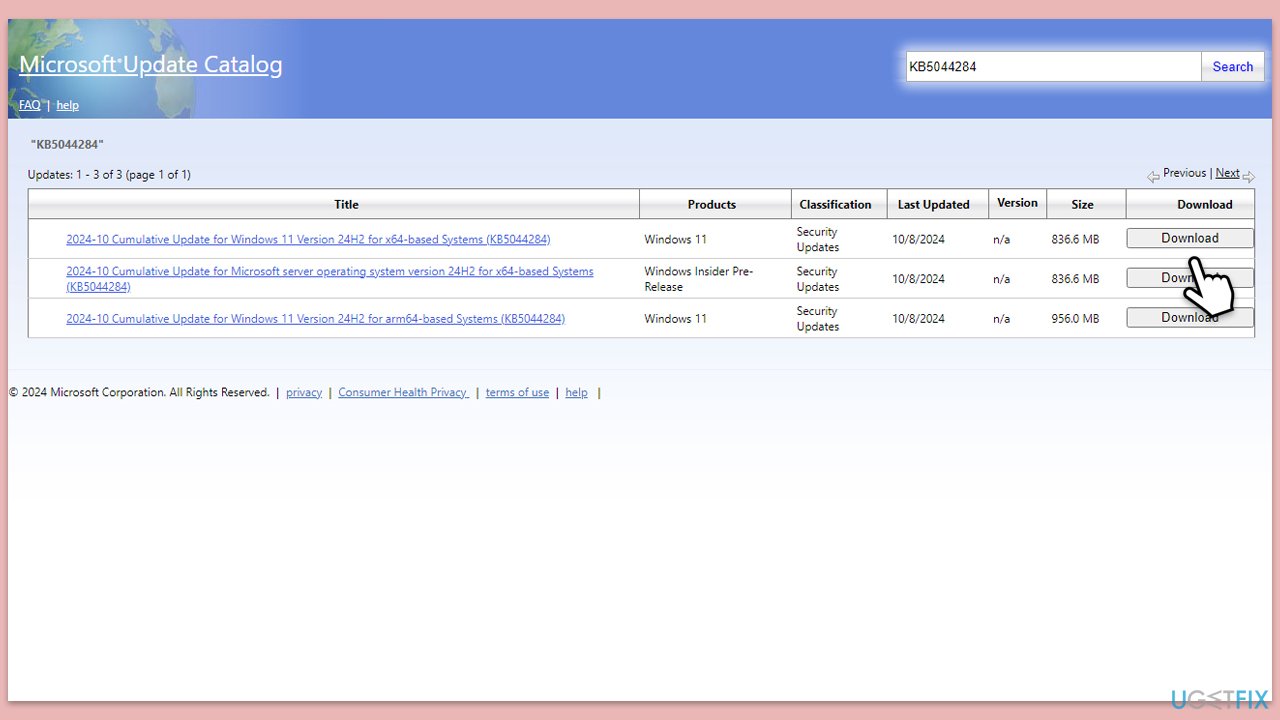
- Visit the Microsoft Update Catalog website.
- Search for the update KB5044284.
- Find the version of the update that matches your system type.
- Click the Download button next to the correct version.
- In the window that opens, click the link to start the download.
- Once downloaded, open the file and follow the on-screen instructions to install the update.
Fix 6. Reset Windows update components
Resetting the Windows update components can resolve persistent errors by clearing the update cache and reinitializing related services. This action helps remove corrupted files that may block the update.
- Open Command Prompt as administrator.
- Copy and paste the following commands, pressing Enter each time:
net stop bits
net stop wuauserv
net stop appidsvc
net stop cryptsvc
Del “%ALLUSERSPROFILE%\Application Data\Microsoft\Network\Downloader\*.*”
rmdir %systemroot%\SoftwareDistribution /S /Q
rmdir %systemroot%\system32\catroot2 /S /Q
regsvr32.exe /s atl.dll
regsvr32.exe /s urlmon.dll
regsvr32.exe /s mshtml.dll
netsh winsock reset
netsh winsock reset proxy
net start bits
net start wuauserv
net start appidsvc
net start cryptsvc - Reboot your system.
Bottom line
To fix the KB5044284 installation issue, you can try restarting relevant services such as Windows Update and Background Intelligent Transfer Service (BITS), verifying system components, or resetting update components. If these solutions do not resolve the problem, consider using a PC repair app to automatically fix underlying issues.
Frequently asked questions
Try running the Windows Update Troubleshooter to identify and fix issues related to the update installation. You can access it through Settings > Update & Security > Troubleshoot.
Yes, you can manually download the update from the Microsoft Update Catalog website and install it directly on your system. Ensure you select the correct version for your Windows 11 architecture.
Make sure your Windows 11 is fully updated by checking for other pending updates and performing a system restart. Additionally, ensure that there is enough disk space available for the installation.




Report an issue
What's wrong with this guide? We review every report and update or remove content.
Report received — thank you. We'll review and fix it.
You need a free account to submit a report.
Be the first to comment