How to fix
KB5044285 fails to install
on Windows
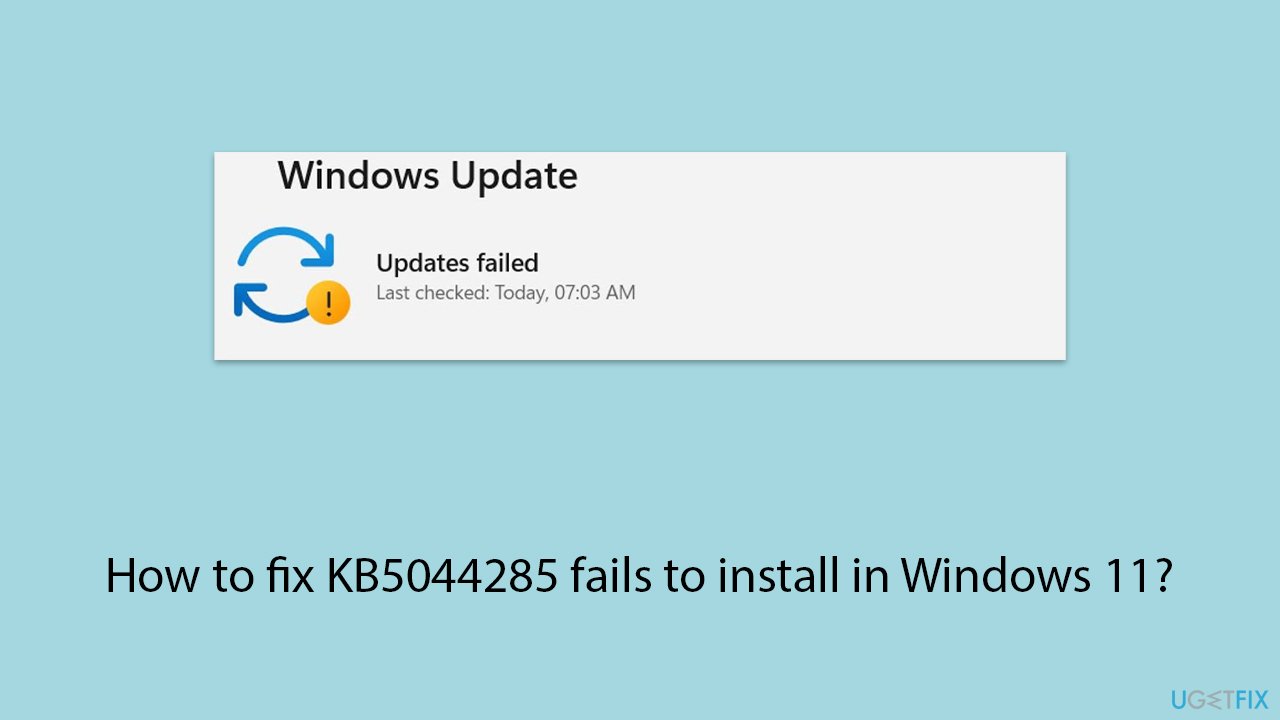
Struggling with KB5044285 installation errors on Windows 11? Discover effective fixes to get your system running smoothly again. Expert-tested solutions…


What causes How to fix KB5044285 fails to install in Windows 11?
- Compatibility problems due to missing Servicing Stack Updates (SSUs)
- Corrupted system files
- Insufficient disk space
- Conflicting software configurations
- Disrupted background services like Windows Update
- Outdated hardware drivers
Repairs Windows system files, removes malware, and restores a clean OS state — without reinstalling.
Today I encountered a problem I never had to deal with before, and seeing how I'm not very good with computers, I hope you can help me with this. I received a pop-up from the system tray that Windows updates failed. I checked it and the update named is KB5044285, which I think is the latest one. What can I do to resolve this?
KB5044285, released on October 8, 2024, is a cumulative update for Windows 11 targeting versions 22H2 and 23H2 (OS Builds 22621.4317 and 22631.4317). This update is part of the October Patch Tuesday release, addressing numerous security vulnerabilities and bugs. It includes critical fixes for issues like Task Manager freezes, Edge browser crashes, and improvements in Windows identity protection, among others. The update is crucial for users still on these versions as it maintains system security and stability.
However, despite its importance, some users have reported issues with the installation process. Commonly, the update might fail due to compatibility problems, especially for systems that haven't yet received the latest Servicing Stack Updates (SSUs). The SSU (KB5046247), released alongside KB5044285, is necessary to ensure smooth update processes, as it prepares the system infrastructure for updates. If this SSU is missing or corrupted, the installation may encounter errors.
Other factors contributing to installation failures include corrupted system files, insufficient disk space, or conflicting software configurations. Users might see errors indicating update installation failures without specific details, making troubleshooting challenging. Often, these errors arise from background services like Windows Update being disrupted or outdated hardware drivers that conflict with the installation process.
To resolve such issues, users are encouraged to verify that their system has all prerequisite updates and that no hardware or software conflicts exist. Maintaining up-to-date backups and ensuring disk health is also crucial before attempting updates again. Additionally, using tools like [d1] repair might assist in fixing corrupted files or resolving conflicts that prevent the update from installing properly.
Fix 1. Perform Disk Cleanup
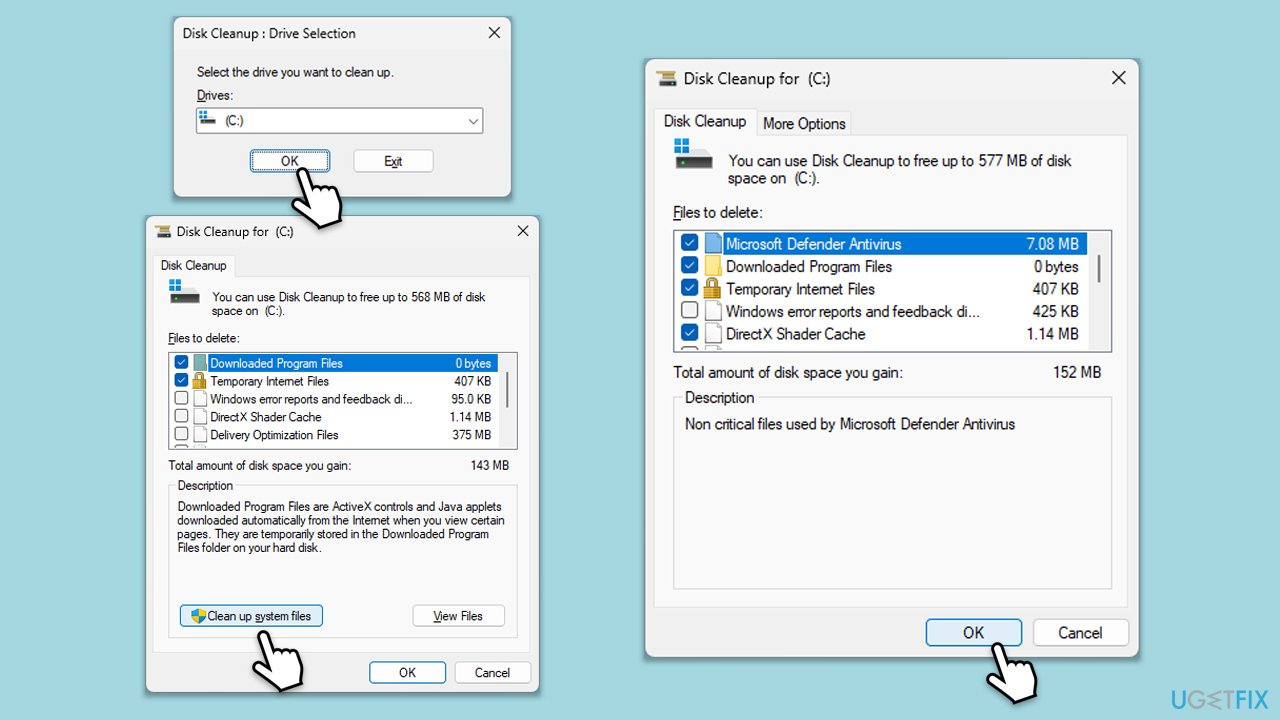
Disk Cleanup is useful not only to ensure you have enough space on your drive but also that Windows update-related caches are eliminated in case they are bugged.
- Initiate the Windows search bar and enter Disk Cleanup, then press Enter to launch the utility.
- Pick the main drive (C: by default) and select the option for Clean up system files.
- Choose the drive once more and press OK.
- From the array of file batches that can be cleaned, make sure you select Windows Update, as well as other large portions of data, such as Temporary Internet Files, and Temporary Files, among others.
- Hit OK to begin the cleanup process.
Fix 2. Resolve software conflicts
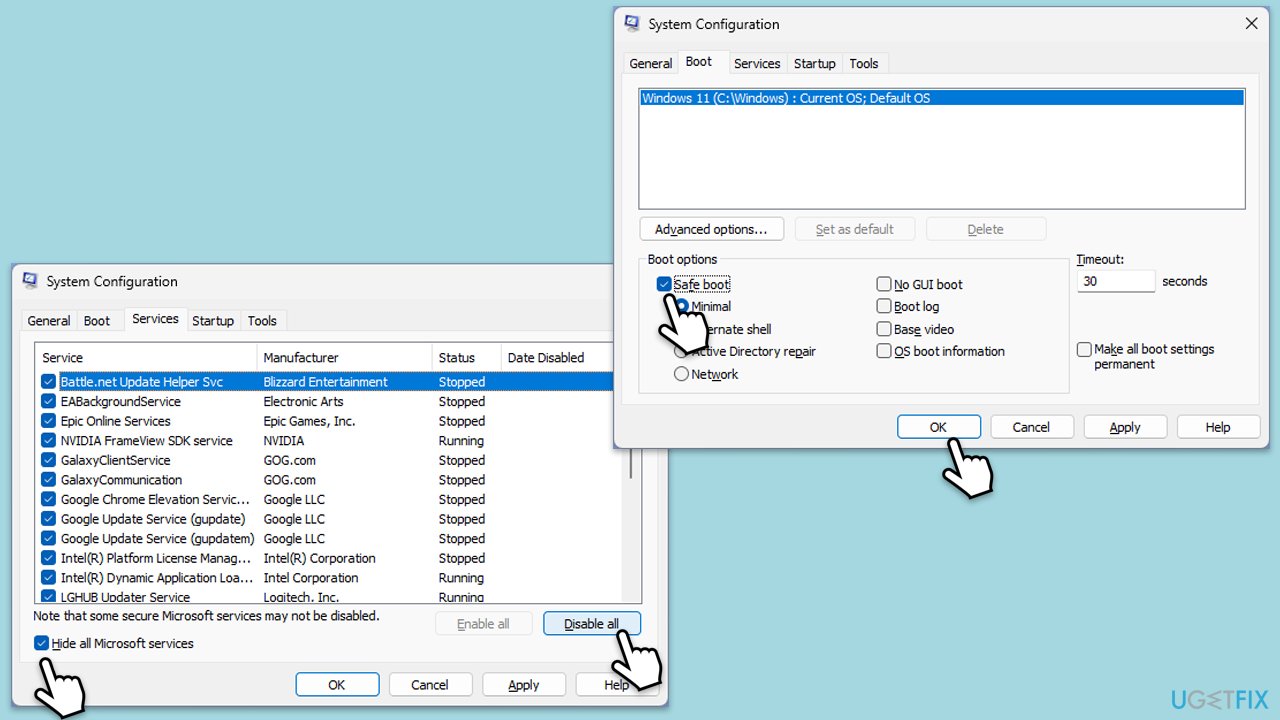
- Press Win + R, type msconfig, and hit Enter.
- Go to the Services tab and tick the Hide all Microsoft services checkbox.
- Select Disable all.
- Go to the Startup tab and click Open Task Manager.
- Here, right-click on each of the non-Windows entries and select Disable.
- Close down the Task Manager.
- Go to the Boot tab and tick the Safe boot option.
- Click OK.
- Restart your computer to initiate Clean Boot.
- Try updating Windows again. If successful, issues were most likely caused by your security or similar software.
Fix 3. Check services
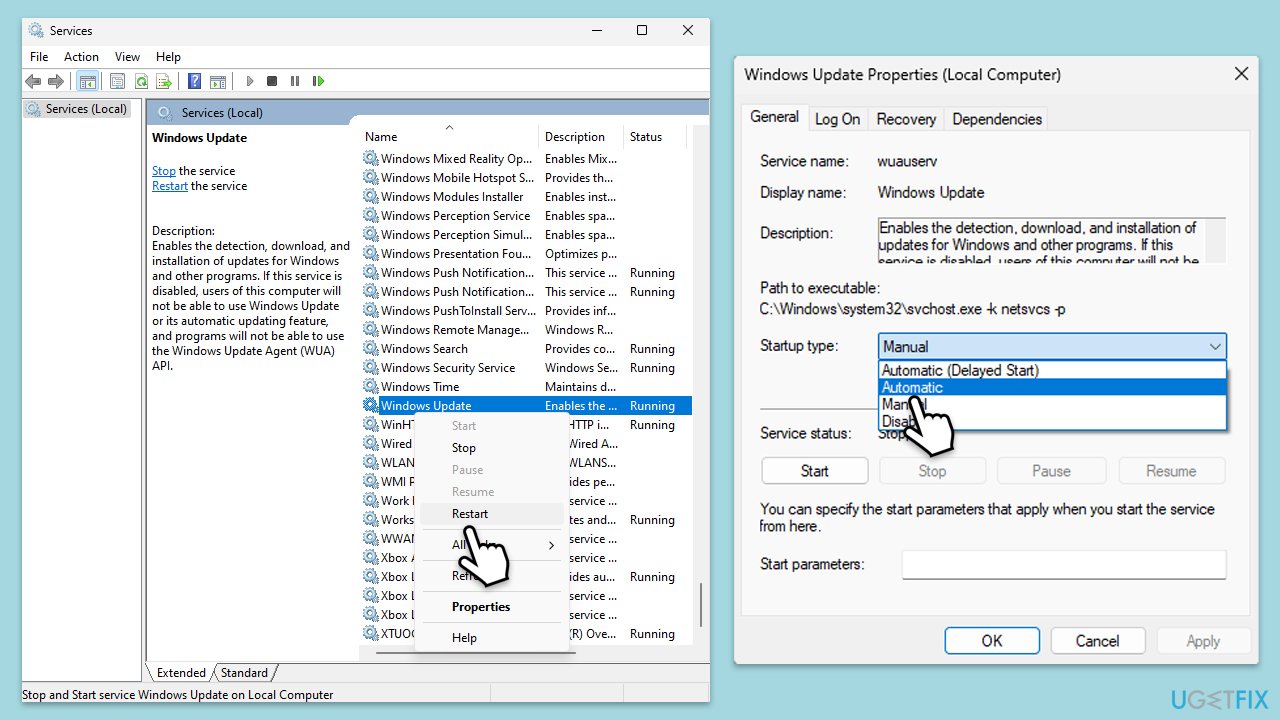
- Type in Services in Windows search and press Enter.
- Find Windows Update Service.
- If it is already running, right-click and pick Restart.
- If the service is not running, double-click it, and select Automatic under the Startup type from the drop-down menu.
- Click Start, Apply, and OK.
- Repeat this process for Background Intelligent Transfer Service (BITS) and Cryptographic services.
Fix 4. Repair corrupted Windows files
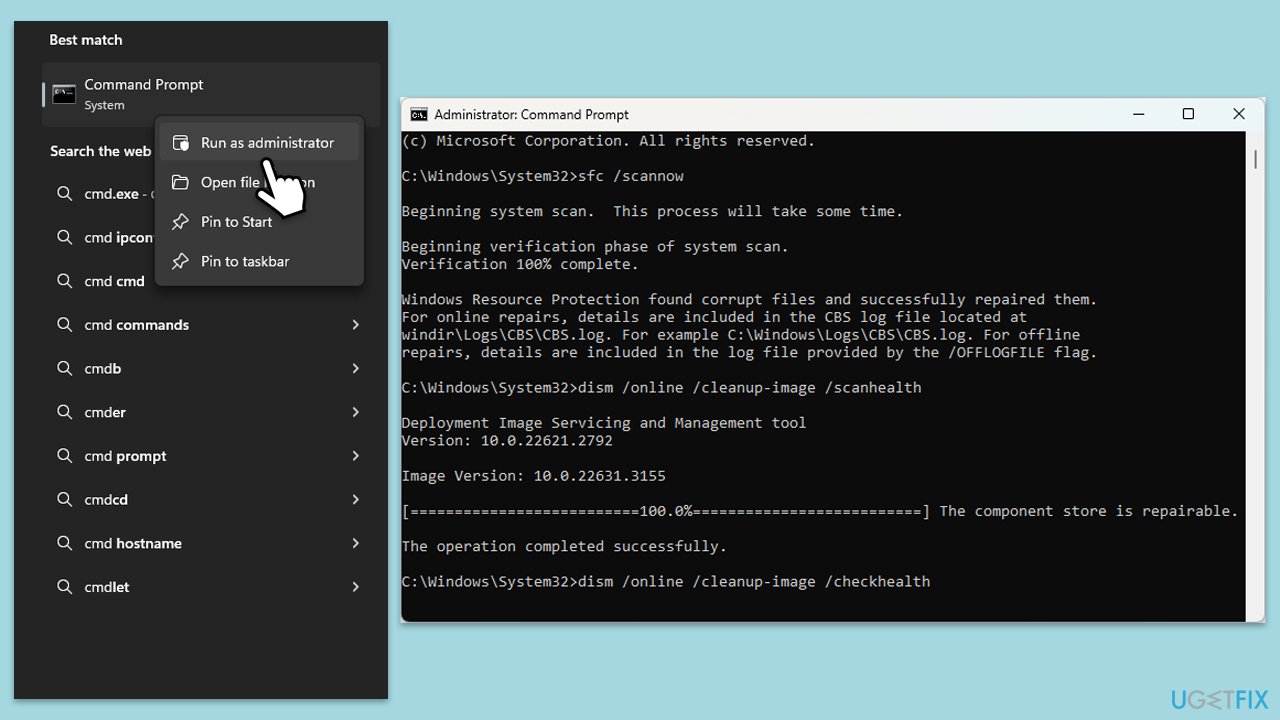
- Type cmd in Windows search.
- Right-click on Command Prompt and pick Run as administrator.
- User Account Control will ask whether you want to allow changes – click Yes.
- Copy and paste this command and hit Enter:
sfc /scannow - Wait for the scan to finish.
- As soon as it finishes, Windows will report whether integrity violations were found and if they could be fixed. Regardless of the outcome, use these commands next, pressing Enter after each:
Dism /Online /Cleanup-Image /CheckHealth
Dism /Online /Cleanup-Image /ScanHealth
Dism /Online /Cleanup-Image /RestoreHealth
(Note: if you get an error executing this last command, add /Source:C:\RepairSource\Windows /LimitAccess to it and try again). - Close down the Command Prompt and restart your device.
Fix 5. Install the update manually
If automatic updates keep failing, you could try installing them manually instead.
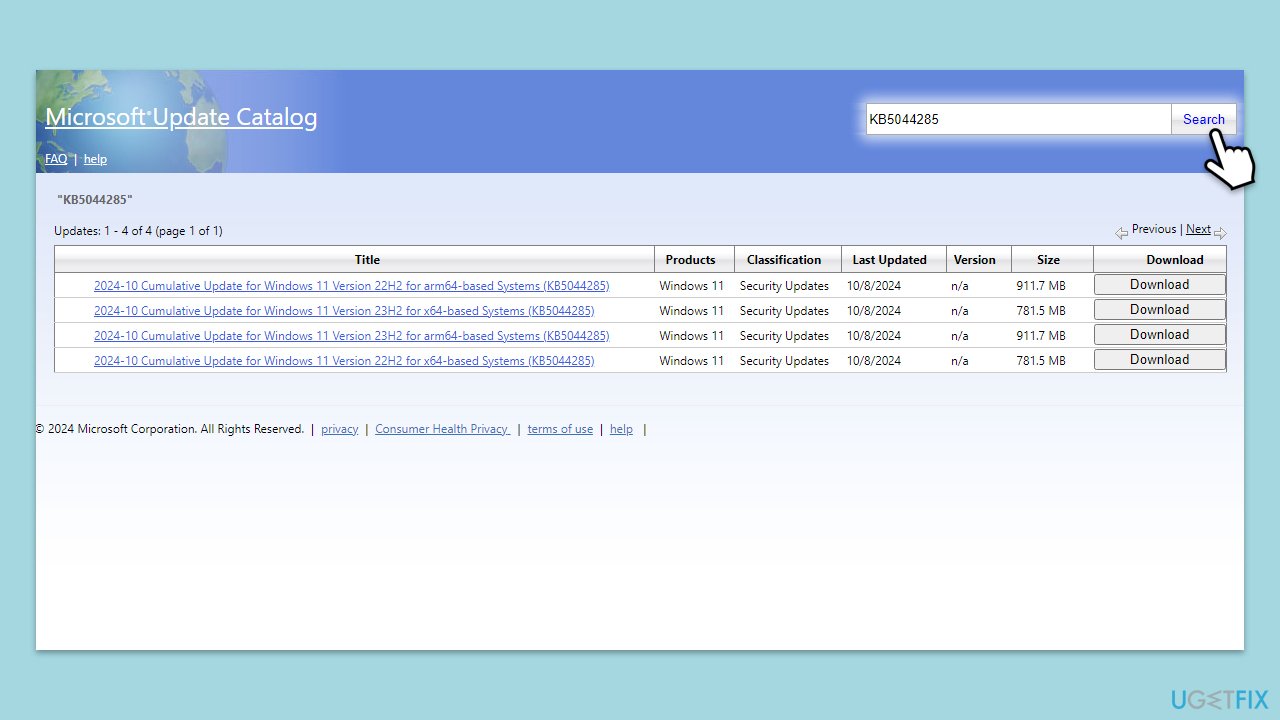
- Open your browser and navigate to Microsoft Update Catalog
- In the search box, type in KB5044285 and press Search.
- Find the correct version of the update for your operating system (to check this, right-click on Start and pick System. Under Windows specifications, check the Version) and click Download.
- Follow on-screen guidelines to finish the installation process and restart your computer.
Fix 6. Use Media Creation Tool
Media Creation Tool is an official resort from Microsoft that can repair your Windows installation and bring it to the latest version.
- Visit the official Microsoft website and download the Windows installation media.
- Double-click the installer and select Yes when UAC shows up.
- Agree to the terms and click Next.
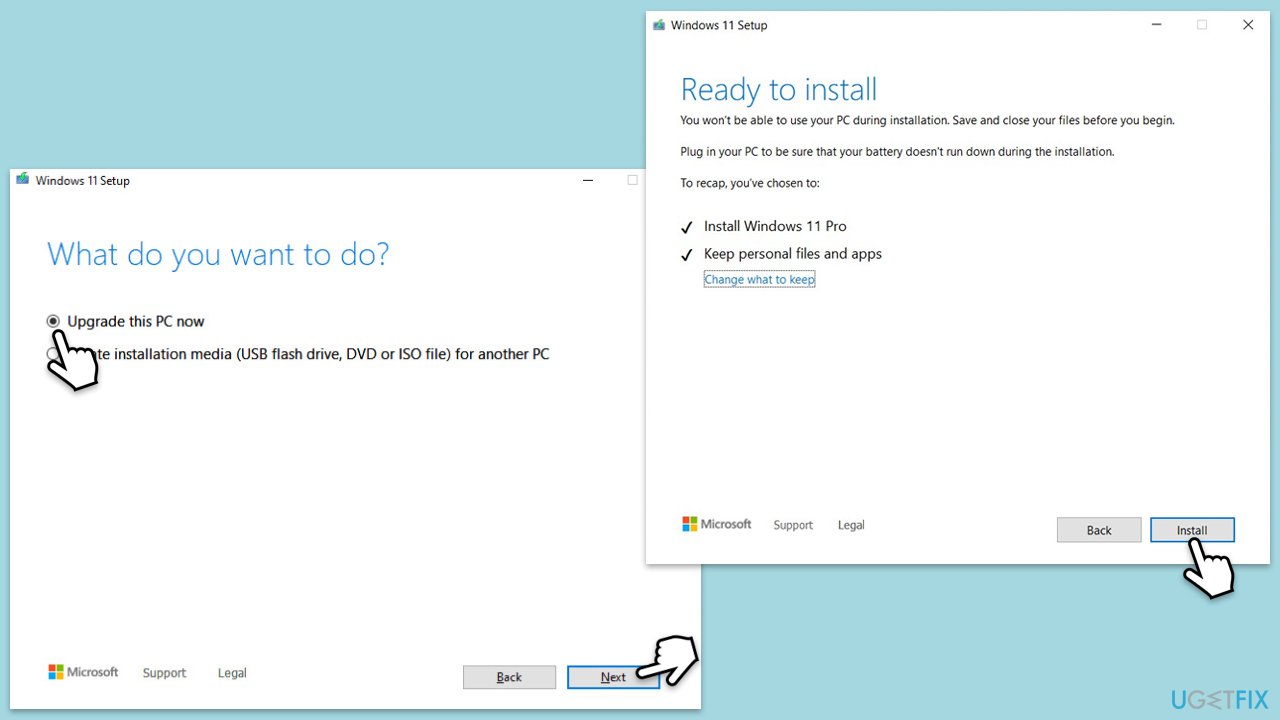
- Select Upgrade this PC now and select Next
- Windows will now download all the necessary files, which might take some time.
- Agree to the terms once again and click Next.
- Before installing, ensure you are happy with your choices (otherwise, you can click Change what to keep option).
- Click Install to begin the upgrade process.
- Your computer will restart as required.
Fix 7. Reset Windows update components
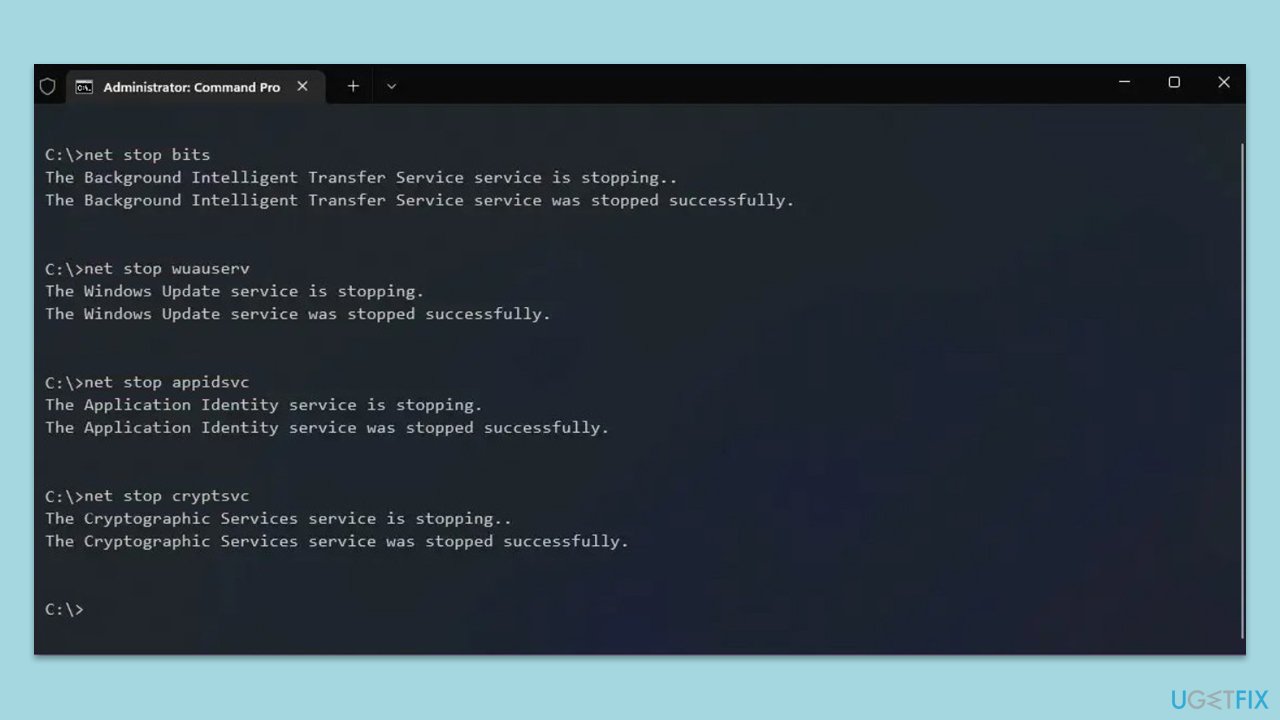
- Open Command Prompt as administrator.
- Stop the Windows Update Services by entering the following commands, one at a time, and pressing Enter after each:
net stop wuauserv
net stop cryptSvc
net stop msiserver
net stop bits - Rename the SoftwareDistribution and Catroot2 folders with the following commands:
ren C:\Windows\SoftwareDistribution SoftwareDistribution.old
ren C:\Windows\System32\catroot2 catroot2.old - Restart the services you stopped earlier with these commands:
net start wuauserv
net start cryptSvc
net start msiserver
net start bits - Close the Command Prompt window and try running the Windows Update again.
Bottom line
To resolve the installation failure of KB5044285, users should perform Disk Cleanup to ensure sufficient disk space, verify that all prerequisite updates are installed, and check for any hardware or software conflicts. If issues persist, consider using repair tools to fix corrupted files or conflicts.
Frequently asked questions
Try running the Windows Update Troubleshooter by going to Settings > Update & Security > Troubleshoot > Additional troubleshooters. This can help identify and fix common issues preventing the update from installing.
Yes, temporarily disabling your antivirus software can sometimes resolve conflicts that prevent updates like KB5044285 from installing. Remember to re-enable it after the installation.
You can manually download the update from the Microsoft Update Catalog website by searching for KB5044285 and then following the prompts to install it. This can be useful if the automatic update process fails.




Report an issue
What's wrong with this guide? We review every report and update or remove content.
Report received — thank you. We'll review and fix it.
You need a free account to submit a report.
Be the first to comment