How to fix
KB5044380 fails to install
on Windows
Resolve KB5044380 installation issues in Windows 11 effortlessly with expert-tested solutions that ensure your system stays updated and hassle-free.

What causes How to fix KB5044380 fails to install in Windows 11?
- Damaged system files
- Insufficient disk space
- Conflicting third-party software
- Network connectivity issues
Repairs Windows system files, removes malware, and restores a clean OS state — without reinstalling.
Hey. I was wondering if you could help me with a problem I'm having with Windows update installation. It seems like no matter what I do, KB5044380 fails to install for me. I tried rebooting the PC, running the troubleshooter, and waiting, but it still won't install. I am not too familiar with resolving Windows problems, so I am not sure what to do from here.
KB5044380 is a cumulative preview update released on October 22, 2024, for Windows 11 versions 22H2 and 23H2. This LCU advances the operating systems to their respective build numbers, 22621.4391 and 22631.4391.
It includes several new enhancements; among them is the introduction of a Gamepad keyboard layout for on-screen typing with an Xbox controller and being able to remap the Copilot key-a couple of options really in demand. It also addresses a range of issues, including battery drain with the use of Modern Standby, and refines the Windows Update process for better system performance and experience.
These new improvements also continue to cause people to complain because users are unable to install KB5044380. The common problems include download failure, hanging in the middle of the installation, and error messages. There are several possible reasons that may cause such issues:
- Damaged system files. Some key files for running the update may be damaged or missing, which in turn hinders the installation process.
- Insufficient disk space. The update would not download or install properly if enough space is not available.
- Conflicting third-party software. Antivirus programs or any other application may conflict with the update and cause failures during the process.
- Network connectivity issues. The unstable or slow internet does not allow proper download and installation of updates.
For this, the user may employ several probable remedies: running the troubleshooter for Windows Update, checking available disk space, temporarily disabling third-party antivirus installed on the computer, or resetting Windows Update components. In graver cases, repairing it with [d1] should resolve possible system conflicts that prevent the successful installation of the update.
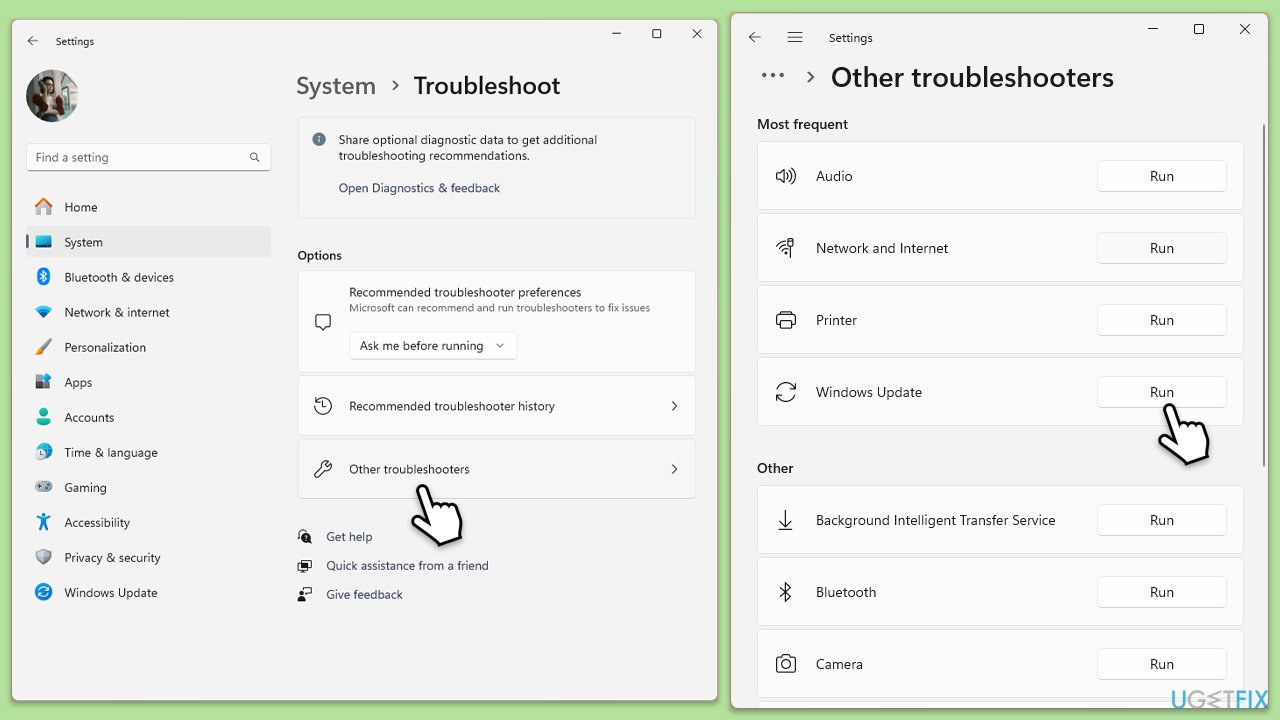
Fix 1. Run Windows Update troubleshooter
The Windows Update troubleshooter is designed to detect and fix common problems with updates, including issues preventing KB5044380 from installing.
- Type Troubleshoot in Windows search and press Enter.
- Select Other troubleshooters.
- Find Windows Update from the list.
- Click it and select Run.
- The troubleshooter will automatically scan your system for potential problems and display any issues it finds.
Fix 2. Check internet connection
Network issues can disrupt the download and installation process of updates. Ensuring a stable internet connection can help avoid these problems.
- Ensure your device is connected to a stable Wi-Fi or wired network.
- Restart your router or modem if the connection is unstable.
- Reconnect to the network and try downloading the update again.
Fix 3. Free up disk space
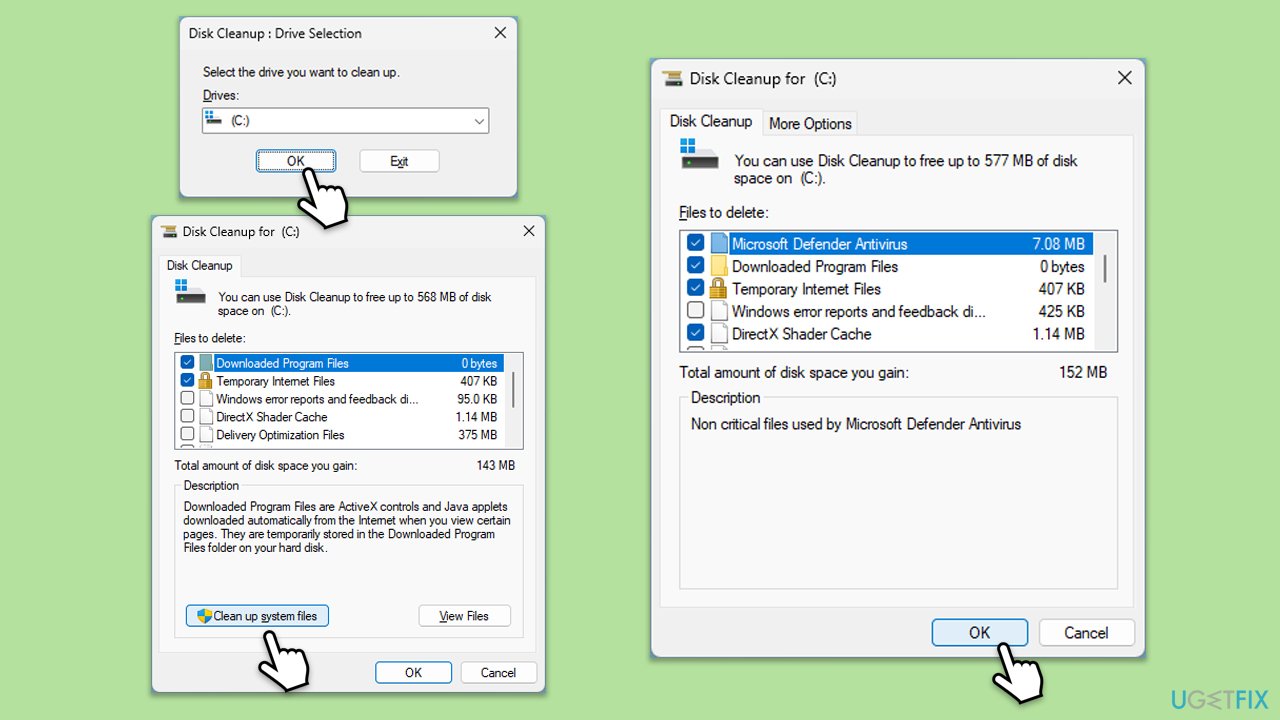
Insufficient storage space can prevent KB5044380 from being downloaded and installed. Freeing up disk space can help resolve this issue.
- Type Disk Cleanup in Windows search and hit Enter.
- If your Windows is installed on drive C, pick it from the list (it should be by default) and press OK.
- Click Clean up system files.
- Select your main disk again and click OK.
- Here, select the largest portions of the data used - these typically include Temporary Internet Files, Windows Update, Temporary Files, Recycle Bin, Delivery Optimization Files, and others.
- Click OK - the process should be finished shortly.
Fix 4. Repair corrupted system files
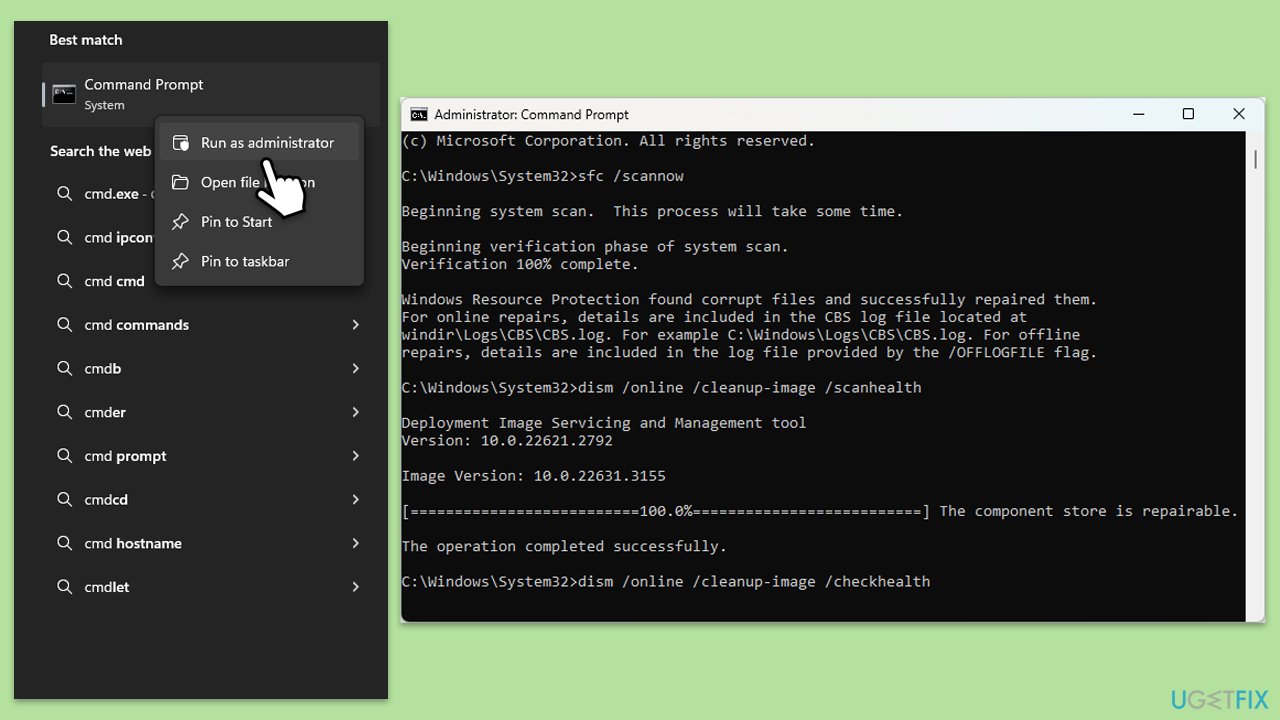
Corrupted system files can prevent updates from installing. Running SFC and DISM scans can repair these files.
- Type in cmd in Windows search.
- Right-click on Command Prompt and select Run as administrator.
- User Account Control will ask you whether you allow to make changes to the system - click Yes.
- In the Command Prompt window, paste the following command and hit Enter:
sfc /scannow - Once the scan is complete, use the following commands and press Enter after each:
Dism /Online /Cleanup-Image /CheckHealth
Dism /Online /Cleanup-Image /ScanHealth
Dism /Online /Cleanup-Image /RestoreHealth
(Note: if you get an error executing the last command, add /Source:C:\RepairSource\Windows /LimitAccess to it and try again.) - Restart your device.
Fix 5. Check relevant services
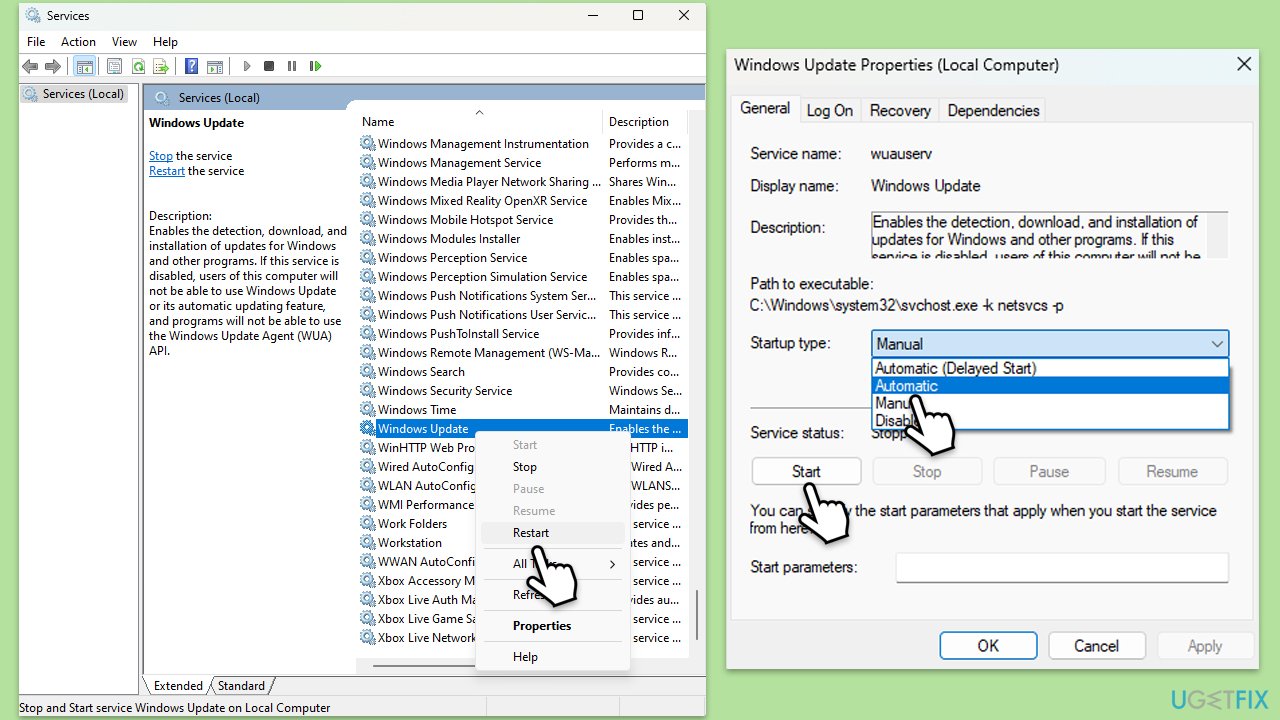
Services are important components in Windows ecosystem, so if some of their operation is disrupted, it might cause issues with a particular function, such as Windows update process.
- Type Services in Windows search and press Enter.
- Locate Windows Update.
- If it is already running, right-click and select Restart.
- if the service is not running, double-click it, and pick Automatic under the Startup type from the drop-down menu.
- Click Start, Apply, and OK.
- Repeat this process with the following services:
Background Intelligent Transfer Service (BITS)
Cryptographic
Windows Installer - Restart your computer.
Fix 6. Reset Windows Update components
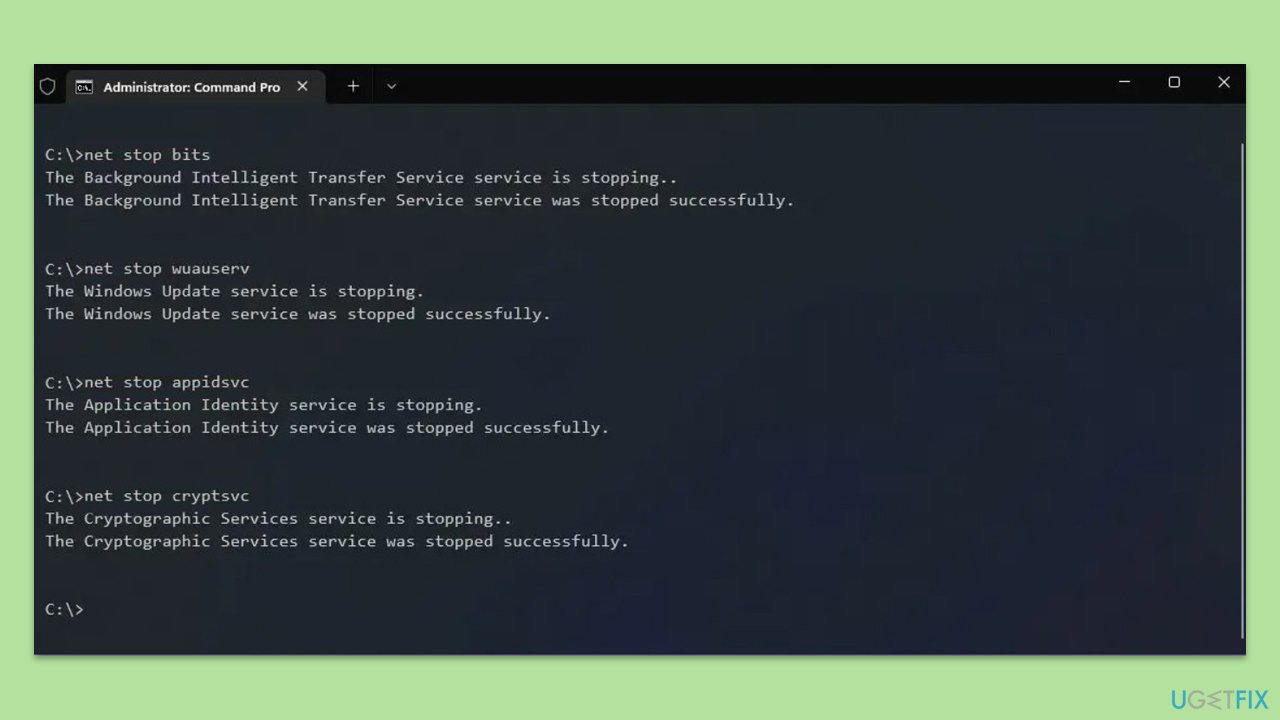
Resetting Windows Update components can clear out corrupted or stuck update files, allowing the update to install correctly.
- Open Command Prompt as administrator.
- Stop the Windows Update-related services by running the following commands one at a time, pressing Enter after each one:
net stop wuauserv
net stop cryptSvc
net stop bits
net stop msiserver - Rename the SoftwareDistribution and Catroot2 folders by running the following commands:
ren C:\Windows\SoftwareDistribution SoftwareDistribution.old
ren C:\Windows\System32\catroot2 Catroot2.old
Note: If your Windows installation is not on the C drive, replace "C" with the appropriate drive letter.
regsvr32.exe /s atl.dll
regsvr32.exe /s urlmon.dll
regsvr32.exe /s mshtml.dll
netsh winsock reset
netsh winsock reset proxy - Restart the Windows Update-related services by running the following commands:
net start wuauserv
net start cryptSvc
net start bits
net start msiserver - Reboot your computer.
Fix 7. Perform a Clean Boot
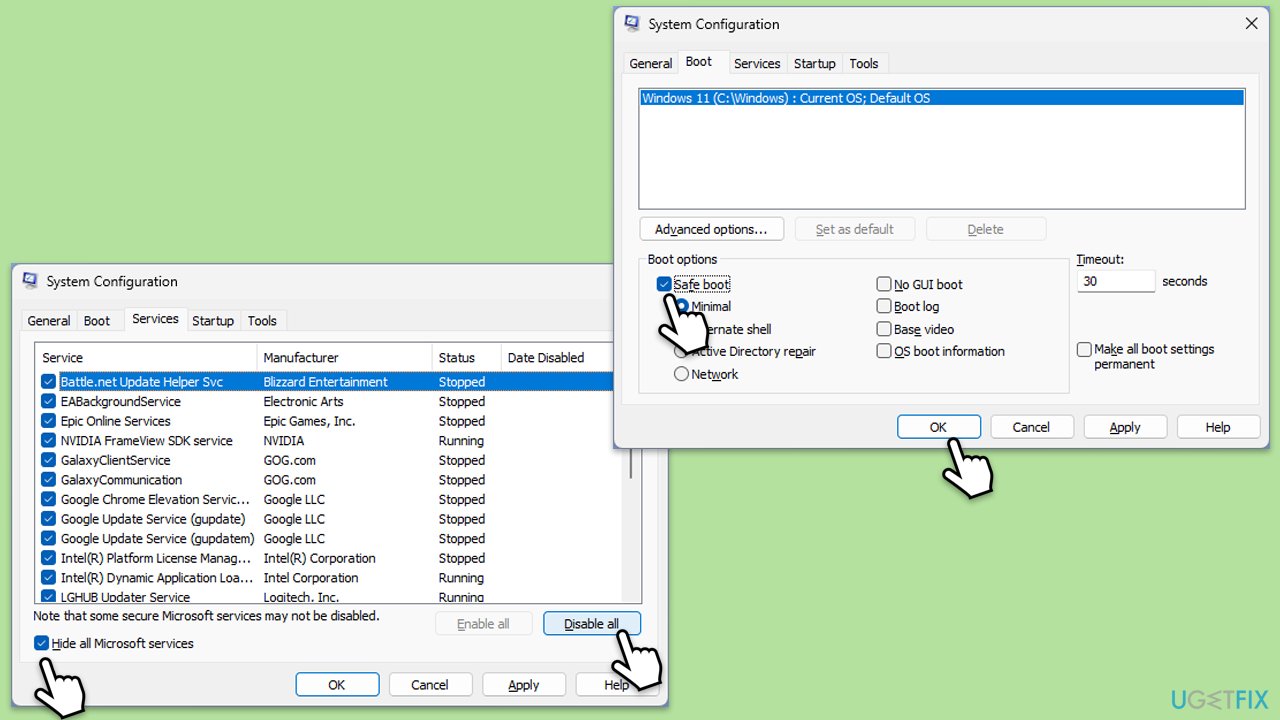
A clean boot starts Windows with a minimal set of drivers and startup programs. This helps identify if a background program is interfering with the update.
- Type msconfig inWindows Search and press Enter to open the System Configuration window.
- Click on the Services tab and check the Hide all Microsoft Services box.
- Click Disable all to disable non-Microsoft services, then click the Startup tab.
- Open the Task Manager, disable all startup items, and close the Task Manager.
- Go to the Boot tab and mark the Safe boot option.
- Click OK on the System Configuration window and restart your computer.
- Try installing the update again.
Bottom line
To fix the installation failure of KB5044380, you can try running the Windows Update troubleshooter, checking available disk space, temporarily disabling third-party antivirus software, or resetting Windows Update components. If these solutions do not resolve the issue, consider repairing the system to address possible conflicts.
Frequently asked questions
Try running the Windows Update Troubleshooter to automatically detect and fix issues related to updates. If that doesn't work, consider manually downloading the update from the Microsoft Update Catalog.
Yes, third-party antivirus programs can interfere with the update process; temporarily disabling them may resolve the issue. Make sure to re-enable your antivirus software after attempting the update.
You can check the installation status by going to Settings > Update & Security > Windows Update and clicking on 'View update history.' This will show you if the update was successfully installed or if there were errors.




Report an issue
What's wrong with this guide? We review every report and update or remove content.
Report received — thank you. We'll review and fix it.
You need a free account to submit a report.
Be the first to comment