How to fix
KB504498 fails to install
on Windows
Resolve the KB504498 installation error in Windows 11 with expert tips and proven solutions. Get your updates fixed in minutes, guaranteed!

What causes How to fix KB504498 fails to install in Windows 11?
- Corrupted system files
- Network issues
- Problems with Windows Update components
- Conflicts with existing system configurations
- Low disk space
- Interference from antivirus software
Repairs Windows system files, removes malware, and restores a clean OS state — without reinstalling.
I can't install KB504498 since it has been released a few days ago. This is the first time this is happening to me so I am not quite sure how to proceed. Can you help me with this maybe?
The KB504498 update, released in October 2024 for the Windows 11 Beta Channel, focuses on improving the Narrator feature and fixing some issues related to file management and screen reading. This update includes general system enhancements, bug fixes for the Narrator's slowdowns during extended use, and optimizations for snap layouts and other interface elements.
However, some users are experiencing difficulties with the update failing to install. When trying to apply the update, it either doesn't complete or reverts after reaching a certain percentage, leaving the system without the latest features and improvements.
The most common causes for KB504498 failing to install include corrupted system files, network issues, or problems with the Windows Update components. Some users also report conflicts with existing system configurations, low disk space, or interference from antivirus software as possible triggers for the failure.
Potential steps to address the issue range from clearing the Windows Update cache to running system scans to repair corrupt files. Additionally, ensuring that you have sufficient disk space and disabling any third-party antivirus temporarily during the installation can help. For users who continue to experience difficulties, manually downloading and installing the update from the Microsoft Update Catalog may provide a workaround.
For those looking for a faster and more automated approach, using a trusted [d1] repair tool can help diagnose and fix underlying system issues that could be preventing the update from installing smoothly.
Fix 1. Run the troubleshooter
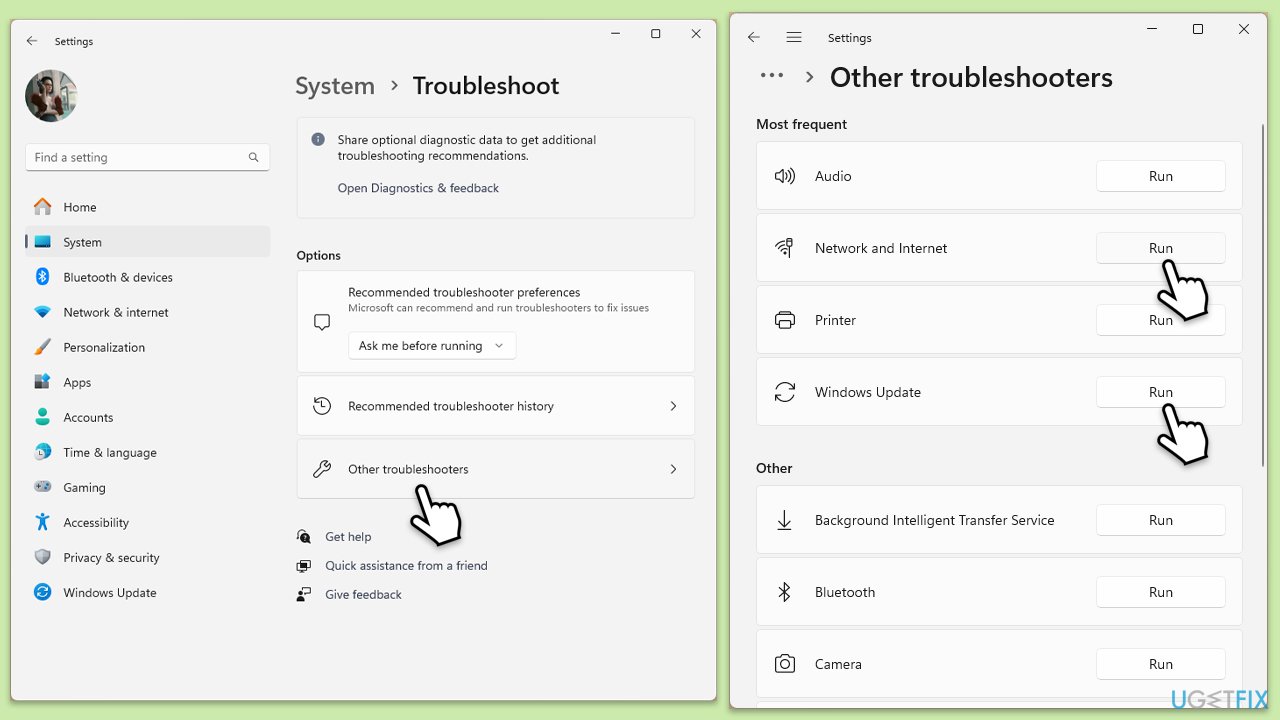
- Type Troubleshoot in Windows search and press Enter.
- Go to Other troubleshooters.
- Find Windows Update from the list and click Run.
- The troubleshooter will automatically scan your system for potential problems and display any issues it finds.
- If the troubleshooter finds any issues, it will provide recommended solutions.
- Repeat this process with Network & internet troubleshooter to check for connection issues.
Fix 2. Repair corrupted system files
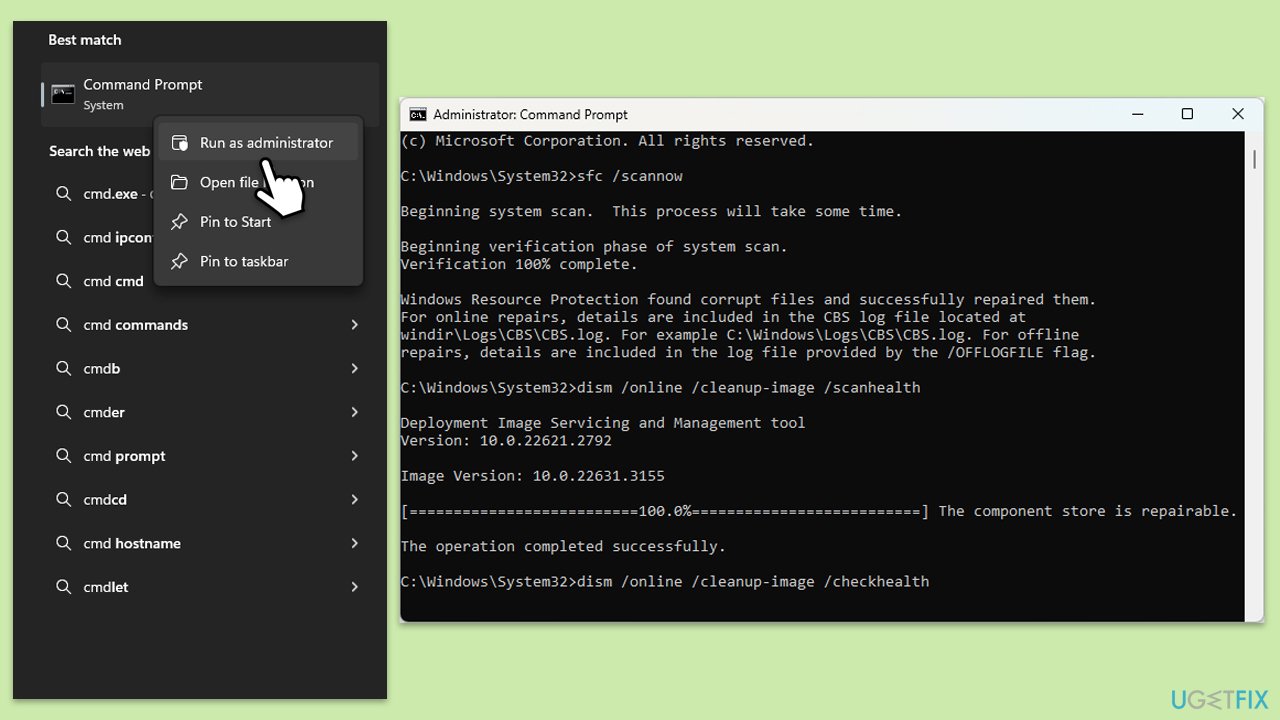
- Type cmd in Windows search.
- Right-click on Command Prompt and select Run as administrator.
- When User Account Control window shows up, click Yes.
- Paste the following command into the new window:
sfc /scannow - Press Enter and wait till the scan is executed.
- Once done, run this set of commands, pressing Enter after each:
DISM /Online /Cleanup-Image /CheckHealth
DISM /Online /Cleanup-Image /ScanHealth
DISM /Online /Cleanup-Image /RestoreHealth
(Note: if you get an error executing this last command, add /Source:C:\RepairSource\Windows /LimitAccess to it and try again). - Restart your computer.
Fix 3. Check relevant services
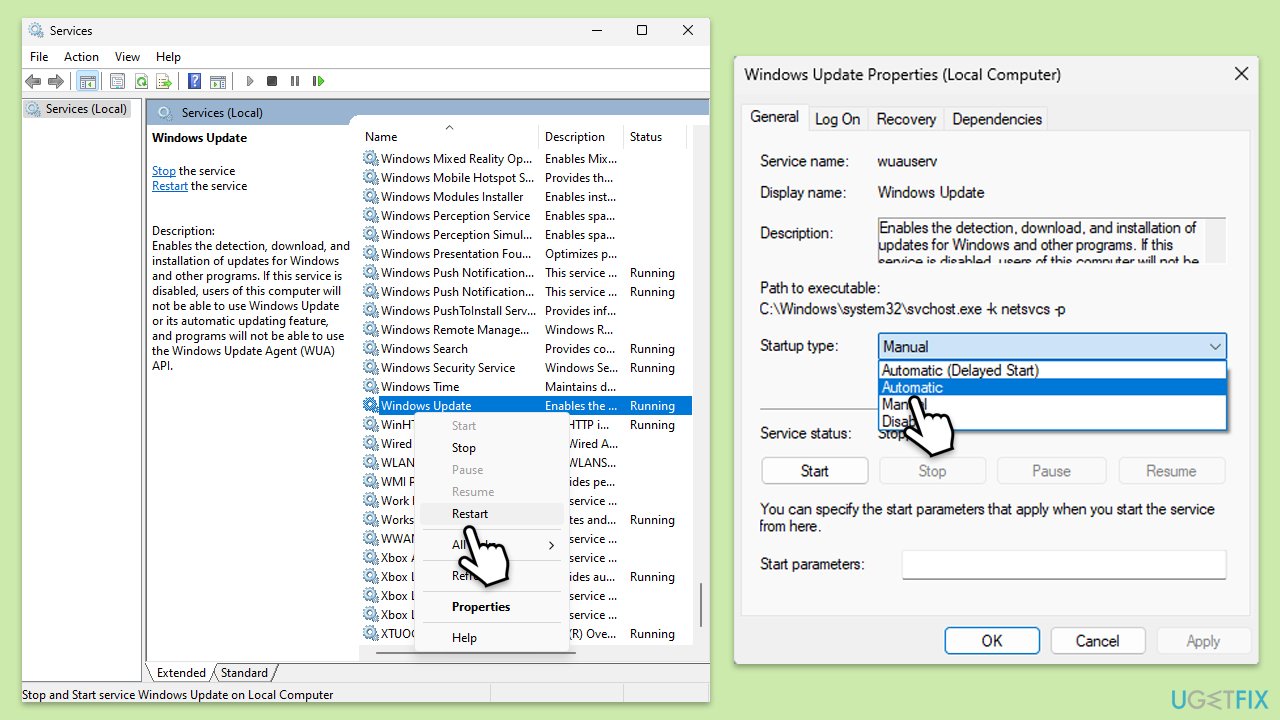
- Type in Services in Windows search and hit Enter.
- Scroll down a bit to find Windows Update.
- If it is already running, right-click and select Restart.
- If the service is not running, double-click it, and pick Automatic under the Startup type drop-down menu.
- Click Start, Apply, and OK.
- Repeat the process with the Background Intelligent Transfer Service (BITS), Cryptographic, and Windows Installer services.
Fix 4. Run Disk Cleanup
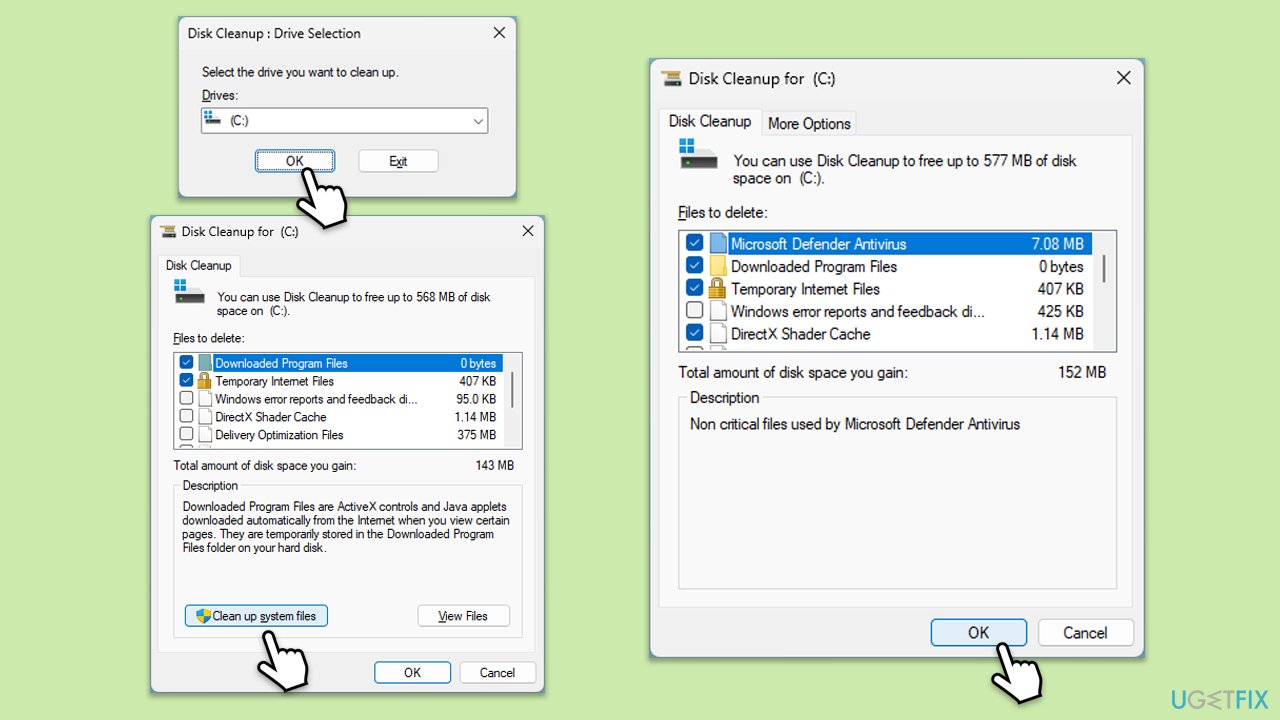
- Type Disk Cleanup in Windows search and hit Enter.
- If your Windows is installed on drive C, pick it from the list (it should be by default) and press OK.
- Click Clean up system files.
- Select your main disk again and click OK.
- Here, select the largest portions of the data used - these typically include Temporary Internet Files, Windows Update, Temporary Files, Recycle Bin, Delivery Optimization Files, and others.
- Click OK - the process should be finished shortly.
Fix 5. Reset Windows update components
- Open Command Prompt as an administrator.
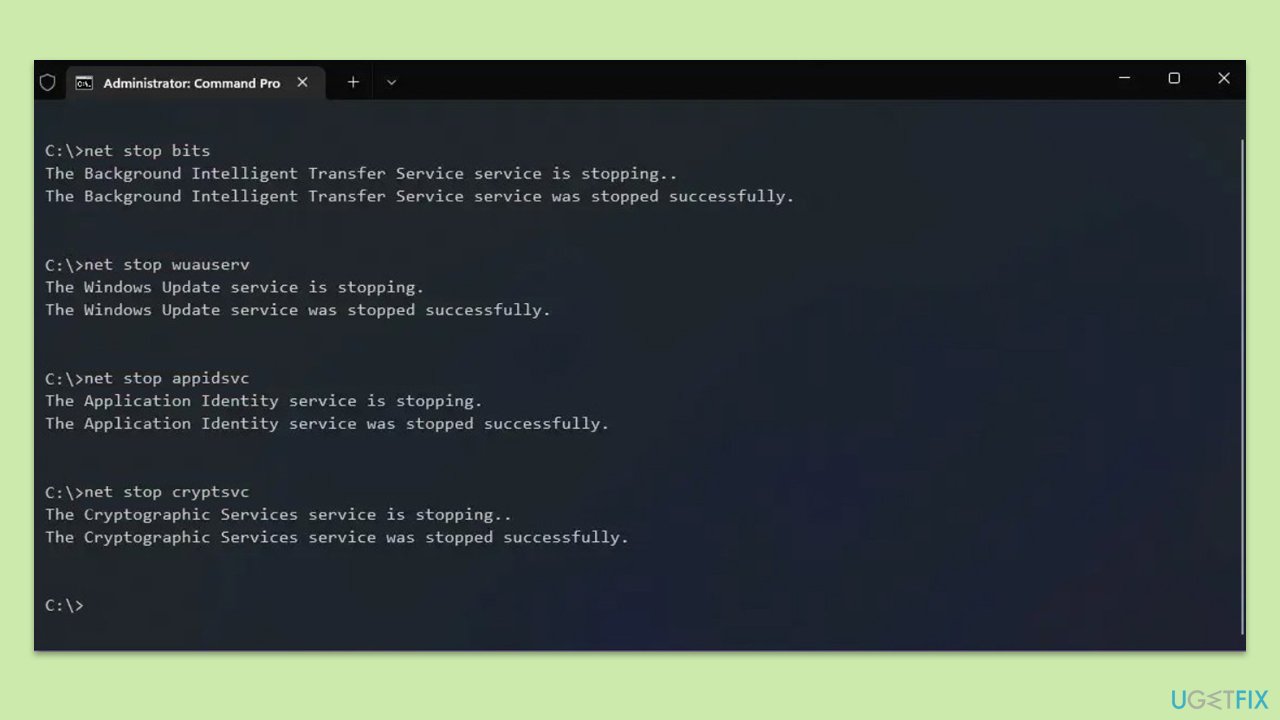
- Stop the BITS, Cryptographic, MSI Installer, and Windows Update Services by typing the following commands and pressing Enter after each:
- net stop wuauserv
- net stop cryptSvc
- net stop bits
- net stop msiserver
- Rename the SoftwareDistribution and Catroot2 folders by typing the following commands and pressing Enter after each:
- ren C:\Windows\SoftwareDistribution SoftwareDistribution.old
- ren C:\Windows\System32\catroot2 Catroot2.old
- Restart the BITS, Cryptographic, MSI Installer, and Windows Update Services by typing the following commands and pressing Enter after each:
- net start wuauserv
- net start cryptSvc
- net start bits
- net start msiserver
- Close the Command Prompt and restart your computer.
Fix 6. Run Clean Boot
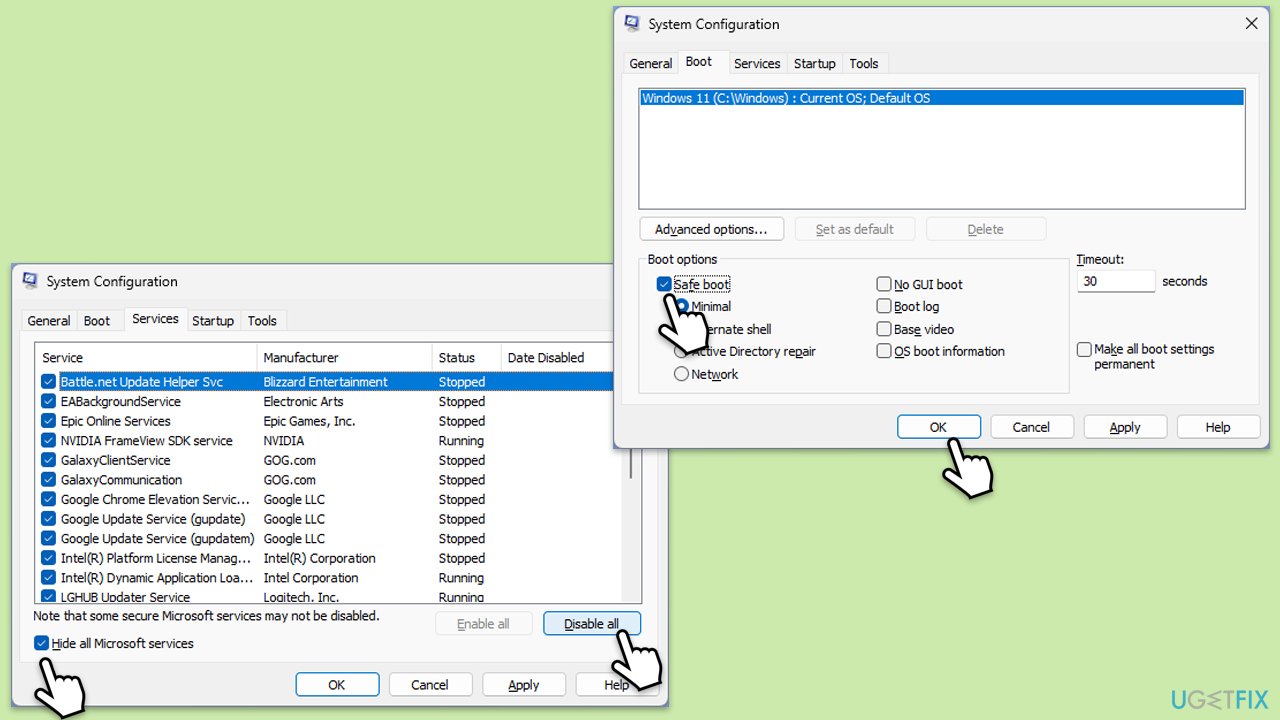
- Type msconfig inWindows Search and press Enter to open the System Configuration window.
- Click on the Services tab and check the Hide all Microsoft Services box.
- Click Disable all to disable non-Microsoft services, then click the Startup tab.
- Open the Task Manager, disable all startup items, and close the Task Manager.
- Go to the Boot tab and mark the Safe boot option.
- Click OK on the System Configuration window and restart your computer.
- Try installing the update again.
Bottom line
To fix the KB504498 installation failure, you can run the Windows Update troubleshooter and the Network & internet troubleshooter to identify and resolve issues. Additionally, ensure you have sufficient disk space and consider temporarily disabling third-party antivirus software. If these steps do not resolve the issue, manually downloading the update from the Microsoft Update Catalog or using a trusted repair tool may help.
Frequently asked questions
First, try running the Windows Update troubleshooter by going to Settings > Update & Security > Troubleshoot. If that doesn't work, consider manually downloading and installing the update from the Microsoft Update Catalog.
Yes, third-party antivirus programs can interfere with Windows Updates, including KB504498. Temporarily disabling your antivirus software during the update process may resolve the installation failure.
You can check for pending updates by going to Settings > Windows Update and clicking 'Check for updates.' Installing all available updates can help ensure compatibility for KB504498.




Report an issue
What's wrong with this guide? We review every report and update or remove content.
Report received — thank you. We'll review and fix it.
You need a free account to submit a report.
Be the first to comment