How to fix
KB5045594 fails to install
on Windows
Resolve KB5045594 installation issues in Windows 10 quickly and effectively. Trust our expert-tested solutions for a smooth update experience.

What causes How to fix KB5045594 fails to install in Windows 10?
- Corrupted system files
- Insufficient disk space
- Conflicts with third-party software
- Network instability
- Incomplete previous updates
Repairs Windows system files, removes malware, and restores a clean OS state — without reinstalling.
Yesterday, I was unable to install the KB5045594 update yesterday, and I've noticed it's the same today. Could you maybe help me with this?
KB5045594 is a non-security preview update released in October 2024 for Windows 10 version 22H2, bringing various enhancements and fixes. This update, with build number 19045.5073, introduces several features aimed at improving user experience.
Among the notable changes is a new account manager in the Start menu, which simplifies access to account settings and switching between users. The update also revamps the System > About page, providing users with clearer hardware details and FAQs for a better understanding of device performance.
Additionally, it fixes several bugs, particularly related to multi-function printers and virtual switches, and adds support for Bluetooth controllers in WebView2 apps.
Despite the improvements, some users have encountered issues where KB5045594 fails to install. This problem may arise due to several factors, including corrupted system files, insufficient disk space, or conflicts with third-party software.
Network instability or incomplete previous updates can also interfere with the installation process. In some cases, Windows Update components may need resetting to allow the update to install successfully.
To resolve these issues, users might need to perform a thorough system cleanup, check for network problems, or attempt manual installation. For more persistent problems, using [d1] repair could help in addressing deeper system-level conflicts that prevent the update from installing properly.

Fix 1. Run Windows Update and Network troubleshooter
Running the built-in troubleshooters can help resolve common issues with Windows Update and network connectivity that might prevent KB5045594 from installing.
- Type Troubleshoot into the Windows search bar and press Enter.
- Next, on the right side of the window, select Additional troubleshooters.
- Scroll down to locate the Windows update option and click on it.
- Click on Run the troubleshooter and allow the process to complete.
- Once it is finished, implement any recommended fixes and restart your device.
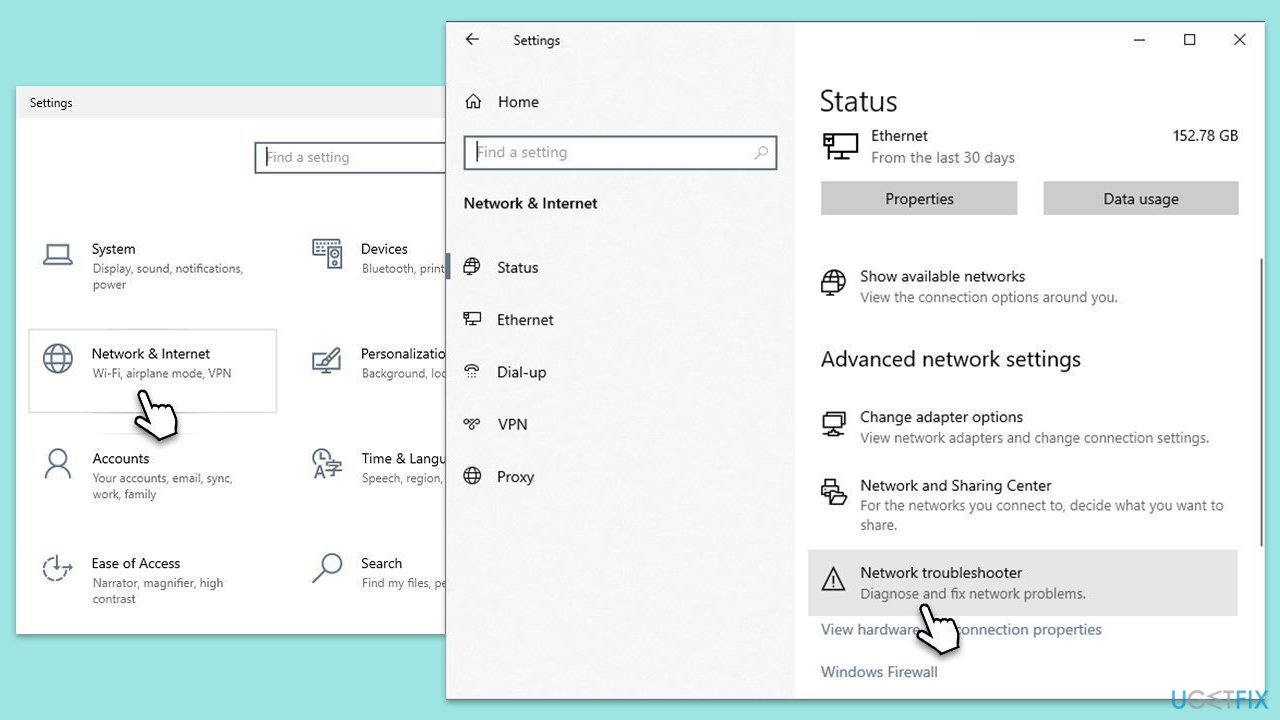
To run a network troubleshooter, follow these steps:
- Right-click on Start and pick Settings.
- Go to the Network & Internet section.
- On the right side, find the Advanced network settings section.
- Click Network troubleshooter and wait.
- The fixes will be automatically applied.
Fix 2. Check your disk for issues
Disk errors can prevent updates from installing. Running a disk check can help identify and repair any issues with your drive.
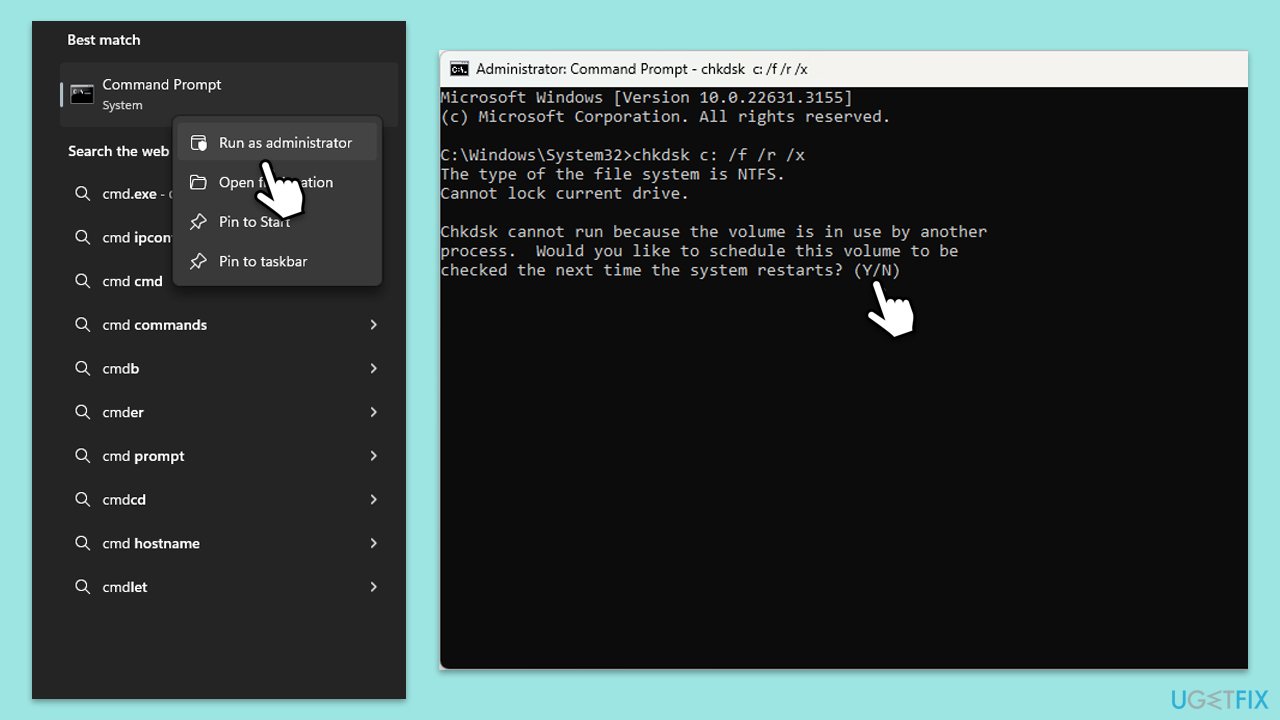
- Type cmd in Windows search.
- Right-click on Command Prompt and pick Run as administrator.
- User Account Control window will show up - click Yes when prompted.
- In the new window, type in the following command and press Enter after:
chkdsk c: /f
(Note: use chkdsk c: /f /r /x command if you are using SSD as your primary partition. Also, replace c: with another drive letter if you are not using default) - If you receive an error, type in Y, close down Command Prompt and restart your computer.
- Wait till the scan is finished.
Fix 3. Ensure necessary services are set to automatic
Certain services need to be running for Windows Update to work properly. Ensuring these services are set to automatic can help resolve installation issues.
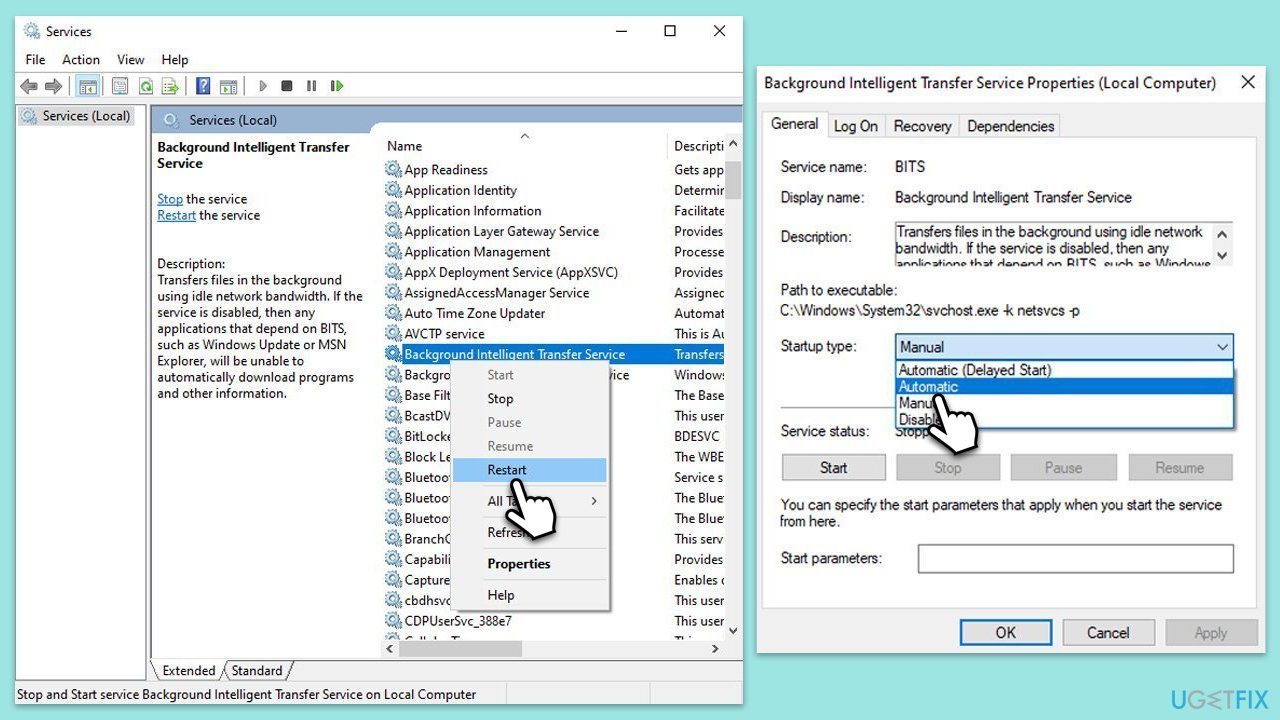
- Type Services in Windows search and press Enter.
- Next, locate the Background Intelligent Transfer Service, Cryptographic Service, and Windows Update Service by scrolling through the list of services.
- Right-click on each service, and from the context menu, select Restart.
- In case a service is not running, double-click on it and select Automatic under the Startup type. Afterward, click on Start and then click OK.
Fix 4. Repair corrupted system files
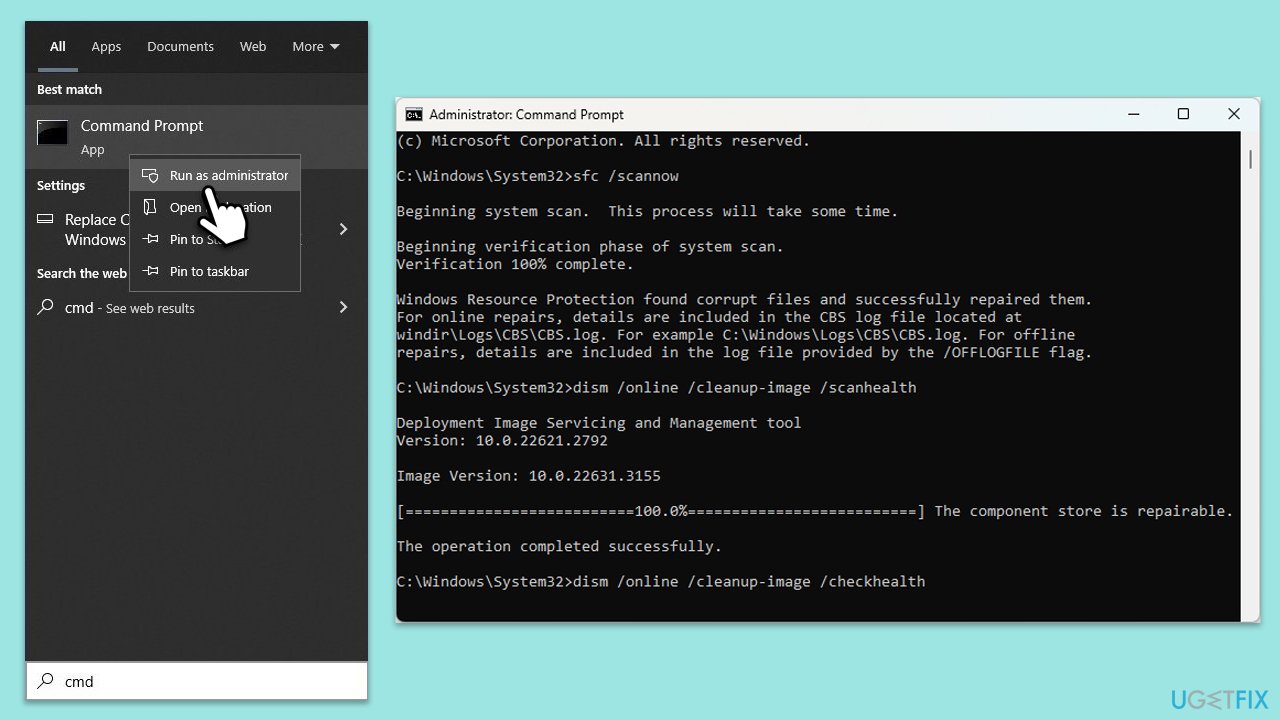
Corrupted system files can cause issues with updates. Running System File Checker (SFC) and DISM scans can repair these files and allow the update to install.
- Open Command Prompt as an administrator.
- Then, copy and paste the following command, pressing Enter after:
sfc /scannow - Wait till the scan is finished. If Windows finds system file integrity violations, it will attempt to fix them. After this, use the set of the following commands, pressing Enter each time:
DISM /Online /Cleanup-Image /CheckHealth
DISM /Online /Cleanup-Image /ScanHealth
DISM /Online /Cleanup-Image /RestoreHealth - (Note: if you get an error executing this last command, add /Source:C:\RepairSource\Windows /LimitAccess to it and try again).
- Close down the Command Prompt and restart your device.
Fix 5. Disable third-party security software or/and Firewall
Third-party antivirus software or firewalls may block Windows updates from downloading or installing correctly. Disabling them temporarily can resolve conflicts.
- Disable your antivirus software from its main dashboard, usually accessible via the system tray icon.
- Press Win + S and type "firewall." Select Windows Defender Firewall.
- Click on Turn Windows Defender Firewall on or off.
- Select Turn off Windows Defender Firewall for both private and public network settings. Remember to turn these back on after testing.
Fix 6. Reset Windows Update Components
Resetting the Windows Update components can resolve issues with corrupted update files or settings.
- Open Command Prompt as an administrator.
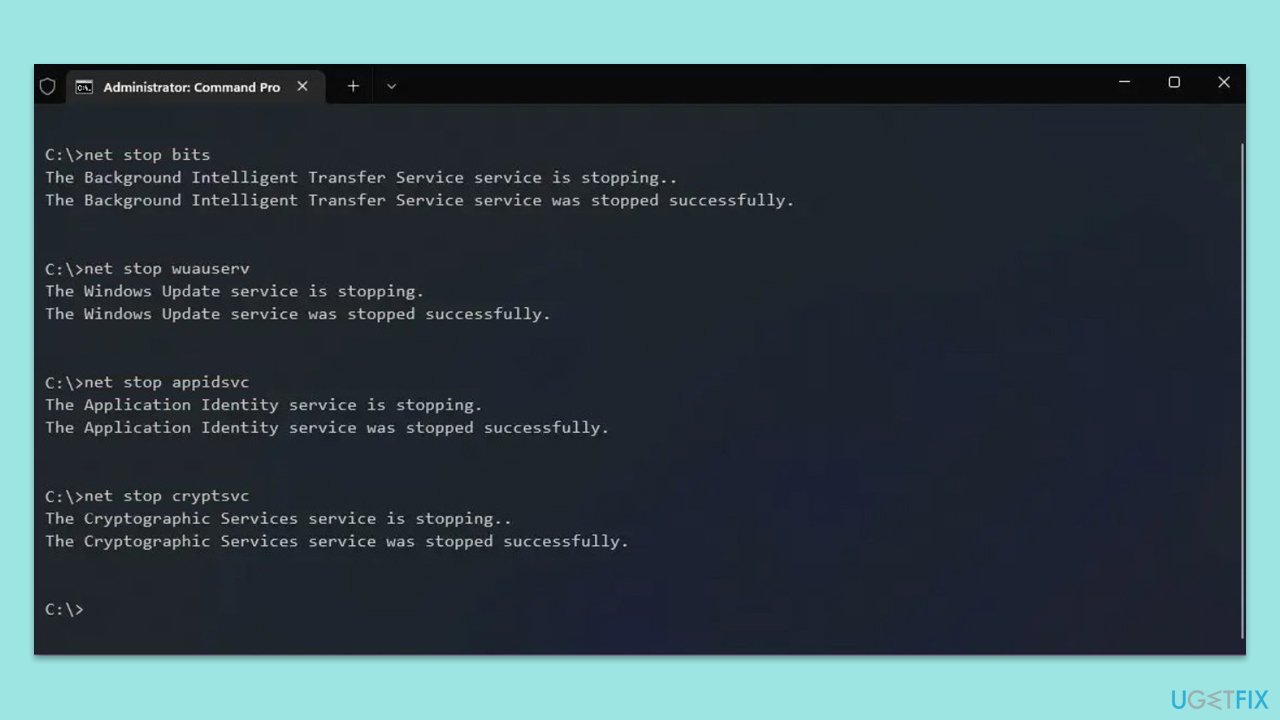
- Copy and paste each of the following commands, pressing Enter every time to execute them:
net stop bits
net stop wuauserv
net stop appidsvc
net stop cryptsvc
Del “%ALLUSERSPROFILE%\Application Data\Microsoft\Network\Downloader\*.*”
rmdir %systemroot%\SoftwareDistribution /S /Q
rmdir %systemroot%\system32\catroot2 /S /Q
regsvr32.exe /s atl.dll
regsvr32.exe /s urlmon.dll
regsvr32.exe /s mshtml.dll
netsh winsock reset
netsh winsock reset proxy
net start bits
net start wuauserv
net start appidsvc
net start cryptsvc - Restart your device.
Fix 7. Perform Disk Cleanup
Disk Cleanup can help free up space and remove temporary files that might be interfering with the update process.
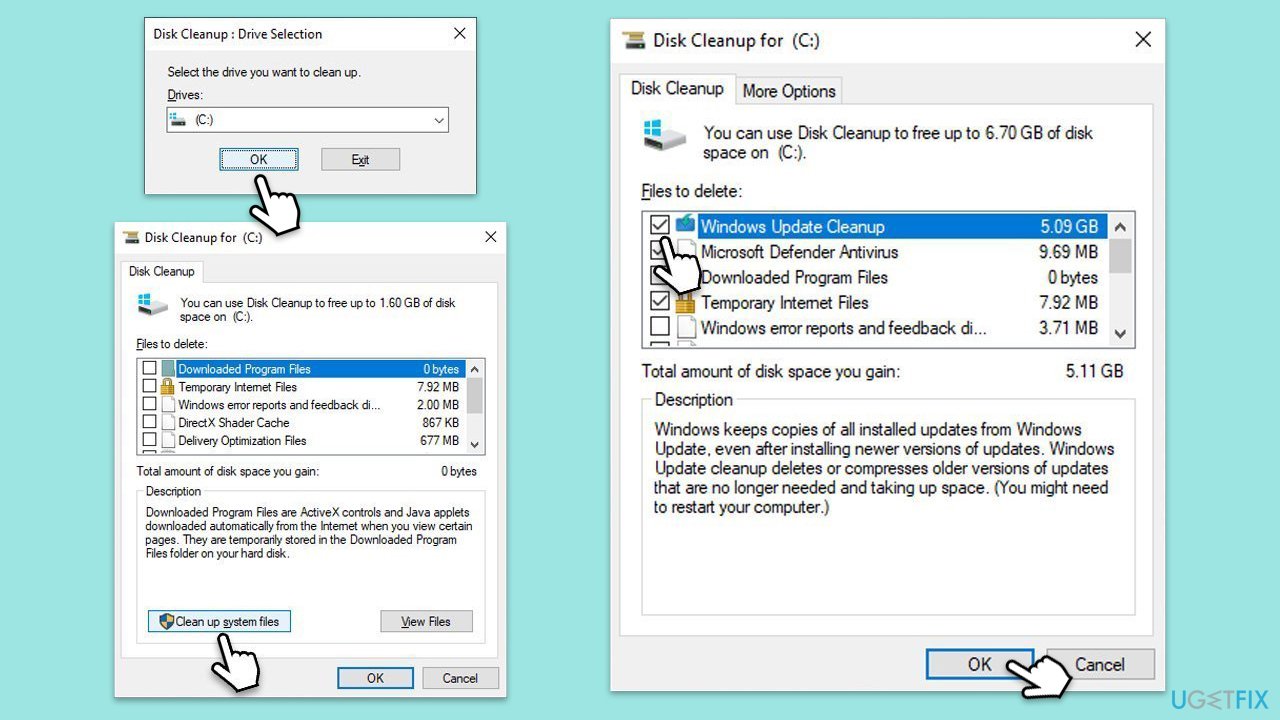
- Type Disk Cleanup in Windows search and hit Enter
- If your Windows is installed on drive C, pick it from the list (should be by default) and press OK
- Click Clean up system files
- Select your main disk again and click OK
- Here, select the largest portions of the data used - these typically include Temporary Internet Files, Windows Update, Temporary Files, Recycle Bin, Delivery Optimization Files, and others.
- Click OK and wait for the cleanup process to finish.
Bottom line
To fix the KB5045594 installation issue, users can run the Windows Update and Network troubleshooters, perform a thorough system cleanup, and check for network problems. If these steps do not resolve the issue, attempting a manual installation or using repair tools may help address deeper system-level conflicts.
Frequently asked questions
First, try running the Windows Update Troubleshooter to identify and fix any issues. If that doesn't work, ensure your system is up to date with other pending updates before attempting to install KB5045594 again.
Yes, you can manually download the update from the Microsoft Update Catalog website and install it directly on your Windows 10 system.
Resetting Windows Update components can often resolve installation issues, so it's worth trying if KB5045594 fails to install on your Windows 10 device.




Report an issue
What's wrong with this guide? We review every report and update or remove content.
Report received — thank you. We'll review and fix it.
You need a free account to submit a report.
Be the first to comment