How to fix
KB5045935 fails to install
on Windows
Resolve KB5045935 installation issues on Windows 11 quickly and easily. Get expert-tested solutions to fix the error in minutes, ensuring smooth updates.

What causes How to fix KB5045935 fails to install in Windows 11?
- Corrupt system files
- Errors in Windows Update components
- Software conflict with previously installed updates
- Faulty network connectivity
- Insufficient disk space
Repairs Windows system files, removes malware, and restores a clean OS state — without reinstalling.
I try to install this update, KB5045935, in my Windows 11 system. It is failing continuously with an error message. I tried restarting my computer and then ran the Windows Update troubleshooter. None seem to work properly. Is there any particular reason why this update will not install or how to fix this issue?
Cumulative Update KB5045935 for Windows 11 Versions 22H2 and 23H2 .NET Framework 3.5 and 4.8.1, which was released on November 12, 2024, enhances system stability and security in the .NET framework for easier running of applications using this framework. The update contains general improvements for application compatibility support and vulnerabilities.
However, some users do not experience the installation of KB5045935, which irritates them since updates are not completed as specified. This is also possible because some of the system files are corrupt, Windows Update components have an error, or there is a software conflict with the previously installed updates. Other plausible causes would be faulty network connectivity or insufficient disk space that can fulfill the installation requirements.
This would involve running the Windows Update Troubleshooter to diagnose and fix common problems, clearing the update cache to get rid of those files which may be causing conflicts with other ones, or downloading and installing the update manually via the Microsoft Update Catalog to pass by automatic update errors.
In addition, you should also run System File Checker and DISM scans that could repair corrupted system files blocking the update process. Another method to fix KB5045935 failing to install is by disabling third-party antivirus software - this will avoid installation interruptions caused by security settings.
If you would like to have an automated and comprehensive means of diagnosis, using a reliable [d1] repair tool will enable you to get a diagnosis of the possible underlying system issues stopping the successful installation of KB5045935, ensure that future updates go through with ease, and improve the general performance of the system.
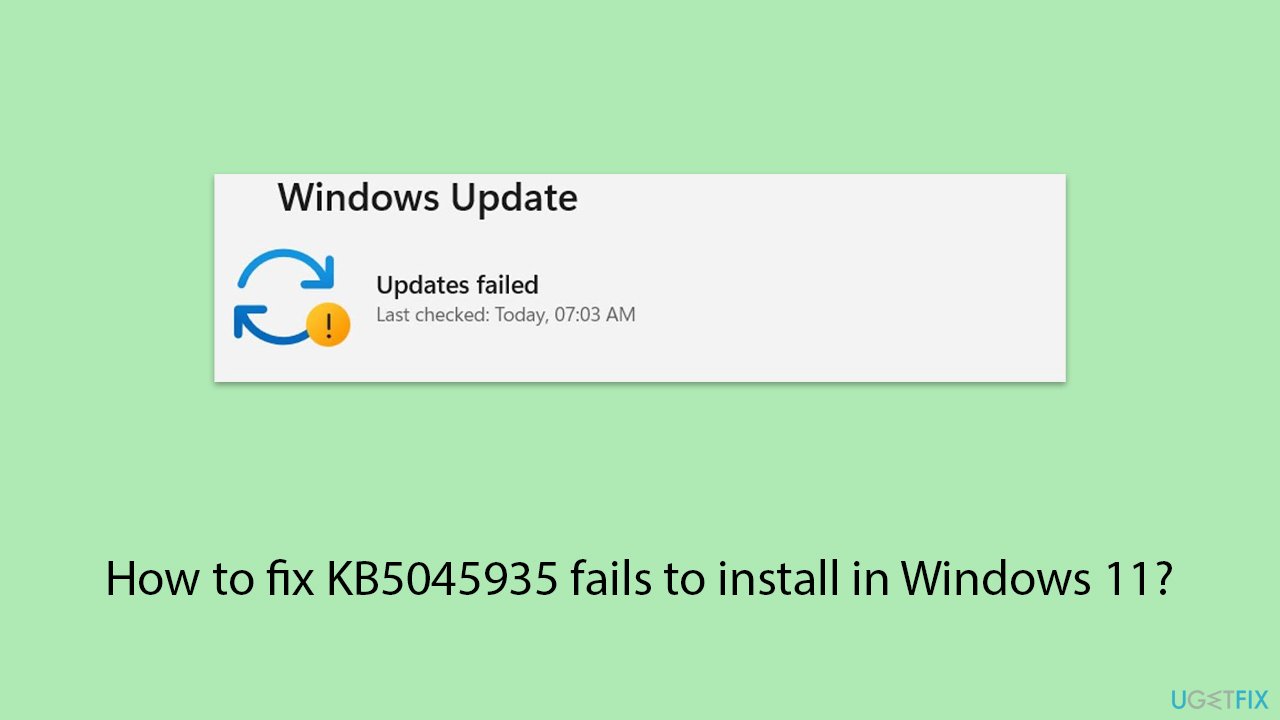
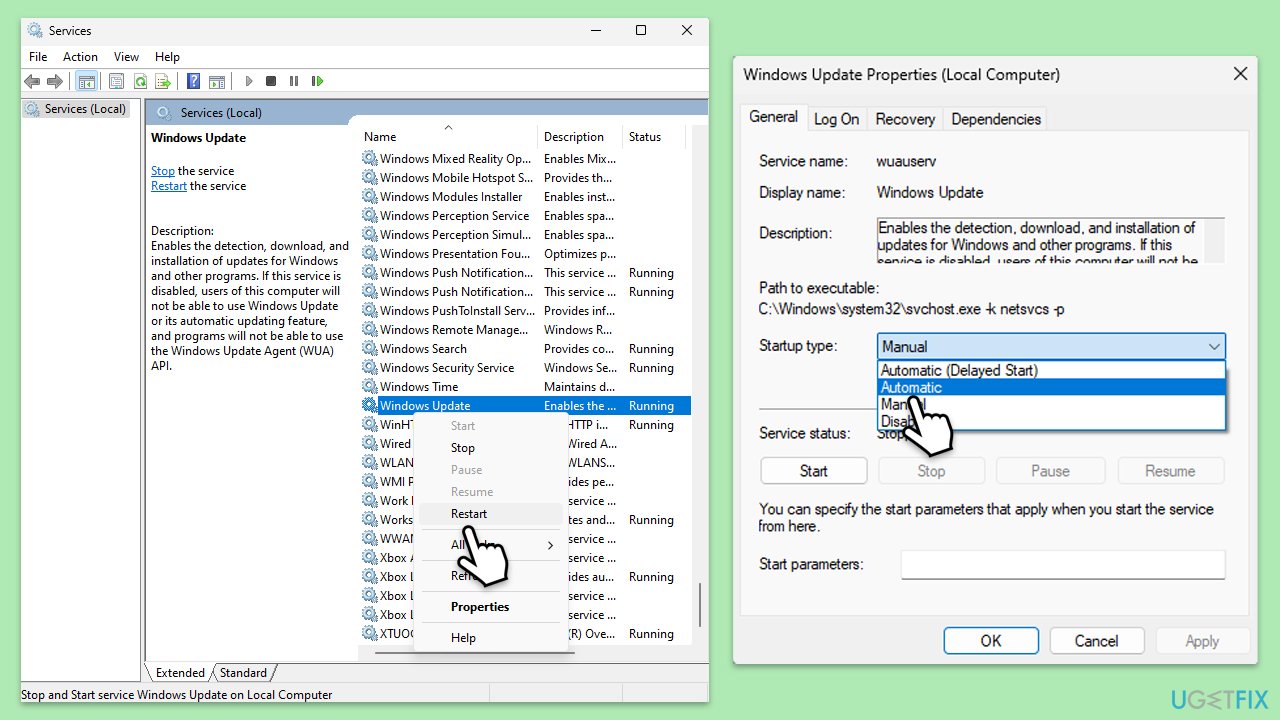
Fix 1. Check relevant services
Ensuring that essential Windows Update services are running properly can help resolve the KB5045935 installation issue.
- Type Services in Windows search and hit Enter.
- Locate the following services: Windows Update, Background Intelligent Transfer Service, and Cryptographic Services.
- Right-click each service and select Restart.
- If any service is not running, double-click the service to open Properties.
- Under the Startup type, select Automatic from the drop-down menu.
- Click Start, Apply, and OK.
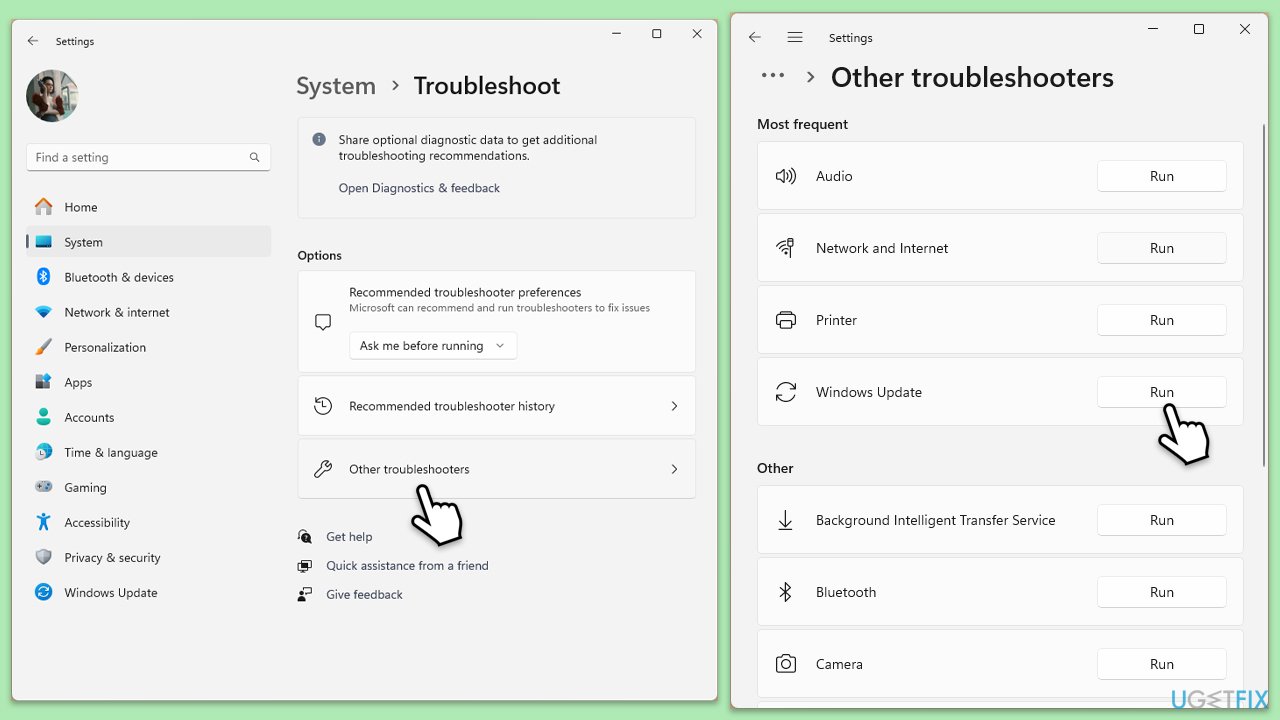
Fix 2. Run Windows Update troubleshooter
The built-in troubleshooter can help identify and fix issues preventing updates.
- Type Troubleshoot in Windows search and press Enter.
- On the right side of the window, click Other troubleshooters.
- Scroll down and select Windows update.
- Click Run.
- Wait for the troubleshooter to finish.
- Restart your system once done.
Fix 3. Try Clean Boot
Running a clean boot can prevent background software from interfering with the update process.
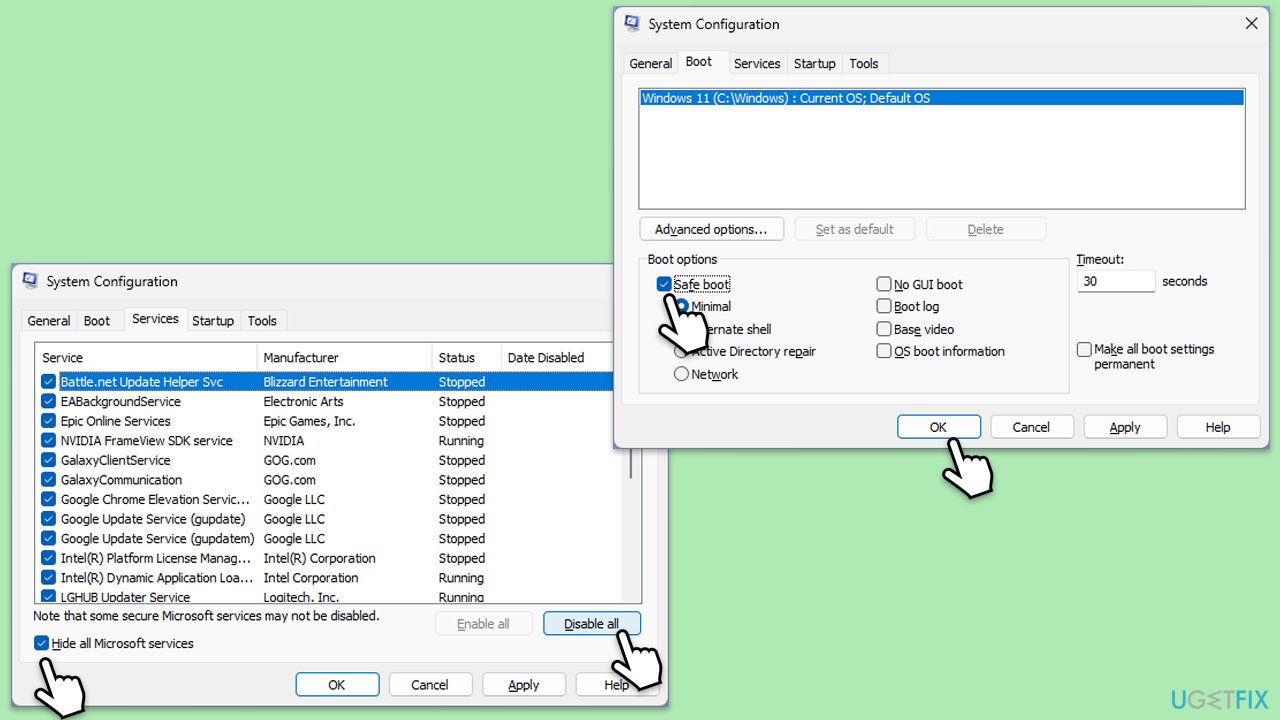
- Type msconfig in Windows search and hit Enter.
- Go to the Services tab and tick the Hide all Microsoft services checkbox.
- Select Disable all.
- Go to the Startup tab and click Open Task Manager.
- Here, right-click on each of the non-Windows entries and select Disable.
- Close down the Task Manager.
- Go to the Boot tab and tick the Safe boot option.
- Restart your device.
- Attempt to update Windows again.
Fix 4. Reset Windows Update components
Resetting components can clear persistent issues with the update process.
- Type cmd in Windows search.
- Right-click on Command Prompt and pick Run as administrator.
- User Account Control will ask whether you want to allow changes – click Yes.
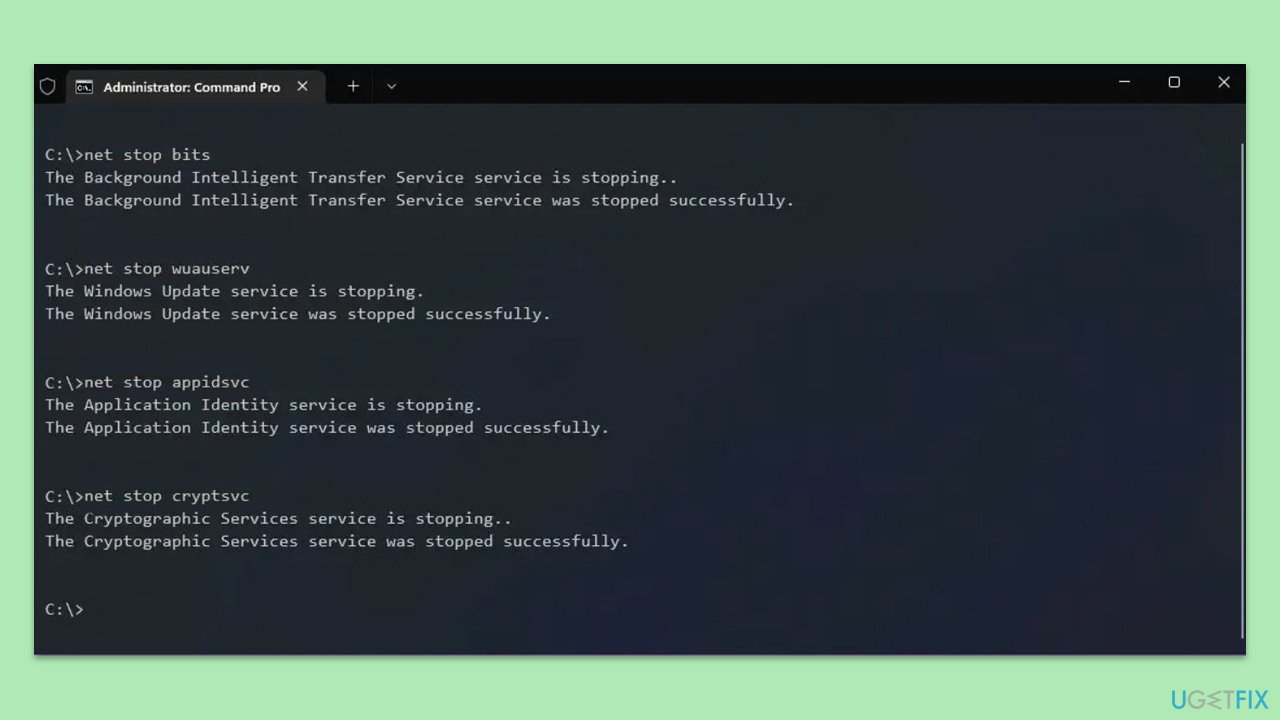
- Paste in each of these commands, pressing Enter every time:
net stop bits
net stop wuauserv
net stop appidsvc
net stop cryptsvc
Del “%ALLUSERSPROFILE%\Application Data\Microsoft\Network\Downloader\*.*”
rmdir %systemroot%\SoftwareDistribution /S /Q
rmdir %systemroot%\system32\catroot2 /S /Q
regsvr32.exe /s atl.dll
regsvr32.exe /s urlmon.dll
regsvr32.exe /s mshtml.dll
netsh winsock reset
netsh winsock reset proxy
net start bits
net start wuauserv
net start appidsvc
net start cryptsvc - Restart your computer.
Fix 5. Install the update manually
Downloading and installing the update from the Microsoft Update Catalog can bypass certain issues.
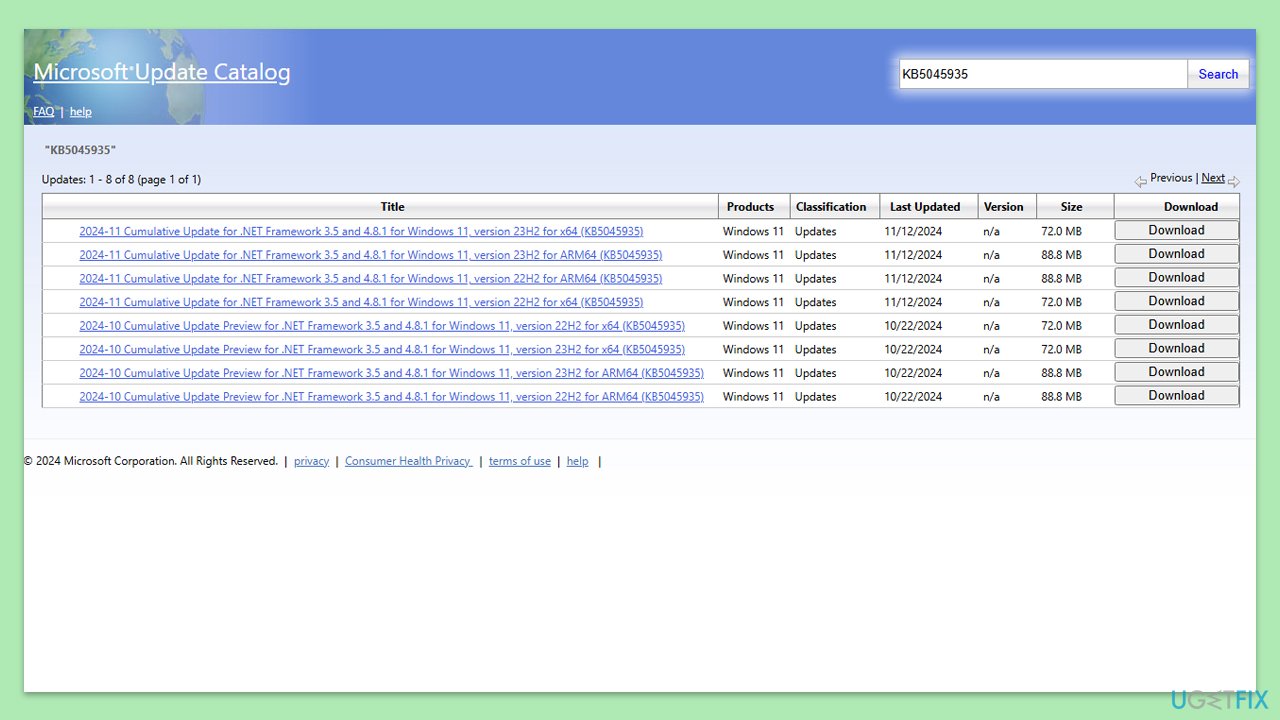
- Go to the official Microsoft Update Catalog website.
- Type the KB number into the search bar (in this case, KB5045935), and click Search.
- You will find many different versions on the update – you need to find the one that matches your PC specs and Windows version (as a home user, ignore Windows server versions).
- After picking the correct version, click the Download button and proceed with the on-screen instructions.
- Restart your computer to implement the new updates.
Fix 6. Use Media Creation Tool
The Media Creation Tool can help refresh your system while retaining files and apps, potentially resolving the update issue.
- Visit the official Microsoft website and download the Windows installation media.
- Double-click the installer and select Yes when UAC shows up.
- Agree to the terms and click Next.
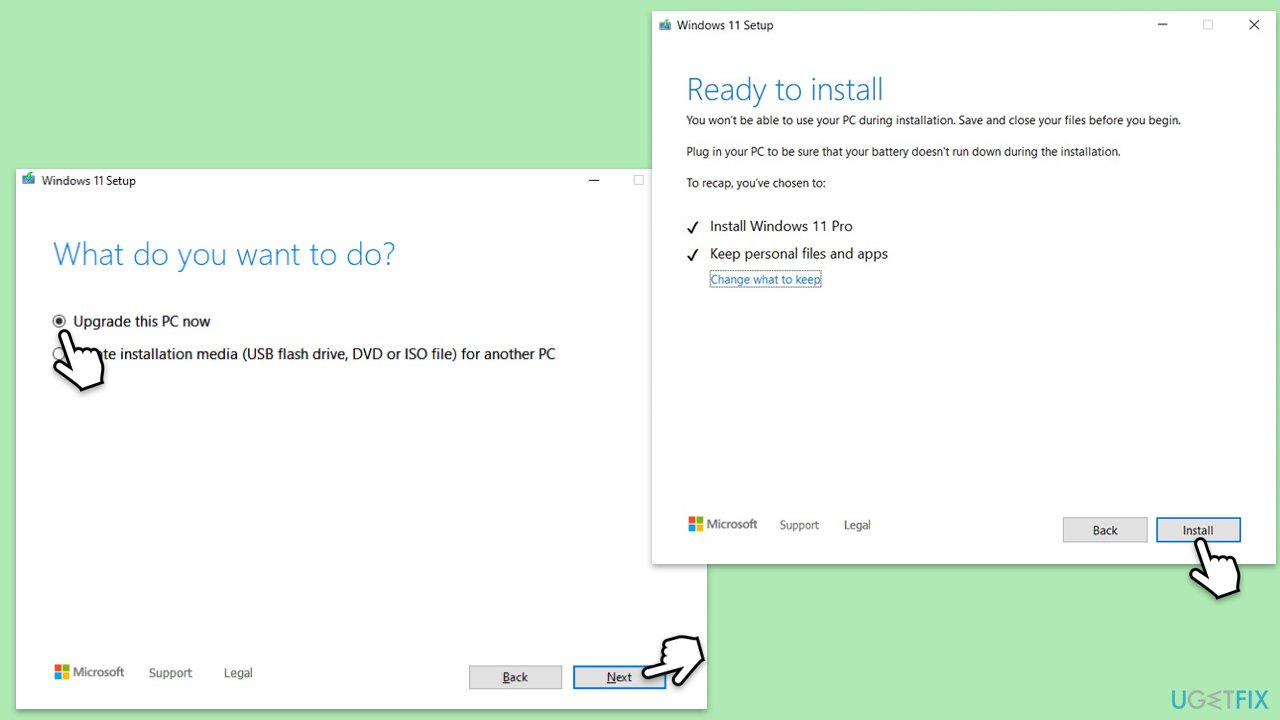
- Select Upgrade this PC now and select Next
- Windows will now download all the necessary files, which might take some time.
- Agree to the terms once again and click Next.
- Before installing, ensure you are happy with your choices (otherwise, you can click Change what to keep option).
- Click Install to begin the upgrade process.
- Your computer will restart as required.
Bottom line
To fix the installation failure of KB5045935, you can run the Windows Update Troubleshooter, clear the update cache, or download the update manually from the Microsoft Update Catalog. Additionally, running System File Checker and DISM scans, as well as disabling third-party antivirus software, may help. If none of these solutions work, consider using a reliable repair tool for a comprehensive diagnosis.
Frequently asked questions
Try running the Windows Update Troubleshooter, which can help identify and fix issues preventing the installation of updates like KB5045935.
Yes, common error codes include 0x80070308 and 0x800F0922, which indicate problems with system files or network connectivity that may need to be addressed.
Yes, resetting Windows Update components can resolve issues related to stuck updates and may allow KB5045935 to install successfully.




Report an issue
What's wrong with this guide? We review every report and update or remove content.
Report received — thank you. We'll review and fix it.
You need a free account to submit a report.
Be the first to comment