How to fix
KB5046613 fails to install
on Windows
Resolve KB5046613 installation errors in Windows 10 effortlessly. Get expert-tested solutions to fix your issues quickly and effectively. Fixed in minutes!

What causes How to fix KB5046613 fails to install in Windows 10?
- Corrupted system files
- Insufficient disk space
- Issues with Windows Update components
- Network issues
- Conflict with third-party antivirus software
Repairs Windows system files, removes malware, and restores a clean OS state — without reinstalling.
KB5046613 fails to install for me on Windows 10. I tried running the troubleshooter and restarted the PC but that did not help me. I always update Windows as soon as possible, and this is the first time it happened to me. Could you help?
The KB5046613 update, which was released on November 12, 2024, constitutes a cumulative update for Windows 10 versions 22H2 and certain builds of 21H2, specifically identified by operating system versions 19044.5131 and 19045.5131. The update is based on system security enhancements, bug fixing, and minor improvements in performance and stability.
Examples of changes include updates to core system components that will help reinforce security and reduce possible exploits, together with minor bug fixes that will resolve issues with certain applications or functionalities in Windows.
It also enhances software compatibility support and the overall user experience for general system operations. However, some users reported that the update KB5046613 would not install and seemed frustrating while trying to keep their systems updated.
Common causes for KB5046618 installation failure include corrupted system files, insufficient disk space, or some issues with the Windows Update components. It could also be related to network issues or a conflict with third-party antivirus software. Sometimes, the update may get stuck during installation, and when the installation fails, it will roll back changes.
Depending on the case, users may need to clear the Windows Update cache, reset update components, or run system scans to fix corrupted files. You can also sidestep common errors by installing manually through the Microsoft Update Catalog. Below there are detailed steps for fixing the issue.
But for those who want a more efficient way to diagnose and rectify the underlying causes of KB5046613 installation failures, thereby making system updates smooth and improving overall performance, using a good [d1] repair tool might help.
Fix 1. Run the Windows Update Troubleshooter
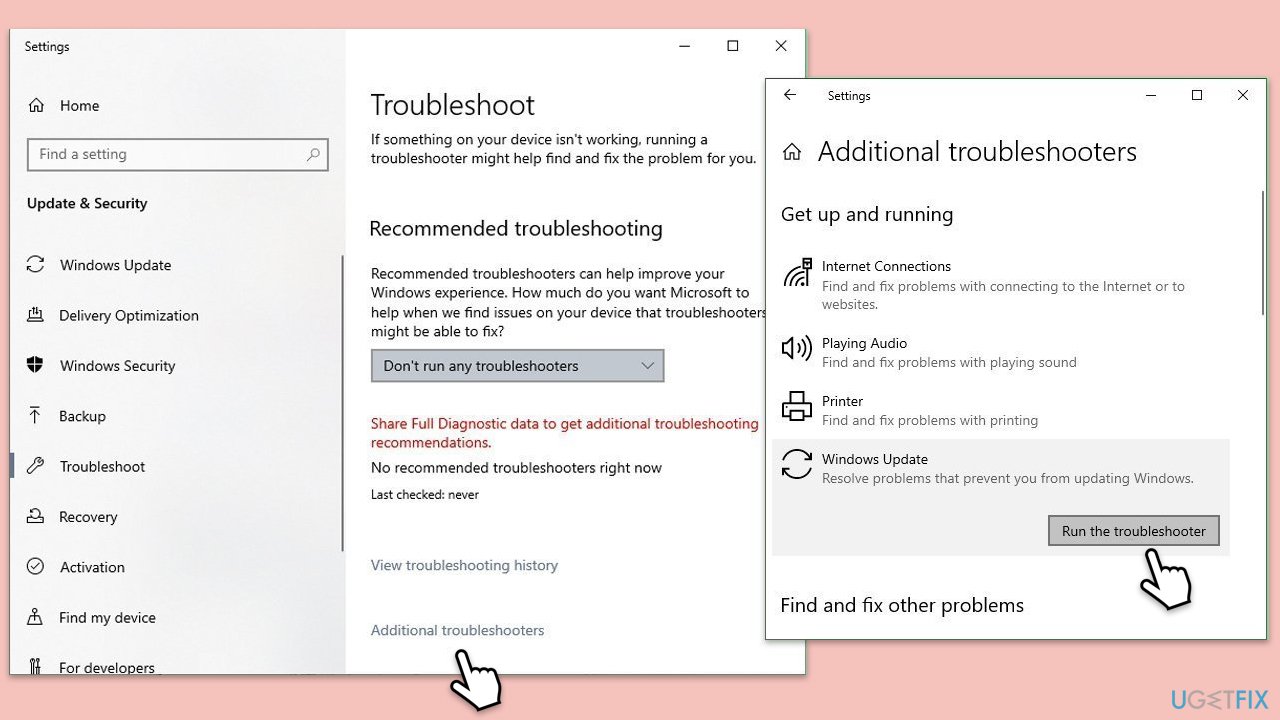
The Windows Update Troubleshooter can identify and fix common issues that may prevent KB5046613 from installing.
- Press Windows + I to open Settings.
- Go to Update & Security > Troubleshoot.
- Select Windows Update and run the troubleshooter.
- Follow the on-screen instructions and try installing the update again.
Fix 2. Check services
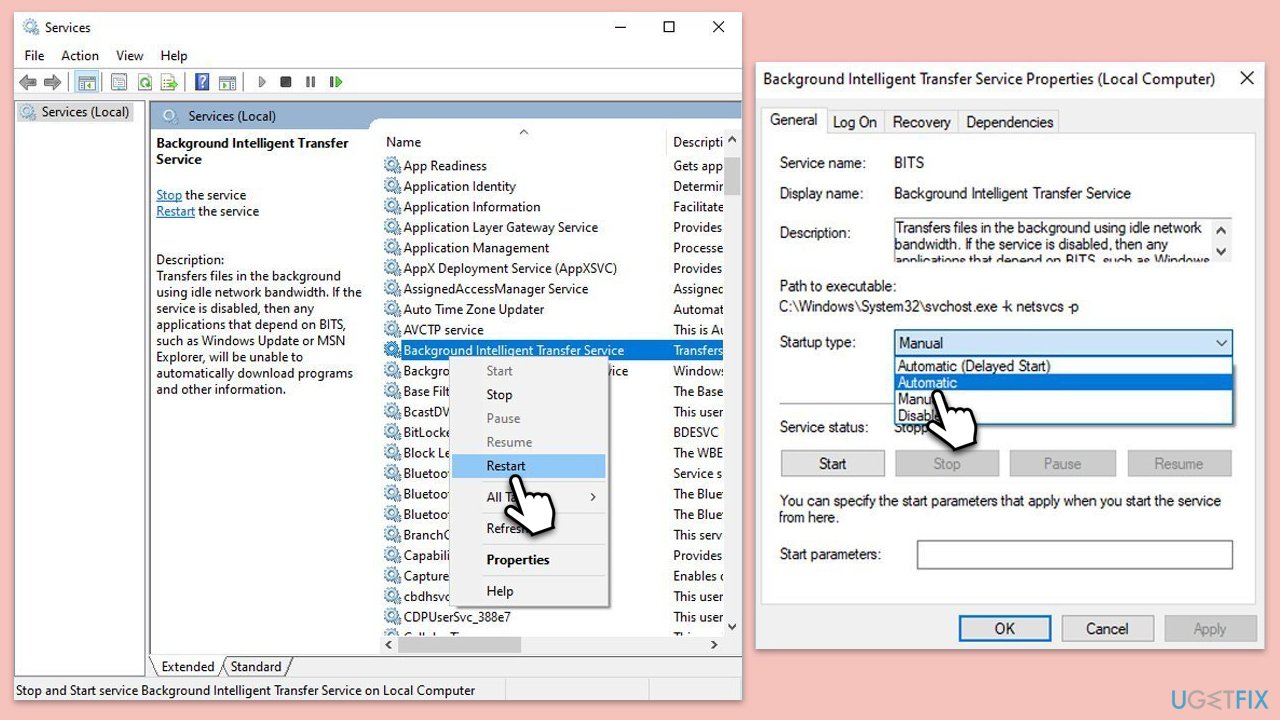
Make sure that all the relevant services are running. If they already are, restart them instead.
- Type Services in Windows search and hit Enter.
- Scroll down to locate Windows Update.
- If it is already running, right-click and pick Restart.
- If the service is not running, double-click it, and select Automatic under the Startup type from the drop-down menu.
- Click Start, Apply, and OK.
- Repeat this process for Background Intelligent Transfer Service (BITS) and Cryptographic services.
Fix 3. Run System File Checker (SFC) and DISM scans
Corrupted system files can prevent updates from installing.
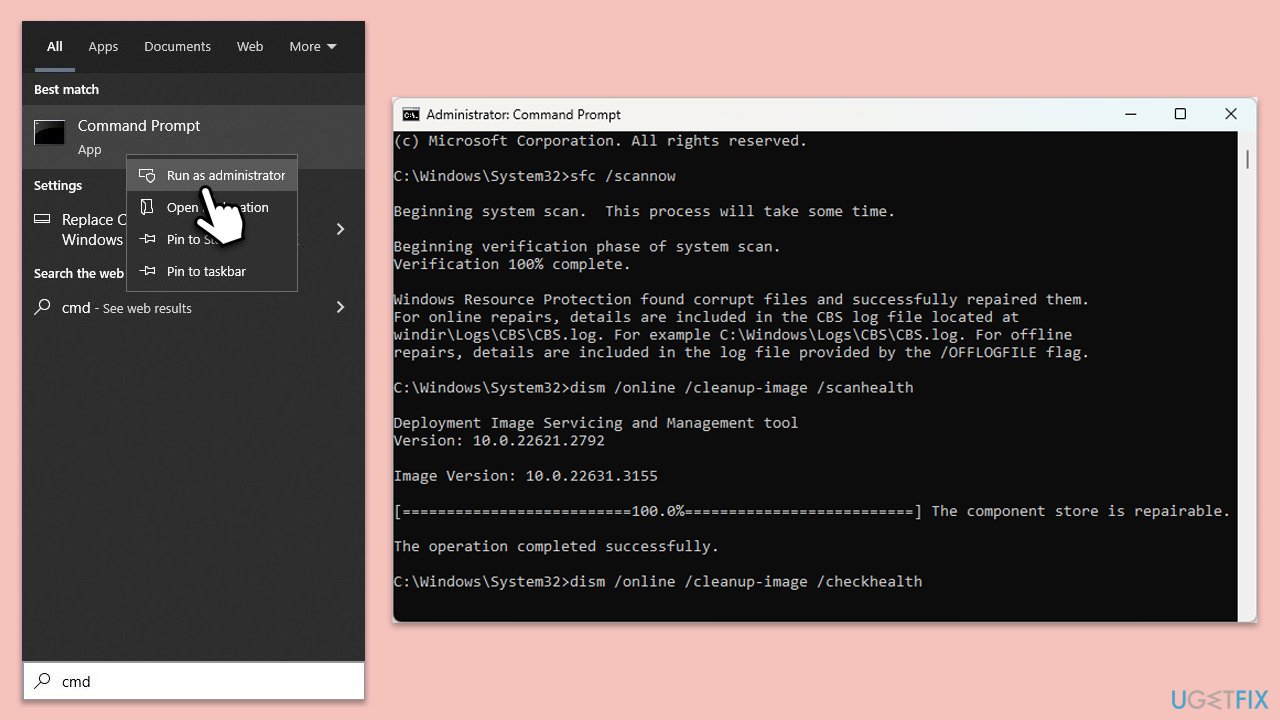
- Type cmd in Windows search, right-click on Command Prompt, and select Run as administrator.
- When UAC shows up, click Yes.
- Copy and paste the following command, pressing Enter after:
sfc /scannow - Wait till the scan is finished. If Windows finds system file integrity violations, it will attempt to fix them. After this, use the set of the following commands, pressing Enter each time:
DISM /Online /Cleanup-Image /CheckHealth
DISM /Online /Cleanup-Image /ScanHealth
DISM /Online /Cleanup-Image /RestoreHealth - Close down the Command Prompt and restart your system.
Fix 4. Manually download and install KB5046613
Manual installation can bypass issues within the automated update process.
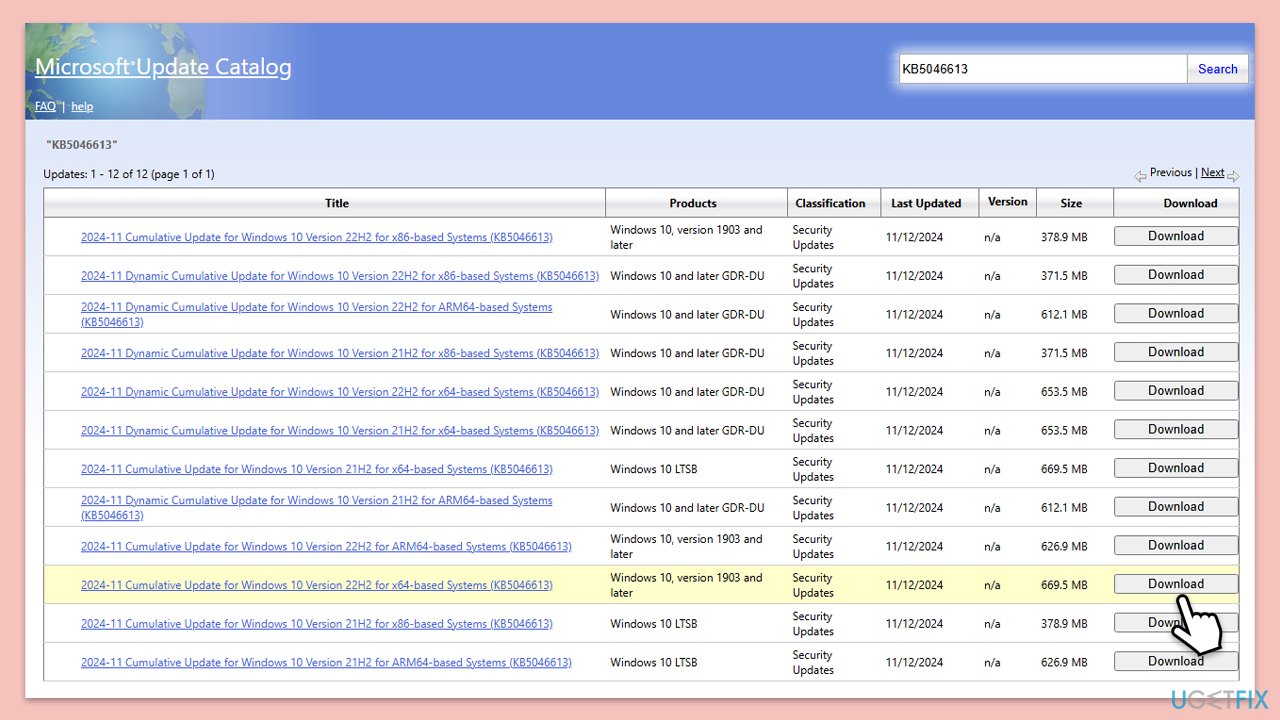
- Open your browser and go to Microsoft Update Catalog.
- In the search box, type in KB5046613 and press Search or hit Enter.
- Find the correct version of the update for your operating system (to check this, right-click on Start and pick System. Under Windows specifications, check the Version) and click Download.
- Follow on-screen guidelines to finish the installation process and restart your computer.
Fix 5. Reset Windows Update components
Resetting the components can fix issues with stuck update processes.
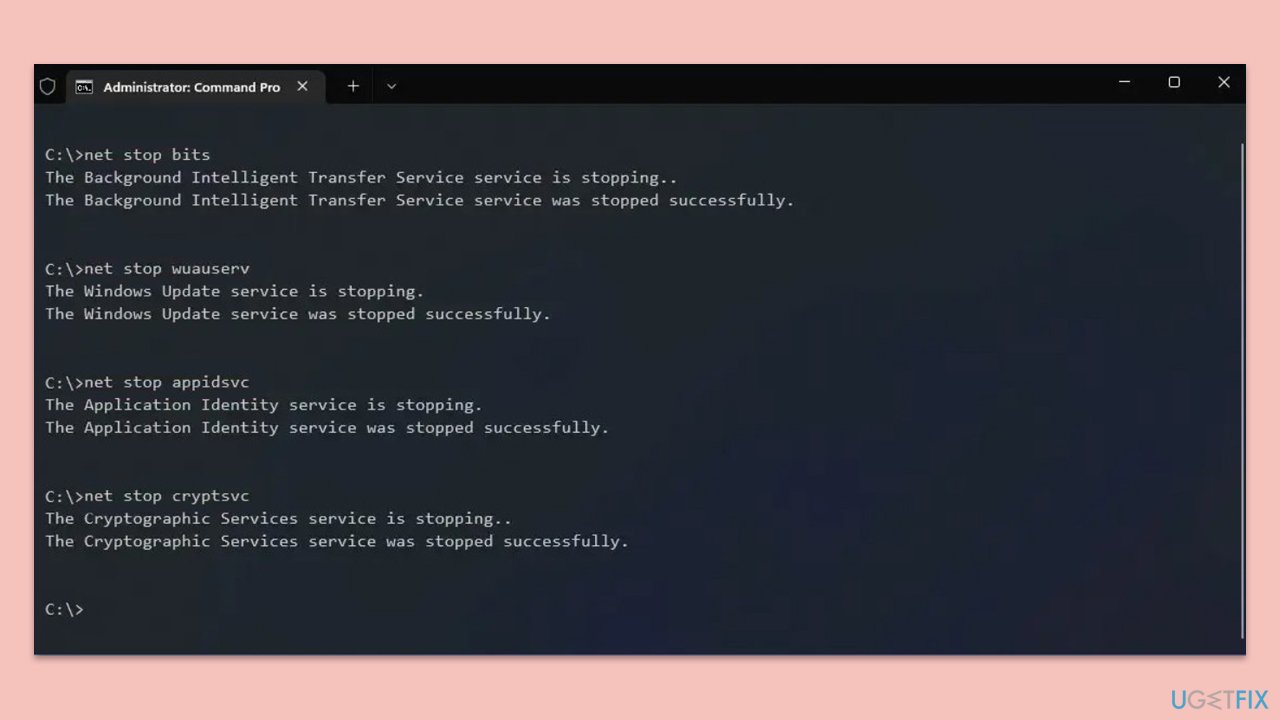
- Open Command Prompt as administrator.
- Stop the Windows Update Services by entering the following commands, one at a time, and pressing Enter after each:
net stop wuauserv
net stop cryptSvc
net stop msiserver
net stop bits - Rename the SoftwareDistribution and Catroot2 folders with the following commands:
ren C:\Windows\SoftwareDistribution SoftwareDistribution.old
ren C:\Windows\System32\catroot2 catroot2.old - Restart the services you stopped earlier with these commands:
net start wuauserv
net start cryptSvc
net start msiserver
net start bits - Close the Command Prompt window and try running the Windows Update again.
Fix 6. Perform a Clean Boot
A clean boot minimizes background processes and software that could be interfering with the update.
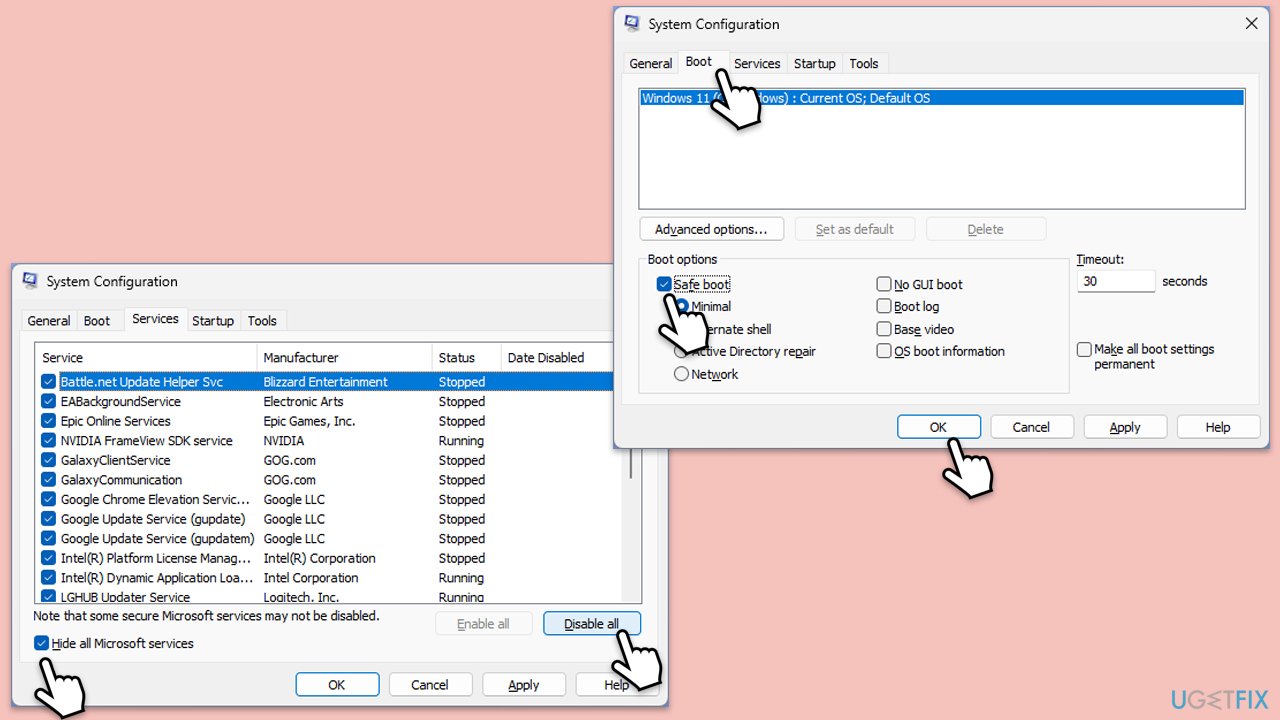
- Type msconfig in Windows search and then press Enter.
- Select the Services tab and tick the Hide all Microsoft services checkbox.
- Pick Disable all.
- Go to the Startup tab and click Open Task Manager.
- Here, right-click on each of the non-Windows entries and select Disable.
- Close down the Task Manager.
- Go to the Boot tab and tick the Safe boot option
- Reboot your system.
- Try updating your computer.
Bottom line
To fix the KB5046613 installation failure, users can run the Windows Update Troubleshooter, clear the Windows Update cache, reset update components, or run system scans to fix corrupted files. If these steps do not resolve the issue, consider installing the update manually through the Microsoft Update Catalog or using a repair tool for a more efficient diagnosis.
Frequently asked questions
Try running the Windows Update Troubleshooter, which can help identify and fix issues preventing the update from installing.
Yes, you can visit the Microsoft Update Catalog website, search for KB5046613, and download the update manually for installation.
Make sure your system is up to date with all previous updates installed, and ensure you have enough disk space available for the update.




Report an issue
What's wrong with this guide? We review every report and update or remove content.
Report received — thank you. We'll review and fix it.
You need a free account to submit a report.
Be the first to comment