How to fix
KB5046617 fails to install
on Windows
Resolve the KB5046617 installation issue on Windows 11 effortlessly. Discover effective solutions and expert-tested tips to fix errors swiftly.

What causes How to fix KB5046617 fails to install in Windows 11?
- Corrupt system files
- Lack of disk space
- Conflicts with other existing applications
- Unstable network connection
- Misconfigured DNS settings
- Pending restarts
Repairs Windows system files, removes malware, and restores a clean OS state — without reinstalling.
Hello, I need help with Windows updates. Since this morning, I can't install KB5046617, despite me trying to do so several times. The error simply says I should try later but waiting does nothing.
Keeping your Windows system up to date is important for both security and performance. However, the installation of updates sometimes fails, and this can be very frustrating for users. One such update that has installation problems is KB5046617 in Windows 11. These kinds of issues mean systems cannot get the latest improvements and patches, which may leave them open to possible vulnerabilities or without the latest in performance optimizations.
The "KB" number, such as KB5046617, refers to only a Knowledge Base identification number that describes an update. Released on November 12th, 2024, KB5046617 has corresponded with OS build 26100.2314 of Windows 11, introducing significant changes. According to Microsoft's official support page, this update mainly aims at security improvement and system stability by fixing known issues in order to make users' lives easier.
There might be various reasons KB5046617 fails to install. Common ones include corrupt system files, lack of disk space, or conflicts with other existing applications. Network issues like an unstable connection or misconfigured DNS settings could also interrupt the download and installation process. Users also reported that background processes, third-party antivirus software, and pending restarts contribute to the issue, which means the installation will fail.
Solutions to the KB5046617 installation failure can be as simple as checking disk space and restarting the computer or complicated by involving Windows Update cache clearing and repair of corrupted system files.
[d1] PC repair tool helps to diagnose and fix Windows-related issues at their core, making it possible to have a smoother and more reliable update process for those who seek automated solutions.
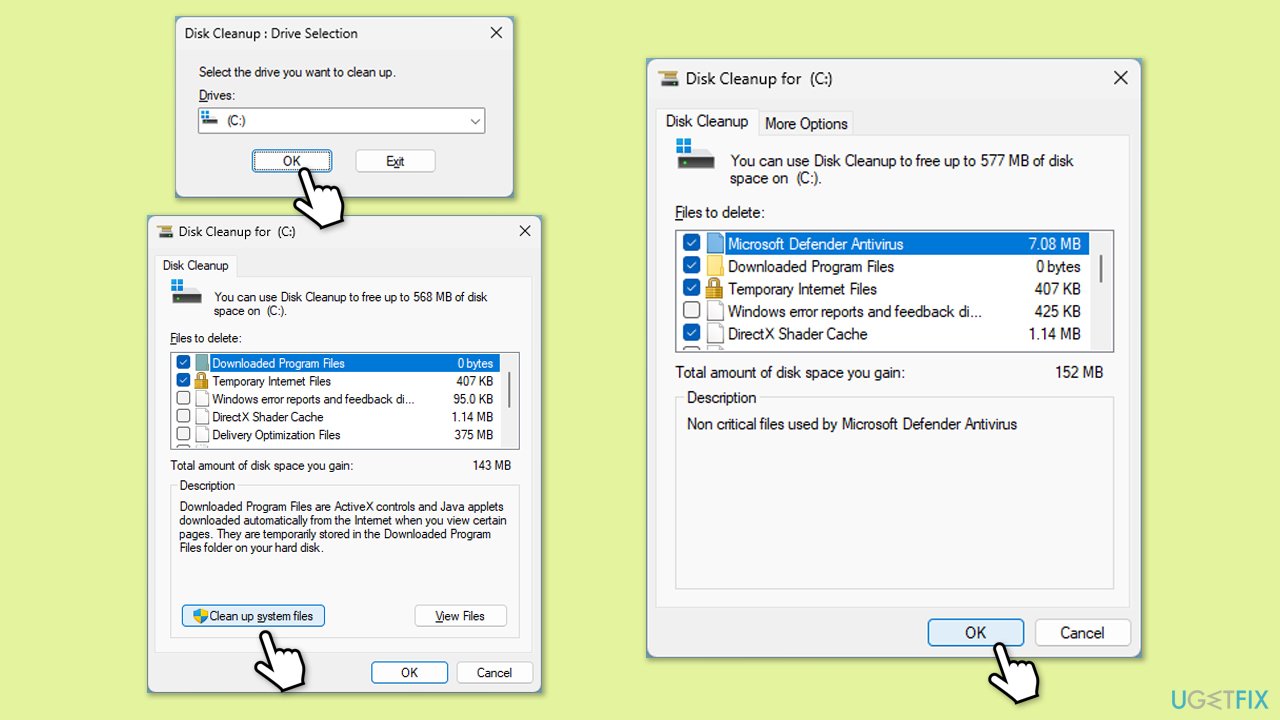
Fix 1. Perform Disk Cleanup
First, clean up potentially bugged cache files and increase the space on the drive.
- Type Disk Cleanup in Windows search and hit Enter.
- If your Windows is installed on drive C, pick it from the list (it should be by default) and press OK.
- Click Clean up system files.
- Select your main disk again and click OK.
- Here, select the largest portions of the data used - these typically include Temporary Internet Files, Windows Update, Temporary Files, Recycle Bin, Delivery Optimization Files, and others.
- Click OK - the process should be finished shortly.
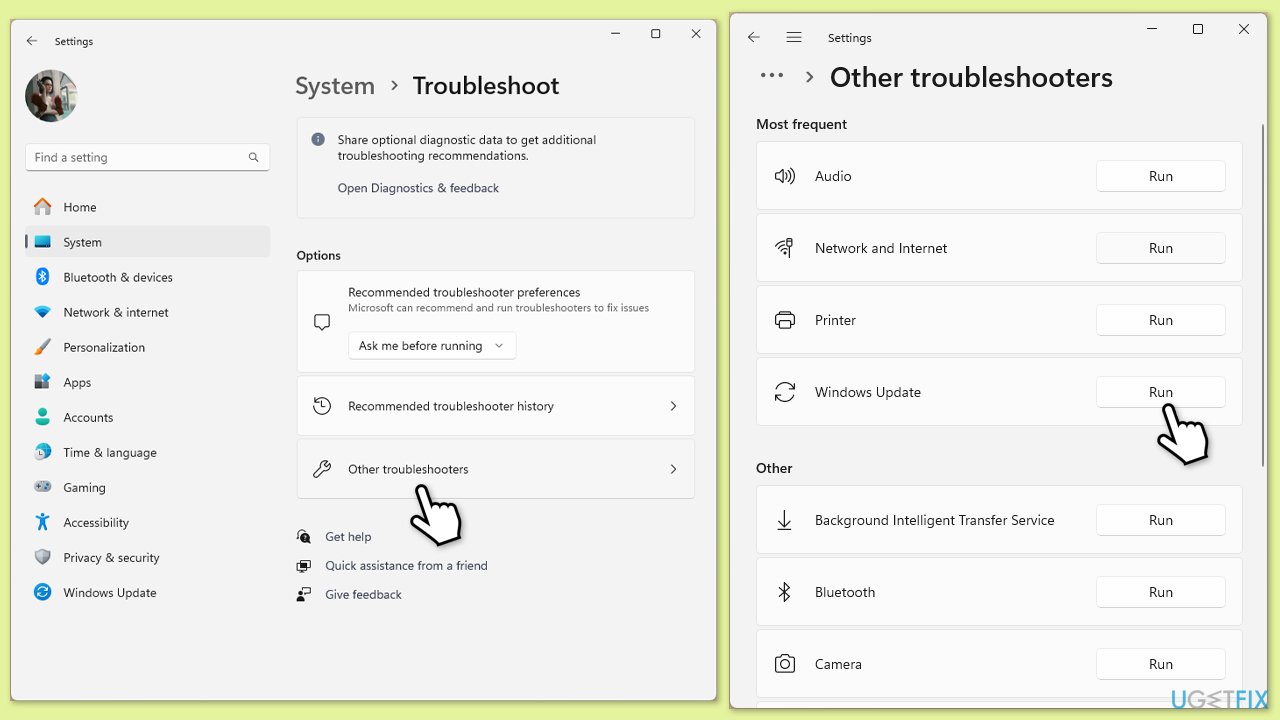
Fix 2. Run Windows update troubleshooter
- Type Troubleshoot into the Windows search bar and press Enter.
- Next, on the right side of the window, select Other troubleshooters.
- Scroll down to locate the Windows update section.
- Click on Run and allow the process to complete.
- Once it is finished, implement any recommended fixes and restart Windows.
Fix 3. Repair corrupted system files
System file corruption is one of the main reasons for many issues in Windows, including those related to updates.
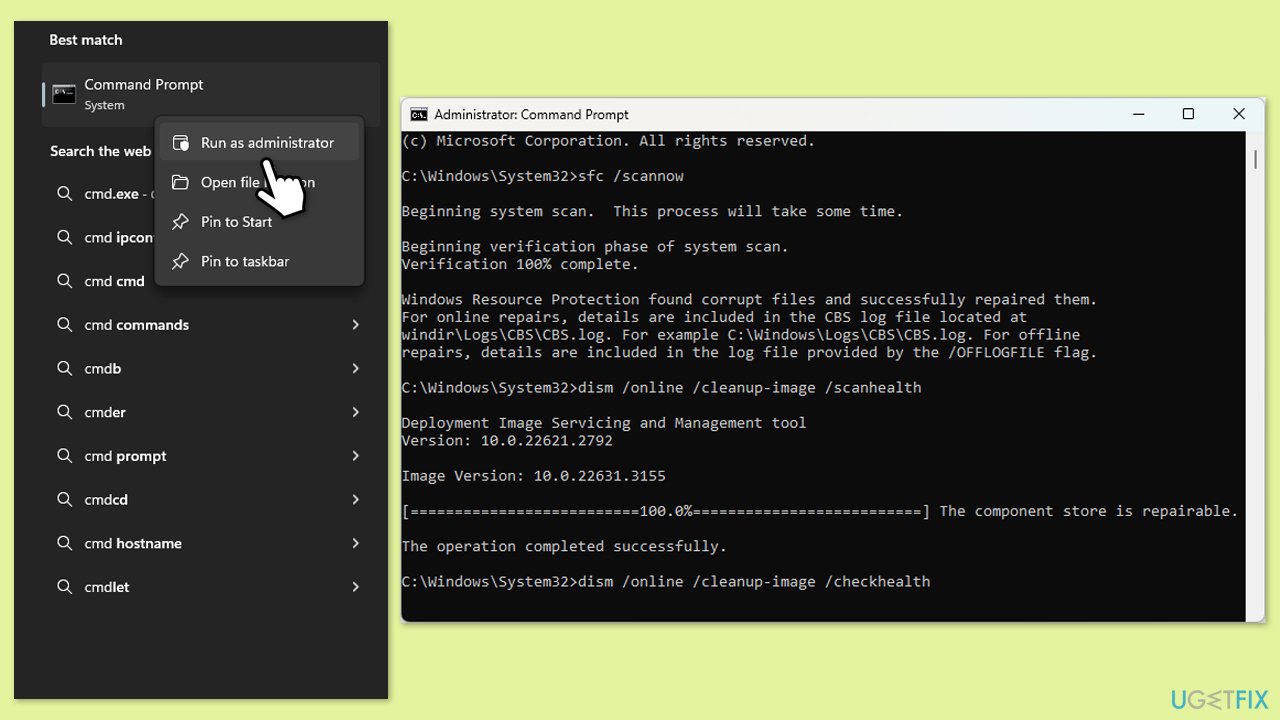
- Type cmd in Windows search.
- Right-click on Command Prompt and pick Run as administrator.
- User Account Control (UAC) will ask whether you want to allow changes - click Yes.
- Use the following command lines, pressing Enter after each:
sfc /scannow
DISM /Online /Cleanup-Image /CheckHealth
DISM /Online /Cleanup-Image /ScanHealth
DISM /Online /Cleanup-Image /RestoreHealth
(Note: if you get an error executing this last command, add /Source:C:\RepairSource\Windows /LimitAccess to it and try again). - Restart your computer.
Fix 4. Install the update manually
If the automatic installation process fails, you can always try to install the update manually.
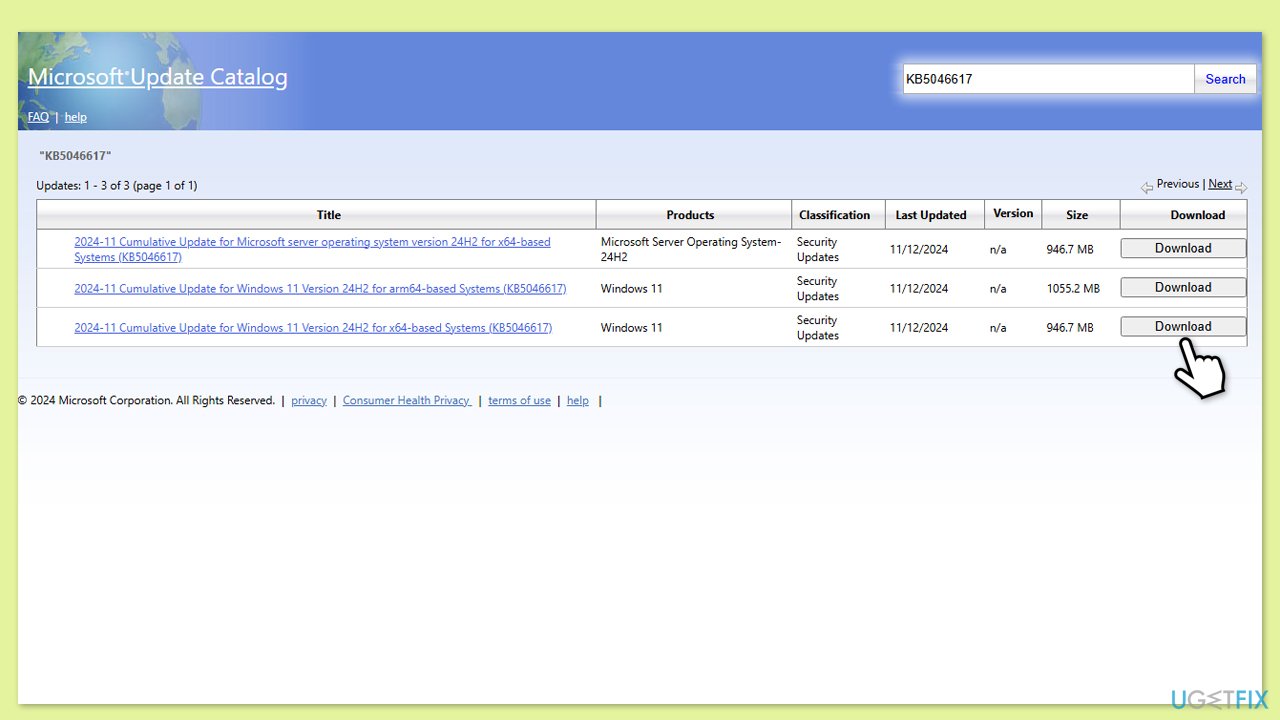
- Open your web browser and navigate to the Microsoft Update Catalog where you can find the KB5046617 update.
- Locate the correct version of the update for your operating system by checking your System type (Right-click on Start and select System. Under Windows specifications, check the Version).
- Click on Download and follow the prompts to complete the process.
- Once the update is installed, reboot your system.
Fix 5. Check relevant services
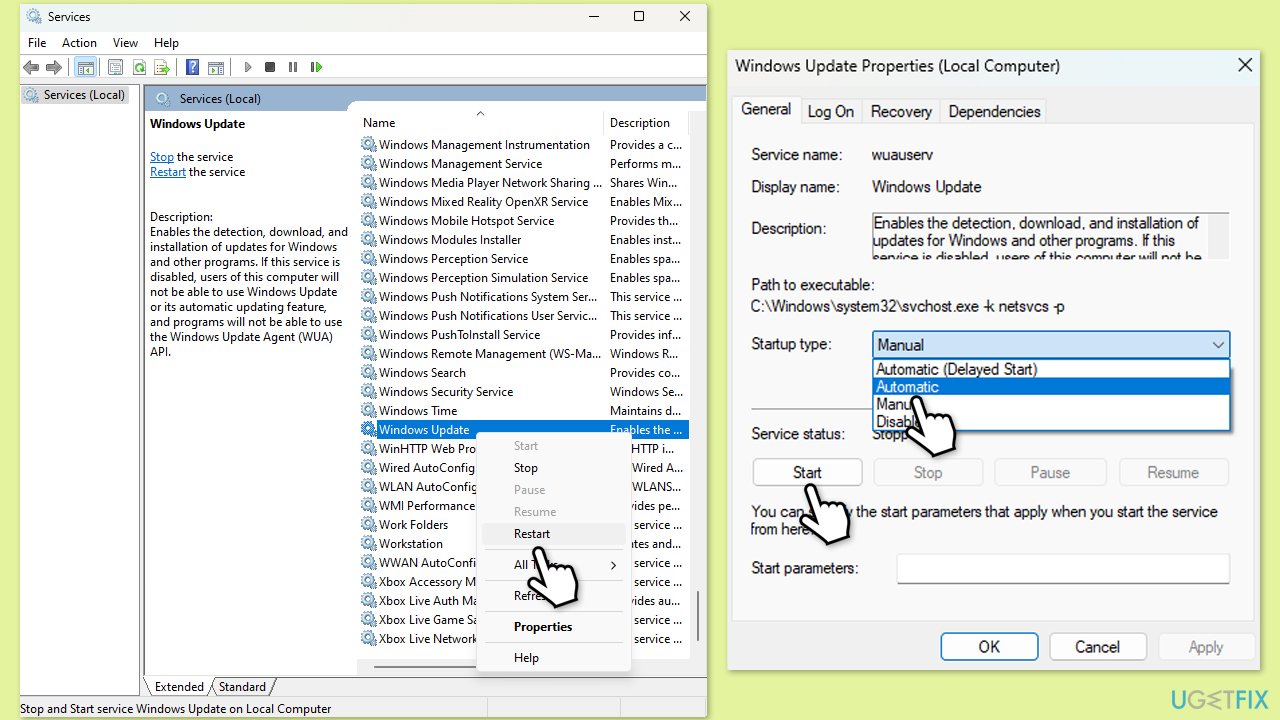
- Type Services in Windows search and press Enter.
- Locate Windows Update.
- If it is already running, right-click and select Restart.
- if the service is not running, double-click it, and pick Automatic under the Startup type from the drop-down menu.
- Click Start, Apply, and OK.
- Repeat this process with the following services:
Background Intelligent Transfer Service (BITS)
Microsoft Store Install Service
Cryptographic Service
Windows Installer - Restart your device.
Fix 6. Use Media Creation Tool
Before proceeding, make sure you uninstall third-party security or similar software, as it could interfere with the upgrade process. Likewise, don't forget to disconnect any non-essential devices, such as printers, external storage units, etc.
- Visit the official Microsoft website and download Windows 11 installation media.
- Double-click the installer, select Yes when UAC shows up, and agree to the terms.
- Select the ISO file and click Next, then follow the instructions to finish the process.
- Right-click on ISO and click Mount.
- Open the location of the ISO, right-click on it, and select Mount.
- Launch the installer.
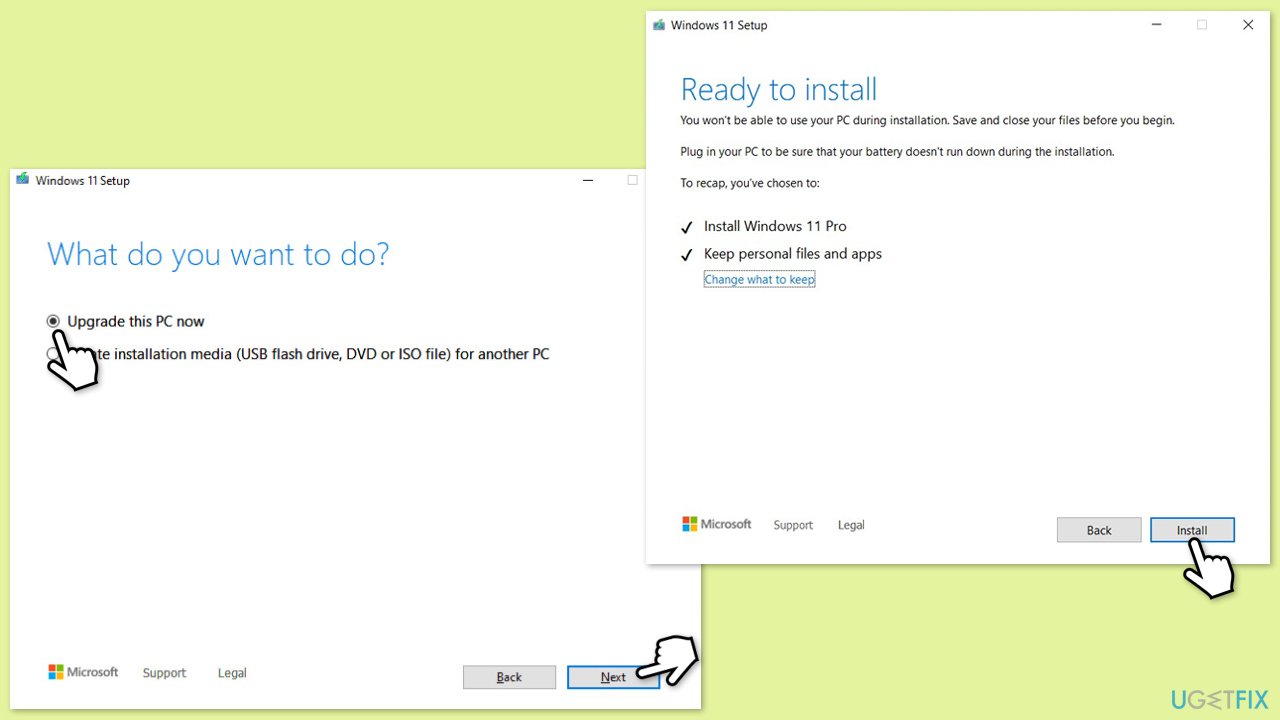
- Select Upgrade this PC now and click Next.
- Windows will start downloading the needed files.
- Agree to the terms once again and click Next.
- Before installing, ensure you are happy with your choices (otherwise, you can click the Change what to keep option).
- Finally, click Install to begin the upgrade process.
Bottom line
To fix the installation failure of KB5046617, you can perform a disk cleanup, check your disk space, and restart your computer. If these solutions do not resolve the issue, consider clearing the Windows Update cache and repairing corrupted system files.
Frequently asked questions
Common reasons include corrupted system files, insufficient disk space, or conflicts with third-party software. Ensuring that your system is updated and running a disk cleanup can help resolve these issues.
You can troubleshoot by running the Windows Update Troubleshooter and performing a system scan using the Command Prompt. Additionally, resetting Windows Update components might also help fix the installation issues.
Yes, manually downloading and installing the KB5046617 update from the Microsoft Update Catalog is safe and can be a viable solution if the automatic update fails. Just ensure you select the correct version for your system architecture.




Report an issue
What's wrong with this guide? We review every report and update or remove content.
Report received — thank you. We'll review and fix it.
You need a free account to submit a report.
Be the first to comment