How to fix
KB5046714 fails to install
on Windows
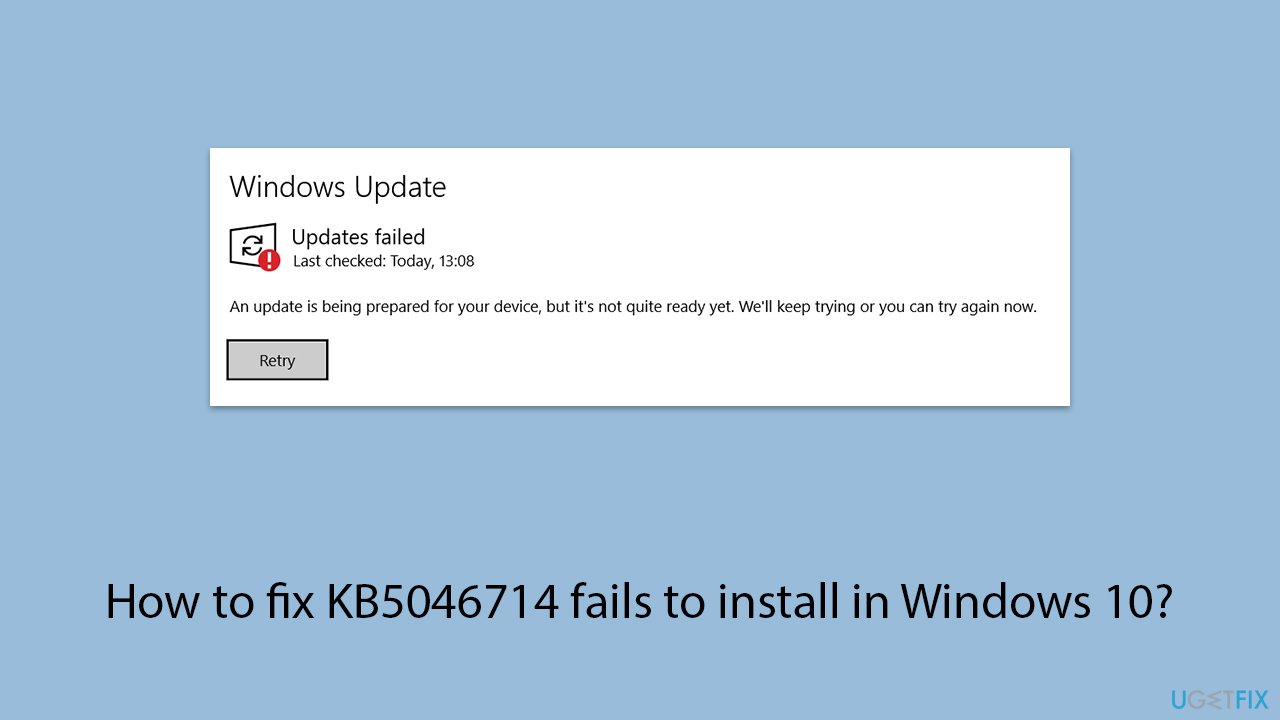
Resolve KB5046714 installation errors effortlessly on Windows 10. Get expert-tested solutions and fix issues in minutes without any hassle.


What causes How to fix KB5046714 fails to install in Windows 10?
- Corrupted system files
- Interference from third-party software
- Insufficient disk space
- Network interruptions
- Misconfigured update components
- Outdated system drivers
Repairs Windows system files, removes malware, and restores a clean OS state — without reinstalling.
Hello, I need help with the latest Windows 10 update. It seems like KB5046714 is failing to install on my machine. Any tips on what I should do?
Some users reported issues with the installation of Windows 10 update KB5046714, released on November 21, 2024. This update has been classified as a preview for version 21H2 and features a number of system improvements and bug fixes.
Specifically, it enhances biometric authentication, improves compatibility with certain third-party applications, and addresses a variety of security vulnerabilities to bolster overall system safety and performance. The preview nature of this update provides users with early access to improvements before their broader release in a subsequent Patch Tuesday.
What is a KB update?
KB updates, identified by a unique Knowledge Base (KB) number, are part of Microsoft’s update delivery system for Windows. These updates include security patches, quality enhancements, or feature updates. KB5046714 is considered optional, meaning users must manually opt to install it through Windows Update or other installation methods. These updates are typically rolled out via the built-in Windows Update service or can be downloaded as standalone packages.
Addressing installation issues
When KB5046714 fails to install, users often encounter error codes or incomplete downloads. Potential solutions include restarting the Windows Update service, clearing the SoftwareDistribution folder, or performing a manual installation using the update catalog. Ensuring there is sufficient storage space and temporarily disabling third-party antivirus software may also help.
Why KB5046714 fails to install?
Common reasons for update failures include corrupted system files, interference from third-party software, insufficient disk space, or network interruptions. Additionally, misconfigured update components or outdated system drivers can contribute to the problem.
For users struggling with KB5046714, tools like [d1] can assist in repairing underlying Windows issues and optimizing system performance. Such utilities can help identify and resolve conflicts that may be preventing the update from installing. Detailed solutions are provided in the following section.
Fix 1. Check available disk space
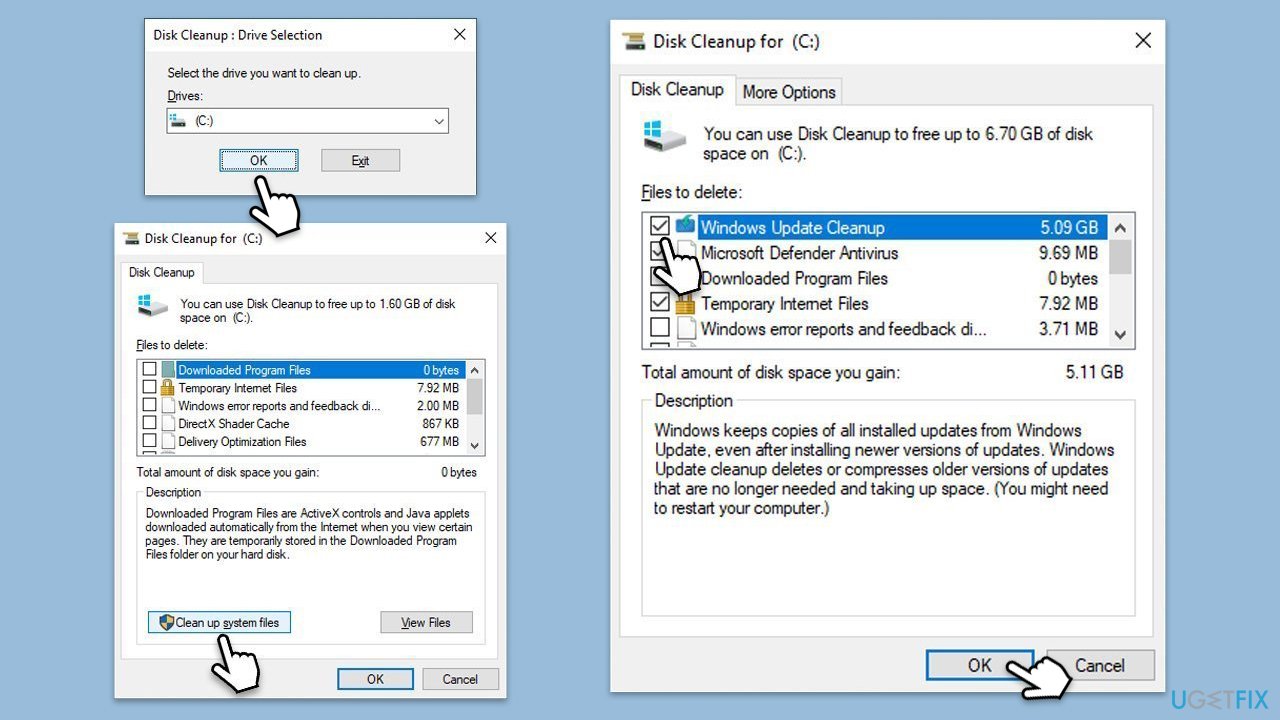
Insufficient storage can prevent updates from downloading or installing correctly. Clearing up disk space ensures that the update can proceed without interruptions.
- Type Disk Cleanup in Windows search and press Enter.
- Pick the main drive (C: by default) and select the option Clean up system files.
- Choose the drive once more and press OK.
- From the array of files that can be cleaned, choose those taking up the most space, including Temporary Internet Files, Windows Update, and Temporary Files, among others.
- Click OK to begin the cleanup process.
Fix 2. Pause and resume updates
Temporarily pausing updates can help resolve any temporary glitches in the Windows Update service that might be causing installation errors.
- Open Settings.
- Click on Windows Update.
- Click on the drop-down menu and select Pause updates for 1 week (or another time period).
- Wait a bit and then unpause the updates.
- Restart your computer.
Fix 3. Run the Windows Update troubleshooter
The troubleshooter is a built-in tool that can detect and fix common issues preventing updates from installing.
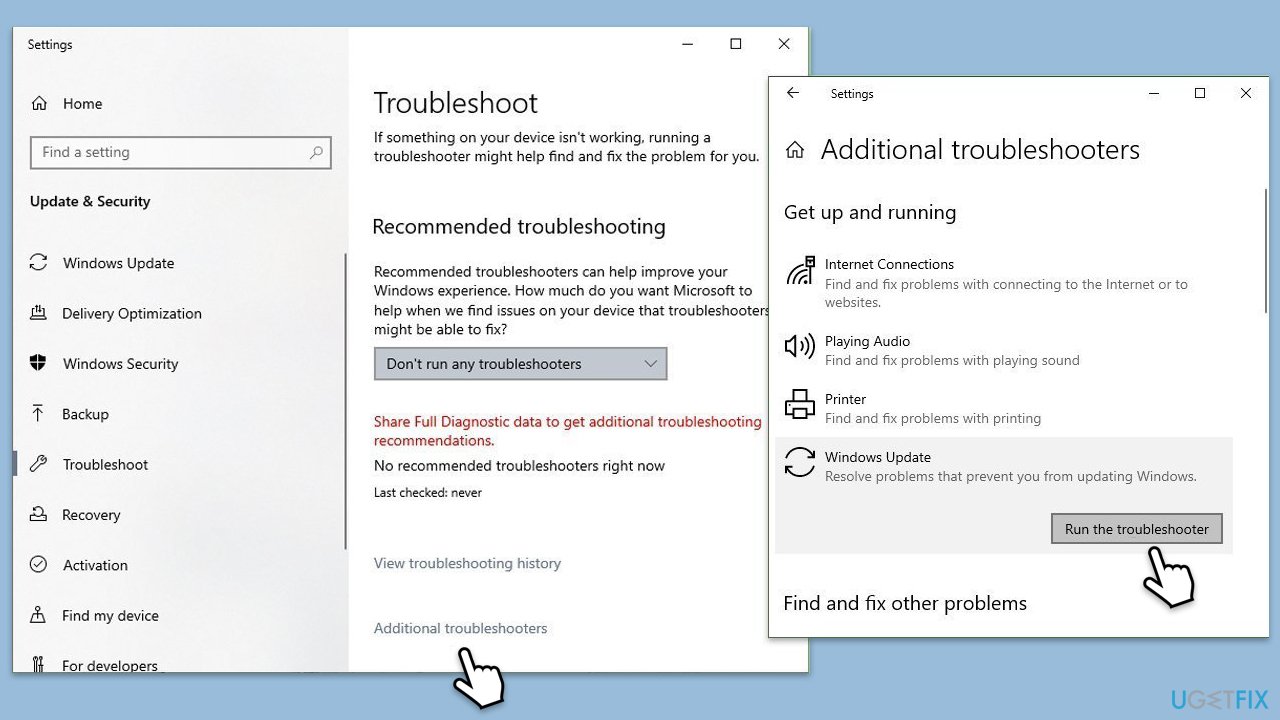
- Type Troubleshoot in Windows search and press Enter.
- Select Additional troubleshooters.
- Find Windows Update from the list.
- Select it and click Run the troubleshooter.
- Restart your computer when the update process finishes.
Fix 4. Reset Windows Update components
Corrupted update components can block installations. Resetting these components ensures the update service is functioning correctly.
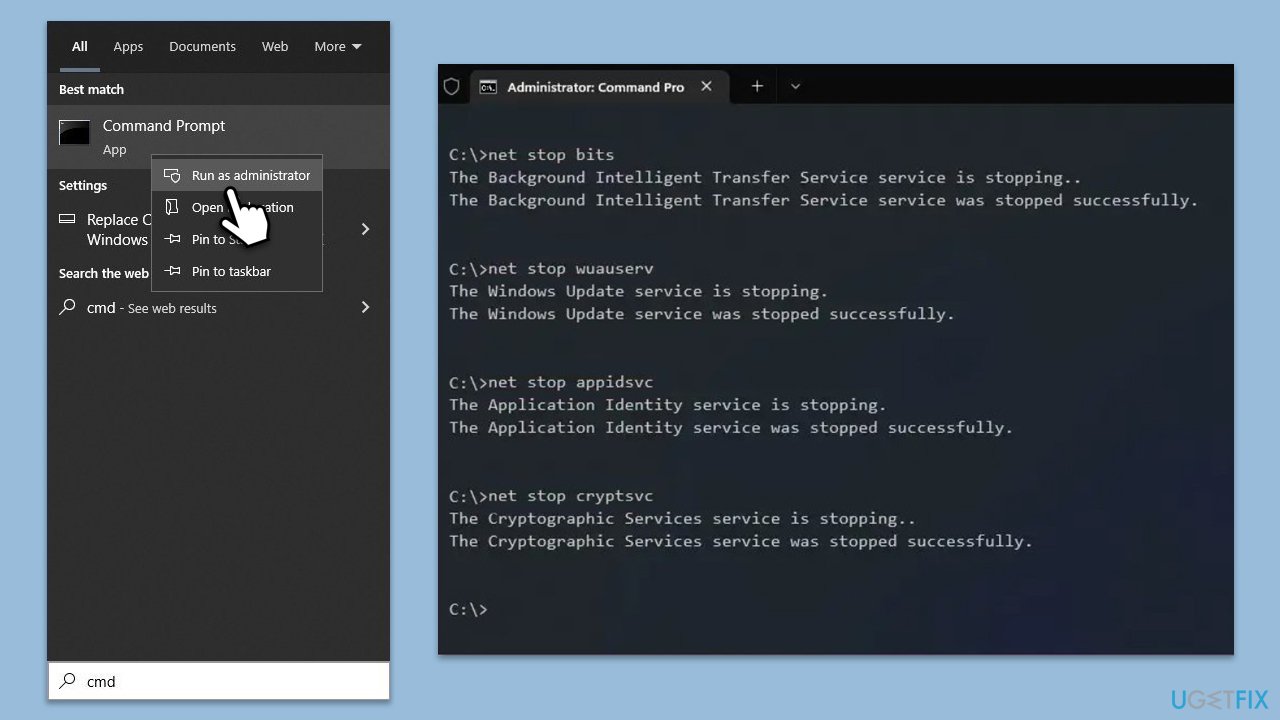
- Type cmd in Widnows search.
- Right-click on Command Prompt and pick Run as administrator.
- User Account Control pop-up will ask to confirm, click Yes.
- Type each of these command lines, pressing Enter every time (wait till the command is fully executed):
net stop bits
net stop wuauserv
net stop appidsvc
net stop cryptsvc
Del "%ALLUSERSPROFILE%\Application Data\Microsoft\Network\Downloader\*.*"
rmdir %systemroot%\SoftwareDistribution /S /Q
rmdir %systemroot%\system32\catroot2 /S /Q
regsvr32.exe /s atl.dll
regsvr32.exe /s urlmon.dll
regsvr32.exe /s mshtml.dll
netsh winsock reset
netsh winsock reset proxy
net start bits
net start wuauserv
net start appidsvc
net start cryptsvc - Restart your device and attempt to download the update once more.
Fix 5. Install KB5046714 manually
When the automatic process fails, manually downloading and installing the update from the Microsoft Update Catalog is an alternative solution.
- Go to the official Microsoft Update Catalog website.
- Type the KB5046714 into the search bar, and press Enter or click Search.
- You will find many different versions on the update – you need to find the one that matches your PC specs and Windows version (as a home user, ignore Windows server versions).
- Right-click on Start and pick System.
- Under Device specifications, check the System type section: it should either be 64-bit or 32-bit.
- Scroll down to Windows specifications and check the Version section.
- Return to the Microsoft Update catalog, download the correct version, and install it.
- Restart your computer.
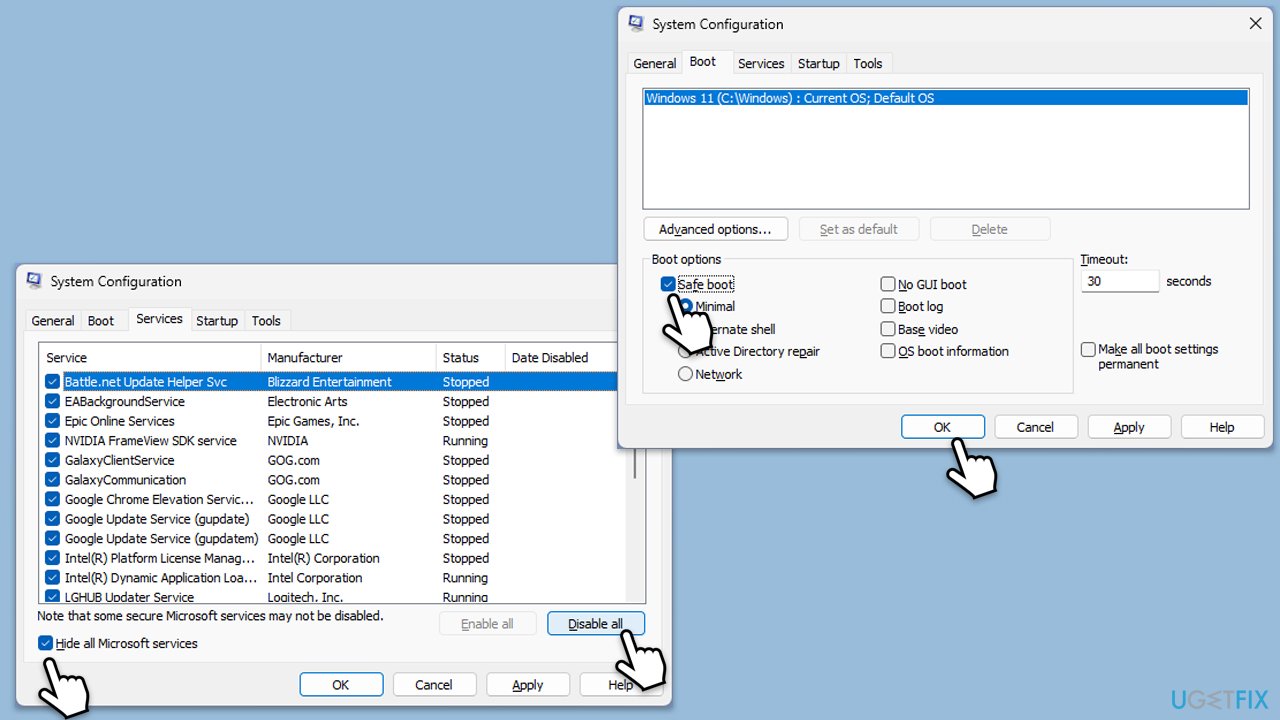
Fix 6. Perform a clean boot
Third-party software can conflict with Windows Update. A clean boot loads the system with only essential services and drivers.
- Type msconfig in the Windows search box and press Enter.
- Select the Services tab and tick the Hide all Microsoft services checkbox at the bottom.
- Pick Disable all.
- Go to the Startup tab and click Open Task Manager.
- Here, right-click on each of the non-Windows entries and select Disable.
- Close down the Task Manager.
- Go to the Boot tab and tick the Safe boot option
- Reboot your computer and try updating it again.
Fix 7. Repair system files
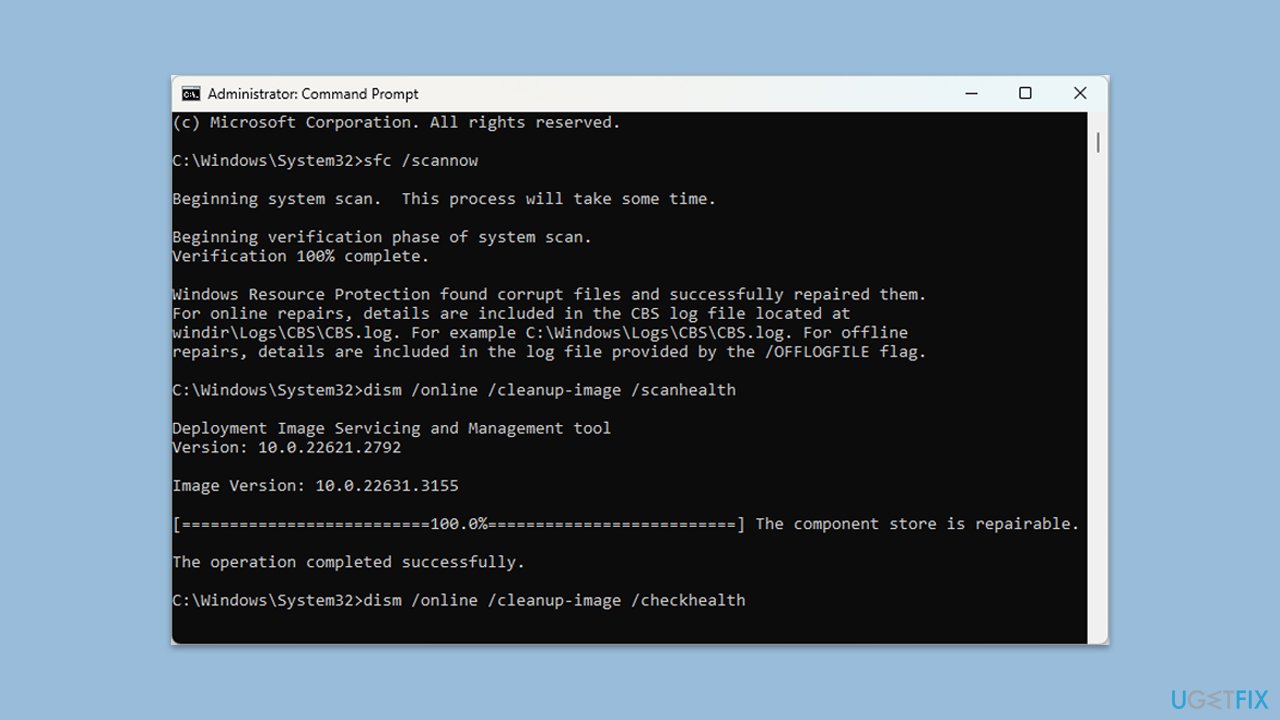
Corrupted system files can interfere with the update process. Running system repair tools can resolve this issue.
- Open Command Prompt as administrator.
- Then, copy and paste the following command, pressing Enter after:
sfc /scannow - Wait till the scan is finished. If Windows finds system file integrity violations, it will attempt to fix them. After this, use the set of the following commands, pressing Enter each time:
DISM /Online /Cleanup-Image /CheckHealth
DISM /Online /Cleanup-Image /ScanHealth
DISM /Online /Cleanup-Image /RestoreHealth - (Note: if you get an error executing this last command, add /Source:C:\RepairSource\Windows /LimitAccess to it and try again).
- Close down the Command Prompt and restart your device.
Bottom line
To fix the installation failure of KB5046714, users can check available disk space, restart the Windows Update service, clear the SoftwareDistribution folder, or perform a manual installation using the update catalog. If these solutions do not resolve the issue, consider using repair tools to address underlying Windows problems.
Frequently asked questions
First, try running the Windows Update Troubleshooter, which can automatically detect and fix problems with Windows Update. If that doesn't work, you can manually download and install the update from the Microsoft Update Catalog.
Yes, some antivirus programs may block updates from installing properly. Temporarily disabling your antivirus software during the update process may help resolve the issue.
You can check the installation status by going to Settings > Update & Security > Windows Update > View update history, where you'll see if KB5046714 is listed as installed or if it encountered errors.




Report an issue
What's wrong with this guide? We review every report and update or remove content.
Report received — thank you. We'll review and fix it.
You need a free account to submit a report.
Be the first to comment