How to fix
KB5046732 keeps asking to be installed repeatedly
on Windows
Resolve the KB5046732 installation loop on Windows 10 or 11 easily. Get expert-tested solutions that fix the issue in minutes.

What causes How to fix KB5046732 keeps asking to be installed repeatedly in Windows?
- Update process was interrupted by low system resources
- Temporary glitch preventing update completion
- Pending tasks blocking the update process
- Corrupted system files affecting installation
- Problems with the update cache
- Conflicts with antivirus or third-party software
Repairs Windows system files, removes malware, and restores a clean OS state — without reinstalling.
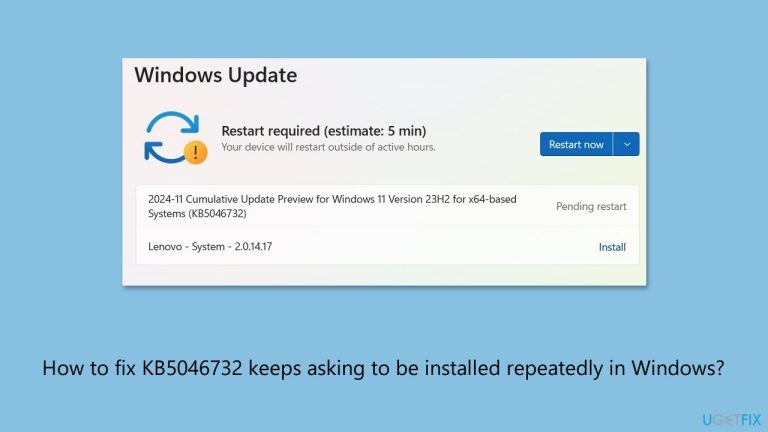
I am using Windows 11 version 23H2 and have tried installing the recent update KB5046732 and everything went fine at first. However, after booting into Windows today, I found that KB5046732 is pending again, which was weird. How do I resolve this?
When KB5046732 repeatedly tries to install on your Windows 11 system, it typically indicates that the update process hasn't been fully completed, despite showing success in some cases. This issue may occur after a restart, where Windows might attempt to reapply the update, thinking the installation was not successful.
There are a few potential reasons why this happens. One common cause is that the update process was interrupted by an issue like low system resources, a temporary glitch, or pending tasks preventing the update from completing.
Another possible cause is corrupted system files or problems with the update cache, which can make Windows believe that the update hasn't been installed correctly, even after it has. In some instances, conflicts with antivirus or third-party software can also interfere with the update process, causing it to repeat.
To do this, you might have to clear out some obstacles. Making sure that your system is updated and having enough disk space can contribute. Another approach to getting it fixed is to reset the Windows Update components; this often gets rid of any installation hang. It is also worth checking if there are any issues with system files, using utilities such as the System File Checker (sfc /scannow) or the DISM tool, in case a corrupted file is interfering with the update process.
If these steps don't resolve the issue, using a tool like [d1] repair can be an effective solution. It can fix many underlying Windows problems automatically, which may help resolve the issue with KB5046732 installation.
Fix 1. Run Windows update troubleshooter
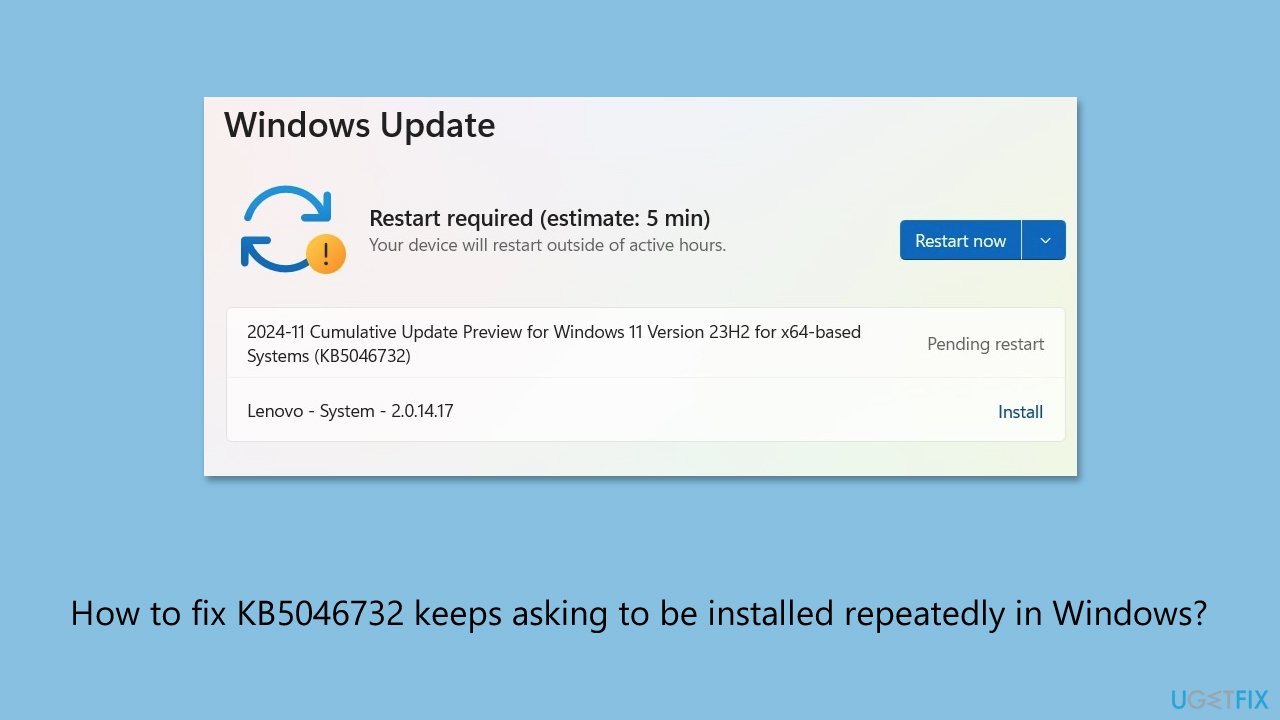
The Windows update troubleshooter is designed to detect and resolve common problems that may prevent updates from installing properly. Running it can address underlying issues automatically.
- Type Troubleshoot into the Windows search bar and press Enter.
- Next, on the right side of the window, select Other troubleshooters.
- Scroll down to locate the Windows update option and click on it.
- Click on Run and allow the process to complete.
- Once it is finished, implement any recommended fixes and restart your PC.
Fix 2. Install the update manually
If the automatic update fails repeatedly, downloading and installing the update manually can bypass the problem.
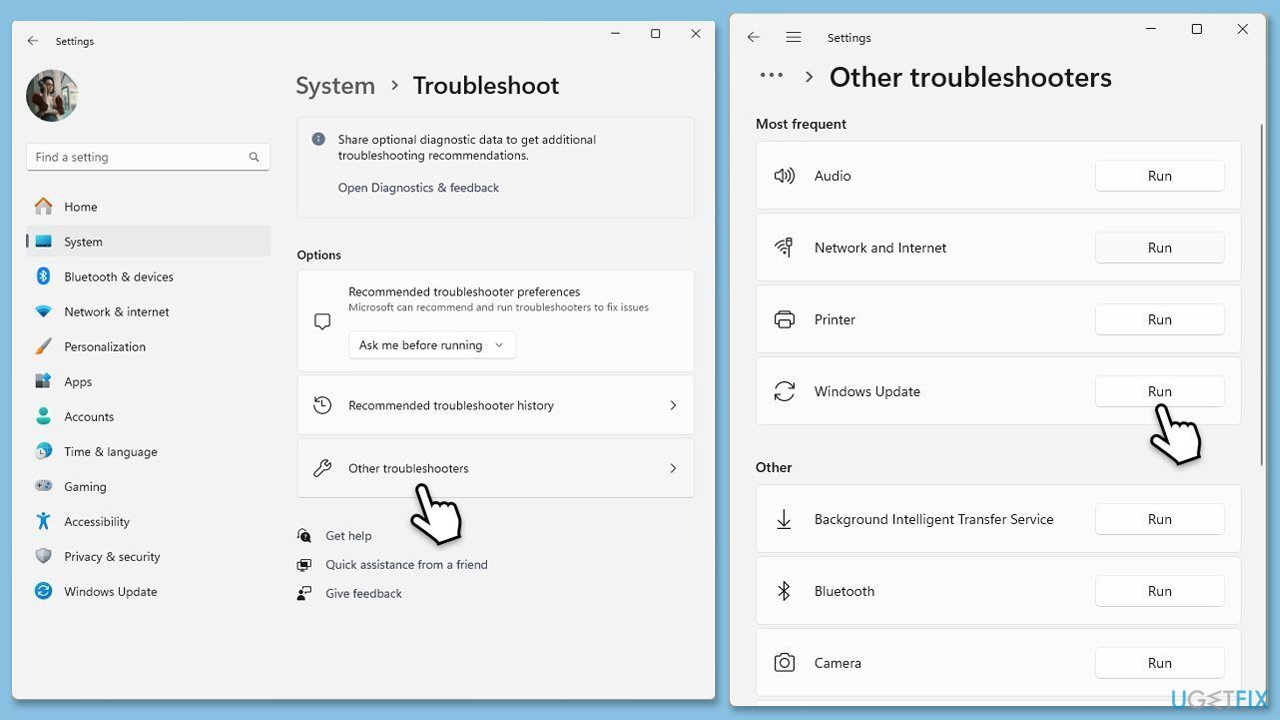
- Open your web browser and navigate to the Microsoft Update Catalog, where you can find the KB5046732 update.
- Locate the correct version of the update for your operating system by checking your System type (Right-click on Start and select System. Under Windows specifications, check the Version).
- Click on Download and follow the prompts to complete the process.
- Once the update is installed, reboot your system.
Fix 3. Run SFC and DISM
Corrupted system files can interfere with the update process. Running these tools can detect and repair such issues.
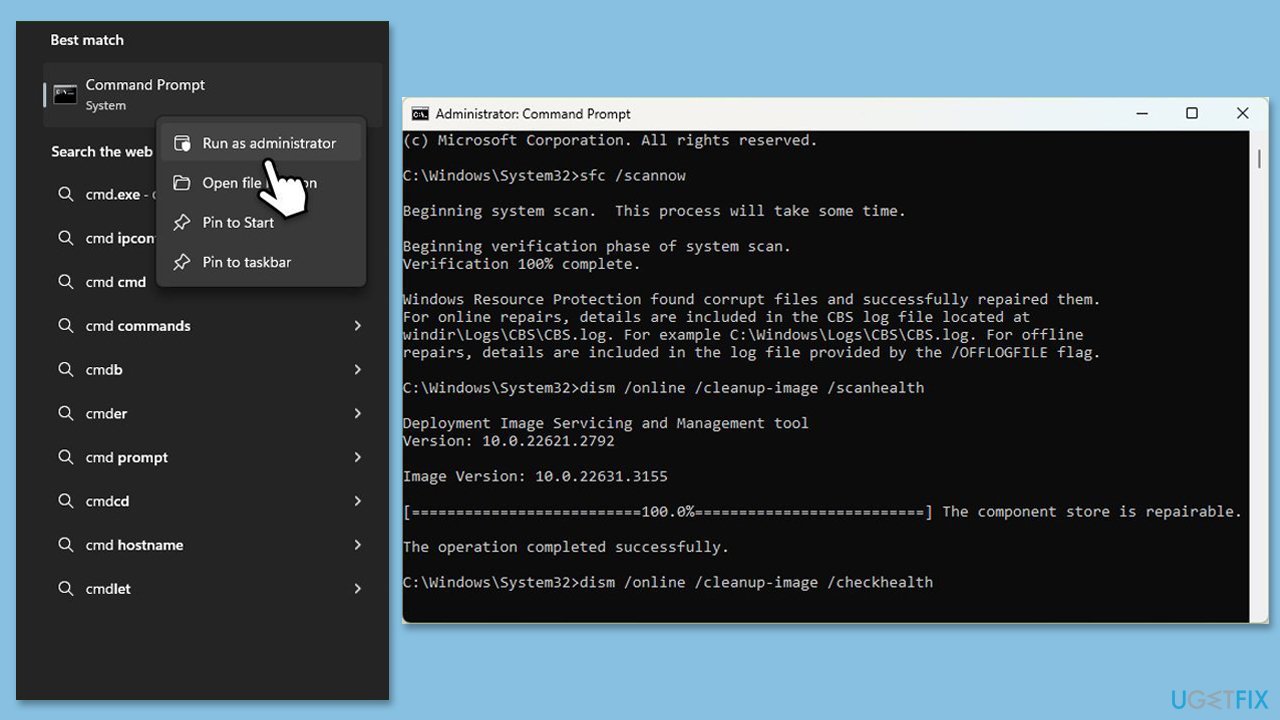
- Type cmd in Windows search.
- Right-click on Command Prompt and pick Run as administrator.
- User Account Control will ask you whether you want to allow changes – click Yes.
- Copy and paste this command and hit Enter:
sfc /scannow - Wait for the scan to finish.
- As soon as it finishes, Windows will report whether integrity violations were found and if they could be fixed. Regardless of the outcome, use these commands next, pressing Enter after each:
Dism /Online /Cleanup-Image /CheckHealth
Dism /Online /Cleanup-Image /ScanHealth
Dism /Online /Cleanup-Image /RestoreHealth - Once these commands are complete, restart your computer.
Fix 4. Reset Windows update components
Resetting Windows Update components clears corrupted files or misconfigurations that may cause repeated installations.
- Open Command Prompt as administrator as explained before.
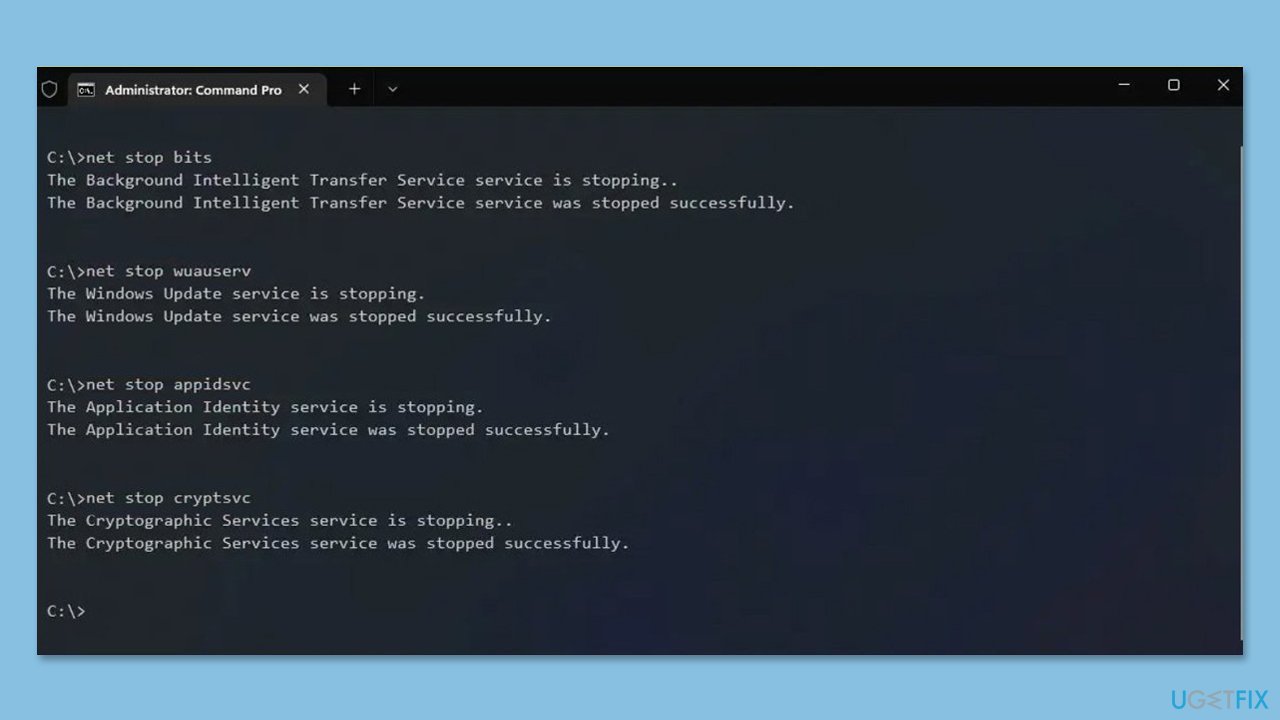
- Type the following commands one by one in Command Prompt and press Enter after each:
net stop wuauserv
net stop cryptSvc
net stop bits
net stop msiserver
Ren C:\Windows\SoftwareDistribution SoftwareDistribution.old
Ren C:\Windows\System32\catroot2 Catroot2.old - When these commands are executed, the last thing to do is to re-enable relevant services:
net start wuauserv
net start cryptSvc
net start bits
net start msiserver - Reboot your computer.
Fix 5. Use Update show and hide troubleshooter
This tool can block updates that repeatedly fail, stopping Windows from trying to reinstall them until the issue is resolved.
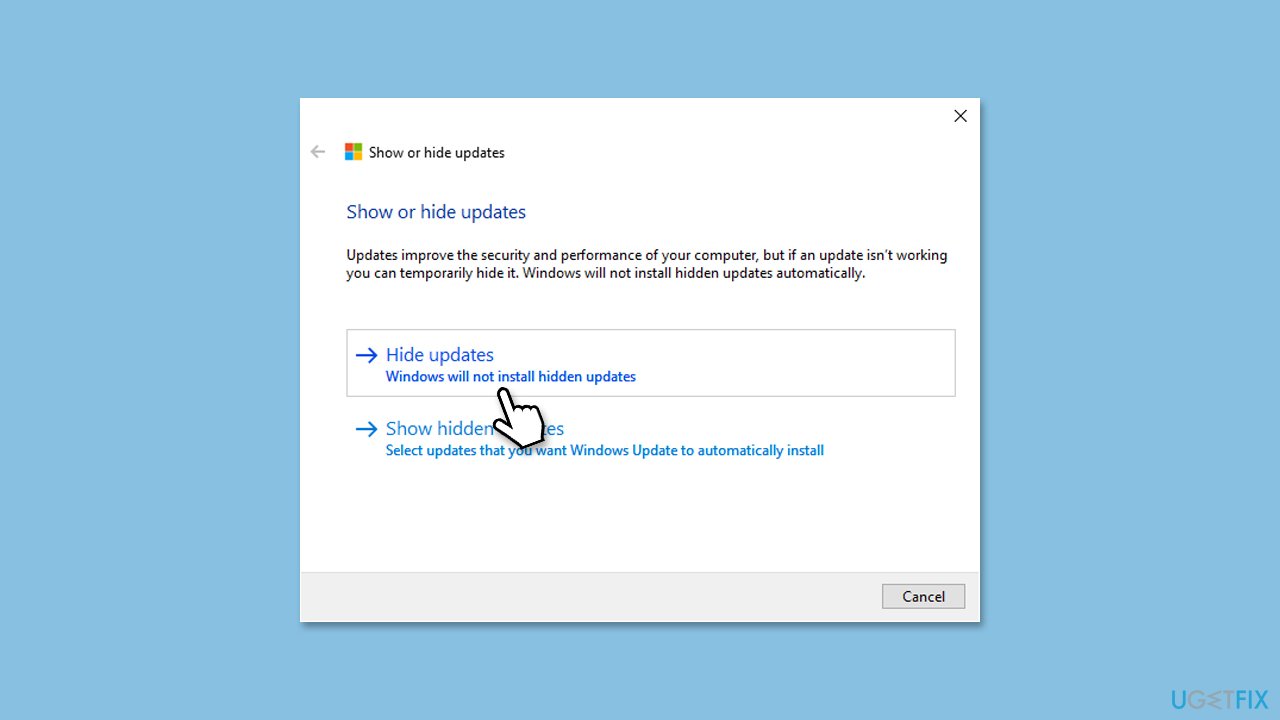
- Download the Show or Hide Updates Troubleshooter (wushowhide.diagcab) from Microsoft website [direct download].
- Run the wushowhide.diagcab file by double-clicking it from the download location or simply click on the downloaded file within the browser.
- Select Advanced.
- Tick the Apply updates automatically option and click Next.
- Pick Hide updates option.
- From the list, select the problematic update that keeps trying to be installed and click Next.
- Selected update should now be hidden - click Close and try updating Windows again.
Fix 6. Check available disk space
Insufficient disk space can cause update failures. Verifying and freeing up space is critical for installation.
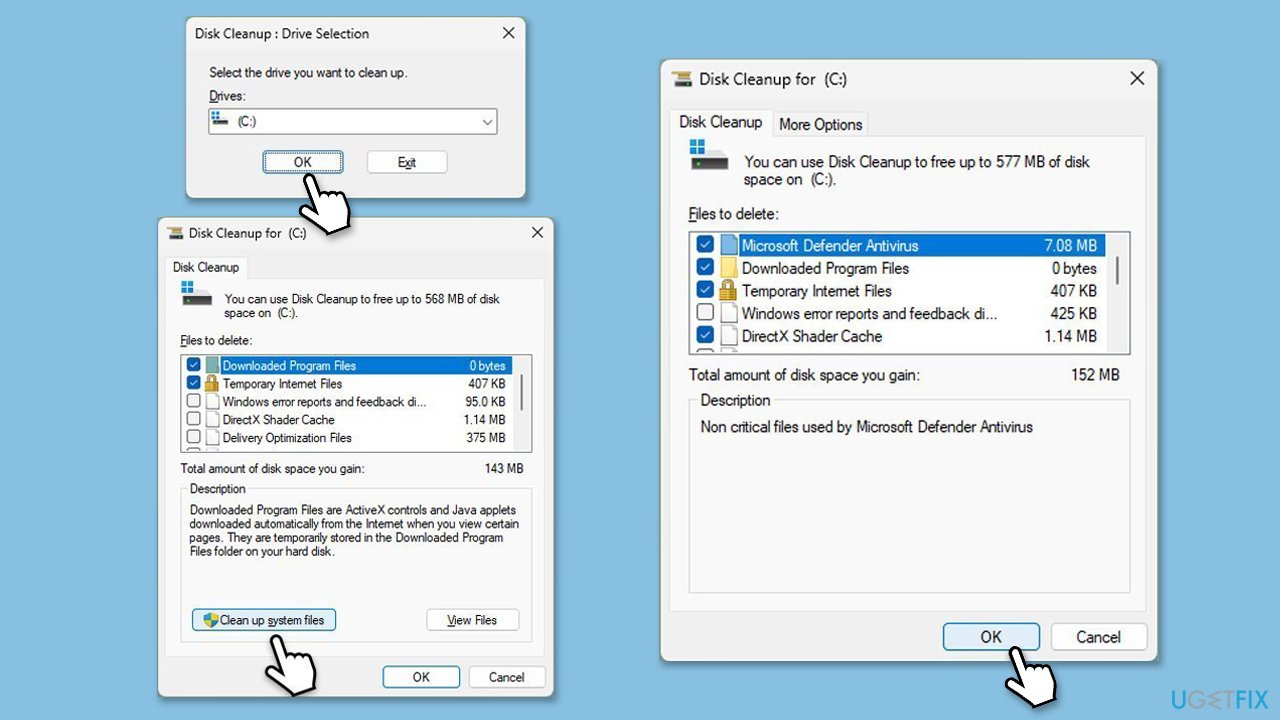
- Type Disk Cleanup in Windows search and press Enter.
- If your Windows is installed on drive C, pick it from the list (it should be selected by default) and press OK.
- Click Clean up system files.
- Select your main drive again and click OK.
- Here, select the largest portions of the data used. Ensure you select Windows Update as it can hold bugged update cache files as well as largest sections Temporary Internet Files, Temporary Files, Recycle Bin, Delivery Optimization Files, and others.
- Click OK - the process should be finished shortly.
Fix 7. Disable third-party antivirus software
Sometimes, security software interferes with updates. Temporarily disabling your antivirus may help.
- Open your antivirus application.
- Locate the disable or pause protection option and select it.
- Retry the update installation.
Bottom line
To resolve the issue with KB5046732 repeatedly asking to be installed, you can run the Windows update troubleshooter, reset the Windows Update components, and check for corrupted system files using utilities like System File Checker or DISM. If these steps do not resolve the issue, consider using a repair tool to fix underlying Windows problems.
Frequently asked questions
This issue can occur due to corrupted update files or incomplete installations. Running the Windows Update Troubleshooter may help resolve the persistent prompt.
If the installation fails, try manually downloading the update from the Microsoft Update Catalog and installing it. Additionally, ensure that your system is up to date with the latest patches.
Yes, you can use the 'Show or Hide Updates' troubleshooter tool to hide the KB5046732 update, preventing it from being offered again. This can be done by downloading the tool from the Microsoft support website.




Report an issue
What's wrong with this guide? We review every report and update or remove content.
Report received — thank you. We'll review and fix it.
You need a free account to submit a report.
Be the first to comment