How to fix
KB5046740 fails to install
on Windows
Resolve KB5046740 installation errors in Windows 11 quickly and effectively. Get expert-tested solutions to ensure smooth updates without issues.

What causes How to fix KB5046740 fails to install in Windows 11?
- The system drive might not have enough free space for the update.
- Corrupted Windows components could block the installation process.
- Poor internet connectivity might disrupt downloading or verifying update files.
- Background apps or outdated drivers might interfere with update compatibility.
Repairs Windows system files, removes malware, and restores a clean OS state — without reinstalling.
How do I resolve KB5046740 failing to install on my Windows 11 system? It was just released and I'd like to see the preview build but I can't because it does not install, citing that there has been a problem and Windows will try later.
Windows Update is quite important in keeping your system secure, stable, and current. However, an optional preview update to Windows 11, namely KB5046740, has some users experiencing installation issues after the release on November 21, 2024. This particular LCU is targeted for systems running Windows 11 version 23H2, featuring various improvements and fixes to enhance the performance and security of the OS.
What does KB5046740 include?
This update introduces fixes for Microsoft Office apps, improvements for Windows Hello functionality, and enhancements to Bluetooth connectivity. It also addresses network performance problems, and File Explorer crashes, and includes vital security updates to protect your system from vulnerabilities.
Despite these benefits, some users have reported issues with KB5046740 failing to install, accompanied by error codes or incomplete downloads.
Possible causes of KB5046740 installation failures
Several reasons might explain why this update cannot be installed:
- The system drive might not have enough free space for the update.
- Corrupted Windows components could block the installation process.
- Poor internet connectivity might disrupt downloading or verifying update files.
- Background apps or outdated drivers might interfere with update compatibility.
Resolving KB5046740 installation errors
If KB5046740 fails to install, addressing the issue may involve freeing up disk space, running diagnostic tools to repair corrupted files, or closing conflicting software. Additional manual instructions are outlined below, starting with simpler solutions and progressing to more advanced methods.
For those seeking an automated fix, [d1] repair can streamline the troubleshooting process, addressing update-related issues efficiently while minimizing manual effort.

Fix 1. Perform Disk Cleanup
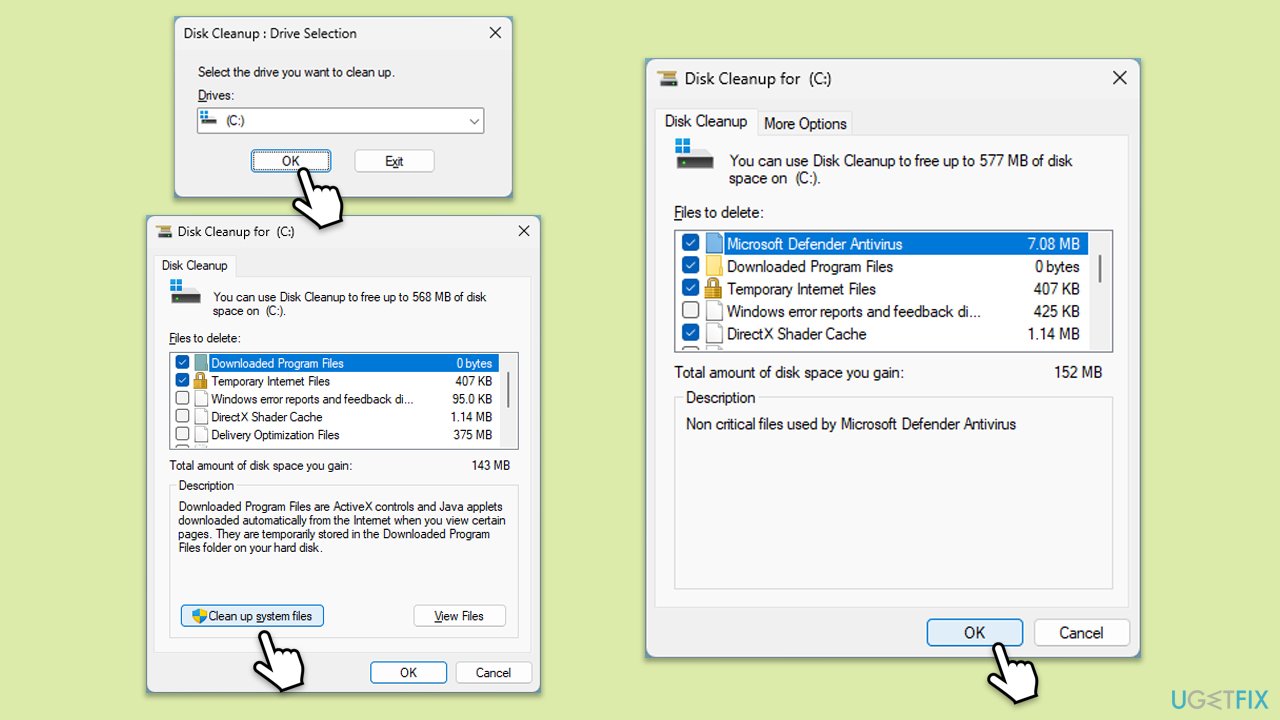
Disk Cleanup not only frees some space on your drive but also gets rid of potentially buggy cache files that could be impacting Windows updates.
- Type Disk Cleanup in Windows search and hit Enter.
- If your Windows is installed on drive C, pick it from the list (it should be by default) and press OK.
- Click Clean up system files.
- Select your main disk again and click OK.
- Here, select the largest portions of the data used - these typically include Temporary Internet Files, Windows Update, Temporary Files, Recycle Bin, Delivery Optimization Files, and others.
- Click OK - the process should be finished shortly.
Fix 2. Repair corrupted files
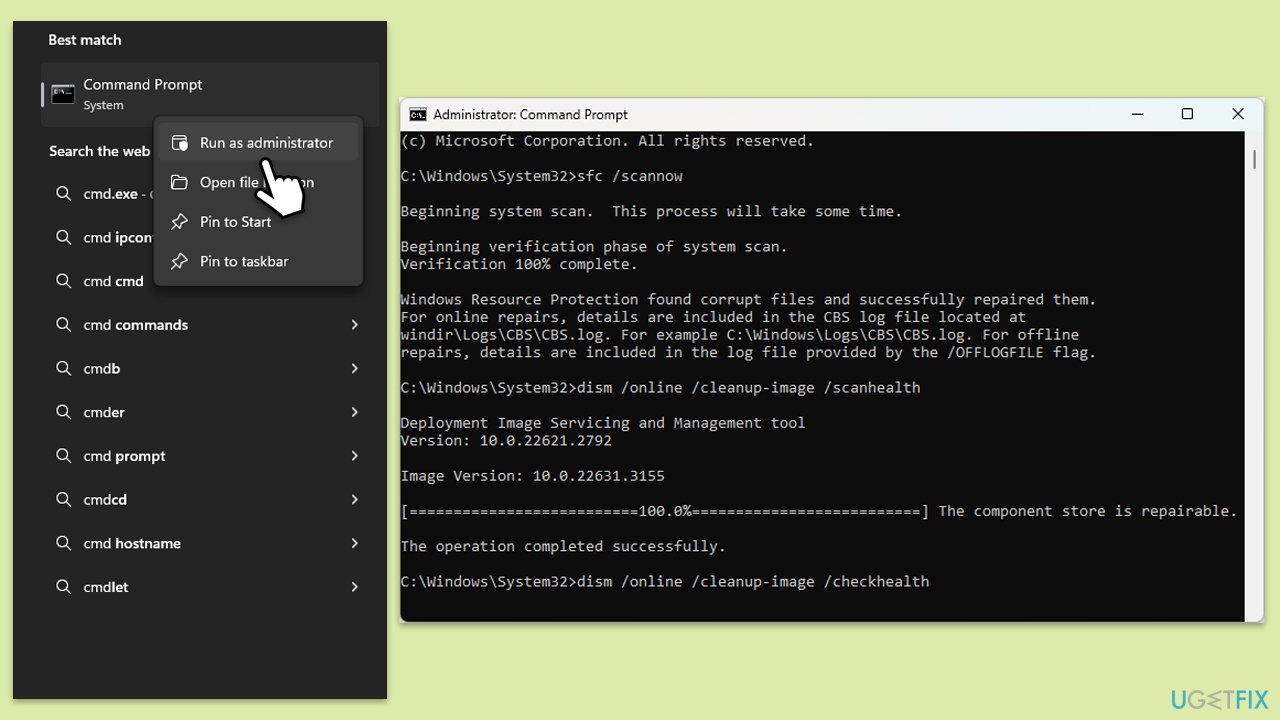
- Type cmd in Windows search.
- Right-click on Command Prompt and pick Run as administrator.
- When UAC asks you whether you want to make changes, agree by pressing Yes.
- Next, copy and paste the following commands, pressing Enter each time:
sfc /scannow
DISM /Online /Cleanup-Image /CheckHealth
DISM /Online /Cleanup-Image /ScanHealth
DISM /Online /Cleanup-Image /RestoreHealth
(Note: if you get an error executing the last command, add /Source:C:\RepairSource\Windows /LimitAccess to it and try again.) - Restart your computer.
Fix 3. Install the update manually
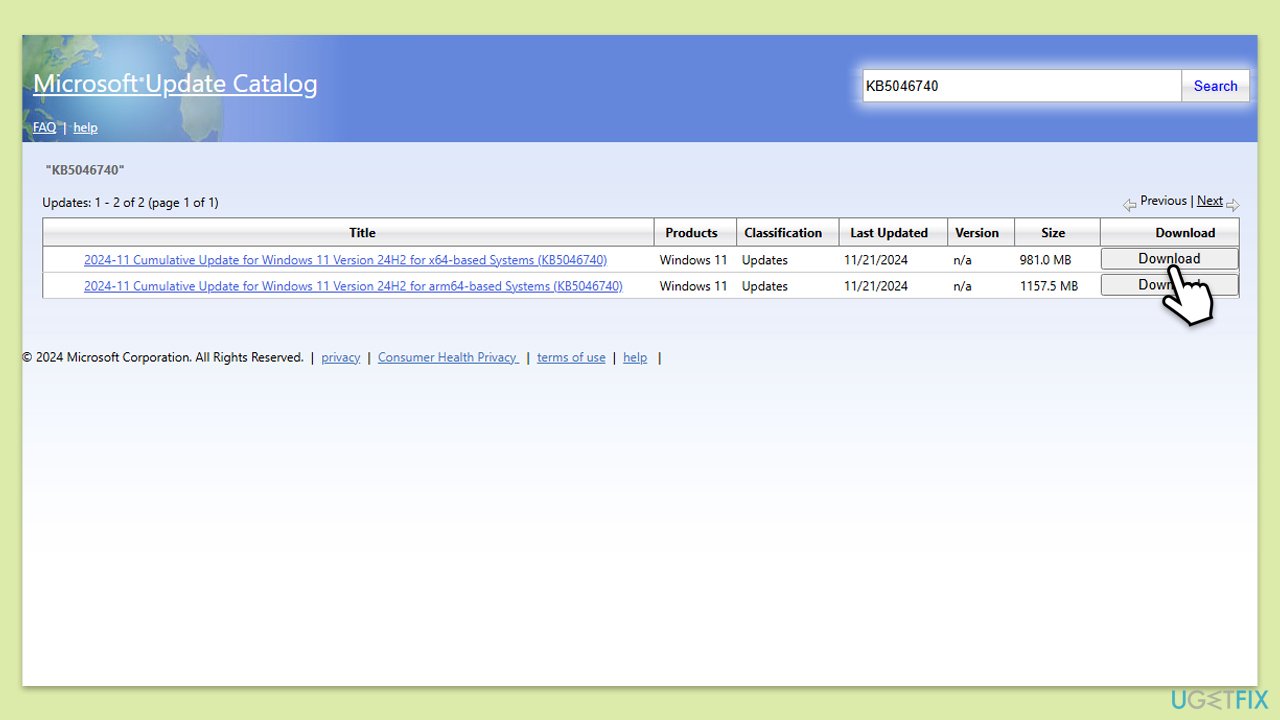
Check if you can install the update manually instead.
- Go to the official Microsoft Update Catalog website.
- Type the KB5046740 into the search bar, and click Search.
- You will find many different versions on the update – you need to find the one that matches your PC specs and Windows version (as a home user, ignore Windows server versions).
- After picking the correct version, click the Download button and proceed with the on-screen instructions.
- Restart your computer to implement the new updates.
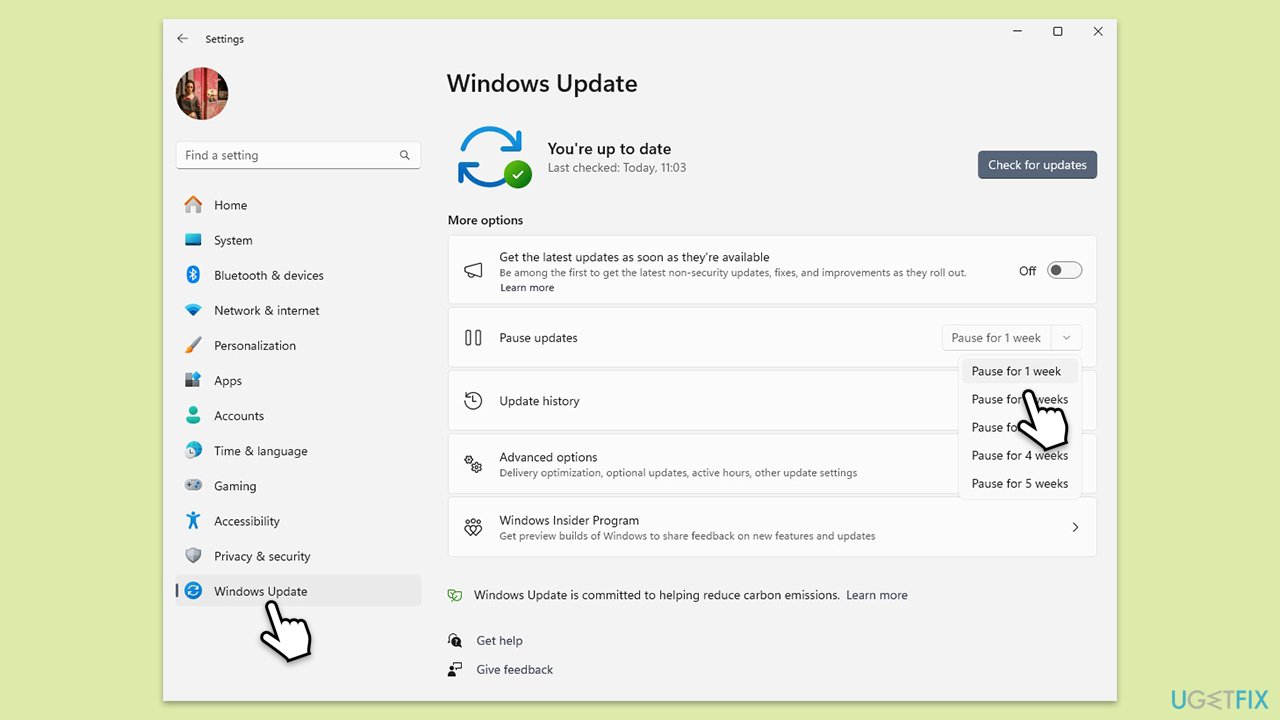
Fix 4. Pause and unpause updates
- Open Settings.
- Click on Windows Update.
- Click on the drop-down menu and select Pause updates for 1 week (or another time period).
- Restart your computer.
- Go back to Windows Update and click Resume updates.
Fix 5. Run Clean Boot
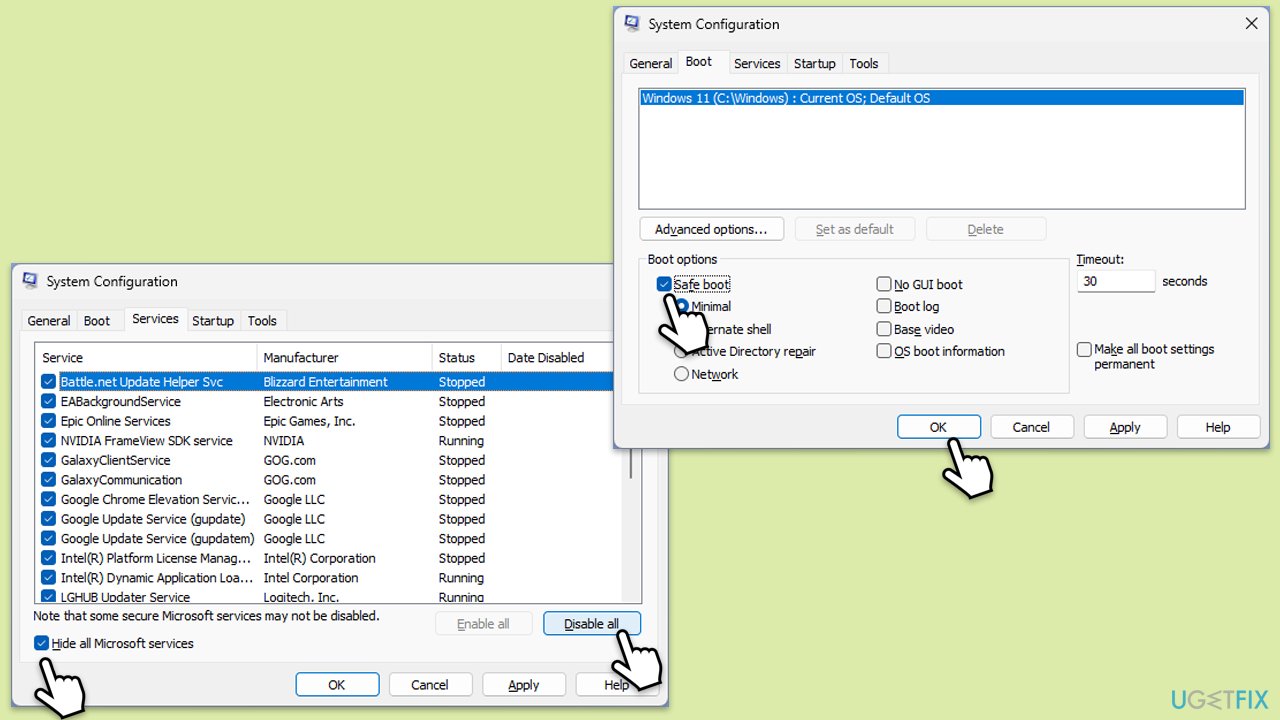
- Type msconfig inWindows Search and press Enter to open the System Configuration window.
- Click on the Services tab and check the Hide all Microsoft Services box.
- Click Disable all to disable non-Microsoft services, then click the Startup tab.
- Open the Task Manager, disable all startup items, and close the Task Manager.
- Go to the Boot tab and mark the Safe boot option.
- Click OK on the System Configuration window and restart your computer.
- Try installing the update again.
Fix 6. Re-register update DLL files
- Open Command Prompt as administrator.
- Type the following commands, pressing Enter after each:
regsvr32 wuapi.dll
regsvr32 wuaueng.dll
regsvr32 wups.dll
regsvr32 wups2.dll
regsvr32 wuwebv.dll
regsvr32 wucltux.dll - Once done, restart your computer.
Fix 7. Reset Windows update components
- Open Command Prompt as administrator as previously explained.
- Use the following command lines - make sure you press Enter every time:
net stop bits
net stop wuauserv
net stop appidsvc
net stop cryptsvc
Del "%ALLUSERSPROFILE%\Application Data\Microsoft\Network\Downloader\*.*"
rmdir %systemroot%\SoftwareDistribution /S /Q
rmdir %systemroot%\system32\catroot2 /S /Q
regsvr32.exe /s atl.dll
regsvr32.exe /s urlmon.dll
regsvr32.exe /s mshtml.dll
netsh winsock reset
netsh winsock reset proxy
net start bits
net start wuauserv
net start appidsvc
net start cryptsvc - Restart your computer and attempt to download the update once more.

Bottom line
To resolve the KB5046740 installation issue, you can perform Disk Cleanup to free up space and remove potentially buggy cache files. Additionally, running diagnostic tools to repair corrupted files and closing conflicting software may help. If these solutions do not work, consider seeking an automated fix to streamline the troubleshooting process.
Frequently asked questions
First, try running the Windows Update Troubleshooter by navigating to Settings > Update & Security > Troubleshoot. If the issue persists, check for any pending updates or errors in the Windows Event Viewer.
Yes, you can manually download the KB5046740 update from the Microsoft Update Catalog website and install it on your Windows 11 system. Ensure that you select the correct version for your system architecture.
Common error codes include 0x800f0922 and 0x8007000d, which indicate issues with the update process or corrupted files. You can look up these codes for targeted troubleshooting steps.




Report an issue
What's wrong with this guide? We review every report and update or remove content.
Report received — thank you. We'll review and fix it.
You need a free account to submit a report.
Be the first to comment