How to fix
KB5048652 fails to install
on Windows
Resolve the KB5048652 installation issue on Windows 10 effortlessly. Get expert tips and solutions for a smoother experience—fixed in minutes!

What causes How to fix KB5048652 fails to install in Windows 10?
- Device-specific compatibility conflicts
- Corrupted system files
- Incomplete previous updates
- Third-party software disruptions
Repairs Windows system files, removes malware, and restores a clean OS state — without reinstalling.
Could you help me fix Windows update problem? I am stuck when trying to install KB5048652 update - the recent one released just a few days ago. It stops during the installation phase and says that updates couldn't be installed and that I should try again later.
Windows updates are a vital component in the security and efficiency of a computer environment. Each update not only brings in some improvements and new features but also addresses some important security issues that would otherwise leave your system exposed.
Inability to update your device results in a variety of setbacks, which may range from not experiencing enhanced performance to stubborn bugs and leaving your system exposed to attacks by malicious software. Sometimes, however, users have issues trying to install an update or two. Among the problematic updates is the KB5048652 that Windows 10 users claim does not want to install.
KB5048652 was released on December 10, 2024, for versions of Windows 10 currently supported by Microsoft. It should bring the latest enhancements to the operating system. This is a cumulative update and includes not only the latest features and security updates but also previously released updates.
It aims to smoothen system performance, strengthen device protection, and bring better stability. Despite this, some users face an issue where they just can't install KB5048652.
Although it can be frustrating to see an update repeatedly failing to install, it's important to understand that various factors might be behind it. These range from device-specific compatibility conflicts to corrupted system files, incomplete previous updates, or even third-party software disruptions.
Whatever the reason, it's crucial not to ignore the situation, as leaving your device without the latest patches could have consequences. This will help your system keep updated, safe, and running at the highest efficiency.
In the following, we will discuss some possible ways to overcome these problems and thus install successfully. Using some tools or [d1] repair method might help since that has worked for many to resolve similar issues and bring their systems to running condition.
Fix 1. Check relevant services
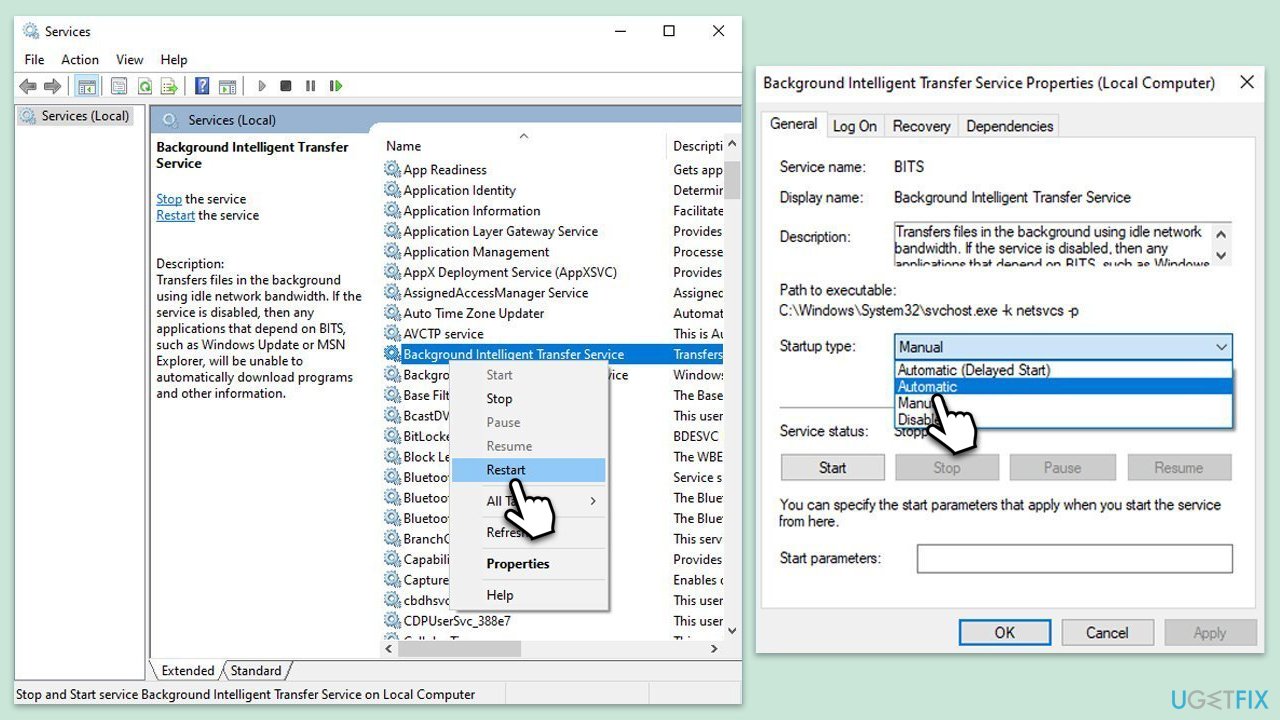
Ensuring that essential Windows Update services are running allows the operating system to properly download and apply patches.
- Type in Services in Windows search and press Enter.
- Locate Background Intelligent Transfer Service (BITS).
- If it is already running, right-click and select Restart.
- if the service is not running, double-click it, select Automatic under the Startup type from the drop-down menu
- Click Start, Apply, and OK.
- Repeat the process with the Windows Update service, Cryptographic, and Windows Installer services.
Fix 2. Run SFC and DISM scans
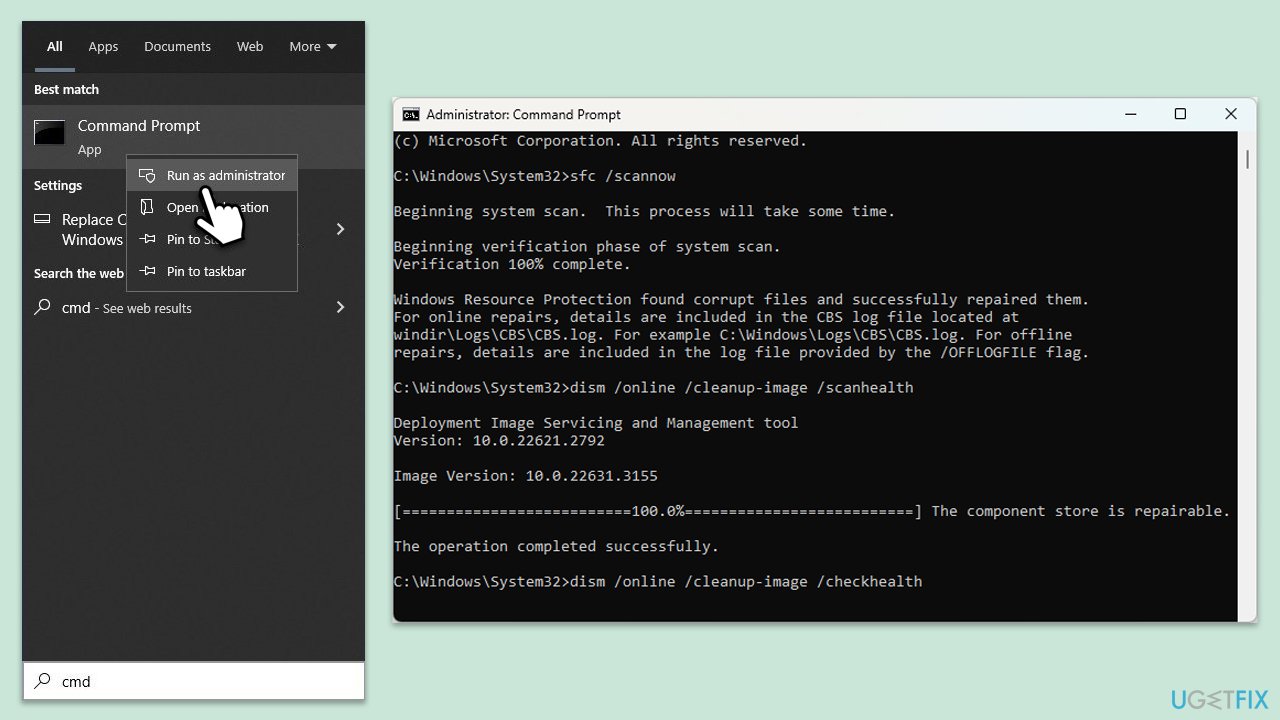
Scanning system files and fixing corruption can remove obstacles that prevent the update from installing.
- Type cmd in Windows search bar.
- Right-click on the Command Prompt result and select Run as administrator.
- Click Yes when prompted by User Account Control.
- Then, copy and paste the following command, pressing Enter after:
sfc /scannow - Wait till the scan is finished. If Windows finds system file integrity violations, it will attempt to fix them. After this, use the set of the following commands, pressing Enter each time:
DISM /Online /Cleanup-Image /CheckHealth
DISM /Online /Cleanup-Image /ScanHealth
DISM /Online /Cleanup-Image /RestoreHealth - (Note: if you get an error executing this last command, add /Source:C:\RepairSource\Windows /LimitAccess to it and try again).
- Close down the Command Prompt and restart your computer.
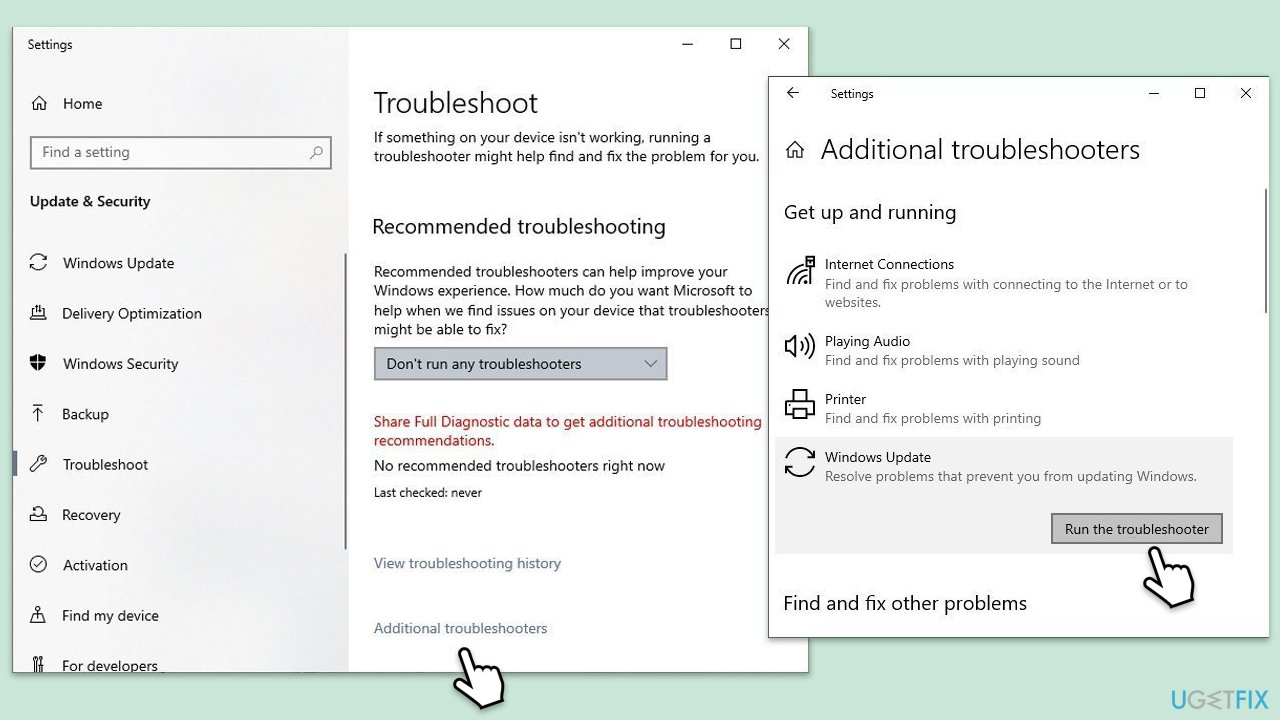
Fix 3. Run Windows Update troubleshooter
The built-in troubleshooter can detect and resolve common issues that block updates from installing.
- Type Troubleshoot in Windows search and hit Enter.
- Select Additional troubleshooters
- Find Windows Update from the list and click Run the troubleshooter
- The troubleshooter will automatically scan your system for potential problems and display any issues it finds.
- If the troubleshooter finds any issues, it will provide recommended solutions.
- Follow the on-screen instructions to apply the recommended solution.
Fix 4. Install the update manually
Applying the update directly from Microsoft bypasses potential software conflicts in the normal update process.
- Go to the official Microsoft Update Catalog website - a database of all available updates for Windows.
- In the search box, type KB5048652 and hit Enter or click Search.
- You will find many different versions on the update – you need to find the one that matches your PC specs and Windows version (as a home user, ignore Windows server versions).
- Right-click on Start and pick System.
- Under Device specifications, check the System type section: it should either be 64-bit or 32-bit.
- Scroll down to Windows specifications and check the Version section.
- Return to the Microsoft Update catalog, download the correct version, and install it.
- Restart your device.
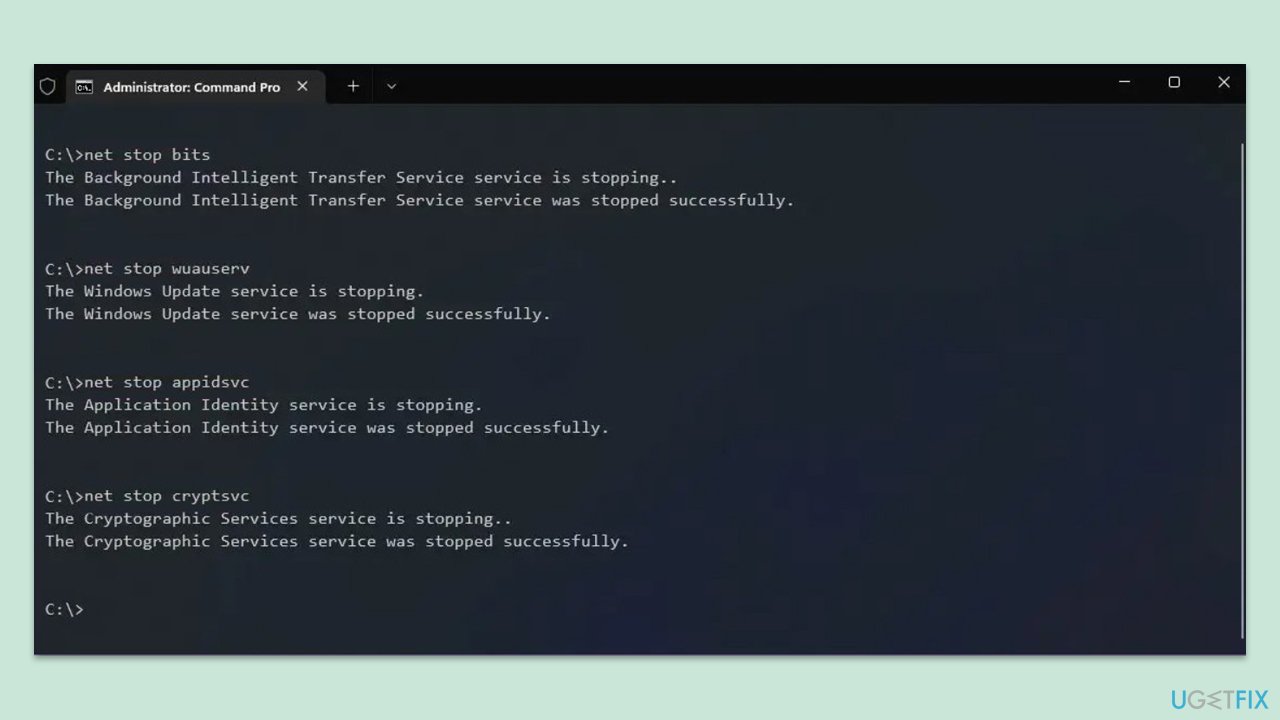
Fix 5. Reset Windows Update Components
Resetting Windows Update components returns them to default states and clears corrupted cached data.
- Open Command Prompt as administrator, as explained previously.
- In the new window, use the following commands, pressing Enter after each:
net stop wuauserv
net stop cryptSvc
net stop bits
net stop msiserver
Ren C:\Windows\SoftwareDistribution SoftwareDistribution.old
Ren C:\Windows\System32\catroot2 Catroot2.old - When these commands are executed, the last thing to do is to re-enable relevant services:
net start wuauserv
net start cryptSvc
net start bits
net start msiserver - Reboot your device.
Fix 6. Disable third-party anti-malware, VPN, and similar software
Temporarily turning off external security or networking tools can remove barriers that prevent update traffic.
- Turn off anti-malware software temporarily.
- Disconnect VPN or proxy services.
- Pause other security tools and firewalls.
- Attempt the update again.
Fix 7. Use Media Creation Tool
Upgrading through the Media Creation Tool provides a controlled environment that often resolves persistent errors.
- Visit the official Microsoft website and download Windows 10 installation media.
- Double-click the installer, select Yes when UAC shows up, and agree to the terms.
- Select Upgrade this PC now and click Next.
- Windows will start downloading the needed files.
- Agree to the terms once again and click Next.
- Before installing, make sure that you are happy with your choices (otherwise, you can click Change what to keep option).
- Finally, click Install to begin the upgrade process.
Bottom line
To fix the KB5048652 installation issue, you can try using repair tools, checking for compatibility conflicts, and ensuring all previous updates are completed. If these methods do not resolve the problem, consider seeking further assistance or exploring additional troubleshooting options.
Frequently asked questions
Try running the Windows Update Troubleshooter to identify and fix issues related to the update. Additionally, ensure that your system has enough disk space and restart your computer before attempting the installation again.
Yes, you can manually download the update from the Microsoft Update Catalog and install it directly. Make sure to choose the correct version that matches your system architecture (32-bit or 64-bit).
While this article focuses on Windows 10, users have reported similar installation issues on Windows 11, so it's advisable to check for any specific updates or fixes related to your version of Windows 11.




Report an issue
What's wrong with this guide? We review every report and update or remove content.
Report received — thank you. We'll review and fix it.
You need a free account to submit a report.
Be the first to comment