How to fix
KB5050081 fails to install
on Windows
Resolve the KB5050081 installation error on Windows 10 effortlessly. Follow our expert-tested guide and get your updates fixed in minutes!

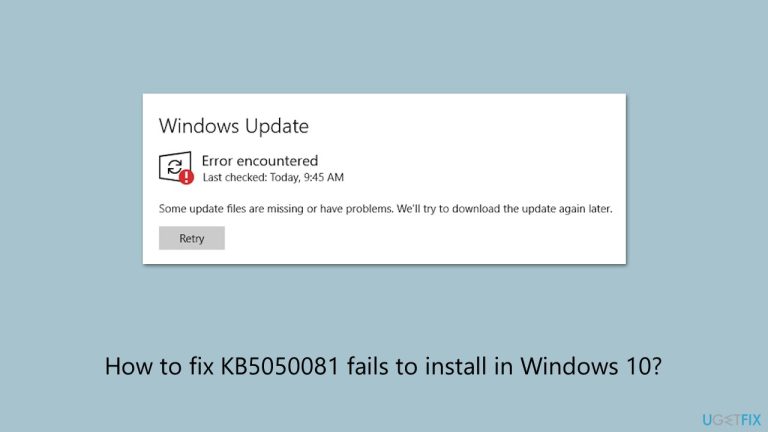
What causes How to fix KB5050081 fails to install in Windows 10?
- Corrupted system files
- Lack of sufficient storage space
- Third-party security software blocking updates
- Pending Windows updates
- Previous failed installations
Repairs Windows system files, removes malware, and restores a clean OS state — without reinstalling.
Today I woke up to a pending update on my Windows 10 machine. It then started to download but at some point it failed and now I'm getting an error "Couldn't install updates." The update I can't install is KB5050081.
On January 28, 2025, KB5050081 became available as an optional update for Windows 10 version 22H2, which advanced the OS build to 19045.5440. Among the newest features, this update introduced the new Outlook to Windows 10 users, alongside addressing several issues in system performance and reliability.
The update also fixed some of the bugs that were reported and included security-related fixes to provide a more stable experience for the users. But while it promises to serve with improved functionality, some are experiencing installation issues with the update.
Users have reported that KB5050081 fails to install, with the process getting stuck at different stages. Some experience errors when attempting to download the update, while others see it reach 100% only to fail during installation. In some cases, Windows displays specific error codes, but for others, the update simply refuses to proceed without explanation. As a result, affected users are left unable to apply the latest improvements and fixes.
There are several possible reasons why KB5050081 is not installing. Corrupted system files can interfere with the update process, preventing Windows from applying changes correctly. A lack of sufficient storage space may also lead to installation failures, as updates require available disk space to extract and install necessary files.
Additionally, third-party security software can sometimes block updates, mistaking them for system modifications. Pending Windows updates or previous failed installations may also cause conflicts, leading to repeated failures when attempting to install KB5050081.
For users experiencing this problem, several steps may resolve the issue: running the Windows Update Troubleshooter, checking that there is sufficient disk space, temporarily disabling antivirus software, and manually installing the update. See the complete set of solutions below to walk users through each method for resolving the installation failure.
If KB5050081 continues to fail to install, it may indicate deeper system issues. In such cases, using the [d1] Windows repair tool is recommended, as it can help detect and fix underlying problems affecting update installations.
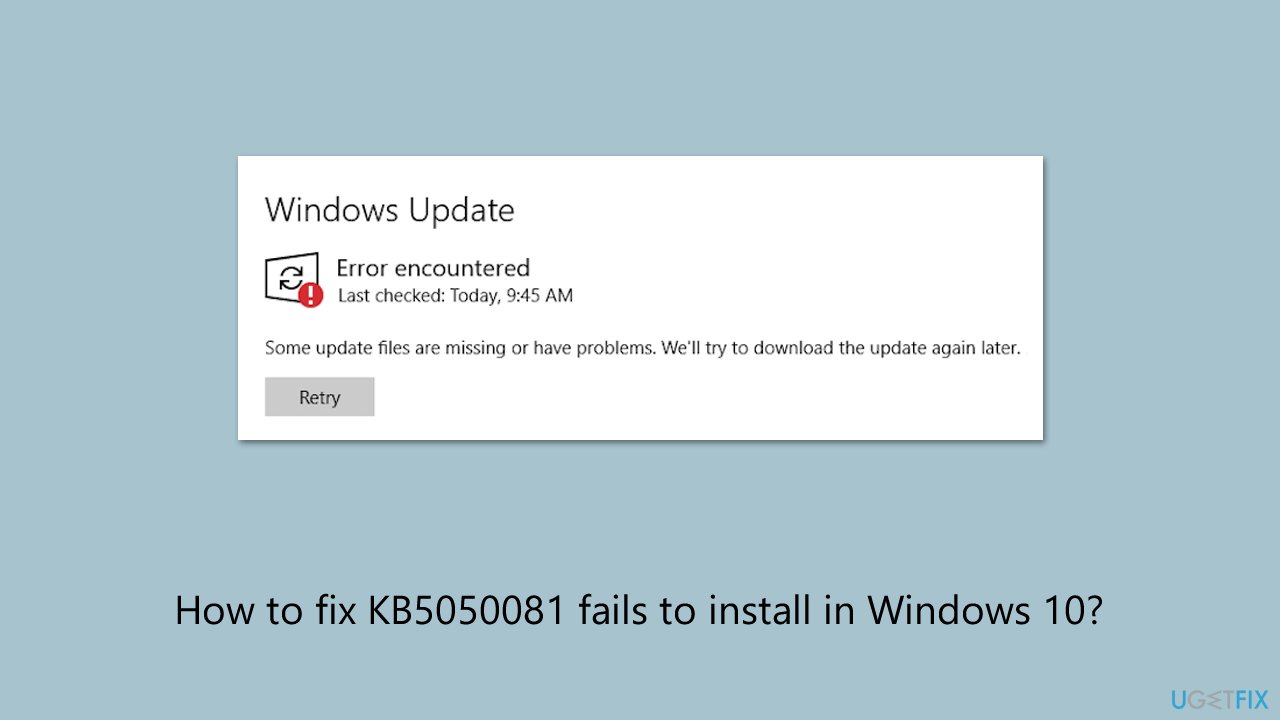
Fix 1. Run the Windows Update troubleshooter
Windows includes a built-in troubleshooter that can automatically detect and resolve common update issues.
- Type Troubleshoot in Windows search.
- Select Additional troubleshooters.
- Find Windows Update from the list.
- Click it and pick Run the troubleshooter.
- Apply the suggested steps and restart your device.
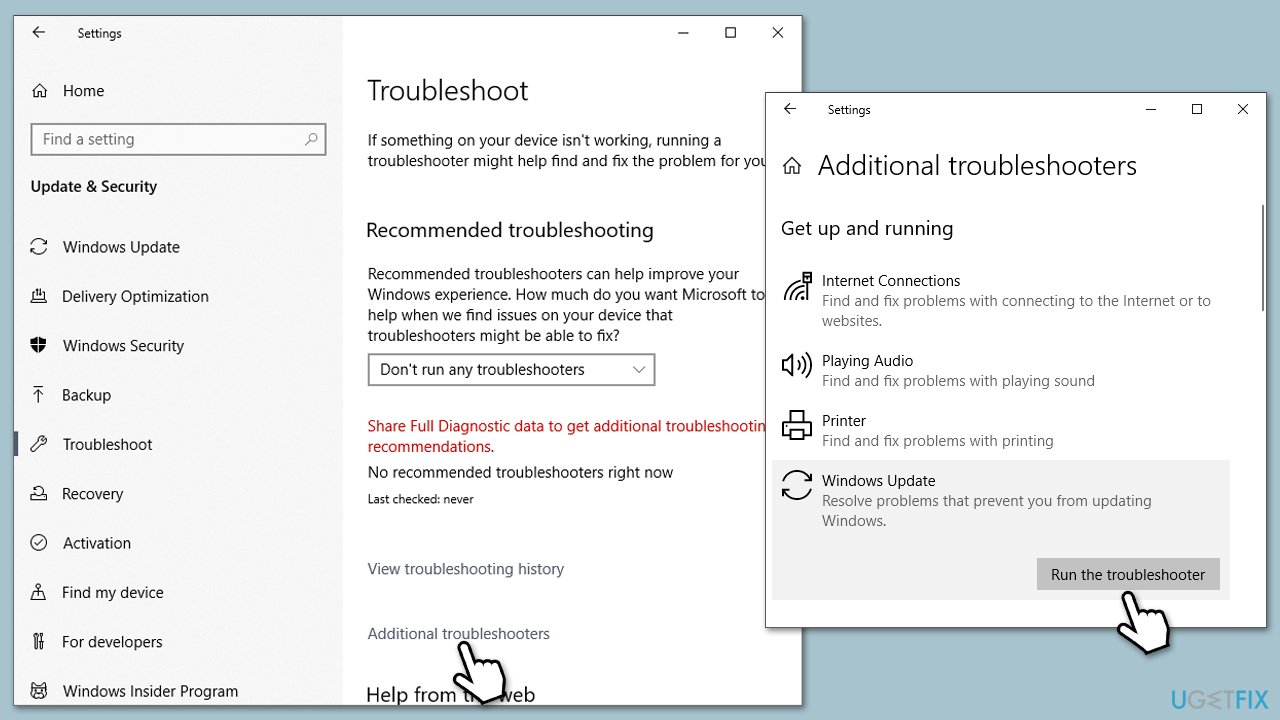
Fix 2. Check Windows Update services
Sometimes, update components get stuck, preventing new updates from installing properly. Restarting the related services may help.
- Type in Services in Windows search and hit Enter.
- Scroll down a bit to find Background Intelligent Transfer Service (BITS).
- If it is already running, right-click and select Restart.
- If the service is not running, double-click it, pick Automatic under the Startup type drop-down menu.
- Click Start, Apply, and OK.
- Repeat this process for Windows Update and Cryptographic services.
Fix 3. Free up disk space
Updates require enough free space to download and install. If your system is low on storage, clearing unnecessary files may help.
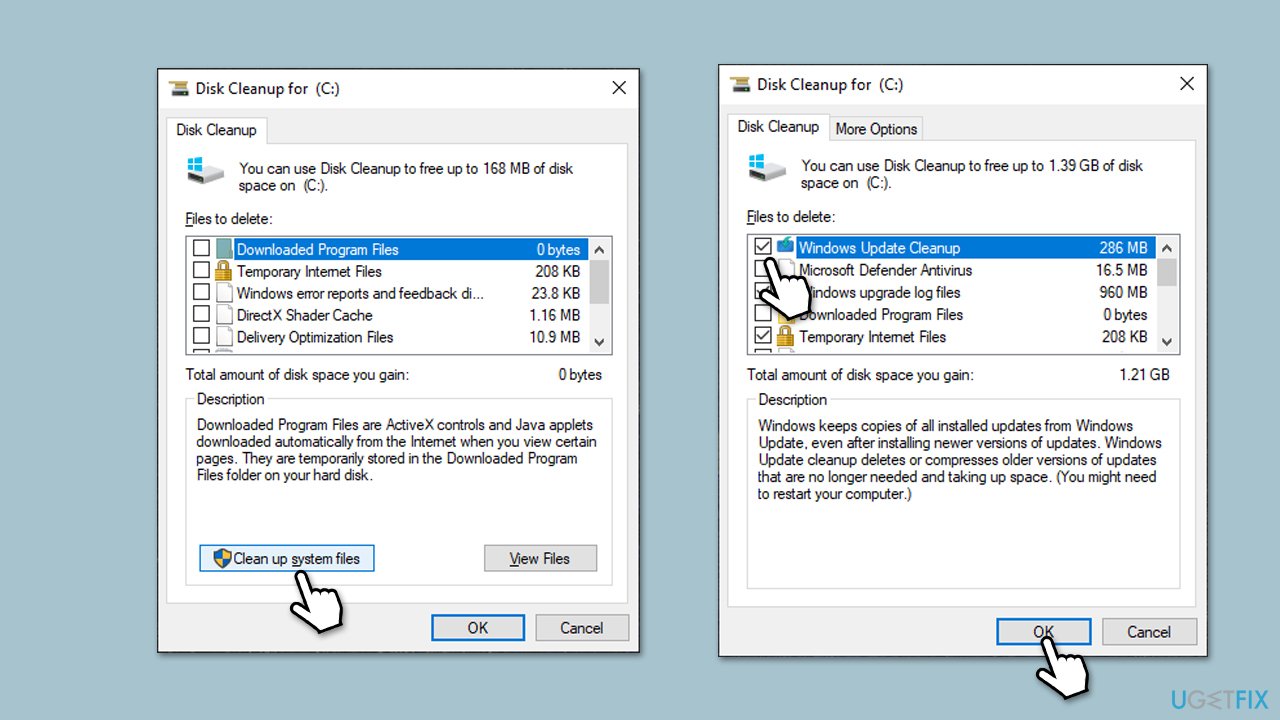
- Type Disk Cleanup in Windows search and press Enter.
- Pick the main drive (C: by default) and select the option Clean up system files.
- Choose the drive once more and press OK.
- From the array of files that can be cleaned, choose those taking up the most space, including Temporary Internet Files, Windows Update, and Temporary Files, among others.
- Click OK to begin the cleanup process.
Fix 4. Repair corrupted files
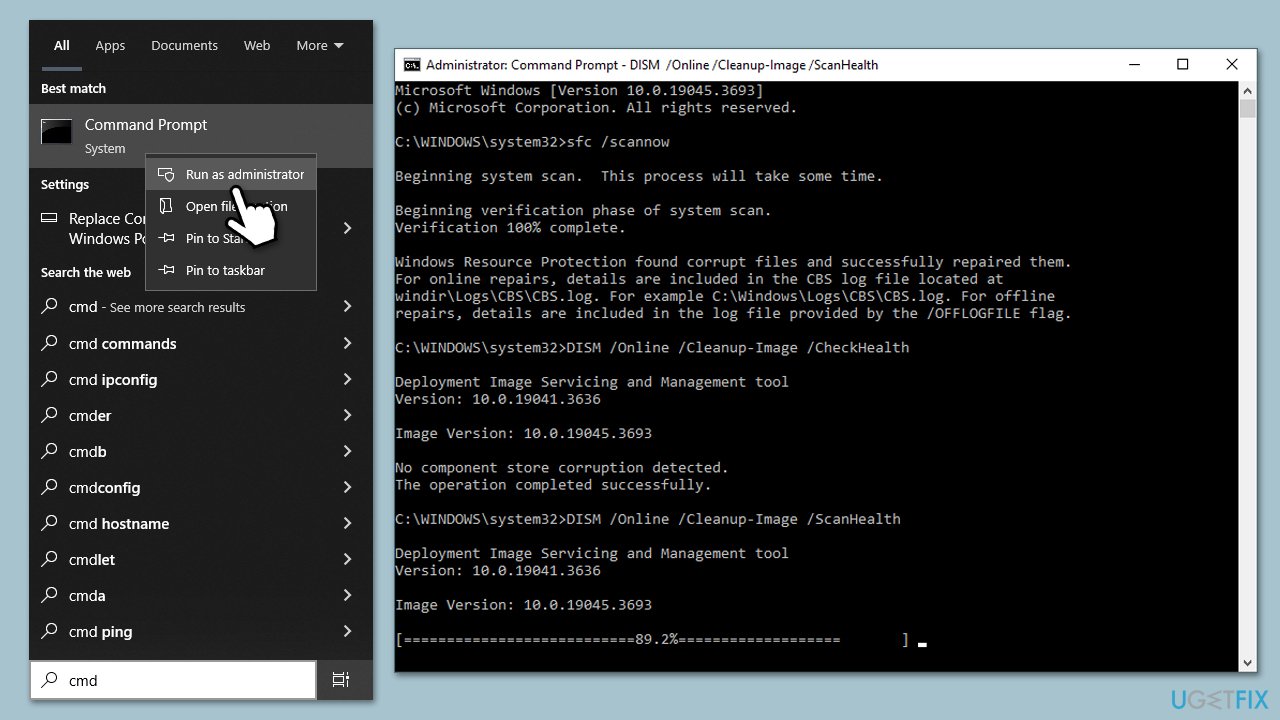
- Type cmd in Windows search.
- Right-click on the Command Prompt result and select Run as administrator.
- When the UAC window pops up, click Yes.
- In the Command Prompt window, paste the following command and press Enter:
sfc /scannow - Wait for the scan to complete.
- Once the SFC scan is finished, run the following set of DISM commands, pressing Enter after each one:
DISM /Online /Cleanup-Image /CheckHealth
DISM /Online /Cleanup-Image /ScanHealth
DISM /Online /Cleanup-Image /RestoreHealth - After completing the DISM commands, restart your system.
Fix 5. Reset Windows update components
Resetting Windows Update components can resolve issues caused by corrupted update files.
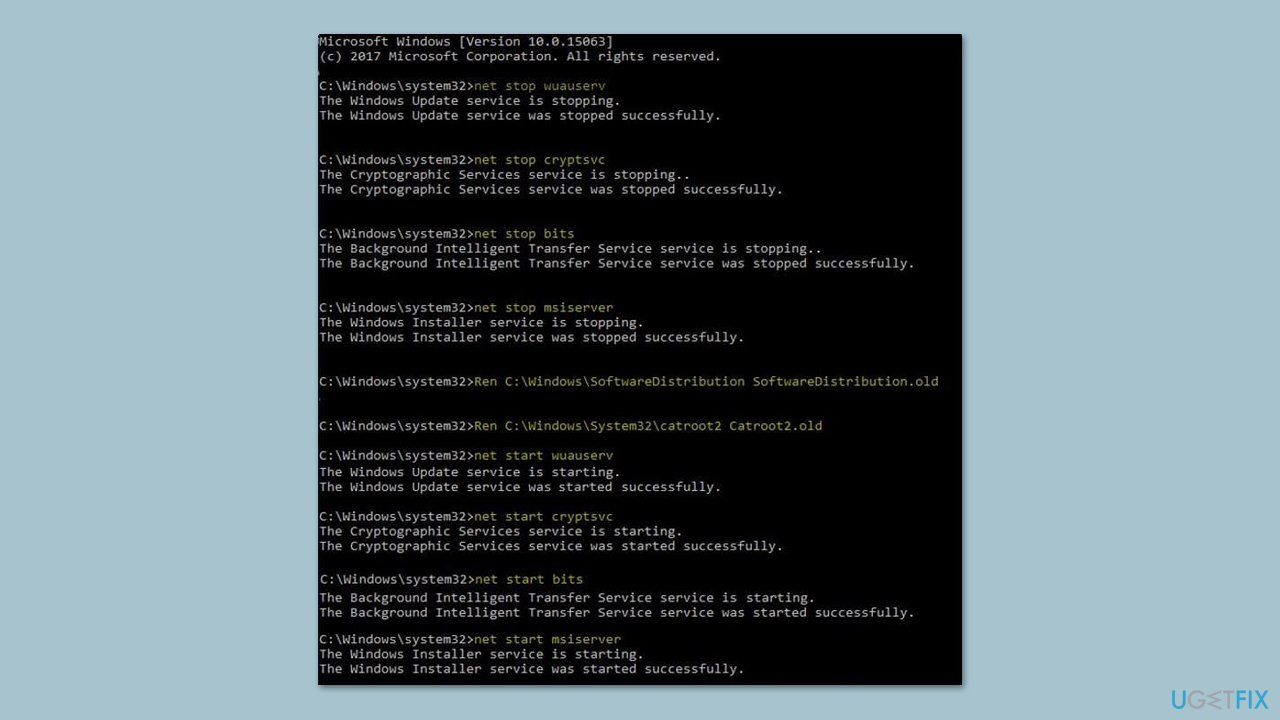
- Open Command Prompt as administrator.
- Type each of these command lines, pressing Enter every time (wait till the command is fully executed):
net stop bits
net stop wuauserv
net stop appidsvc
net stop cryptsvc
Del "%ALLUSERSPROFILE%\Application Data\Microsoft\Network\Downloader\*.*"
rmdir %systemroot%\SoftwareDistribution /S /Q
rmdir %systemroot%\system32\catroot2 /S /Q
regsvr32.exe /s atl.dll
regsvr32.exe /s urlmon.dll
regsvr32.exe /s mshtml.dll
netsh winsock reset
netsh winsock reset proxy
net start bits
net start wuauserv
net start appidsvc
net start cryptsvc - Restart your device and attempt to download the update once more.
Fix 6. Manually Download and install the update
If Windows Update fails repeatedly, manually installing the update may work.
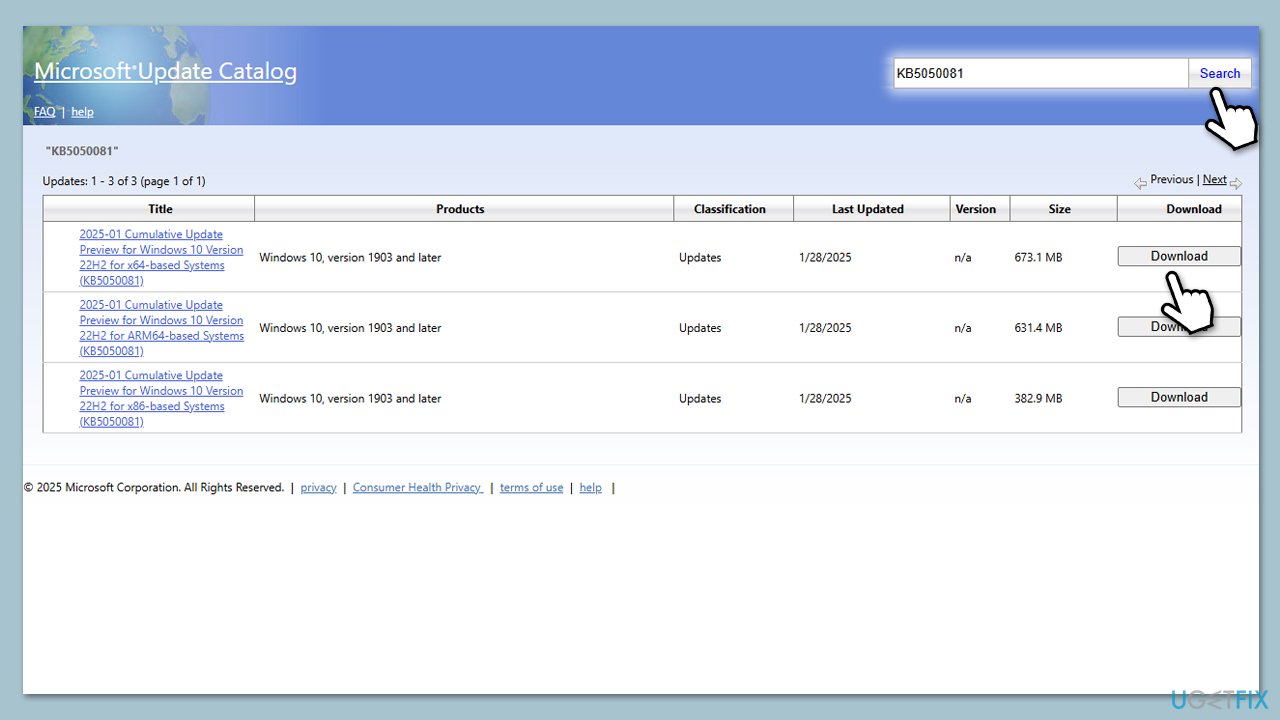
- Visit the Microsoft Update Catalog website.
- In the search bar, type the update number (KB5050081 in this case) and press Enter or click Search.
- Find the update that matches your system type (32-bit or 64-bit) and click Download.
- In the pop-up window, click the link to download the update.
- Once downloaded, run the update file and follow the on-screen instructions.
- Restart your computer.
Fix 7. Perform a Clean Boot
A clean boot starts Windows with only essential services, preventing third-party apps from interfering with updates.
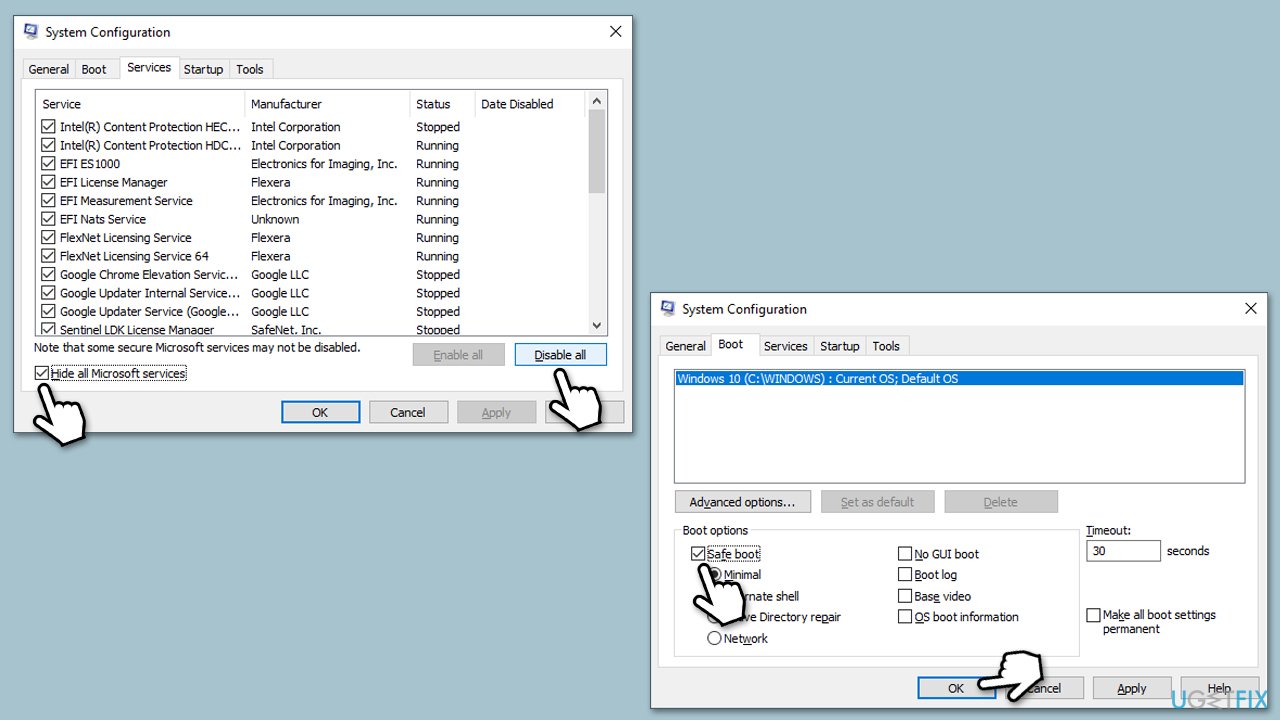
- Type msconfig in the Windows search box and press Enter.
- Select the Services tab and tick the Hide all Microsoft services checkbox at the bottom.
- Pick Disable all.
- Go to the Startup tab and click Open Task Manager.
- Here, right-click on each of the non-Windows entries and select Disable.
- Close down the Task Manager.
- Go to the Boot tab and tick the Safe boot option
- Reboot your computer.
- Try installing KB5050081 again. After installation, revert these changes by enabling the disabled services and startup programs.
Bottom line
To resolve the installation failure of KB5050081, users can try running the Windows Update Troubleshooter, checking for sufficient disk space, temporarily disabling antivirus software, and manually installing the update. If these steps do not resolve the issue, it may indicate deeper system problems that require further investigation.
Frequently asked questions
First, try running the Windows Update Troubleshooter by going to Settings > Update & Security > Troubleshoot. If that doesn't work, consider manually downloading and installing the update from the Microsoft Update Catalog.
Yes, resetting the Windows Update components can resolve installation errors; you can do this by running commands in the Command Prompt as an administrator.
Disabling your antivirus temporarily can help resolve conflicts that might prevent KB5050081 from installing, but remember to enable it again afterward for your security.




Report an issue
What's wrong with this guide? We review every report and update or remove content.
Report received — thank you. We'll review and fix it.
You need a free account to submit a report.
Be the first to comment