How to fix
KB5050087 fails to install
on Windows
Resolve the KB5050087 installation error on Windows 11 efficiently with expert-tested solutions. Fix your update issues in minutes!

What causes How to fix KB5050087 fails to install in Windows 11?
- Corrupted Windows Update components
- Lack of disk space
- Third-party security software blocking updates
- Windows update services not functioning correctly
Repairs Windows system files, removes malware, and restores a clean OS state — without reinstalling.
Why can't I install KB5050087 Preview build on my device? It just keeps failing every time. Is there anything that can be done to resolve this?
Microsoft released KB5050087, a cumulative update for Windows 11, on February 4, 2025, that includes several improvements and bug fixes to enhance system performance and stability. Among the new features in this update is the personalization of Lock screen widgets so that users can further personalize their experience.
While the feature will launch first in the European Economic Area, it will release in other markets with subsequent updates. In addition, the KB5050087 fixes some known issues in Windows 11 to improve performance in Windows Defender, responsiveness in the Taskbar, and added enhancements in File Explorer to stop the random crashes of the latter.
Despite its intended benefits, some users have encountered issues where KB5050087 fails to install. The installation process may progress but suddenly stop, sometimes with an error message stating that the update could not be completed or that files required for the update are missing.
Others have reported that KB5050087 is not installing at all, with Windows repeatedly attempting to apply the update without success. This can leave affected users unable to access the latest fixes and improvements, creating frustration for those relying on regular updates for system stability.
Several factors may contribute to KB5050087 failing to install. Corrupted Windows Update components are a common cause, as damaged or incomplete update files can interfere with the process. Resetting the update cache might resolve this issue.
Another problem could be a lack of disk space, since Windows updates require enough free space to install. It is advisable to ensure that there is sufficient available storage on the system drive.
Third-party security software such as antivirus can sometimes block updates, leading to installation failure. Temporarily disabling these applications during the update process might help.
In some cases, Windows update services may not be functioning correctly, preventing the update from being applied. Running the Windows Update troubleshooter or manually restarting essential update-related services can sometimes resolve the issue. If none of these solutions work, using the automatic Windows repair tool, [d1], can help diagnose and fix Windows update problems efficiently, allowing users to install KB5050087 successfully.
Fix 1. Run Windows update troubleshooter
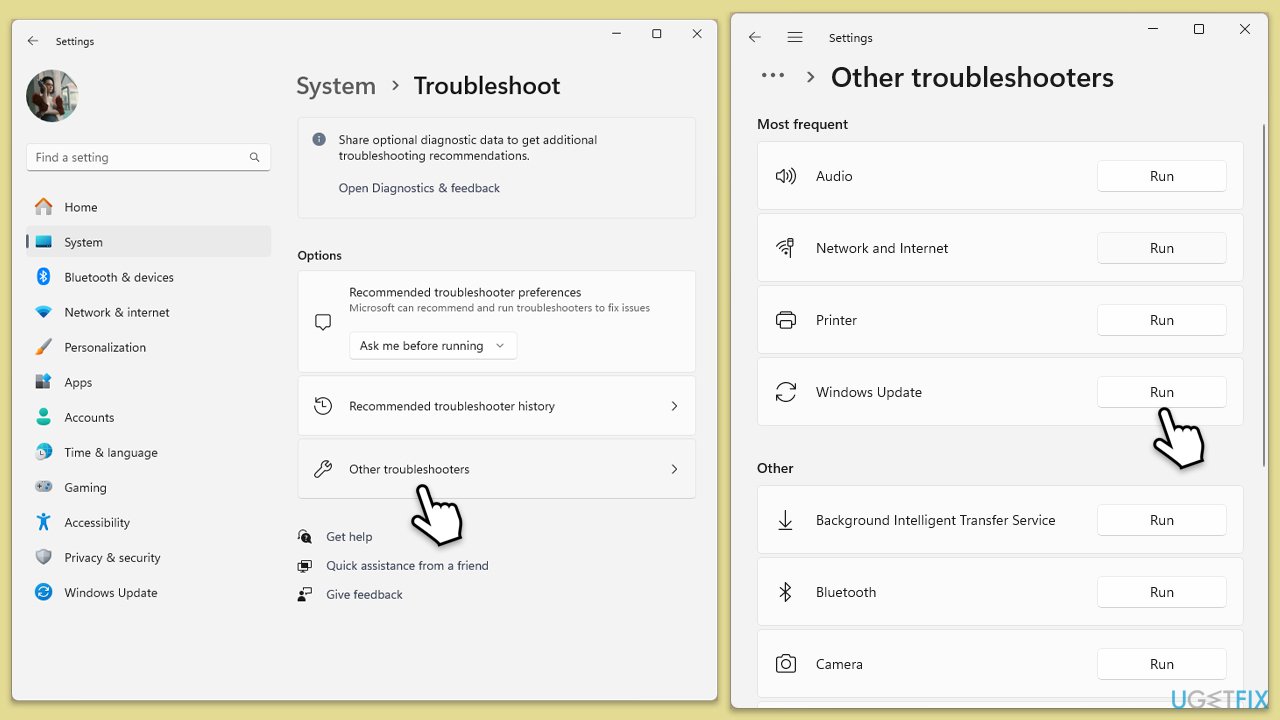
- Type Troubleshoot into the Windows search bar and press Enter.
- Next, on the right side of the window, select Other troubleshooters.
- Scroll down to locate the Windows update option and click on it.
- Click on Run and allow the process to complete.
- Once it is finished, implement any recommended fixes and restart your system.
Fix 2. Run Disk Cleanup
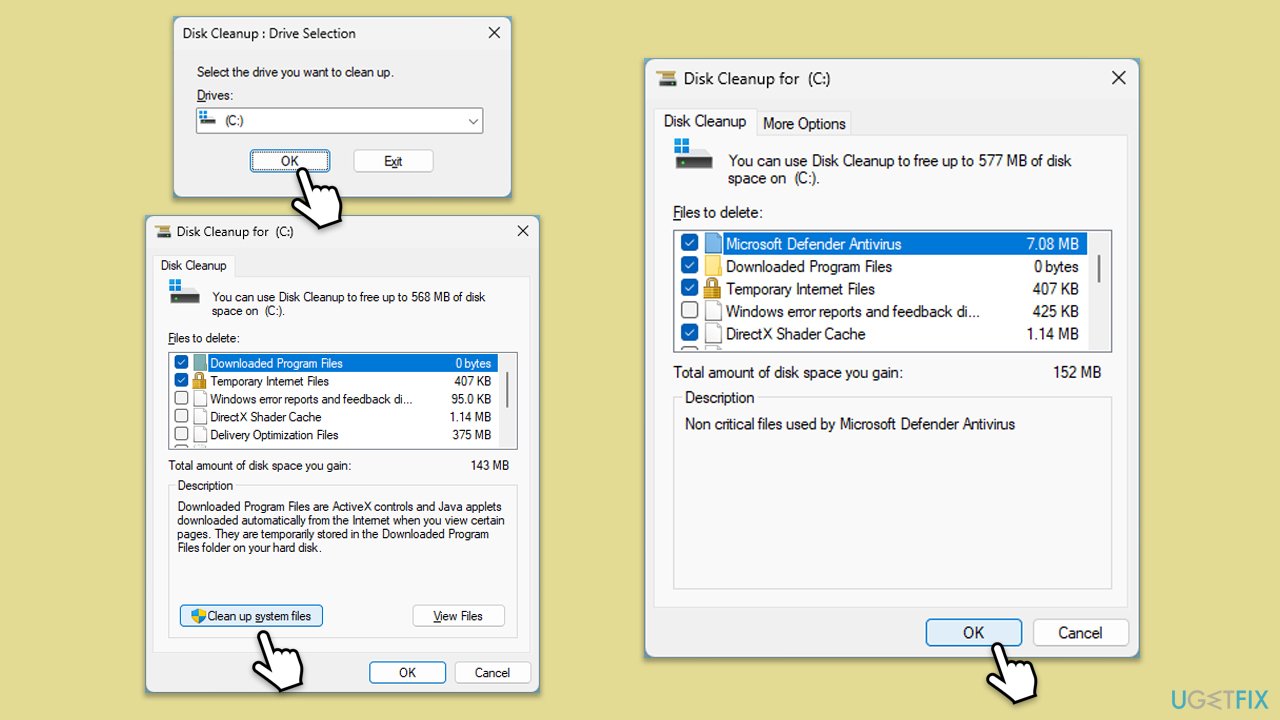
- Type Disk Cleanup in Windows search and hit Enter.
- If your Windows is installed on drive C, pick it from the list (should be by default) and press OK.
- Click Clean up system files.
- Select your main drive again and click OK.
- Here, select the largest portions of the data used - these typically include Temporary Internet Files, Windows Update, Temporary Files, Recycle Bin, Delivery Optimization Files, and others. Make sure you mark Windows Update checkbox.
- Click OK - the process should be finished shortly.
Fix 3. Disable third-party security software
- Open your antivirus software.
- Temporarily disable the antivirus protection.
- Try running Windows Update again.
- Re-enable your antivirus after the update process.
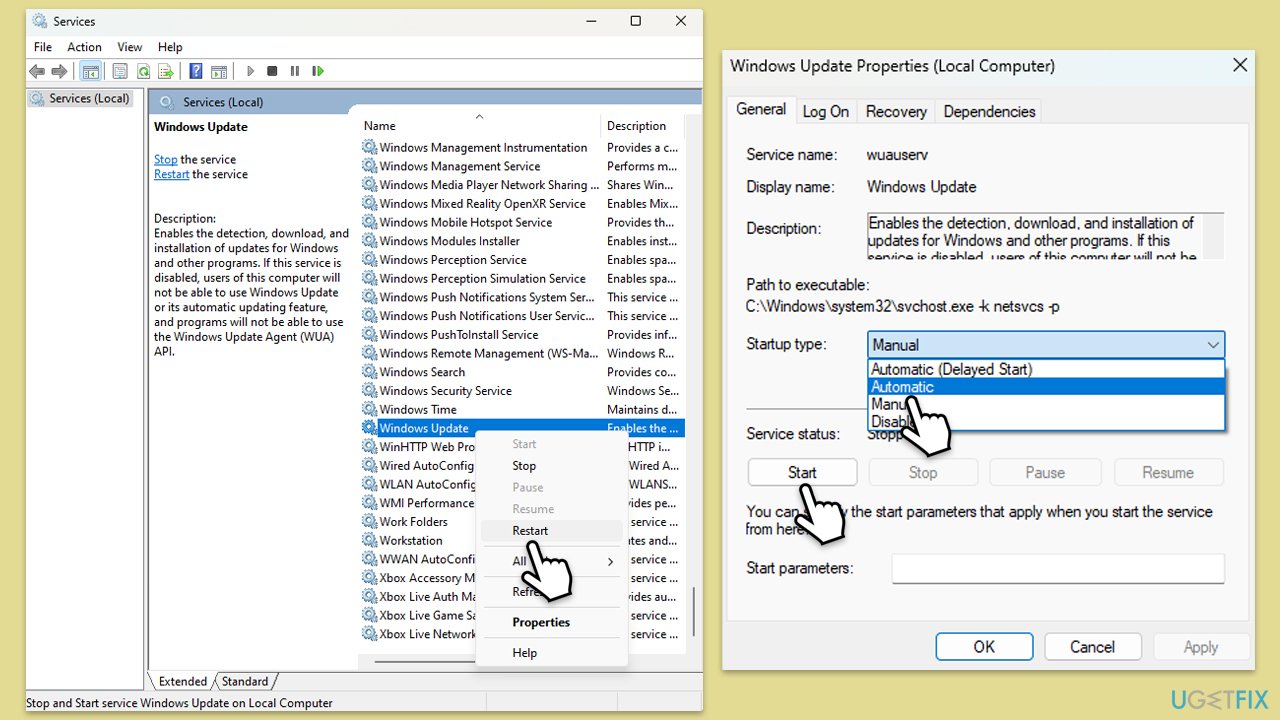
Fix 4. Check relevant services
- Type in Services in Windows search and hit Enter.
- Scroll down a bit to find Windows Update.
- If it is already running, right-click and select Restart.
- If the service is not running, double-click it, pick Automatic under the Startup type drop-down menu.
- Click Start, Apply, and OK.
- Repeat this process for Background Intelligent Transfer Service (BITS) and Cryptographic services.
Fix 5. Reset Windows update components
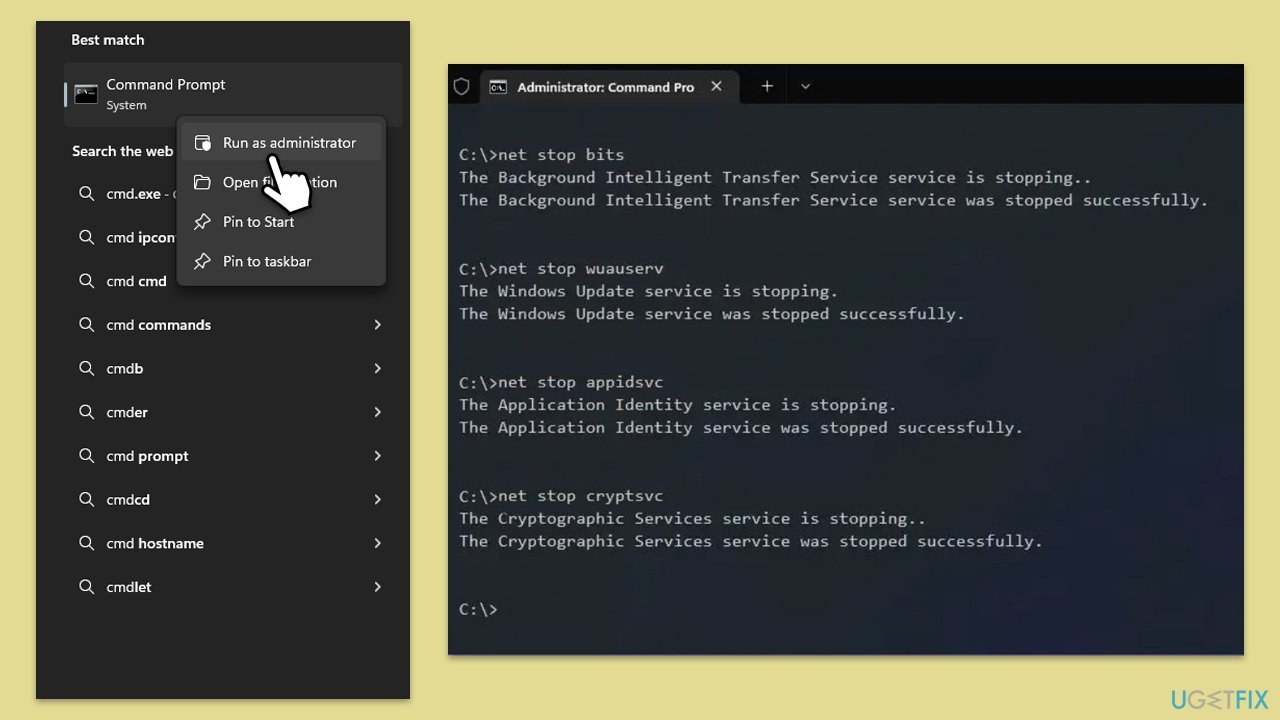
- Type in cmd in Windows search.
- Right-click on Command Prompt and select Run as administrator.
- User Account Control will ask you whether you want to allow to make changes to the system - click Yes.
- Type the following commands, pressing Enter after each:
- net stop bits
- net stop wuauserv
- net stop appidsvc
- net stop cryptsvc
- Del “%ALLUSERSPROFILE%\Application Data\Microsoft\Network\Downloader\*.*”
- rmdir %systemroot%\SoftwareDistribution /S /Q
- rmdir %systemroot%\system32\catroot2 /S /Q
- regsvr32.exe /s atl.dll
- regsvr32.exe /s urlmon.dll
- regsvr32.exe /s mshtml.dll
- netsh winsock reset
- netsh winsock reset proxy
- net start bits
- net start wuauserv
- net start appidsvc
- net start cryptsvc
- Close the Command Prompt and restart your system.
Fix 6. Repair corrupted files
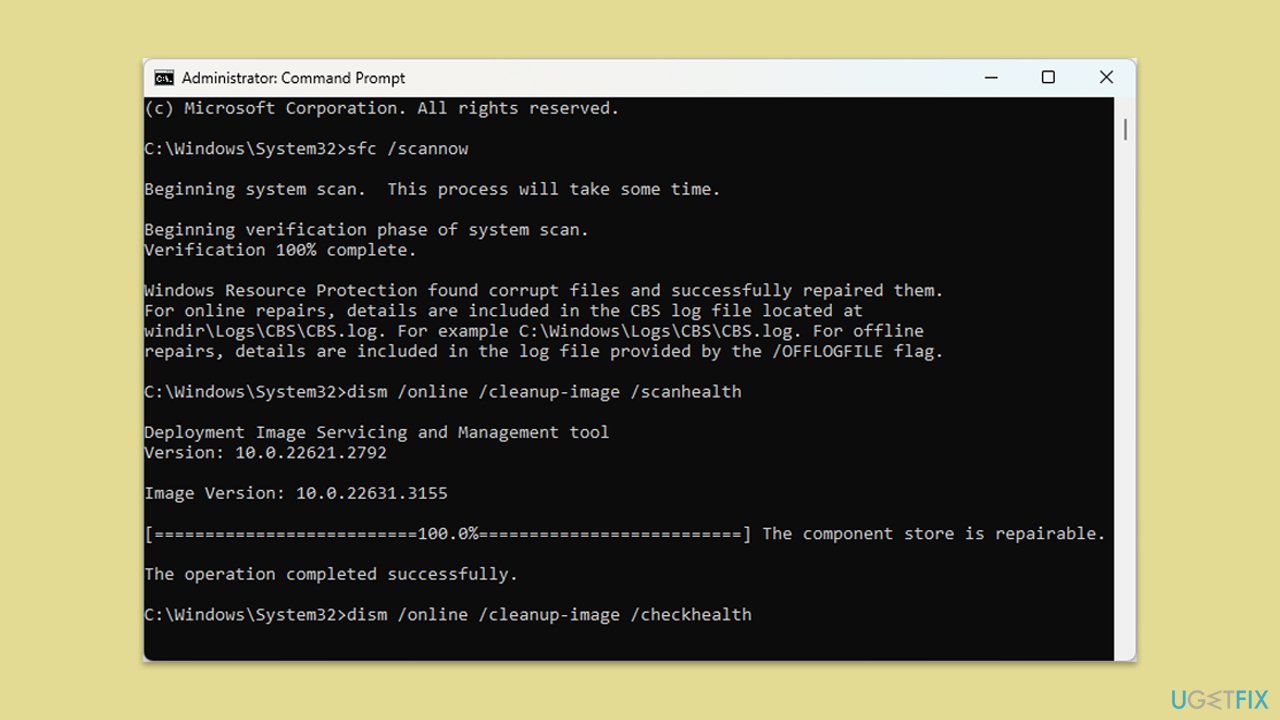
- Open Command Prompt as administrator.
- In the Command Prompt window, paste the following command and hit Enter:
sfc /scannow - Next, use these commands (don't forget to press Enter every time):
Dism /Online /Cleanup-Image /CheckHealth
Dism /Online /Cleanup-Image /ScanHealth
Dism /Online /Cleanup-Image /RestoreHealth
(Note: if you get an error executing this last command, add /Source:C:\RepairSource\Windows /LimitAccess to it and try again). - Restart your computer.
Fix 7. Use "Fix problems using Windows Update" feature
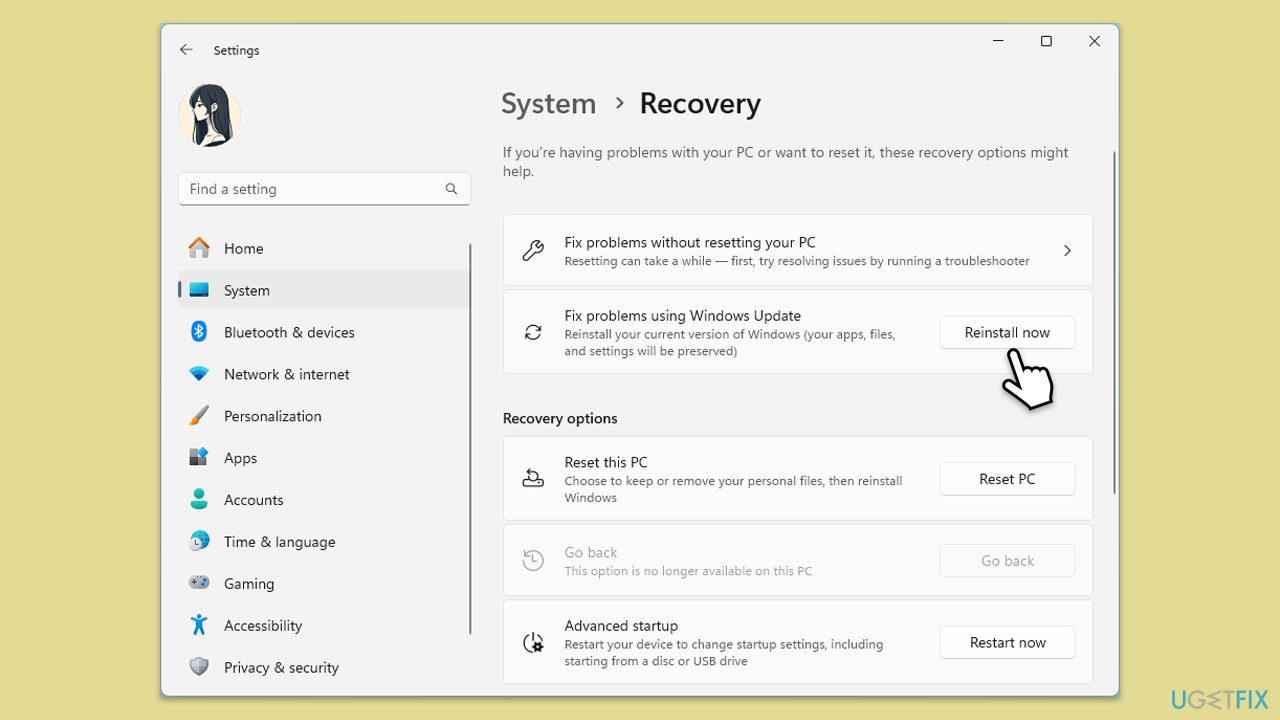
- Right-click on Start and pick Settings.
- Go to the System section and select Recovery.
- There, you should see the Fix problems using Windows Update option.
- Click Reinstall now.
- Follow the on-screen instructions to finish the process.
- After your PC restarts and the fix process is complete, attempt to update Windows in a usual way.
Bottom line
To resolve the installation failure of KB5050087, users can reset the update cache, ensure sufficient disk space, temporarily disable antivirus software, and run the Windows Update troubleshooter. If none of these solutions work, further investigation may be needed.
Frequently asked questions
First, try running the Windows Update Troubleshooter, which can help identify and fix issues with the update process. If that doesn't work, consider resetting the Windows Update components manually.
Yes, you can manually download the update from the Microsoft Update Catalog website and install it directly. Make sure to select the correct version that matches your system architecture.
You can check your update history in Settings under 'Windows Update' to see if KB5050087 failed to install and look for any error codes. This will help you identify specific problems related to the update.




Report an issue
What's wrong with this guide? We review every report and update or remove content.
Report received — thank you. We'll review and fix it.
You need a free account to submit a report.
Be the first to comment