How to fix
KB5050188 fails to install
on Windows
Resolve KB5050188 installation issues on Windows 10 effortlessly with expert-tested solutions that guarantee a smooth update process. Fixed in minutes!

What causes How to fix KB5050188 fails to install in Windows 10?
- Temporary glitches
- Deeper system file corruption
- Issues with Windows Update interaction with .NET framework
- Conflicts with existing software
- Bugged caches in the Software Distribution folder
Repairs Windows system files, removes malware, and restores a clean OS state — without reinstalling.
One of the updates failed this morning. From what I see in the Update history section, it's .NET Framework update KB5050188. The other one went through completely fine. What is the problem here? I didn't get any error codes.
KB5050188 is the cumulative update for.NET Framework for Windows 10 Version 22H2, which was made available on January 14, 2025, by Microsoft. This update brings a plethora of improvements and fixes to.NET Framework 3.5, 4.8, and 4.8.1 that address several security vulnerabilities and stability issues.
The update should offer improved performance, better application compatibility with those relying on.NET, and patch up possible security weaknesses that might be used by cyber attackers.
And yet, some users might be left without these improvements because KB5050188 fails to install in Windows 10. Such installation issues are not uncommon and can be caused by a number of factors, ranging from temporary glitches to deeper system file corruption.
Users might find the update stuck in a loop, with no clear reason why the installation is failing. In some cases, the problem is related to the way Windows Update interacts with the .NET framework or conflicts with existing software on the system. Whatever the cause, this issue can be particularly frustrating as it prevents essential security and stability updates from being applied.
It is important to note that, the fix for KB5050188 failing to install highly depends on what is causing it. For example, those who have corrupted files on their system would find that running SFC/DISM would help, while resetting Windows update components would work for those with bugged caches in the Software Distribution folder. Regardless, we will provide numerous solutions below, so keep trying each of them until you find the one which works for you.
Additionally, if the issue is rooted in system-level complications, using the [d1] repair and maintenance tool is an efficient way to address problems like corrupted files, DLL errors, or issues preventing updates from installing successfully.
Fix 1. Repair corrupted system files
As previously mentioned, corrupted system files can be at fault for preventing Windows updates to install successfully.
- Type cmd in Windows search.
- Right-click on the Command Prompt result and select Run as administrator.
- At this point, you should be asked by UAC (User Account Control) if you want to allow changes - click Yes.
- In the Command Prompt window, type in this command and hit Enter:
Sfc /scannow - Once this command is executed, you should check Windows image files - use the following commands:
Dism /Online /Cleanup-Image /CheckHealth
Dism /Online /Cleanup-Image /ScanHealth
Dism /Online /Cleanup-Image /RestoreHealth - Close down the Command Prompt and restart your computer.

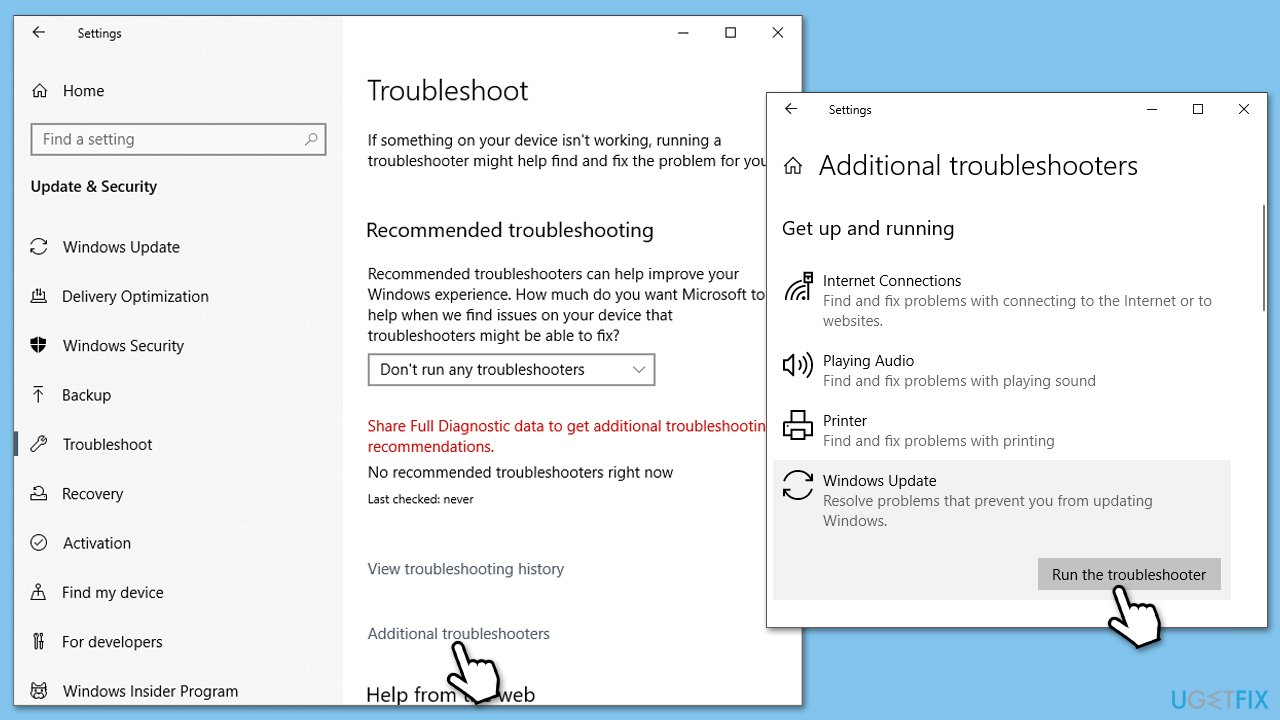
Fix 2. Use Windows update and network troubleshooters
While this is not guaranteed, troubleshooters can often fix the issues in Windows automatically, so we recommend trying them.
- Type Troubleshoot in Windows search.
- Select Additional troubleshooters.
- Find Windows Update from the list.
- Click it and pick Run the troubleshooter.
- Apply the suggested steps and restart your device.
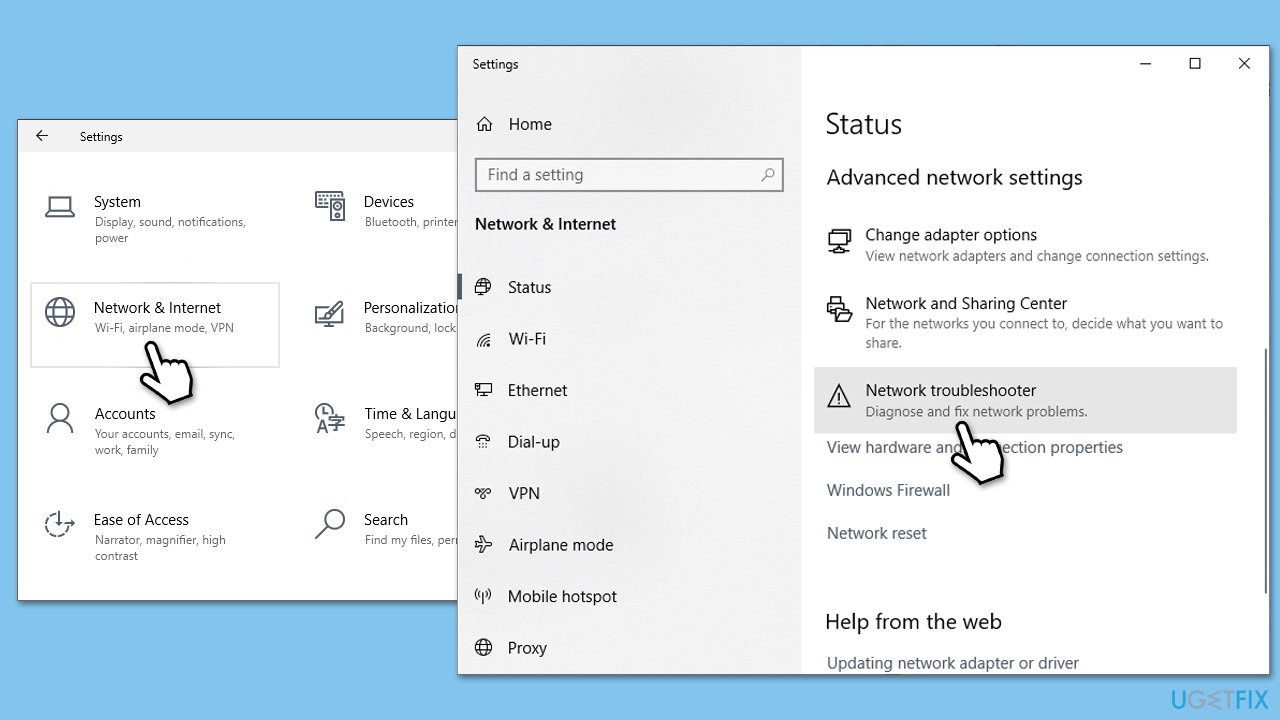
To run network troubleshooter, follow these steps:
- Right-click on Start and select Settings.
- Go to the Network & Internet section.
- On the right side, locate the Advanced network settings section.
- Click Network troubleshooter.
- Wait till the troubleshooter finishes the scan.
- The fixes should be applied automatically.
Fix 3. Free up disk space
Lack of sufficient storage space can prevent updates from installing, especially cumulative ones like KB5050188.
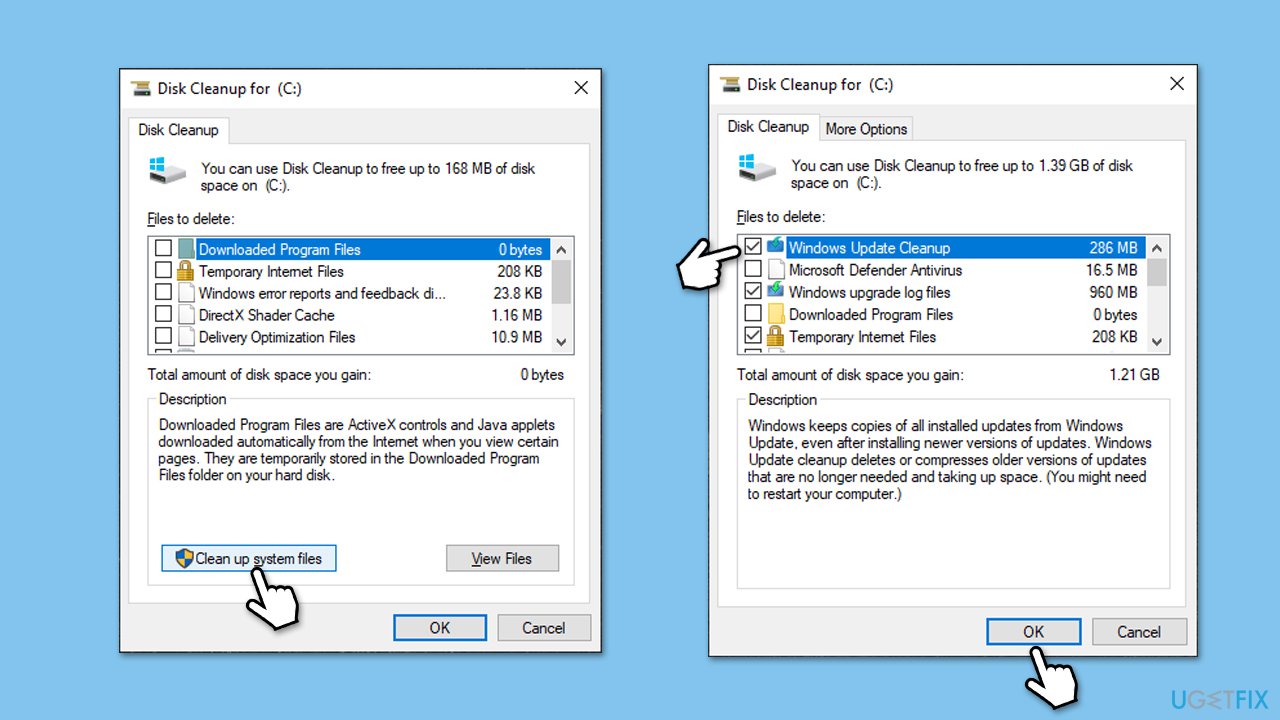
- Type Disk Cleanup in Windows search and press Enter.
- Select your main drive if you have more than one (C: by default).
- Pick appropriate fields (Temporary files, Recycle Bin, etc.) and click OK.
- If you want a more thorough cleanup and require even more space, select Clean system files in the Disk Cleanup window.
- Select your main drive again - Windows will compute how much space can be retrieved.
- The largest data dumps are usually accumulated in Windows Update and Delivery Optimization sections, although Temp files can also take a lot if it hasn't been cleaned.
- Select appropriate fields and click OK - Windows will remove all these files from your device and free up space.
Fix 4. Perform a clean boot
Third-party software or services could be interfering with the update process. Performing a clean boot isolates these issues.
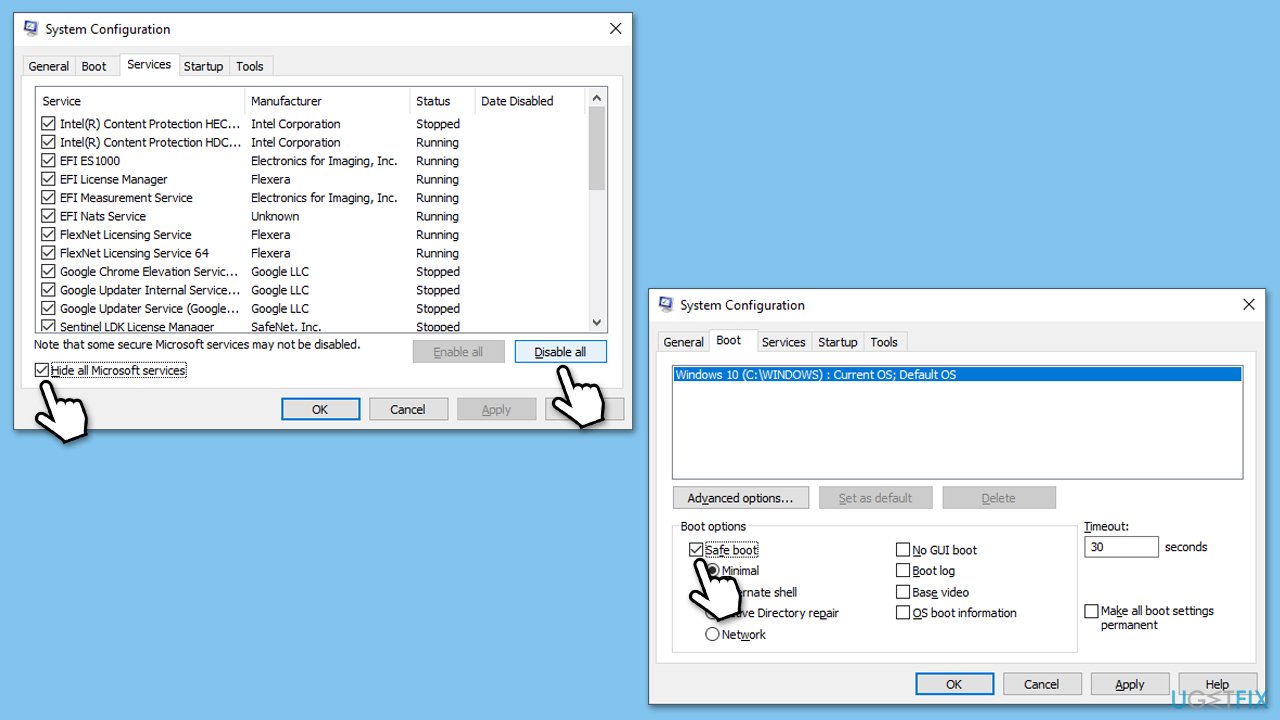
- Type msconfig in Windows search, then press Enter.
- Select the Services tab and tick the Hide all Microsoft services checkbox.
- Pick Disable all.
- Go to the Startup tab and click Open Task Manager.
- Here, right-click on each of the non-Windows entries and select Disable.
- Close down the Task Manager.
- Go to the Boot tab and tick the Safe boot option.
- Restart your device and try updating again.
Fix 5. Reset Windows update components
Bugged cache files in SoftwareDistribution folder might be causing all the update issues. To address this, follow these steps:
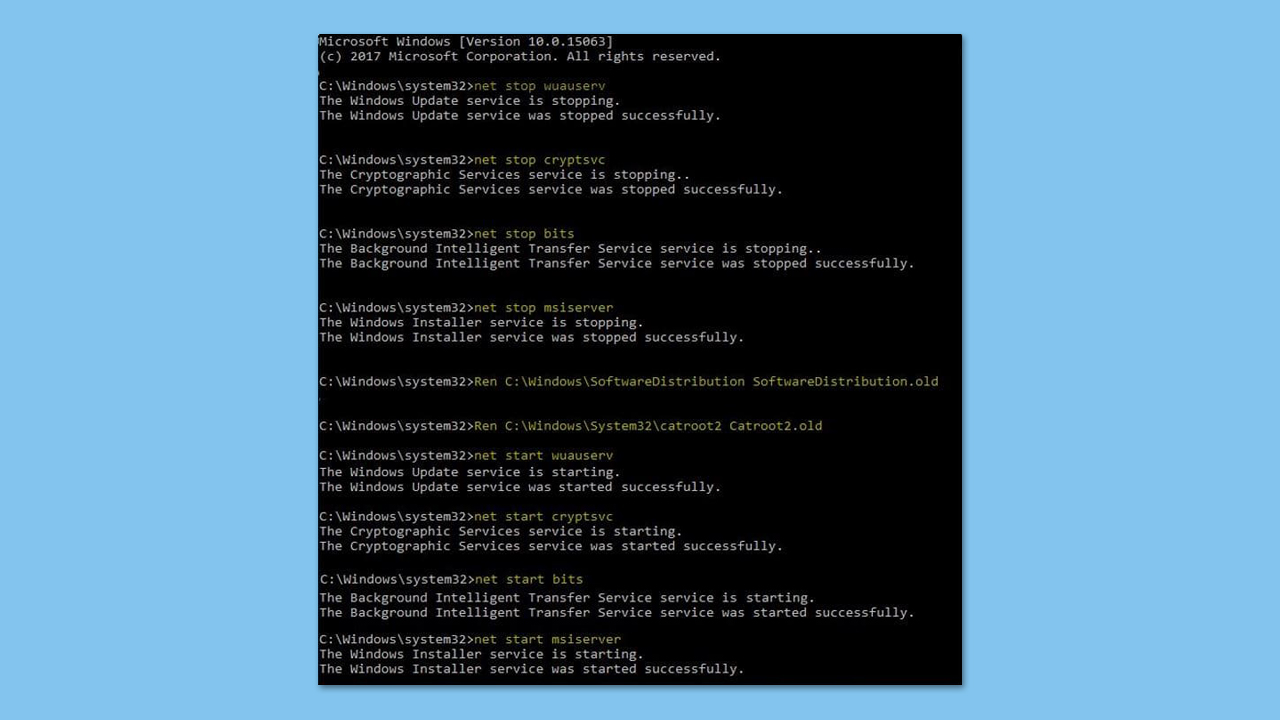
- Open Command Prompt as administrator.
- Stop the Windows Update Services by entering the following commands, one at a time, and pressing Enter after each:
net stop wuauserv
net stop cryptSvc
net stop msiserver
net stop bits - Rename the SoftwareDistribution and Catroot2 folders with the following commands:
ren C:\Windows\SoftwareDistribution SoftwareDistribution.old
ren C:\Windows\System32\catroot2 catroot2.old - Restart the services you stopped earlier with these commands:
net start wuauserv
net start cryptSvc
net start msiserver
net start bits - Close the Command Prompt window and try running the Windows Update again.
Fix 6. Install the update manually
You can always try updating manually if automatic method does not work.
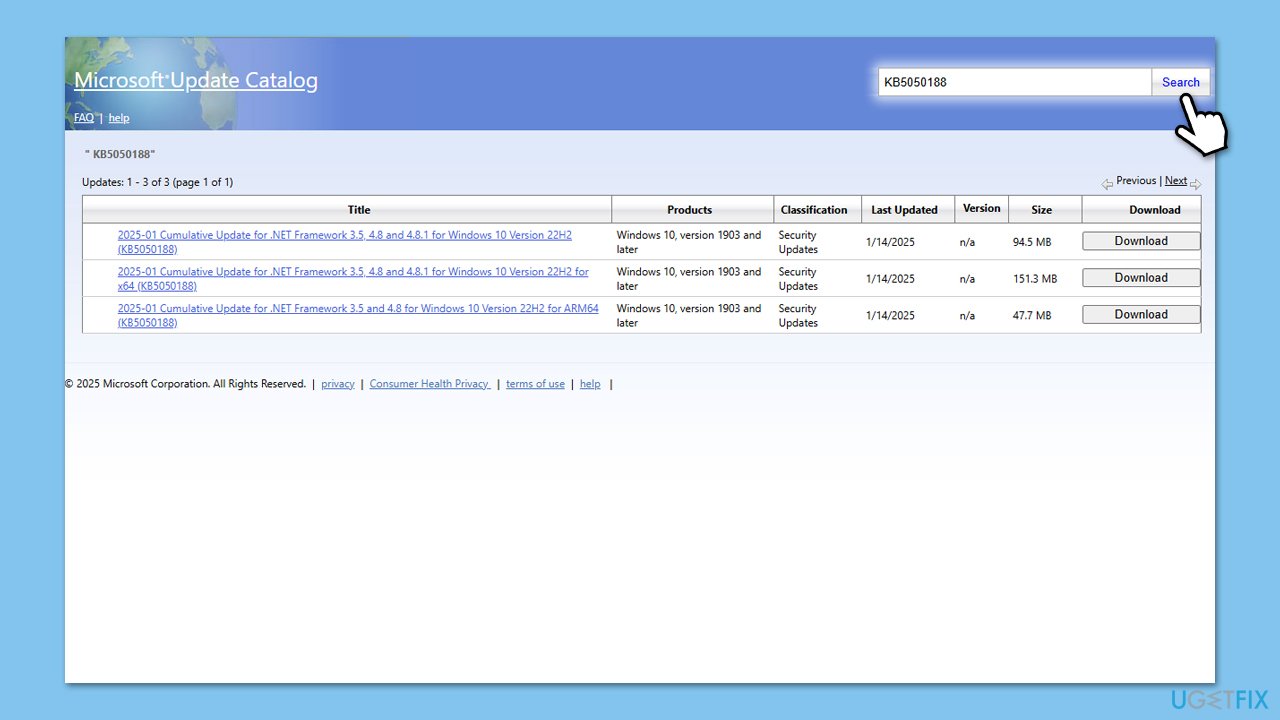
- Go to the official Microsoft Update Catalog website.
- Type the KB5050188 into the search bar, and press Enter or click Search.
- You will find many different versions on the update – you need to find the one that matches your PC specs and Windows version (as a home user, ignore Windows server versions).
- Right-click on Start and pick System.
- Under Device specifications, check the System type section: it should either be 64-bit or 32-bit.
- Scroll down to Windows specifications and check the Version section.
- Return to the Microsoft Update catalog, download the correct version and install it.
- Restart your computer.
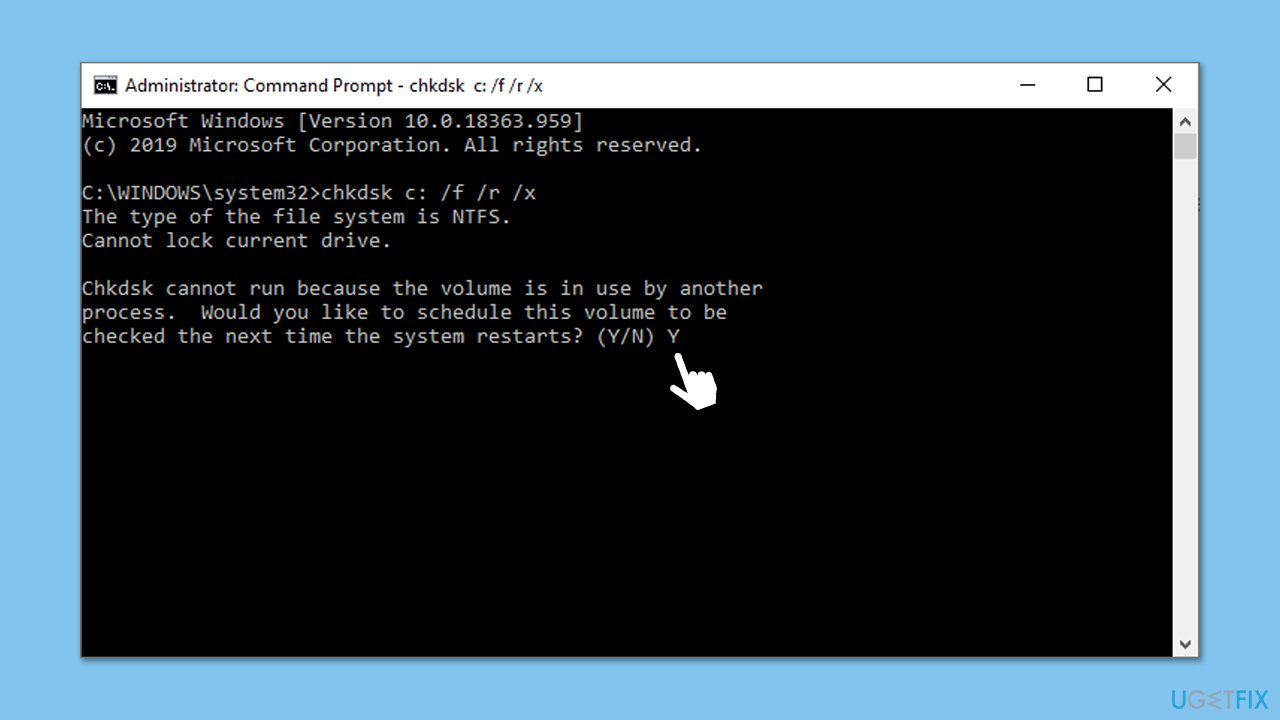
Fix 7. Perform check disk
This method will help you to check whether your HDD/SSD has any bad sectors.
- Open Command Prompt as administrator.
- In the new window, type in the following command and press Enter after:
chkdsk c: /f
(Note: use chkdsk c: /f /r /x command if you are using SSD as your primary partition) - If you receive an error, type in Y, close down Command Prompt and restart your system.
- Wait until the scan is finished - you can find the results in the Event Viewer.
Bottom line
To fix the KB5050188 installation failure, users can run SFC/DISM to repair corrupted system files or reset Windows update components to address cache issues. If these solutions do not resolve the problem, using a repair and maintenance tool may help with system-level complications.
Frequently asked questions
First, try running the Windows Update Troubleshooter, which can help identify and fix issues related to updates. If that doesn't work, consider manually downloading and installing the update from the Microsoft Update Catalog.
You can check the update history in Windows 10 settings to see if KB5050188 has been successfully installed or if it keeps failing. If it fails repeatedly, it may be worth uninstalling it and monitoring your system for improvements.
Ensure that your Windows 10 system is up to date with previous cumulative updates, as missing updates can cause installation failures. Additionally, check your disk space and perform a system file check to rule out corruption.




Report an issue
What's wrong with this guide? We review every report and update or remove content.
Report received — thank you. We'll review and fix it.
You need a free account to submit a report.
Be the first to comment