How to fix
KB5050577 fails to install
on Windows
Resolve KB5050577 installation issues in Windows 11 quickly and easily. Get expert-tested solutions and fix your update problems in minutes.

What causes How to fix KB5050577 fails to install in Windows 11?
- Faulty update files
- Antivirus software conflicts
- Insufficient storage space
- Incorrect settings in Windows Update components
Repairs Windows system files, removes malware, and restores a clean OS state — without reinstalling.
Today I noticed that I had one update pending from last month - KB5050577. When I tried to install it, though, it did not go through, and it just doesn't work no matter how many times I try. Any help would be appreciated. Oh, by the way, I'm using Windows 11 Home edition.
On January 28, 2025, Windows 11 version 24H2 received the cumulative update KB5050577, which supports both.NET Framework 3.5 and 4.8.1. The update includes numerous enhancements, including improved performance and critical security updates, as well as bug fixes to create a more stable and secure operating environment. The upgrade improves.NET program execution, resulting in enhanced system compatibility and speed.
Despite the fact that KB5050577 provides various benefits, a number of customers have faced difficulties in installing it. When users fail to install KB5050577, the system displays error messages or a full installation halt. When an update fails, important system updates become unavailable, causing serious consequences.
The problem is frequently caused by a few primary factors: faulty update files, antivirus software conflicts, insufficient storage space, and incorrect settings in Windows Update components, however this should be investigated on an individual basis. This is why we provide a variety of solutions for KB5050577 failing to install.
Windows Update troubleshooting and disk cleanup should be done with critical service assessment and Windows Update component reset. These various methods specifically target potential difficulties that prevent updates from completing or failing. Users should utilize the [d1] repair and maintenance program to automate the resolution of numerous Windows issues.
Fix 1. Run SFC and DISM
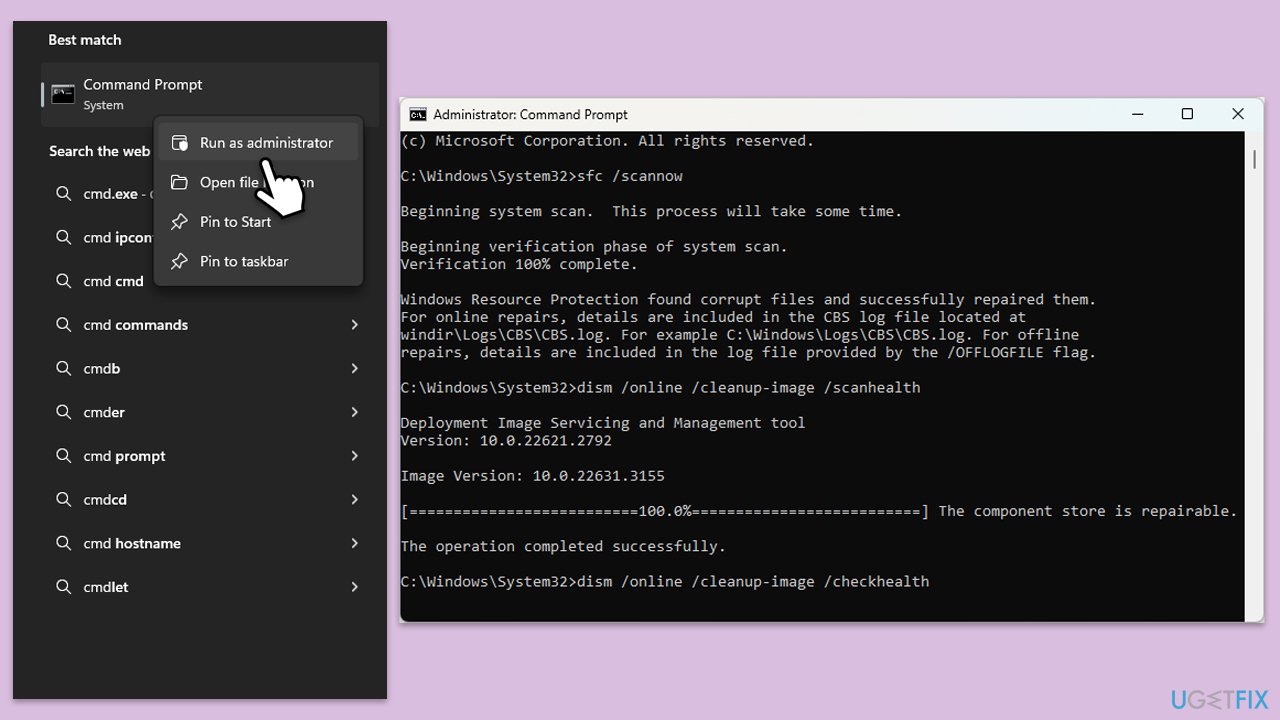
Make sure that the issue is not caused by the corrupted system files. Here's how:
- Type cmd in Windows search.
- Right-click on Command Prompt and pick Run as administrator.
- User Account Control will ask you whether you want to allow changes – click Yes.
- In the Command Prompt window, paste the following command and press Enter:
sfc /scannow - Wait for the scan to complete.
- Once the SFC scan is finished, run the following set of DISM commands, pressing Enter after each one:
DISM /Online /Cleanup-Image /CheckHealth
DISM /Online /Cleanup-Image /ScanHealth
DISM /Online /Cleanup-Image /RestoreHealth
(Note: if you get an error executing this last command, add /Source:C:\RepairSource\Windows /LimitAccess to it and try again). - After completing the DISM commands, restart your device.
Fix 2. Run Windows update troubleshooter
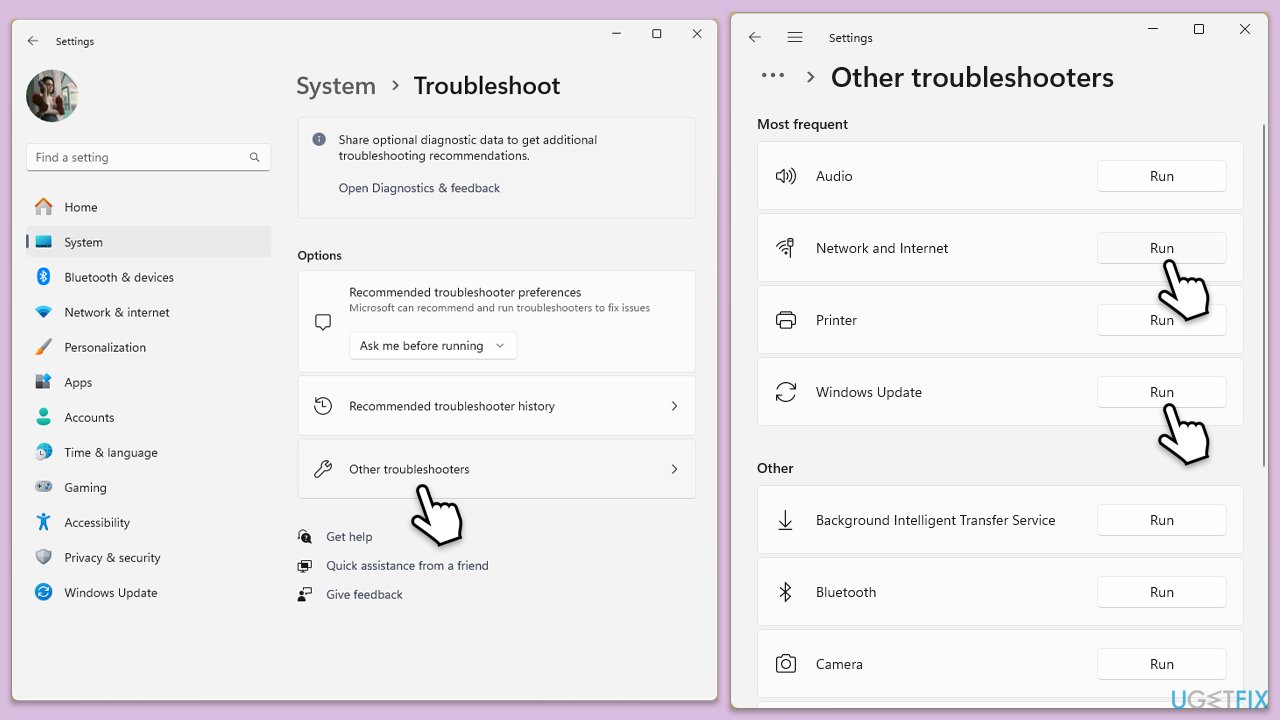
- Type Troubleshoot in Windows search and hit Enter.
- Select Other troubleshooters.
- Find Windows Update from the list and click Run.
- The troubleshooter will automatically scan your system for potential problems and display any issues it finds.
- If the troubleshooter finds any issues, it will provide recommended solutions - follow the instructions.
- Repeat this process with Network troubleshooter.
Fix 3. Temporarily disable security app and firewall
- Disable your antivirus software from its main dashboard, usually accessible via the system tray icon.
- Press Win + S and type "firewall." Select Windows Defender Firewall.
- Click on Turn Windows Defender Firewall on or off.
- Select Turn off Windows Defender Firewall for both private and public network settings. Remember to turn these back on after testing.
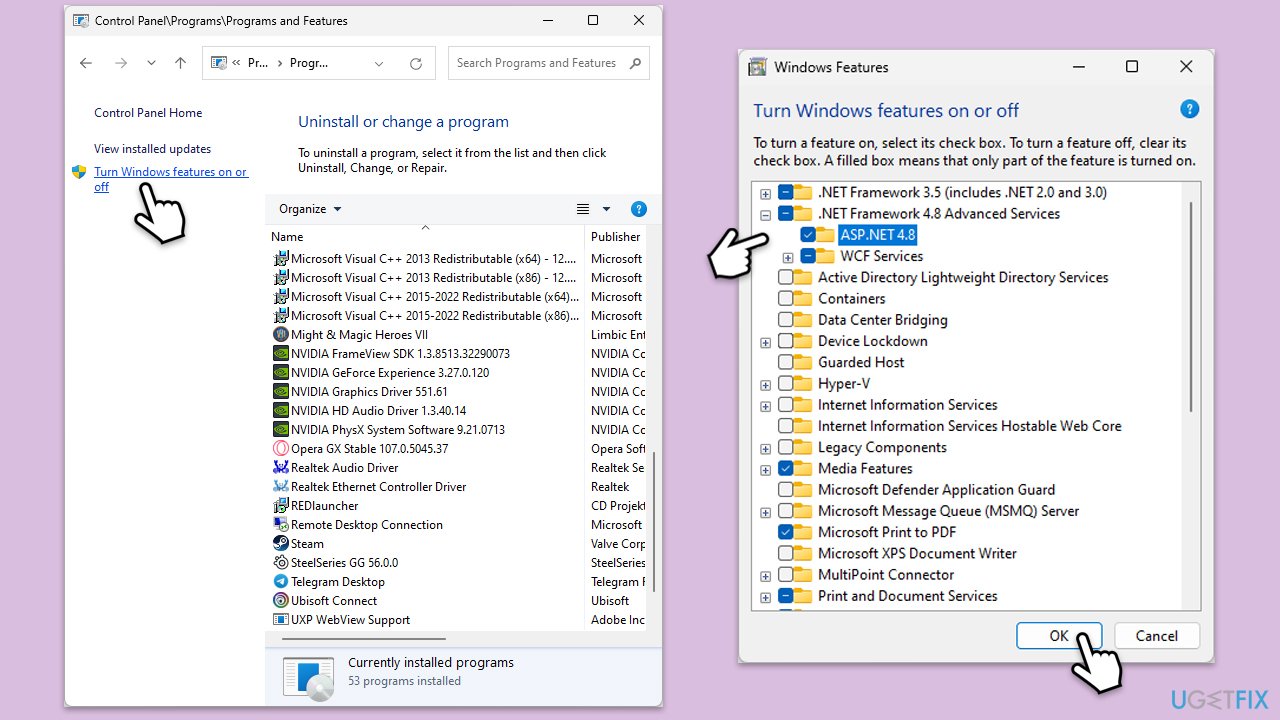
Fix 4. Enable .NET Framework Components
Make sure that required NET Framework components are enabled:
- Type Control Panel in Windows search and select Programs.
- Select Turn Windows features on or off.
- Enable .NET Framework 3.5 (includes .NET 2.0 and 3.0).
- Expand the section and mark all the associated checkboxes.
- Next, enable .NET Framework 4.8 Advanced Services .
- Expand the section and mark all the associated checkboxes, including ASP.NET 4.8.
- Click OK.
Fix 5. Check relevant services
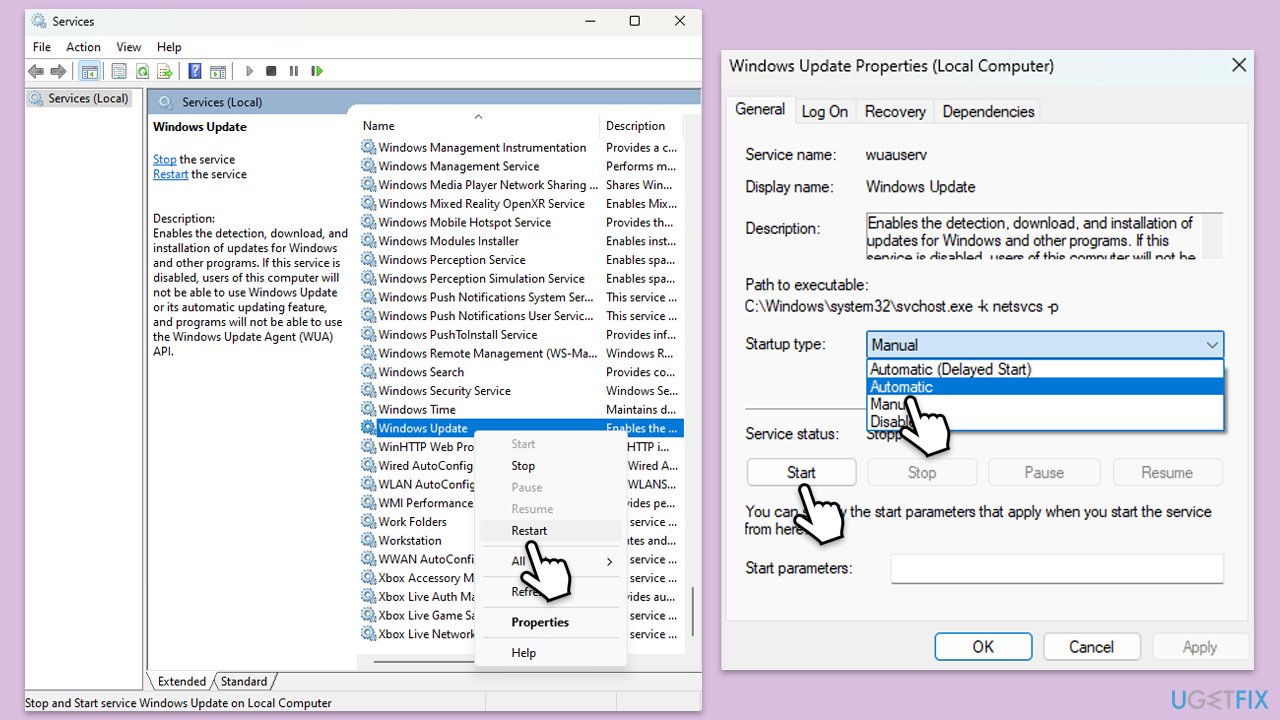
Ensure that services related to updates are running. If they are, restarting them is a good idea.
- Type in Services in Windows search and hit Enter.
- Scroll down a bit to find Windows Update.
- If it is already running, right-click and select Restart.
- If the service is not running, double-click it, pick Automatic under the Startup type drop-down menu.
- Click Start, Apply, and OK.
- Repeat this process for Background Intelligent Transfer Service (BITS) and Cryptographic services.
Fix 6. Reset Windows update components
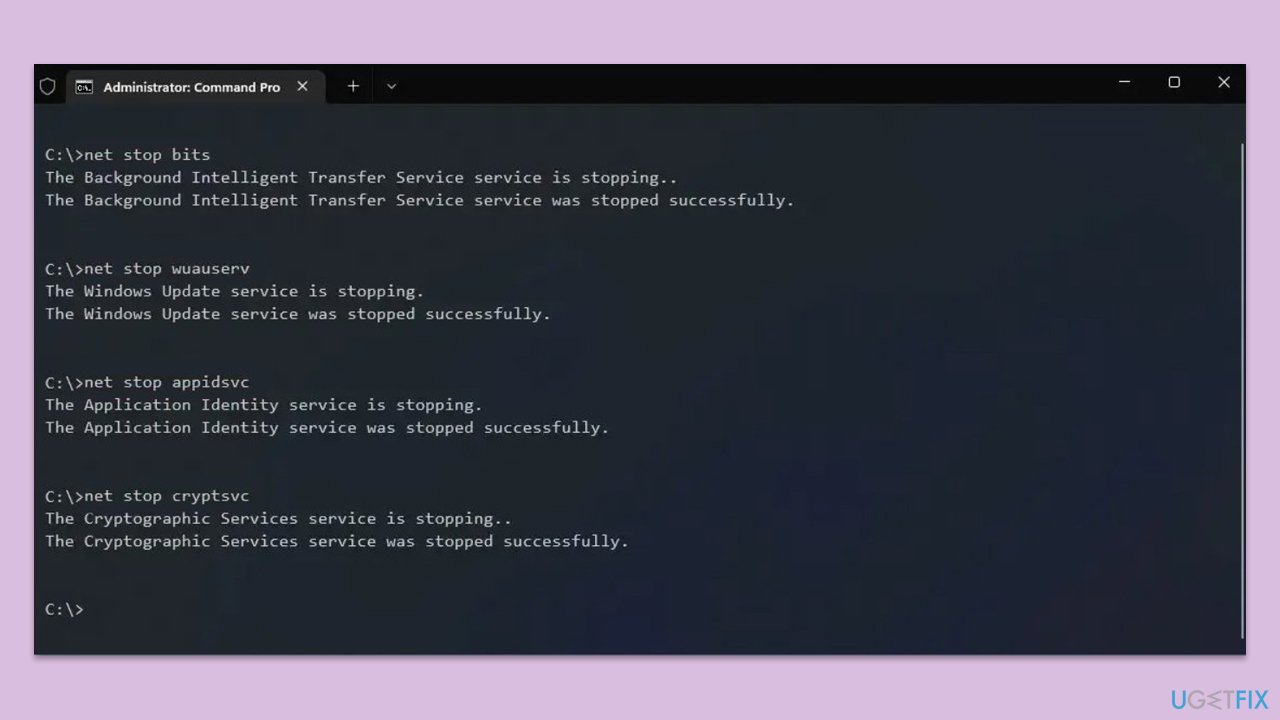
- Open Command Prompt as administrator.
- Paste in each of these commands, pressing Enter every time:
net stop bits
net stop wuauserv
net stop appidsvc
net stop cryptsvc
Del “%ALLUSERSPROFILE%\Application Data\Microsoft\Network\Downloader\*.*”
rmdir %systemroot%\SoftwareDistribution /S /Q
rmdir %systemroot%\system32\catroot2 /S /Q
regsvr32.exe /s atl.dll
regsvr32.exe /s urlmon.dll
regsvr32.exe /s mshtml.dll
netsh winsock reset
netsh winsock reset proxy
net start bits
net start wuauserv
net start appidsvc
net start cryptsvc - Reboot your system.
Fix 7. Perform Disk Cleanup
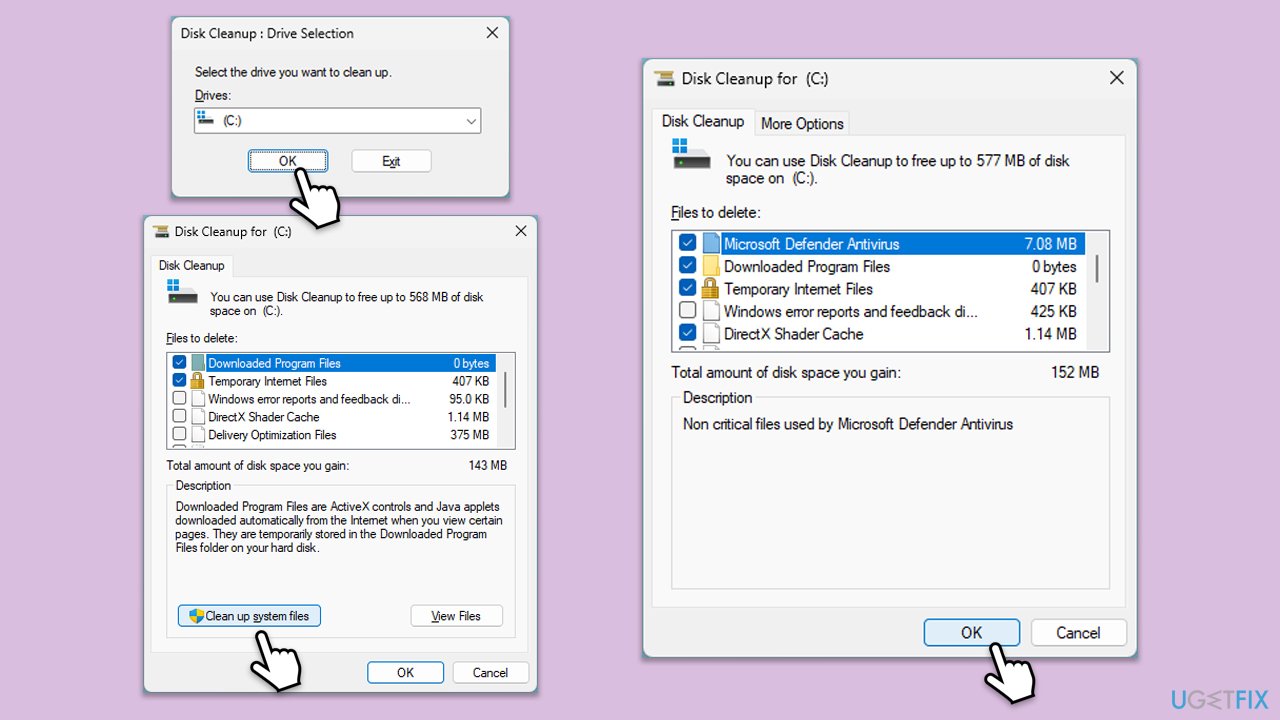
- Type Disk Cleanup in Windows search and hit Enter.
- If your Windows is installed on drive C, pick it from the list (should be by default) and press OK.
- Click Clean up system files.
- Select your main drive again and click OK.
- Here, select the largest portions of the data used - these typically include Temporary Internet Files, Windows Update, Temporary Files, Recycle Bin, Delivery Optimization Files, and others. Marking Windows Update is vital here.
- Click OK - the process should be finished shortly.
Bottom line
To resolve the installation failure of KB5050577, users can run SFC and DISM commands to check for corrupted system files, perform Windows Update troubleshooting, and conduct disk cleanup. If these methods do not resolve the issue, consider using a repair and maintenance program to automate the resolution of various Windows problems.
Frequently asked questions
First, try running the Windows Update Troubleshooter, which can help identify and resolve installation issues. If that doesn't work, consider resetting the Windows Update components manually.
Yes, you can manually download the update from the Microsoft Update Catalog and install it if the automatic installation fails.
Yes, common error codes such as 0x800f0922 or 0x8007000d may indicate issues with the installation of KB5050577, and troubleshooting those specific codes can help resolve the problem.




Report an issue
What's wrong with this guide? We review every report and update or remove content.
Report received — thank you. We'll review and fix it.
You need a free account to submit a report.
Be the first to comment