How to fix
KB5051974 fails to install
on Windows
Resolve the KB5051974 installation issue on Windows 10 effortlessly. Get expert-tested solutions that fix it in minutes, ensuring a smooth update experi…

What causes How to fix KB5051974 fails to install in Windows 10?
- Corrupted system files
- Lack of sufficient storage space
- Software conflicts
- Windows Update components malfunctioning
- Incompatible drivers
Repairs Windows system files, removes malware, and restores a clean OS state — without reinstalling.
Why can't I install KB5051974 on Windows 10? It seems like installation goes fine for the most part and then it stops at the very end (at like 97-98%) and then drops the error "We couldn't install this update, but you can try again (0x800f0922)". Any help would be appreciated.
Updating Windows is essential for maintaining the integrity of the operating system, as functions are improved and bugs resolved on a regular basis. These updates are set to be released periodically by Microsoft every "Patch Tuesday," which usually happens on the second Tuesday every month. There are differing types of updates like security updates, cumulative updates, and feature updates that are intended to keep Windows 10 in good working condition.
As part of the updates on the Windows 10, version 22H2, KB5051974 was made available on February 11, 2025. This update makes a new Outlook for Windows app show up in the Start menu to be active, resolve the Snipping Tool freezing while Narrator is active, and USB audio devices that have out-of-date drivers issues.
However, while this update is intended to enhance system functionality, some have reported that KB5051974 fails to install, leaving them unable to apply the latest improvements.
When KB5051974 is not installing, different symptoms may appear. Some might see error messages mid-installation, while others experience the update looping or undoing changes after a reboot. In such cases, Windows remains without the latest security patches, potentially exposing it to vulnerabilities.
There are several reasons why KB5051974 might be failing to install. Corrupted system files, lack of sufficient storage space, or software conflicts are among the most common causes. Additionally, Windows Update components may not be functioning correctly, or drivers might be incompatible with the update. Addressing these issues typically involves checking system integrity, freeing up storage, disabling conflicting applications, or manually installing the update.
If KB5051974 continues to fail despite troubleshooting, using an automated PC repair tool like [d1] can help resolve deeper system issues that may be preventing the update from installing properly.
Fix 1. Run the Windows Update troubleshooter
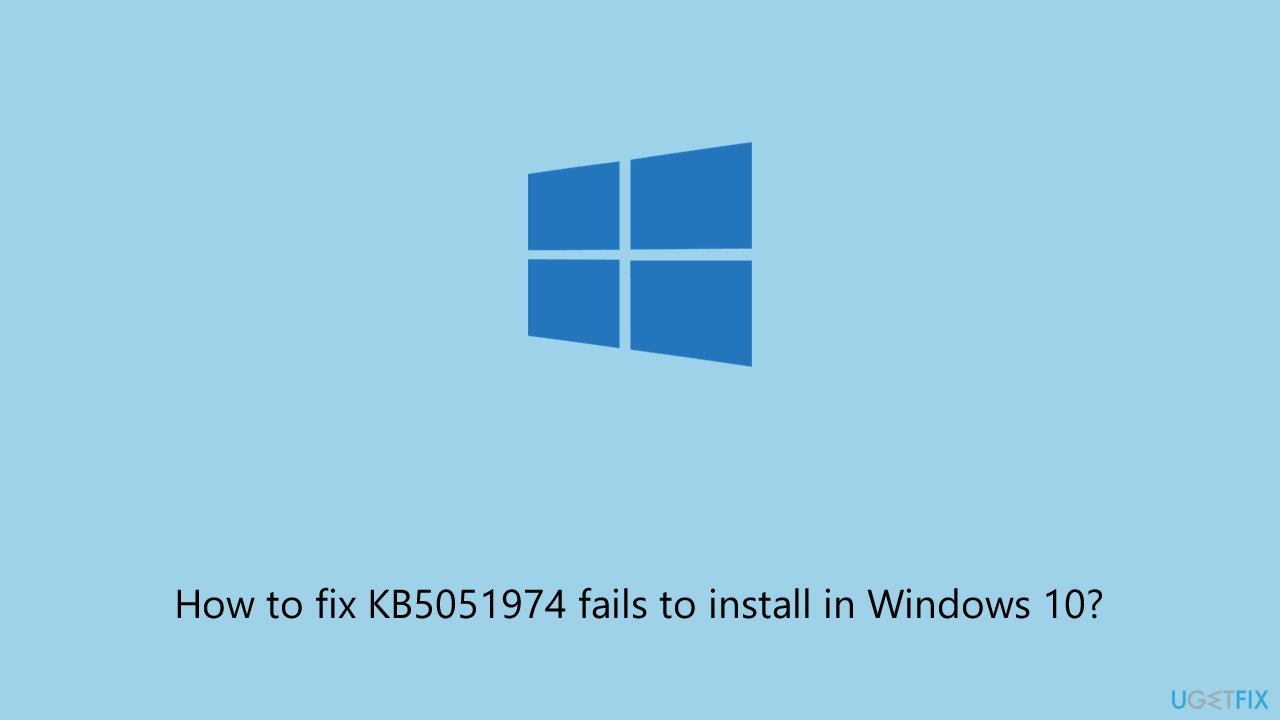
Windows includes a built-in troubleshooting tool designed to detect and fix update-related problems automatically.
- Type Troubleshoot in Windows search and press Enter.
- Select Additional troubleshooters.
- Find Windows Update from the list.
- Select it and click Run the troubleshooter.
- Restart your computer when the update process finishes.
Fix 2. Check available storage space
Insufficient disk space can prevent updates from downloading and installing properly. Ensuring there is enough free storage can help avoid installation failures.
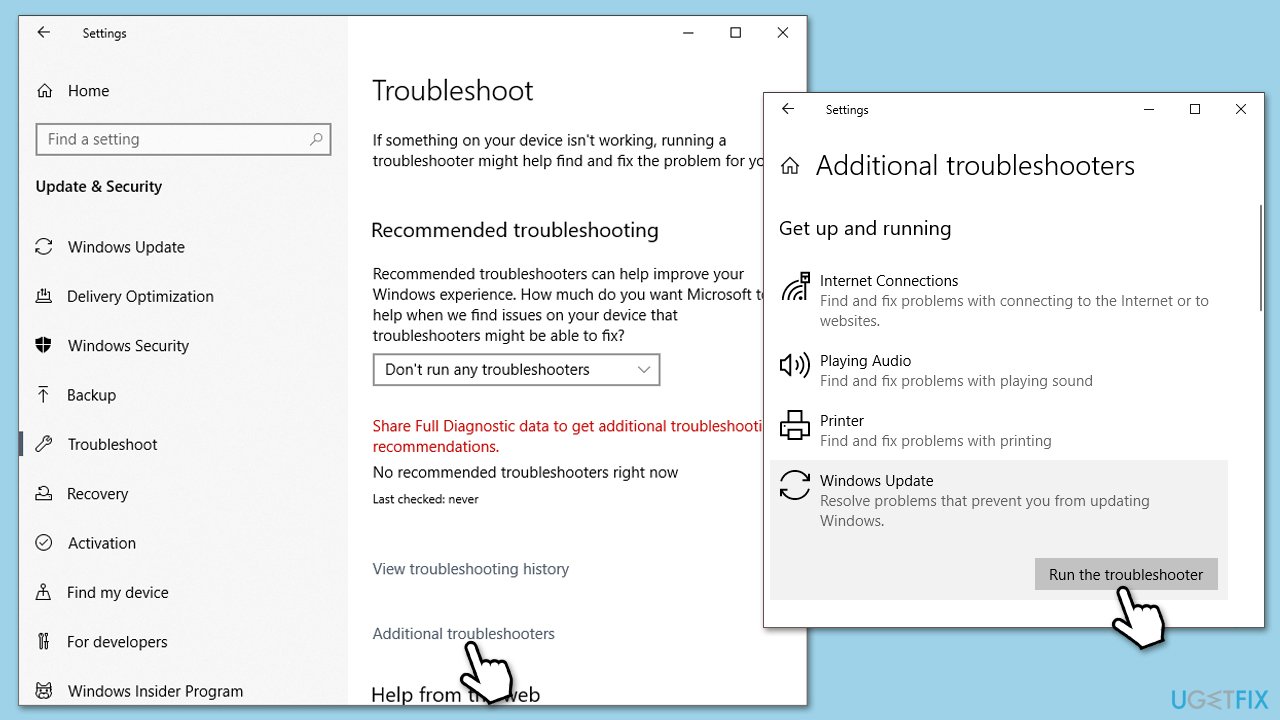
- Type Disk Cleanup in Windows search and press Enter.
- Select your main drive (C: by default).
- Select appropriate fields (Temporary files, Recycle Bin, etc.) and click OK.
- If you want a more thorough cleanup and require even more space, select Clean system files in the Disk Cleanup window.
- Select your main drive again - Windows will compute how much space can be retrieved.
- The largest data dumps are usually accumulated in Windows Update and Delivery Optimization sections, although Temp files can also take a lot if it hasn't been cleaned.
- Select appropriate fields and click OK - Windows will remove all these files from your device and free up space.
Fix 3. Synchronize time and date
Incorrect system time and date settings can cause update failures by preventing secure connections to Microsoft’s update servers. Ensuring that your PC’s clock is accurate can help resolve this issue.
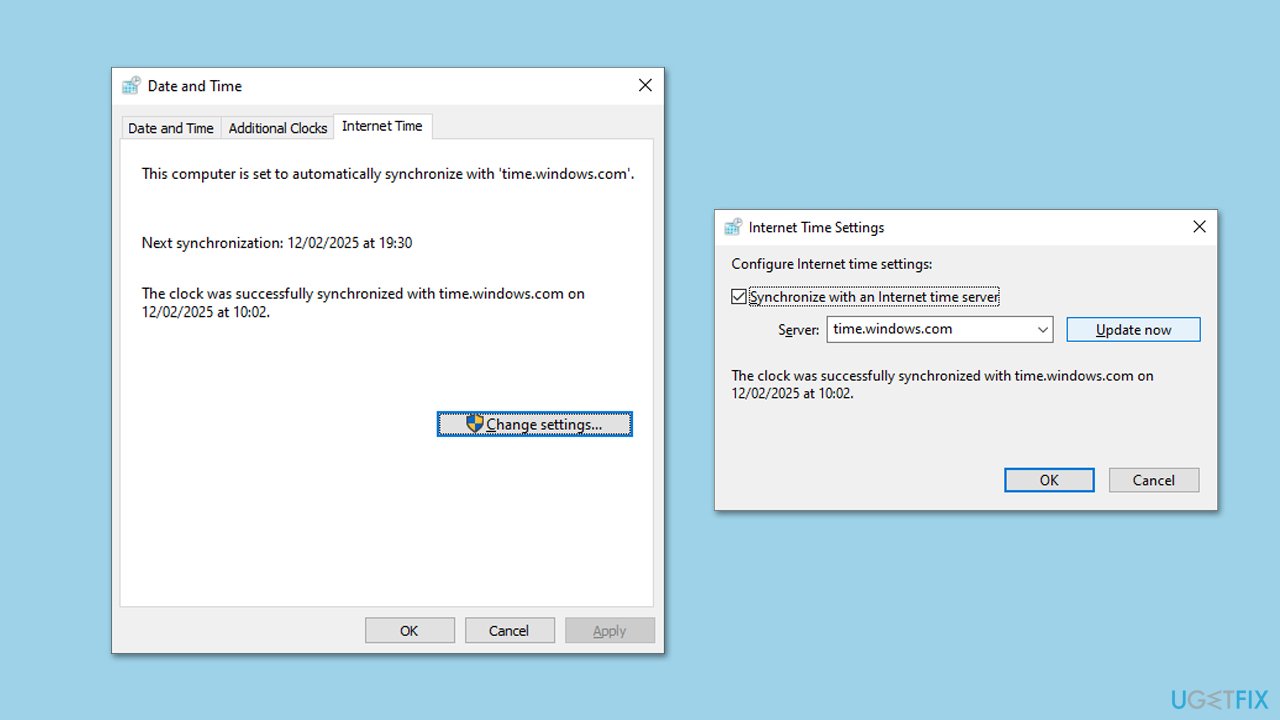
- Type in Control Panel in Windows search and press Enter.
- Go to Clock and Region and click on Date and Time.
- Pick the Internet Time tab and select Change Settings.
- Make sure that the Synchronize with an Internet time server box is ticked.
- Click Update now and OK.
Fix 4. Reset Windows Update components
Corrupt update components can cause installation failures. Resetting these components forces Windows to create fresh update files.
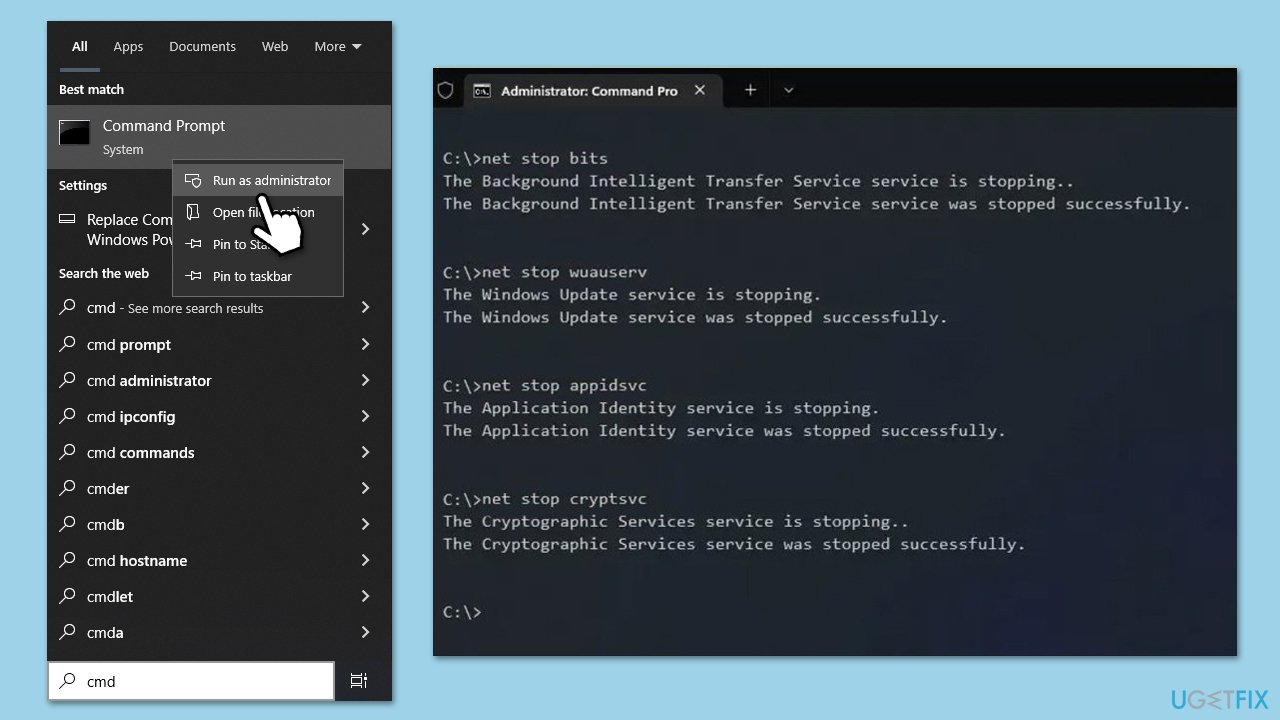
- Type in cmd in Windows search.
- Right-click on Command Prompt and select Run as administrator.
- User Account Control will ask you whether you want to allow to make changes to the system - click Yes.
- Copy and paste each of these commands, pressing Enter each time:
net stop bits
net stop wuauserv
net stop appidsvc
net stop cryptsvc
Del “%ALLUSERSPROFILE%\Application Data\Microsoft\Network\Downloader\*.*”
rmdir %systemroot%\SoftwareDistribution /S /Q
rmdir %systemroot%\system32\catroot2 /S /Q
regsvr32.exe /s atl.dll
regsvr32.exe /s urlmon.dll
regsvr32.exe /s mshtml.dll
netsh winsock reset
netsh winsock reset proxy
net start bits
net start wuauserv
net start appidsvc
net start cryptsvc - Restart your device.
Fix 5. Use Windows Update Catalog instead
If KB5051974 fails through automatic updates, downloading and installing it manually can bypass common installation issues.
- Open your web browser and navigate to the Microsoft Update Catalog.
- In the search box, type in KB5051974 and click Search.
- Locate the correct version of the update for your operating system by checking your System type (Right-click on Start and pick System. Under Windows specifications, check the Version).
- Click on Download and follow the prompts to complete the process.
- Once the update is installed, restart your device.
Fix 6. Perform a Clean Boot
A clean boot starts Windows with only essential services running, eliminating software conflicts that may interfere with the update process.
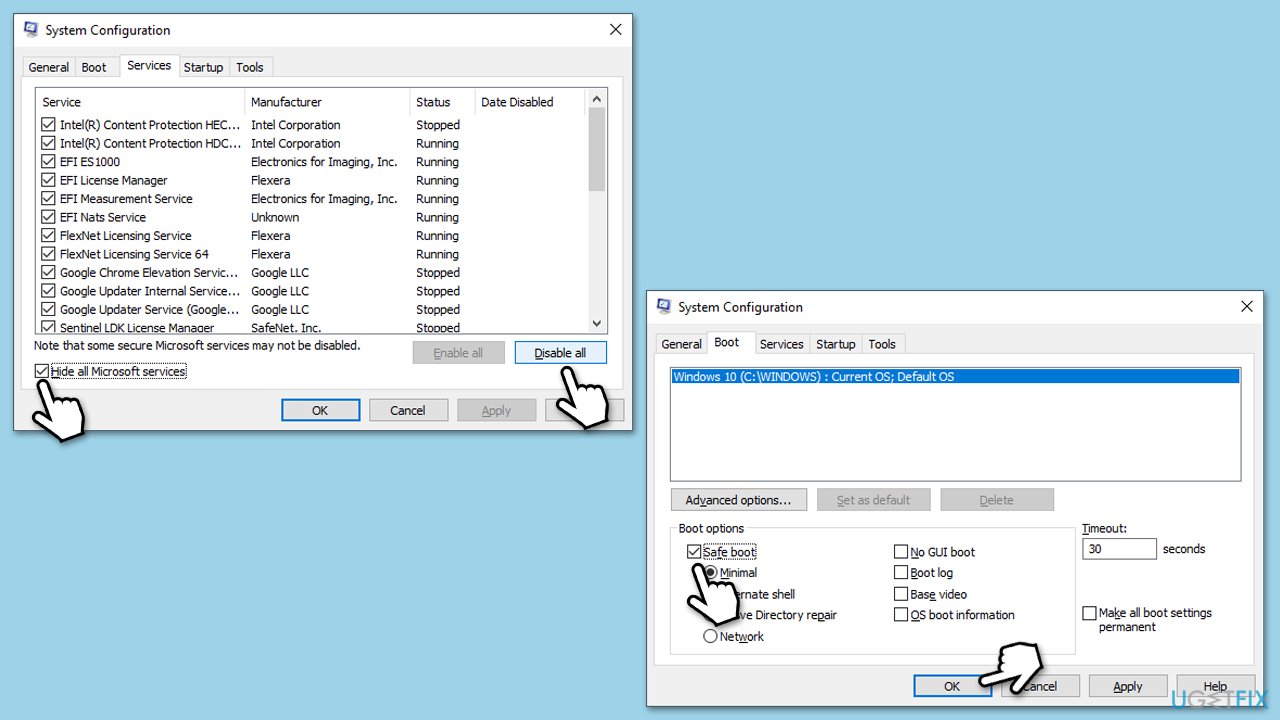
- Press Win + R, type msconfig, and press Enter.
- In the System Configuration window, select the Services tab.
- Check Hide all Microsoft services and then click Disable all.
- Go to the Startup tab and click Open Task Manager.
- Disable all startup items, then close Task Manager.
- Go to the Boot tab and tick the Safe boot option.
- Click OK in the System Configuration window and restart your computer.
- Install the update again.
Fix 7. Use Media Creation Tool
If none of the solutions before helped, try repair-installing Windows and bringing it to the latest version with the Media Creation Tool provided by Microsoft.
- Visit the official Microsoft website and download Windows 10 installation media.
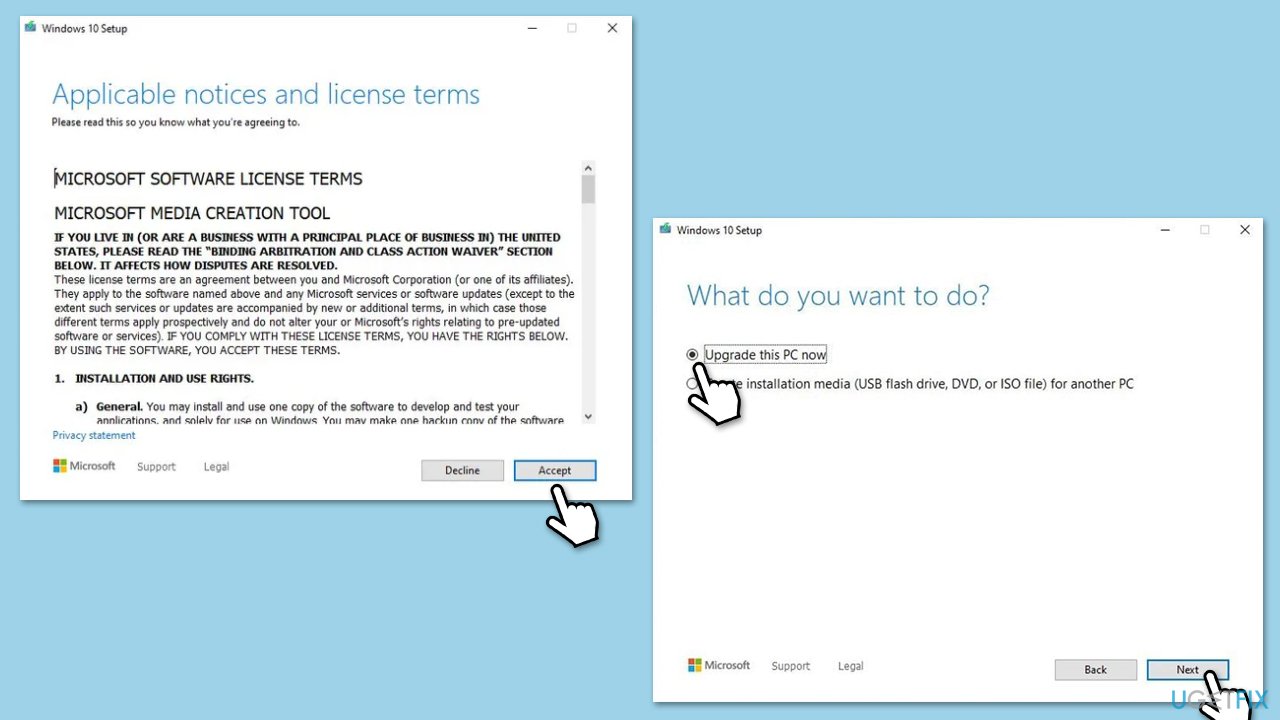
- Double-click the installer, select Yes when UAC shows up, and agree to the terms.
- Select Upgrade this PC now and click Next.
- Windows will start downloading the needed files.
- Agree to the terms once again and click Next.
- Before installing, ensure you are happy with your choices (otherwise, you can click the Change what to keep option).
- Finally, click Install to begin the upgrade process.
Bottom line
To fix the KB5051974 installation issue, you can check system integrity, free up storage space, disable conflicting applications, or manually install the update. If these solutions do not resolve the problem, consider using an automated PC repair tool to address deeper system issues.
Frequently asked questions
Try running the Windows Update Troubleshooter, which can help identify and fix issues preventing updates from installing. Additionally, you can check for available disk space and ensure your system is up to date with the latest drivers.
Yes, you can manually download the KB5051974 update from the Microsoft Update Catalog website and install it directly on your Windows 10 system. Make sure to select the correct version for your system architecture.
Resetting Windows Update components can often resolve issues related to update failures like KB5051974 in Windows 10. You can do this by executing specific commands in the Command Prompt to stop services, rename folders, and restart services.




Report an issue
What's wrong with this guide? We review every report and update or remove content.
Report received — thank you. We'll review and fix it.
You need a free account to submit a report.
Be the first to comment