How to fix
KB5051987 fails to install
on Windows
Resolve KB5051987 installation issues in Windows 11 effortlessly with our expert-tested solutions. Get back to smooth performance in minutes!

What causes How to fix KB5051987 fails to install in Windows 11?
- Compatibility conflicts with third party applications
- Corrupted system files
- Insufficient storage space
- Damaged update components
- Related services not running
Repairs Windows system files, removes malware, and restores a clean OS state — without reinstalling.
I need assistance with Windows 11 update KB5051987. The update refuses to proceed despite turning my computer off and on several times. The problem continues without any changes.
Microsoft releases updates for Windows 11 at scheduled intervals to ensure system stability and security. These updates are primarily delivered through Patch Tuesday, a routine update cycle that introduces security improvements, new features, and performance enhancements. While most updates install without issues, some encounter problems. One such update, KB5051987, has failed to install for several users.
Update KB5051987, identified as OS Build 26100.3194, was released on February 11, 2025, as part of Windows 11 version 24H2. This update enhances OneDrive functionality, allowing seamless device switching, and improves File Explorer’s tab management for easier file sorting. However, despite these improvements, many users report that the update fails to install successfully.
The KB5051987 update has proven difficult to install, and the resolution can troublesome. It could be related to a conflict of compatibility with third party applications, as well as corrupted system files can obstruct system installation or can lead errors and downloads that are incomplete.
Moreover, lacking sufficient storage space can also prove to be quite an issue, as updates need a considerable amount of disk space to be unpacked and installed correctly. Furthermore, damaged update components and related services not running could also be at fault here.
If you’re experiencing issues with KB5051987 not installing, troubleshooting steps are available below to help resolve the problem. Before proceeding, consider using an all-in-one PC repair tool [d1] that can automatically detect and fix underlying Windows issues, potentially allowing the update to install successfully.
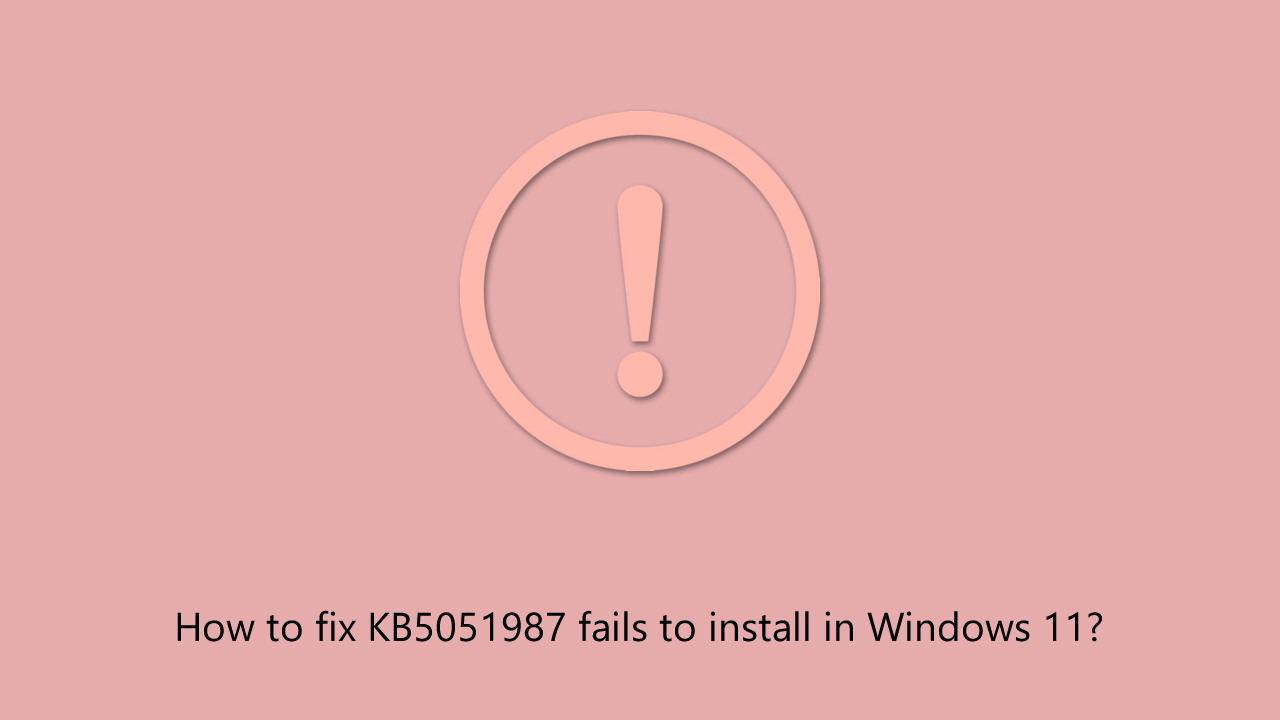
Fix 1. Check relevant services
Windows updates rely on several background services to function properly. If any of these services are stopped or misconfigured, it may not install correctly.
- Type in Services in Windows search and hit Enter.
- Locate Windows update service.
- If this service is already running, right-click and select Restart.
- If it is not running, double-click it, select Automatic under the Startup type from the drop-down menu.
- Click Start, Apply, and OK.
- Locate Background Intelligent Transfer Service (BITS), Cryptographic service, and Windows Installer service, and repeat the process.
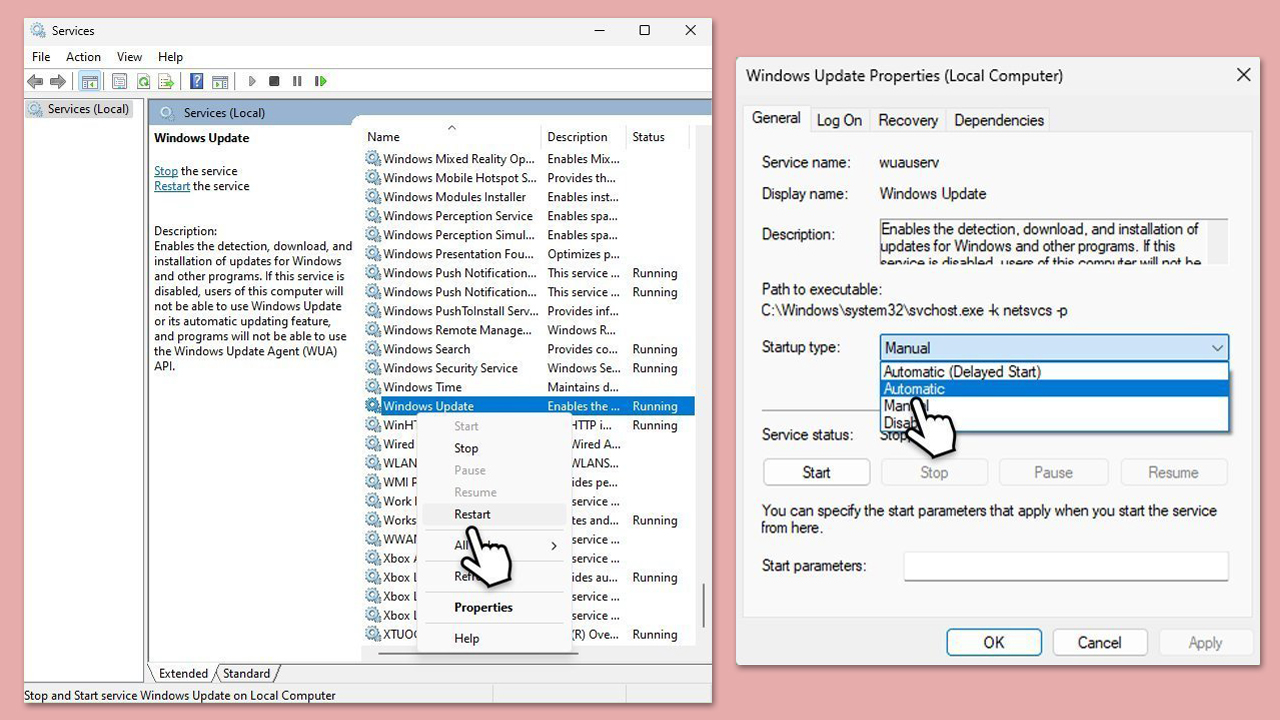
Fix 2. Run the Windows Update troubleshooter
Windows includes a built-in troubleshooter that can automatically detect and resolve update-related problems.
- Type troubleshoot in Windows search and hit Enter.
- Click Other troubleshooters.
- Find Windows Update.
- Click Run to begin the scan.
- Wait for the scan to be completed and apply the suggested fixes.
Fix 3. Free up disk space
Windows updates require sufficient storage space to install properly. If your system is low on disk space, KB5051987 may fail to install.
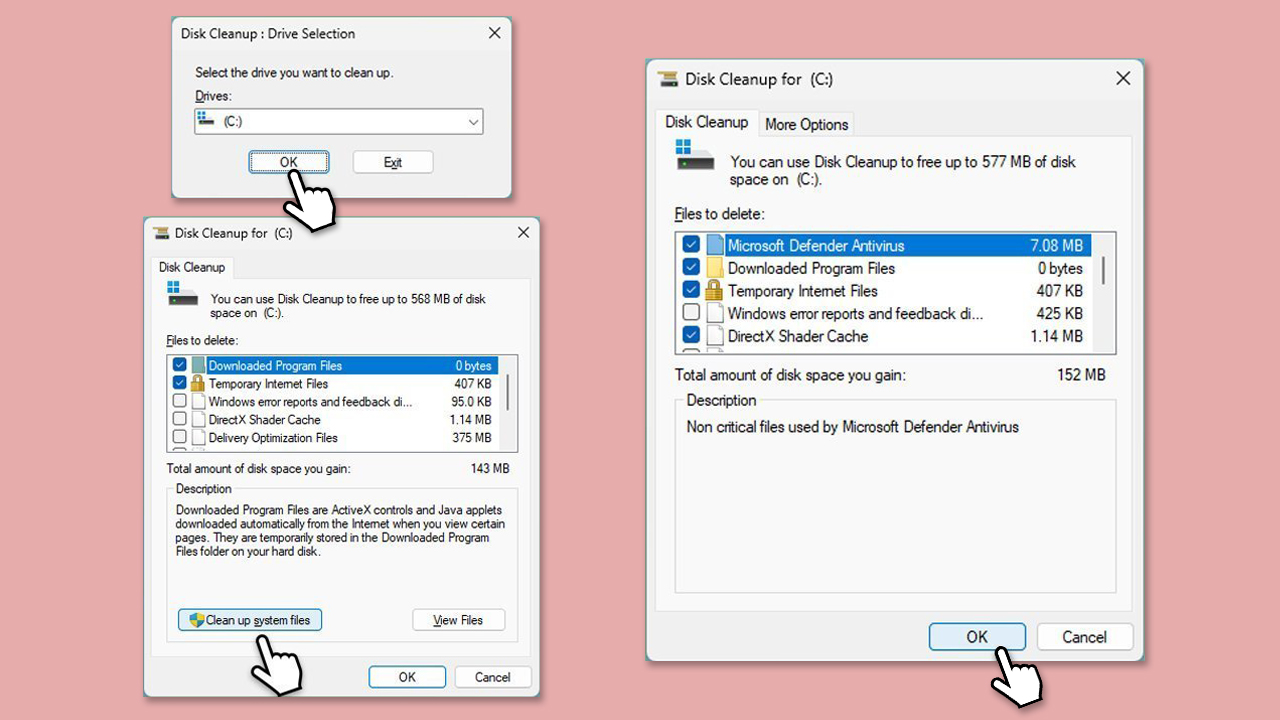
- Type Disk Cleanup in Windows search and hit Enter.
- If your Windows is installed on drive C, pick it from the list (it should be by default) and press OK.
- Click Clean up system files.
- Select your main disk again and click OK.
- Here, select the largest portions of the data used - these typically include Temporary Internet Files, Windows Update, Temporary Files, Recycle Bin, Delivery Optimization Files, and others.
- Click OK - the process should be finished shortly.
Fix 4. Reset Windows Update components
Resetting the Windows Update components forces Windows to rebuild update-related files.
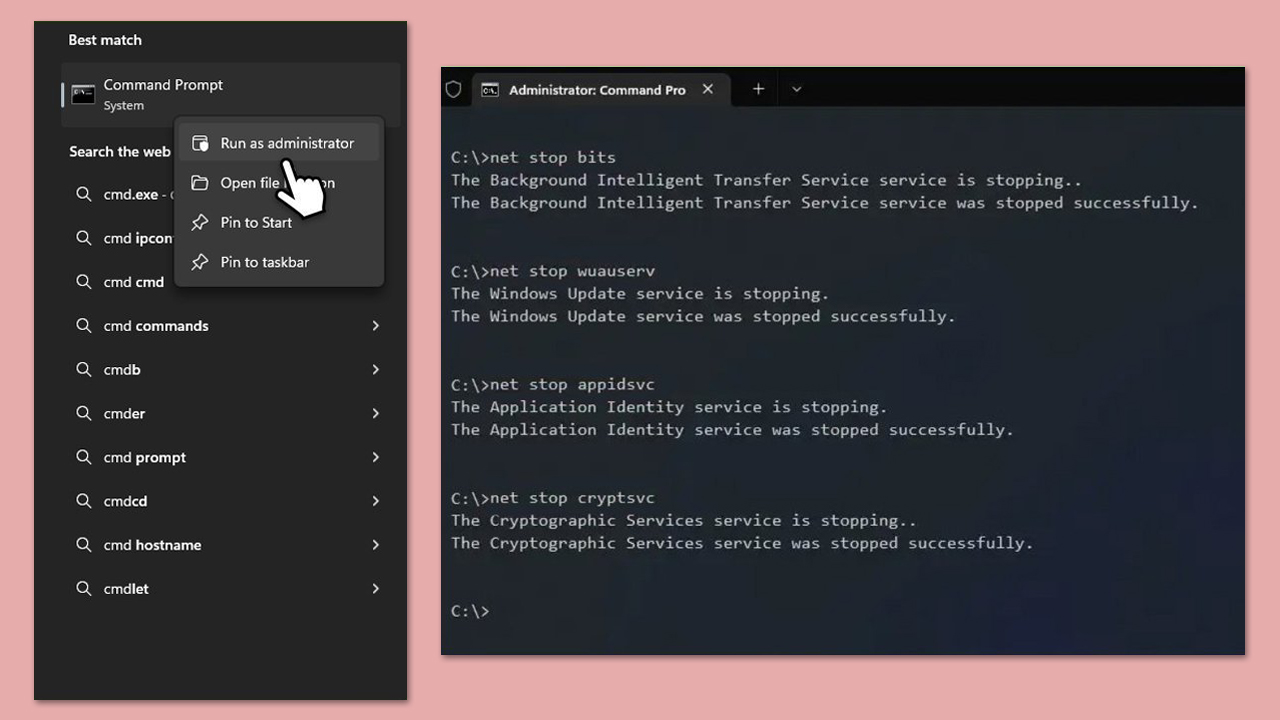
- Type in cmd in Windows search.
- Right-click on Command Prompt and select Run as administrator.
- User Account Control will ask you whether you want to allow to make changes to the system - click Yes.
- Stop the BITS, Windows Update, and Cryptographic services by typing the following commands, and pressing Enter after each:
- net stop bits
- net stop wuauserv
- net stop appidsvc
- net stop cryptsvc
- To rename the SoftwareDistribution and Catroot2 folders (where Windows stores update files), type the following commands:
- ren %systemroot%\SoftwareDistribution SoftwareDistribution.old
- ren %systemroot%\system32\catroot2 catroot2.old
- regsvr32.exe /s atl.dll
- regsvr32.exe /s urlmon.dll
- regsvr32.exe /s mshtml.dll
- netsh winsock reset
- netsh winsock reset proxy
- Restart the services stopped earlier by typing the following commands:
- net start bits
- net start wuauserv
- net start appidsvc
- net start cryptsvc
- Restart your computer.
Fix 5. Manually install the update
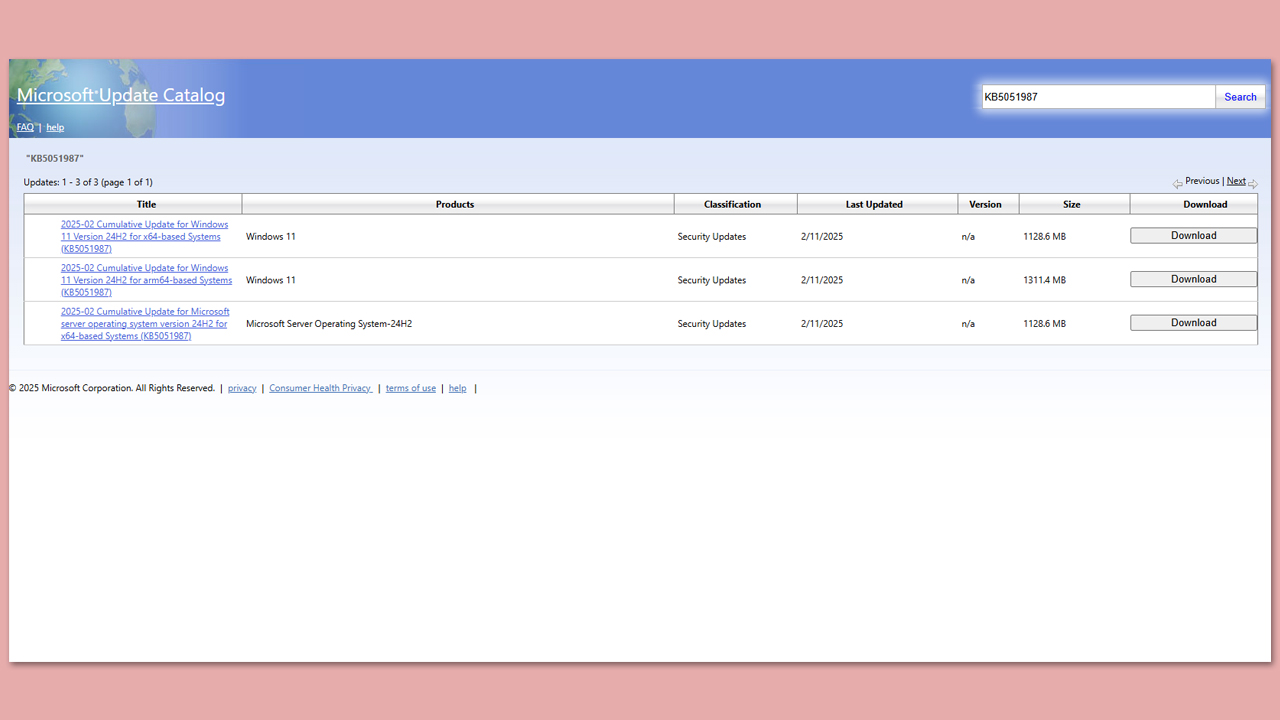
If KB5051987 fails to install through Windows Update, you can download and install it manually from the Microsoft Update Catalog.
- Open your browser and go to Microsoft Update Catalog.
- In the search box, type in KB5051987 and press Search.
- Find the correct version of the update for your operating system (to check this, right-click on Start and pick System. Under Windows specifications, check the Version) and click Download.
- Follow on-screen guidelines to finish the installation process and restart your computer.
Fix 6. Run SFC and DISM
Corrupt system files can interfere with update installations. Running SFC and DISM can repair damaged files and restore update functionality.
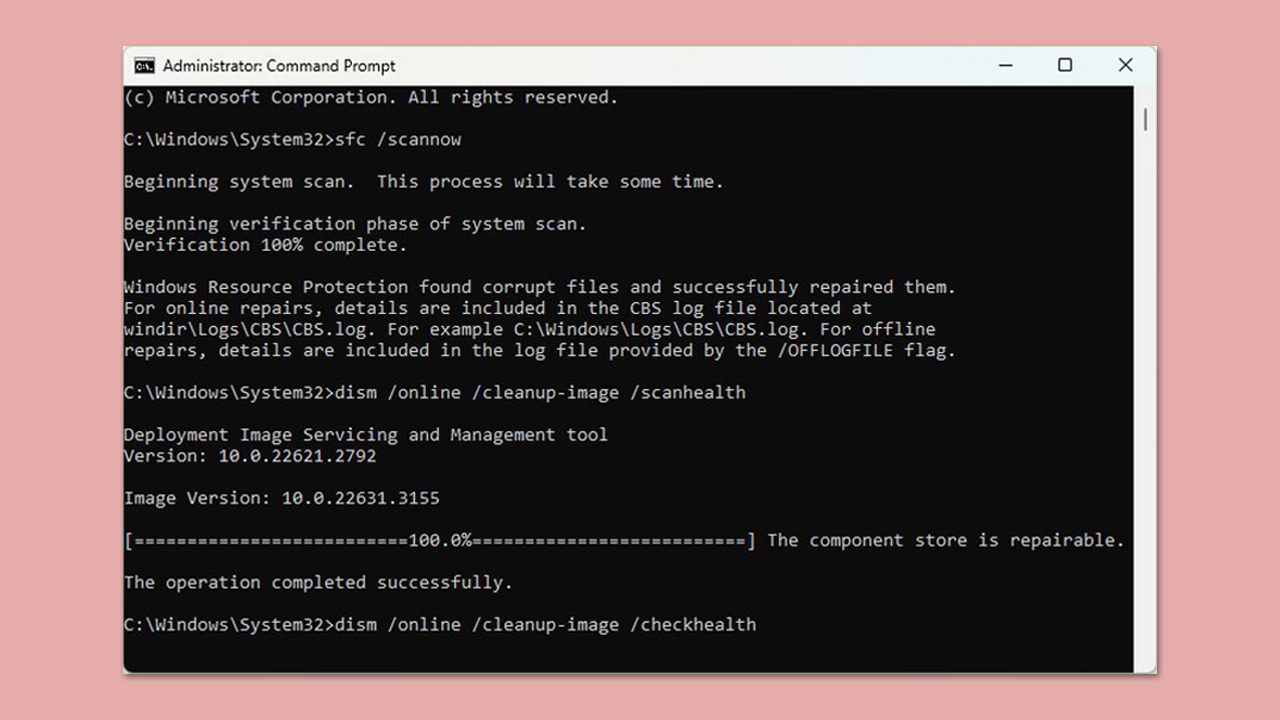
- Open Command Prompt as administrator.
- Then, copy and paste the following command, pressing Enter after:
sfc /scannow - Wait till the scan is finished. If Windows finds system file integrity violations, it will attempt to fix them. After this, use the set of the following commands, pressing Enter each time:
DISM /Online /Cleanup-Image /CheckHealth
DISM /Online /Cleanup-Image /ScanHealth
DISM /Online /Cleanup-Image /RestoreHealth - (Note: if you get an error executing this last command, add /Source:C:\RepairSource\Windows /LimitAccess to it and try again).
- Close down the Command Prompt and restart your computer.
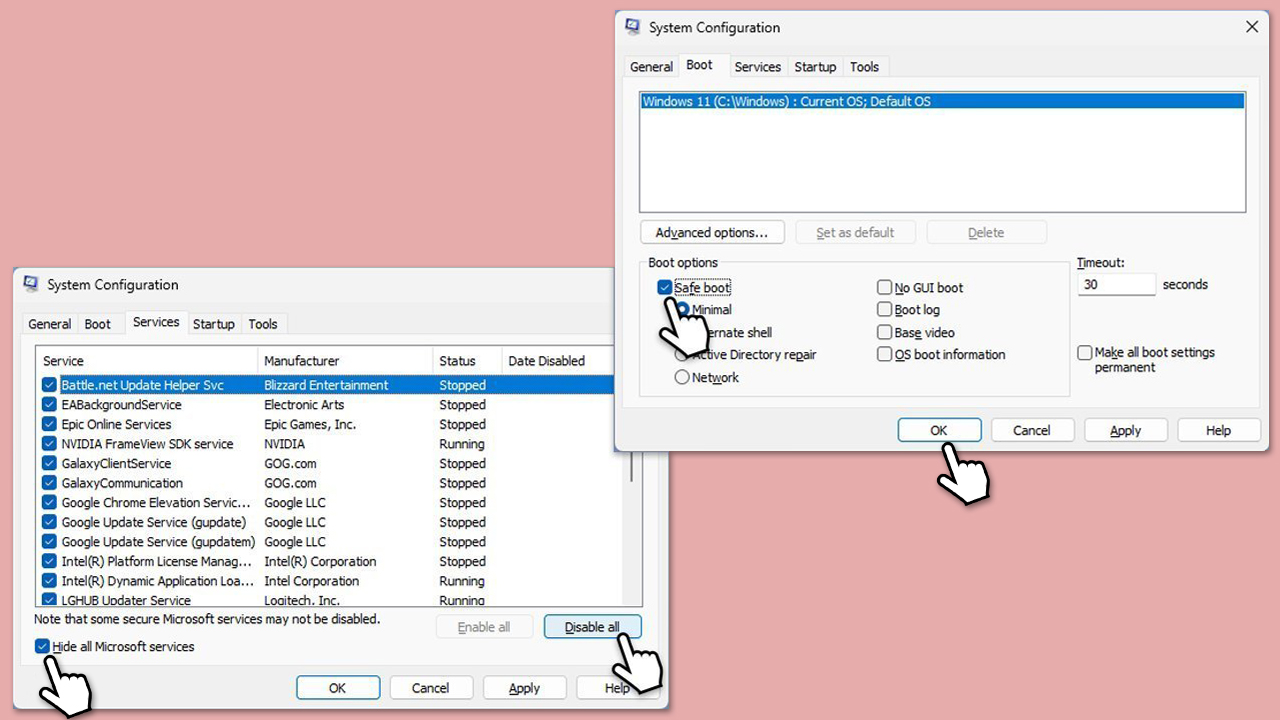
Fix 7. Perform a Clean Boot
Background applications and third-party services can sometimes interfere with Windows updates. Performing a clean boot loads Windows with minimal processes, allowing the update to install without conflicts.
- Type msconfig in the Windows search box and press Enter.
- Pick the Services tab.
- Mark Hide all Microsoft services and select Disable all.
- Select the Startup tab and click Open Task Manager.
- In the Task Manager, right-click on each of the items and select Disable, then close the Task Manager.
- Go to the Boot tab, mark the Safe Boot option, then click Apply and OK.
- On the System Configuration window, click OK.
- Restart your computer and try installing the update.
Fix 8. Reset Windows Update settings
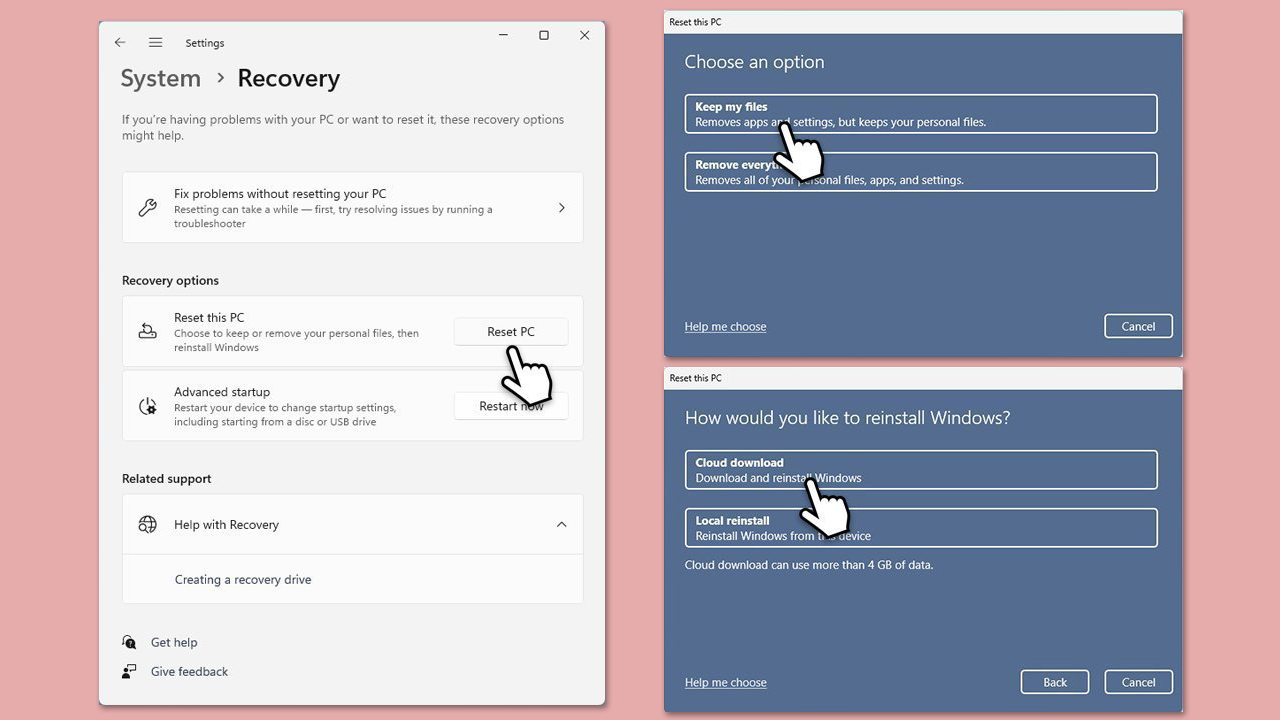
If none of the previous solutions work, resetting Windows Update settings can restore the update functionality and allow the update to install.
- Right-click on Start and then select Settings.
- Go to Update & Security and pick Recovery on the left side of the window.
- Find Reset this PC section and click Get Started.
- Select Keep my files and Cloud download.
- Next, pick whether you want to reinstall the apps.
- Click Reset.
- Your system will restart, and the process of Windows reset will begin.
Bottom line
To resolve the installation failure of update KB5051987, you can check and restart relevant services, ensure sufficient disk space, and consider using an all-in-one PC repair tool. If these steps do not work, further troubleshooting may be necessary.
Frequently asked questions
First, try running the Windows Update Troubleshooter to automatically detect and fix issues related to Windows updates. If that doesn't work, consider manually downloading the update from the Microsoft Update Catalog.
Yes, you can uninstall the update by going to Settings > Update & Security > Windows Update > View update history, and then selecting Uninstall updates. This can help restore system stability.
Make sure your system is fully updated and that you have enough disk space available before attempting installation. Additionally, temporarily disabling third-party antivirus software may help resolve conflicts during the installation process.




Report an issue
What's wrong with this guide? We review every report and update or remove content.
Report received — thank you. We'll review and fix it.
You need a free account to submit a report.
Be the first to comment