How to fix
KB5051989 fails to install
on Windows
Resolve the KB5051989 installation issue in Windows 11 easily. Get expert-tested solutions to ensure your updates succeed. Fixed in minutes!

What causes How to fix KB5051989 fails to install in Windows 11?
- System Corruption
- Storage Limitations
- Conflicts with Third-Party Applications
- Outdated Drivers
- Network-Related Issues
Repairs Windows system files, removes malware, and restores a clean OS state — without reinstalling.
Hi. I am running Windows 11 and today I noticed that an update - KB5051989 - is not installing at all. Restarting the computer does not help the situation. Please help me.
The update process in Windows 11 plays an essential role in system maintenance because it enhances security and improves performance. The fixed schedule known as "Patch Tuesday" becomes the blueprint for Microsoft to release updates during the second Tuesday of every month. Updates from Microsoft serve different functions which may include security patches together with cumulative fix releases and feature improvement implementation.
KB5051989 represents one of the February 11, 2025 updates developed for Windows 11 operating systems 22H2 and 23H2. The update brings security enhancements and fixes system bugs to solve existing problems in the previous software versions.
The recent update of KB5051989 features key accomplishments such as performance enhancements, improved system stability together with vital security patches. Some users battling installation problems with KB5051989 had to endure the inconvenience of critical system vulnerabilities without fixes after this update failed to establish itself.
When KB5051989 is not installing, different problems may occur. Some report error codes during installation, while others experience repeated update failures without a clear explanation. In some cases, the system may attempt to install the update multiple times before reverting the changes after a reboot. As a result, affected systems remain on an outdated version of Windows 11, potentially exposing them to security risks and stability issues.
There are multiple reasons why KB5051989 is failing to install. System corruption, whether in update components or system files, can prevent a successful installation. Storage limitations may also cause the update process to stop prematurely if there isn’t enough free space available. Additionally, conflicts with third-party applications, particularly security software, might interfere with Windows Update. Some users may also face installation failures due to outdated drivers or network-related issues.
Addressing this issue requires different approaches depending on the underlying cause. Running system repair utilities can help identify and fix update-related errors, while ensuring sufficient storage space may prevent installation failures. Disabling third-party software or performing a clean boot can eliminate software conflicts that might be blocking the update. If standard troubleshooting does not work, manually installing KB5051989 could provide an alternative method.
For cases where KB5051989 continues failing to install despite multiple attempts, using an automated repair tool like [d1] can assist in resolving deeper system issues, making it easier to apply Windows updates successfully.
Fix 1. Run Windows troubleshooters
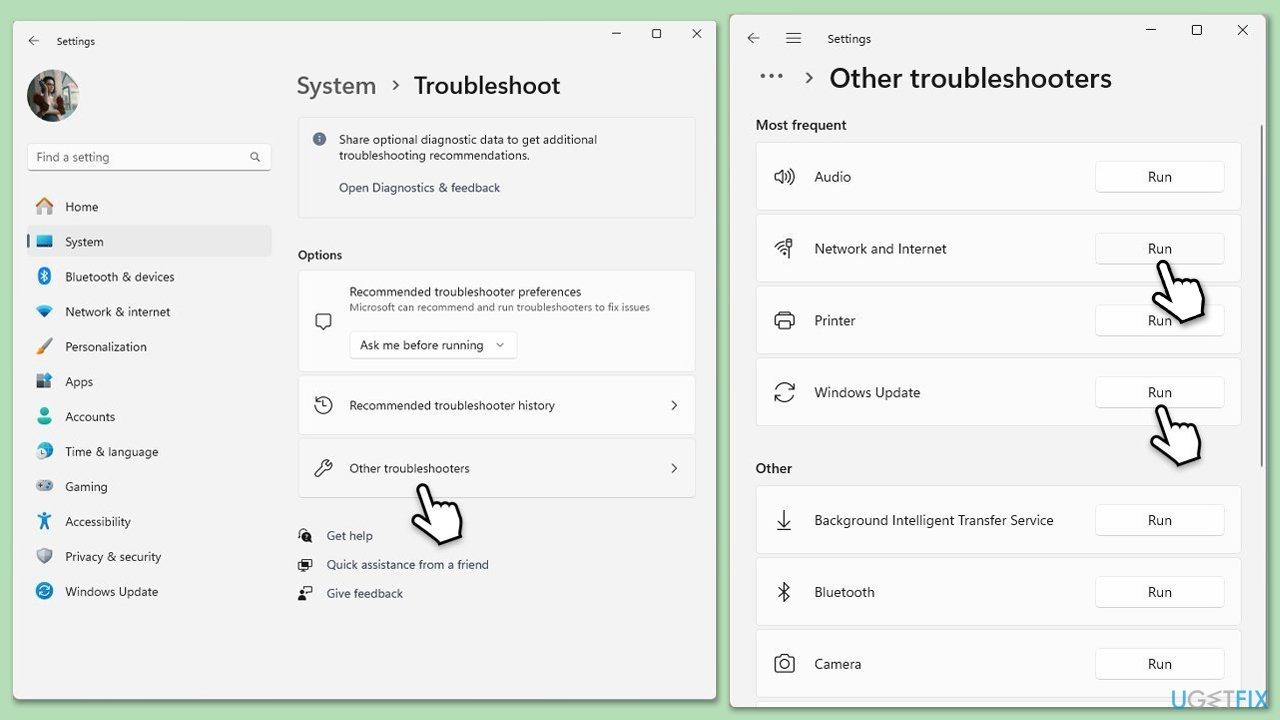
A built-in Windows tool functions to automatically detect and solve problems related to update installations. The built-in tool serves to identify problems that block KB5051989 from being installed while fixing them automatically.
- Type Troubleshoot in Windows search and hit Enter.
- Select Other troubleshooters.
- Find Windows Update from the list and click Run.
- The troubleshooter will automatically scan your system for potential problems and display any issues it finds.
- Repeat the process with Network & Internet troubleshooter.
- If the troubleshooter finds any issues, it will provide recommended solutions.
- Follow the on-screen instructions and restart your computer.
Fix 2. Repair corrupted system files
If your system files somehow got corrupted, update installation may not succeed. To address this, follow these steps:
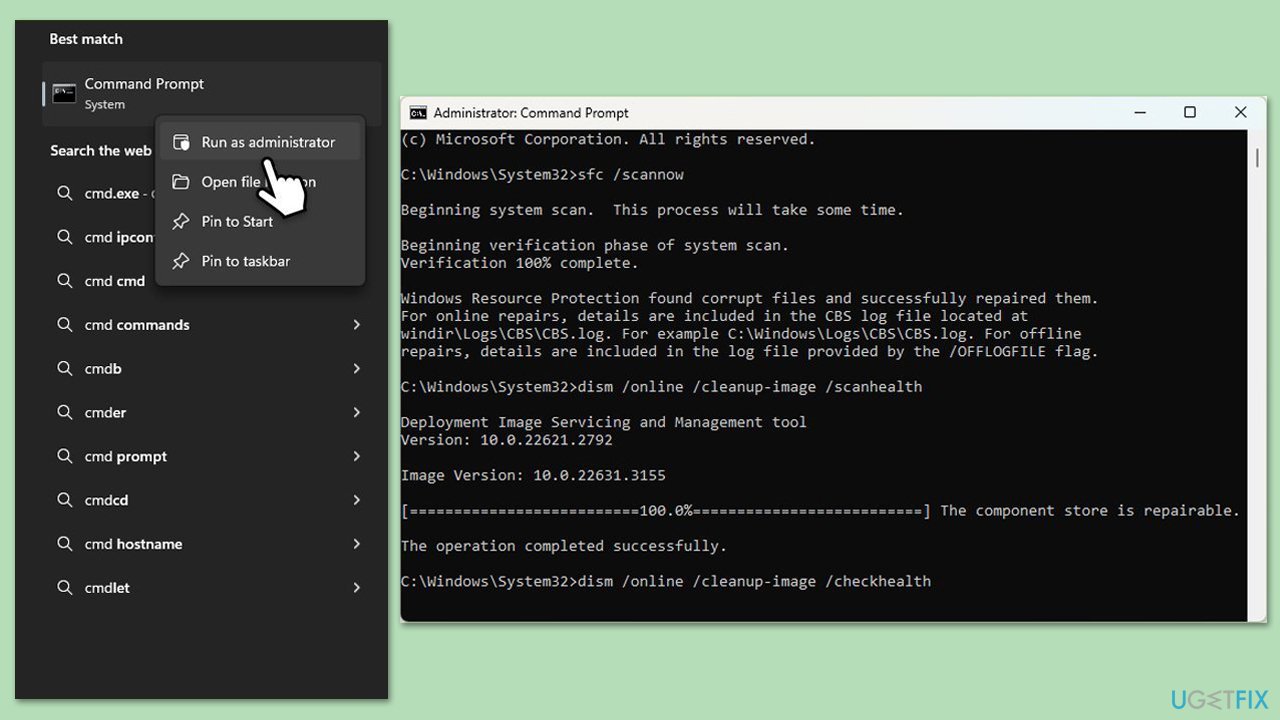
- Type cmd in Windows search.
- Right-click on the Command Prompt result and select Run as administrator.
- User Account Control will ask whether you want to allow changes - click Yes.
- Copy and paste the following commands, pressing Enter after each:
- sfc /scannow
DISM /Online /Cleanup-Image /CheckHealth
DISM /Online /Cleanup-Image /ScanHealth
DISM /Online /Cleanup-Image /RestoreHealth
(Note: if you get an error executing the last command, add /Source:C:\RepairSource\Windows /LimitAccess to it and try again.) - Restart your device.
Fix 3. Temporarily disable third-party security and similar software
Security software (along with VPNs, Firewalls, etc.) from third parties may occasionally disrupt the installation of Windows updates. Many of these programs include firewall capabilities or system monitoring features that can unintentionally block or limit access to Windows Update servers and processes. Temporarily disabling such software can help identify whether it is contributing to the update issue.
Before turning off any security software, confirm that your system is not at immediate risk. After disabling it, try running the update again. Once the update is successful or if the issue remains unresolved, be sure to re-enable your security software to maintain system protection.
Fix 4. Pause and unpause updates
If your update fails at some point during download, this trick might help you.
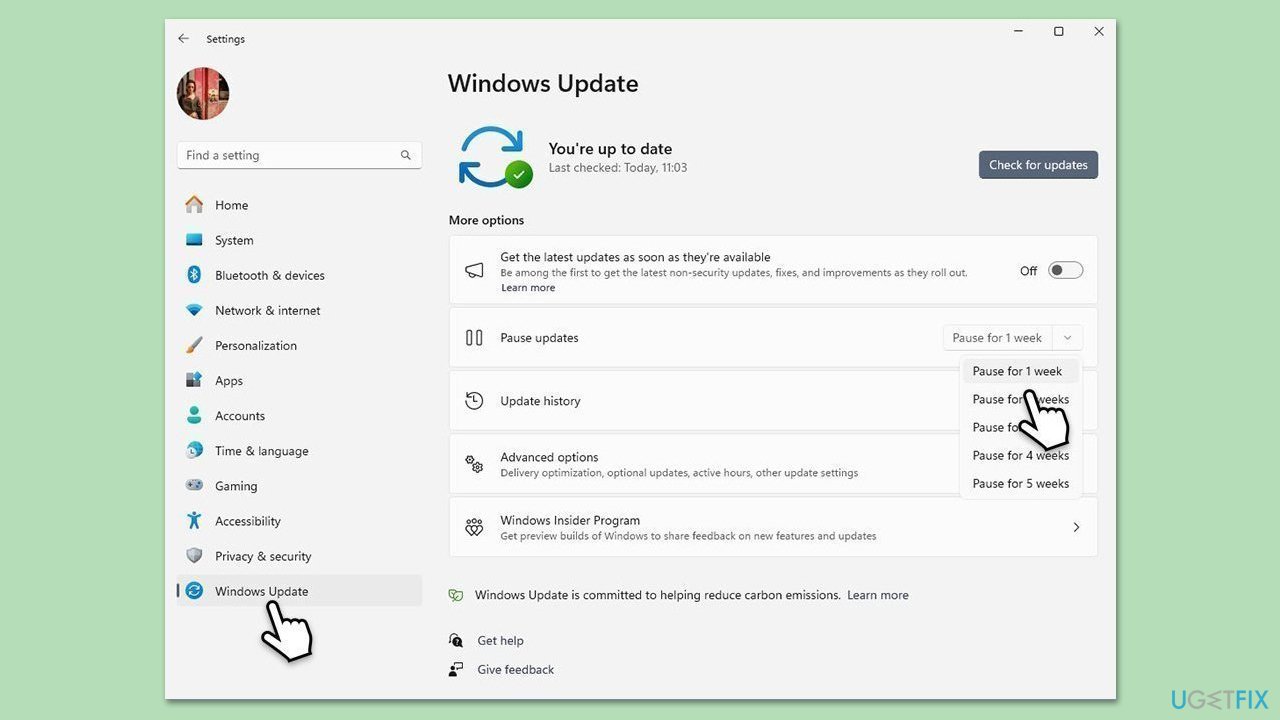
- Open Settings.
- Click on Windows Update.
- Click on the drop-down menu and select Pause updates for 1 week (or another time period).
- Restart your computer.
- Go back to Windows Update and click Resume updates.
Fix 5. Check responsible services
Several background services support the functioning of Windows Update. If any of these services experience problems the update process can fail.
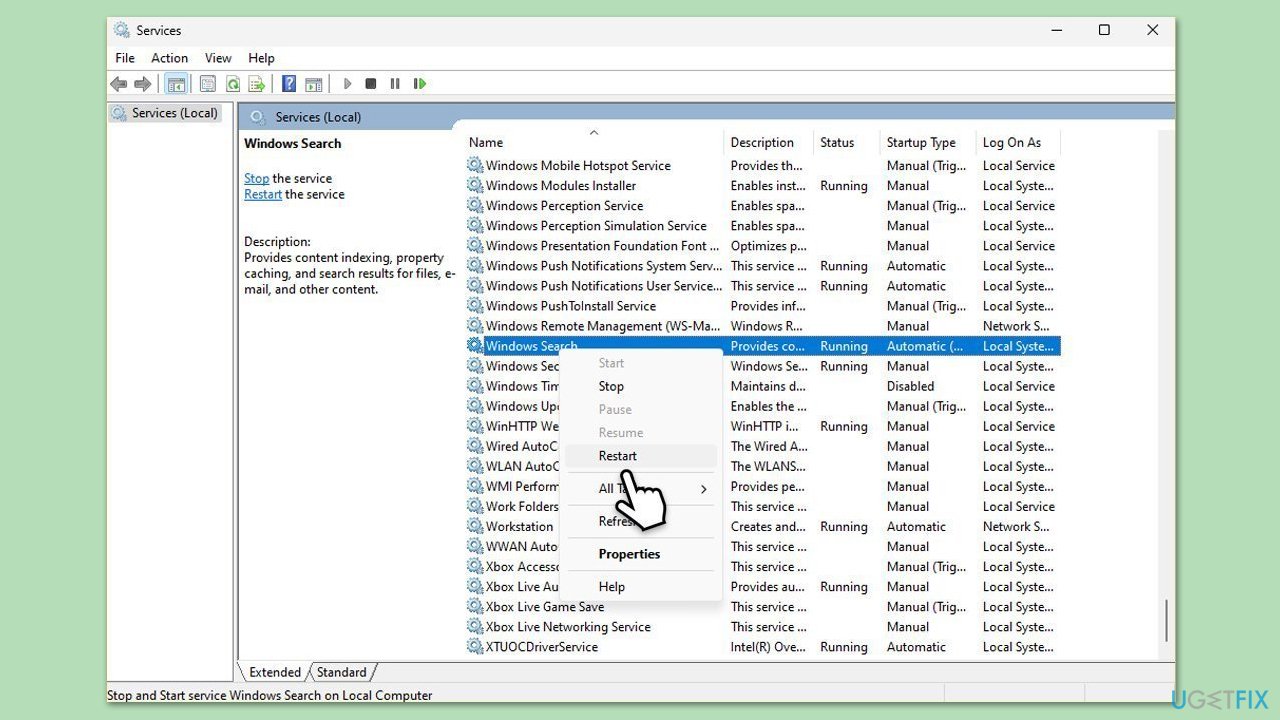
- Type Services in Windows search and press Enter.
- In the Services window, locate and double-click on the following services one by one (if these are already running, right-click and hit Restart):
- Windows Update
- Background Intelligent Transfer Service (BITS)
- Cryptographic Services
- For each service, ensure that the Startup type is set to Automatic. If it's not, select Automatic from the drop-down menu.
- Check the Service status. If the service is not running, click the Start button to start it.
- Click Apply and then OK for each service.
- Close the Services window and restart your computer.
Fix 6. Re-register DLL files
- Open Command Prompt as administrator.
- Type the following commands, pressing Enter after each:
regsvr32 wuapi.dll
regsvr32 wuaueng.dll
regsvr32 wups.dll
regsvr32 wups2.dll
regsvr32 wuwebv.dll
regsvr32 wucltux.dll - Once done, restart your computer.
Fix 7. Employ the official tool from Microsoft
If all else fails, try downloading Media Creation Tool and bringing Windows to the latest version this way.
- Visit the official Microsoft website and download the Windows installation media.
- Double-click the installer and select Yes when UAC shows up.
- Agree to the terms and click Next.
- Select Upgrade this PC now and select Next
- Windows will now download all the necessary files, which might take some time.
- Agree to the terms once again and click Next.
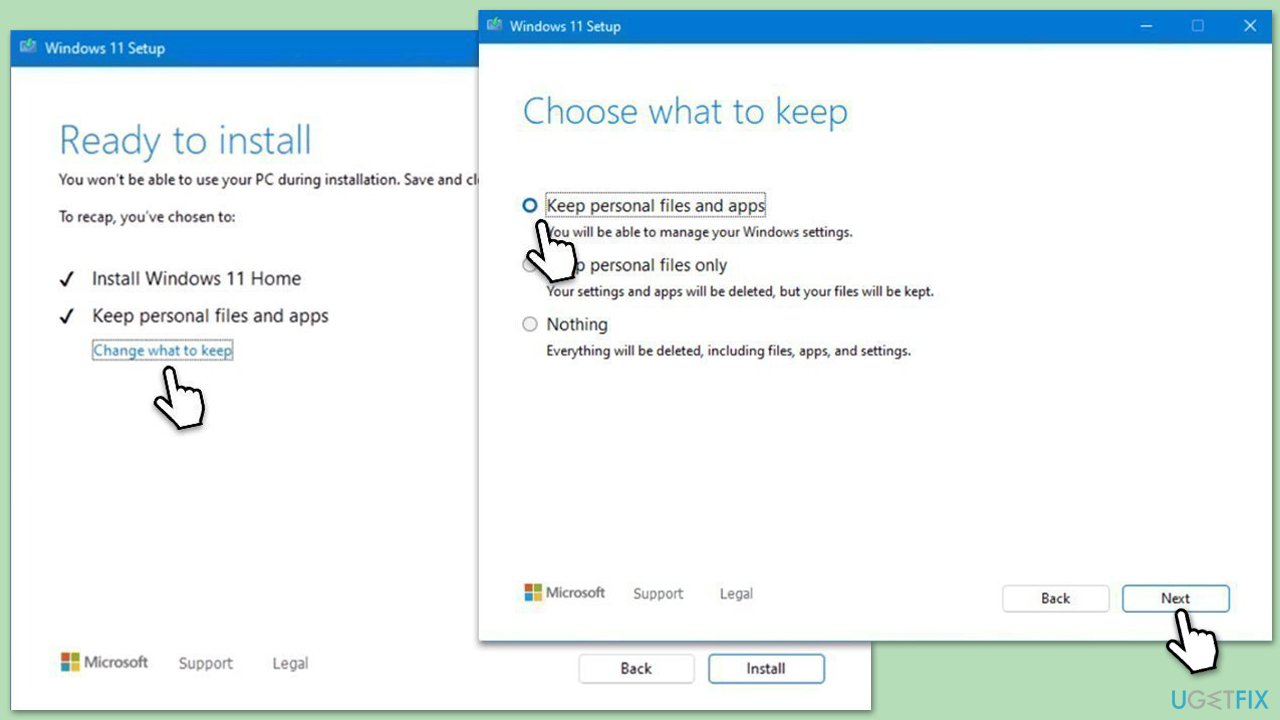
- Before installing, ensure you are happy with your choices (otherwise, you can click Change what to keep option).
- Click Install to begin the upgrade process.
- Your computer will restart as required.
Bottom line
To address the installation failure of KB5051989, users can run system repair utilities, ensure sufficient storage space, disable third-party software, or perform a clean boot. If these solutions do not resolve the issue, further troubleshooting may be required.
Frequently asked questions
First, check for any pending updates and try to install them before retrying KB5051989. If the issue persists, use the Windows Update Troubleshooter to identify and fix potential problems.
Yes, some antivirus programs can block updates, so it's advisable to temporarily disable your antivirus software and then attempt to install KB5051989 again.
You can manually download the update from the Microsoft Update Catalog website by searching for KB5051989 and selecting the appropriate version for your system.




Report an issue
What's wrong with this guide? We review every report and update or remove content.
Report received — thank you. We'll review and fix it.
You need a free account to submit a report.
Be the first to comment