How to fix
KB5052093 fails to install
on Windows
Resolve the KB5052093 installation issue on Windows 11 quickly and effectively. Get expert-tested solutions to fix it in minutes!

What causes How to fix KB5052093 fails to install in Windows 11?
- Low disk space
- Corrupted update files
- Interference from third-party software
- Corrupted system files
- Network-related issues
Repairs Windows system files, removes malware, and restores a clean OS state — without reinstalling.
Hi there. I wanted to install the latest preview update KB5052093 that I saw pop up today. But to my surprise, it failed to install. Could you advise me on what to do?
System stability together with security and performance depend on regular Windows updates. However, they don’t always install as expected. It is not uncommon for regular users to face an issue where updates are not installing properly, and that could be caused due to various reasons, including corrupted system files, conflicting software, or network-related issues.
While most updates install without any problems, it is not the case for all. KB5052093 is one of the updates that people have recently reported to be failing to install on Windows 11 devices.
Problems with KB5052093 manifest as installation attempts resulting in errors, failed rollbacks, or stuck update screens. This update, released on February 25, 2025, is a preview build under OS Build 26100.3323. As a non-mandatory update, it introduces system improvements and bug fixes ahead of a full release.
The main changes in KB5052093 are performance improvements and reliability fixes. It addresses the problem of random File Explorer crashes, removes taskbar notification delays, and improves Wi-Fi stability in some network configurations.
It also corrects an issue where Windows Security settings were not being enforced correctly, making the system more secure. As with most preview builds, it also provides under-the-hood improvements that prepare the system for upcoming feature updates.
If KB5052093 won't install, causes could be low disk space, corrupted update files, or interference from third-party software. System restart, storage cleaning, or running Windows Update diagnostic tools could resolve the issue. Other users also managed to succeed by manually installing the update from the Microsoft Update Catalog.
When it is difficult to determine the cause of Windows update failure, using a powerful PC repair tool [d1] can detect and fix system issues automatically, which will ensure smoother updates and overall system performance.
Fix 1. Run Windows update troubleshooter
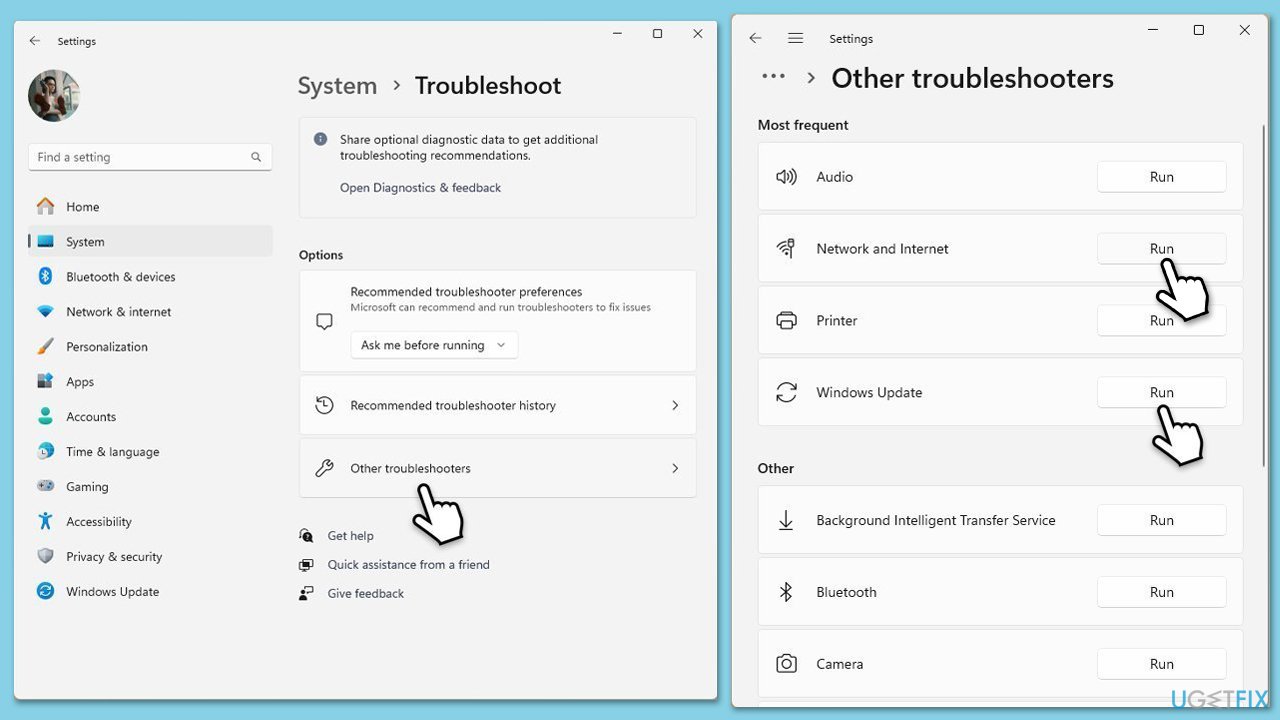
You should start with using the built-in troubleshooter that is not only simple to use but it may also fix the KB5052093 failing to install issues.
- Type Troubleshoot in Windows search and hit Enter.
- Select Other troubleshooters.
- Find Windows Update from the list and click Run.
- The troubleshooter will automatically scan your system for potential problems and display any issues it finds.
- Repeat the process with Network & Internet troubleshooter.
- If the troubleshooter finds any issues, it will provide recommended solutions.
- Follow the on-screen instructions and restart your computer.
Fix 2. Check the services related to Windows update process
For Windows updates to succeed, certain services need to be running.
- Type Services in Windows search and press Enter.
- In the Services window, locate and double-click on the following services one by one (if these are already running, right-click and hit Restart):
- Windows Update
- Background Intelligent Transfer Service (BITS)
- Cryptographic Services
- For each service, ensure that the Startup type is set to Automatic. If it's not, select Automatic from the drop-down menu.
- Check the Service status. If the service is not running, click the Start button to start it.
- Click Apply and then OK for each service.
- Close the Services window and restart your system.
Fix 3. Reset Windows update components
Corrupted files in Software distribution folder might be the reason KB5052093 fails to install for you.
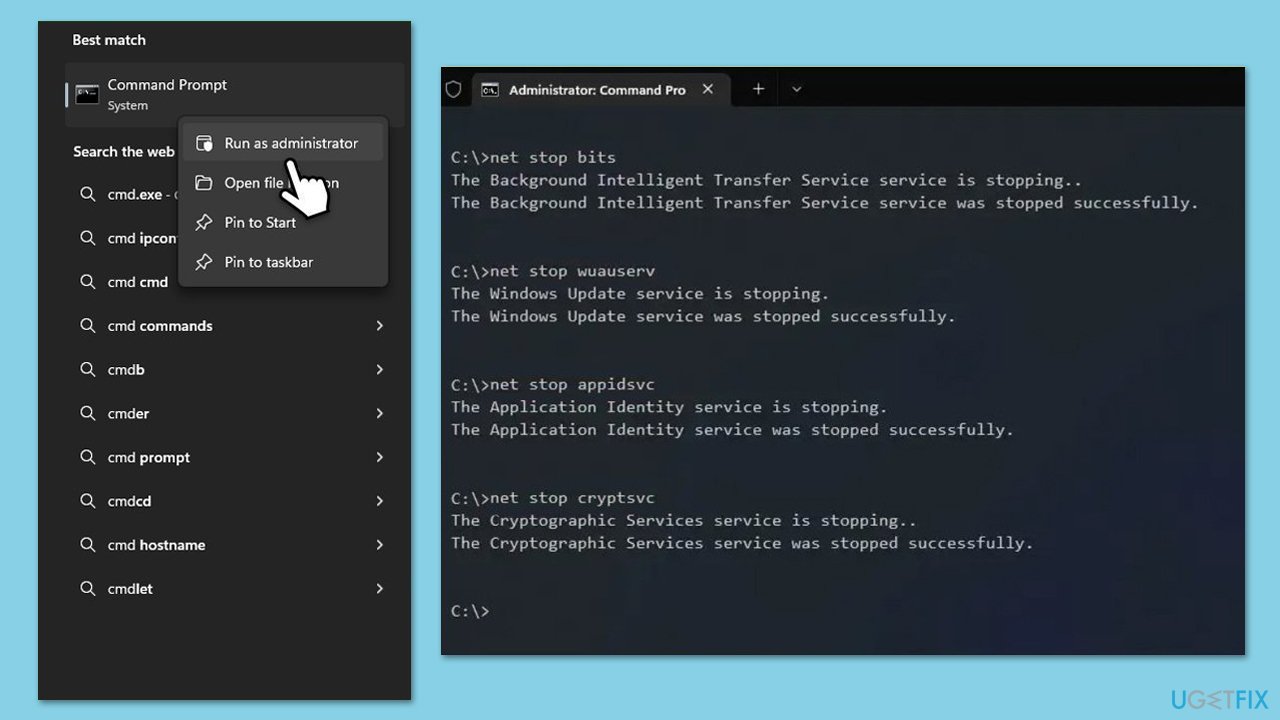
- Type cmd in Windows search.
- Right-click on Command Prompt and select Run as administrator.
- When User Account Control shows up, click Yes.
- Stop the Windows Update and related services by running these commands one by one:
- net stop wuauserv
- net stop cryptSvc
- net stop bits
- net stop msiserver
- Rename the SoftwareDistribution and Catroot2 folders with these commands:
- ren C:\Windows\SoftwareDistribution SoftwareDistribution.old
- ren C:\Windows\System32\catroot2 Catroot2.old
- Restart the stopped services:
- net start wuauserv
- net start cryptSvc
- net start bits
- net start msiserver
- Try installing the update again.
Fix 4. Check for disk space
Insufficient disk space could be one of the causes of the updates failing, as some of them can be rather large. Besides, this would get rid of potential bugged caches.
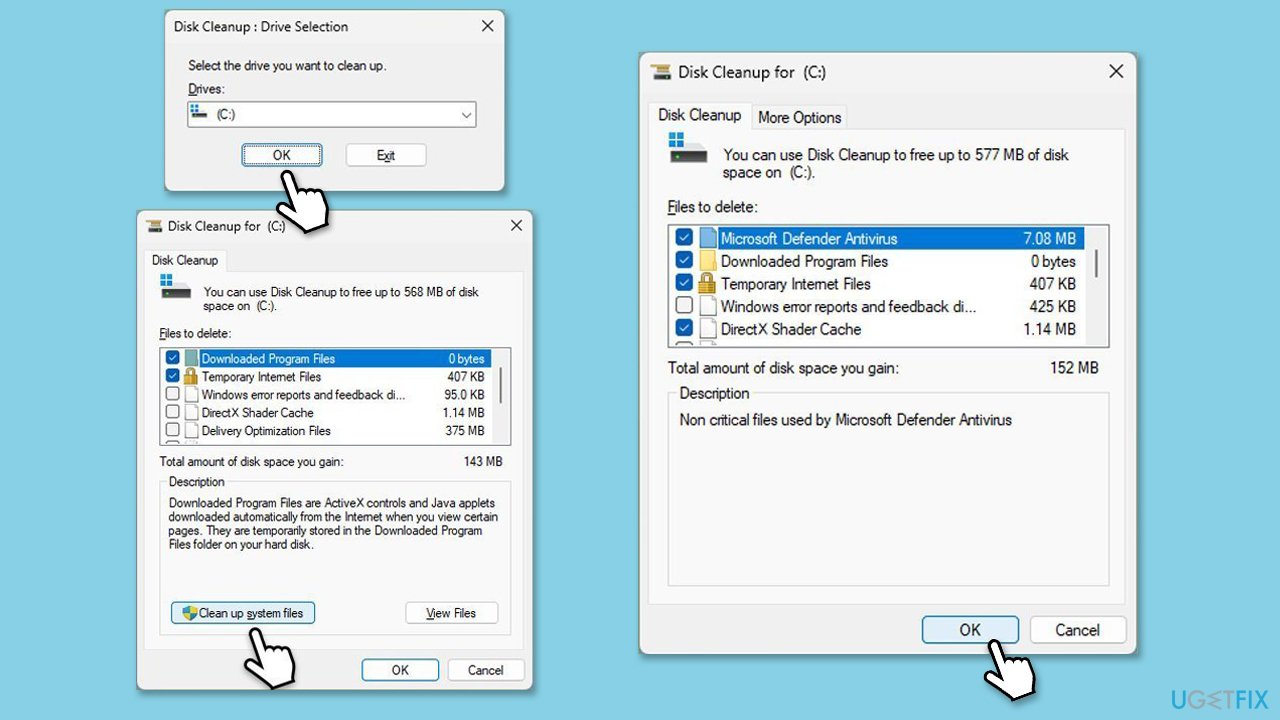
- Type Disk Cleanup in Windows search and hit Enter.
- If your Windows is installed on drive C, pick it from the list (should be by default) and press OK.
- Click Clean up system files.
- Select your main disk again and click OK.
- Here, select the largest portions of the data used - these typically include Temporary Internet Files, Windows Update, Temporary Files, Recycle Bin, Delivery Optimization Files, and others.
- Click OK - the process should be finished shortly.
Fix 5. Check for corrupted files
System file corruption is one of the main reasons for many malfunctions in Windows, including failing update process.
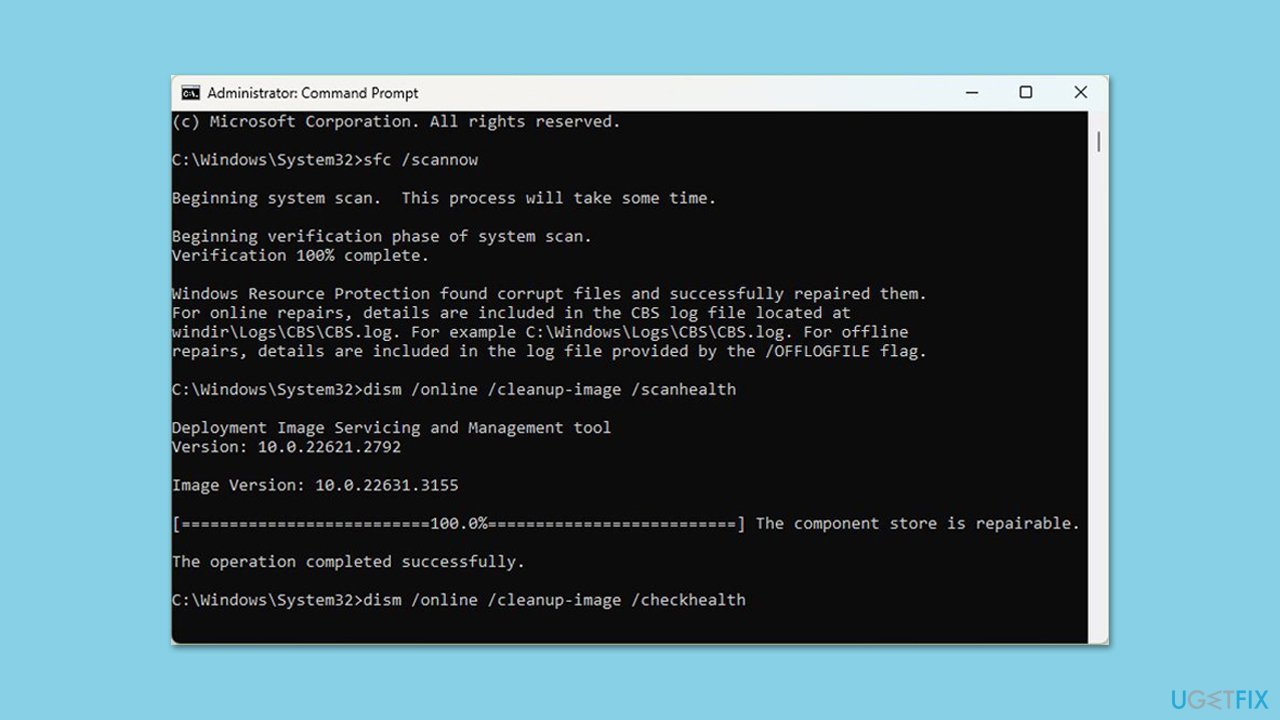
- Type cmd in Windows search.
- Right-click on Command Prompt and pick Run as administrator.
- Click Yes when prompted by User Account Control.
- Then, copy and paste the following command, pressing Enter after:
sfc /scannow - Wait till the scan is finished. If Windows finds system file integrity violations, it will attempt to fix them. After this, use the set of the following commands, pressing Enter each time:
DISM /Online /Cleanup-Image /CheckHealth
DISM /Online /Cleanup-Image /ScanHealth
DISM /Online /Cleanup-Image /RestoreHealth - (Note: if you get an error executing this last command, add /Source:C:\RepairSource\Windows /LimitAccess to it and try again).
- Close down the Command Prompt and restart your computer.
Fix 6. Try Clean Boot
If other software on your system is causing conflict, running the system in Clean Boot help you identify it.
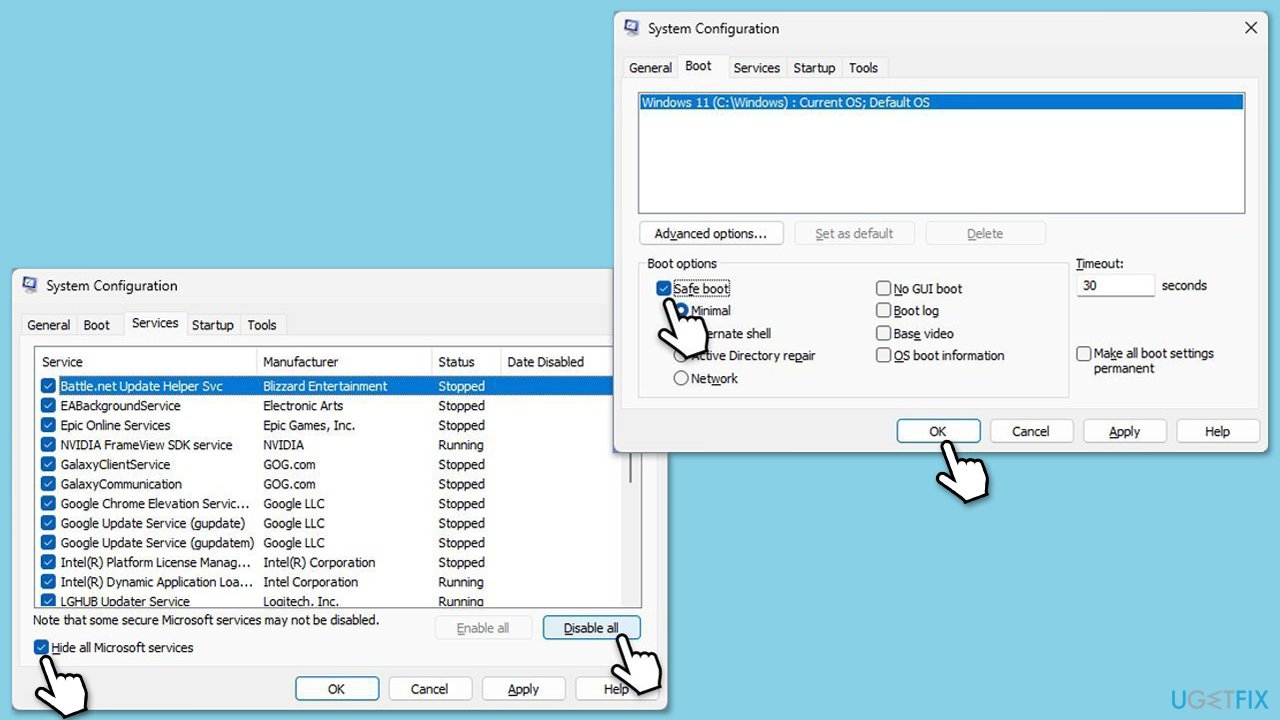
- Type msconfig in the Windows search box and press Enter.
- Pick the Services tab.
- Mark Hide all Microsoft services and select Disable all.
- Select the Startup tab and click Open Task Manager.
- In the Task Manager, right-click on each of the items and select Disable, then close the Task Manager.
- Go to the Boot tab, mark the Safe Boot option, then click Apply and OK.
- On the System Configuration window, click OK.
- Restart your computer and attempt to install the update.
Fix 7. Install the update manually
- Open your web browser.
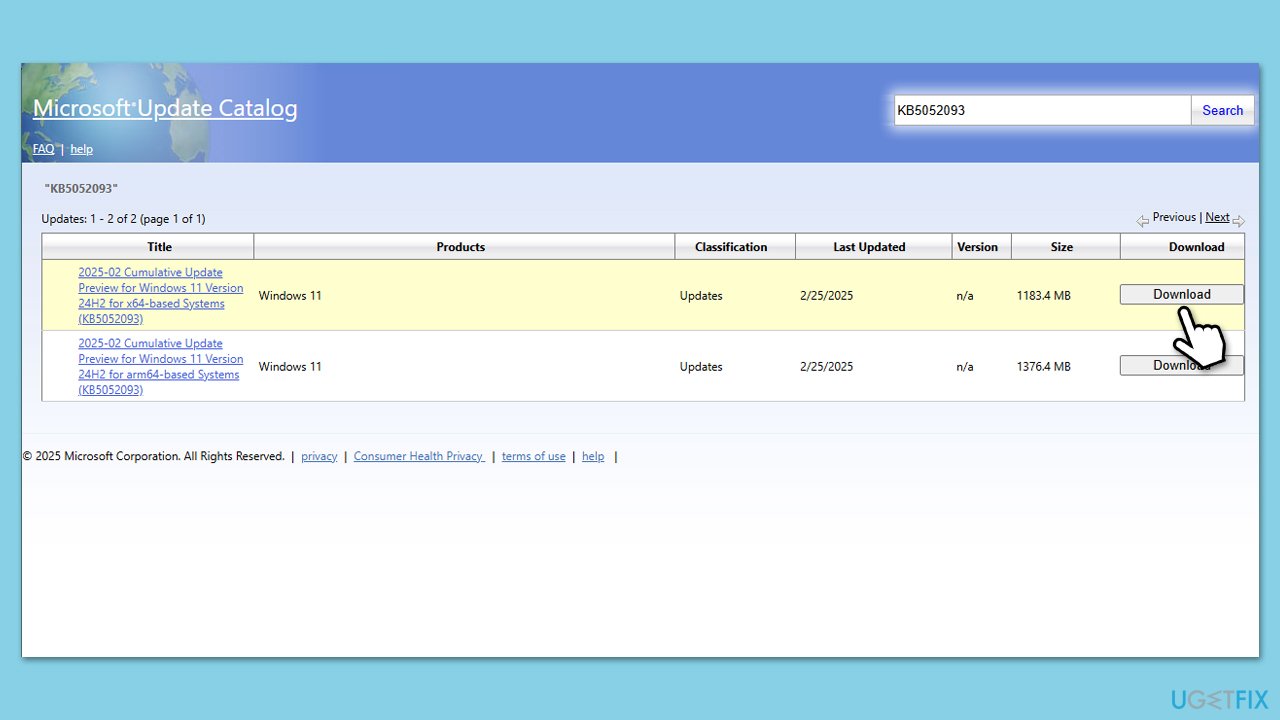
- Navigate to the official Microsoft Update Catalog page for the KB5052093 update.
- Select the correct version for your system - for most regular PC users, the correct version will be x64. ARM are used for portable devices such as Microsoft Surface and Snapdragon-powered laptops.
- After identifying the correct version, click Download next to it.
- Follow on-screen guidelines to finish the installation process and restart your computer when done.
Bottom line
To fix the installation failure of KB5052093, you can run the Windows Update troubleshooter, clean up storage, or restart your system. If these methods do not resolve the issue, consider manually installing the update from the Microsoft Update Catalog or using a powerful PC repair tool to detect and fix system issues.
Frequently asked questions
Try running the Windows Update Troubleshooter to automatically detect and fix issues with updates. If that doesn't work, consider manually downloading and installing the update from the Microsoft Update Catalog.
Yes, corrupted system files can prevent updates like KB5052093 from installing properly. You can run the System File Checker tool by executing 'sfc /scannow' in the Command Prompt as an administrator to repair these files.
You can check if KB5052093 is installed by going to Settings > Windows Update > Update history, where it will be listed under 'Quality updates'.




Report an issue
What's wrong with this guide? We review every report and update or remove content.
Report received — thank you. We'll review and fix it.
You need a free account to submit a report.
Be the first to comment