How to fix
KB5053602 fails to install
on Windows
Resolve the KB5053602 installation error in Windows 11 effortlessly. Follow our expert-tested solutions for a smooth update experience. Fixed in minutes!

What causes How to fix KB5053602 fails to install in Windows 11?
- Corrupted system files
- Insufficient disk space
- Conflicts with third-party software
- Issues with the Windows Update service
- Corrupted update caches
Repairs Windows system files, removes malware, and restores a clean OS state — without reinstalling.
Hey, I’ve been trying to install this KB5053602 update on my Windows 11 laptop, but it keeps failing every time. Anyone know why this is happening and how I can get it to work?
The KB5053602 patch, released on March 11, 2025, targets Windows 11 editions 22H2 and 23H2, elevating the OS to OS Builds 22621.5039 and 22631.5039, respectively. The update forms part of Microsoft's normal Patch Tuesday program, with security enhancements, fixes, and improvements to quality at its core.
Among the key changes are the servicing stack updates for smoother update installations, internal OS functionality repairs, and security vulnerability fixes, though details are outlined on the Microsoft Support website. Of note, it also corrects issues from the prior KB5052094 update (released February 25, 2025) and includes miscellaneous improvements, such as enhanced stability and performance.
However, users of ARM systems are required to learn about a well-documented glitch preventing Roblox downloads from the Microsoft Store with a fix found in a work-around for download from the website.
Even considering these changes, KB5053602 will fail to install in some cases and disrupts the update cycle so that systems become vulnerable or are left behind. KB5053602 not installing or KB5053602 not installing report are generally caused by typical culprits like system files that are corrupted and might interfere with the update process or disk space, which will prevent the system from staging the necessary files.
Conflicts with third-party software, such as antivirus software, can block installation, as can problems with the Windows Update service itself, which might not be running correctly or has corrupted update caches.
Clearing update caches, having enough storage, running built-in troubleshooters, or manually downloading the update are some of the potential solutions to resolve KB5053602 not installing. For a smoother fix, products like [d1] will easily tackle greater problems in the system.

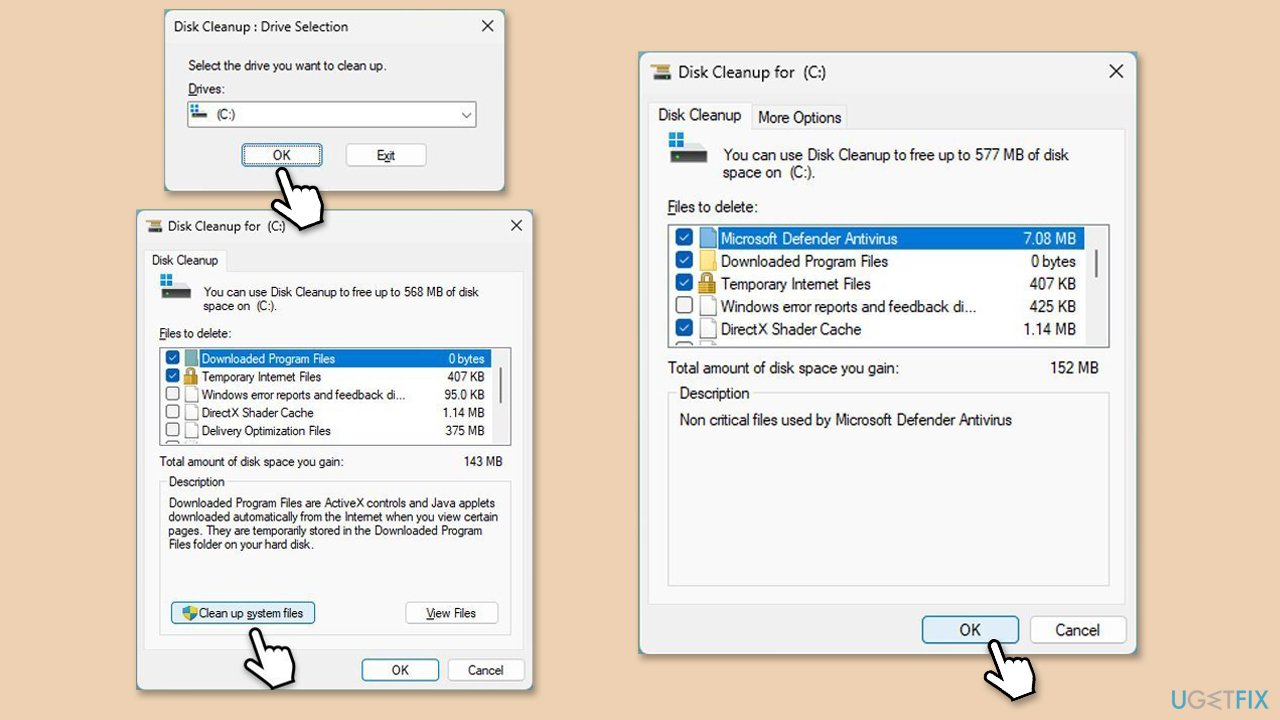
Fix 1. Run Disk Cleanup
Ensuring that your system has enough space to accommodate the update is very important. Likewise, Disk Cleanup can help you to get rid of buggy update cache files.
- Type Disk Cleanup in Windows search and hit Enter.
- If your Windows is installed on drive C, pick it from the list (it should be by default) and press OK.
- Click Clean up system files.
- Select your main disk again and click OK.
- Here, select the largest portions of the data used - these typically include Temporary Internet Files, Windows Update, Temporary Files, Recycle Bin, Delivery Optimization Files, and others.
- Click OK - the process should be finished shortly.
Fix 2. Employ the troubleshooter
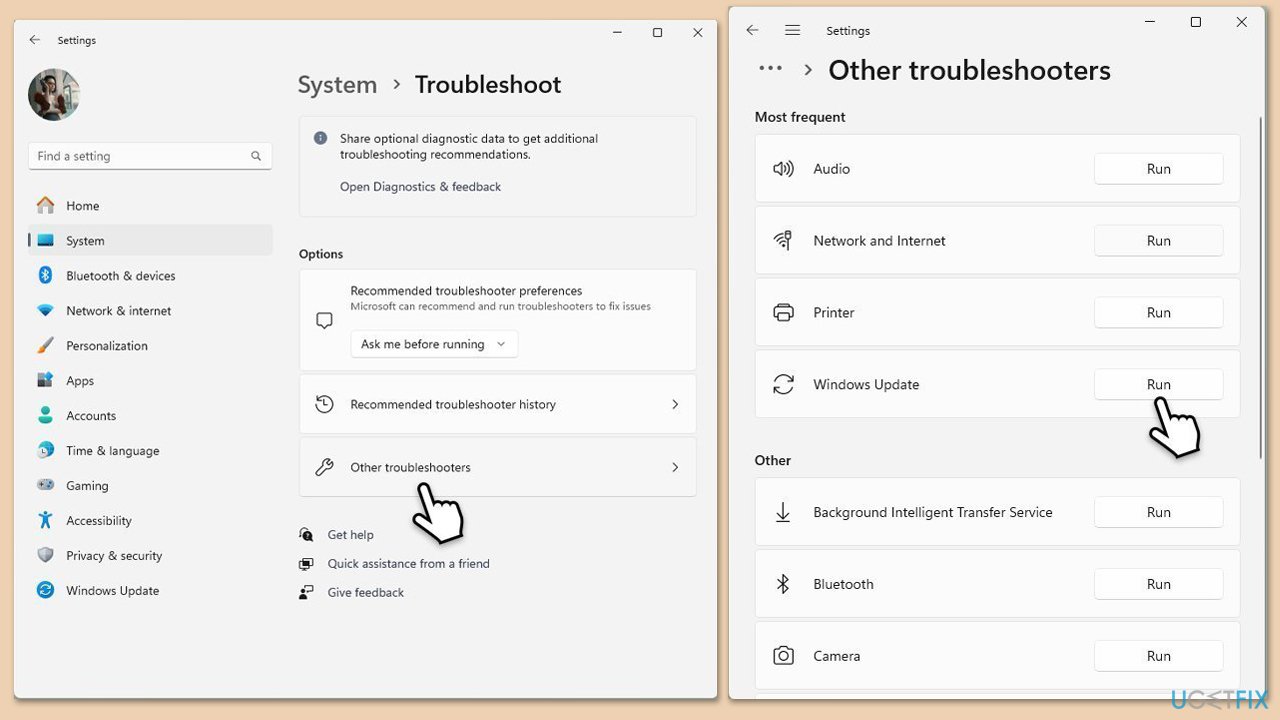
The troubleshooter is a basic, pre-installed tool that could help with issues related to various Windows issues, including the update process.
- Type troubleshoot in Windows search and press Enter or go to Start > Settings > System > Troubleshoot.
- From the list of Options, pick Other trouble-shooters.
- Scroll down to locate the Windows Update and click Run.
- Wait for it to finish, then apply changes and reboot the device.
Fix 3. Reset Windows update components
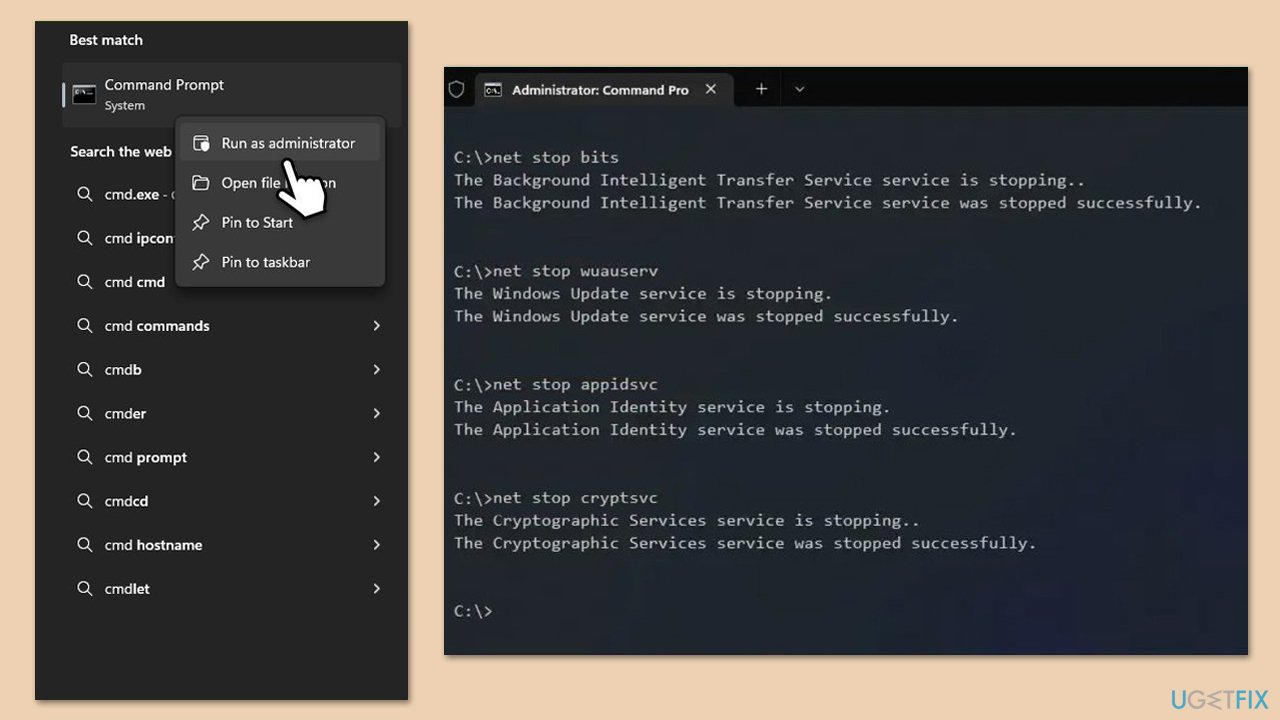
Resetting Windows update components is often effective, particularly when encountering update errors.
- Type cmd in Windows search.
- Right-click on Command Prompt and pick Run as administrator.
- When User Account Control asks you whether you accept changes, click Yes.
- Copy and paste the following commands one by one in Command Prompt and press Enter after each:
net stop bits
net stop wuauserv
net stop appidsvc
net stop cryptsvc
Del "%ALLUSERSPROFILE%\Application Data\Microsoft\Network\Downloader\*.*"
rmdir %systemroot%\SoftwareDistribution /S /Q
rmdir %systemroot%\system32\catroot2 /S /Q
regsvr32.exe /s atl.dll
regsvr32.exe /s urlmon.dll
regsvr32.exe /s mshtml.dll
netsh winsock reset
netsh winsock reset proxy
net start bits
net start wuauserv
net start appidsvc
net start cryptsvc - Reboot your device and see if the update can be installed.
Fix 4. Try Clean Boot
Software conflicts, such as those related to security and similar software, could prevent installation of Windows updates due to over-protective policies.
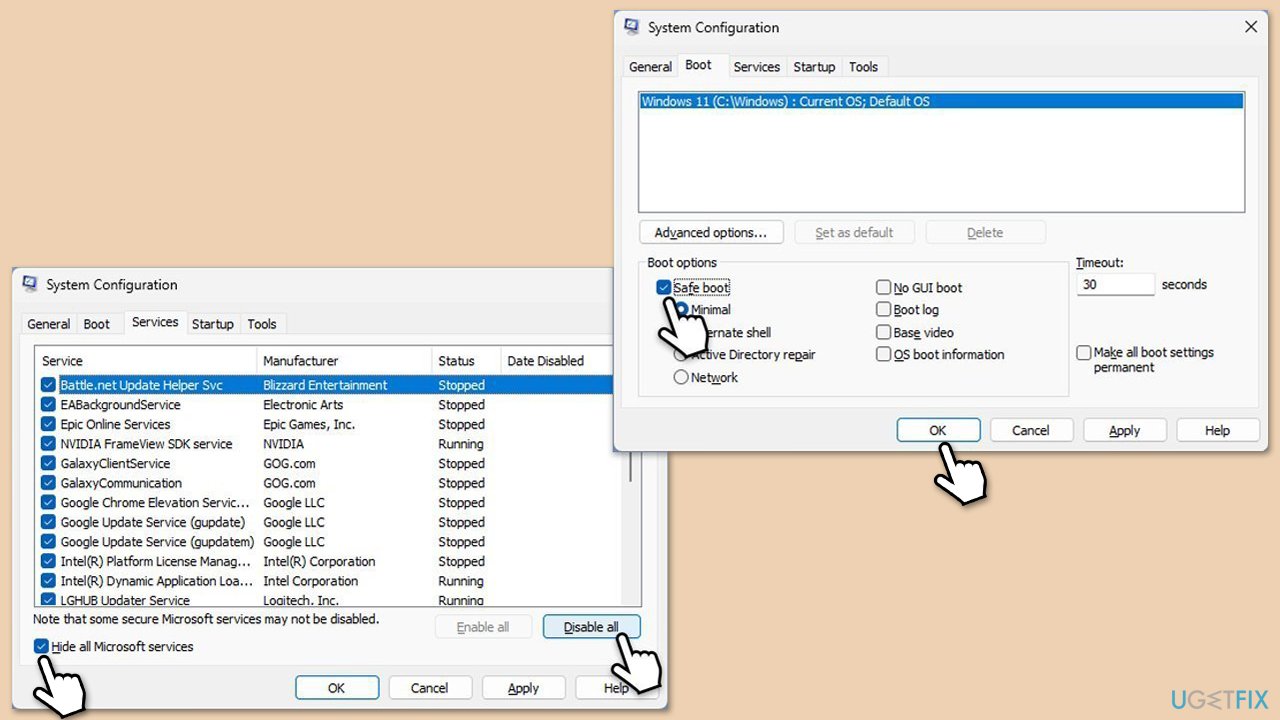
- Type msconfig in the Windows search box and press Enter.
- Pick the Services tab.
- Mark Hide all Microsoft services and select Disable all.
- Select the Startup tab and click Open Task Manager.
- In the Task Manager, right-click on each of the items and select Disable, then close the Task Manager.
- Go to the Boot tab, mark the Safe Boot option, then click Apply and OK.
- On the System Configuration window, click OK.
- Restart your computer.
- Update Windows again.
Fix 5. Install manually
If automatic methods to download KB5053602 does not work, you can always try to install manually.
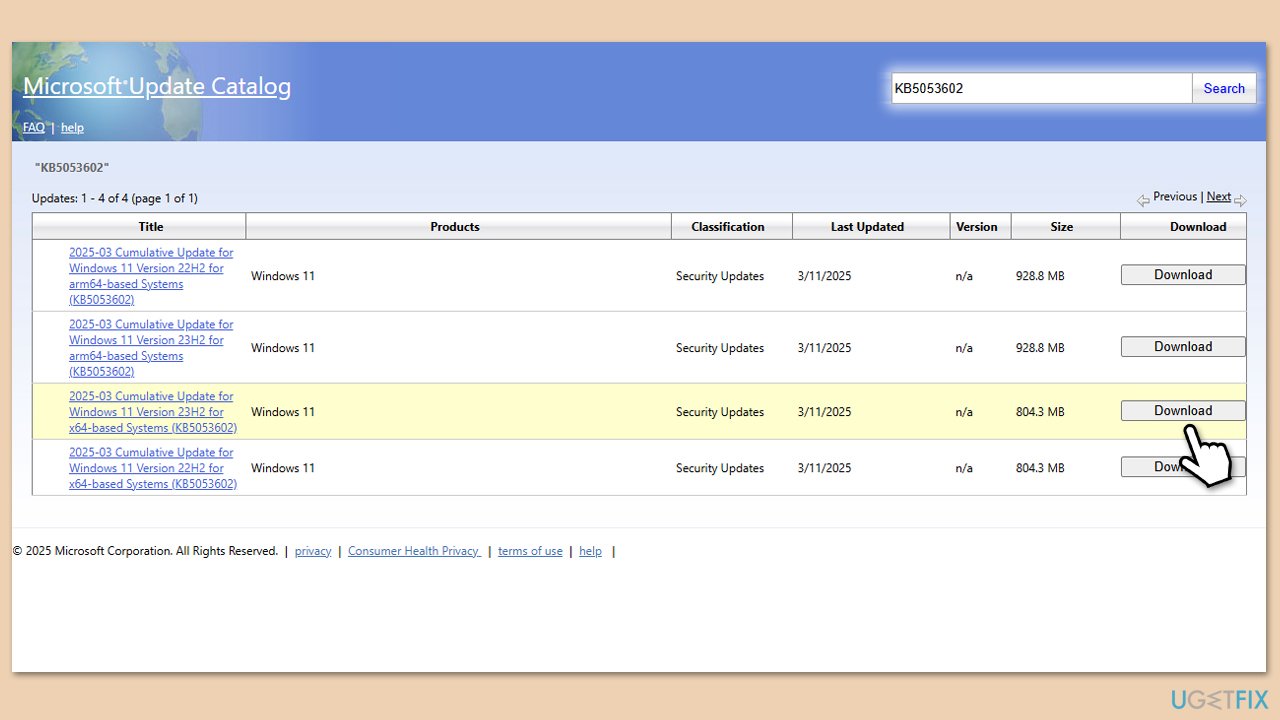
- Visit the Microsoft Update Catalog website.
- Search for the update KB5053602.
- Find the version of the update that matches your system type.
- Click the Download button next to the correct version.
- In the window that opens, click the link to start the download.
- Once downloaded, open the file and follow the on-screen instructions to install the update.
Fix 6. Temporary pause and unpause the update
A temporary glitch may stall the update process, but pausing and resuming it can often get things moving again with minimal effort.
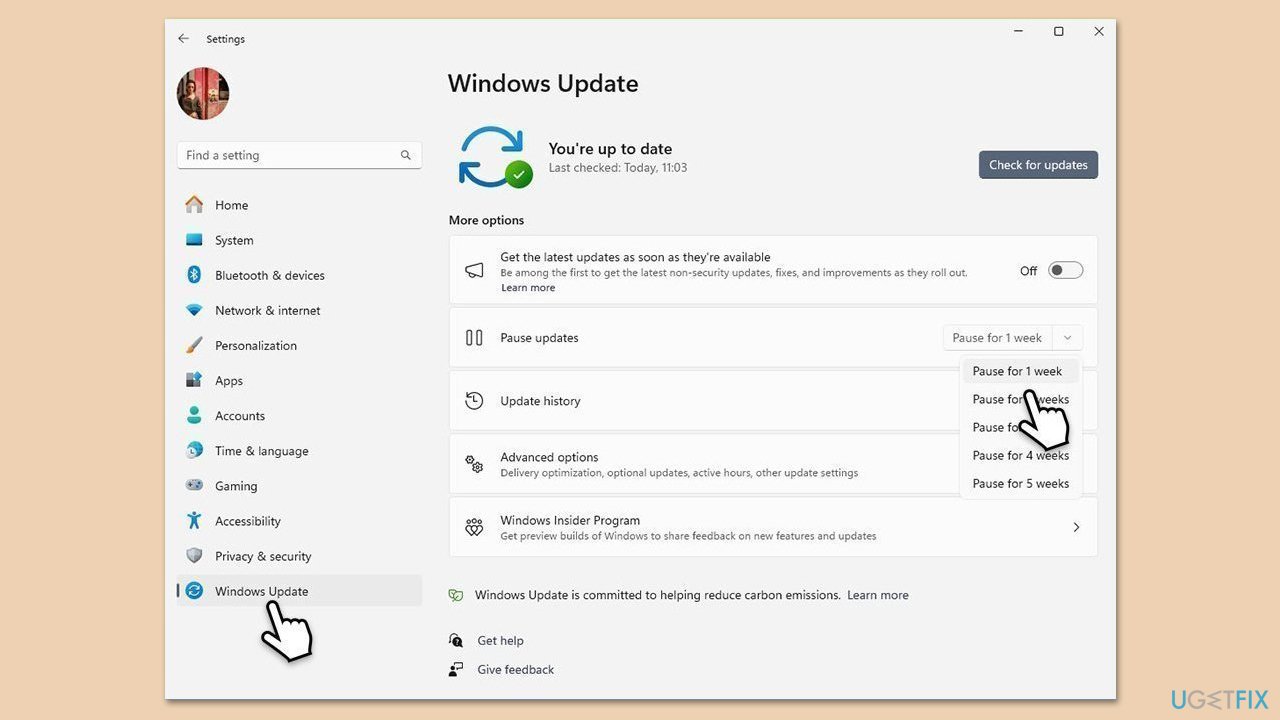
- Type Updates in Windows search and press Enter.
- Click Pause updates for 7 days (in Windows 11, you can pick any other time).
- Wait a minute, then click Resume updates.
- Check if Windows update installs normally again.
Fix 7. Employ Media Creation Tool
If none of the methods above worked, you can always employ the official tool from Microsoft to repair-install Windows and install the latest version of Windows.
- Visit the official Microsoft website and download the Windows installation media.
- Double-click the installer and select Yes when UAC shows up.
- Agree to the terms and click Next.
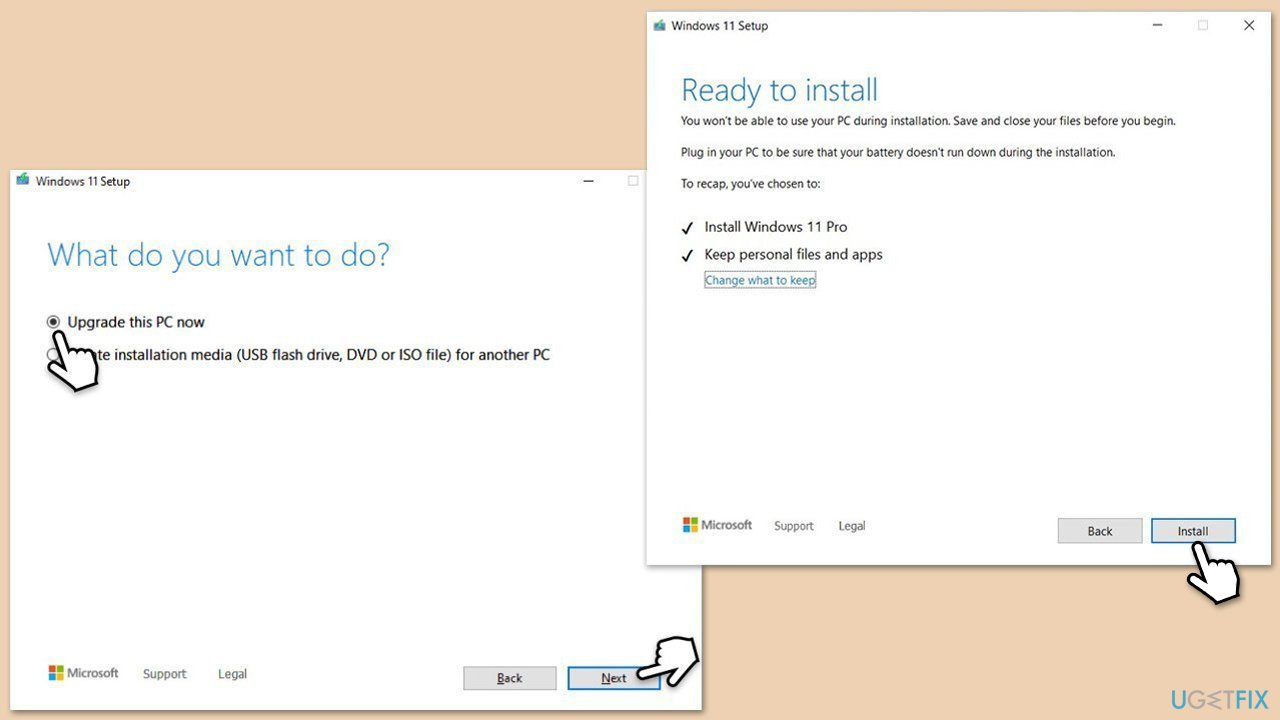
- Select Upgrade this PC now and select Next
- Windows will now download all the necessary files, which might take some time.
- Agree to the terms once again and click Next.
- Before installing, ensure you are happy with your choices (otherwise, you can click Change what to keep option).
- Click Install to begin the upgrade process.
- Your computer will restart as required.
Related posts:
Bottom line
To fix the KB5053602 installation failure, you can try running Disk Cleanup to free up space and remove buggy update cache files, clearing update caches, or using built-in troubleshooters. If these solutions do not resolve the issue, consider manually downloading the update or using specialized software to tackle deeper system problems.
Frequently asked questions
First, try running the Windows Update Troubleshooter, which can help identify and fix issues with updates. If that doesn't work, consider manually downloading the update from the Microsoft Update Catalog.
Yes, you may encounter error codes like 0x800f0922 or 0x80073701, which indicate specific problems with the update process. You can look up these codes for targeted solutions.
Yes, you can temporarily pause updates in Windows 11 settings or use the Group Policy Editor to hide the update until a fix is available. However, it's important to keep your system updated for security.




Report an issue
What's wrong with this guide? We review every report and update or remove content.
Report received — thank you. We'll review and fix it.
You need a free account to submit a report.
Be the first to comment