How to fix
KB5055518 fails to install
on Windows
Resolve KB5055518 installation issues in Windows 10 effortlessly with our expert-tested solutions and tips for a seamless update experience. Fixed in mi…

What causes How to fix KB5055518 fails to install in Windows 10?
- Corrupted files
- Network issues
- Software compatibility
- Faulty system files
- Previous update issues
Repairs Windows system files, removes malware, and restores a clean OS state — without reinstalling.
I'm trying to update my Windows 10 PC with the KB5055518 update, but it's freezing at 75% with an error. I've tried restarting my PC multiple times, but the update will not install, and I'm worried I'll miss important security fixes.
Windows update failures are not uncommon, and most users have to struggle with them, most often becoming frustrated when systems fail to install critical patches. Either due to corrupted files, network issues, or compatibility of software, they can disrupt smooth operation of Windows 10 and hence troubleshooting becomes a skill users must learn to master.
A KB number, or a Knowledge Base number, is a unique Microsoft-given identifier for every update, typically published as part of the monthly Patch Tuesday schedule on the second Tuesday of each month, that introduces security patches, fixes bugs, and adds new features to Windows computers. This issue has been of concern since skipped updates expose systems to vulnerabilities or performance issues.
KB5055518 is a cumulative update for Windows 10 versions 22H2 and 21H2 released by Microsoft on April 8, 2025, within the Patch Tuesday cycle, advancing the operating system to build numbers 19044.5737 and 19045.5737, respectively.
This update includes several significant fixes, including one in which the Start menu might not launch after a previous update, one that resolves a memory leak in the Windows Print Spooler service that can cause system slowdowns, and one that fixes a bug that prevented some USB devices from being detected when waking up from sleep. It also provides vital security patches to help shield against exploits, making the system more stable and secure.
On forums, people have complained of frustration with the inability of the update to install, resulting at times in serial attempts at installation that disrupt their work. There are several reasons why KB5055518 may not install, and each has a matching solution to how to resolve it:
- If the failure to update is because system files are faulty, correcting them with SFC/DISM will prove to be helpful. These programs scan and replace corrupted or missing system files that may potentially delay the successful installation of the update and have the system in perfect condition for updating.
- When the problem lies in issues within the SoftwareDistribution folder, renaming it might help. The SoftwareDistribution folder is a directory where Windows temporarily stores update files before installation, and if these files become corrupted, the update process can fail; clearing the folder forces Windows to download fresh files.
- In other cases, security or similar software can prevent the update from completing successfully, so you might want to disable it or run a Clean Boot to determine which app is causing problems. Third-party antivirus or firewall software can block system changes during the update, and a Clean Boot starts Windows with minimal services to identify conflicts.
The instructions below provide eight detailed fixes to address the issue of KB5055518 failing to install, helping you get your system updated. For a faster solution, we recommend using [d1], a PC repair tool that can automatically address system file corruption, service errors, and other underlying Windows issues potentially causing the problem.
Fix 1. Run Disk Cleanup
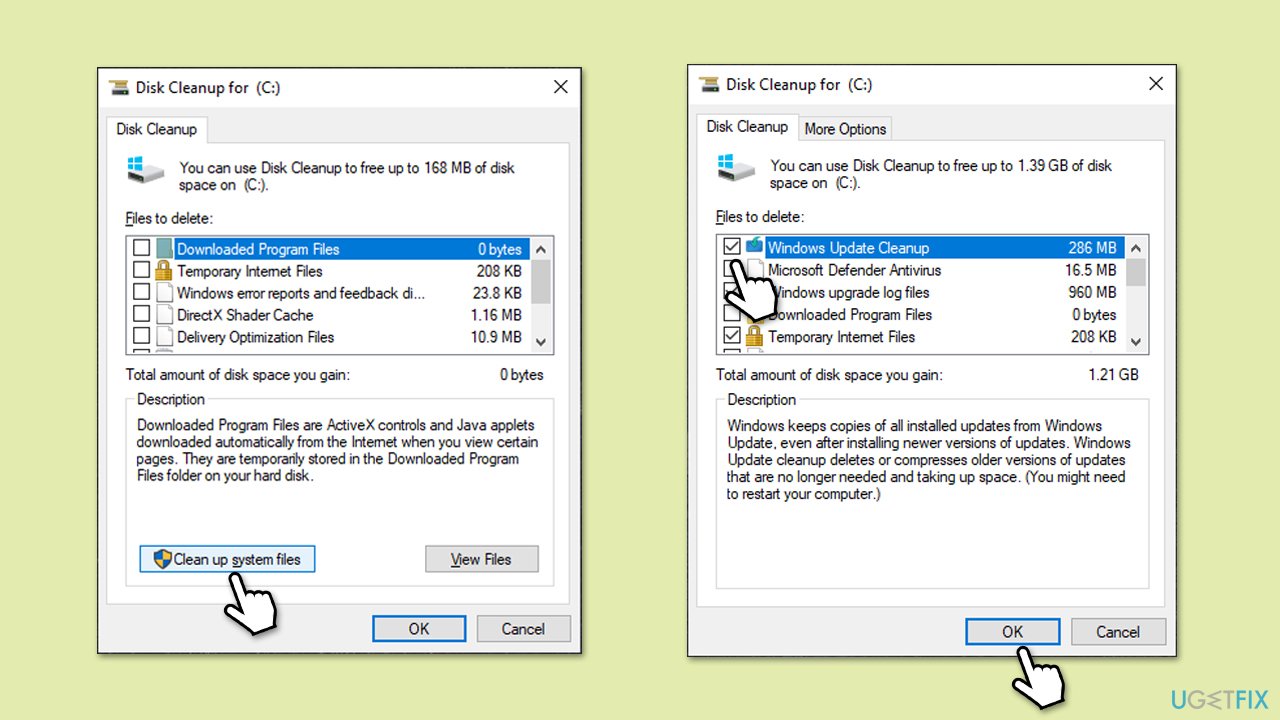
Disk Cleanup can help you remove some buggy files and make more space and your drive - if that's the problem.
- Type Disk Cleanup in Windows search and press Enter.
- If your Windows is installed on drive C, pick it from the list (it should be by default) and press OK. If you only use one drive, this step will be skipped.
- At the bottom of the window, click on Clean up system files.
- Select the main drive again if required and wait.
- While marking sections like Windows Update Cleanup and Windows upgrade log files is mandatory, you can also pick other sections if you think they aren't useful to you, such as Temporary Internet Files or Delivery Optimization Files, and others.
- Click OK - the process should be finished shortly.
Fix 2. Run the troubleshooters
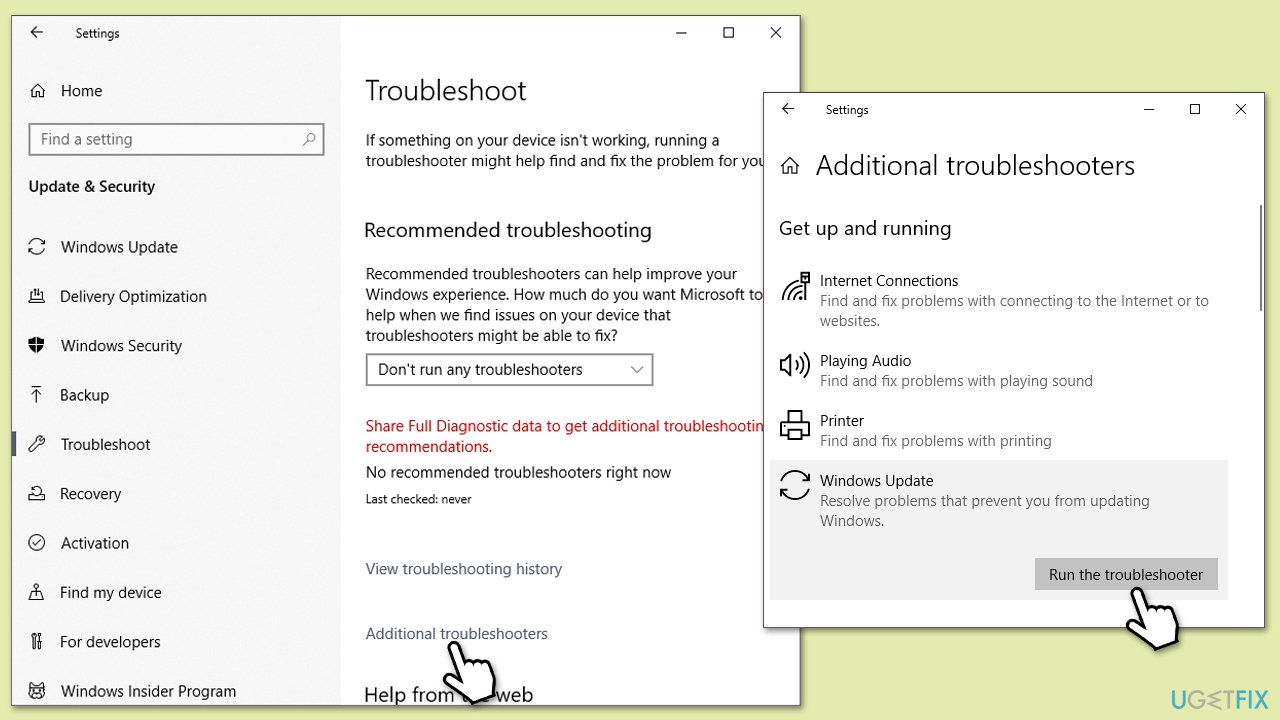
The built-in troubleshooter can detect and fix common update issues, such as service errors or corrupted caches.
- Type Troubleshoot in Windows search and press Enter.
- Click Additional troubleshooters if you can't see them listed.
- Scroll down to find the Windows Update option.
- Click and select Run the troubleshooter.
- Apply the offered changes and close down the troubleshooter - see if that helps solve your problem.
Also run network troubleshooter, follow these steps:
- Right-click on Start and pick Settings.
- Go to the Network & Internet section.
- On the right side, find the Advanced network settings section.
- Click Network troubleshooter and wait.
- The fixes will be automatically applied.
Fix 3. Repair system file corruption
As mentioned before, system file corruption can cause update failures, so make sure you repair them as follows:
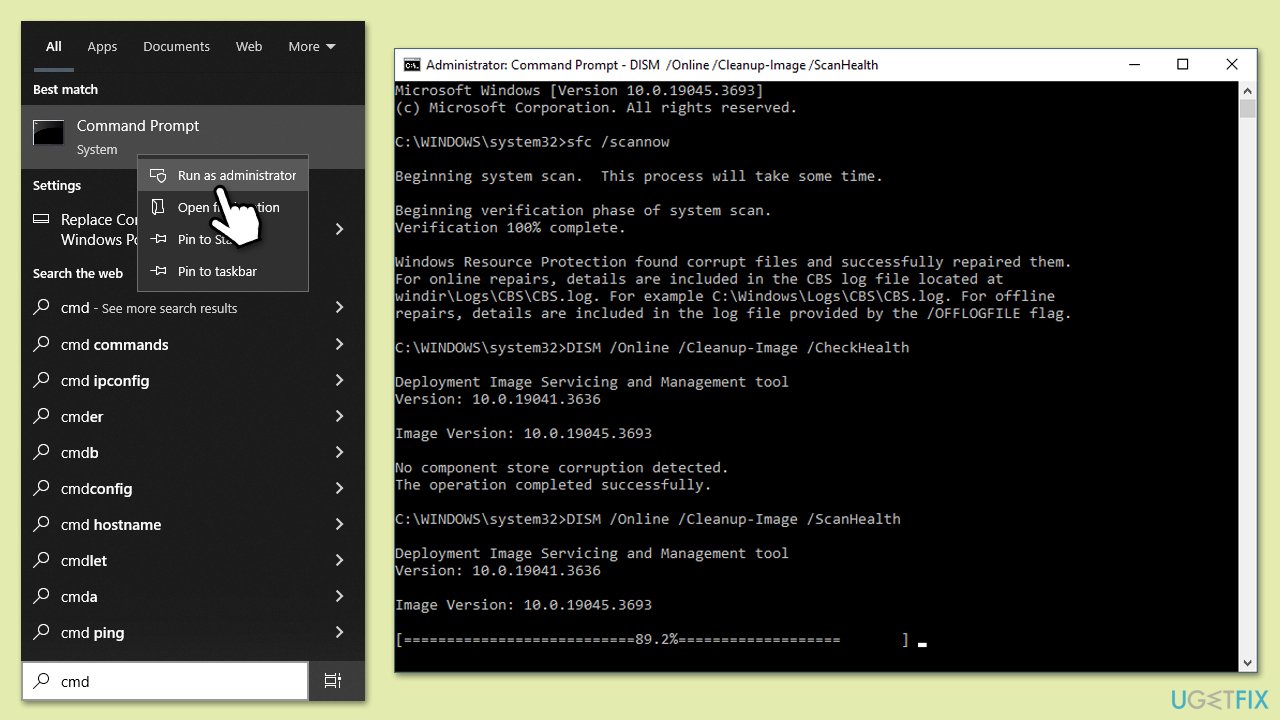
- Type cmd in Windows search.
- Right-click on Command Prompt and pick Run as administrator.
- User Account Control window will show up - click Yes when prompted.
- Copy and paste this command and hit Enter:
sfc /scannow - Wait for the scan to finish.
- As soon as it finishes, Windows will report whether integrity violations were found and if they could be fixed. Regardless of the outcome, use these commands next, pressing Enter after each:
Dism /Online /Cleanup-Image /CheckHealth
Dism /Online /Cleanup-Image /ScanHealth
Dism /Online /Cleanup-Image /RestoreHealth - Close down the Command Prompt and reboot your computer.
Fix 4. Disable antivirus or run Clean Boot
If third party software is causing the problem, you can run Clean Boot and try updating then.
- Disable your anti-malware software temporarily and try the update again.
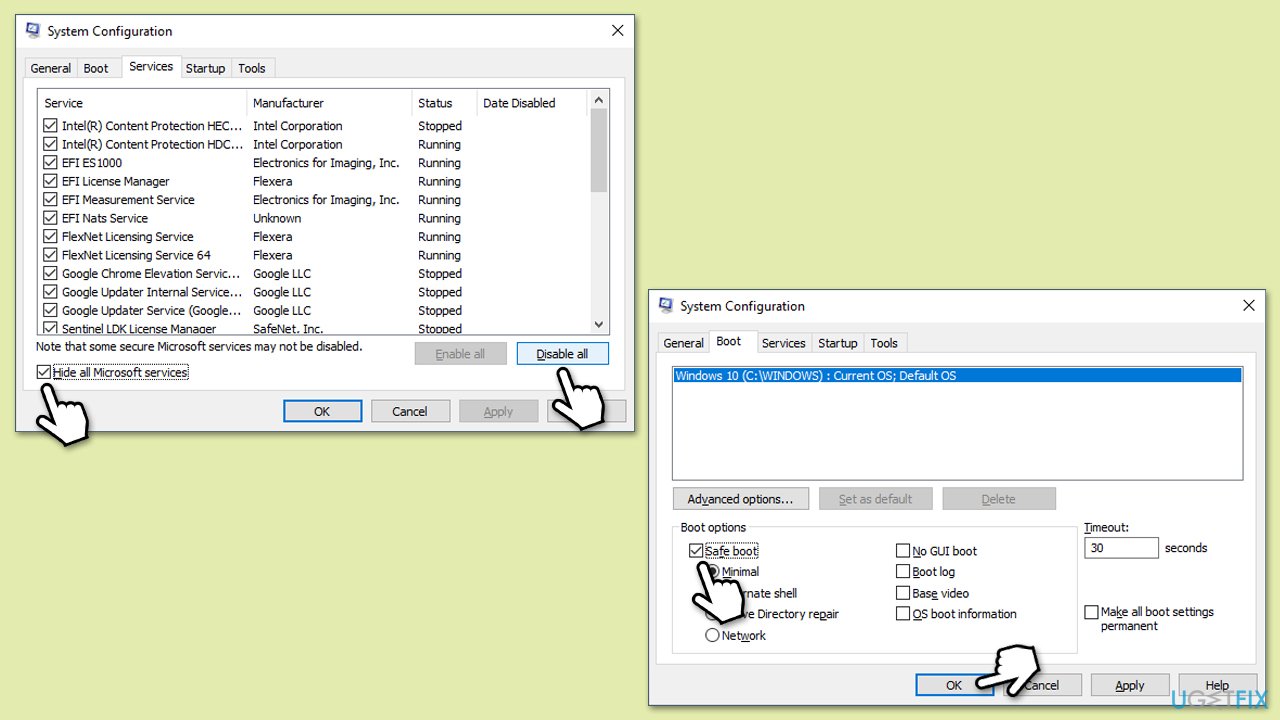
- If the problem persists, press Win + R, type msconfig, and hit Enter.
- Go to the Services tab and tick the Hide all Microsoft services checkbox.
- Select Disable all.
- Go to the Startup tab and click Open Task Manager.
- Here, right-click on each of the non-Windows entries and select Disable.
- Close down the Task Manager.
- Go to the Boot tab and tick the Safe boot option.
- Restart your device and attempt to apply the update.
Fix 5. Reset Windows update components
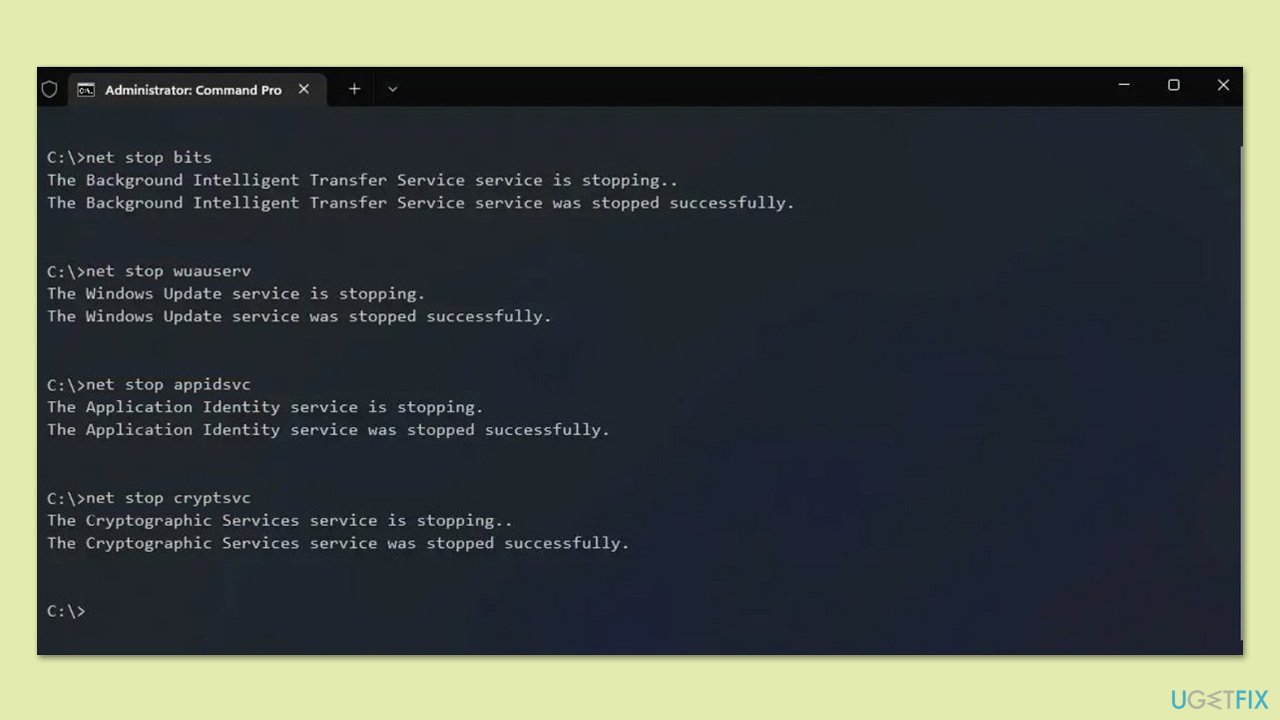
- Open Command Prompt as administrator.
- Stop the Windows Update-related services by running the following commands one at a time, pressing Enter after each one:
net stop wuauserv
net stop cryptSvc
net stop bits
net stop msiserver - Rename the SoftwareDistribution and Catroot2 folders by running the following commands:
ren C:\Windows\SoftwareDistribution SoftwareDistribution.old
ren C:\Windows\System32\catroot2 Catroot2.old
Note: If your Windows installation is not on the C drive, replace "C" with the appropriate drive letter. - Restart the Windows Update-related services by running the following commands:
net start wuauserv
net start cryptSvc
net start bits
net start msiserver - Restart your device.
Fix 6. Use Media Creation Tool
Media Creation Tool is an official tool from Microsoft you can use
- Visit the official Microsoft website and download Windows 10 installation media.
- Double-click the installer and click Yes when the User Account Control window shows up.
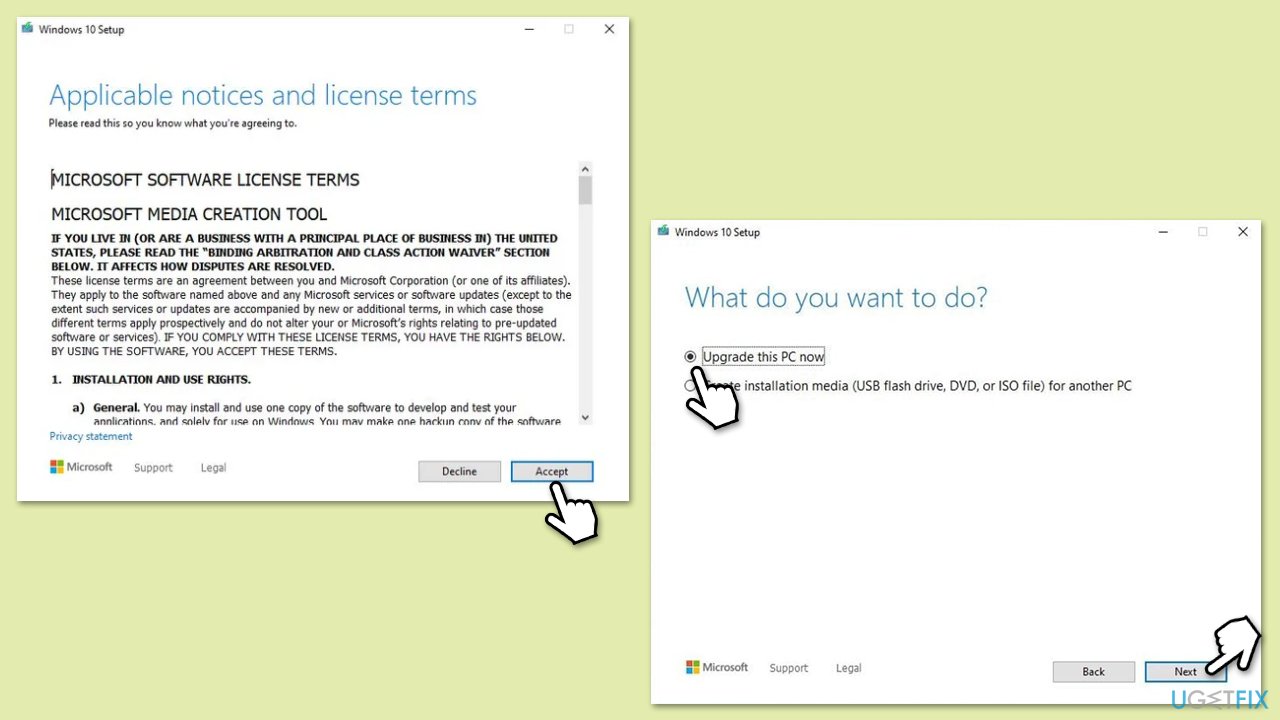
- Agree to the terms and click Next.
- Select Upgrade this PC now and click Next.
- Wait for Windows to download files.
- Agree to the terms once again and click Next.
- Before installing, ensure you are happy with your choices (otherwise, you can click the Change what to keep option).
- Click Install to begin the upgrade process.
Bottom line
To resolve the installation failure of KB5055518, users can utilize SFC/DISM to correct faulty system files, check their network connection, and ensure software compatibility. If these solutions do not work, further troubleshooting may be necessary.
Frequently asked questions
Common reasons include corrupted system files, insufficient disk space, or conflicts with third-party antivirus software.
You can troubleshoot by running the Windows Update Troubleshooter, checking your internet connection, and ensuring that your system is updated with the latest drivers.
Yes, you can manually download the KB5055518 update from the Microsoft Update Catalog and install it, but ensure your system is compatible with Windows 10.




Report an issue
What's wrong with this guide? We review every report and update or remove content.
Report received — thank you. We'll review and fix it.
You need a free account to submit a report.
Be the first to comment