How to fix
KB5055528 fails to install
on Windows
Resolve the KB5055528 installation error on Windows 11 quickly and easily. Follow expert-tested solutions that get you back on track in minutes.

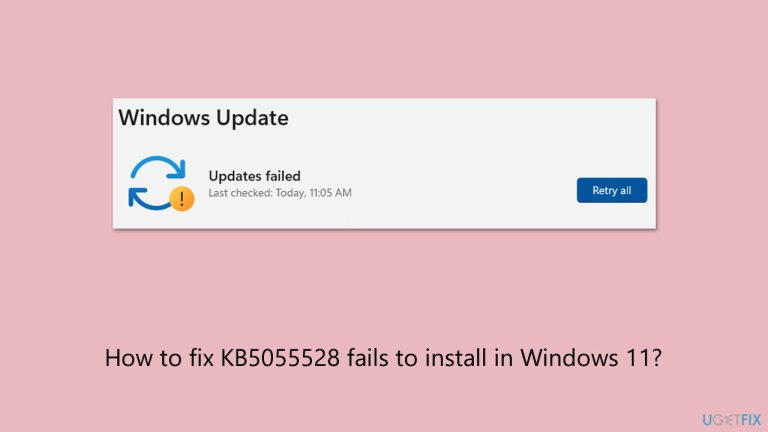
What causes How to fix KB5055528 fails to install in Windows 11?
- Corrupted system files
- Problems in the SoftwareDistribution folder
- Interference from third-party software
- Interrupted update process
- Slow system performance or erratic behavior
Repairs Windows system files, removes malware, and restores a clean OS state — without reinstalling.
Hello. I need some help with the latest Windows update on Windows 11 - KB5055528. For some reason, I can't install the update, and it keeps giving me the message "Updates failed." What can I do?
Windows updates are essential to keep your system up to date, secure, and efficient, adding security patches, bug fixes, and new functionality for Windows 11 users.
Released on Patch Tuesday (the second Tuesday of the month) updates come in several forms: security updates for fixing vulnerabilities, cumulative updates bundling improvements, feature updates for large version updates like 24H2, and optional previews for early testing. They enhance system dependability, protect against attacks, and introduce features like AI-powered features, keeping your device always up to date.
A sample of an update that's a mandatory security update is KB5055528, but it fails to install for other users, perhaps compromising their systems to risk. The KB5055528 update, released on April 8, 2025, addresses Windows 11 versions 22H2 and 23H2, updating the OS to build 226x1.5191 for 23H2.
It addresses security problems, adds AI-powered Windows Search on Copilot+ PCs to improve document and photo search, introduces a Gamepad keyboard layout on touch keyboards, and fixes the name display order on Settings for Japanese users.
Slow system performance or erratic behavior, like apps not opening properly, could be felt by users when KB5055528 is not installed because the update process was interrupted.
This is caused by a range of issues: corrupted system files, which are fixed by running SFC and DISM scans to restore system integrity; problems in the SoftwareDistribution folder - where update files are stored - fixable by deleting it to force a new download; or interference from third-party software, where the fix can be discovered by turning off the software or running a Clean Boot to identify the problematic program.
The following steps present eight solutions to resolve the issue of KB5055528 not installing. If you want a faster solution, we recommend you use [d1], a PC repair software that can automatically correct underlying Windows issues that are stopping KB5055528 from installing.

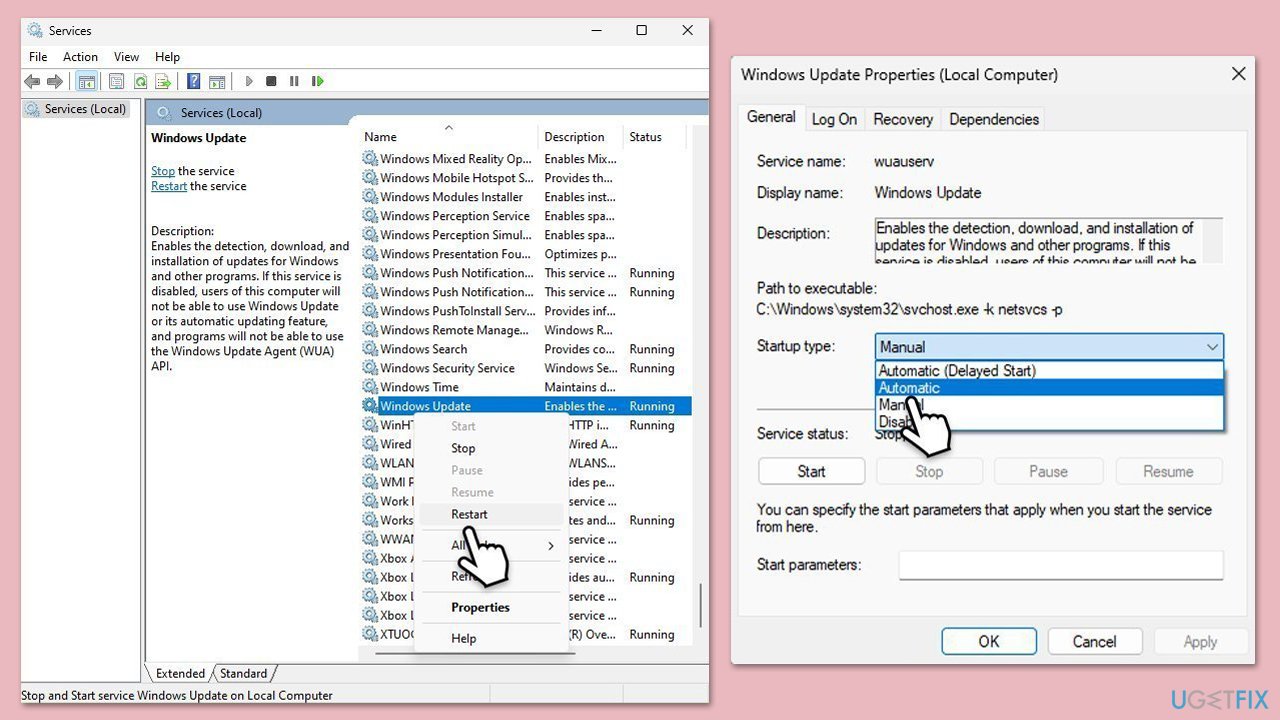
Fix 1. Check relevant services
Some services need to be running in order for Windows updates to proceed successfully. So either restart them or start them as follows:
- Type Services in Windows search and hit Enter.
- Scroll down to the very bottom and find Windows Update service.
- Right-click on the service and pick Restart.
- If the service is not running, double-click it to open Properties.
- Under Startup type, select Automatic from the drop-down menu.
- Click Start if the service was not running.
- Finally, click Apply and OK.
- Repeat this with Background Intelligent Transfer Service (BITS) and Cryptographic services.
Fix 2. Run the troubleshooter
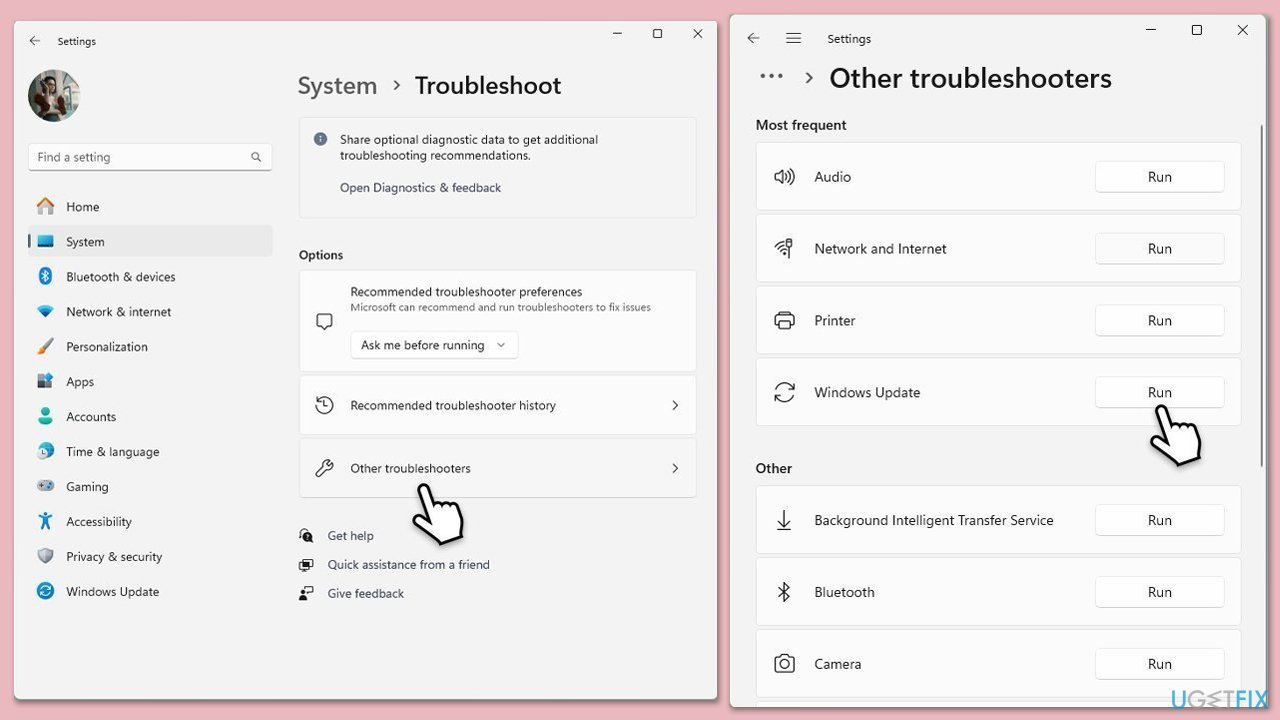
Troubleshooters are built-in tools that are designed to tackle certain issues on Windows automatically, such as network issues and Windows updates.
- Type Troubleshoot in Windows search and hit Enter.
- Go to Other troubleshooters.
- There, find the Windows Update entry from the list.
- Click Run.
- The troubleshooter will automatically scan your system for potential problems and will attempt to fix them.
Fix 3. Run SFC and DISM
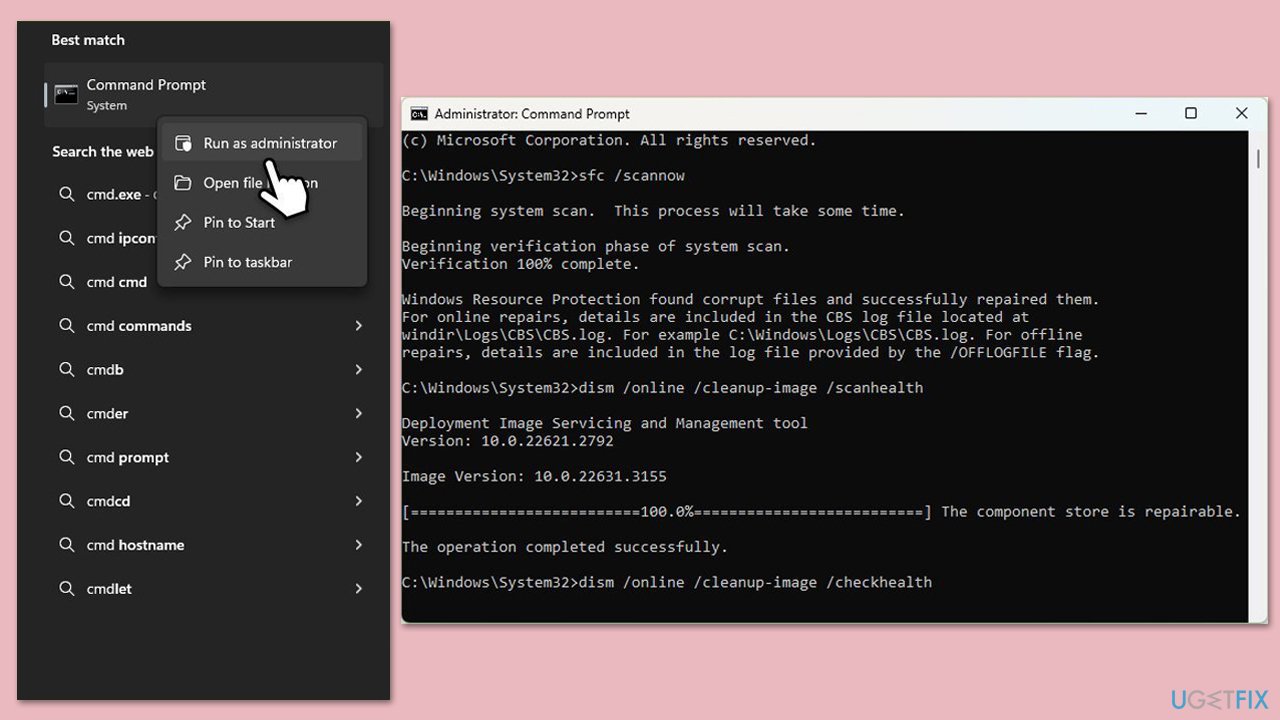
Sometimes, corruption within Windows operating system itself could cause update issues. To address this, follow these steps:
- Type cmd in Windows search.
- Right-click on Command Prompt and select the Run as administrator option.
- User Account Control window will show up - click Yes when prompted.
- Then, copy and paste the following command, pressing Enter after:
sfc /scannow - Wait till the scan is finished. If Windows finds system file integrity violations, it will attempt to fix them. After this, use the set of the following commands, pressing Enter each time:
DISM /Online /Cleanup-Image /CheckHealth
DISM /Online /Cleanup-Image /ScanHealth
DISM /Online /Cleanup-Image /RestoreHealth - Close down the Command Prompt and restart your computer.
Fix 4. Attempt to install manually
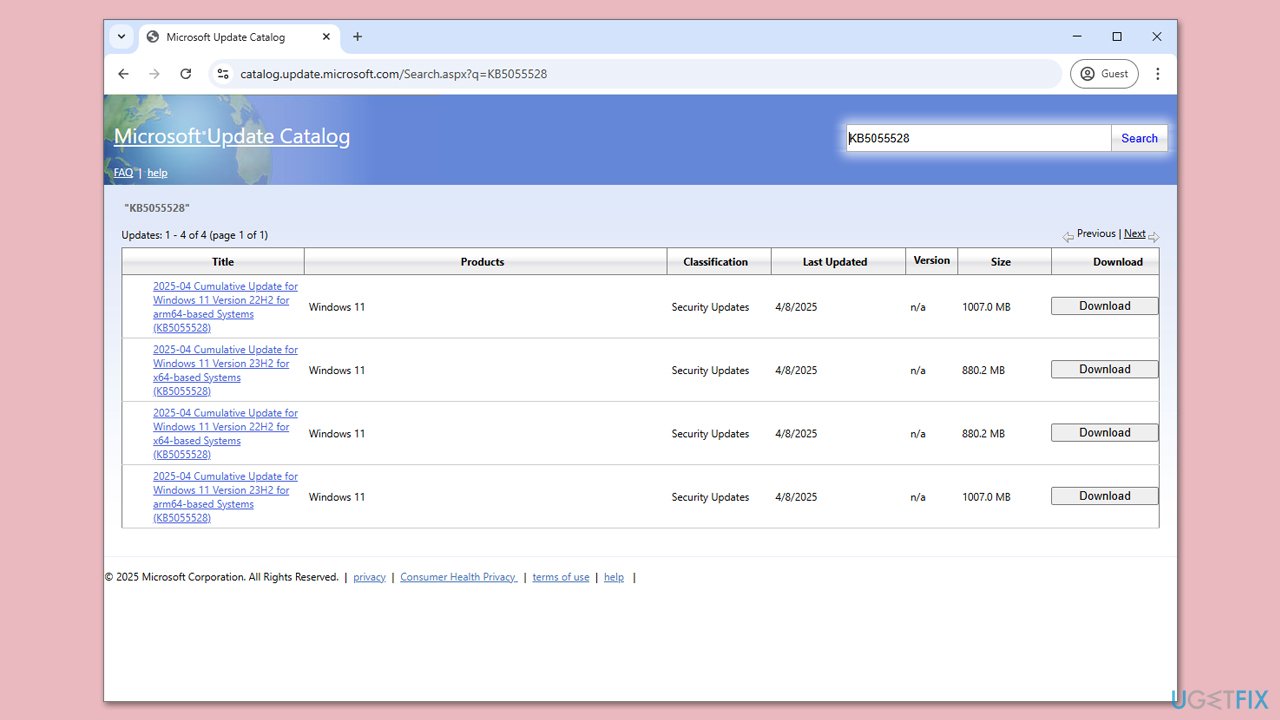
An alternative way to install the updates is by using the official Microsoft website to do it manually.
- Visit the Microsoft Update Catalog website.
- Search for the update KB5055528.
- Find the version of the update that matches your system type.
- Click the Download button next to the correct version.
- In the window that opens, click the link to start the download.
- Once downloaded, open the file and follow the on-screen instructions to install the update.
Fix 5. Perform Disk Cleanup
Disk Cleanup can clear up bugged caches and free up some space if it's lacking on your drive.
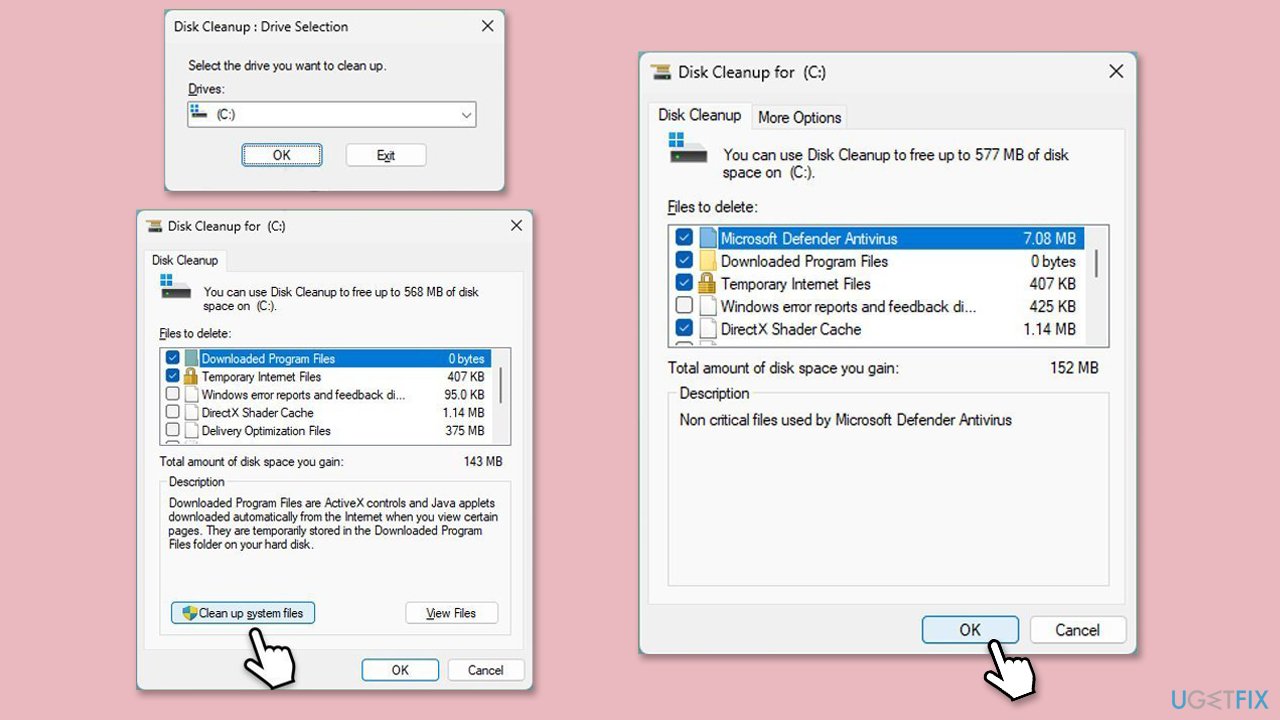
- In Windows search, type Disk Cleanup, and press Enter to open the Disk Cleanup utility.
- If required, choose your main drive (where Windows is installed - usually, C:).
- There, click Clean up system files.
- Select the correct drive again and click OK.
- In the list of files that can be cleaned up, select the largest portions of data, such as Windows Update, Temporary Internet Files, Temporary Files, and others.
- Click OK to begin the cleanup process.
Fix 6. Reset Windows update components
These sets of commands will clear Software distribution cache and reset components related to potential network issues.
- Open Command Prompt as administrator.
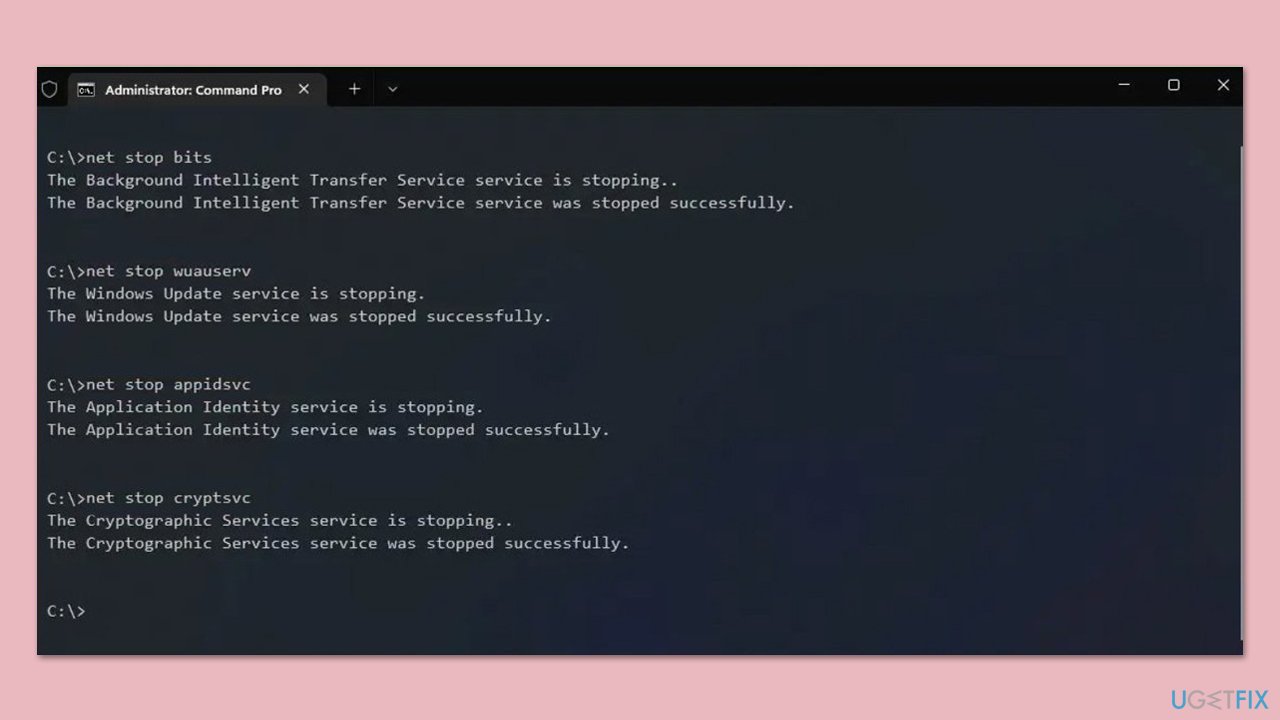
- Stop the Windows Update-related services by running the following commands one at a time, pressing Enter after each one:
net stop wuauserv
net stop cryptSvc
net stop bits
net stop msiserver - Rename the SoftwareDistribution and Catroot2 folders by running the following commands:
ren C:\Windows\SoftwareDistribution SoftwareDistribution.old
ren C:\Windows\System32\catroot2 Catroot2.old
Note: If your Windows installation is not on the C drive, replace "C" with the appropriate drive letter.
regsvr32.exe /s atl.dll
regsvr32.exe /s urlmon.dll
regsvr32.exe /s mshtml.dll
netsh winsock reset
netsh winsock reset proxy - Restart the Windows Update-related services by running the following commands:
net start wuauserv
net start cryptSvc
net start bits
net start msiserver - Reboot your system.
Fix 7. Use Media Creation Tool
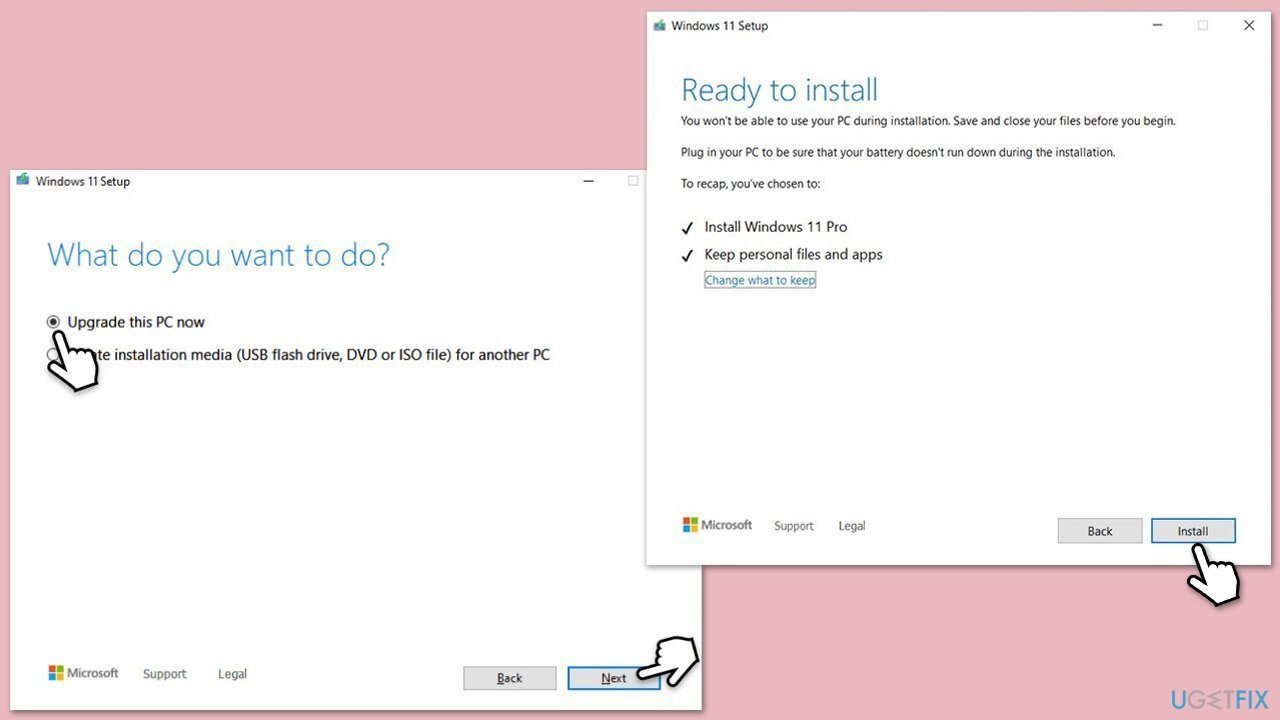
If none of the solutions above help, you can always employ Media Creation Tool, which can reinstall Windows without touching your personal files and bring it to the latest version. Before proceeding, make sure you disconnect all unnecessary peripherals, such as printers or gamepads, and uninstall third-party security software to avoid interference.
- Visit the official Microsoft website and download the Windows installation media.
- Double-click the installer and select Yes when UAC shows up.
- Agree to the terms and click Next.
- Select Upgrade this PC now and select Next
- Windows will now download all the necessary files, which might take some time.
- Agree to the terms once again and click Next.
- Before installing, ensure you are happy with your choices (otherwise, you can click Change what to keep option).
- Click Install to begin the upgrade process.
- Your computer will restart as required.
Bottom line
To resolve the KB5055528 installation issue, you can run SFC and DISM scans to restore system integrity, delete the SoftwareDistribution folder to force a new download, or perform a Clean Boot to identify problematic software. If these solutions do not work, consider using a PC repair software to automatically correct underlying Windows issues.
Frequently asked questions
Try running the Windows Update troubleshooter by going to Settings > Update & Security > Troubleshoot. This can help identify and fix issues preventing the update from installing.
Yes, common error codes like 0x800f0922 or 0x800f081f may occur when KB5055528 fails to install, indicating potential issues with system files or Windows Update components.
Yes, you can manually download the update from the Microsoft Update Catalog website and install it, but ensure your system meets the prerequisites before proceeding.




Report an issue
What's wrong with this guide? We review every report and update or remove content.
Report received — thank you. We'll review and fix it.
You need a free account to submit a report.
Be the first to comment