How to fix
KB5055613 fails to install
on Windows
Resolve KB5055613 installation issues on Windows 11 effortlessly with our expert-tested solutions. Fix it in minutes and enjoy hassle-free updates!

What causes How to fix KB5055613 fails to install in Windows 11?
- Shaky internet connectivity
- Corrupt system files
- Corrupt Windows Update cache
- Issues with the SoftwareDistribution folder
Repairs Windows system files, removes malware, and restores a clean OS state — without reinstalling.
Hey, could you help me solve an issue I'm having with this month's Preview update, KB5055613 - it keeps failing for me. Since I never experienced something like this, I am not sure where to even begin.
The KB5055613 update, which was a Preview update for Windows 11 version 24H2, was released on April 11, 2025, in the Beta Channel for Windows Insiders, updating the OS to build 26120.3863. The update enhances Windows Search on Copilot+ PCs by allowing users to type settings inside the taskbar search box using natural language phrases like "change my theme" without specific names being necessary.
It also improves image description functionality on the Edge browser, such as rich descriptions of graphics like stock performance charts, and is already out on Snapdragon-based Copilot+ PCs, with AMD and Intel versions in the pipeline. KB5055613 won't install for others, though, and prevents users from accessing the enhancements.
If KB5055613 won't install, though, users will be able to see their system repeatedly prompting for the update or slowing down due to the stuck process. This issue can be brought about by over one cause: a shaky internet connectivity may halt the download, which can be done away with by utilizing a stable network or restarting your router; corrupt system files can interfere with the installation but, by executing SFC and DISM scans, can be repaired; or a corrupt Windows Update cache in the SoftwareDistribution folder (where update packages are downloaded and stored) may halt the process, and emptying this folder can do away with the issue.
Instructions below provide eight solutions, ranging from simple steps like checking your network and to more complex steps like a clean update, to resolve the issue of KB5055613 failing to install. To get a quick fix, using [d1], a PC repair tool that can automatically fix system issues.
Fix 1. Run Windows Update Troubleshooter
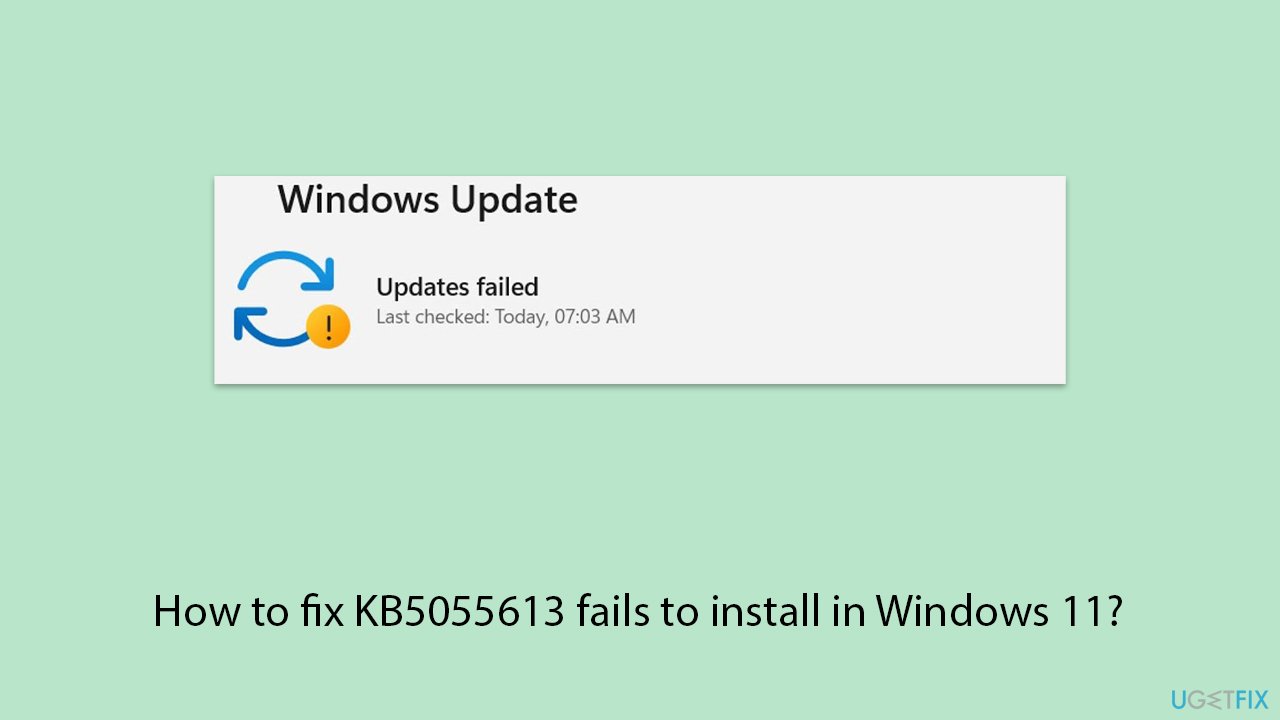
- Type Troubleshoot into the Windows search bar and press Enter.
- Next, on the right side of the window, select Other troubleshooters.
- Scroll down to locate the Windows update section.
- Click on Run and allow the process to complete.
- Once it is finished, implement any recommended changes and restart your computer.
- Repeat this process with Network Troubleshooter.
Fix 2. Check services
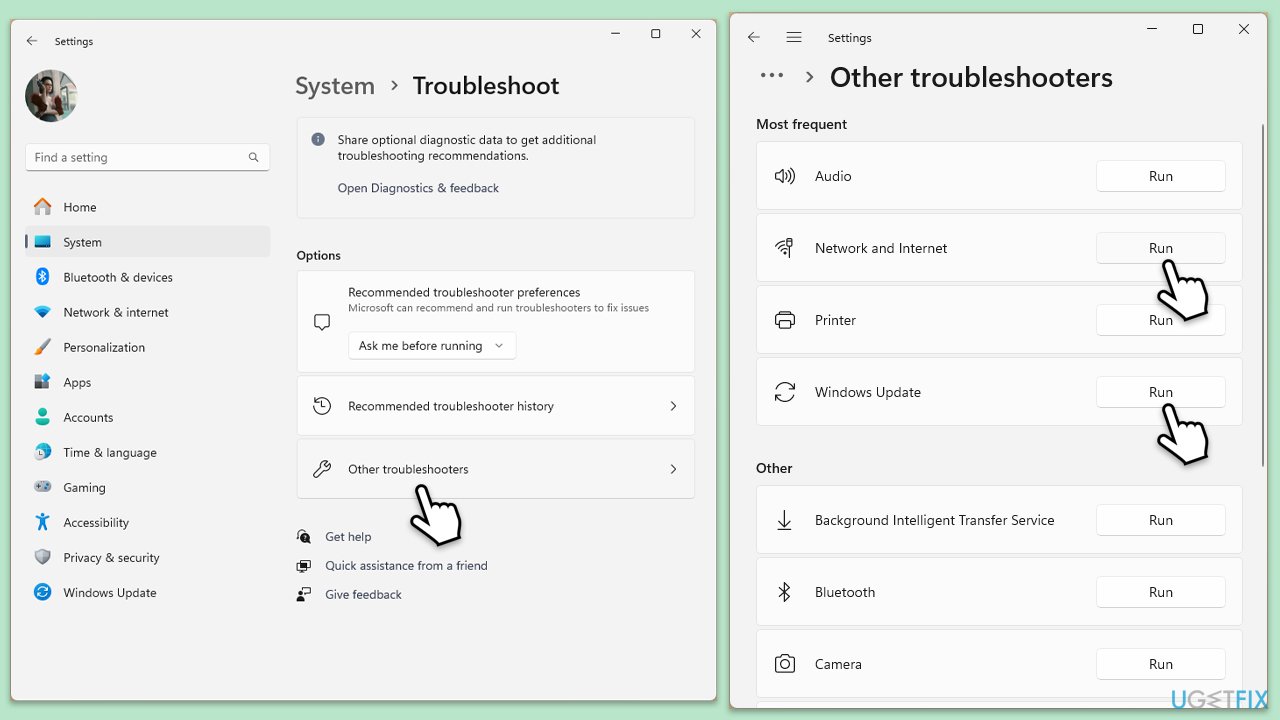
- Type in Services in Windows search and press Enter.
- Locate Windows Update Service.
- If it is already running, right-click and select Restart.
- if the service is not running, double-click it to open Properties.
- Under the Startup type, select Automatic from the drop-down menu.
- Click Start, Apply, and OK.
- Locate Background Intelligent Transfer Service (BITS), Cryptographic service, and Windows Installer service, and repeat the process.
Fix 3. Run SFC and DISM
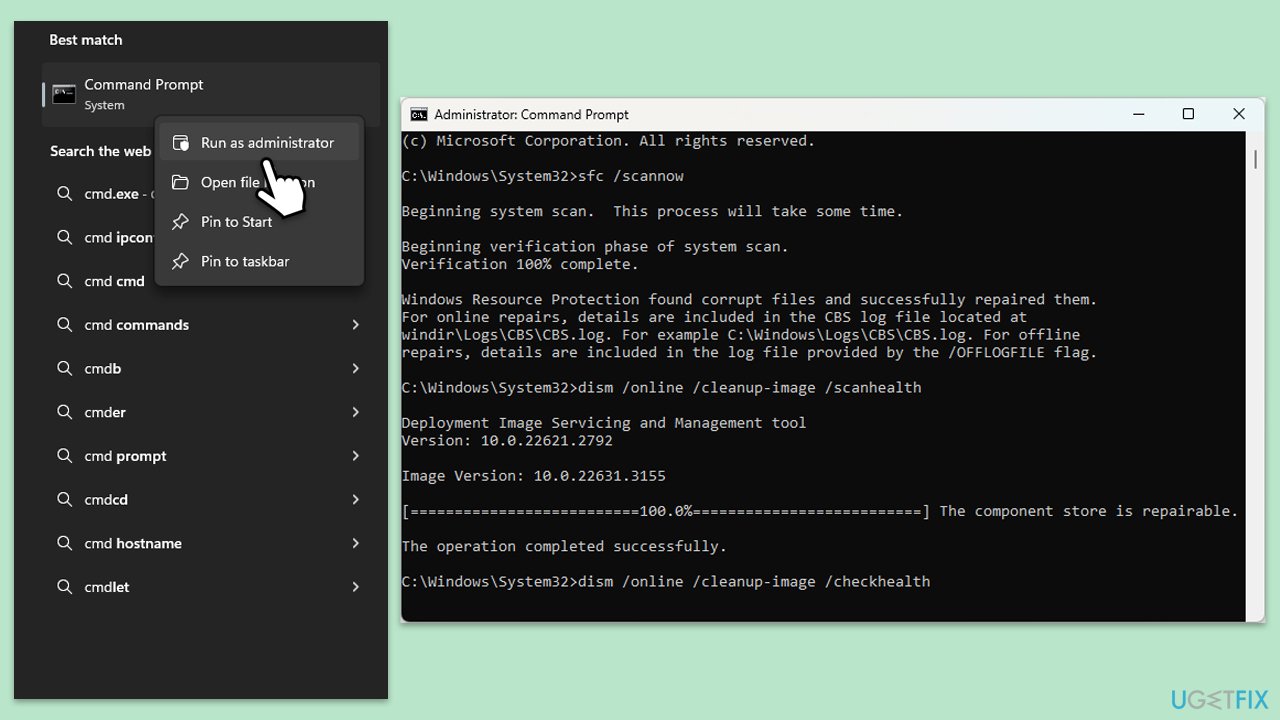
- Type cmd in Windows search, right-click on Command Prompt, and select Run as administrator.
- When UAC shows up, click Yes.
- Copy and paste the following command, pressing Enter after:
sfc /scannow - Wait till the scan is finished. If Windows finds system file integrity violations, it will attempt to fix them. After this, use the set of the following commands, pressing Enter each time:
DISM /Online /Cleanup-Image /CheckHealth
DISM /Online /Cleanup-Image /ScanHealth
DISM /Online /Cleanup-Image /RestoreHealth - (Note: if you get an error executing this last command, add /Source:C:\RepairSource\Windows /LimitAccess to it and try again).
- Close down the Command Prompt and restart your device.
Fix 4. Reset Windows update components
- Open Command Prompt as administrator.
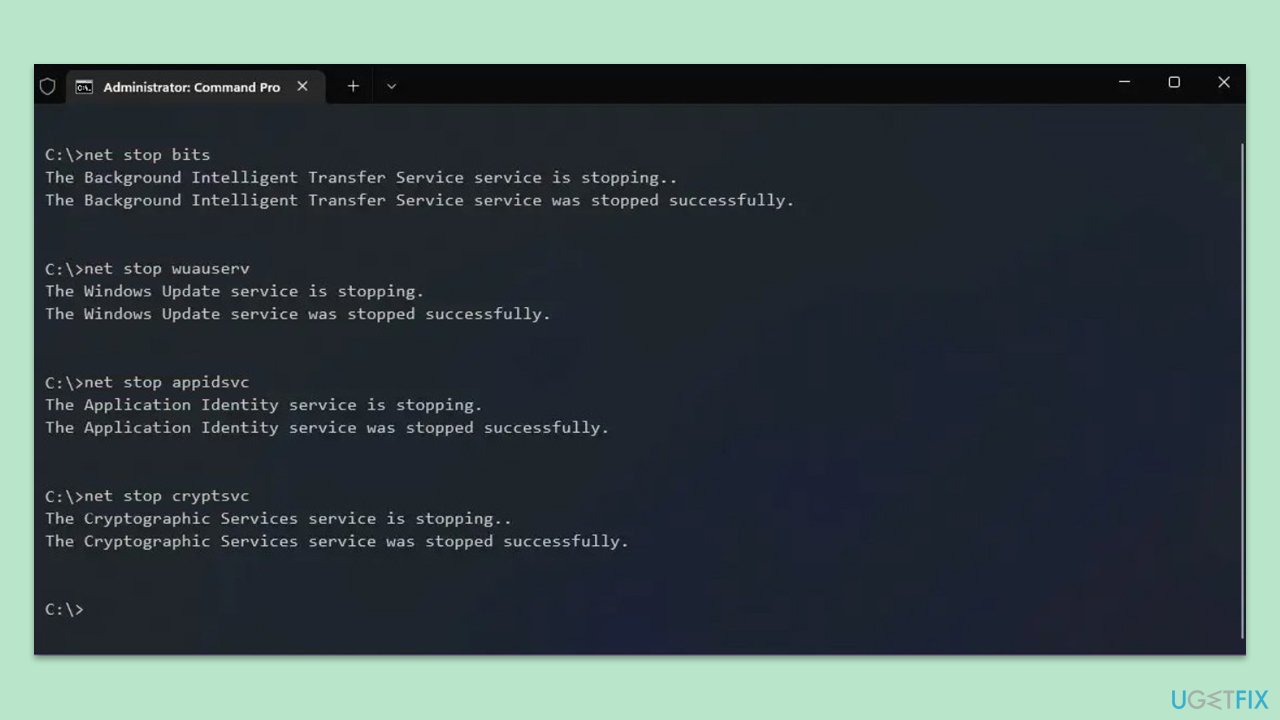
- Stop the Windows Update-related services by running the following commands one at a time, pressing Enter after each one:
net stop wuauserv
net stop cryptSvc
net stop bits
net stop msiserver - Rename the SoftwareDistribution and Catroot2 folders by running the following commands:
ren C:\Windows\SoftwareDistribution SoftwareDistribution.old
ren C:\Windows\System32\catroot2 Catroot2.old
Note: If your Windows installation is not on the C drive, replace "C" with the appropriate drive letter. - Restart the Windows Update-related services by running the following commands:
net start wuauserv
net start cryptSvc
net start bits
net start msiserver - Restart your computer.
Fix 5. Perform Disk Cleanup
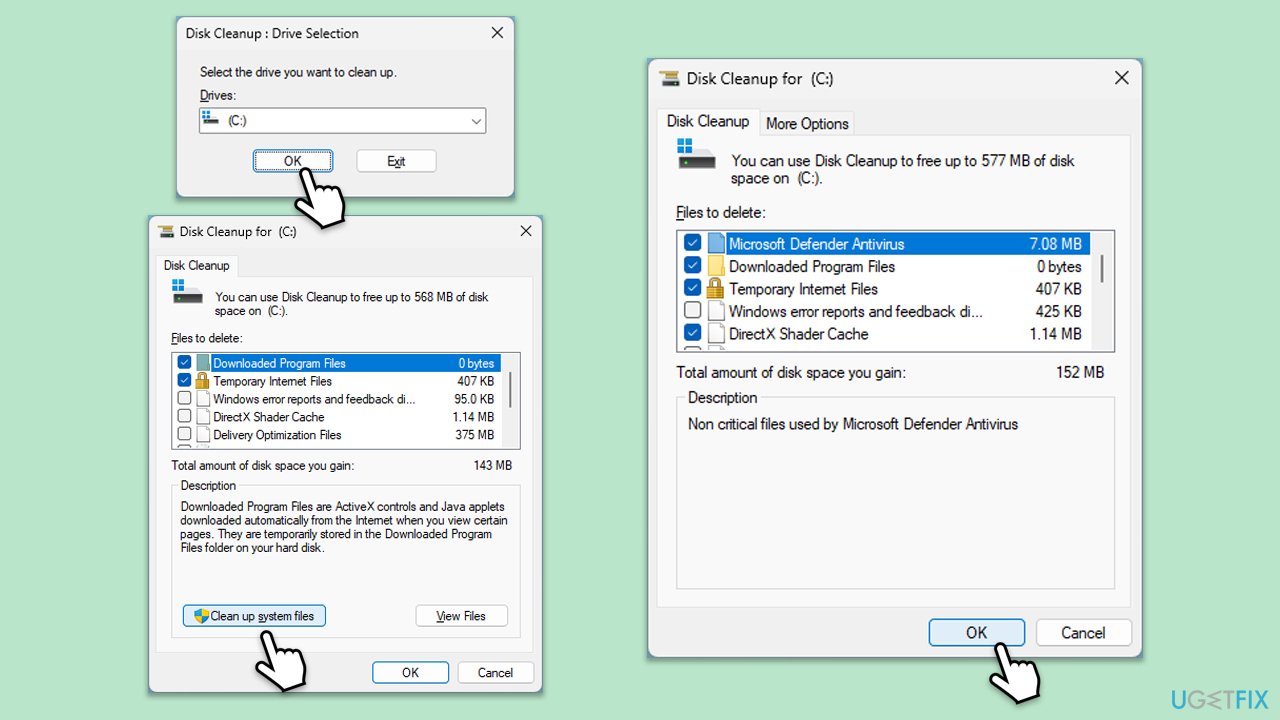
- Type Disk Cleanup in Windows search and hit Enter.
- If your Windows is installed on drive C, pick it from the list (should be by default) and press OK.
- Click Clean up system files.
- Select your main drive again and click OK.
- Here, select the largest portions of the data used - these typically include Temporary Internet Files, Windows Update, Temporary Files, Recycle Bin, Delivery Optimization Files, and others. Marking Windows Update is vital here.
- Click OK and wait for the process to be finished.
Fix 6. Run Clean Boot
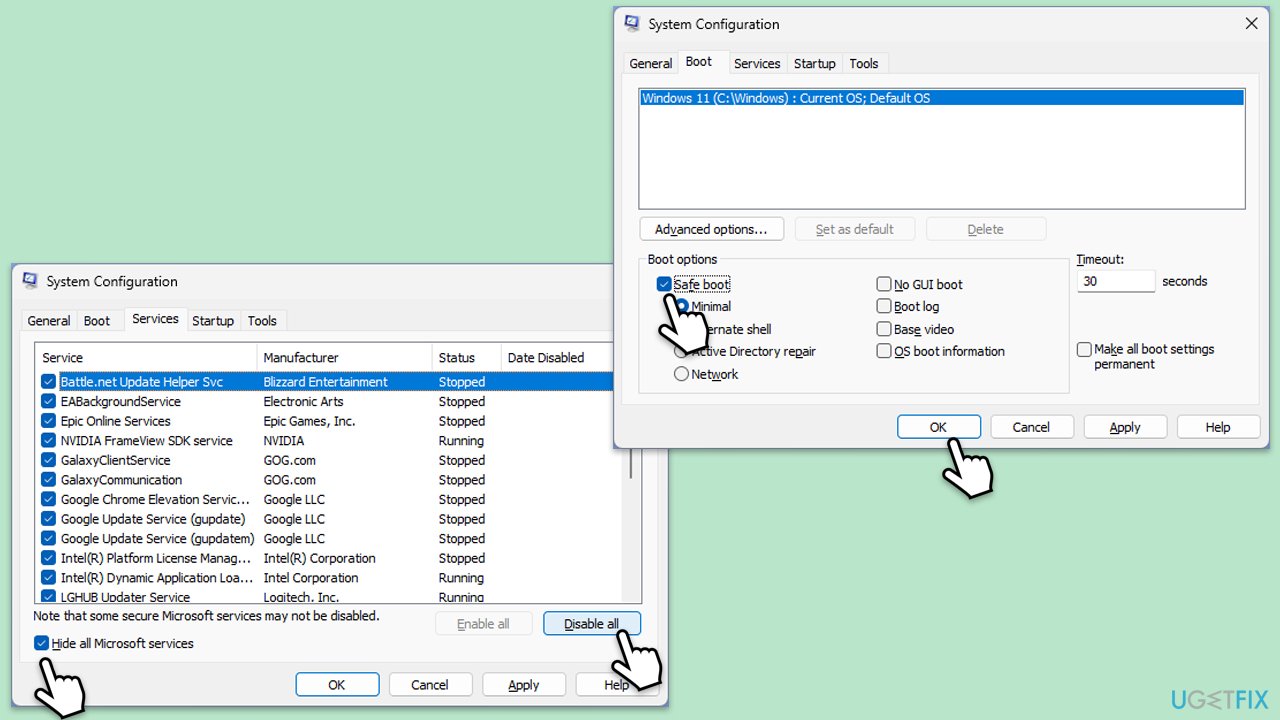
- Type msconfig in the Windows search box and press Enter.
- Pick the Services tab.
- Mark Hide all Microsoft services and select Disable all.
- Select the Startup tab and click Open Task Manager.
- In the Task Manager, right-click on each of the items and select Disable, then close the Task Manager.
- Go to the Boot tab, mark the Safe Boot option, then click Apply and OK.
- On the System Configuration window, click OK.
- Restart your computer.
- Try updating Windows again.
Bottom line
To resolve the issue of KB5055613 failing to install, users can try running the Windows Update Troubleshooter, executing SFC and DISM scans, or emptying the SoftwareDistribution folder. If these solutions do not work, consider using a PC repair tool or performing a clean update.
Frequently asked questions
First, try running the Windows Update Troubleshooter by navigating to Settings > Update & Security > Troubleshoot. If the issue persists, consider manually downloading the update from the Microsoft Update Catalog.
Yes, common error codes include 0x800f0922 and 0x80073701, which indicate issues with the update components or system files. Researching these codes can provide more targeted solutions.
Make sure your system is up to date by installing all prior updates, and check for enough disk space. Additionally, running a system file check with 'sfc /scannow' can help resolve potential file corruption.




Report an issue
What's wrong with this guide? We review every report and update or remove content.
Report received — thank you. We'll review and fix it.
You need a free account to submit a report.
Be the first to comment