How to fix
KB5055683 fails to install
on Windows
Resolve the KB5055683 installation issue on Windows 10 quickly with our expert-tested solutions and fix it in minutes! Updated 2025.

What causes How to fix KB5055683 fails to install in Windows 10?
- Unstable internet connection
- Corrupted system files
- Corrupted update cache in SoftwareDistribution folder
- Issues with Windows Update components
- General system issues
Repairs Windows system files, removes malware, and restores a clean OS state — without reinstalling.
Hey guys, I'm having a problem where I can't install KB5055683 .NET Framework update on my Windows 10. What can I do to resolve this?
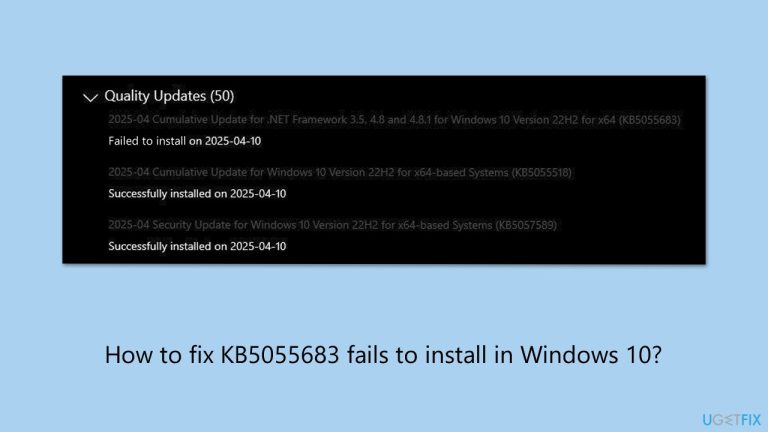
The KB5055683 update, a cumulative update for .NET Framework 3.5, 4.8, and 4.8.1, was released on April 8, 2025, targeting Windows 10 version 22H2. This update contains no new security improvements but includes all previously released security fixes, focusing on quality and reliability enhancements for the .NET Framework.
It aims to improve the stability of applications relying on these framework versions, addressing minor bugs and performance issues, though Microsoft notes no specific new features or known issues in this release
However, KB5055683 fails to install for some users, often disrupting system updates and leaving them vulnerable to unpatched issues. This can result in repeated update notifications or sluggish performance due to the failed process. A common cause is an unstable internet connection, which interrupts the download - ensuring a stable network or resetting your router can help.
Corrupted system files can also block the installation, but running SFC and DISM scans can repair them. Additionally, a corrupted update cache in the SoftwareDistribution folder, where update files are stored, can cause this issue, and clearing it can allow a fresh download.
The instructions below provide several fixes, which you can follow with steps like using the troubleshooter and progressing to advanced solutions like resetting Windows update components, to address the issue of KB5055683 not installing. For a faster solution, we recommend using [d1], a PC repair tool that can automatically fix system issues potentially causing KB5055683 to fail to install.

Fix 1. Run Windows update and network troubleshooters
Update and network troubleshooters can check for simple issues and can help you to resolve them.
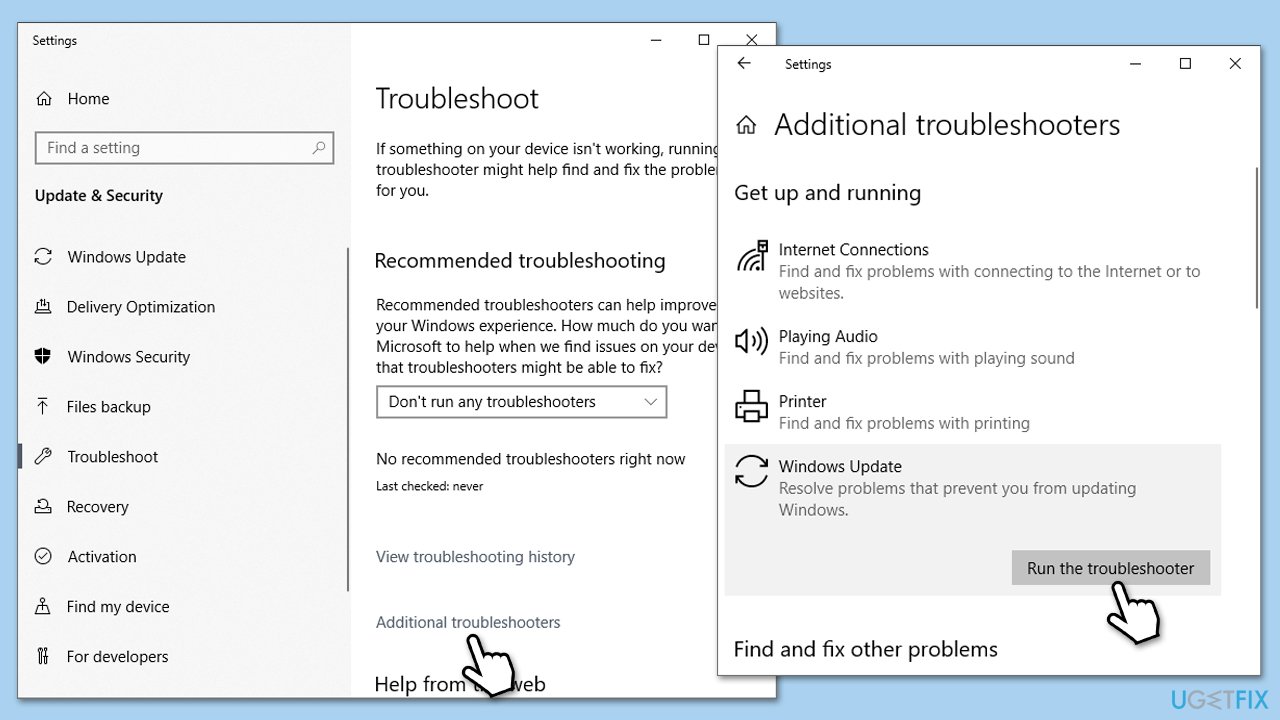
- Type Troubleshoot in Windows search and press Enter.
- Select Additional troubleshooters.
- Find Windows Update from the list.
- Click it and select Run the troubleshooter.
- Restart your computer when the update process finishes.
Run Network troubleshooter next:
- Right-click on Start and pick Settings.
- Go to the Network & Internet section.
- On the right side, find the Advanced network settings section.
- Click Network troubleshooter and wait.
- The fixes will be automatically applied.
Fix 2. Enable .NET Framework components
Since the update is for the .NET Framework components, you need to make sure that they are enabled.
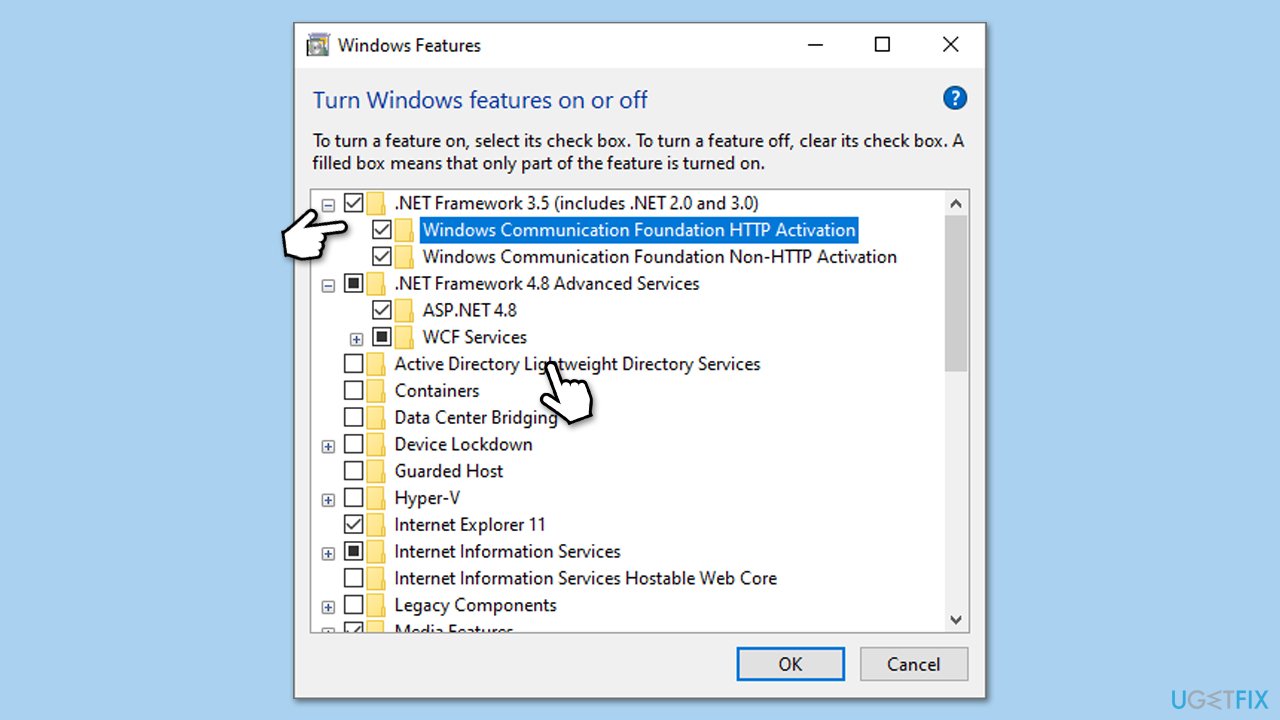
- Type Control Panel in Windows, search and select Programs.
- Select Turn Windows features on or off.
- Enable .NET Framework 3.5 (includes .NET 2.0 and 3.0).
- Expand the section and mark all the associated checkboxes.
- Next, enable .NET Framework 4.8 Advanced Services.
- Expand the section and mark all the associated checkboxes, including ASP.NET 4.8.
- Click OK.
Fix 3. Run SFC and DISM
Corrupted system files are among the most common causes for various Windows issues, including updates.
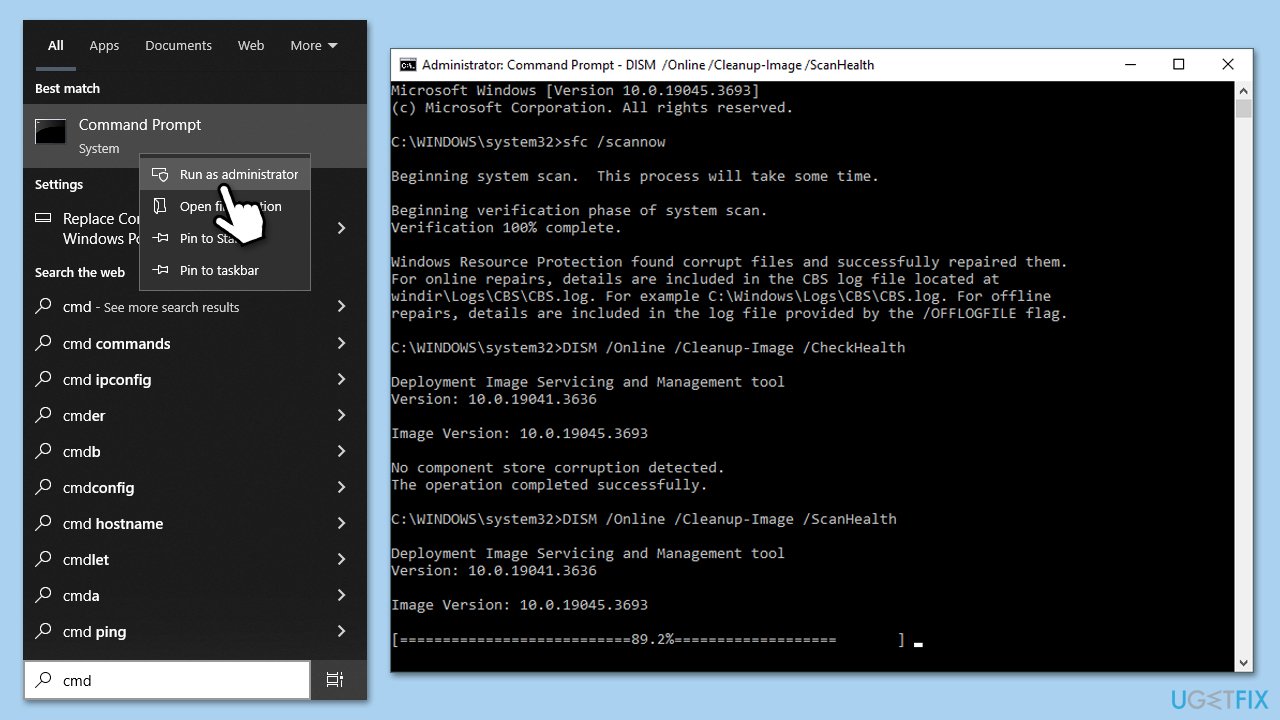
- Type in cmd in Windows search.
- Right-click on Command Prompt and select Run as administrator.
- The User Account Control (UAC) window will ask whether you want to allow changes to your computer - click Yes.
- In the Command Prompt window, paste the following command and hit Enter:
sfc /scannow - Next, use the following commands, pressing Enter each time:
Dism /Online /Cleanup-Image /CheckHealth
Dism /Online /Cleanup-Image /ScanHealth
Dism /Online /Cleanup-Image /RestoreHealth
(Note: if you get an error executing this last command, add /Source:C:\RepairSource\Windows /LimitAccess to it and try again). - Reboot your computer.
Fix 4. Reset Windows update components
Corrupted update files may prevent updates from installing. This issue can be resolved by resetting update components.
- Open Command Prompt as administrator.
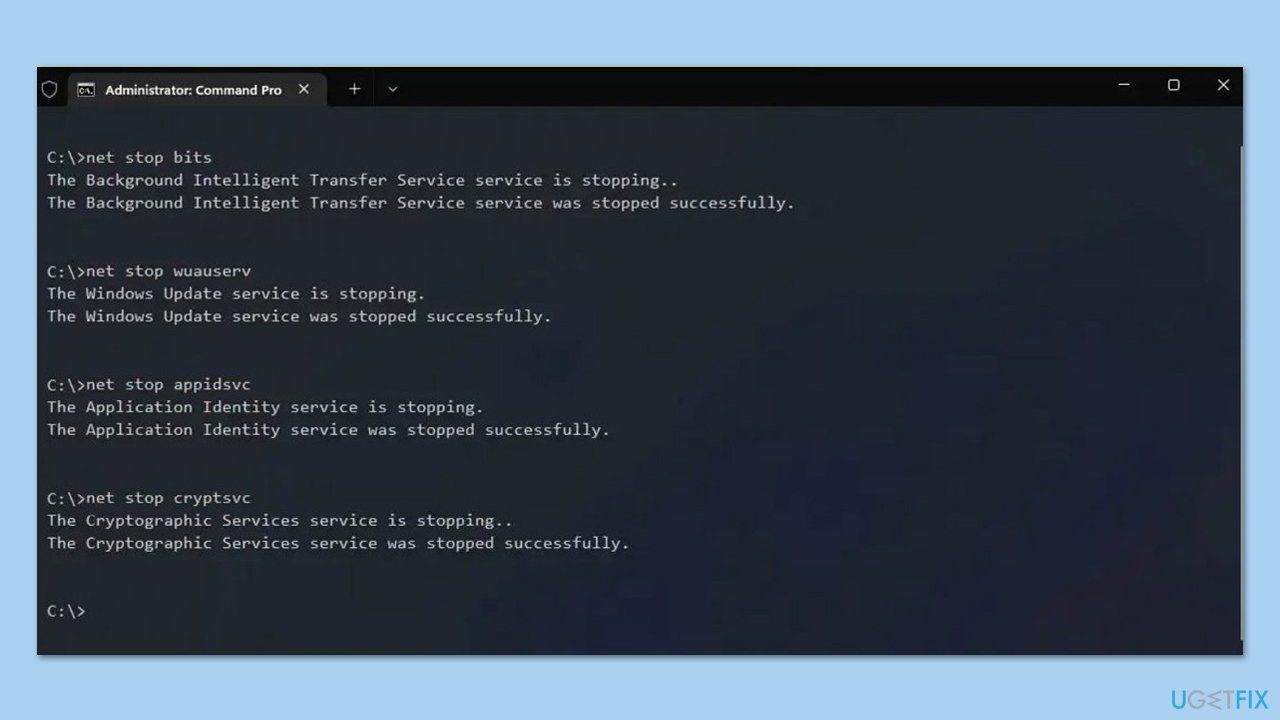
- Stop the Windows Update-related services by running the following commands one at a time, pressing Enter after each one:
net stop wuauserv
net stop cryptSvc
net stop bits
net stop msiserver - Rename the SoftwareDistribution and Catroot2 folders by running the following commands:
ren C:\Windows\SoftwareDistribution SoftwareDistribution.old
ren C:\Windows\System32\catroot2 Catroot2.old
Note: If your Windows installation is not on the C drive, replace "C" with the appropriate drive letter. - Restart the Windows Update-related services by running the following commands:
net start wuauserv
net start cryptSvc
net start bits
net start msiserver - Restart your computer.
Fix 5. Run Disk Cleanup
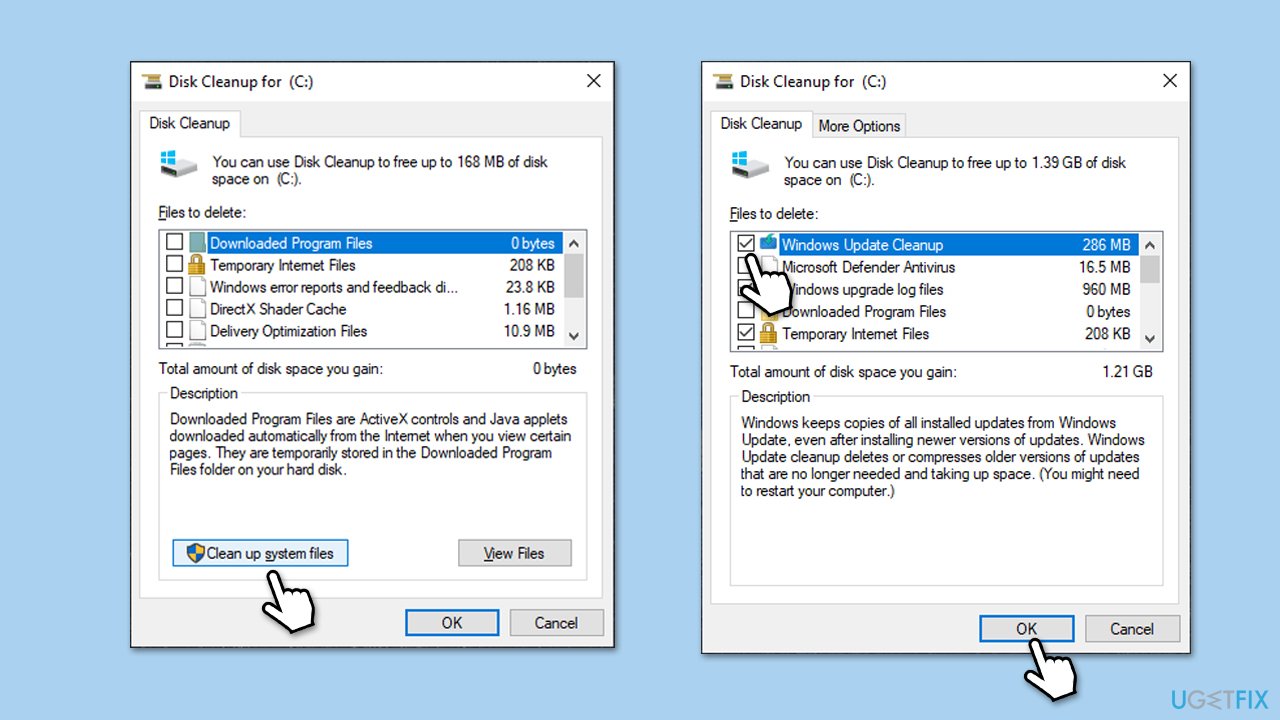
Disk Cleanup can help you to not only reclaim some of the much-needed space (some updates can be pretty large) but also clear bugged cache files.
- Type Disk Cleanup in Windows search and hit Enter.
- If your Windows is installed on drive C, pick it from the list (it should be by default) and press OK.
- Click Clean up system files.
- Select your main disk again and click OK.
- Here, select the largest portions of the data used - these typically include Temporary Internet Files, Windows Update, Temporary Files, Recycle Bin, Delivery Optimization Files, and others.
- Click OK - the process should be finished shortly.
Fix 6. Install the update manually
- Open your web browser.
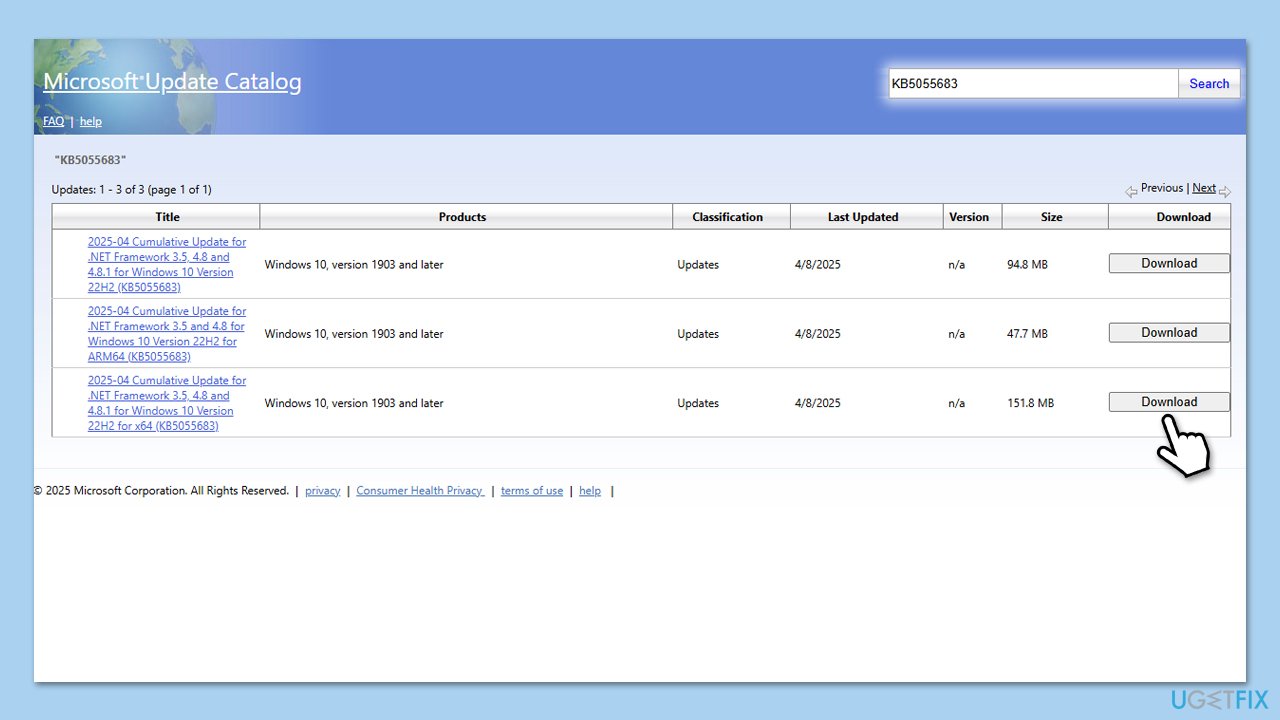
- Navigate to the official Microsoft Update Catalog page for the KB5055683 update.
- Select the correct version for your system - for most regular PC users, the correct version will be x64. ARM are used for portable devices such as Microsoft Surface and Snapdragon-powered laptops.
- After identifying the correct version, click Download next to it.
- Follow on-screen guidelines to finish the installation process and restart your computer when done.
Fix 7. Use Media Creation Tool
If none of the previous methods did not work, you can always resort to Media Creation Tool that can repair Windows files and bring it to the latest version. Make sure you first remove your third-party antivirus app (if applicable) and disconnect any unnecessary peripherals.
- Visit the official Microsoft website and download Windows 10 installation media.
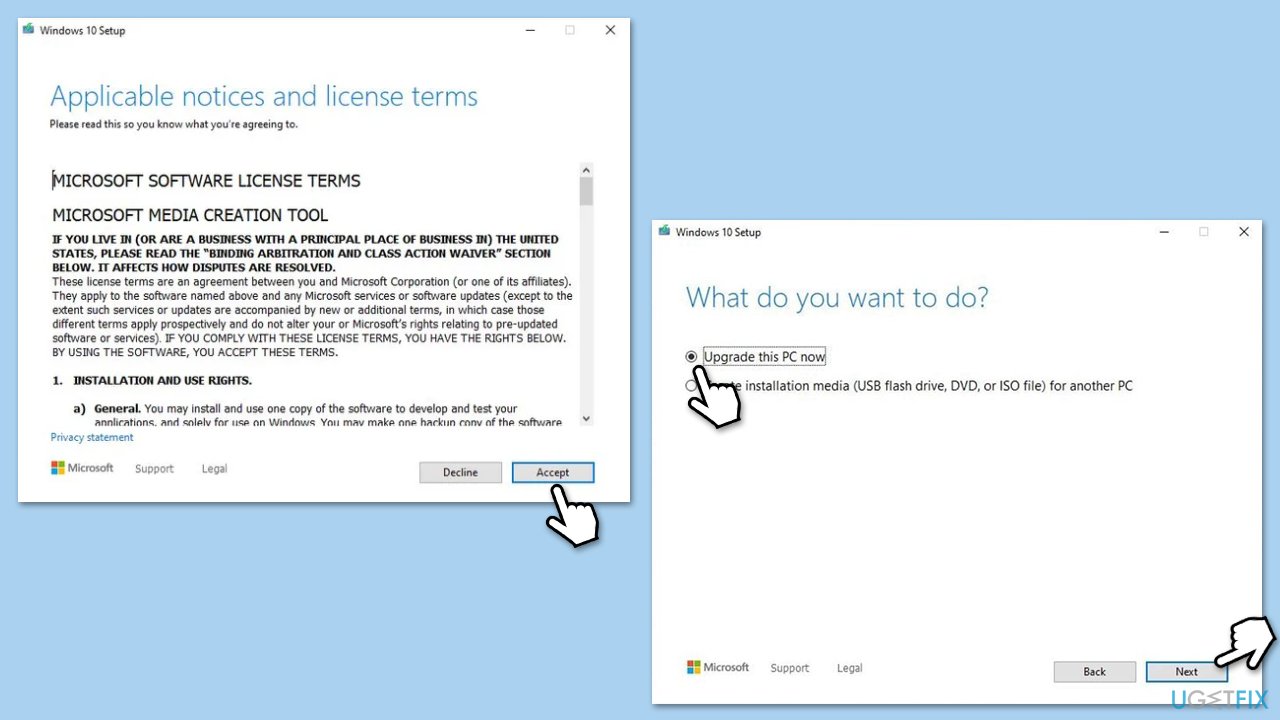
- Double-click the installer, select Yes when UAC shows up, and agree to the terms.
- Select Upgrade this PC now and click Next.
- Windows will start downloading the needed files.
- Agree to the terms once again and click Next.
- Before installing, make sure that you are happy with your choices (otherwise, you can click Change what to keep option).
- Finally, click Install to begin the upgrade process.
Bottom line
To fix the KB5055683 installation issue, you can run the Windows Update and Network troubleshooters, perform SFC and DISM scans, and clear the update cache. If these solutions do not resolve the problem, consider using a PC repair tool to automatically fix system issues.
Frequently asked questions
First, try running the Windows Update Troubleshooter to identify and fix any issues. If that doesn't work, consider manually downloading and installing the update from the Microsoft Update Catalog.
Installation failures can occur due to insufficient disk space, corrupted system files, or conflicts with third-party software. Ensure that your system meets the update requirements and check for any ongoing software conflicts.
You can check the update history by going to Settings > Update & Security > Windows Update and clicking on 'View update history'. This will show you a list of installed updates, including KB5055683.




Report an issue
What's wrong with this guide? We review every report and update or remove content.
Report received — thank you. We'll review and fix it.
You need a free account to submit a report.
Be the first to comment