How to fix
KB5058405 fails to install
on Windows
Resolve the KB5058405 installation issue on Windows 11 effortlessly. Follow our expert-tested guide and get your updates fixed in minutes!

What causes How to fix KB5058405 fails to install in Windows 11?
- Erroneous update cache in the SoftwareDistribution folder
- Not enough disk space for the 4.3GB update
- Interference from third-party antivirus software
- Driver issues
- System file corruption
- Windows Update service misconfiguration
Repairs Windows system files, removes malware, and restores a clean OS state — without reinstalling.
I’m trying to install the KB5058405 update on my Windows 11, but it fails with error codes like 0x800f0991 and gets stuck at 20%. I’ve checked my internet and restarted my system, but the issue persists, and I’m worried about missing security fixes. Is there a way to fix this?
Windows update failures can break the cycle of keeping your system safe and up-to-date, typically leaving users with no options but to be unable to finish installations of patches or new features. Such failures might happen due to faulty files, lack of disk space, or disruptions from third-party software, manifesting in error codes or installation stalls.
Microsoft periodically issues updates to satisfy such needs, categorized into types of updates such as Security Updates, Cumulative Updates, and Feature Updates, commonly issued on the second Tuesday of each month, or Patch Tuesday, with additional out-of-band updates as needed.
KB5058405 is such an update for Windows 11 build 23H2, issued on May 13, 2025, raising the OS build to 22631.5335. This cumulative update includes 78 security patches, among them five zero-day vulnerabilities that were used by ransomware, and adds functionality like a pivot-based File Explorer view for users of Microsoft 365 and faster zip file extraction for files containing thousands of smaller items. However, KB5058405 will not install for some people, who may be leaving systems vulnerable to attacks or bypassing productivity improvements.
The failure to install KB5058405 can be due to several issues in the update process. An erroneous update cache in the SoftwareDistribution folder can prevent installation, and deleting it can lead to a new download. Not enough space on the disk, especially with the 4.3GB update size, can halt progress, requiring cleanup.
Third-party antivirus or driver issues may get in the way, and their temporary disabling can be of assistance. Further, system file corruption or a Windows Update service misconfiguration may be to blame, requiring fixes. The following steps comprise numerous solutions, such as the execution of the troubleshooter, to resolve KB5058405 not installing on Windows 11.
Fix 1. Run the Windows Update troubleshooter
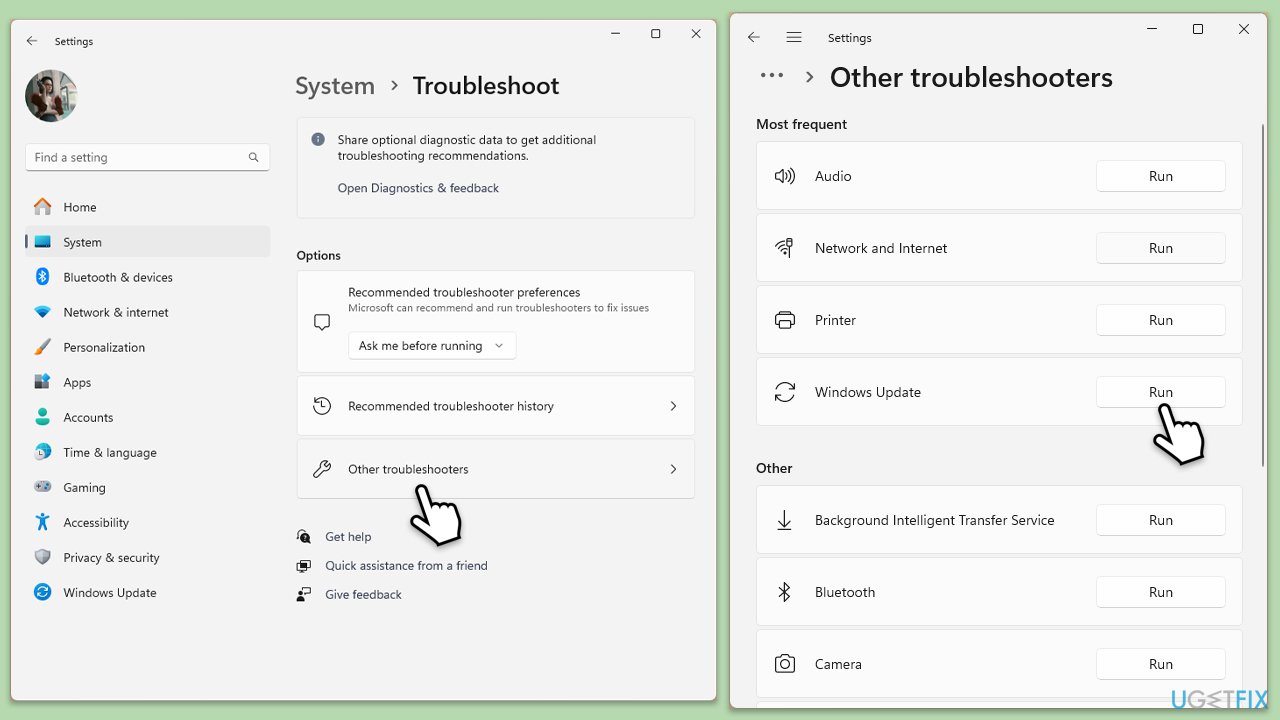
The built-in troubleshooter can detect and fix issues preventing KB5058405 from installing.
- Type troubleshoot in Windows search and press Enter, or go to Start > Settings > System > Troubleshoot.
- From the list of Options, pick Other troubleshooters.
- Scroll down to locate the Windows Update and click Run.
- Wait for it to finish, then apply changes and reboot the system.
Fix 2. Disk Cleanup
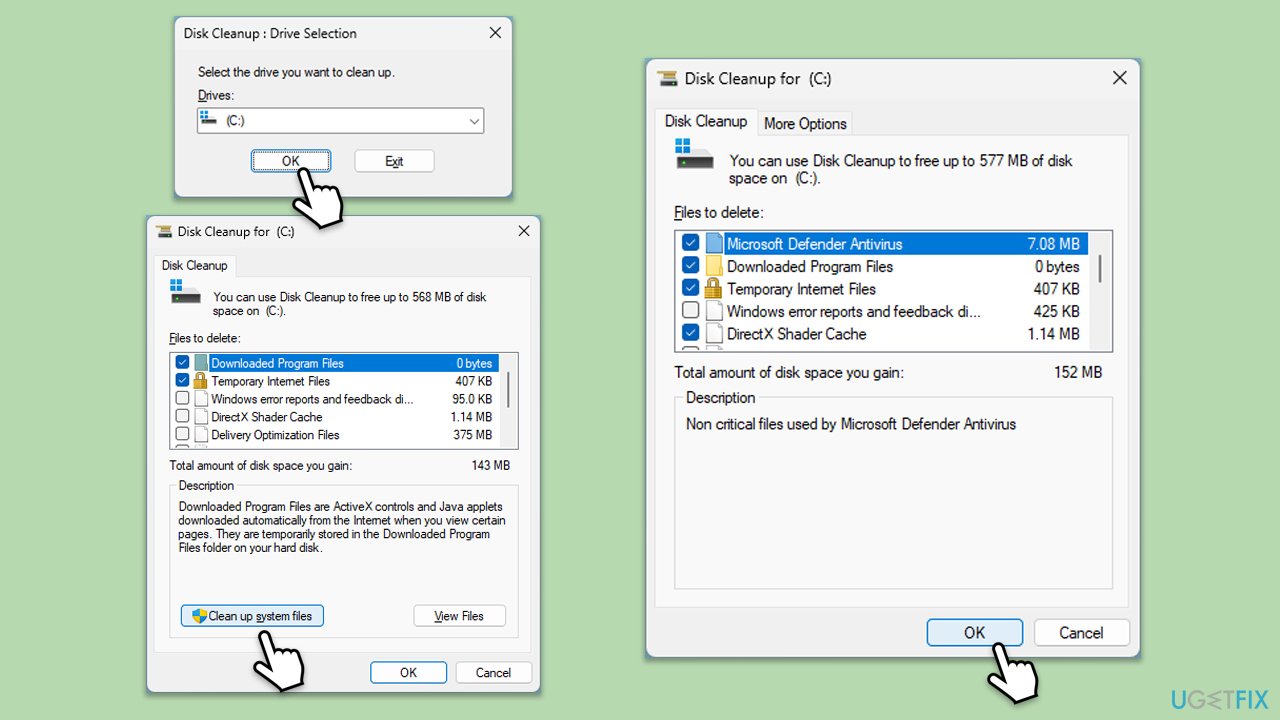
Insufficient space can block the installation of the large KB5058405 update file.
- Type Disk Cleanup in Windows search and hit Enter.
- If your Windows is installed on drive C, pick it from the list (it should be by default) and press OK.
- Click Clean up system files.
- Select your main disk again and click OK.
- Here, select the largest portions of the data used; these typically include Temporary Internet Files, Windows Update, Temporary Files, Recycle Bin, Delivery Optimization Files, and others.
- Click OK - the process should be finished shortly.
- Ensure at least 10 GB of free space before retrying the update.
Fix 3. Check services
Ensure that services related to the update process are running.
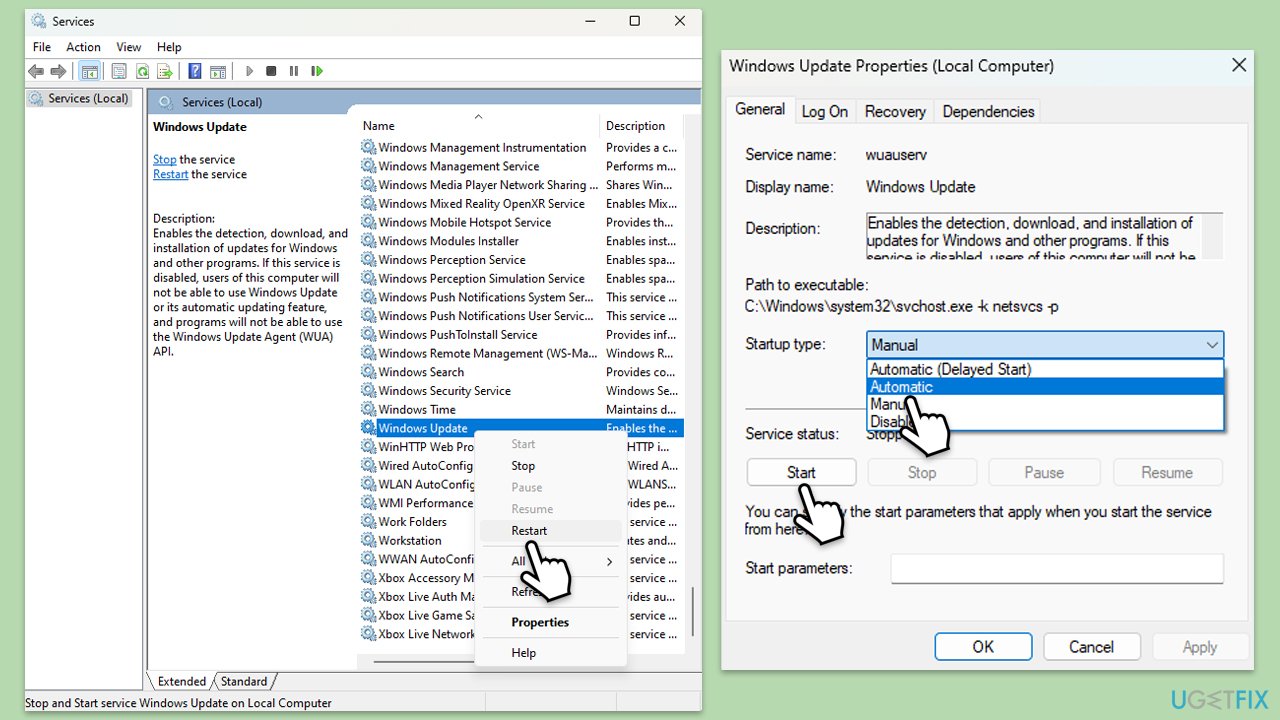
- Type Services in Windows search and hit Enter.
- Scroll down to locate Windows Update.
- If it is already running, right-click and pick Restart.
- If the service is not running, double-click it, and select Automatic under the Startup type from the drop-down menu.
- Click Start, Apply, and OK.
- Repeat this process for Background Intelligent Transfer Service (BITS) and Cryptographic services.
Fix 4. Disable third-party antivirus temporarily
Antivirus software can interfere with the update process.
- Locate your antivirus icon in the system tray (bottom-right corner).
- Right-click and select an option like Disable or Pause protection.
- Choose a temporary disable option.
- Retry the update via Settings > Windows Update.
Fix 5. Run SFC and DISM scans
Corrupted system files can block the update, and repairing them can help.
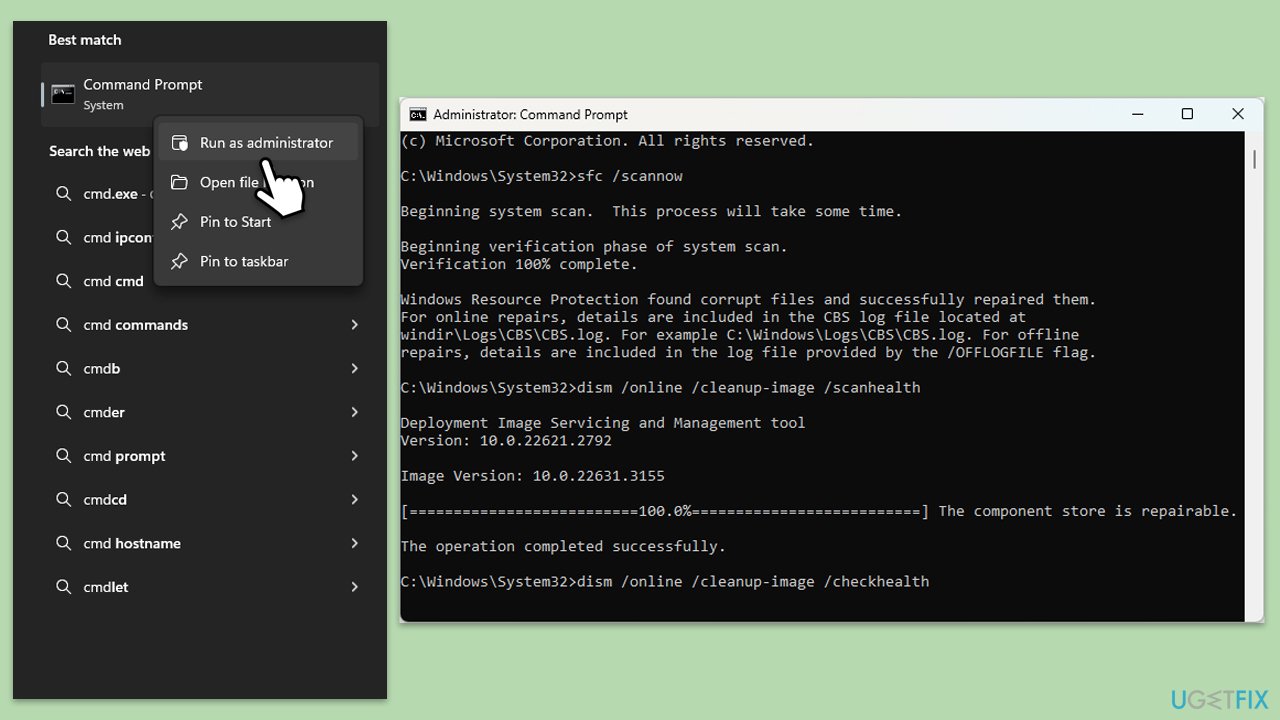
- Type cmd in Windows search.
- Right-click on the Command Prompt result and select Run as administrator.
- UAC (User Account Control) will ask whether it can make changes, click Yes
- In the Command Prompt window, paste the following command and press Enter:
sfc /scannow - Wait for the scan to complete.
- Once the SFC scan is finished, run the following set of DISM commands, pressing Enter after each one:
DISM /Online /Cleanup-Image /CheckHealth
DISM /Online /Cleanup-Image /ScanHealth
DISM /Online /Cleanup-Image /RestoreHealth
(Note: if you get an error executing this last command, add /Source:C:\RepairSource\Windows /LimitAccess to it and try again). - After completing the DISM commands, restart your device.
Fix 6. Reset Windows Update components
Corrupted update components can cause installation failures.
- Open Command Prompt as administrator.
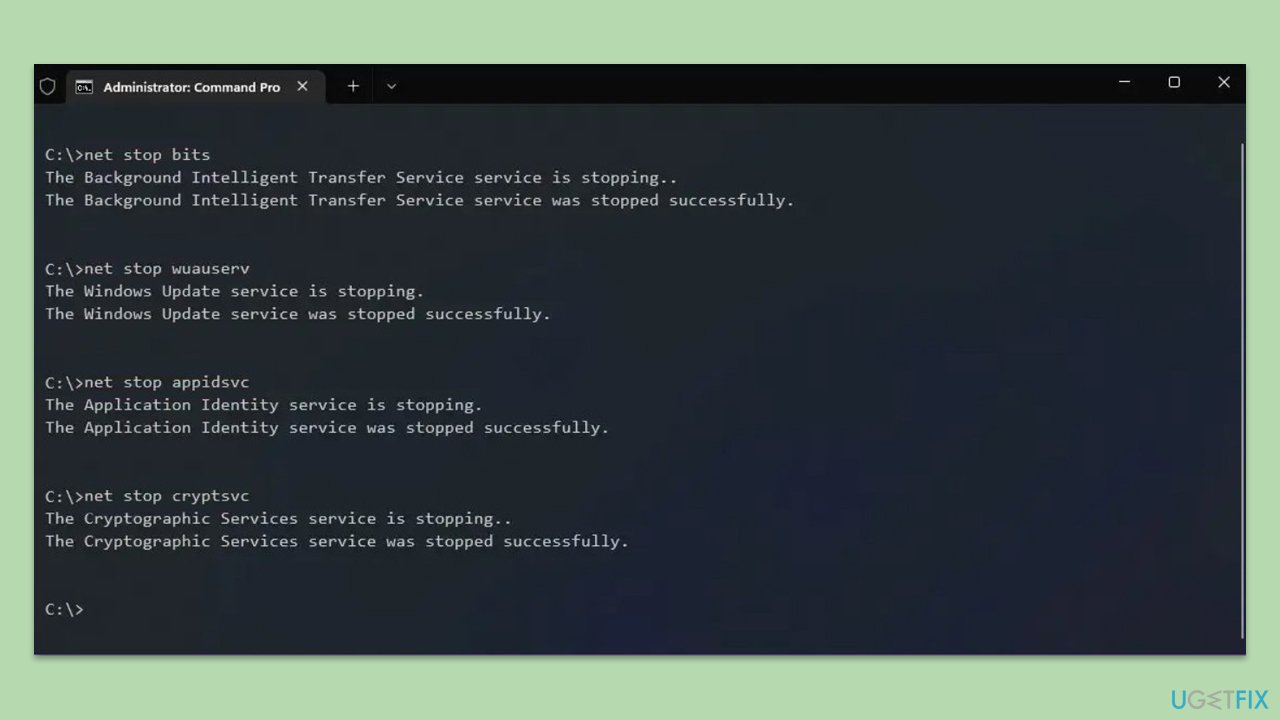
- Stop the Windows Update-related services by running the following commands one at a time, pressing Enter after each one:
net stop wuauserv
net stop cryptSvc
net stop bits
net stop msiserver - Rename the SoftwareDistribution and Catroot2 folders by running the following commands:
ren C:\Windows\SoftwareDistribution SoftwareDistribution.old
ren C:\Windows\System32\catroot2 Catroot2.old
Note: If your Windows installation is not on the C drive, replace "C" with the appropriate drive letter. - Restart the Windows Update-related services by running the following commands:
net start wuauserv
net start cryptSvc
net start bits
net start msiserver - Restart your computer.
Fix 7. Use the Media Creation Tool
A repair install can fix deeper system issues, preventing the update.
- Visit the official Microsoft website and download Windows 11 installation media.
- Double-click the installer and click Yes when the User Account Control window shows up.
- Agree to the terms and click Next.
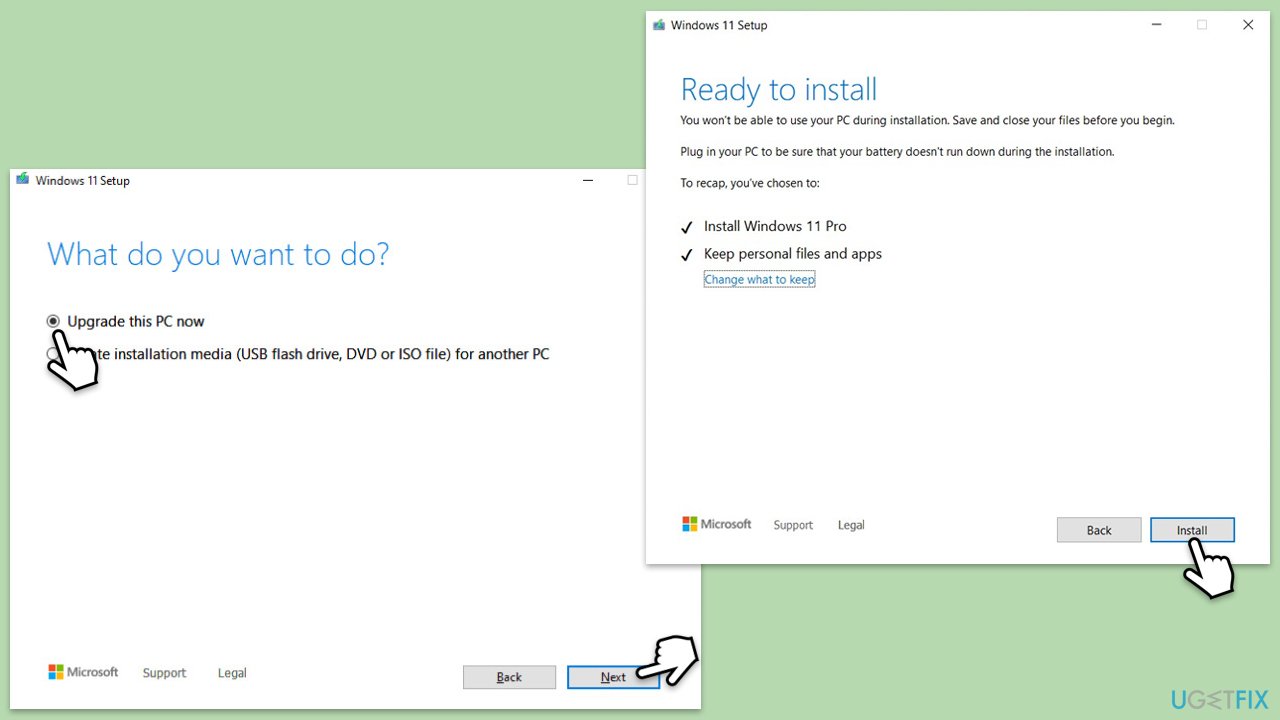
- Select Upgrade this PC now and click Next.
- Wait for Windows to download files.
- Agree to the terms once again and click Next.
- Before installing, ensure you are happy with your choices (otherwise, you can click the Change what to keep option).
- Finally, click Install to begin the upgrade process.
Bottom line
To resolve the KB5058405 installation failure, you can try deleting the update cache, ensuring sufficient disk space, temporarily disabling antivirus software, and checking for driver issues. If these steps do not work, consider running the Windows Update troubleshooter or seeking further assistance.
Frequently asked questions
Try running the Windows Update Troubleshooter to identify and fix any issues that may be preventing the installation of KB5058405.
Yes, common error codes include 0x800f0988 and 0x800f081f, which indicate issues with the update files or missing components.
You can manually download the update from the Microsoft Update Catalog website and install it by following the prompts after downloading the appropriate file.




Report an issue
What's wrong with this guide? We review every report and update or remove content.
Report received — thank you. We'll review and fix it.
You need a free account to submit a report.
Be the first to comment