How to fix
KB5058411 fails to install
on Windows
Resolve the KB5058411 installation error on Windows 11 with our expert-tested solutions. Get your system updated in minutes, no traces left.

What causes How to fix KB5058411 fails to install in Windows 11?
- Outdated update cache in the SoftwareDistribution directory
- Insufficient space on the C: drive
- Third-party antivirus suites
- Incompatible drivers
- Corrupted system files
- Crashed Windows Update services
Repairs Windows system files, removes malware, and restores a clean OS state — without reinstalling.
I have a problem I would assume you could help me with. A few days ago, the new Windows update (KB5058411) showed up, and I tried to install it as usual. However, it keeps failing to install for me. Could you please assist me with this problem?
Windows 11 updates such as the KB5058411 cumulative update released on May 13, 2025, are vital in maintaining the security and stability of the system, offering necessary patches, fixes, and features. The update for Windows 11 version 24H2 that takes the OS build to 26100.4061 remediates 78 vulnerabilities, five being zero-day vulnerabilities that are currently being exploited by ransomware gangs, making the update a necessity.
It also introduces AI-based features like Recall for Copilot+ PCs, which captures the screen to have at your fingertips instantly, and Click to Do for quick action on highlighted content, besides other upgrades like better Windows Search and microphone muting and eye controller app repair.
However, some people complain that KB5058411 is not installing, often giving error messages like 0x800f0991 or hanging at various percentages, potentially putting systems at risk.
KB5058411 failure to install might be the result of several problems affecting the update procedure. An outdated update cache in the SoftwareDistribution directory can lead to installation halt, and its removal would result in a re-download. Insufficient space on the C: drive could prevent the 4.3GB file of the update from installing, requiring space deletion.
Third-party antivirus suites or drivers incompatible with the system can stop the process, and disabling them temporarily might fix it. Corrupted system files or crashed Windows Update services might also be responsible, and fixes are needed.
The following steps provide eight solutions, beginning with simple ones like running the troubleshooter and progressing to more complex ones like repair install, to fix KB5058411 not installing in Windows 11. For a more automatic solution, try running a PC repair tool [d1] first.
Fix 1. Clear temporary files
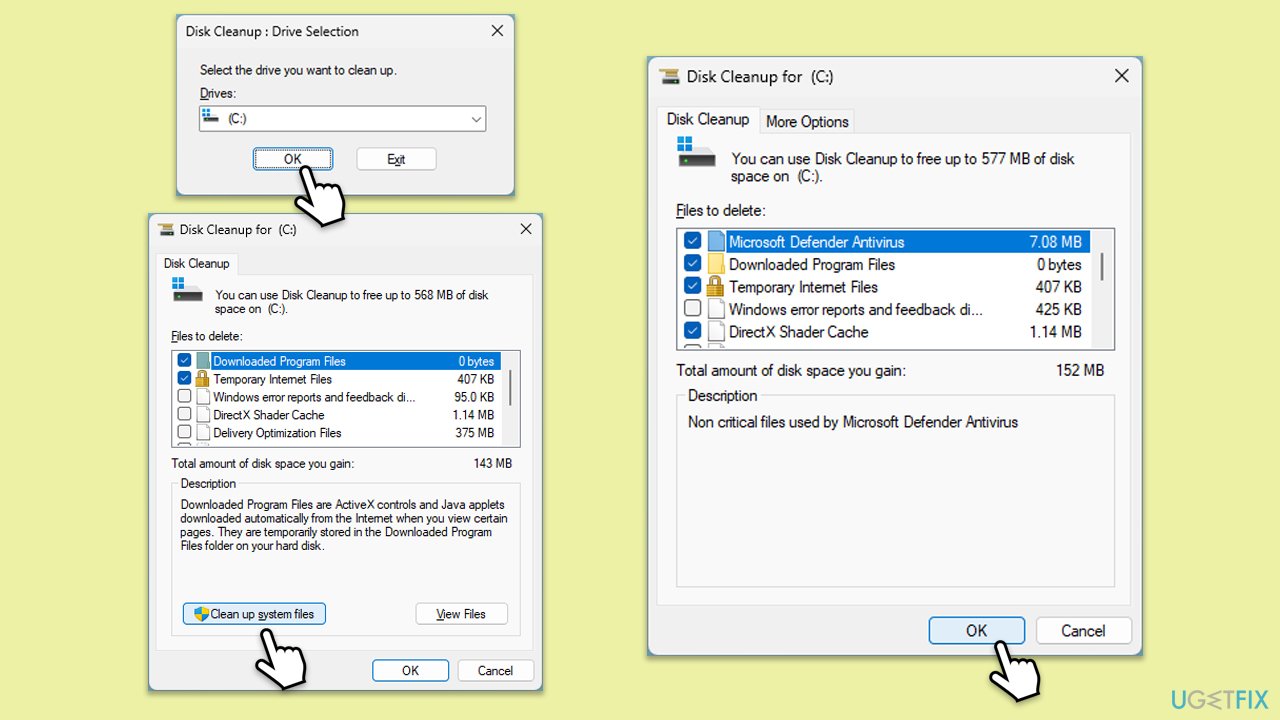
- Type Disk Cleanup in Windows search and hit Enter.
- If your Windows is installed on drive C, pick it from the list (it should be by default) and press OK.
- Click Clean up system files.
- Select your main disk again and click OK.
- Here, select the largest portions of the data used - these typically include Temporary Internet Files, Windows Update, Temporary Files, Recycle Bin, Delivery Optimization Files, and others.
- Click OK - the process should be finished shortly.
Fix 2. Run troubleshooters
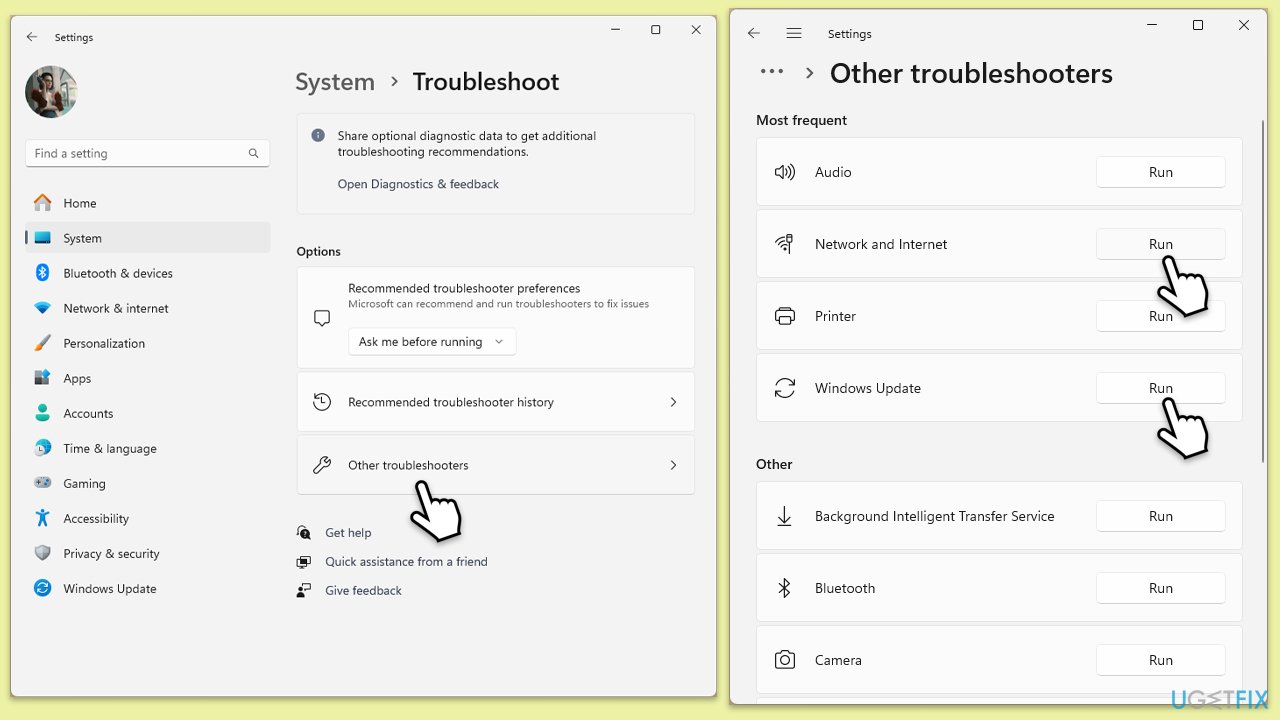
- Type Troubleshoot in Windows search and press Enter.
- Select Other troubleshooters.
- Find Windows Update from the list and click Run.
- The troubleshooter will automatically scan your system for potential problems and display any issues it finds.
- Repeat the process with the Network & Internet troubleshooter.
- If the troubleshooter finds any issues, it will provide recommended solutions.
- Follow the on-screen instructions and restart your computer.
Fix 3. Repair corrupted files
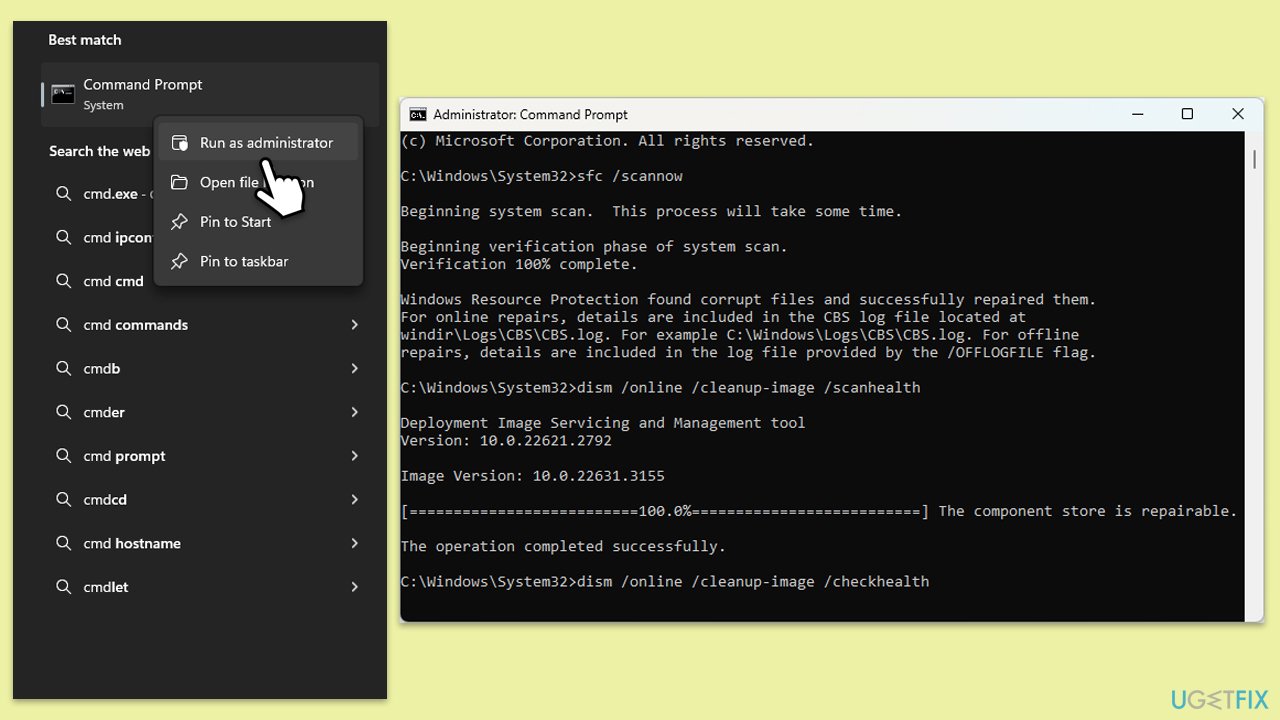
- Type cmd in Windows search.
- Right-click on Command Prompt and pick Run as administrator.
- When UAC asks whether you want to make changes, agree by pressing Yes.
- Next, copy and paste the following commands, pressing Enter each time:
sfc /scannow
DISM /Online /Cleanup-Image /CheckHealth
DISM /Online /Cleanup-Image /ScanHealth
DISM /Online /Cleanup-Image /RestoreHealth
(Note: if you get an error executing the last command, add /Source:C:\RepairSource\Windows /LimitAccess to it and try again.) - Restart your device.
Fix 4. Ensure relevant services are running
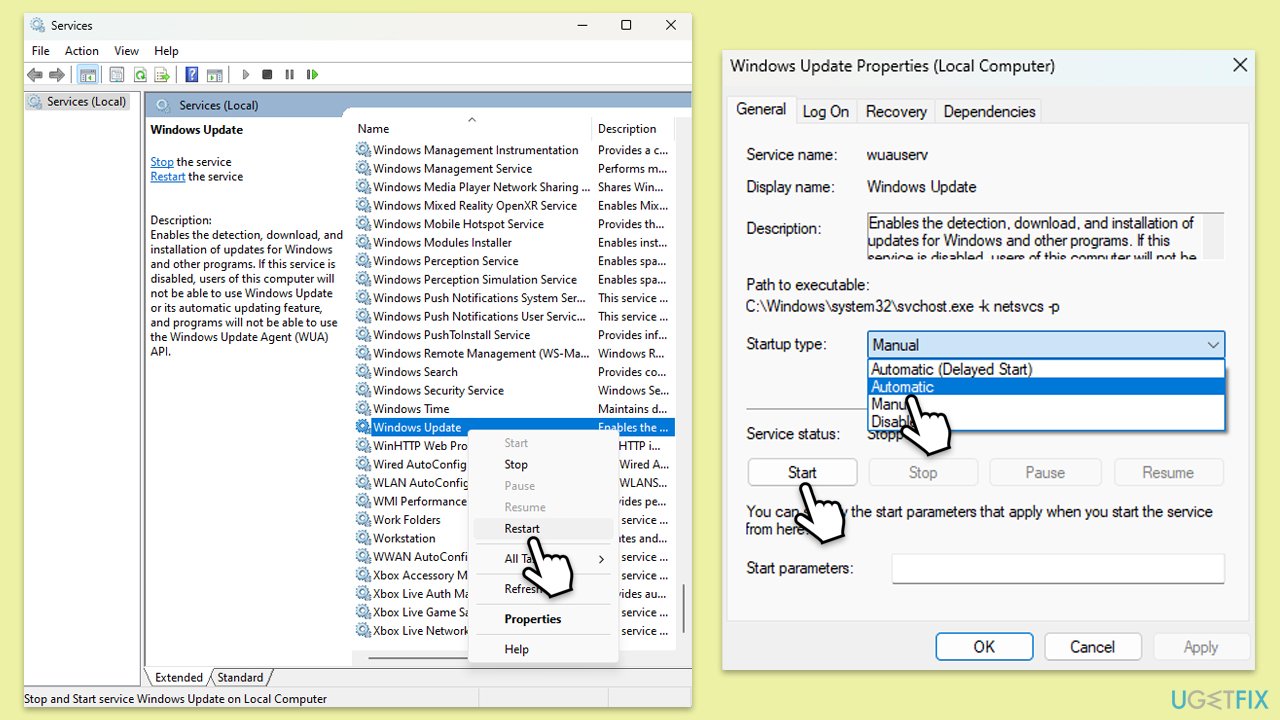
- Type Services in Windows search and press Enter.
- In the Services window, locate and double-click on the following services one by one (if these are already running, right-click and hit Restart):
- Windows Update
- Background Intelligent Transfer Service (BITS)
- Cryptographic Services
- For each service, ensure that the Startup type is set to Automatic. If it's not, select Automatic from the drop-down menu.
- Check the Service status. If the service is not running, click the Start button to start it.
- Click Apply and then OK for each service.
- Close the Services window and restart your computer.
Fix 5. Disable third-party software
Third-party security software like firewalls, VPNs, and the likes may sometimes clash with Windows updates. These types of programs usually have features like system monitoring or firewall configurations that unwittingly block Windows Update accounts or processes. Disabling them temporarily can create a diagnosis of whether they are causing the issue.
Before doing so, make sure your system is not at immediate risk. After disabling the software, attempt the update again. Whether the update succeeds or not, remember to re-enable your security software afterward to keep your system protected.
Fix 6. Reset Windows update components
- Type in cmd in Windows search.
- Right-click on Command Prompt and select Run as administrator.
- User Account Control will ask you whether you want to allow to make changes to the system - click Yes.
- Type the following commands, pressing Enter after each:
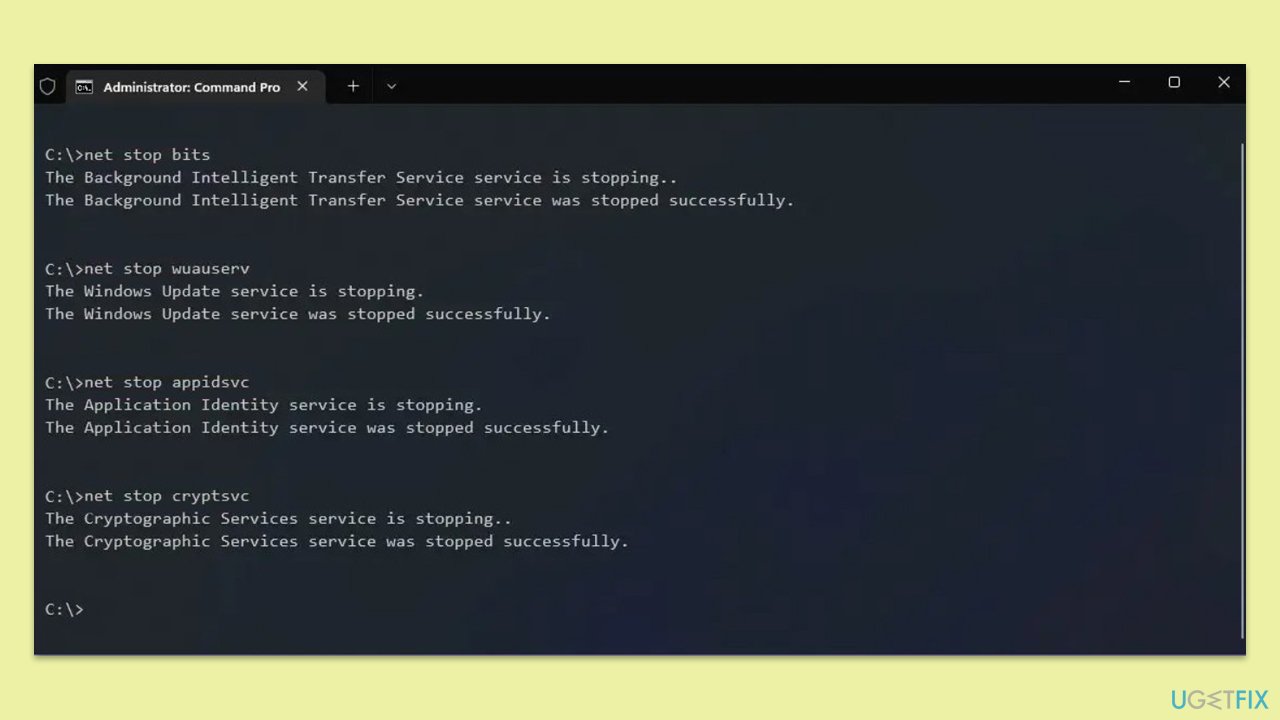
- net stop bits
- net stop wuauserv
- net stop appidsvc
- net stop cryptsvc
- Del “%ALLUSERSPROFILE%\Application Data\Microsoft\Network\Downloader\*.*”
- rmdir %systemroot%\SoftwareDistribution /S /Q
- rmdir %systemroot%\system32\catroot2 /S /Q
- regsvr32.exe /s atl.dll
- regsvr32.exe /s urlmon.dll
- regsvr32.exe /s mshtml.dll
- netsh winsock reset
- netsh winsock reset proxy
- net start bits
- net start wuauserv
- net start appidsvc
- net start cryptsvc
- Close the Command Prompt and restart your device.
Fix 7. Install the update manually
Check if you can install the update manually instead.
- Go to the official Microsoft Update Catalog website.
- Type KB5058411 into the search bar, and click Search.
- You will find many different versions on the update – you need to find the one that matches your PC specs and Windows version (as a home user, ignore Windows server versions).
- After picking the correct version, click the Download button and proceed with the on-screen instructions.
- Restart your computer to implement the new updates.
Fix 8. Use the Media Creation Tool
This utility enables you to manually update your system to the most recent version of Windows, thereby avoiding additional update complications.
- Visit the official Microsoft website and download Windows 10 installation media. (Windows 11 version).
- Double-click the installer and select Yes when UAC shows up.
- Agree to terms.
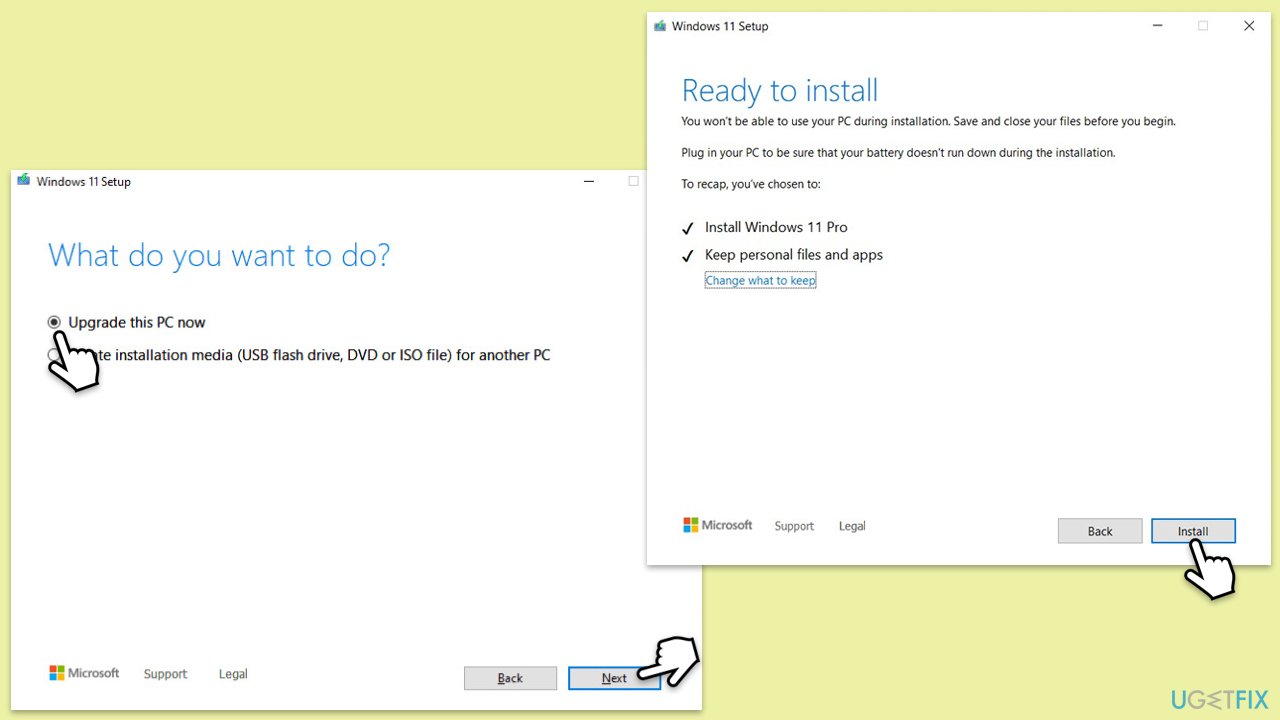
- Select Upgrade this PC now and select Next.
- Windows will now download all the necessary files – it might take a while.
- Agree to the terms once again and click Next.
- Before installing, ensure you are happy with your choices (otherwise, you can click the Change what to keep option).
- Click Install to begin the upgrade process.
Bottom line
To fix the KB5058411 installation issue, you can start by clearing temporary files, running the troubleshooter, and ensuring sufficient disk space. If these steps do not resolve the problem, consider performing a repair install or using a PC repair tool.
Frequently asked questions
Try running the Windows Update Troubleshooter to detect and fix issues automatically. If that doesn't work, consider manually downloading the update from the Microsoft Update Catalog.
Yes, corrupted system files can prevent updates like KB5058411 from installing correctly. You can use the DISM and SFC tools to repair these files.
Yes, you can uninstall KB5058411 if it fails to install, and this can help restore system stability while you troubleshoot the issue.




Report an issue
What's wrong with this guide? We review every report and update or remove content.
Report received — thank you. We'll review and fix it.
You need a free account to submit a report.
Be the first to comment