How to fix
KB5058481 fails to install
on Windows
Resolve the KB5058481 installation failure on Windows 10 effortlessly. Get expert-tested solutions to fix your update issues in minutes!

What causes How to fix KB5058481 fails to install in Windows 10?
- Corrupted update cache
- Insufficient disk space
- Unstable internet connection
- Conflicts with third-party antivirus software
- Corrupted system files
Repairs Windows system files, removes malware, and restores a clean OS state — without reinstalling.
I've been trying to install the KB5058481 update on my laptop, but it always fails with an error message during the installation. I've rebooted my system a number of times, but KB5058481 fails to install every single time. I know this is an optional update, but I usually have no problems with those, so I'm a bit baffled.
The KB5058481 fails to install issue is a challenge for Windows 10 users attempting to apply this optional preview update, released on May 28, 2025, for version 22H2 (OS Build 19045.5917).
This non-security preview update, detailed on Microsoft’s support page, brings enhancements like restoring seconds to the calendar flyout clock, improving the Rich Calendar feature with 30-day event visibility, and fixing font rendering for GB18030 characters, alongside resolving a Windows Account Sync Consent issue in the European Economic Area.
A KB number, like KB5058481, is Microsoft's package identifier for an update package, with "KB" short for Knowledge Base, corresponding to support articles. Microsoft's update mechanism includes mandatory Patch Tuesday updates on the second Tuesday of each month for security patches and voluntary preview updates later that month, like KB5058481, to pretest new features before the subsequent mandatory release.
When KB5058481 fails to install, users miss out on these usability improvements, leaving systems potentially less optimized and unable to benefit from fixes like the EEA sync issue, which could impact performance in specific regions. More critically, repeated failed attempts can strain system resources, cause update loops, or leave the update system in a conflicted state, making future updates harder to install.
The KB5058481 fails to install problem can stem from various issues, often seen with preview updates due to their experimental nature. A corrupted update cache can disrupt the installation process, and clearing it often resolves this by allowing a fresh download. Insufficient disk space or unstable internet connections can halt the update, requiring users to free up space or stabilize their network.
Conflicts with third-party antivirus software or corrupted system files can also block the process, suggesting a temporary disablement of security tools or a system file repair. Additionally, underlying Windows Update component issues might need a reset to ensure smooth operation. The instructions below provide eight fixes to address KB5058481 not installing, helping users apply this update successfully.
For a faster solution, we recommend using Fortect, a PC repair tool that can automatically address cache issues, file corruption, and connectivity problems causing KB5058481 failing to install.
Fix 1. Free up disk space
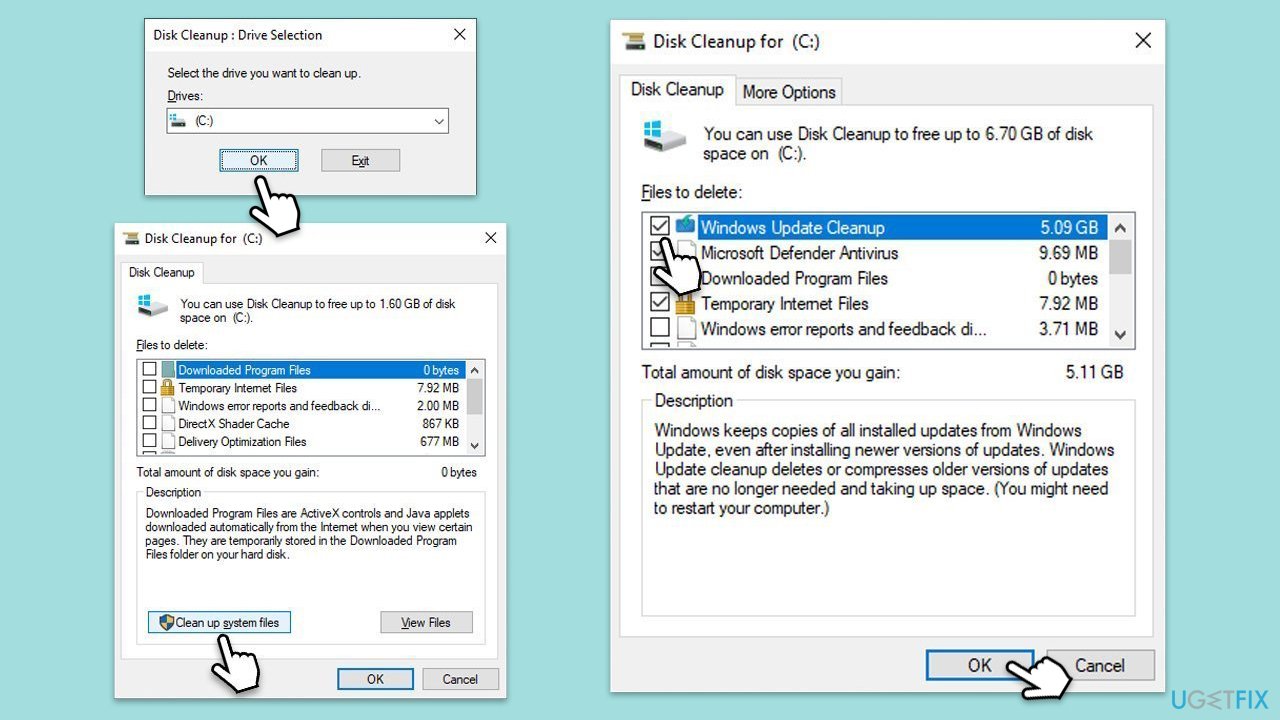
A full drive can prevent the update from unpacking, and clearing unnecessary files makes room for the installation to finish.
- Type Disk Cleanup in Windows search and hit Enter.
- If your Windows is installed on drive C, pick it from the list (should be by default) and press OK.
- Click Clean up system files.
- Select your main disk again and click OK.
- Here, select the largest portions of the data used - these typically include Temporary Internet Files, Windows Update, Temporary Files, Recycle Bin, Delivery Optimization Files, and others.
- Click OK - the process should be finished shortly.
Fix 2. Run troubleshooters
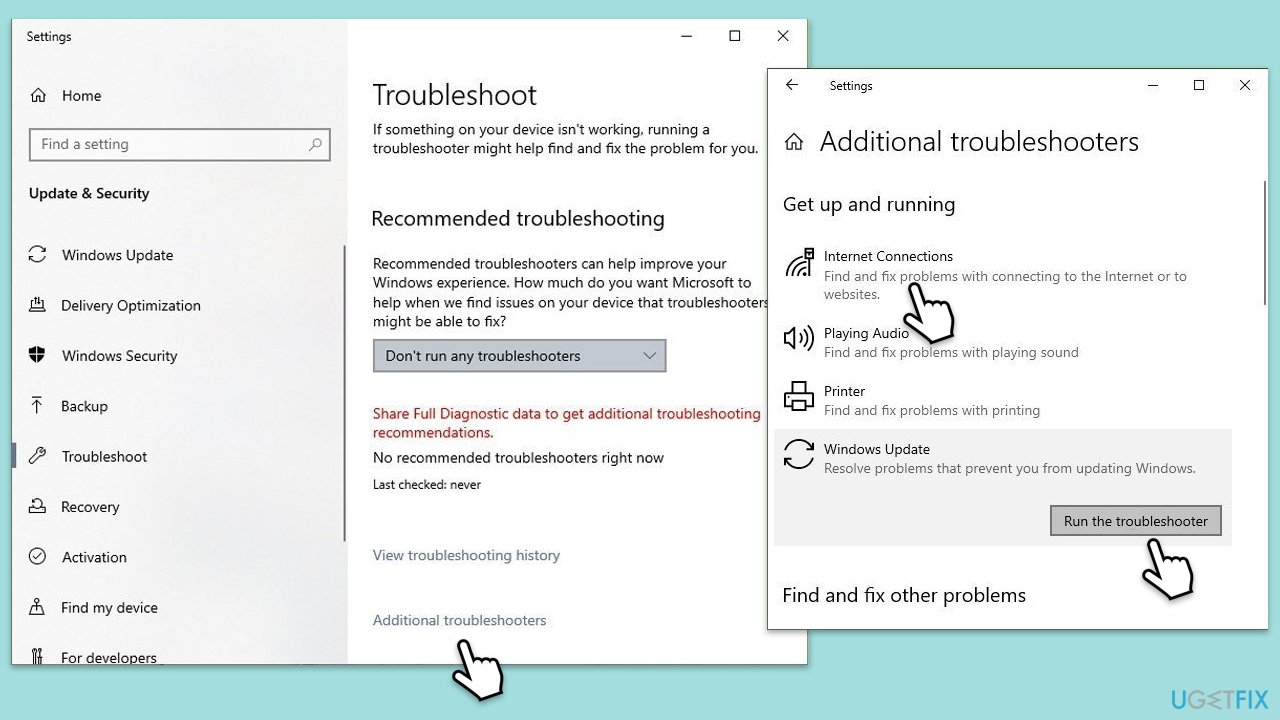
Hidden issues in the update system can cause failures, and this tool scans and fixes them to enable a smooth installation.
- Type Troubleshoot in Windows search.
- Select Additional troubleshooters.
- Find Windows Update from the list.
- Click it and select Run the troubleshooter.
- Apply the suggested fixes and restart your computer.
- Repeat this process with Internet Connections.
Fix 3. Check the services
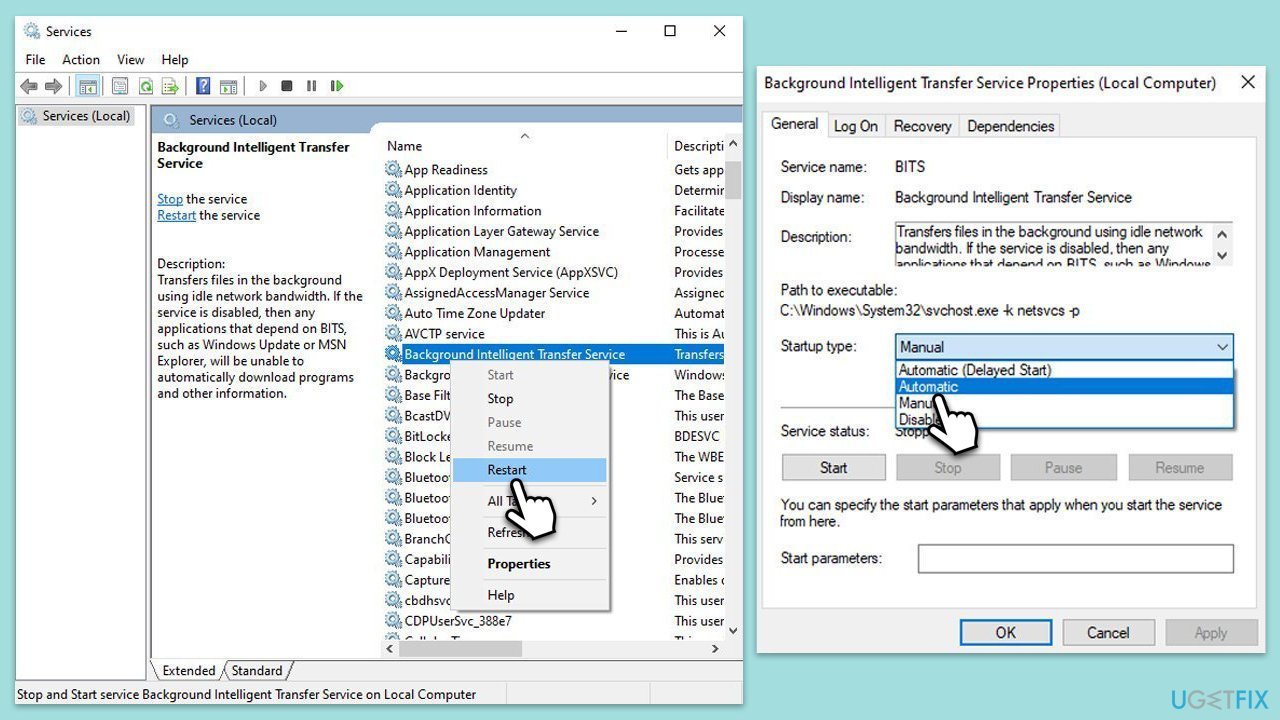
Certain services must be running for Windows Update to function effectively. Setting these services to automatic can help with installation problems.
- Type Services in Windows search and press Enter.
- Next, locate the Background Intelligent Transfer Service, Cryptographic Service, and Windows Update Service by scrolling through the list of services.
- Right-click on each service, and from the context menu, select Restart.
- In case a service is not running, double-click on it and select Automatic under the Startup type. Afterward, click on Start and then click OK.
Fix 4. Repair corrupted system files
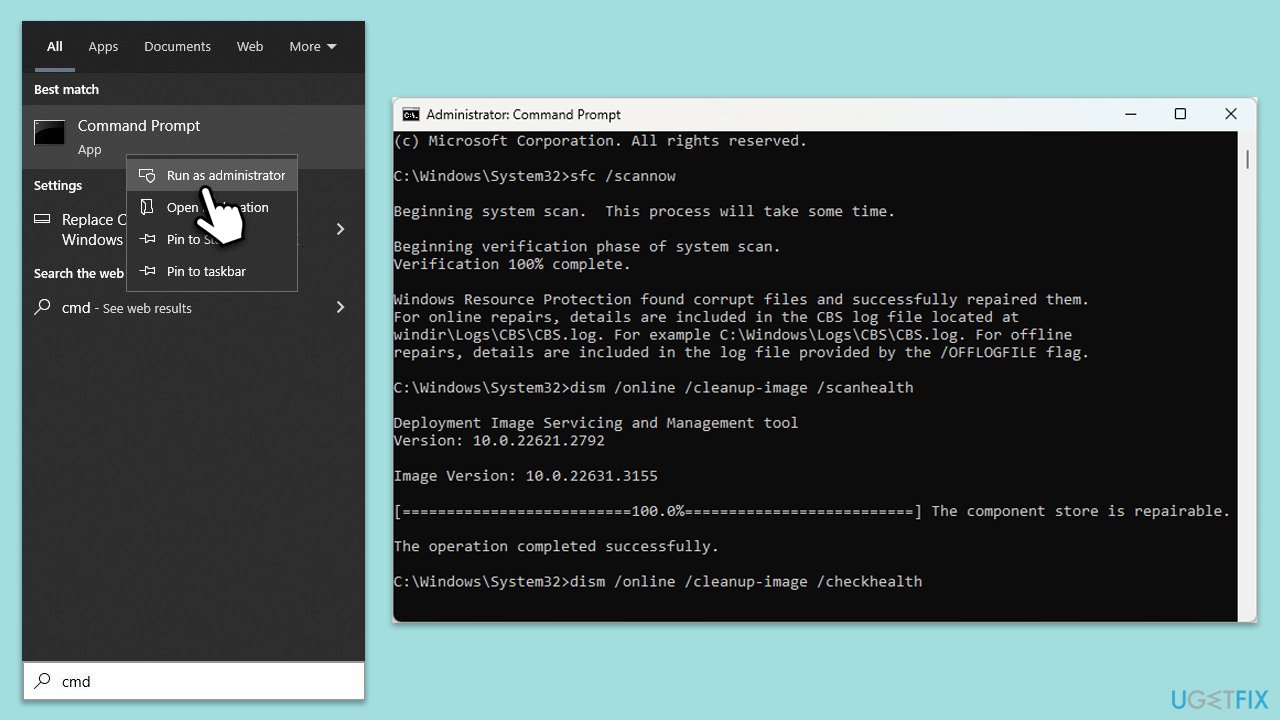
Corrupted system files may be the cause of unsuccessful Windows update installations - you can address this by using certain commands in an elevated Command Prompt.
- Type cmd in Windows search.
- Right-click on Command Prompt and pick Run as administrator.
- User Account Control will ask you whether you want to allow changes – click Yes.
- Copy and paste this command and hit Enter:
sfc /scannow - Wait for the scan to finish.
- As soon as it finishes, Windows will report whether integrity violations were found and if they could be fixed. Regardless of the outcome, use these commands next, pressing Enter after each:
Dism /Online /Cleanup-Image /CheckHealth
Dism /Online /Cleanup-Image /ScanHealth
Dism /Online /Cleanup-Image /RestoreHealth - Close down the Command Prompt and restart your device.
Fix 5. Reset Windows update components
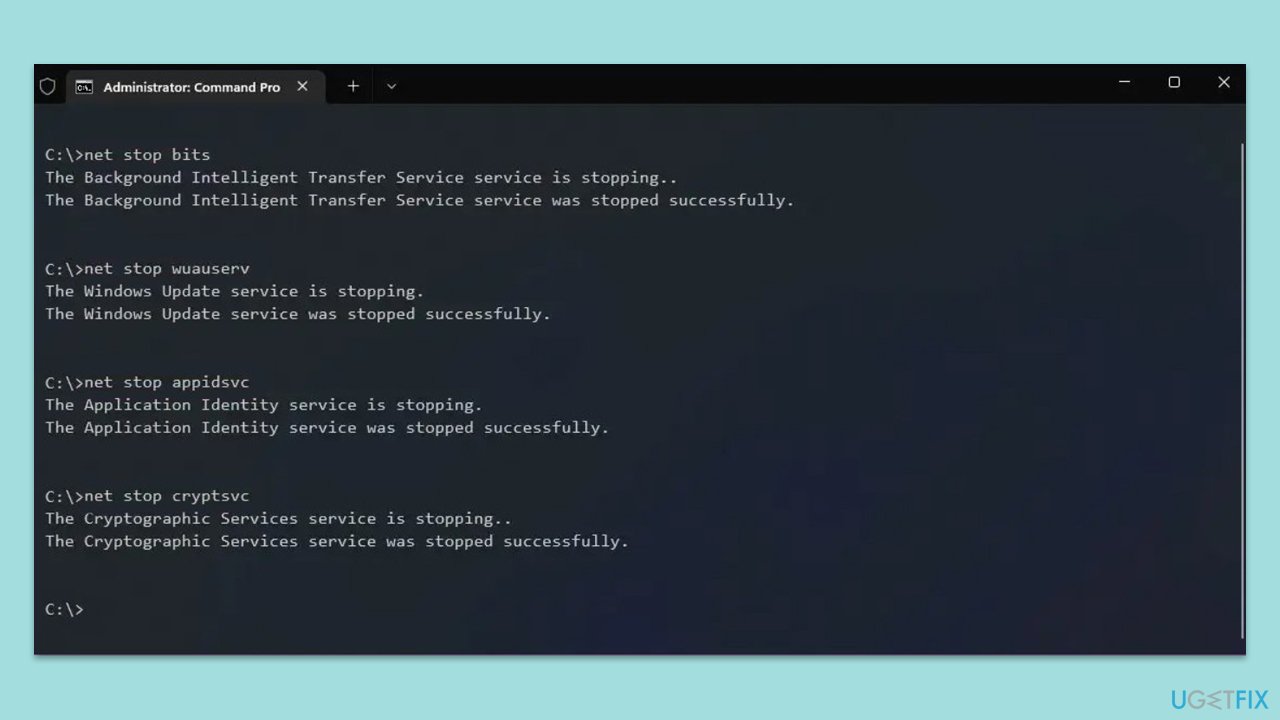
Stopping the Windows Update services, deleting the update cache, and resuming the services are all steps in the process of resetting Windows Update components. This may resolve problems with corrupt update files or setups.
- Open Command Prompt as administrator.
- Copy and paste each of these commands, pressing Enter each time:
net stop bits
net stop wuauserv
net stop appidsvc
net stop cryptsvc
Del “%ALLUSERSPROFILE%\Application Data\Microsoft\Network\Downloader\*.*”
rmdir %systemroot%\SoftwareDistribution /S /Q
rmdir %systemroot%\system32\catroot2 /S /Q
regsvr32.exe /s atl.dll
regsvr32.exe /s urlmon.dll
regsvr32.exe /s mshtml.dll
netsh winsock reset
netsh winsock reset proxy
net start bits
net start wuauserv
net start appidsvc
net start cryptsvc - Restart your system.
Fix 6. Disable third-party security software or/and Firewall
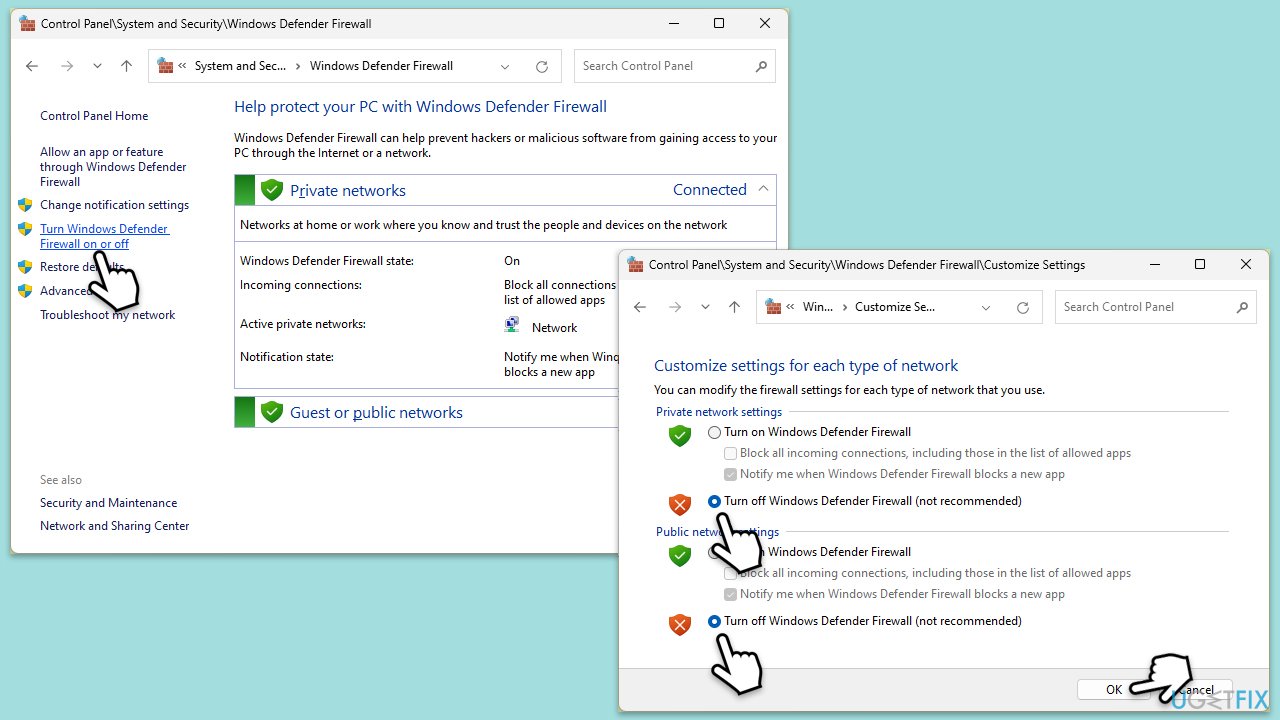
Third-party antivirus software or firewalls may prevent Windows updates from downloading and installing properly.
- Disable your antivirus software from its main dashboard, usually accessible via the system tray icon.
- Press Win + S and type "firewall." Select Windows Defender Firewall.
- Click on Turn Windows Defender Firewall on or off.
- Select Turn off Windows Defender Firewall for both private and public network settings. Remember to turn these back on after testing.
Fix 7. Install the update manually
If automatic updates fail, you could always try the manual method.
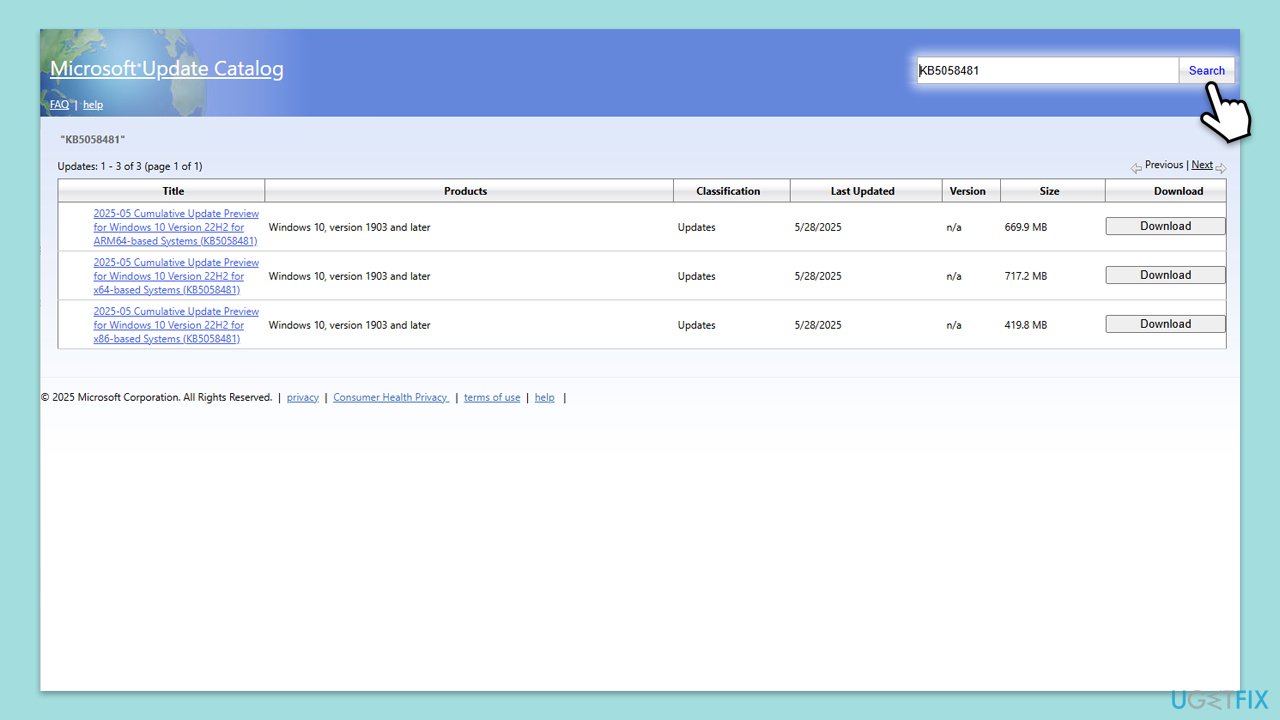
- Visit the Microsoft Update Catalog website.
- In the search bar, type the update number (KB5058481 in this case) and press Enter or click Search.
- Find the update that matches your system type (32-bit or 64-bit) and click Download.
- In the pop-up window, click the link to download the update.
- Once downloaded, run the update file and follow the on-screen instructions.
- Restart your device.
Bottom line
To resolve the KB5058481 installation failure, users can try clearing the update cache, freeing up disk space, stabilizing their internet connection, temporarily disabling antivirus software, or repairing corrupted system files. If these solutions do not work, further troubleshooting may be necessary.
Frequently asked questions
Try running the Windows Update Troubleshooter to identify and fix issues related to the installation of KB5058481. You can access this tool through Settings > Update & Security > Troubleshoot.
You can manually download the KB5058481 update from the Microsoft Update Catalog website and then install it by double-clicking the downloaded file. Ensure that you choose the correct version for your Windows 10 architecture.
Before installing KB5058481, make sure your Windows 10 is up to date with the latest cumulative updates, as missing updates can cause installation failures. Additionally, check for sufficient disk space on your system drive.




Report an issue
What's wrong with this guide? We review every report and update or remove content.
Report received — thank you. We'll review and fix it.
You need a free account to submit a report.
Be the first to comment