How to fix
KB5060999 fails to install
on Windows
Resolve the KB5060999 installation error in Windows 11 quickly with our expert-tested solutions. Get your system back on track in minutes!

What causes How to fix KB5060999 fails to install in Windows 11?
- Corrupt Windows Update components
- Missing system files
- Background services like antivirus software
- Incomplete previous updates
- Conflicting software
- Issues with the update cache
Repairs Windows system files, removes malware, and restores a clean OS state — without reinstalling.
So I wanted to update Windows as usual, but to my surprise, it didn't work as it usually does. Instead of fully updating, the installation stopped (it was almost finished, to be honest) and then failed. I tried again but KB5060999 keeps failing to install.
Windows update KB5060999, released on June 10, 2025, is a cumulative update for Windows 11 versions 22H2 and 23H2, covering builds 22621.5472 and 22631.5472. It includes security updates and fixes for internal operating system functionalities. Despite its importance, some users are experiencing issues where KB5060999 fails to install properly, either getting stuck at a certain percentage or throwing an unspecified error.
The update process might appear normal at first, but then Windows either rolls it back or displays a generic failure message. This has been reported even after multiple reboot attempts and with enough available disk space. Some users see no error code at all, while others encounter messages like “Installation failed” without much detail.
KB5060999 is a security-focused release, and failing to install it may leave your system vulnerable. It’s especially frustrating since the update is pushed through the automatic update channel, and the failed installation can repeat every time you check for updates.
There are a few reasons why KB5060999 might fail. Corrupt Windows Update components, missing system files, or background services like antivirus software can all interfere. In some cases, a previous update may not have been fully completed, causing a chain reaction of errors for newer updates. Conflicting software or issues with the update cache are also possible causes.
Users facing this problem may need to reset update components, repair system files, or manually install the update. These approaches have helped others regain normal update functionality [d1].
Fix 1. Run the Windows update troubleshooter
This tool checks for common update problems and attempts to resolve them automatically. It can reset stuck services or repair update-related components.
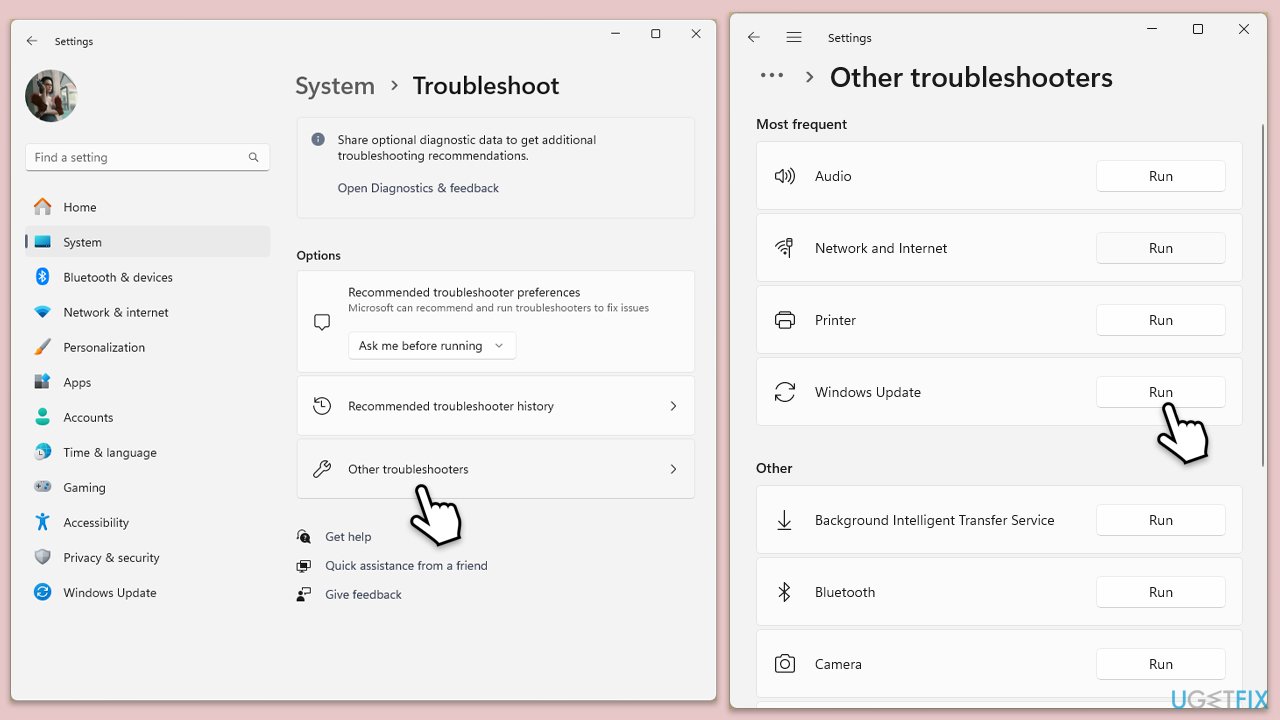
- Type troubleshoot in Windows search and press Enter, or go to Start > Settings > System > Troubleshoot.
- From the list of Options, pick Other troubleshooters.
- Scroll down to locate the Windows Update and click Run.
- Wait for it to finish, then apply changes and restart the computer.
Fix 2. Check disk space and clean up system files
Insufficient storage or leftover files from older updates can interfere with new installations.
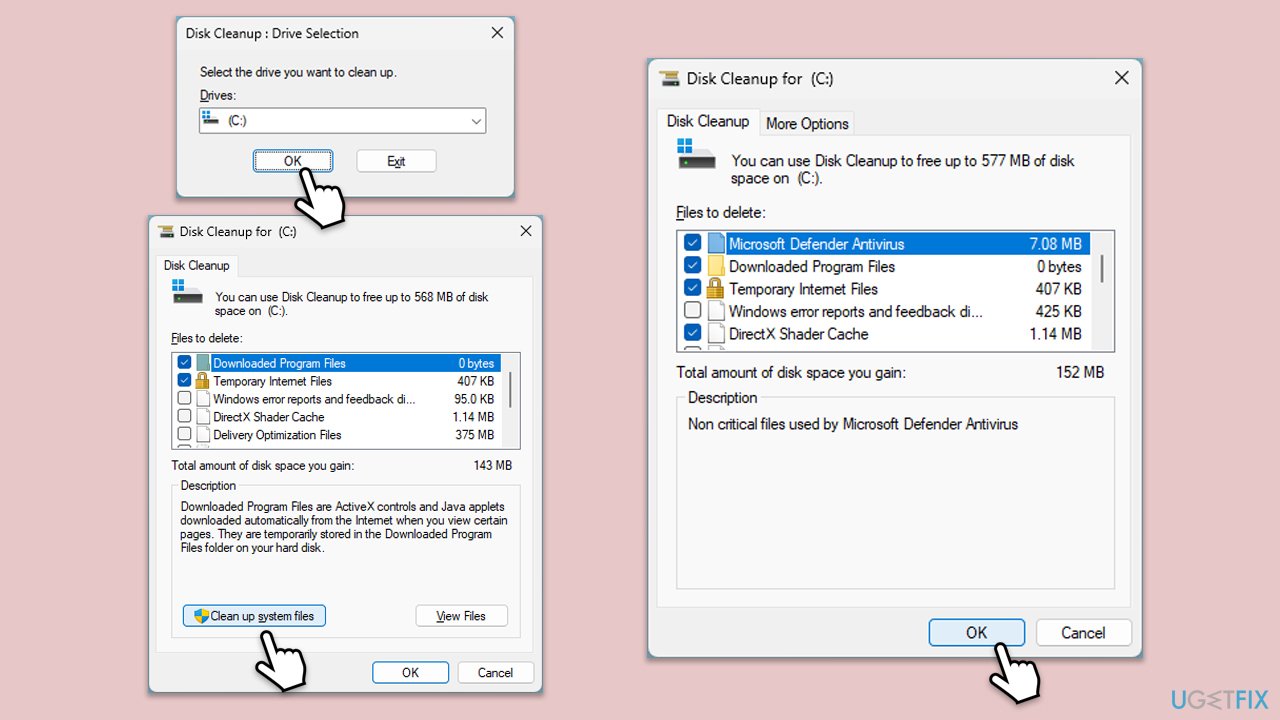
- Type Disk Cleanup in Windows search and hit Enter.
- If your Windows is installed on drive C, pick it from the list (it should be by default) and press OK.
- Click Clean up system files.
- Select your main disk again and click OK.
- Here, select the largest portions of the data used - these typically include Temporary Internet Files, Windows Update, Temporary Files, Recycle Bin, Delivery Optimization Files, and others.
- Click OK - the process should be finished shortly.
Fix 3. Reset Windows Update components
Sometimes, update files or services become corrupted or stuck. Manually resetting them can restore normal function.
- Type in cmd in Windows search.
- Right-click on Command Prompt and select Run as administrator.
- User Account Control will ask you whether you want to allow to make changes to the system - click Yes.
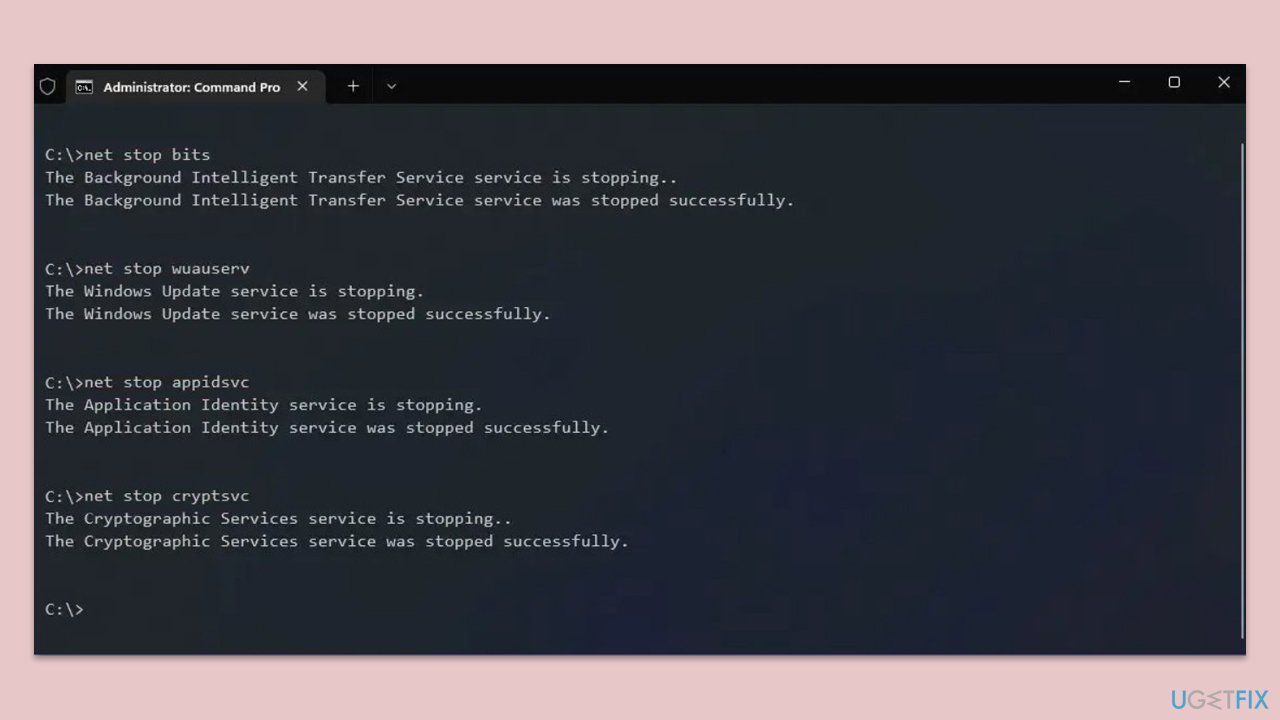
- Stop the BITS, Windows Update, and Cryptographic services by typing the following commands, and pressing Enter after each:
- net stop bits
- net stop wuauserv
- net stop appidsvc
- net stop cryptsvc
- To rename the SoftwareDistribution and Catroot2 folders (where Windows stores update files), type the following commands:
- ren %systemroot%\SoftwareDistribution SoftwareDistribution.old
- ren %systemroot%\system32\catroot2 catroot2.old
- regsvr32.exe /s atl.dll
- regsvr32.exe /s urlmon.dll
- regsvr32.exe /s mshtml.dll
- netsh winsock reset
- netsh winsock reset proxy
- Restart the services stopped earlier by typing the following commands:
- net start bits
- net start wuauserv
- net start appidsvc
- net start cryptsvc
- Restart your computer.
Fix 4. Try Clean Boot
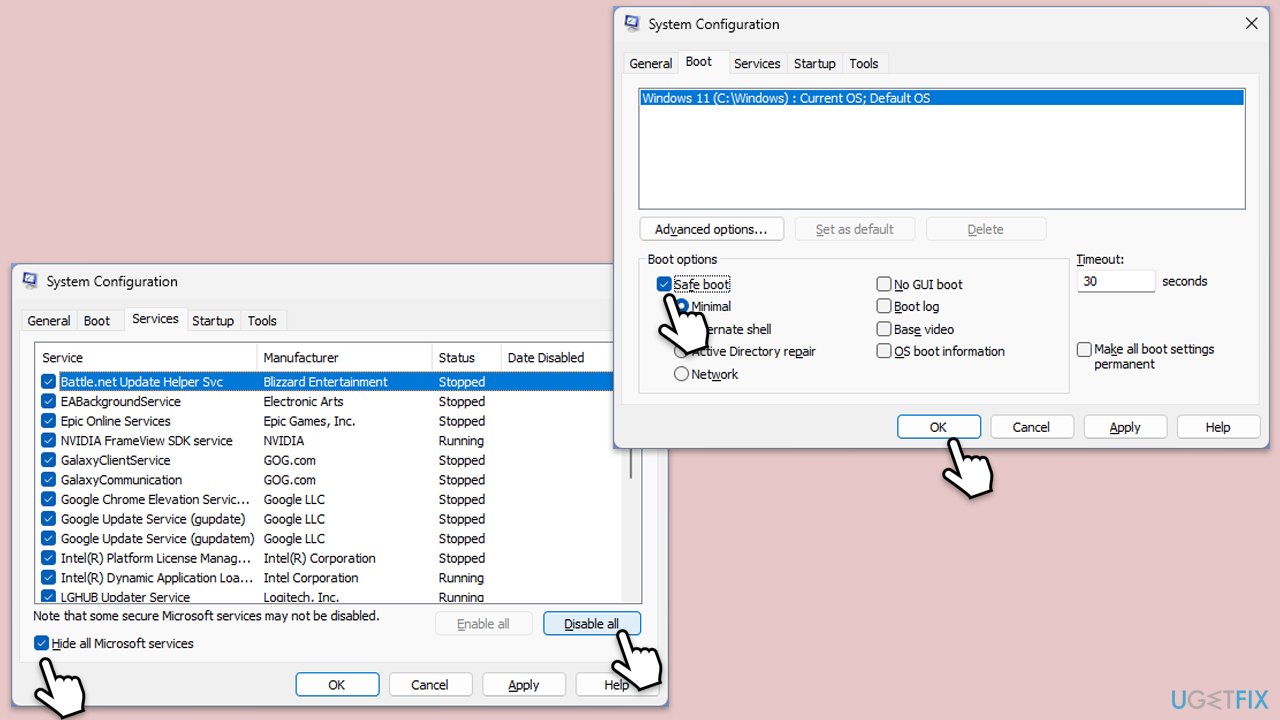
- Type msconfig in Windows Search and press Enter to open the System Configuration window.
- Click on the Services tab and check the Hide all Microsoft Services box.
- Click Disable all to disable non-Microsoft services, then click the Startup tab.
- Open the Task Manager, disable all startup items, and close the Task Manager.
- Go to the Boot tab and mark the Safe boot option.
- Click OK on the System Configuration window and restart your computer.
- Try installing the update again.
Fix 5. Fix corrupted system files and repair Windows image
To repair corrupted files, run commands via an elevated Command Prompt.
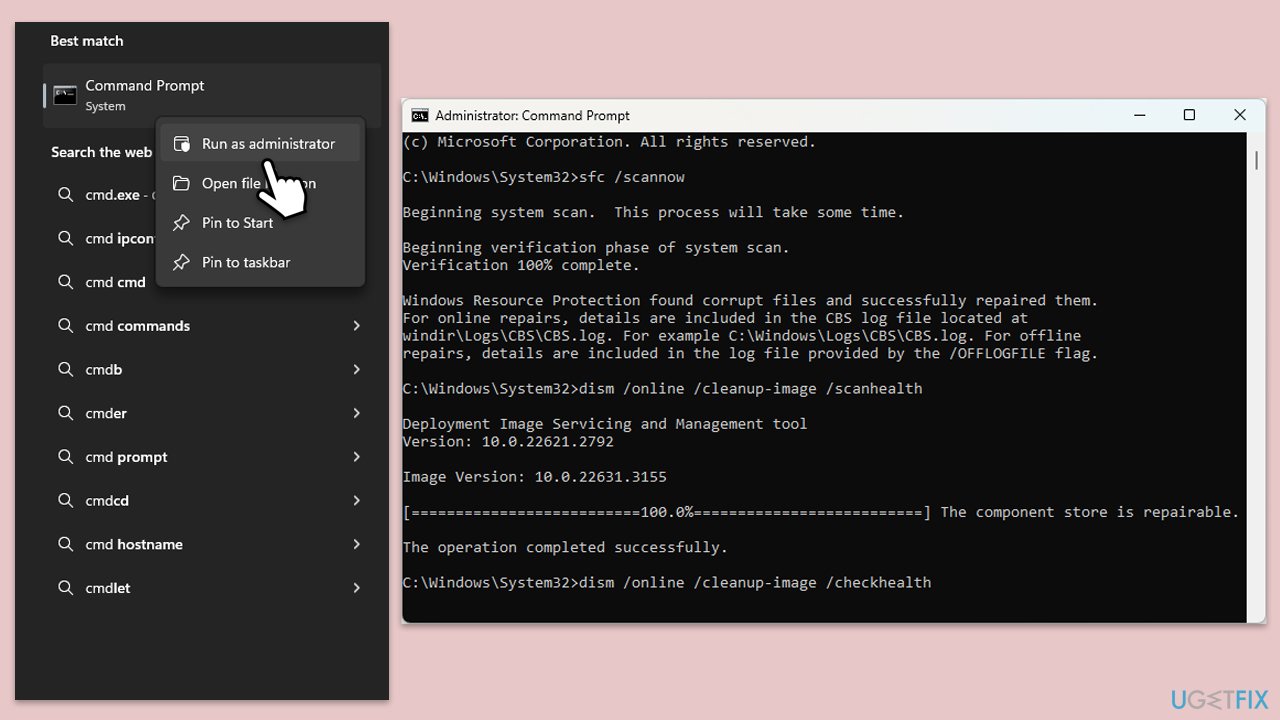
- Open Command Prompt as administrator.
- In the Command Prompt window, paste the following command and press Enter:
sfc /scannow - Wait for the scan to complete.
- Once the SFC scan is finished, run the following set of DISM commands, pressing Enter after each one:
DISM /Online /Cleanup-Image /CheckHealth
DISM /Online /Cleanup-Image /ScanHealth
DISM /Online /Cleanup-Image /RestoreHealth
(Note: if you get an error executing this last command, add /Source:C:\RepairSource\Windows /LimitAccess to it and try again). - After completing the DISM commands, restart your device.
Fix 6. Use the Media Creation Tool
- Visit the official Microsoft website and download the Windows installation media.
- Double-click the installer and select Yes when UAC shows up.
- Agree to the terms and click Next.
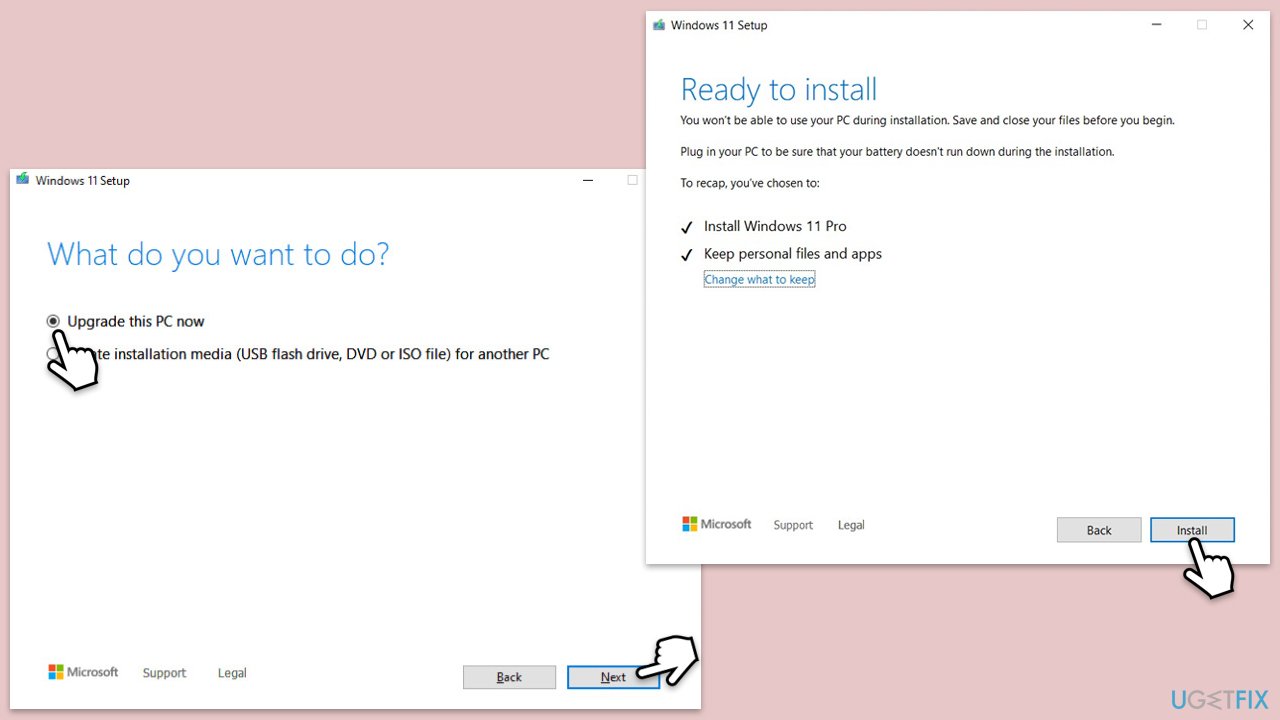
- Select Upgrade this PC now and select Next
- Windows will now download all the necessary files, which might take some time.
- Agree to the terms once again and click Next.
- Before installing, ensure you are happy with your choices (otherwise, you can click Change what to keep option).
- Click Install to begin the upgrade process.
- Your computer will restart as required.
Fix 7. Install the update manually
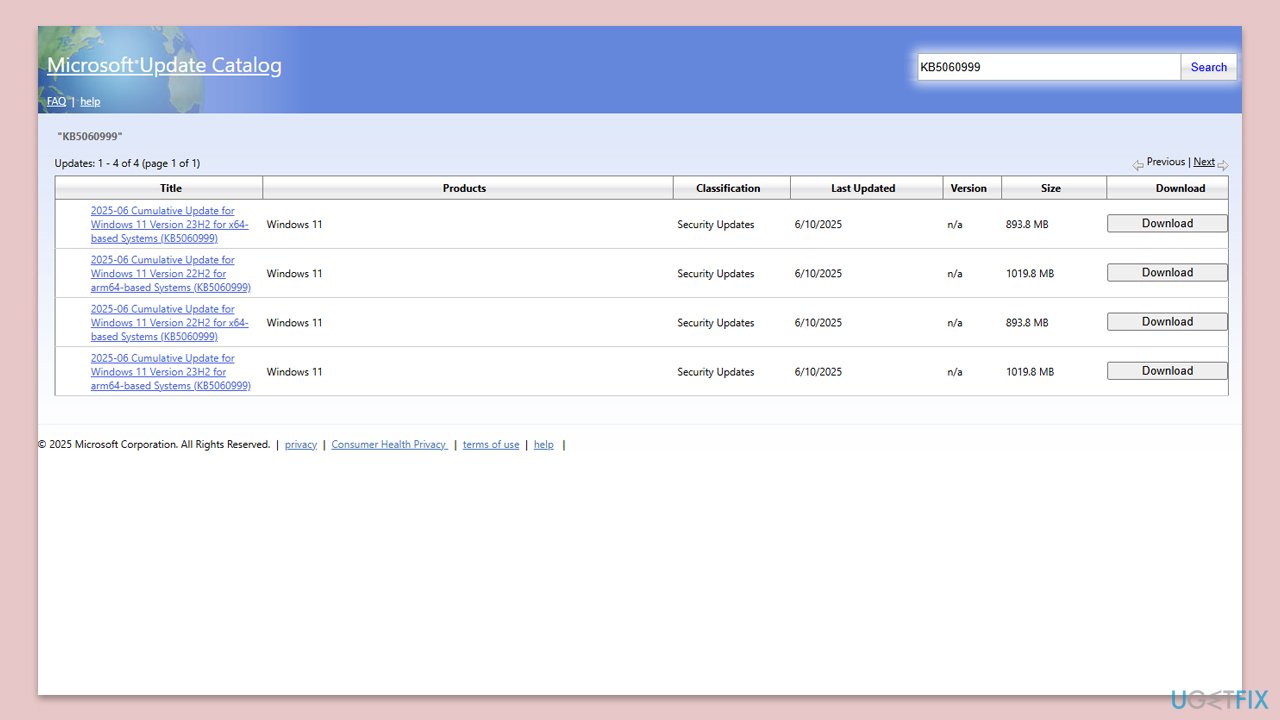
If the update doesn't install automatically, you can get around problems with the automated update service by downloading and installing it manually from the Microsoft Update Catalogue.
- Visit the Microsoft Update Catalog website.
- Search for the update KB5060999.
- Find the version of the update that matches your system type.
- Click the Download button next to the correct version.
- In the window that opens, click the link to start the download.
- Once downloaded, open the file and follow the on-screen instructions to install the update.
Bottom line
To fix the KB5060999 installation failure, users can run the Windows Update troubleshooter, reset update components, repair system files, or manually install the update. If these methods do not resolve the issue, further investigation may be necessary to identify underlying problems.
Frequently asked questions
First, try running the Windows Update Troubleshooter by going to Settings > Update & Security > Troubleshoot. If that doesn't work, consider manually downloading the update from the Microsoft Update Catalog.
You can verify compatibility by going to Settings > Update & Security > Windows Update and checking for any notifications regarding system requirements or issues. Additionally, ensure your device is fully up to date with the latest cumulative updates.
Yes, common error codes include 0x800f0805 and 0x8007000d, which indicate issues with the update process. You can look up these codes for targeted troubleshooting steps.




Report an issue
What's wrong with this guide? We review every report and update or remove content.
Report received — thank you. We'll review and fix it.
You need a free account to submit a report.
Be the first to comment