How to fix
KB5061768 fails to install
on Windows
Resolve the KB5061768 installation issue on Windows 10 effortlessly with our expert solutions. Get back on track in minutes, expert-tested.

What causes How to fix KB5061768 fails to install in Windows 10?
- Lack of space
- Corrupted system files
- Bugged software distribution folder
- Problems with relevant Windows services
Repairs Windows system files, removes malware, and restores a clean OS state — without reinstalling.
Hey there. I was wondering if you could help me with the problem I have with KB5061768 failing to install in Windows 10. I tried numerous times but it always gets stuck at similar time and doesn't move forward at all unless I restart my PC and restart the whole process.
Windows updates can be a pain not only because they might straight out break some Windows features (or even critical functions), but also because they might not install succesfully in the first place. KB5061768 is one of the updates that is meant to correct issues introduced with May's Patch Tuesday update (KB5058379), but for some people, it might not install.
KB5061768 is an out of band update relesed on May 19, 2025 for Windows 10 version 22H2 and 21H2. It mainly addresses a critical issue introduced by a previous update, where devices running Intel vPro processors (10th generation or newer) with Intel Trusted Execution Technology (TXT) enabled experienced system instability.
This update does not introduce any new features: it solely focuses on resolving the above stability problem. By fixing the LSASS crash, KB5061768 aims to prevent users from being locked out of their systems due to repeated recovery prompts.
However, if KB5061768 fails to install, people might continue to suffer from the issue introduced previously, so it's obvious why they need to implement it succesfully. This might not be very apprant though, as the the fix depends on the reason of the failure, which could be something simple as lack of space to issues with corrupted system files, bugged software distribution folder, or problems with relevant Windows services.
So, if you are in a situation where KB5061768 is not installing, you should try numerous soluutions we provide below, including running the troubleshooter, enabling or restarting services, repairing system files, resetting Windows update components, and more. To fix your computer issues automatically, check out a PC repair tool [d1].
Fix 1. Run Windows update and network troubleshooters
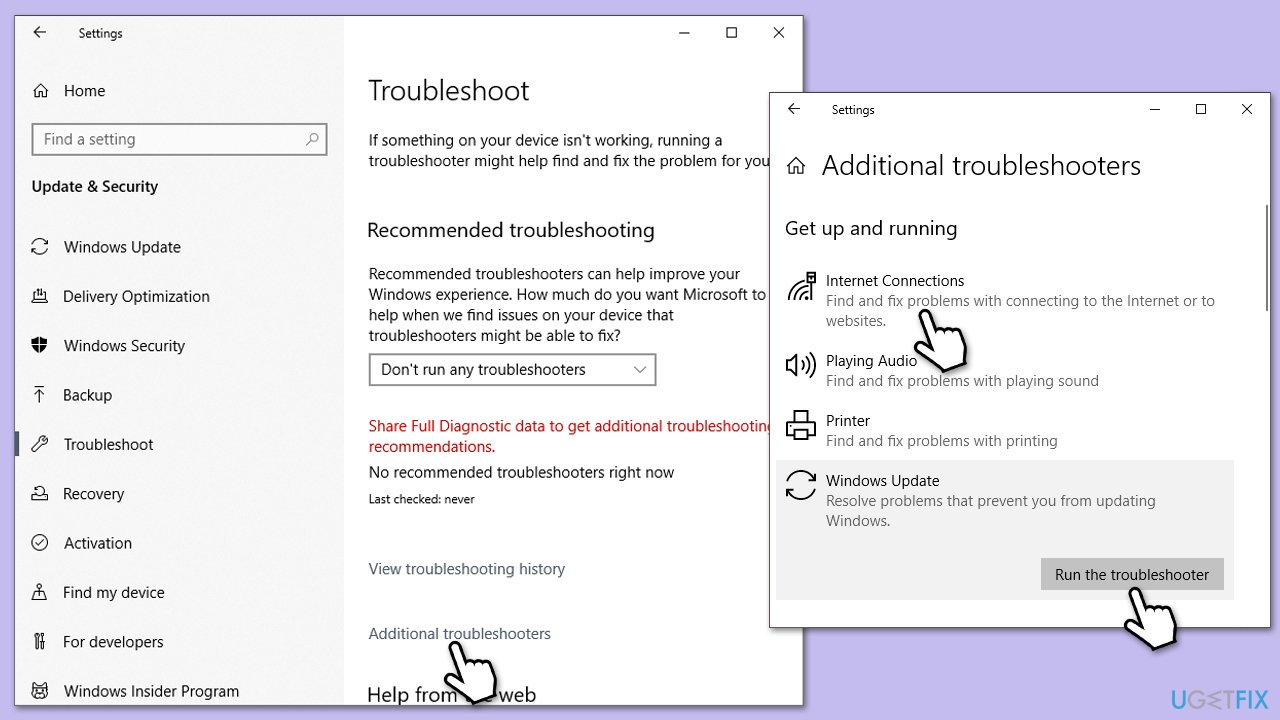
Troubleshooters are built-in tools that can help you with automatically detecting and fixing issues with certain Windows issues, such as Windows updates or network problems. To run them follow these steps:
- In Windows search, type Troubleshoot and press Enter.
- Once the Troubleshoot window opens, click on Additional troubleshooters.
- Select Windows Update and click Run the troubleshooter.
- Wait till the process is finished and apply all the recommended changes.
- If nothing was found, repeat this with Internet Connections troubleshooter.
Fix 2. Run SFC and DISM
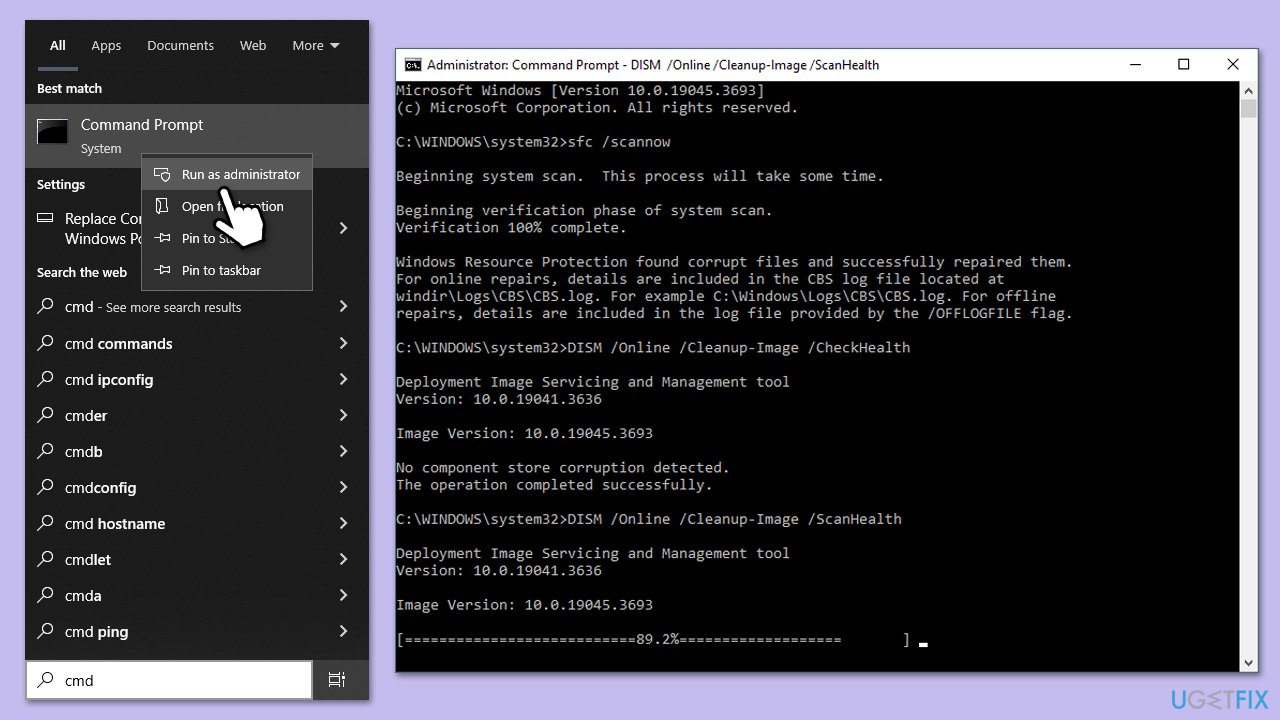
As previously mentioned, corrupted system files can be one of the main reasons for update issues. To address this, run particular commands via elevated Command Prompt:
- Type cmd in Windows search.
- Right-click on Command Prompt and pick Run as administrator.
- User Account Control window will show up - click Yes when prompted.
- Then, copy and paste the following command, pressing Enter after:
sfc /scannow - Wait till the scan is finished. If Windows finds system file integrity violations, it will attempt to fix them. After this, use the set of the following commands, pressing Enter each time:
DISM /Online /Cleanup-Image /CheckHealth
DISM /Online /Cleanup-Image /ScanHealth
DISM /Online /Cleanup-Image /RestoreHealth - (Note: if you get an error executing this last command, add /Source:C:\RepairSource\Windows /LimitAccess to it and try again).
- Close down the Command Prompt and restart your computer.
Fix 3. Reset Windows Update components
- Open Command Prompt as administrator.
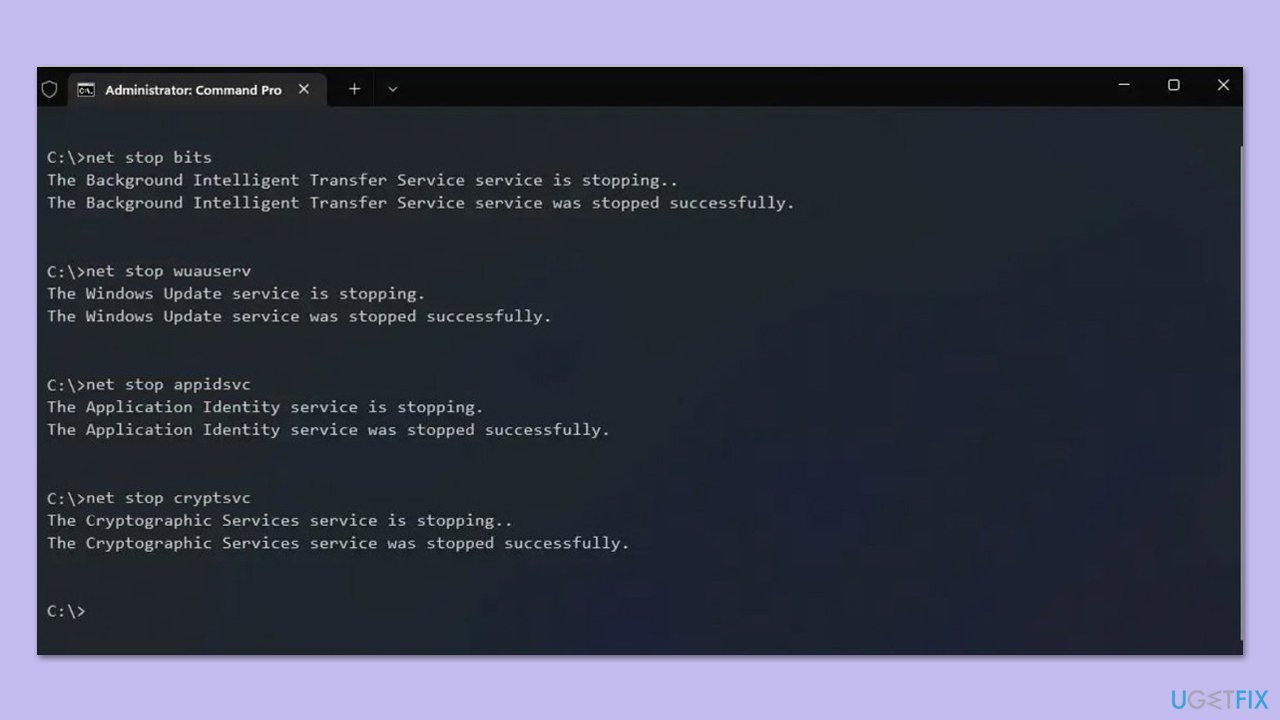
- Stop the BITS, Windows Update, and Cryptographic services by typing the following commands, and pressing Enter after each:
- net stop bits
- net stop wuauserv
- net stop appidsvc
- net stop cryptsvc
- To rename the SoftwareDistribution and Catroot2 folders (where Windows stores update files) and reset your connection components, type the following commands:
- ren %systemroot%\SoftwareDistribution SoftwareDistribution.old
- ren %systemroot%\system32\catroot2 catroot2.old
- regsvr32.exe /s atl.dll
- regsvr32.exe /s urlmon.dll
- regsvr32.exe /s mshtml.dll
- netsh winsock reset
- netsh winsock reset proxy
- Restart the services stopped earlier by typing the following commands:
- net start bits
- net start wuauserv
- net start appidsvc
- net start cryptsvc
- Close the Command Prompt and restart your computer, then try updating Windows again.
Fix 4. Perform Disk Cleanup
Disk Cleanup can clear bugged cache files and free some space if it is lacking.
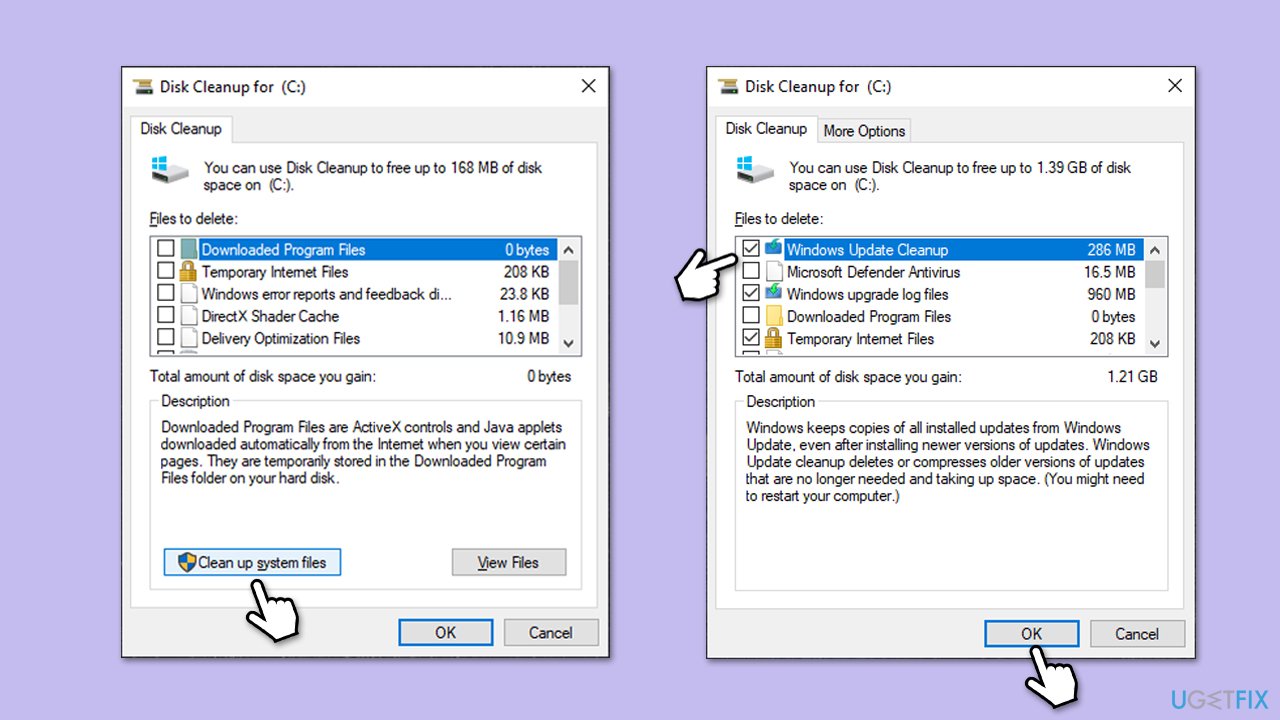
- Type Disk Cleanup in Windows search and press Enter.
- Select your main drive (C: by default).
- Select appropriate fields (Temporary files, Recycle Bin, etc.) and click OK.
- If you want a more thorough cleanup and require even more space, select Clean system files in the Disk Cleanup window.
- Select your main drive again (if required) - Windows will compute how much space can be retrieved.
- The largest data dumps are usually accumulated in Windows Update and Delivery Optimization sections, although Temp files can also take a lot if it hasn't been cleaned.
- Select appropriate fields and click OK - Windows will remove all these files from your device and free up space.
Fix 5. Install the update manually
If the attempts to install this update via regular means fail, you can always try the manual method.
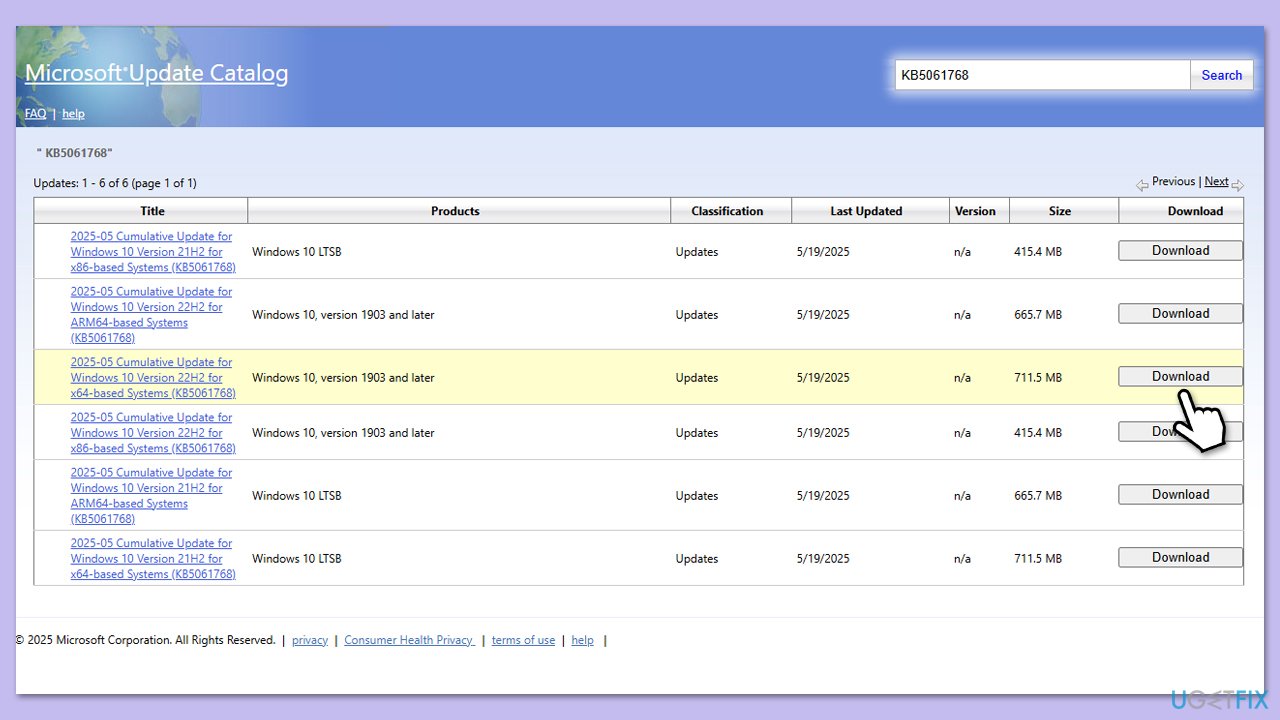
- Go to the official Microsoft Update Catalog website.
- Type the KB5061768 into the search bar, and press Enter or click Search.
- You will find many different versions on the update – you need to locate the one that matches your PC specs and Windows version (as a home user, ignore Windows server versions).
- Right-click on Start and pick System.
- Under Device specifications, check the System type section: it should either be 64-bit or 32-bit.
- Scroll down to Windows specifications and check the Version section.
- Return to the Microsoft Update catalog, download the correct version and install it.
- Restart your computer.
Fix 6. Try Clean Boot
If some third-party software, like anti-malware, is interfering with update installation, you can disable it or, if the offending app is difficult to determine, use Clean Boot.
- Type Disk Cleanup in Windows search and hit Enter
- If your Windows is installed on drive C, pick it from the list (should be by default) and press OK
- Click Clean up system files
- Select your main disk again and click OK
- Here, select the largest portions of the data used - these typically include Temporary Internet Files, Windows Update, Temporary Files, Recycle Bin, Delivery Optimization Files, and others.
- Click OK and wait for the cleanup process to finish.

Fix 7. Employ Media Creation Tool
If all else fails, you can repair-install your Windows installation and install all the newest updates.
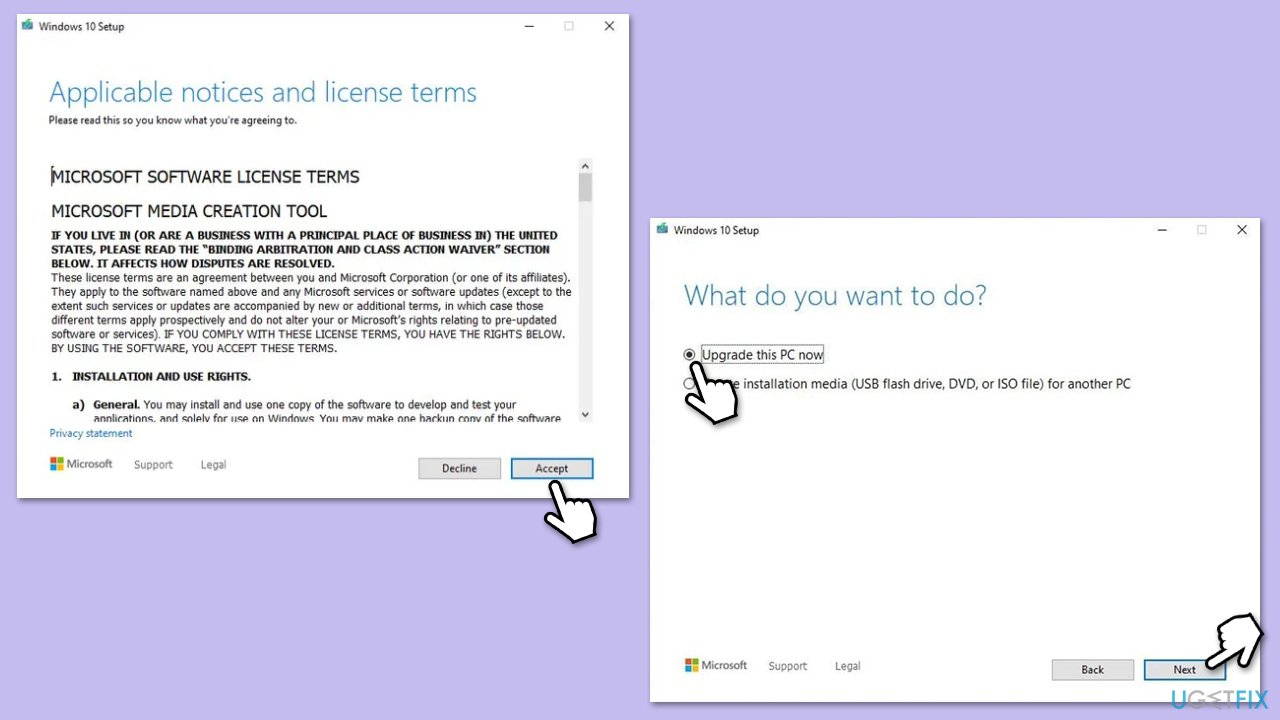
- Visit the official Microsoft website and download Windows 10 installation media.
- Double-click the installer, select Yes when UAC shows up, and agree to the terms.
- Select Upgrade this PC now and click Next.
- Windows will start downloading the needed files.
- Agree to the terms once again and click Next.
- Before installing, ensure you are happy with your choices (otherwise, you can click the Change what to keep option).
- Finally, click Install to begin the upgrade process.
Bottom line
If KB5061768 fails to install, you can try running the Windows update and network troubleshooters, enabling or restarting services, repairing system files, and resetting Windows update components. If these solutions do not resolve the issue, consider using a PC repair tool for further assistance.
Frequently asked questions
Start by running the Windows Update Troubleshooter, which can identify and fix common issues that prevent updates from installing properly.
Visit the Microsoft Update Catalog website, search for KB5061768, and download the appropriate version for your system to install it manually.
Yes, you can stop the Windows Update service, delete the contents of the SoftwareDistribution folder, and then restart the service to clear the update cache.




Report an issue
What's wrong with this guide? We review every report and update or remove content.
Report received — thank you. We'll review and fix it.
You need a free account to submit a report.
Be the first to comment