How to fix
KB5061977 fails to install
on Windows
Resolve the KB5061977 installation error on Windows 11 quickly and effectively. Trust our expert-tested solutions for a hassle-free experience.

What causes How to fix KB5061977 fails to install in Windows 11?
- Windows Update components may be stuck or corrupted
- File integrity issues preventing updates
- System-level problems affecting update installation
- Virtualization-specific flaws in Hyper-V
- Update queue congestion due to failed installations
Repairs Windows system files, removes malware, and restores a clean OS state — without reinstalling.
I am unable to install Windows 11 update KB5061977 because it keeps failing. I have attempted multiple times, and the installation is never completed successfully. How can I resolve this issue?
Microsoft released the out-of-band update KB5061977 for Windows 11 version 24H2 on May 27, 2025. The emergency patch, which was released as OS Build 26100.4066, was designed to resolve a critical issue with confidential virtual machines on Hyper-V.
These VMs were found to randomly freeze or reboot, creating disruptions in operations and even requiring manual intervention. Besides resolving this virtualization-specific flaw, KB5061977 also includes servicing stack updates to make future Windows updates more resilient.
Despite its severity and urgency, KB5061977 is not installing on some users' systems. For those who are affected, the failure could leave Windows unpatched and vulnerable to the same system instability that the update aims to fix. Update failures also tend to clog the update queue, causing delays for future patches or contributing to more long-term update-related issues.
There are a number of things that can help if KB5061977 is refusing to install properly. A good starting point is often to run the Windows Update Troubleshooter, since this may automatically detect and repair common problems. Manually resetting the components used by Windows Update can help clear out stuck or corrupted update data. Running system utilities like DISM to repair the Windows image can resolve file integrity issues that are preventing successful updates.
If none of these are effective, a more powerful solution is going to be to run a PC repair tool like [d1]. These kinds of tools automatically identify and fix deeper system-level problems, repair corrupted services, and fix damage that is stopping critical updates from installing.
Fix 1. Run the Windows Update troubleshooter
The troubleshooter can automatically detect and fix many common issues that could cause KB5061977 fail to install.
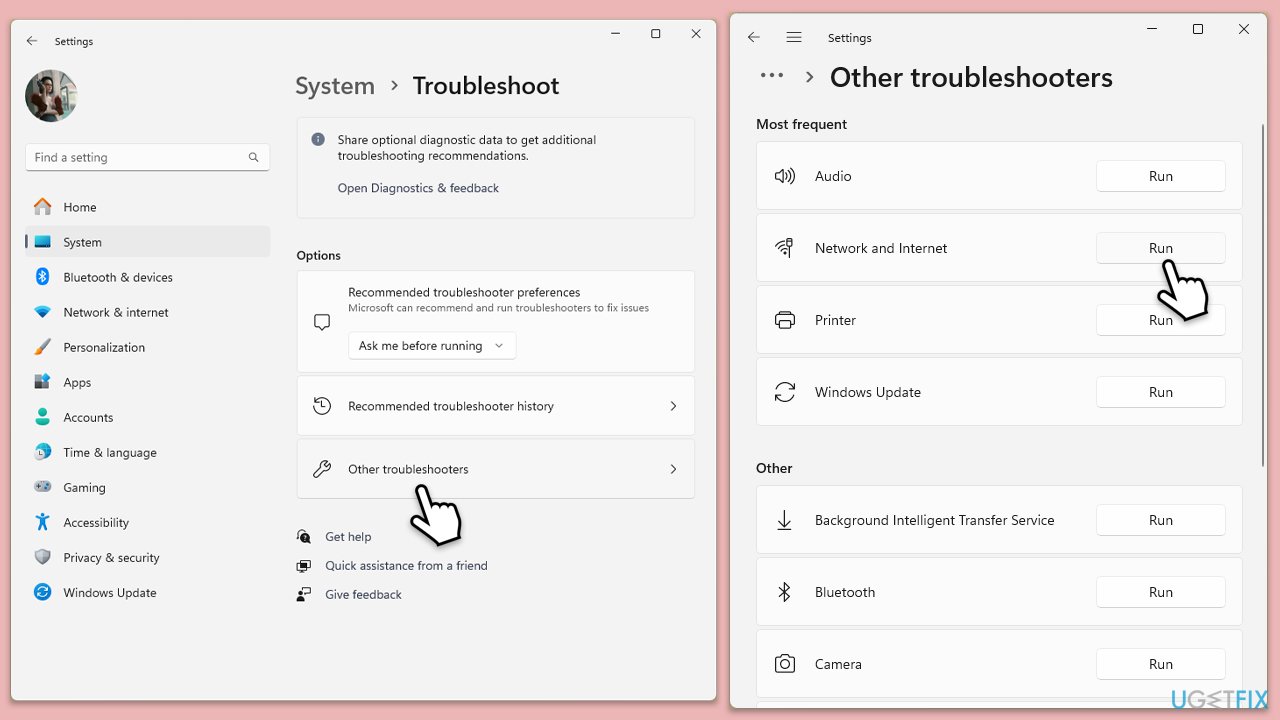
- Type troubleshoot in Windows search and press Enter or go to Start > Settings > System > Troubleshoot.
- From the list of Options, pick Other troubleshooters.
- Scroll down to locate the Windows Update and click Run.
- Wait for it to finish, then apply changes and reboot the system.
Fix 2. Perform a Disk Cleanup
Making sure that any problematic cache files are removed from your computer should be your second course of action. Disk Cleanup makes it simple to accomplish this.
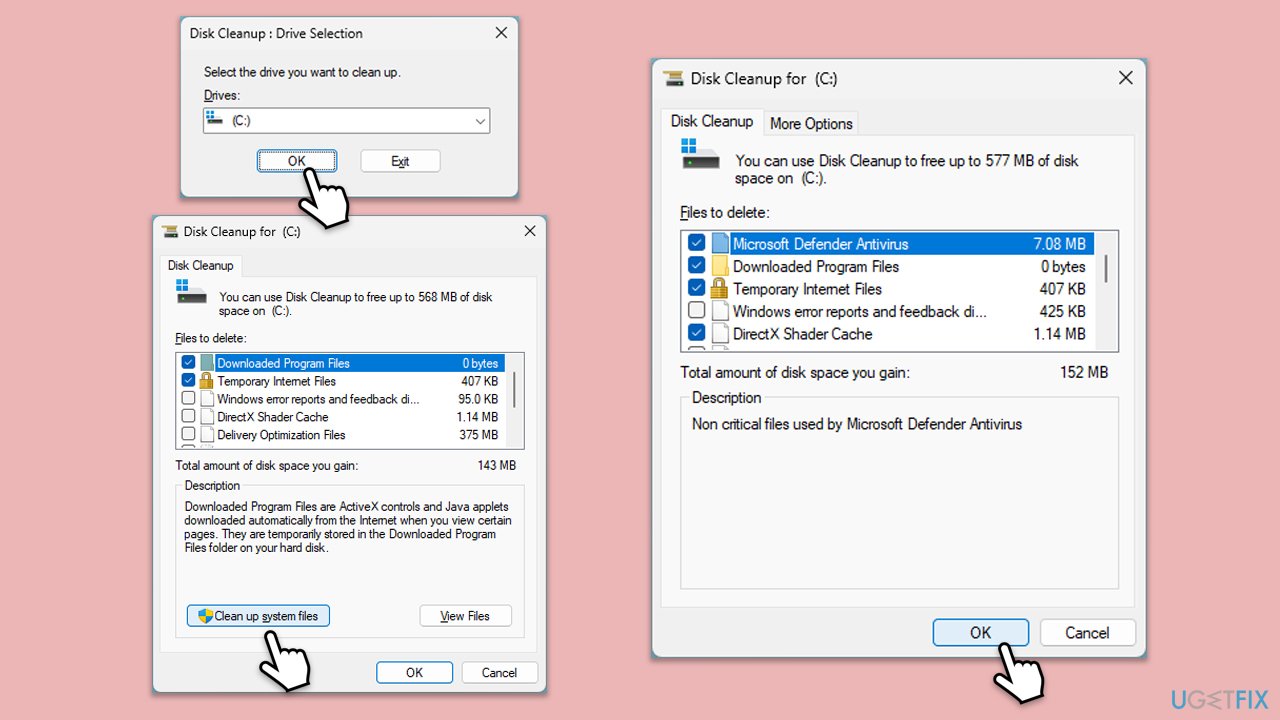
- Type Disk Cleanup in Windows search and press Enter.
- If your Windows is installed on drive C, pick it from the list and press OK (this step will be skipped if you only use one drive - C).
- Click Clean up system files.
- If required, select your main disk again and click OK.
- Select the largest portions of the data used - these typically include Temporary Internet Files, Windows Update, Temporary Files, Recycle Bin, Delivery Optimization Files, and others.
- Click OK - the process should be finished shortly.
Fix 3. Run SFC and DISM
Since corrupted system files can cause all sorts of issues in Windows (including those related to Windows updates), you should attempt to repair them using the following method:
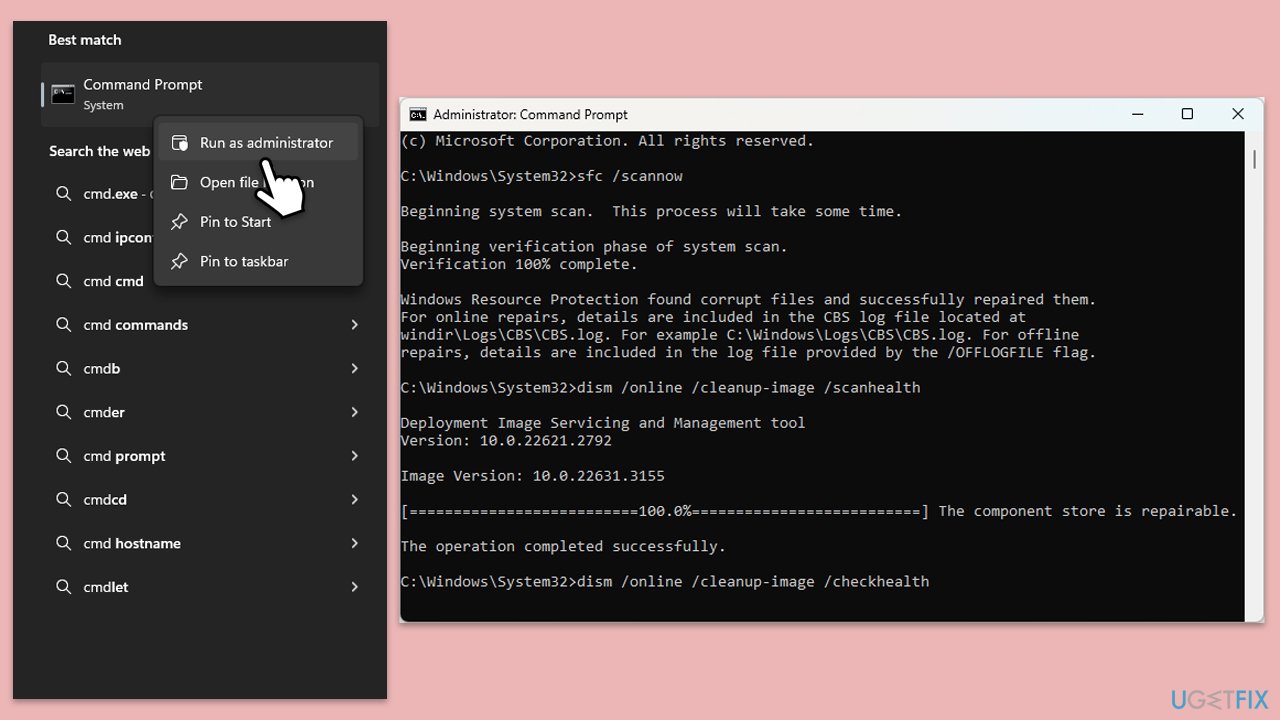
- Type in cmd in Windows search.
- Right-click on Command Prompt and select Run as administrator.
- User Account Control window will show up - click Yes when prompted.
- In the Command Prompt window, paste the following command and press Enter:
sfc /scannow - Wait for the scan to complete.
- Once the SFC scan is finished, run the following set of DISM commands, pressing Enter after each one:
DISM /Online /Cleanup-Image /CheckHealth
DISM /Online /Cleanup-Image /ScanHealth
DISM /Online /Cleanup-Image /RestoreHealth
(Note: if you get an error executing this last command, add /Source:C:\RepairSource\Windows /LimitAccess to it and try again). - After completing the DISM commands, restart your system.
Fix 4. Reset Windows update components
Resetting Windows Update components restores the system's capacity to download and install updates, therefore fixing ongoing problems.
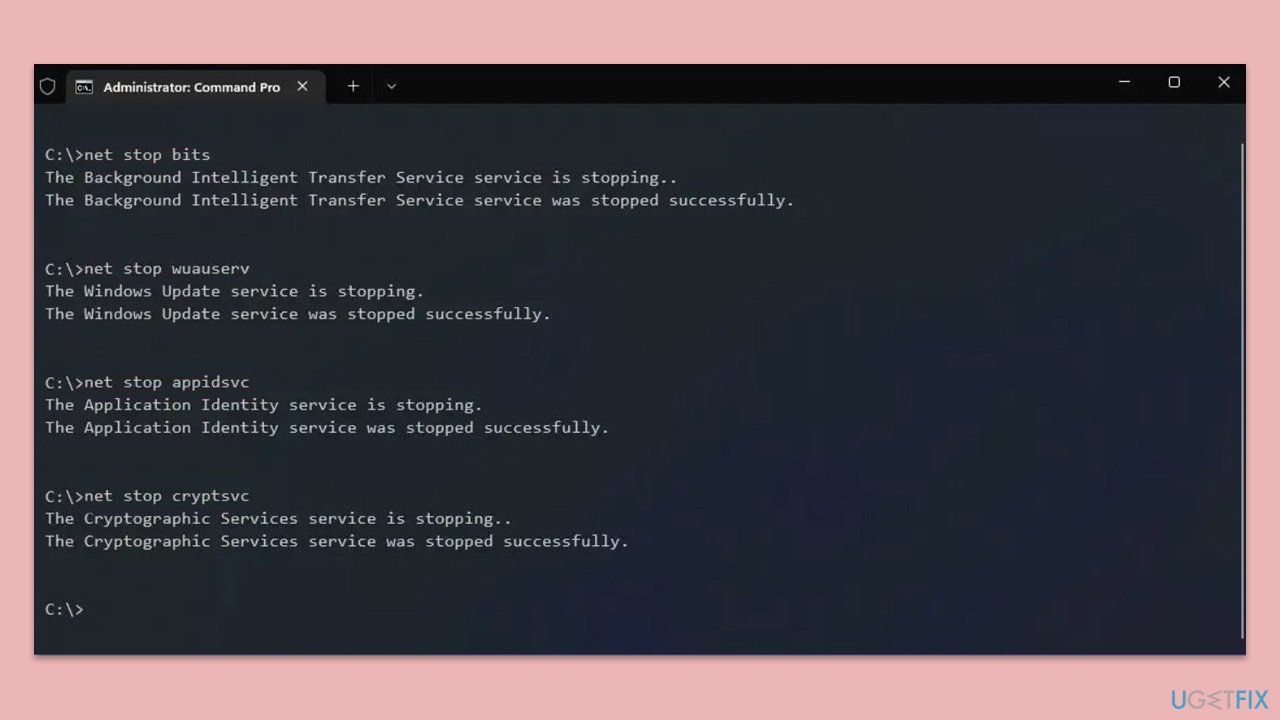
- Open Command Prompt as administrator.
- Stop the Windows Update-related services by running the following commands one at a time, pressing Enter after each one:
net stop wuauserv
net stop cryptSvc
net stop bits
net stop msiserver - Rename the SoftwareDistribution and Catroot2 folders by running the following commands:
ren C:\Windows\SoftwareDistribution SoftwareDistribution.old
ren C:\Windows\System32\catroot2 Catroot2.old
Note: If your Windows installation is not on the C drive, replace "C" with the appropriate drive letter. - Restart the Windows Update-related services by running the following commands:
net start wuauserv
net start cryptSvc
net start bits
net start msiserver - Reboot your computer.
Fix 5. Check relevant services
For the automatic update to be successful, certain Windows services must be running.
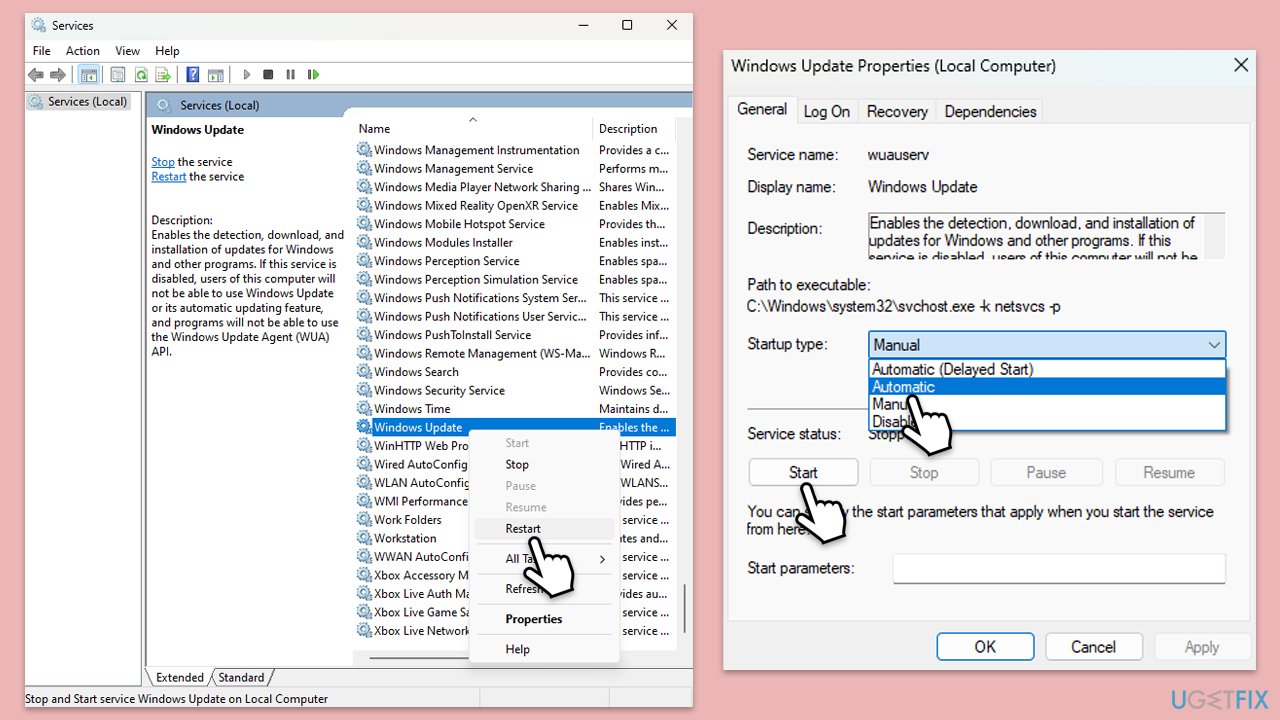
- Type in Services in Windows search and hit Enter.
- In the Services window, locate and double-click on the following services one by one (if these are already running, right-click and hit Restart):
- Windows Update
- Background Intelligent Transfer Service (BITS)
- Cryptographic Services
- For each service, ensure that the Startup type is set to Automatic. If it's not, select Automatic from the drop-down menu.
- Check the Service status. If the service is not running, click the Start button to start it.
- Click Apply and then OK for each service.
- Close the Services window and restart your device.
Fix 6. Install manually
By applying the update manually, problems with Windows Update may be avoided and the update can be deployed promptly.
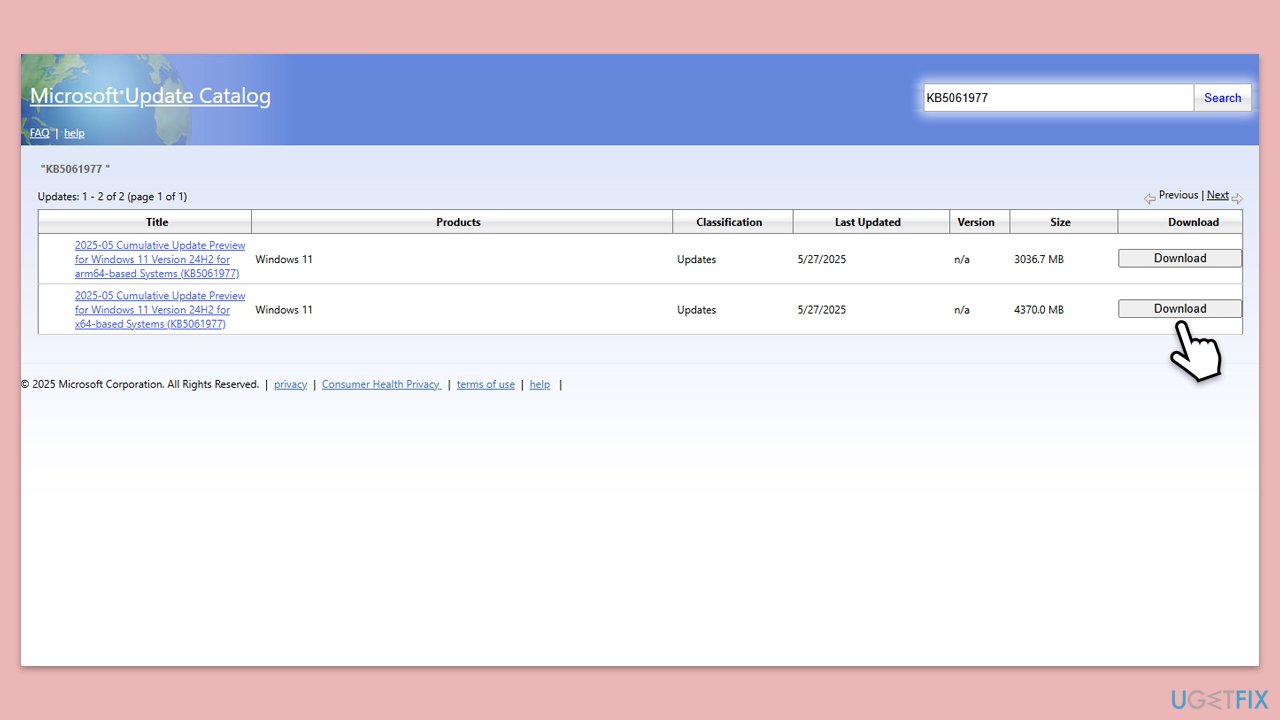
- Go to the official Microsoft Update Catalog website.
- Type KB5061977 into the search bar, and click Search.
- You will find many different versions on the update – you need to find the one that matches your PC specs and Windows version (as a home user, ignore Windows server versions).
- After picking the correct version, click the Download button and proceed with the on-screen instructions.
- Restart your computer to implement the new updates.
Bottom line
To resolve the installation failure of KB5061977, you can start by running the Windows Update Troubleshooter, manually resetting Windows Update components, or using DISM to repair the Windows image. If these methods do not work, consider using a PC repair tool to address deeper system issues.
Frequently asked questions
Check the error code displayed during the installation failure, then refer to the Microsoft support website for specific troubleshooting steps related to that code.
You can use the built-in Disk Cleanup tool to remove temporary files and unnecessary system files, which may help free up space for the installation.
Yes, restarting your device can help apply any changes made during troubleshooting and may allow the update to install correctly.
6 comments

Before you get too deep into those software fixes, check your hardware. I've seen this before; a dying hard drive can cause all sorts of update headaches. Run CrystalDiskInfo first and see if that drive's healthy. If it’s throwing errors, you might have your answer right there. Trust me, nine times out of ten it's the hardware causing the issue.

Oh my goodness, I totally get what you're saying! I just never think about HARDWARE when my computer is acting up!! I'm so used to just worrying about the software side of things. My IT guy is never around to help with this stuff, so I’ll have to remember to check the hard drive too next time. THANK YOU for the advice!

Thank you for this helpful information on fixing the KB5061977 update issue. I was trying to update my system yesterday, and it kept failing too. I haven’t yet tried the Windows Update Troubleshooter you mentioned, but I will give it a shot! When I used to manage updates on Windows XP, things were much simpler. I’ll let you know if the troubleshooter resolves my problem. Thank you once again for your assistance!

Hi Bob! I'm really glad you found the information helpful. The Windows Update Troubleshooter can be a great tool, and I hope it resolves your issue with the KB5061977 update. You're right — managing updates has changed quite a bit since Windows XP! If you run into any problems or if the troubleshooter doesn't work as expected, let me know, and I can help with the next steps. Good luck!

TL;DR: The troubleshooter is a solid first step.
Bottom line: Windows Update can be a headache, especially compared to XP. If the troubleshooter doesn’t work, consider running the DISM and SFC tools next. They can fix system file issues causing the update to fail. Good luck!
Leave a reply




Check the event log first. Look for error codes related to Windows Update. DISM and SFC can help, but if you're stuck, consider deeper system issues. We've seen persistent update failures tied to corrupted system files before.