
How to fix KB5063878 fails to install in Windows 11?

Prefer to fix it yourself? The manual steps follow.
- 6methods
- 5 minutes to 2 hours
- Intermediate
Applies to Windows 11 24H2 and Windows Server 2025: KB5063878 (OS build 26100.4946) and the cumulative updates that replaced it
6 methods in this guide
KB5063878 keeps failing to install on my Windows 11 PC. I am on 24H2. It downloads, reboots to about 30%, then rolls back with 0x80240069. I have tried Retry a few times and even paused and resumed updates. How do I install KB5063878?
KB5063878 is the security update of 12 August 2025 for Windows 11 version 24H2, and some PCs could not install it. Today you do not need it by name, because every newer cumulative update for 24H2 contains it. Restart the PC and install the newest update Windows offers first.
Stop retrying KB5063878 itself. Restart the PC, open Settings > Windows Update and select Check for updates (Fix 1): the newest cumulative update, KB5127648 of 13 October 2026, contains everything KB5063878 had. On a work PC that gets updates from WSUS, error 0x80240069 was a Microsoft bug that is now fixed: the administrator re-syncs WSUS (Fix 2).
| Error | 2025-08 Cumulative Update for Windows 11 Version 24H2 for x64-based Systems (KB5063878) with Install error and a code, the known one being 0x80240069. |
|---|---|
| Where it appears | Settings > Windows Update next to the update, and in Update history. The update downloads, restarts, installs to some percentage and rolls back. |
| Main cause | On company PCs managed by WSUS: a confirmed Windows Update bug that caused 0x80240069. On home PCs: a damaged download, damaged system files or low disk space. |
| Fastest fix | Restart and install the newest cumulative update instead of KB5063878 (Fix 1). |
| Also written as | KB 5063878, 2025-08 Cumulative Update, the August 2025 Patch Tuesday update, OS build 26100.4946. Its servicing stack part is KB5065381 (version 26100.4933). |
| Affects | Windows 11 version 24H2 and Windows Server 2025. Not Windows 10, not Windows 11 23H2 and not 25H2, which came out later. |
| Microsoft's status | Microsoft confirmed 0x80240069 for WSUS installs and says it is resolved. Three other known issues are fixed in KB5064081 and KB5065426. The update is now replaced by KB5127648 (13 October 2026). |
| Where the cause is written | C:\Windows\Logs\CBS\CBS.log and Settings > Windows Update > Update history, which keeps the error code and the date. |
| Time to fix | 10 to 30 minutes for Fix 1 to Fix 5. One to two hours for the repair reinstall in Fix 6. |
Facts checked on 15 October 2026. Steps written for Windows 11 (24H2, 25H2 and 26H2).
What Windows update KB5063878 is
KB5063878 is the monthly security update that Microsoft released on 12 August 2025 for Windows 11 version 24H2. It moves the PC to OS build 26100.4946. It is a cumulative update combined with a servicing stack update, KB5065381, the part of Windows that installs updates. Windows Server 2025 got an update with the same number and build.
| What you see | Where | What it tells you |
|---|---|---|
| 2025-08 Cumulative Update for Windows 11 Version 24H2 for x64-based Systems (KB5063878) | Settings > Windows Update | The update itself, offered to 24H2 PCs. |
| Install error - 0x80240069 | Next to the update, with a Retry button | The error Microsoft confirmed for PCs that get updates through WSUS. |
| Install error with another code | Next to the update | The installation failed on this PC. The code differs from PC to PC, so read the log. |
| A failed entry with the date and code | Settings > Windows Update > Update history | The same failure, kept in the history. The time tells you where to look in CBS.log. |
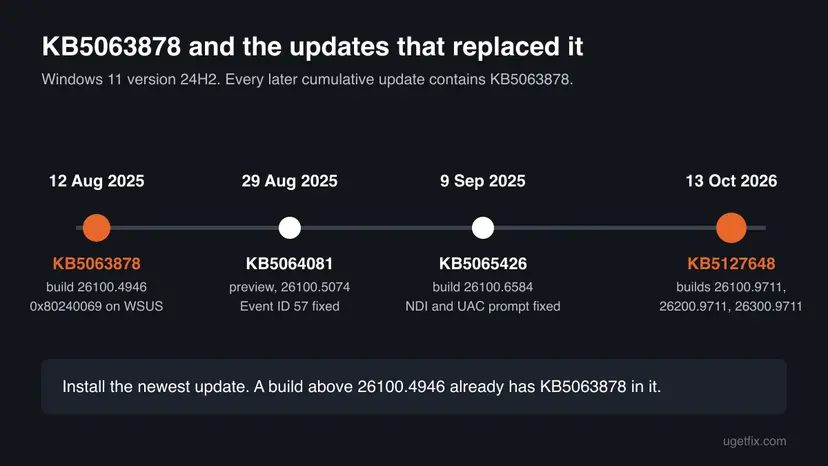
Microsoft's page for KB5063878 says that if you installed earlier updates, the PC downloads only what is new. Every later cumulative update for 24H2 includes the content of KB5063878, so a newer update that installs well closes the gap.
Why KB5063878 fails to install
Microsoft confirmed one install failure for this update, and it hit company PCs. On home PCs the causes are the usual ones for a cumulative update. They are ordered here by how likely they are on your kind of PC.
| Cause | How often | How to tell | Fix |
|---|---|---|---|
| A one-off failure, or an update that waits for a restart | Often | No clear error. The PC has not been restarted for days. | Fix 1 |
| The WSUS bug Microsoft confirmed | Often on company PCs, rarely at home | Code 0x80240069, and updates come from the organization. | Fix 2 |
| A damaged download in the update cache | Sometimes | The install fails at once, at the same point every time. | Fix 3, Fix 4 |
| Damaged system files or component store | Sometimes | DISM reports damage, or CBS.log names missing files. | Fix 5, Fix 6 |
| Too little free space on drive C: | Rarely | Settings > System > Storage shows only a few gigabytes free. | If it still fails |
In August 2025 posts on social media claimed that this update made SSDs disappear or fail during large file copies. Microsoft updated its service alert to say it found no connection between the August 2025 security update and those drive failures. The SSD controller maker Phison also said it could not reproduce them.
Windows KB5063878 install issues and problems that Microsoft confirmed
Microsoft lists four known issues on its KB5063878 page. One is the install failure. The others appear after a successful install, and all are fixed in later updates, which is one more reason to install the newest one.
| What you notice | Who | Microsoft's fix |
|---|---|---|
| Install error with 0x80240069 | PCs that get updates through Windows Server Update Services (WSUS). Microsoft says home users are unlikely to be affected. | Resolved on Microsoft's side. Re-sync with WSUS and install. |
| Delayed or uneven audio and video when streaming with NDI, for example in OBS Studio with Display Capture | Streamers who send feeds between PCs | KB5065426, 9 September 2025 |
| Unexpected User Account Control prompts during MSI repair, or Error 1730 when Office Professional Plus 2010 configures for a standard user | Standard users, some Autodesk apps, per user installs | KB5065426. The prompt is a security change for CVE-2025-50173. |
Event ID 57 in Event Viewer: The "Microsoft Pluton Cryptographic Provider" provider was not loaded because initialization failed. | Any PC, at every restart | No action needed. Addressed in KB5064081, 29 August 2025. |
How to check whether KB5063878 is installed and where it failed
Before you repair anything, check what the PC really has. Update history can still show an old failure after a later update installed well, and the build number settles it.
- Press Win + R, type
winverand press Enter. Read the OS build. - A build of 26100.4946 or higher means KB5063878 or a newer update is installed. Nothing is missing.
- Open Settings > Windows Update > Update history and note the date and code of the failed attempt.
- Press Win + R, type
%windir%\Logs\CBSand press Enter. CopyCBS.logto the Desktop and open the copy in Notepad. - Press Ctrl + F, search for
rollbackand read the lines just above the hit at the time of the failure. They name the step that failed.
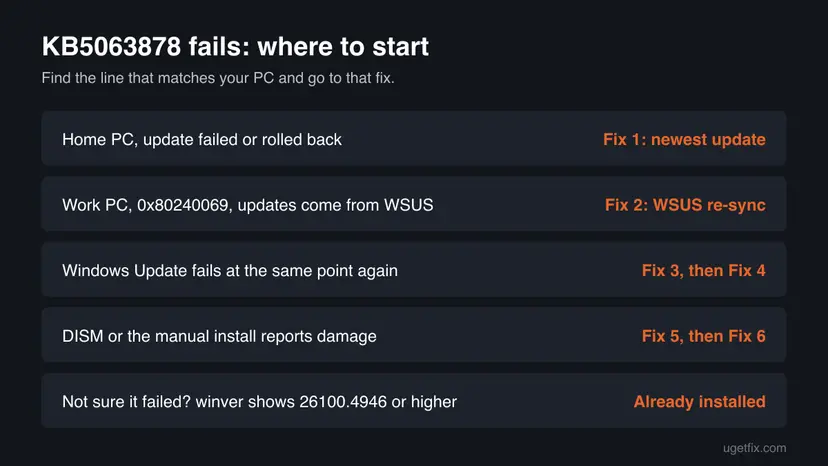
How to fix KB5063878 failing to install
Fix 1 solves most cases, because the update you need today is not KB5063878 any more. Fix 2 is Microsoft's own answer for 0x80240069 on company PCs. Fix 3 to Fix 5 repair Windows Update and the system files. Fix 6 reinstalls Windows over itself and keeps your files.
| What you see or have | Start with |
|---|---|
| KB5063878 failed on a home PC, and you have not checked for updates since | Fix 1 |
| Error 0x80240069 on a work or school PC that gets updates from the organization | Fix 2 |
| Windows Update keeps failing at the same point | Fix 3, then Fix 4 |
| DISM or SFC reports damaged files | Fix 5, then Fix 6 |
winver shows 26100.4946 or higher | Nothing to fix: it is installed |
| The update installed and the PC now misbehaves | Uninstall it (after the fixes) |
Fix 1. Restart and install the newest cumulative update instead
10 to 30 minutesNo riskEveryone, first. Above all if KB5063878 still shows as failed in Update history.
Windows Update no longer needs KB5063878 by name. The current cumulative update for 24H2 includes its content and the fixes for its known issues, and it comes with a newer servicing stack.
- Save your work and select Start > Power > Restart. Use Restart, not Shut down.
- Open Settings > Windows Update and select Check for updates.
- Install everything offered. If KB5063878 is still listed with Retry, check for updates once more: the newer update usually replaces it.
- Restart when Windows asks.
- Press Win + R, type
winverand press Enter, and read the OS build.
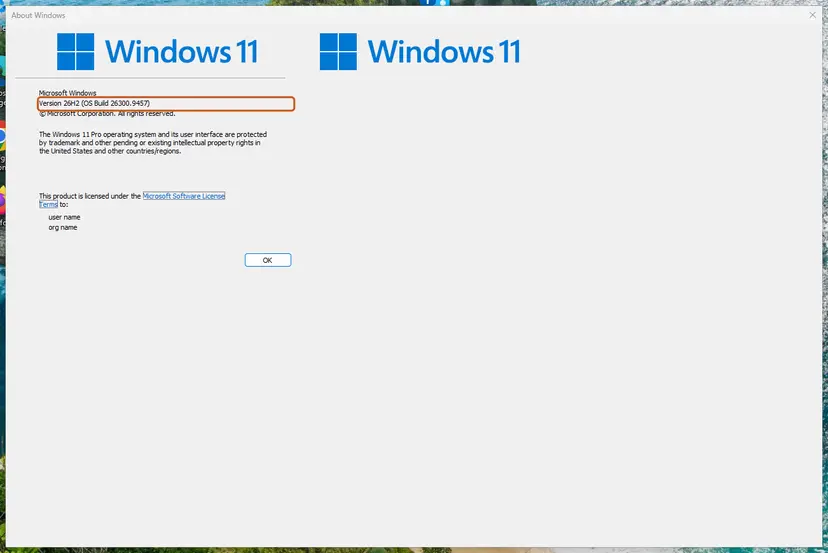
If your PC runs 24H2 Home or Pro, read our KB5066835 guide on moving to a newer Windows 11 version, because Microsoft has ended updates for those editions of 24H2.
It worked if: The newest update installs, Update history lists it as successfully installed, and winver shows build 26100.9711 or later.
If not: Go to Fix 3 to install the update by hand. On a company PC with 0x80240069, Fix 2 comes first.
Fix 2. Re-sync WSUS for error 0x80240069 on company PCs
15 minutes for the administratorLow riskA work or school PC that gets updates from a WSUS server shows Install error - 0x80240069.
Microsoft confirmed that KB5063878 could fail with 0x80240069 when deployed through WSUS, and says the problem in the Windows Update service is resolved. A device only needs a fresh sync with WSUS to get the update.
You cannot do this from a managed PC yourself. Send this section to your IT administrator. On a home PC this fix does not apply: go back to Fix 1 or on to Fix 3.
- On the WSUS server, refresh and run a synchronization so the update approvals are current.
- On the affected PC, open Settings > Windows Update and select Check for updates.
- Install the newest approved cumulative update and restart.
- If the Known Issue Rollback policy was installed earlier, it can stay or go: Microsoft says organizations no longer need it.
- Old workaround
- A Known Issue Rollback Group Policy, now not needed
- Where it was
- Computer Configuration > Administrative Templates > Windows 11 24H2 and Windows Server 2025 KB5063878 250814_00551 Known Issue Rollback
- Who was affected
- WSUS managed devices. Microsoft says home users are unlikely to be.
It worked if: After the sync the PC installs the update without 0x80240069, and Update history lists it as installed.
If not: If the code stays, the administrator installs the update by hand as in Fix 3, or resets the update components with Fix 4.
Fix 3. Install the update by hand from the Microsoft Update Catalog
20 to 40 minutesLow riskWindows Update keeps failing at the same point, or you need this exact update on a PC that is offline from Windows Update.
The catalog gives the full package and installs it outside the Windows Update client. Microsoft's KB5063878 page says the update has two MSU files that go in order: a checkpoint update, KB5043080, and then KB5063878.
- Find the KB number. Open Settings > Windows Update. A failed or pending update is listed with its KB number; earlier ones are under Update history.
- Check the processor type. Open Settings > System > About and look at System type: an x64-based PC needs the x64 file, an ARM-based PC (for example Snapdragon) needs the arm64 file.
- Search the catalog. Open the Microsoft Update Catalog at catalog.update.microsoft.com in your browser, type the KB number (for example KB5124010) in the search box and press Enter.
- Pick the right row. Find the row whose title names your Windows version and your processor type (x64-based or arm64-based) and select Download on that row.
- Download every file listed. A window lists one or more .msu links. Download all of them into one empty folder, for example C:\packages. On Windows 11 24H2 and later the list can include earlier checkpoint updates that the new one needs.
- Install a single file. If there is only one file, double-click it and confirm the installation in the Windows Update Standalone Installer.
- Install several files with DISM. If there are several files, open an elevated Terminal or Command Prompt and run DISM with the newest file. DISM finds the other files in the same folder and installs them in the right order.
DISM /Online /Add-Package /PackagePath:C:\packages\<newest-file>.msu - Restart. Restart the PC when the installation finishes, then run winver again: the OS build should have changed.
These steps were written for Windows 11 24H2 and later; Windows 10 22H2. The full page with the other versions and what each result means: Install an update from the Microsoft Update Catalog
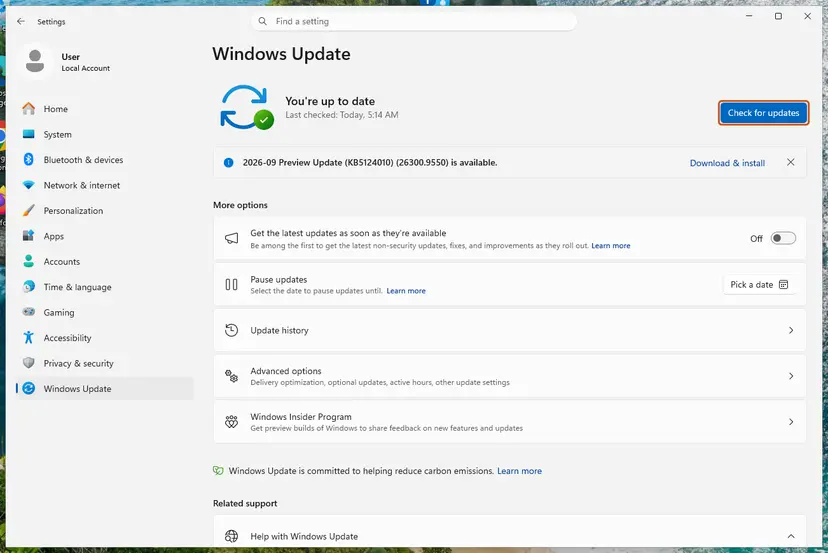
If you do want KB5063878 itself, download both MSU files into one folder, for example C:\Packages, and run this in Command Prompt as administrator. DISM finds the prerequisite file in the same folder.
DISM /Online /Add-Package /PackagePath:C:\Packages\windows11.0-kb5063878-x64_c2d51482402fd8fc112d2c022210dd7c3266896d.msuSearch the catalog for the newest KB, not for KB5063878. Installing an update from August 2025 now only adds a step, and the newest one replaces it anyway.
It worked if: DISM reports The operation completed successfully. and after a restart winver shows the new build.
If not: If the package downloads again with an error, reset the update components with Fix 4. If DISM stops with an error, go to Fix 5.
Fix 4. Reset the Windows Update components
10 minutesLow riskThe update fails at once at the same percentage, or downloads fail again and again.
A damaged download in the SoftwareDistribution folder is used again at every retry. Renaming the folder makes Windows download the update from scratch. It does not repair the system itself.
- Open Command Prompt as administrator. Type cmd in the search box, right-click Command Prompt and select Run as administrator. Select Yes when Windows asks for permission.
- Stop the update services. Type the commands below and press Enter after each one. If Windows says that other services depend on Cryptographic Services, it stops them too. A message that a service is not started is fine.
net stop wuauserv net stop bits net stop cryptsvc - Delete the download queue files. This clears the list of downloads that the Background Intelligent Transfer Service keeps. If Windows says it cannot find the files, continue.
del "%ALLUSERSPROFILE%\Application Data\Microsoft\Network\Downloader\qmgr*.dat" - Rename the update cache folders. Renaming keeps a copy in case you need it; Windows creates new, empty folders when the services start again. If you get Access is denied, a service is still running: repeat the previous step.
ren %systemroot%\SoftwareDistribution SoftwareDistribution.old ren %systemroot%\System32\catroot2 catroot2.old - Start the services again. Type the commands below and press Enter after each one. The requested service has already been started is fine: Windows started it on its own.
net start cryptsvc net start bits net start wuauserv - Restart and check for updates. Restart the PC. Then select Start > Settings > Windows Update > Check for updates. The first check can take longer than usual because everything is downloaded again.
These steps were written for Windows 11 and Windows 10 (the steps are the same). The full page with the other versions and what each result means: Reset Windows Update components

It worked if: Windows Update downloads the update again from zero and installs it.
If not: Repair the system files with Fix 5.
Fix 5. Repair the system files with DISM and SFC
15 to 40 minutesNo riskCBS.log names missing or damaged files, or the earlier fixes did not help.
A cumulative update replaces thousands of system files and fails when the component store it builds on is damaged. DISM downloads clean copies of damaged components, and SFC then repairs the files in use.
- Open an elevated command window. Right-click Start and select Terminal (Admin), or type cmd in the search box, right-click Command Prompt and select Run as administrator. Select Yes when Windows asks for permission.

Search for cmd and choose Run as administrator. Screenshot: Windows 11 26H2. - Run DISM first. Type the command below and press Enter. DISM downloads clean copies of damaged components from Windows Update, so it can take several minutes. Wait until it says The operation completed successfully.
DISM.exe /Online /Cleanup-Image /RestoreHealth
DISM /RestoreHealth running. Screenshot: Windows 11 26H2. - Run System File Checker. In the same window, type the command below and press Enter. Do not close the window until the verification reaches 100%.
sfc /scannow
sfc /scannow at 100%. Screenshot: Windows 11 26H2. - Read the result and restart. Compare the last message with the table below this guide, then restart the PC so that repaired files are loaded.

The result line tells you what SFC did. Screenshot: Windows 11 26H2.
These steps were written for Windows 11 24H2 and 25H2. The full page with the other versions and what each result means: Run DISM and SFC to repair Windows system files
It worked if: DISM ends with The operation completed successfully., SFC reports that it repaired files or found no integrity violations, and the update installs after a restart.
If not: Use the repair reinstall in Fix 6.
Fix 6. Reinstall Windows over itself with Fix problems using Windows Update
1 to 2 hoursLow riskNothing above worked, or DISM could not repair the damage.
The reinstall puts a clean copy of your current Windows version over the old one, with the newest update included, and keeps apps, files and settings. It replaces the damaged update files that the smaller repairs could not fix.
- Open Recovery in Settings. Open Settings > System > Recovery. Next to Fix problems using Windows Update, select Reinstall now. This keeps your apps, files and settings.

Fix problems using Windows Update reinstalls the current version and keeps apps, files and settings. Screenshot: Windows 11 26H2. - Start the reinstall. Choose whether the PC may restart on its own 15 minutes after the installation, then select OK.
- Wait and restart. Windows Update downloads and installs a repair copy of your current Windows version. Keep the PC plugged in and online, and restart it when asked.
These steps were written for Windows 11 22H2 and later. The full page with the other versions and what each result means: Reinstall Windows without losing files
- Keep the PC plugged in and online for the whole reinstall.
- Back up the files you cannot lose first: Back up your files (Windows Backup, File History, Time Machine).
- The old guide suggested the Media Creation Tool for this. The built in Fix problems using Windows Update button does the same job without a download to a USB drive.
It worked if: The PC restarts into the same desktop with your apps and files, and Windows Update shows no pending failed update.
If not: Read the section "If KB5063878 still fails" below.
How to uninstall KB5063878
If the update did install and something broke, first check the known issues table above. Every problem Microsoft confirmed is fixed by a later update, which is better than removing a security update. If you still want it gone, these are your options.
- Open Windows Update. Select Start > Settings > Windows Update.
- Open the update history. Under More options, select Update history. Note the KB number and the date of the update you suspect.
- Open the list of removable updates. Scroll down to Related settings and select Uninstall updates.
- Uninstall the update. Find the update in the list and select Uninstall next to it. If the update is not in the list, Windows does not allow it to be removed this way.
These steps were written for Windows 11 25H2 and 26H2. The full page with the other versions and what each result means: How to uninstall a Windows update
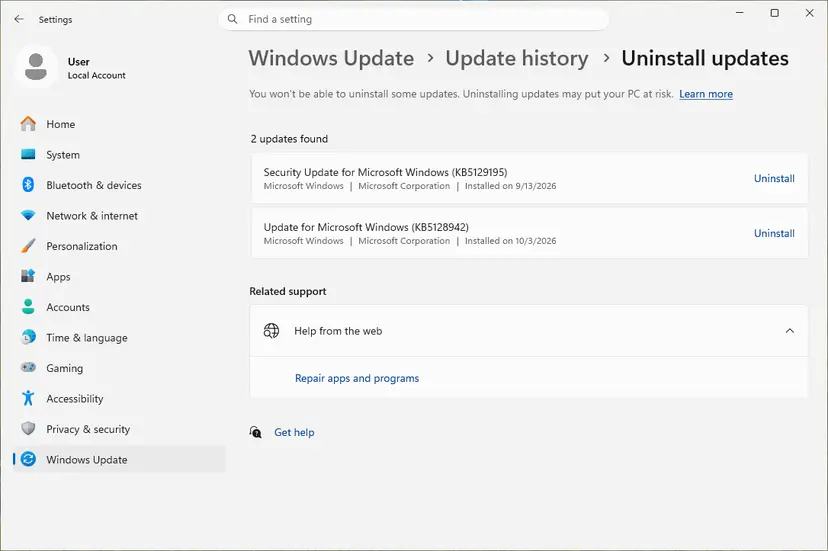
| Way to remove it | Works? | What Microsoft says |
|---|---|---|
| Settings > Windows Update > Update history > Uninstall updates | Only while it is listed there | The normal way for home users. A user in Microsoft Q&A found KB5063878 was not in the list. |
wusa.exe /uninstall /kb:5063878 | No | The combined package contains the servicing stack, so wusa cannot remove it. |
DISM /Online /Remove-Package with the package name | Yes | Find the name with DISM /online /get-packages. The servicing stack KB5065381 stays and cannot be removed. |
| System Restore to a point before the update | Yes, if a restore point exists | See Undo recent changes with System Restore. |
If newer updates are installed on top, KB5063878 is no longer a separate item to remove: its content lives in the newest update. Removing the newest update takes you back one step, not to the state before August 2025.
If KB5063878 still fails
When the repair reinstall did not help, the cause is usually outside the normal update files. Pick your case.
| Situation | What to do |
|---|---|
| Free space on drive C: is low | Free several gigabytes and retry: Free up disk space and delete temporary files |
| The repair reinstall fails with 0xc1900101 | That code points to a driver or a disk problem. Update the storage and chipset drivers, check the drive with Check a disk for errors (chkdsk), then try again. |
| Work or school PC with updates from the organization | Send the administrator the code, the KB number and CBS.log. |
| The drive disappears or shows errors during large copies | Microsoft found no link to this update. Back up your data, then check the drive with the maker's tool and its firmware. |
| Nothing else works | Reset this PC with Keep my files: Reinstall Windows without losing files. Apps are removed, files stay. |
- What to send to support: the exact code, the KB number, the OS build from winver, the date of the failed attempt and
CBS.log. - Whether the PC gets updates from Windows Update or from a company server, and which fixes you already ran.
How to keep Windows updates from failing again
- Restart when Windows Update asks, before you install the next update.
- Install the monthly update in the month it arrives.
- Keep several gigabytes free on drive C: before Patch Tuesday, the second Tuesday of the month.
- Move a 24H2 Home or Pro PC to a newer Windows 11 version so it keeps getting security fixes.
- Do not switch the PC off while it shows that updates are being installed.
- Do not delete files in
C:\Windows\WinSxSby hand. - Do not keep updates paused for months to avoid one bad update.
- Do not turn off your antivirus for good to get an update in. Pause it for one test at most: Turn off Microsoft Defender protection for a moment.
Windows 10 left support on 14 October 2025 and never received KB5063878. A PC that cannot run Windows 11 gets monthly fixes only through Extended Security Updates.
Frequently asked questions
Can I still download KB5063878?
Yes. Microsoft keeps the files in the Microsoft Update Catalog, and its KB5063878 page still describes how to install them with DISM. The update has two MSU files, the checkpoint KB5043080 and KB5063878, installed in that order or together from one folder. But there is no reason to install it in October 2026. Every newer cumulative update for Windows 11 24H2 includes its content. Download the newest update instead, as in Fix 3.
KB5063878 still says it's installed. Is that a problem?
No. If Update history lists KB5063878 as successfully installed, or winver shows build 26100.4946 or higher, the update is on the PC. It stays listed even after newer updates replace it. If you tried to uninstall it and it is still there, the Uninstall updates list may not offer it. Remove it with DISM /Online /Remove-Package and the name from DISM /online /get-packages, as the uninstall section shows.
What does error 0x80240069 mean for KB5063878?
It is the one install failure Microsoft confirmed for this update. KB5063878 could fail with 0x80240069 when it was deployed through Windows Server Update Services, the update server companies use. Microsoft says the problem is resolved and that devices only need to refresh and re-sync with WSUS. Home users were unlikely to be affected. If you see this code on a home PC, follow Fix 1, then reset the update components with Fix 4.
What are the known KB5063878 problems and issues?
Microsoft lists four. Error 0x80240069 when installing through WSUS, now resolved. Delayed or uneven audio and video when streaming with NDI, for example in OBS Studio. Unexpected User Account Control prompts during MSI repair, with Error 1730 in old Office 2010 setups. And an Event ID 57 about the Microsoft Pluton Cryptographic Provider, which needs no action. The streaming and UAC issues are fixed in KB5065426, and the event in KB5064081.
Did KB5063878 damage SSDs?
Microsoft says no. In August 2025 posts on social media claimed that the update made SSDs vanish or fail during copies of more than 50 GB. After an investigation, Microsoft wrote in its service alert that it found no connection between the August 2025 security update and the drive failures reported. Phison, whose controllers were named, said it could not reproduce them. If a drive drops out, back up first and check the drive itself.
Is there a KB5063878 fix from Microsoft?
For the WSUS error 0x80240069, yes: Microsoft fixed it on the service side and says a re-sync with WSUS is enough. A Known Issue Rollback Group Policy was released first and is no longer needed. For the other known issues the fix is a later update, KB5064081 or KB5065426. For an install failure on a home PC, Microsoft published no specific fix, so the steps on this page apply.
Is KB5063878 for Windows 10 or Windows 11 25H2?
No. KB5063878 applies to Windows 11 version 24H2 and Windows Server 2025, both on OS build 26100.4946. Windows 10 and Windows 11 23H2 got their own August 2025 security updates with other KB numbers. Windows 11 25H2 came out after August 2025, so a 25H2 PC never needs KB5063878. If Windows Update offers another number, follow that one.
Do I need KB5063878 if a newer update installed?
No. Cumulative updates contain all earlier fixes. If winver shows a build above 26100.4946, everything in KB5063878 is already on your PC. A failed KB5063878 entry in Update history is only a record of the attempt. It does not mean anything is missing, and you can ignore it once a newer update shows as successfully installed.
Why can't I uninstall KB5063878?
Because it is a combined package with the servicing stack update KB5065381. Microsoft says running wusa.exe /uninstall on the combined package does not work, and the servicing stack cannot be removed at all. The Uninstall updates list in Settings may also not offer it. Administrators remove the cumulative part with DISM /Online /Remove-Package and the package name. If newer updates are on top, remove the newest one instead.
Sources
- Microsoft Support: August 12, 2025, KB5063878 (OS Build 26100.4946), known issues and how to get this update (support.microsoft.com)
- Microsoft Q&A: Can't uninstall the update KB5063878 OS Build 26100.4946 (learn.microsoft.com)
- TweakTown: Microsoft says recent reports of SSD failures were not caused by a Windows 11 update (Microsoft's service alert quoted) (tweaktown.com)
Did this fix work?
One click, no account. It tells the next reader which guides are worth their time.
Questions and experiences: fix KB5063878 fails to install in Windows 11
Still broken, or found a fix we did not cover? Ask here: members and our editors answer. Reading is open; writing needs a free account.
…