How to fix
KB915597 fails to install
on Windows
Resolve KB915597 installation issues on Windows 10 and 11 effortlessly with our expert-tested solutions. Fix your updates in minutes!


What causes How to fix KB915597 fails to install on Windows?
- Incompatible system configuration
- Temporary files interfering with Windows Update
- Internet connection problems
- Issues with Windows Update components
Repairs Windows system files, removes malware, and restores a clean OS state — without reinstalling.
Hi, I have been trying to install the KB915597 update for a few weeks now, and it keeps failing with an error. Is there anything that can be done to address it?
Windows updates, an integral part of maintaining the security and functionality of a PC, come in various types and serve distinct purposes. Primarily, these updates include feature updates, which introduce new functionalities; quality updates, offering refinements and security enhancements; and driver updates that ensure optimal communication between your system's hardware and software.
Among these, the security intelligence updates for Windows Defender Antivirus play a crucial role in providing real-time protection against software threats like viruses, malware, and spyware across the web. Routinely, Microsoft ships these updates to ensure that your systems are safeguarded against the most recent threats.
However, there are instances when these routine updates do not install as expected. Notably, some users have encountered difficulties with the KB915597 security intelligence update for Windows Defender. When functioning optimally, this update keeps Windows Defender abreast of the latest known threats. Unfortunately, some users are met with an error during installation, hindering the optimal functioning of Windows Defender and potentially leaving the system vulnerable.
Various factors can lead to KB915597 failing to install. An incompatible system configuration, temporary files interfering with Windows Update, internet connection problems, or issues with the Windows Update components themselves can all contribute to this issue. Each factor points to a different potential solution – whether that be tweaking system settings, clearing temporary files, resetting the Windows Update components, or ensuring a stable and robust internet connection.
Solving these issues is critical to ensuring that Windows Defender Antivirus remains fully equipped to secure your computer. Detailed solutions addressing these common issues and instructing how to navigate them are available below this article, providing step-by-step guidance for each potential problem associated with KB915597 install failures.
Finally, using a comprehensive PC repair tool like [d1] can be instrumental in troubleshooting these issues. This tool not only helps identify underlying problems but also optimizes your system for maximum performance, offering a possible solution to the persistent KB915597 update failure.
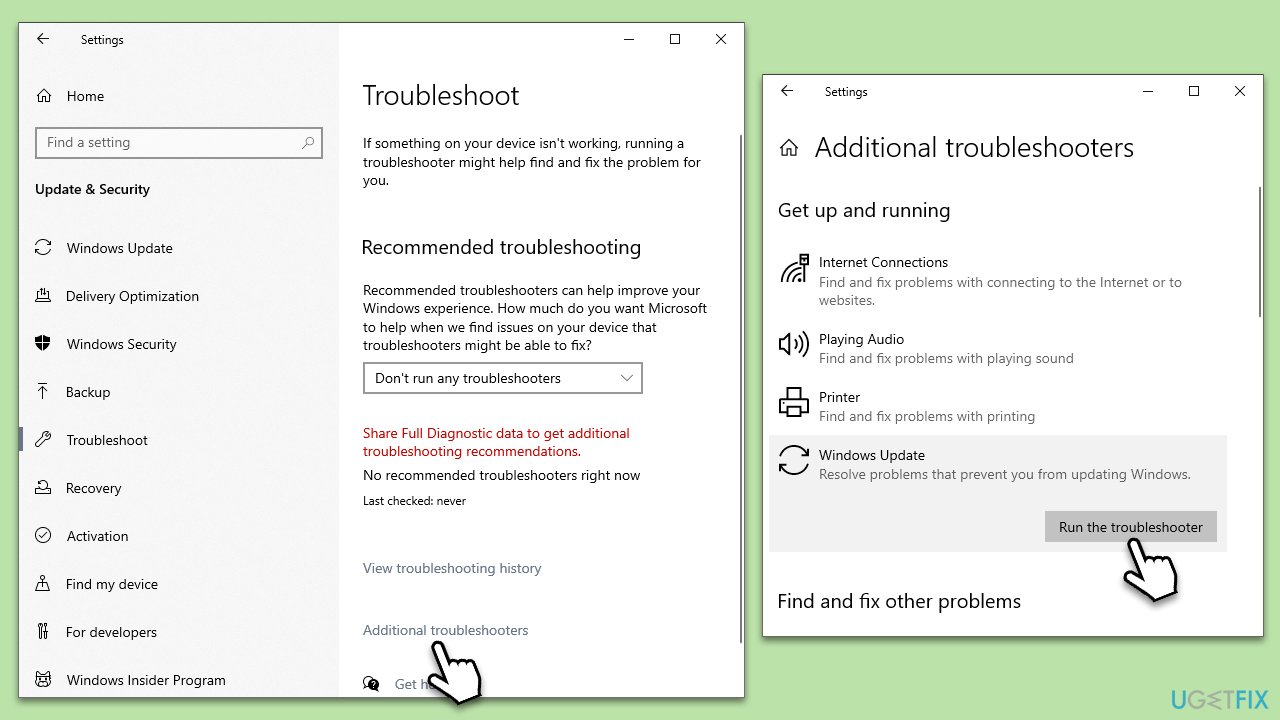
Fix 1. Run Windows Update troubleshooter
Windows Update troubleshooter is a built-in tool designed to identify and automatically resolve issues related to Windows updates. It works by checking system settings, registry entries, and network connections that can potentially affect Windows updates.
- Type Troubleshoot in Windows search and press Enter.
- Select Additional troubleshooters/Other troubleshooters.
- Find Windows Update from the list.
- Click it and select Run the troubleshooter/Run.
- Restart your PC when the update process finishes.
Fix 2. Delete temporary files
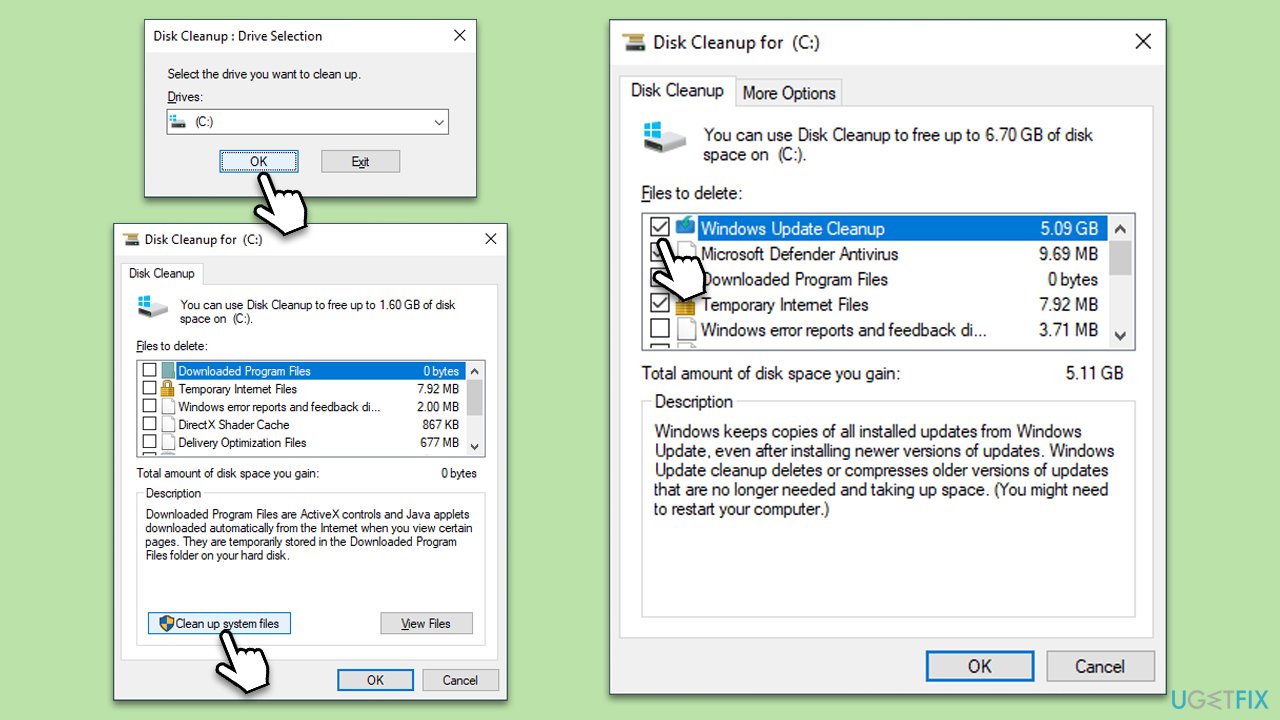
Over time, Windows accumulates temporary files that can interfere with the update process. Deleting these files can help ensure smooth update installation - you can use Disk Cleanup for that:
- Type Disk Cleanup in Windows search and press Enter.
- If your Windows is installed on drive C, pick it from the list (it should be by default) and press OK.
- Click Clean up System Files.
- Here, mark the areas you want to be deleted, such as Setup log files, Recycle bin, Temporary files, etc.
- Click OK - the removal process of various leftover files will begin.
- Once done, try launching games again.
Fix 3. Reset Windows Update components
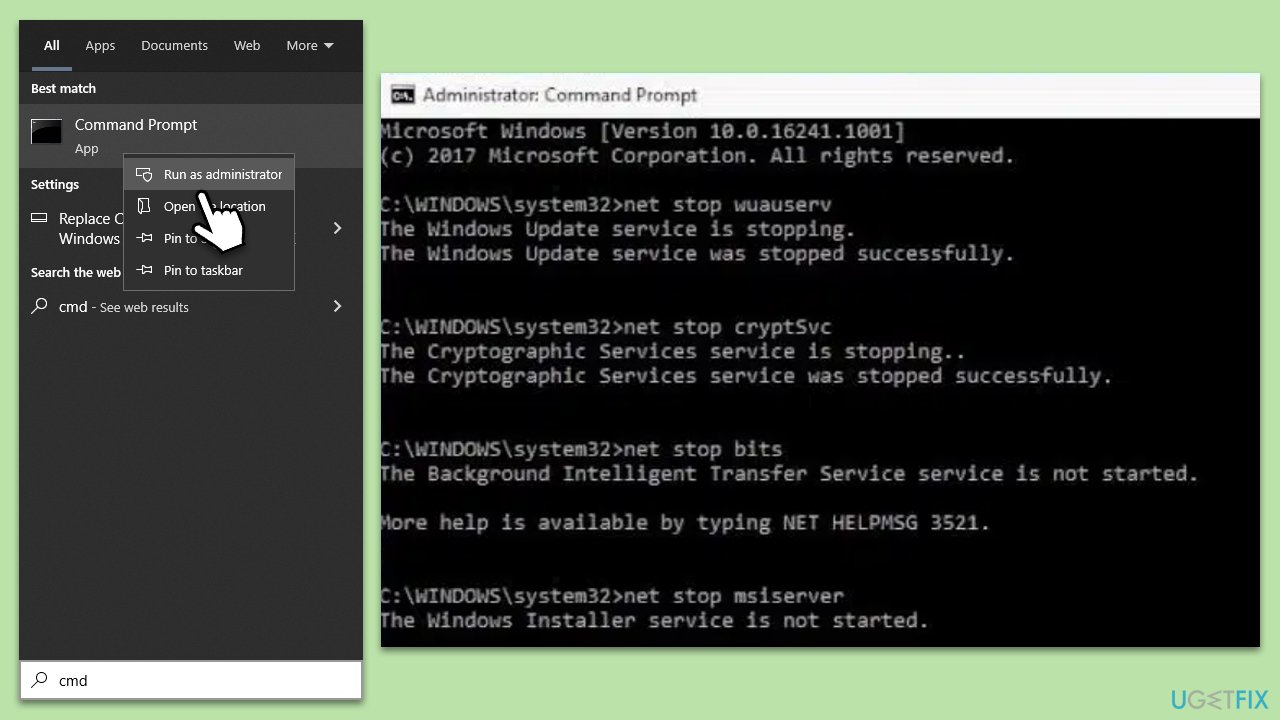
Windows Update components are essential for downloading and installing updates. Resetting these components can solve issues causing the update failure.
- Type cmd in Windows search.
- Right-click on Command Prompt and pick Run as administrator.
- When UAC asks you whether you want to make changes, agree by pressing Yes.
- Copy and paste each of the command lines, pressing Enter each time and waiting till each of the commands is executed:
net stop bits
net stop wuauserv
net stop appidsvc
net stop cryptsvc
Del “%ALLUSERSPROFILE%\Application Data\Microsoft\Network\Downloader\*.*”
rmdir %systemroot%\SoftwareDistribution /S /Q
rmdir %systemroot%\system32\catroot2 /S /Q
regsvr32.exe /s atl.dll
regsvr32.exe /s urlmon.dll
regsvr32.exe /s mshtml.dll
netsh winsock reset
netsh winsock reset proxy
net start bits
net start wuauserv
net start appidsvc
net start cryptsvc - Restart your computer.
Fix 4. Check your internet connection
Stable internet is crucial for the successful installation of updates. Make sure your connection is stable, and try to install the update again.
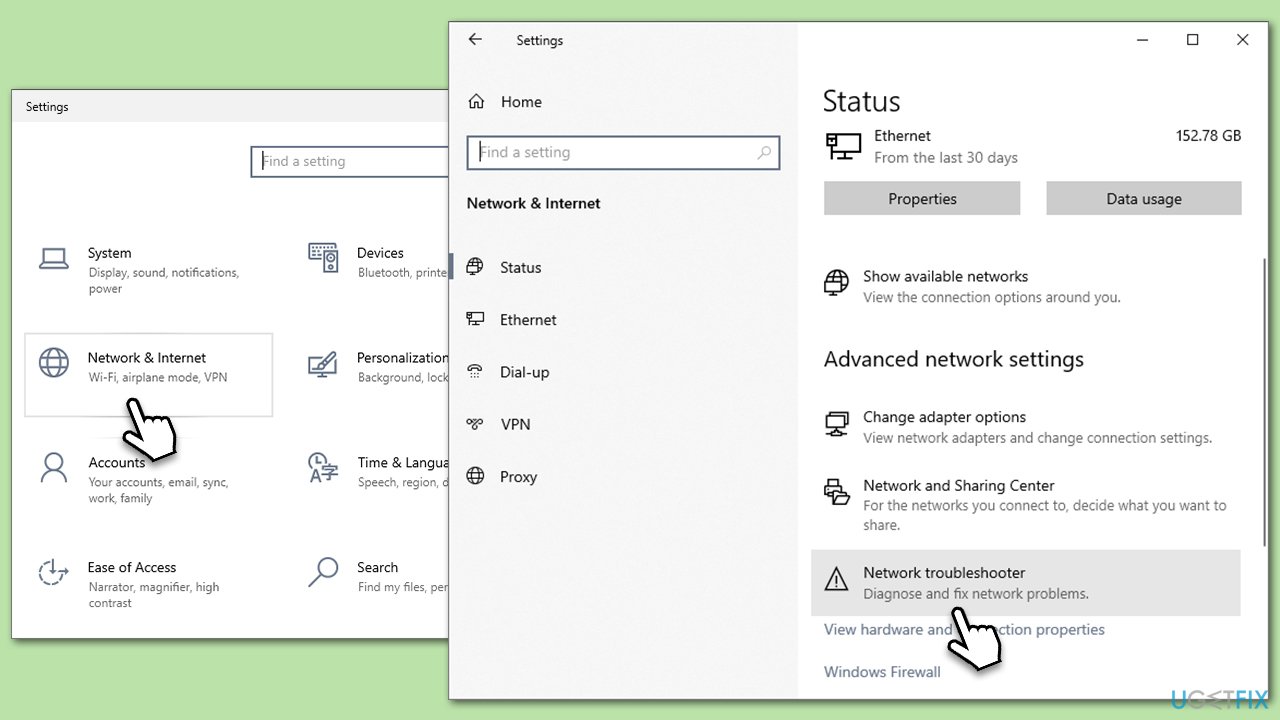
- Right-click on Start and pick Settings.
- Go to Network & Internet section.
- On the right side, find the Advanced network settings section.
- Click Network troubleshooter and wait.
- The fixes should be automatically applied.
Fix 5. Temporarily disable antivirus software
Sometimes, other antivirus software can interfere with the Windows Defender update. Disable them temporarily and try to install the update again.
- Open your antivirus software.
- Look for the Disable or Turn off option and select it.
- Try to install the update again.
- Remember to enable your antivirus software after the process.
Fix 6. Perform a Clean Boot
A clean boot can help you find if any third-party application or service is causing the update issue.
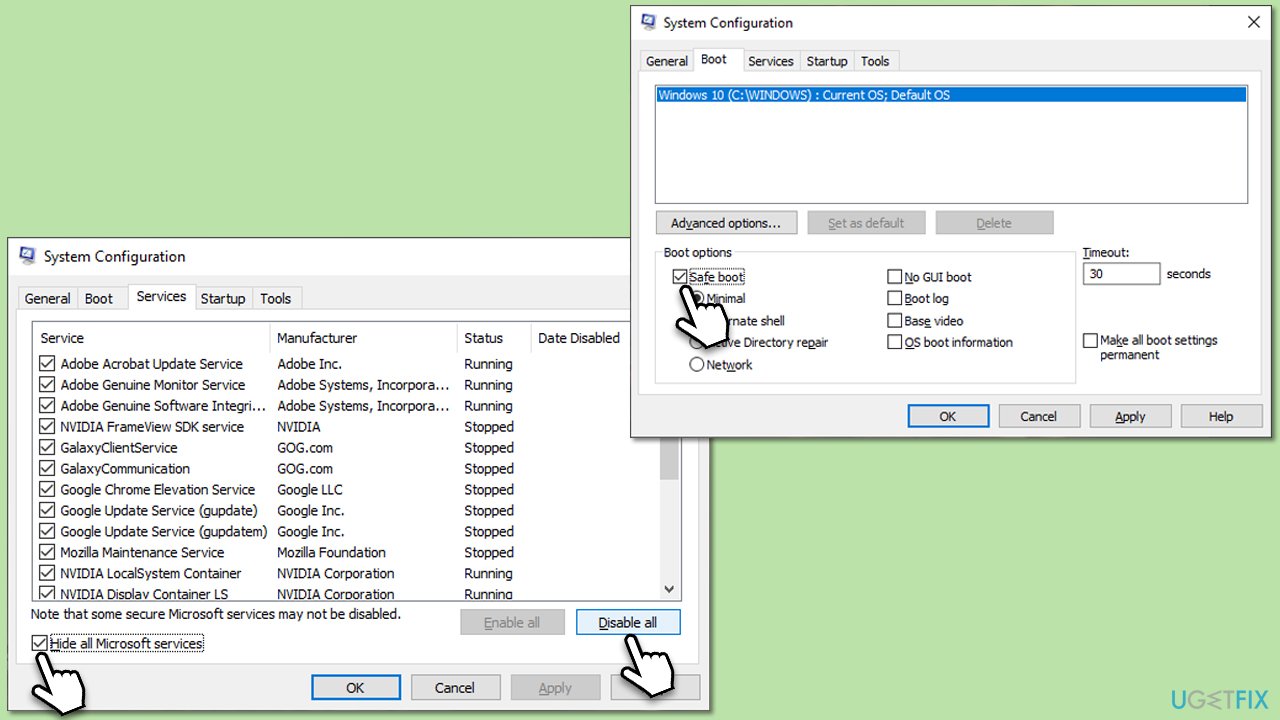
- Type msconfig in Windows search and press Enter.
- Pick the Services tab.
- Mark Hide all Microsoft services and select Disable all.
- Select the Startup tab and click Open Task Manager.
- In the Task Manager, right-click on each of the items and select Disable, then close the Task Manager.
- Go to the Boot tab, mark the Safe Boot option, then click Apply and OK.
- Try downloading the update in this mode.
Fix 7. Use Media Creation Tool
The Media Creation Tool is a utility provided by Microsoft that allows you to create a Windows installation media or directly upgrade your system. This can be useful if the conventional update process fails, as it can bypass potential issues by providing an alternative update method.
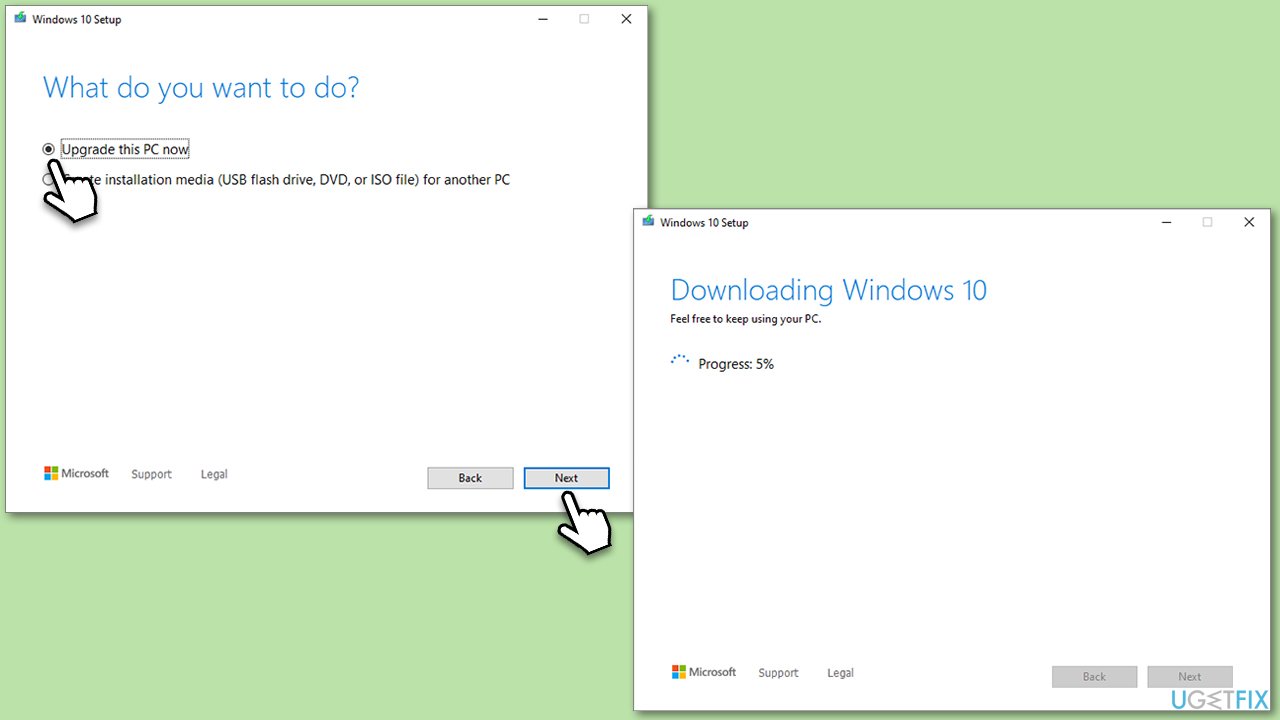
- Visit the official Microsoft website and download Windows 10 installation media (Windows 11 version).
- Double-click the installer, select Yes when UAC shows up, and agree to the terms.
- Select Upgrade this PC now and click Next.
- Windows will start downloading the needed files.
- Agree to the terms once again and click Next.
- Before installing, ensure you are happy with your choices (you can click Change what to keep option if not).
- Click Install to begin the upgrade process.
Bottom line
To fix the KB915597 installation failure, you can try tweaking system settings, clearing temporary files, resetting the Windows Update components, or ensuring a stable internet connection. If none of these solutions work, consider using a comprehensive PC repair tool to identify and troubleshoot underlying issues.
Frequently asked questions
First, try running the Windows Update Troubleshooter to detect and fix any issues. If that doesn't work, consider manually downloading and installing the update from the Microsoft Update Catalog.
Yes, common error codes include 0x800F0922 or 0x80073712, which indicate problems with the update files or Windows system files. You can use the DISM tool to repair your system image before attempting the installation again.
Make sure your Windows 10 or Windows 11 is fully updated and that you have enough disk space available. Additionally, disabling any third-party antivirus temporarily may help facilitate the installation.




Report an issue
What's wrong with this guide? We review every report and update or remove content.
Report received — thank you. We'll review and fix it.
You need a free account to submit a report.
Be the first to comment