How to fix
Kernel mode Heap Corruption error
on Windows
Resolve Kernel Mode Heap Corruption errors on Windows 10 and 11 effortlessly. Get expert-tested solutions to fix it in minutes, ensuring smooth performa…

What causes How to fix Kernel mode Heap Corruption error?
- Outdated Drivers
- Corrupt System Files
- Conflicts Between Software
- Hardware Issues
Repairs Windows system files, removes malware, and restores a clean OS state — without reinstalling.
Hello. I have an issue with the Blue Screen Of Death error window. The PC goes blue and shows KERNEL_MODE_HEAP_CORRUPTION at the end. Can You answer what is this Kernel-mode Heap Corruption error, and how can I solve it? I got it right after the upgrade of my laptop, but my son also receives the error on his PC. I don't know what caused it.
Kernel-mode Heap Corruption error is one of the more common BSOD errors,[ref en-1] so don't panic. It is not crucial, and your device might get to a normal working state easily. Users[ref en-2] often report this issue online, and we are aware that it is bothering many people around the world.
This particular Kernel mode Heap Corruption error indicates the system crash that is, in most cases, caused by third-party software compatibility issues or graphics drivers that need updates or get corrupted. Outdated or affected drivers trigger the problem and a full system freeze, so you might check those or troubleshoot the issue to see what the cause is.
If the program damages the memory part of the device, you might suffer from a memory leak or a memory fault, so this error can be fixed. If the BSOD keeps appearing, you need to fix the Kernel mode Heap Corruption error by launching checks and updates yourself or by relying on professional tools.
In some cases updating drivers or eliminating third-party applications might be enough to fix the Kernel mode Heap Corruption error. We should note that if you receive the error during the same action, you need to go straight there to check what is not okay in the system.
Possible causes of the Kernel mode Heap Corruption BSOD error:
- outdated drivers;
- corrupt system files;
- conflicts between software;
- hardware issues.

How to fix Kernel mode Heap Corruption error
The best way to check for particular system files that can be affected - running [d1] or a similar system tool. These applications can fix issues with OS files and corruption that can lead to errors. This is not the malware[ref en-3] issue, so it is enough to check particular settings to fix Kernel mode Heap Corruption error. You do not need AV tools or more serious programs. You can resolve the issue by changing settings, preferences, or updating certain OS parts. Follow the guide for these solutions.
Check Graphics Drivers
- Press Windows and R keys to open the Run box.
- Then put in devmgmt.msc and press OK.
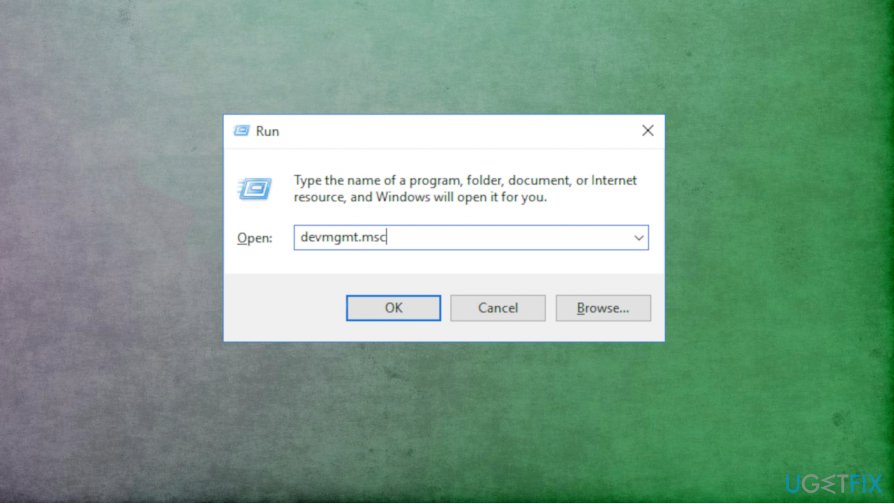
Fix kernel mode heap corruption error dev - Then Righ-click the video card and choose to Update driver.
- Select Search automatically for updated driver software and wait.
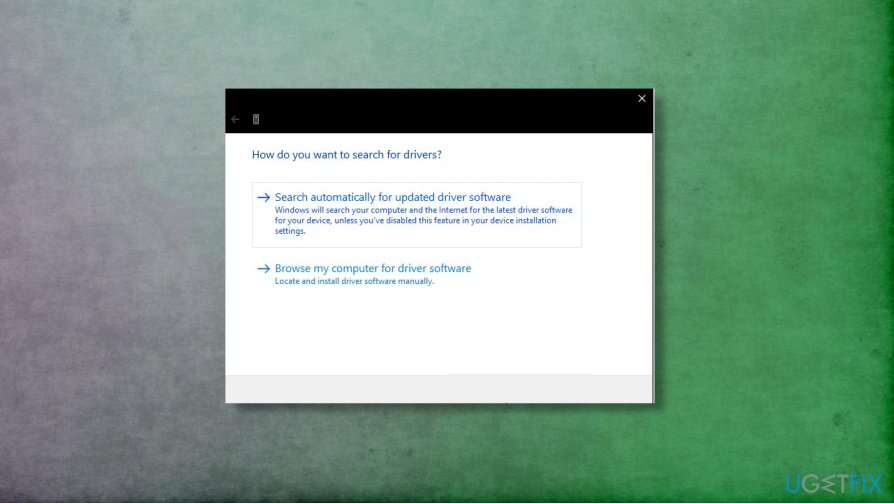
Fix kernel mode heap corruption error search - Reboot the system when the update gets downloaded.
Run SFC and DISM to fix Kernel mode Heap Corruption error
- Open Command Prompt as administrator.
- Type sfc /scannow.
- Press Enter.
- Wait and check if it worked.
- Do the same procedure, but run dism.exe /online /cleanup-image /restorehealth command instead.
- Wait for the process to end.
Check the Event Viewer to fix Kernel mode Heap Corruption error
- Boot the PC and go to Troubleshoot option.
- Then find Advanced options and enter WindRe.
- Click Startup Settings and press F5.
- Click Enable Safe Mode with Networking.
- Then press Win and R.
- Type eventvwr, hit Enter.
- Navigate to Windows Logs > System to find the log about Kernel mode.
- The description should indicate the problem.
Roll back your graphic card drivers to fix Kernel mode error
- Go to Device Manager.
- Click Display adapters.
- Right-click on your video card and choose Properties.
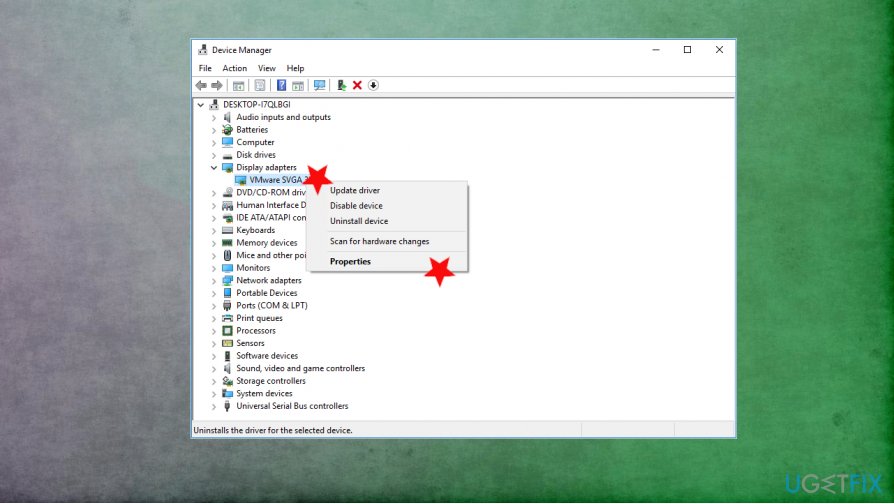
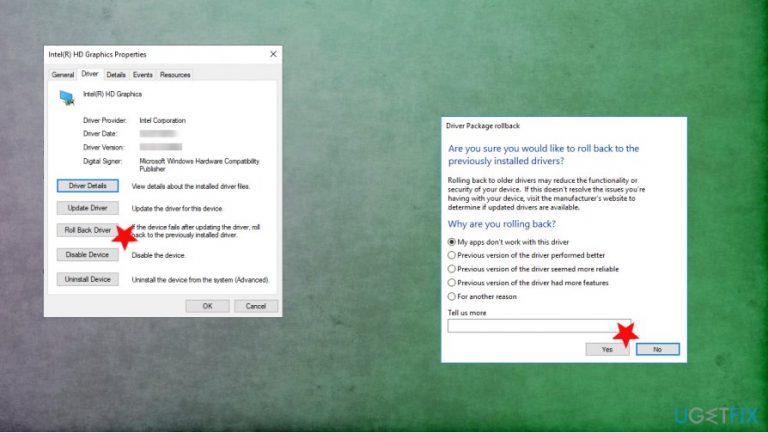
Fix kernel mode heap corruption error dev properties - Then go to the Driver tab and choose to Roll Back Driver.
- Choose the reason and confirm the roll-back.
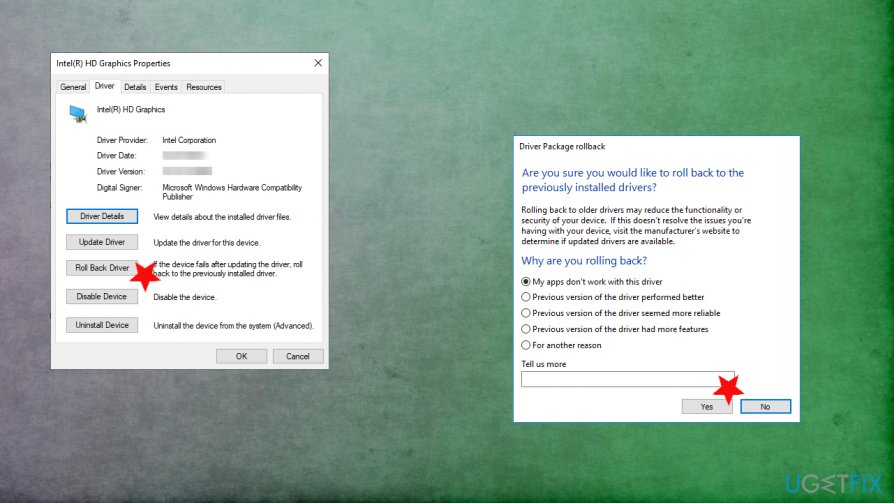
Fix kernel mode heap corruption error rollback - Restart the PC.
Bottom line
To fix the Kernel mode Heap Corruption error, you can update drivers, eliminate third-party applications, or run system tools to check for affected system files. If the error persists, consider relying on professional tools for further assistance.
Frequently asked questions
You can start by updating your device drivers and running a system file check using the 'sfc /scannow' command in Command Prompt to repair corrupted files.
Yes, this error can be caused by faulty hardware, such as RAM or a failing hard drive, so it's advisable to run hardware diagnostics if software fixes don't resolve the issue.
You can use the Windows Memory Diagnostic tool to check for memory problems and analyze the minidump files created during the crash to pinpoint the specific cause.




Report an issue
What's wrong with this guide? We review every report and update or remove content.
Report received — thank you. We'll review and fix it.
You need a free account to submit a report.
Be the first to comment