How to fix
KERNEL_DATA_INPAGE_ERROR BSOD
on Windows
Resolve the KERNEL_DATA_INPAGE_ERROR BSOD on Windows 10 and 11 with expert solutions. Get your PC back to normal in minutes, guaranteed!


What causes How to Fix KERNEL_DATA_INPAGE_ERROR BSOD on Windows?
- Bad block in a paging file
- Virus infection
- Disk controller error
- Failing RAM
- Corrupted core system files
Repairs Windows system files, removes malware, and restores a clean OS state — without reinstalling.
I’m using a two-years-old laptop, which runs Windows 10 1709 version. I upgraded right after the Fall Creators Update was released and it worked perfectly up until yesterday.
Yesterday, my game play was interrupted by a BSOD KERNEL_DATA_INPAGE_ERROR. I rebooted my PC and though that the problem was resolved, but the same BSOD shows up a couple of hours later and also triggered start menu and file explorer unresponsiveness. Could you please tell me what happened? Is it possible to fix this problem manually?
KERNEL_DATA_INPAGE_ERROR is a Blue Screen of Death[ref en-1]or Stop Error, which can carry an error code 0x0000007A, 0xC000009C or 0xC000016A. The problem may occur after some important system’s changes, for example, installation of new software or hardware, but usually the BSOD shows up unexpectedly and causes slowdowns, freezes, and crashes.
KERNEL_DATA_INPAGE_ERROR BSOD ends up in a total system crash preventing PC’s owner from logging into Windows and using the system normally. According to Microsoft,[ref en-2] the problem is triggered by a bad block (sector) in a paging file,[ref en-3] a virus, a disk controller error, or failing RAM. Due to one or several problems, the requested page of kernel data from the paging file could not be read into memory, which is why Windows returns the KERNEL_DATA_INPAGE_ERROR blue screen.
The error does not feature a particular pattern of occurrence. It may interrupt people during game play, web browsing, document editing or any other activity. Normally, the BSOD disappears once the system is rebooted. However, this solution is temporary and will not eradicate the problem. It means that the problem should be addresses immediately by performing certain system’s modifications.
Fixing KERNEL_DATA_INPAGE_ERROR BSOD on Windows
There is no single method that could magically fix the KERNEL_DATA_INPAGE_ERROR BSOD. Since the problem may stem from various Windows disorders, there are several diverse methods that can be applied. Therefore, if you are encountering this problem on your Windows PC, try each method on-by-one.
Method 1. Run a scan with antivirus
In general, Windows BSOD errors are often triggered by malware infection. The latter may corrupt core system files and inject unique and malicious entries that are not recognized by the OS. Thus, if you managed to work around the KERNEL_DATA_INPAGE_ERROR by rebooting Windows, run a complete system scan with a professional anti-malware utility.
In this particular case, we would strongly recommend using [d1]. This program is a powerful PC optimizer, which has a comprehensive database of Windows system files and an inbuilt Avira Antivir engine. These features make the program able to address both Windows errors and eliminate malware at the same time.
Method 2. Check Hard Disk Drive and RAM
As we have already pointed out, the KERNEL DATA INPAGE ERROR BSOD may be caused by failing RAM and disk controller malfunction. To check that, please perform these steps:
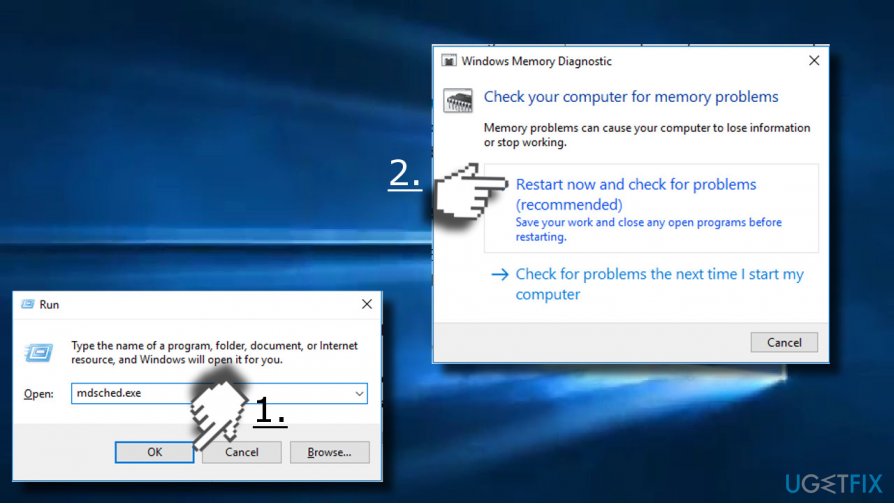
- First of all, run Windows Memory Diagnostic. Press Windows key + R to open Run.
- Type mdsched.exe in the run and press Enter to execute the command.
- Click Restart now and check for problems (recommended). This command should check the status of your memory card.
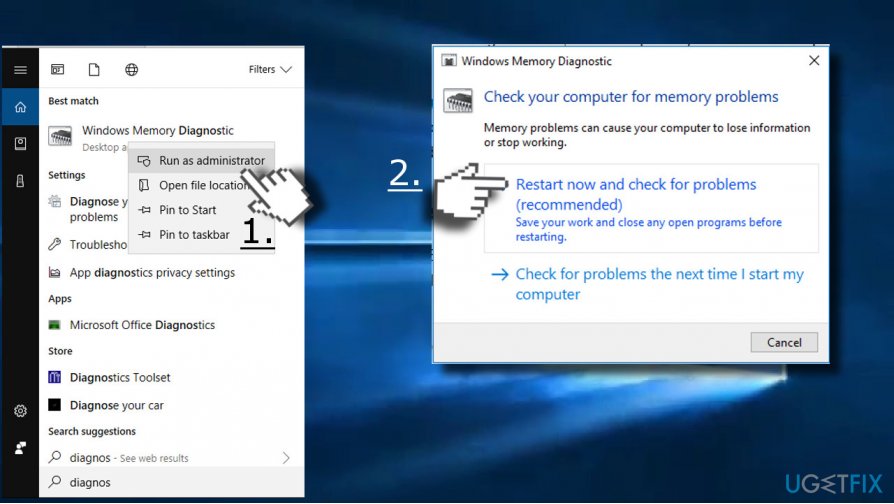
Check hard disk drive - In case the problem check revealed an error or did not work at all, Press Windows key + S and type Windows Memory Diagnostic.
- Right-click on the Windows Memory Diagnostic and select Run as administrator.
- Now select Restart now and check for problems (recommended). Once the system is checked, you should get a report about your system’s health regarding memory.
Check hard disk drive2
Although this method won’t solve the problem, it may help to isolate the culprit and apply other methods forward. If the Windows Memory Diagnostic Tool did not reveal errors, then try running a Hard Disk Drive test:
- Right-click on Windows key and select Command Prompt (Admin).
- Press Yes on the UAC to proceed.
- Now copy and paste the chkdsk C: /F /R command and press Enter.
- Then type Y and reboot your PC.
Method 3. Update Device Drivers
Outdated or corrupted device drivers is yet another possible culprit of the BSOD. To fix the KERNEL_DATA_INPAGE_ERROR, check the drivers and update them:
- Right-click on Windows key and select Device Manager.
- Expand each device section and check if any of the devices is marked with a yellow exclamation mark. Such sign indicates driver problems. Right-click on a problematic driver and select Update driver.
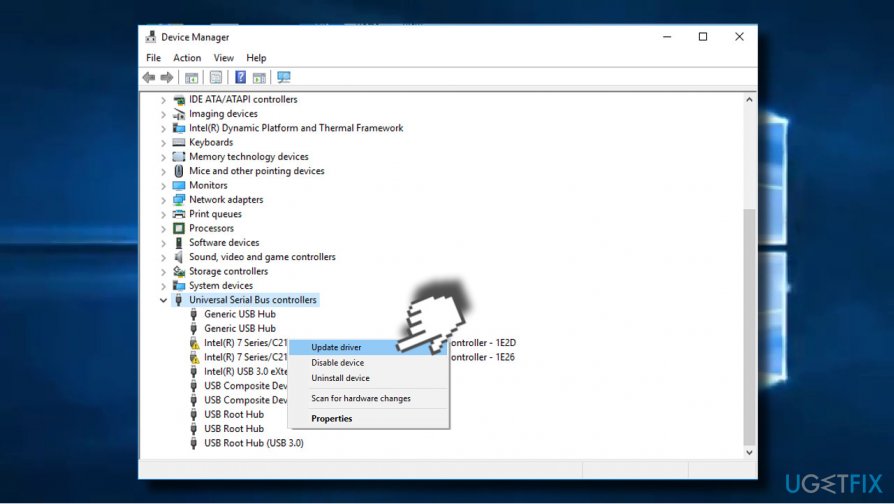
Update device drivers - If that did not help, uninstall the driver completely. For that, right-click on the device driver in Device Manager and select Uninstall driver.
- After that, reboot your PC.
- Open Device Manager once again and click Actions at the top of the window.
- Select Scan for hardware changes.
Third-party driver update software can help you to isolate the malfunctioning drivers and update them. Reimage can also be of use in this case.
Method 4. Set Paging File Management to Automatic
As we have pointed out, the BSOD may be triggered by a bad block (sector) in a paging file due to which the requested page of kernel data from the paging file could not be read into memory. Thus, to fix KERNEL_DATA_INPAGE_ERROR BSOD, try setting paging file management to automatic:
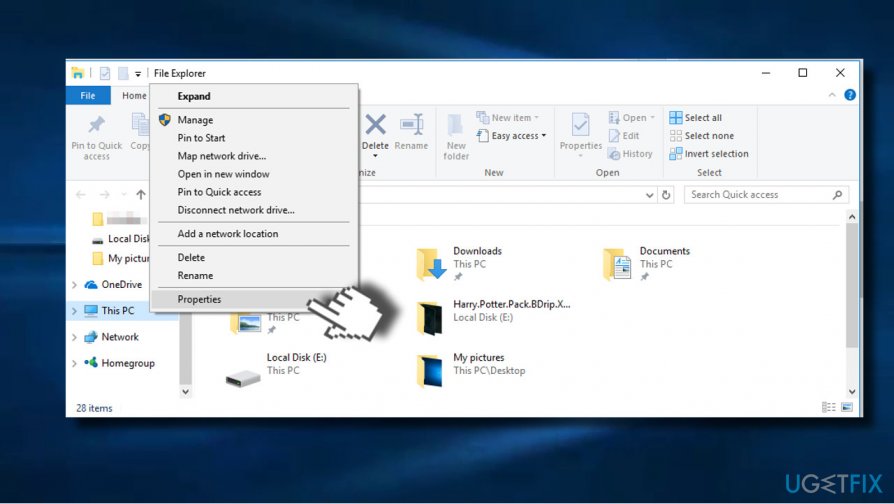
- Press Windows key + E to open File Explorer.
- Right-click on This PC and select Properties.
Open file explorer - Click on Advanced System Settings and open Advanced tab.
- Find Performance section and open Settings under it.
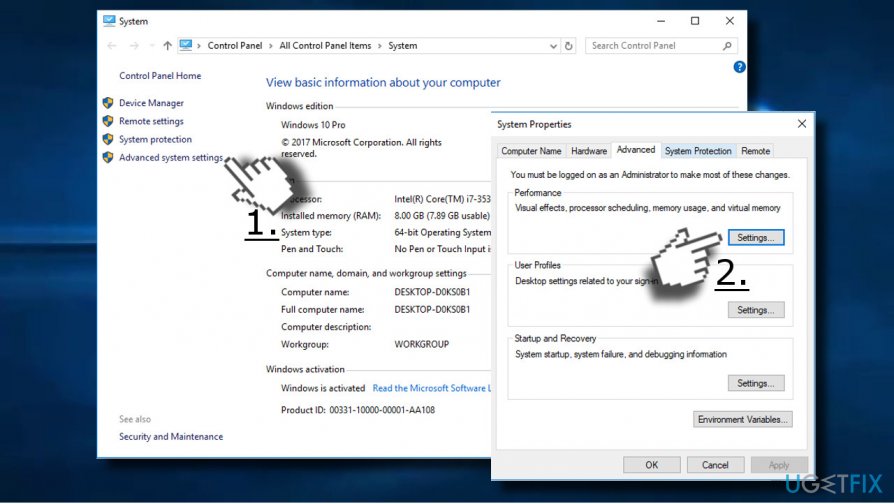
Open advanced system settings - Now open Advanced tab and select Change.
- Mark the check box next to Automatically manage paging file size for all drives.
- Finally, click OK to save the changes.
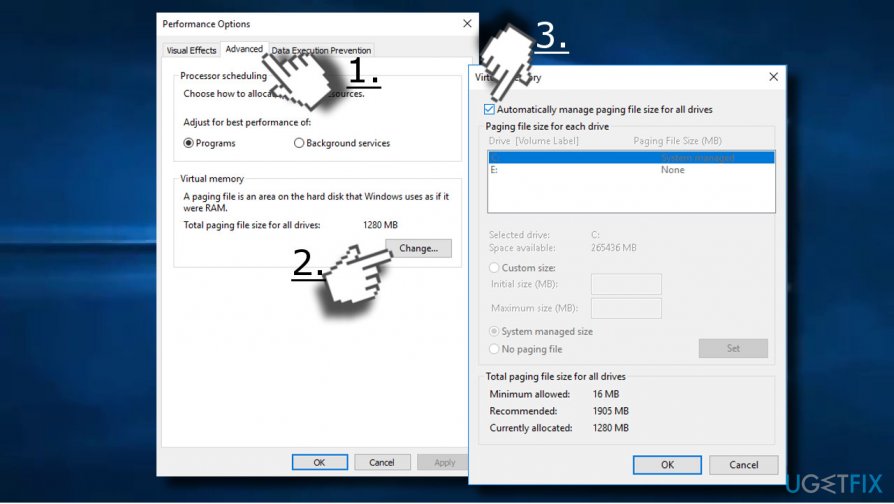
Set paging file management to automatic
Method 5. Boot your PC into Safe Mode
If you cannot access Windows desktop due to KERNEL_DATA_INPAGE_ERROR bsod, power on and off your PC three times. This way, you'll perform a hard reboot. After that, restart the system into Safe Mode. Once in a Safe Mode, try the methods listed above.
To boot the system into Safe Mode, perform the following steps:
- If you are using Windows 10, press Windows key + R, type msconfig in the run and press Enter.
- Open Boot tab and mark Safe boot under Boot options.
- Click OK and Restart to boot into Safe Mode.
- Those who are using older Windows versions can access Safe Mode by pressing F8 key during the startup.
Bottom line
To fix the KERNEL_DATA_INPAGE_ERROR BSOD, you can run a scan with antivirus software, check for hardware issues, or perform system modifications. If these methods do not resolve the issue, further investigation into system disorders may be necessary.
Frequently asked questions
This error is typically caused by hardware issues, such as failing hard drives or RAM problems, or corrupted system files in Windows 10 and 11.
You can troubleshoot this error by running a disk check using the CHKDSK utility and testing your RAM with the Windows Memory Diagnostic tool.
No, ignoring the KERNEL_DATA_INPAGE_ERROR can lead to data loss and further system instability, so it's important to address the issue promptly.




Report an issue
What's wrong with this guide? We review every report and update or remove content.
Report received — thank you. We'll review and fix it.
You need a free account to submit a report.
Be the first to comment