How to fix
Keyboard arrow keys not working
on Windows
Fix unresponsive arrow keys on Windows 10 or 11 with our expert-tested solutions. Get your keyboard working smoothly again, fixed in minutes!

What causes How to fix keyboard arrow keys not working in Windows?
- Software malfunctions
- Driver issues
- Scroll Lock enabled
- Hardware failure
- Corrupted system files
Repairs Windows system files, removes malware, and restores a clean OS state — without reinstalling.
Hello. The arrow keys on my keyboard have stopped working suddenly. What could cause this and how do I fix it?
Arrow keys are a necessary component of any computer keyboard, as they are used to navigate through various applications and programs. However, some Windows users have reported that their arrow keys are not working properly or at all.
The arrow keys on a keyboard enable users to move the cursor in different directions, select options from drop-down menus, navigate through documents or web pages, and do a variety of other things. They are especially important for professionals who use word processors, spreadsheet programs, and other software that requires precise editing and navigation.
When arrow keys stop working, it can have a significant impact on a user's productivity and workflow. It can cause frustration, time loss, and even missed deadlines. The problem may also affect those who use their computer for recreational purposes such as gaming or browsing the internet.
There are several possible solutions to the problem of Windows arrow keys not working. Restarting the computer, checking for driver updates, disabling the Scroll Lock, and attempting the On-Screen Keyboard are all options. If none of these solutions work, users may need to consider purchasing a new keyboard or seeking professional help.
In this guide, you will find 7 steps that should help you fix keyboard arrow keys not working in Windows. However, you can also try a system repair tool like [d1] that can fix most system errors, BSODs,[ref en-1] corrupted files, registry[ref en-2] issues, or clear cookies and cache[ref en-3] automatically. Otherwise, proceed with the step-by-step instructions provided below.
Method 1. Restart your PC
If your arrow keys are not functioning, restarting your computer is typically the easiest and initial troubleshooting step to take. This can frequently address small software malfunctions that could be causing the problem. Prior to restarting, ensure that you save any ongoing work or projects to avoid losing your progress.
Method 2. Run the Hardware and Devices Troubleshooter
- Run Command Prompt as an administrator.
- Type the following command in the elevated command prompt window and press Enter:
msdt.exe -id DeviceDiagnostic
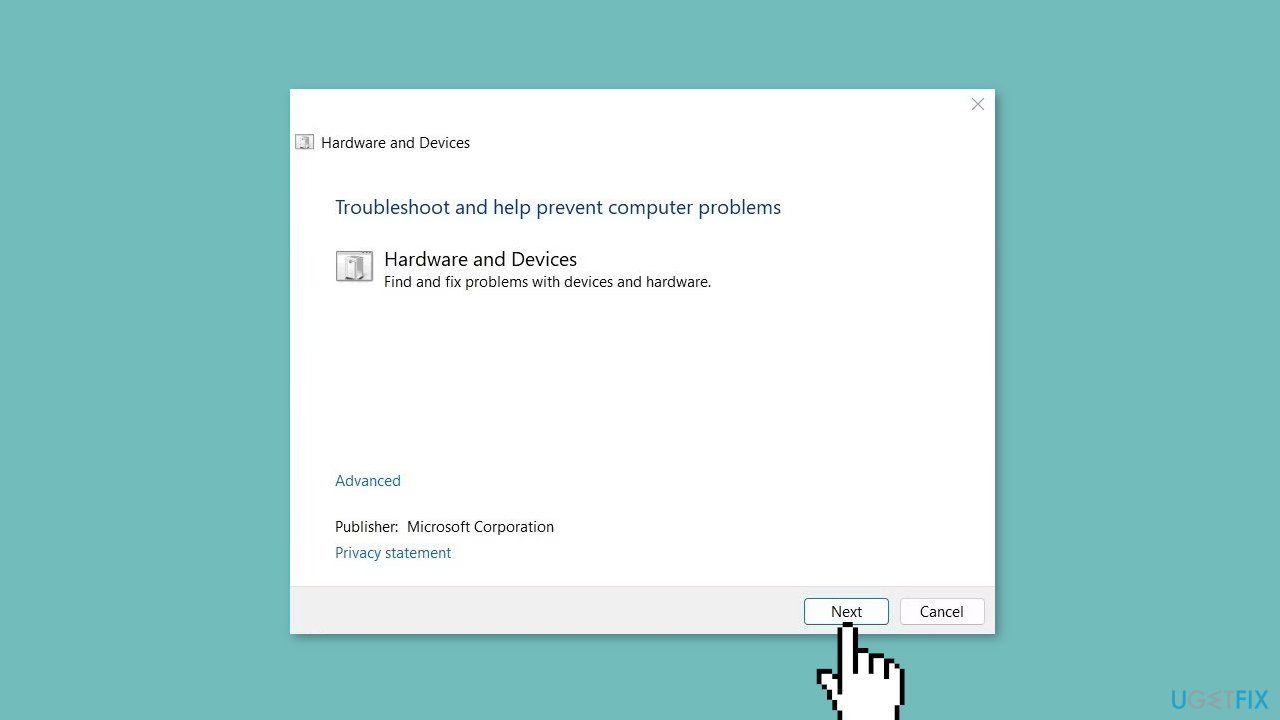
- The Hardware and Devices Troubleshooter will open.
- Click Next to initiate the scan process.
- Follow the on-screen instructions.
- After completing the above steps, restart your computer.
- Check whether the arrow keys are now functioning properly.
Method 3. Run the Keyboard Troubleshooter
Running the keyboard troubleshooter can be a helpful tool in resolving issues with keyboard malfunctions, such as arrow key problems. The troubleshooter is intended to automatically diagnose and resolve various keyboard-related issues.
When a user runs the keyboard troubleshooter, it checks for issues with the keyboard driver and settings, scans for hardware malfunctions, and attempts to resolve any issues that are discovered. If the troubleshooter detects any errors or discrepancies, it can offer solutions or apply automatic fixes to the system.
- Open the Settings window.
- In the Settings menu, select System > Troubleshoot > Other troubleshooters.
- Scroll down to the Keyboard section and click Run.
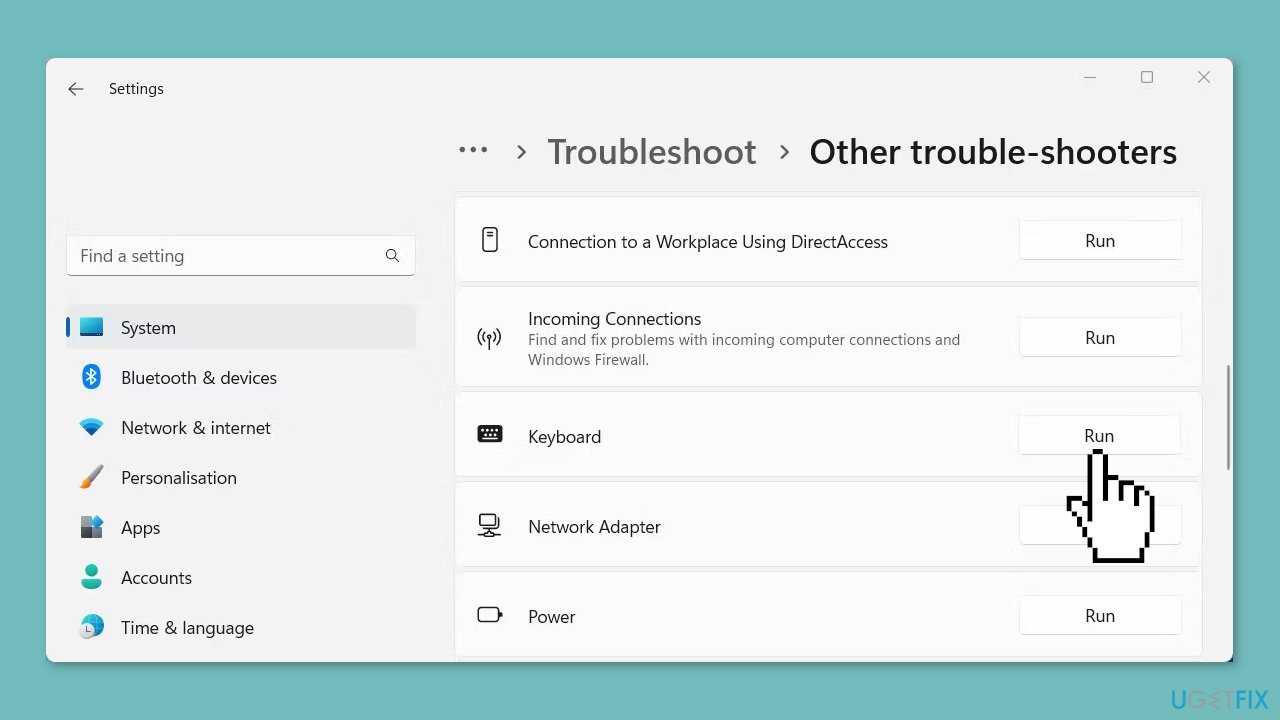
- Follow the on-screen instructions to finish the process.
- Check if the problem has been resolved.
Method 4. Try a Different Keyboard
If you're still experiencing issues with your arrow keys even after applying the aforementioned methods, it's possible that your keyboard is defective. To troubleshoot this, try using a different keyboard. You can purchase one from an electronics store or borrow one from a friend for testing purposes. Follow these steps to determine if your keyboard is causing the problem:
- Connect the new keyboard to your computer.
- Check whether the arrow keys are functioning properly.
- If the arrow keys are now working, it's likely that your original keyboard is defective and requires replacement.
Method 5. Update or Reinstall the Keyboard Driver
The keyboard driver is a piece of software that enables the operating system to communicate with the physical keyboard hardware. If the driver is out of date, missing, or corrupted, it can cause keyboard malfunctions, including arrow key issues.
Users can ensure that the keyboard driver is functioning properly and that any errors or bugs have been fixed by updating or reinstalling the driver. This can improve the keyboard's performance and functionality while also resolving the arrow key problem. To update the keyboard driver:
- Press the Windows key + R on your keyboard to open the Run dialog box.
- Type devmgmt.msc in the dialog box and press Enter to launch Device Manager.
- In the Device Manager window, expand the Keyboards category.
- Right-click on the keyboard entry and select Update driver.
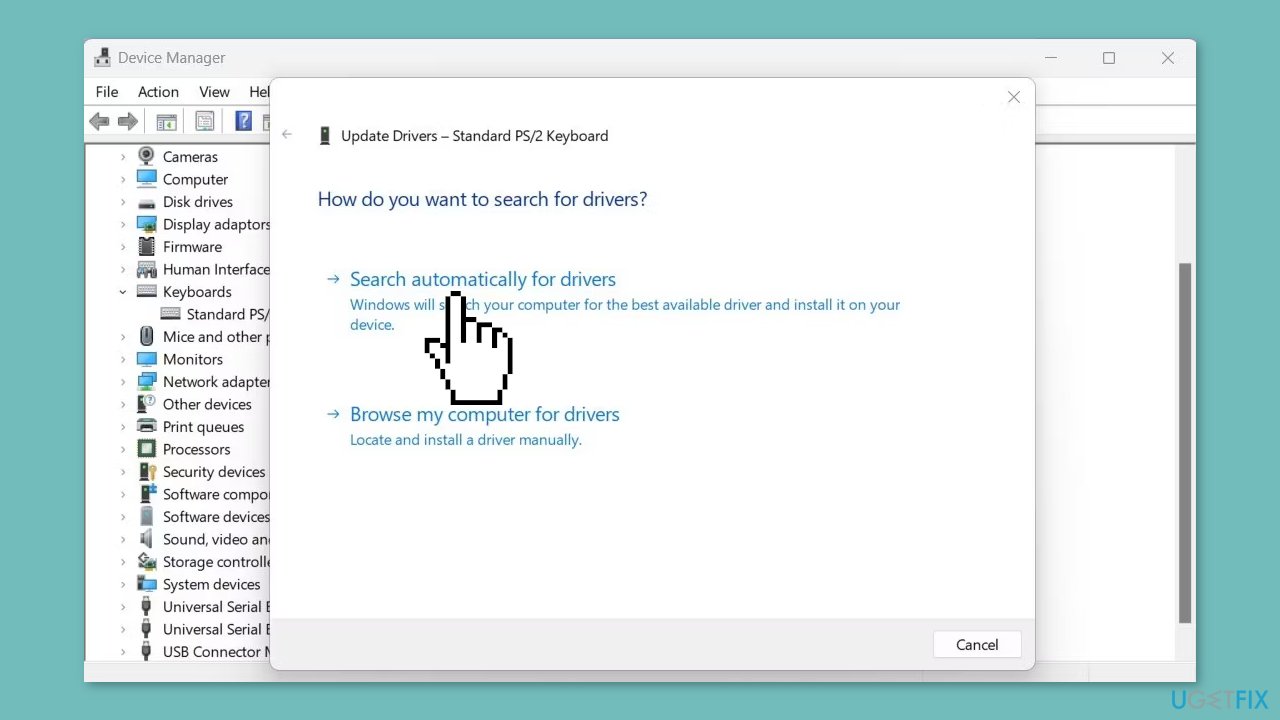
- Choose Search automatically for drivers and wait for the process to complete.
- Restart your computer.
- Check whether the arrow keys are functioning properly.
If the arrow keys are still not working, try reinstalling the keyboard driver by following these steps:
- In Device Manager, right-click on the keyboard entry and select Uninstall device.
- When the confirmation prompt appears, click Uninstall to proceed.
- Restart your computer, and the driver will automatically be reinstalled.
- Once your computer restarts, check whether the arrow keys are functioning properly.
You can also use a dedicated utility like [rev id="DriverFix"] that can find the vest drivers for your machine and install them automatically.
Method 6. Disable Scroll Lock for Excel
If you are encountering difficulties using the arrow keys in Excel, it may be necessary to disable the Scroll Lock function. Scroll Lock is a feature that halts scrolling when you press the arrow keys in Microsoft Excel and similar programs. To troubleshoot the problem, you can attempt to disable the Scroll Lock on your keyboard and determine whether this resolves the issue.
Method 7. Use On-Screen Keyboard
If none of the previously mentioned solutions have resolved the issue, you can try using the On-Screen Keyboard as an alternative.
- To access the On-Screen Keyboard, use the search function on your computer and search for on-screen keyboard.
- Click on the individual search result to launch the On-Screen Keyboard.
Bottom line
To fix the keyboard arrow keys not working in Windows, you can try restarting your PC, running the Hardware and Devices Troubleshooter, checking for driver updates, or disabling the Scroll Lock. If none of these solutions work, consider purchasing a new keyboard or seeking professional help.
Frequently asked questions
First, check if the Num Lock is enabled, as it can affect the functionality of the arrow keys. If that doesn't help, try restarting your computer or updating the keyboard driver in Device Manager.
You can run the Keyboard Troubleshooter from Windows Settings to automatically detect and fix issues. Additionally, ensure that no third-party software is interfering with keyboard functionality.
Yes, check the Ease of Access settings to ensure Sticky Keys or Filter Keys are not enabled, as these features can disrupt standard keyboard operations.




Report an issue
What's wrong with this guide? We review every report and update or remove content.
Report received — thank you. We'll review and fix it.
You need a free account to submit a report.
Be the first to comment