How to fix
Keyboard delay
on Windows
Resolve keyboard delay issues in Windows 10 and 11 effortlessly. Boost your typing speed with expert-tested solutions that guarantee results!

What causes How to fix keyboard delay in Windows?
- Outdated keyboard drivers
- Corrupt keyboard drivers
- System resource constraints
- Specific accessibility settings
Repairs Windows system files, removes malware, and restores a clean OS state — without reinstalling.
The response of my keyboard is really inadequate. There is a significant delay whenever I type something, and it really frustrates me. The issues started a few days ago - the keyboard worked fine before.
Keyboards are an integral part of the computing experience, especially for Windows users. They serve as the primary interface for entering data and commands, making their responsiveness and reliability crucial for efficient computer use. However, a common issue that Windows users may encounter is keyboard delay.
This problem manifests as a noticeable lag between the moment a key is pressed and the corresponding action appearing on the screen. Such delays can significantly hinder productivity and user experience, transforming a smooth typing process into a frustrating ordeal.
One potential reason for keyboard delay on Windows could be outdated or corrupt keyboard drivers. Drivers are software components that enable the operating system to communicate with hardware devices. When they are not up-to-date, the communication between your keyboard and Windows might not be as seamless as it should be.
Another possible cause could be system resource constraints. If your computer is running multiple high-resource programs simultaneously, it may struggle to allocate sufficient resources to process keyboard inputs promptly. Additionally, this delay can sometimes be attributed to specific settings within Windows itself, intended to aid accessibility but inadvertently causing lag in keyboard response.
Addressing keyboard delay typically involves examining these potential causes. There are plenty of troubleshooting options available, such as running the troubleshooter, ensuring that hardware is not damaged, updating drivers, etc.
While keyboard delay can be a disruptive issue, various approaches can be employed to mitigate it. For those seeking a more streamlined solution, using PC repair software like [d1] can be an effective way to address not only keyboard-related issues but also a range of underlying Windows problems automatically, simplifying the troubleshooting process.
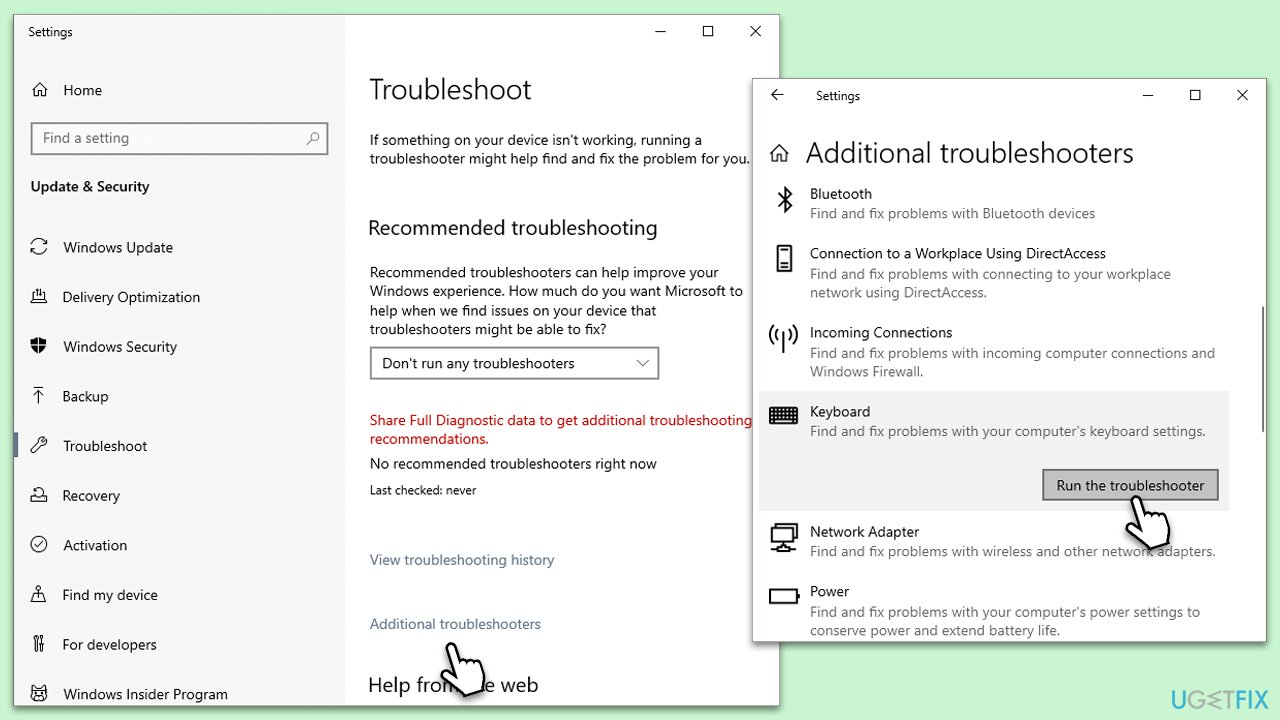
Fix 1. Run keyboard troubleshooter
Windows includes a built-in troubleshooter that can automatically find and fix issues with your keyboard. Running this troubleshooter can resolve keyboard delay problems by identifying and rectifying common issues.
- Type Troubleshoot in Windows search and hit Enter.
- Select Additional troubleshooters/Other troubleshooters.
- Find Keyboard on the list and click Run the troubleshooter/Run.
- The troubleshooter will automatically scan your system.
- If the troubleshooter finds any issues, it will provide recommended solutions.
- Follow the on-screen instructions to apply the recommended solution.
Fix 2. Use a different USB port
Sometimes, the issue might be with the USB port and not the keyboard itself. Connecting your keyboard to a different USB port can determine if the port is the cause of the delay.
- Unplug your keyboard from its current USB port.
- Plug it into a different USB port on your computer.
- Test the keyboard to see if the delay issue persists.
Fix 3. Disable Fast Startup
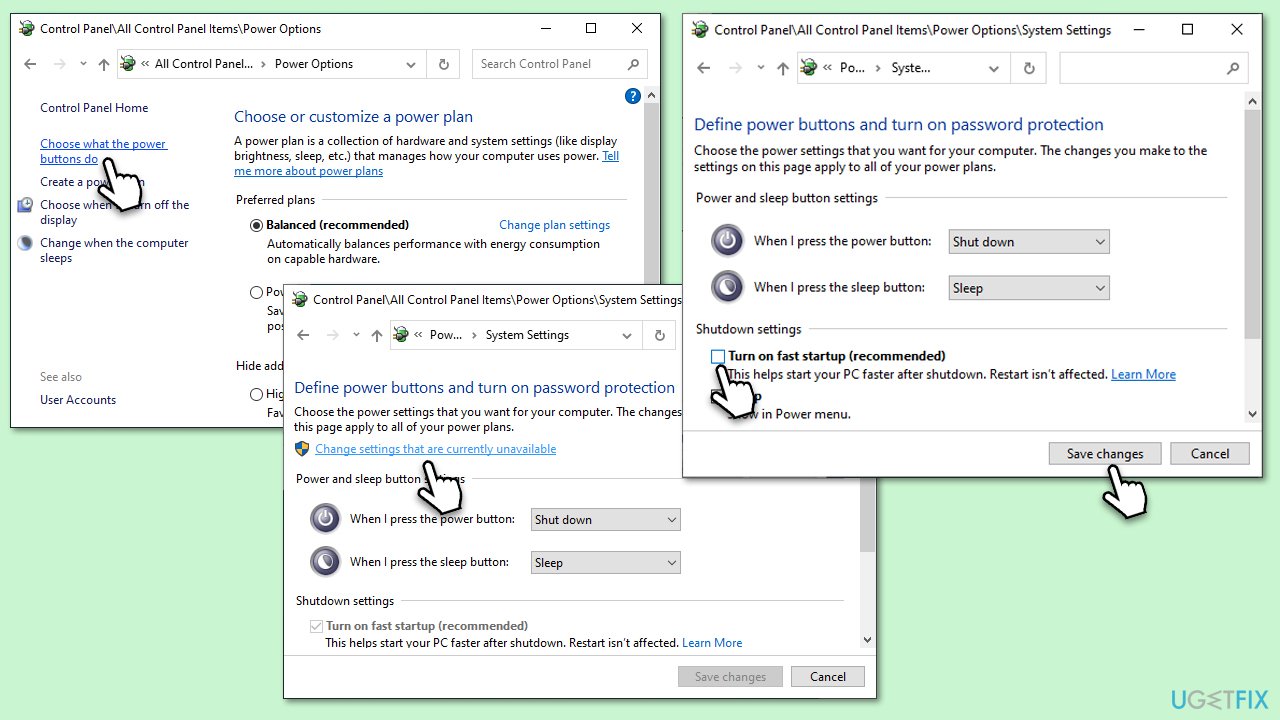
Fast Startup in Windows can sometimes cause issues with peripheral devices, including keyboards. Disabling it can resolve keyboard delay issues.
- Type Control Panel in Windows search and hit Enter.
- Select Small icons view and pick Power options.
- On the left side of the window, select Choose what the power buttons do
- Pick the Change settings that are currently unavailable option at the top
- Remove the tick from the Turn on fast startup (recommended) option and select Save changes.
Fix 4. Check for corrupted system files
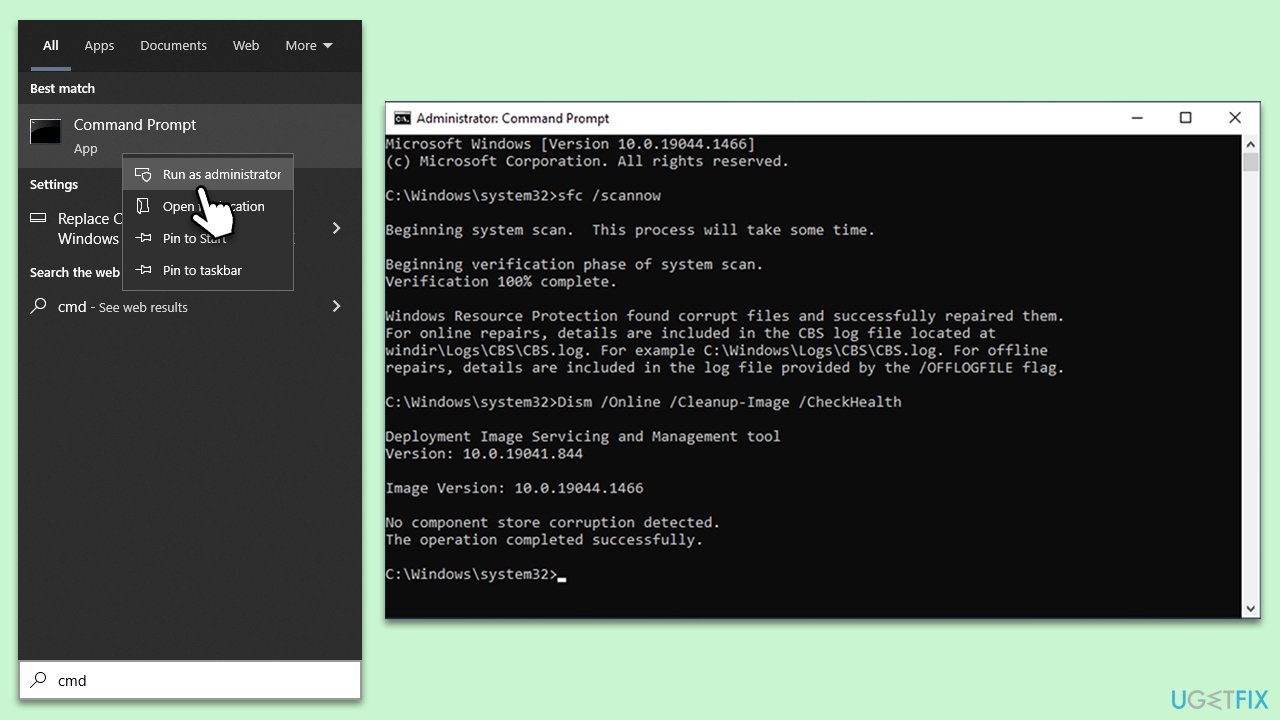
SFC and DISM are tools that can repair Windows system files. Running these scans can fix underlying issues causing keyboard delay.
- Type cmd in Windows search.
- Right-click on Command Prompt and pick Run as administrator.
- User Account Control window will show up - click Yes when prompted.
- Then, copy and paste the following command, pressing Enter after:
sfc /scannow - Wait till the scan is finished. If Windows finds system file integrity violations, it will attempt to fix them. After this, use the set of the following commands, pressing Enter each time:
DISM /Online /Cleanup-Image /CheckHealth
DISM /Online /Cleanup-Image /ScanHealth
DISM /Online /Cleanup-Image /RestoreHealth - (Note: if you get an error executing this last command, add /Source:C:\RepairSource\Windows /LimitAccess to it and try again).
- Close down the Command Prompt and restart your device.
Fix 5. Disable the USB selective suspend setting
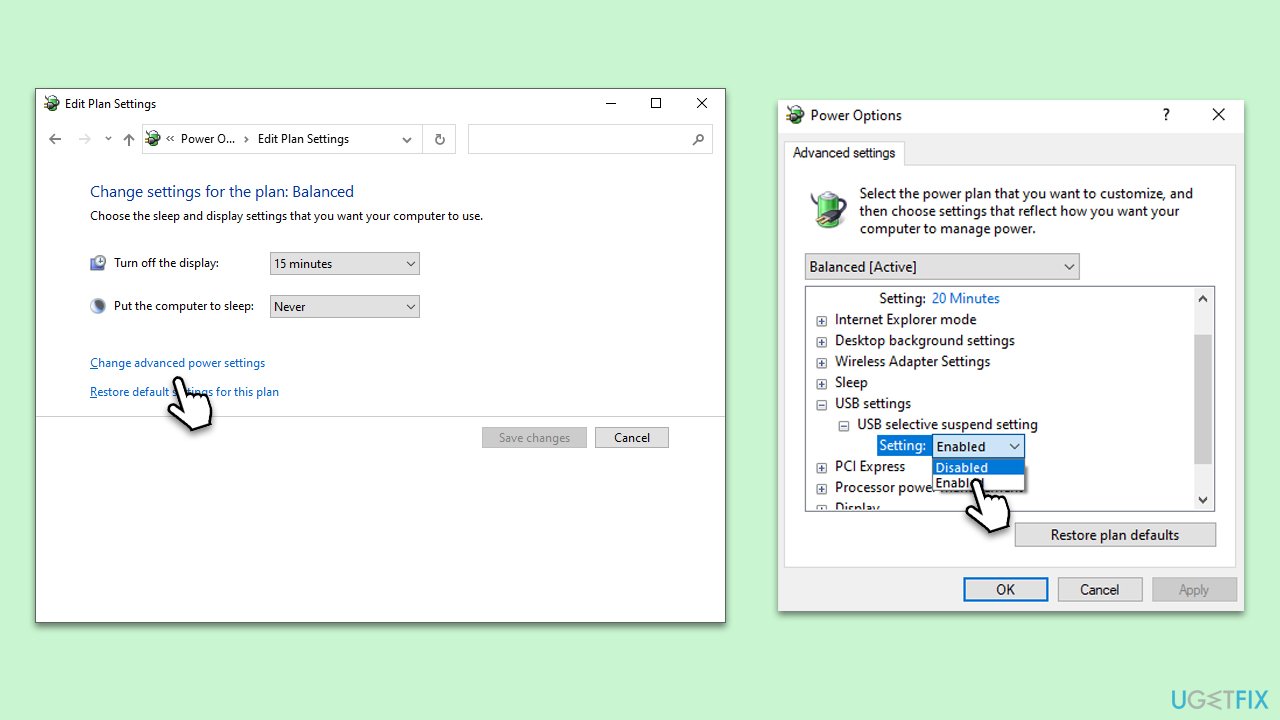
The USB selective suspend feature can cause delays by turning off USB devices to save power. Disabling this feature can improve keyboard response time.
- Go to Control Panel and select Power Options.
- Click on Change plan settings next to your selected power plan.
- Click on Change advanced power settings.
- Expand USB settings and then USB selective suspend setting.
- Set it to Disabled for both On battery and Plugged in.
- Click Apply and OK, then restart your computer.
Fix 6. Check for Windows updates
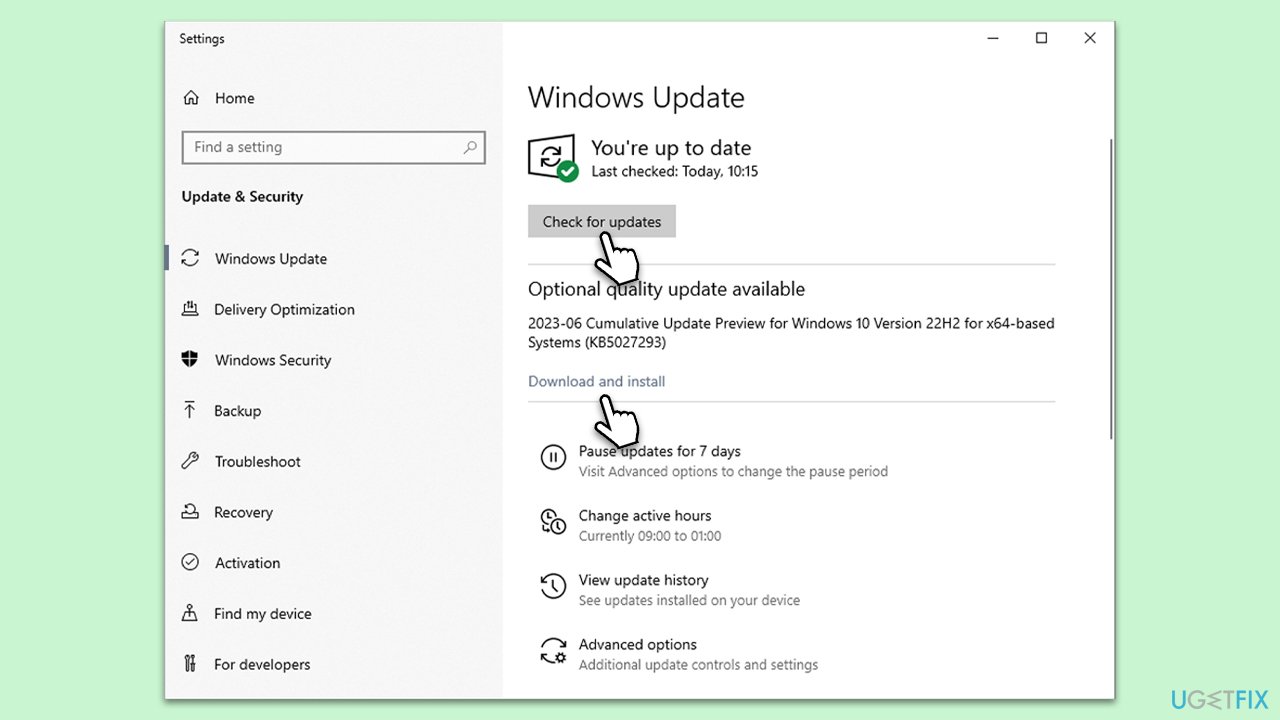
Regular Windows updates can include enhancements and fixes for hardware compatibility, including keyboard operation. Keeping Windows up-to-date can prevent or resolve keyboard delays.
- Type Updates and press Enter.
- In the new window, click Check for updates.
- Wait till all the files are downloaded and installed.
- If optional updates are available, install them as well.
- Restart your computer when done.
Fix 7. Adjust keyboard settings
Windows provides various keyboard settings that can influence input response. Tweaking these settings can eliminate delays caused by features aimed at accessibility.
- Open the Control Panel.
- Navigate to Ease of Access and select Keyboard.
- Make sure that Filter Keys is turned off.
- Modify other settings as necessary, such as Repeat delay and Repeat rate.
Fix 8. Update keyboard drivers
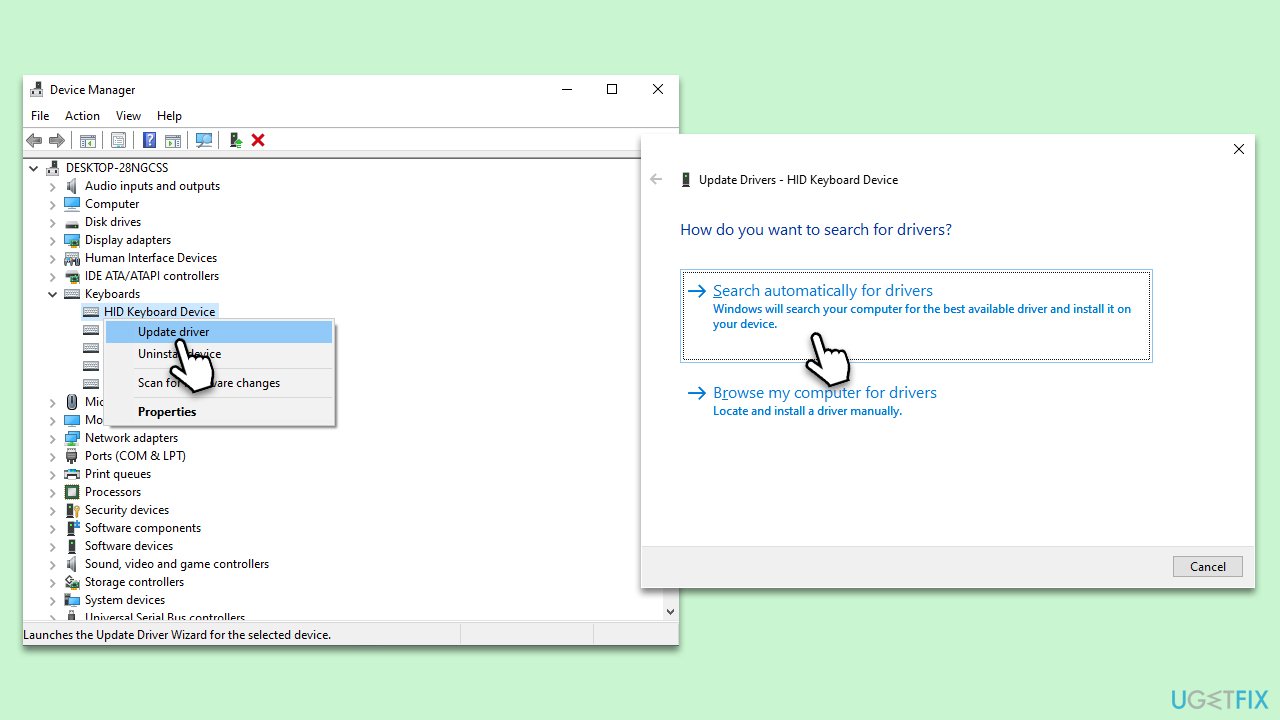
Updating keyboard drivers is crucial for ensuring effective communication between your keyboard and Windows. Outdated or corrupt drivers often cause delays in keyboard input response, and updating them can resolve these issues, enhancing keyboard functionality.
- Right-click on the Start menu and open Device Manager.
- Find and expand the Keyboards category.
- Right-click on your keyboard listed and select Update driver.
- Choose Search automatically for driver and follow the prompts.
- Restart your PC when done.
Bottom line
To fix keyboard delay in Windows, you can run the built-in keyboard troubleshooter, update your keyboard drivers, and check for hardware issues. If these solutions do not resolve the problem, consider using PC repair software to address underlying Windows issues.
Frequently asked questions
Common causes of keyboard delay include outdated drivers, system performance issues, or settings like Filter Keys being enabled.
You can check by going to Settings > Ease of Access > Keyboard and ensuring that Filter Keys is turned off.
If updating the driver doesn't help, try adjusting your keyboard repeat delay settings in the Keyboard properties or performing a system performance check.




Report an issue
What's wrong with this guide? We review every report and update or remove content.
Report received — thank you. We'll review and fix it.
You need a free account to submit a report.
Be the first to comment