How to fix
Keyboard is not working after Windows 11 24H2 update
on Windows
Resolve your keyboard issues after the Windows 11 24H2 update with our expert-tested solutions. Get back to typing smoothly in no time!

What causes How to fix keyboard is not working after Windows 11 24H2 update?
- Driver incompatibilities
- Fast Startup interference
- Disabled essential system services
- Malfunctioning input device services
Repairs Windows system files, removes malware, and restores a clean OS state — without reinstalling.
Something happened to my keyboard after updating to Windows 11 24H2 this morning. It does not work anymore. Maybe it has something to do with the fact that it is a wireless keyboard? I am not sure. But it is charged properly.
The release of Windows 11 24H2 was supposed to enhance the OS even more from both performance and security aspects. Still, many users faced other unexpected issues, the most important of which is non-operating keyboards after updating. Of course, the issue affects both wired and wireless keyboards. They refuse to respond for a fair number of users.
Some report that their wireless keyboards do not work after the 24H2 update, while others face partial functionality where certain keys, like the function keys, remain operational, but the rest of the keyboard does not respond.
Reports on forums, including Microsoft Community, suggest that this issue is not isolated to specific device types. Both laptops and desktops have been affected, with built-in and external keyboards failing to work correctly after the update. Many users experiencing this problem are unable to perform even basic tasks such as typing a password to log into their systems.
The root causes of this keyboard malfunction are varied. Driver incompatibilities are one of the most common culprits, as the update may disrupt the existing compatibility between your keyboard drivers and the new system version.
Additionally, features like "Fast Startup" in Windows 11 can interfere with proper driver initialization during the boot process. Some users have also reported that certain essential system services related to input devices may become disabled or malfunction following the update, further contributing to the issue.
To address this problem, some individuals have had success disabling the "Fast Startup" feature, while others have resolved it by updating or reinstalling keyboard drivers through the Device Manager. Ensuring that all necessary system services are running correctly has also been helpful in specific cases. However, not all solutions work universally, as the root causes can differ across systems.
For those seeking an automated solution, using the [d1] repair app is recommended. This tool can diagnose and resolve underlying Windows issues, potentially fixing keyboard problems after the 24H2 update without requiring extensive manual troubleshooting.
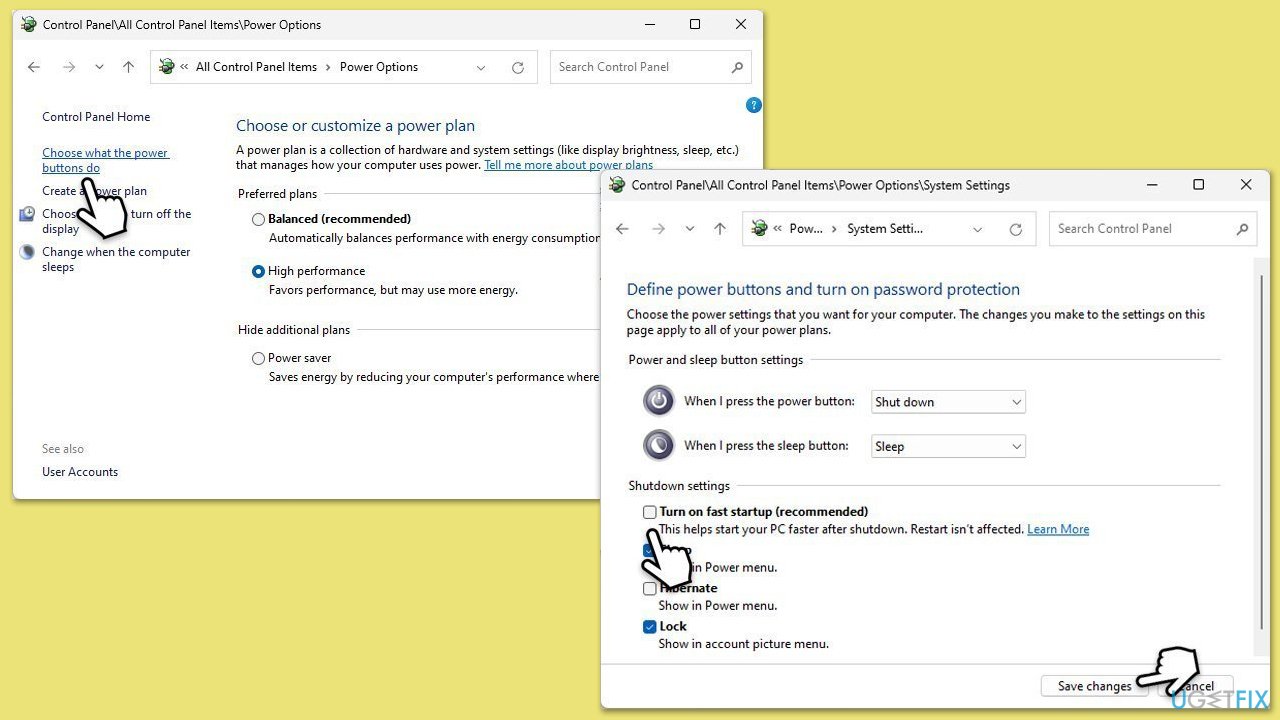
Fix 1. Disable Fast Startup
Fast Startup can interfere with the proper initialization of keyboard drivers. Disabling it might restore functionality.
- Type Control Panel in Windows search and hit Enter.
- Select Small icons view and pick Power options.
- On the left side of the window, select Choose what the power buttons do
- Pick the Change settings that are currently unavailable option at the top
- Remove the tick from the Turn on fast startup (recommended) option and select Save changes.
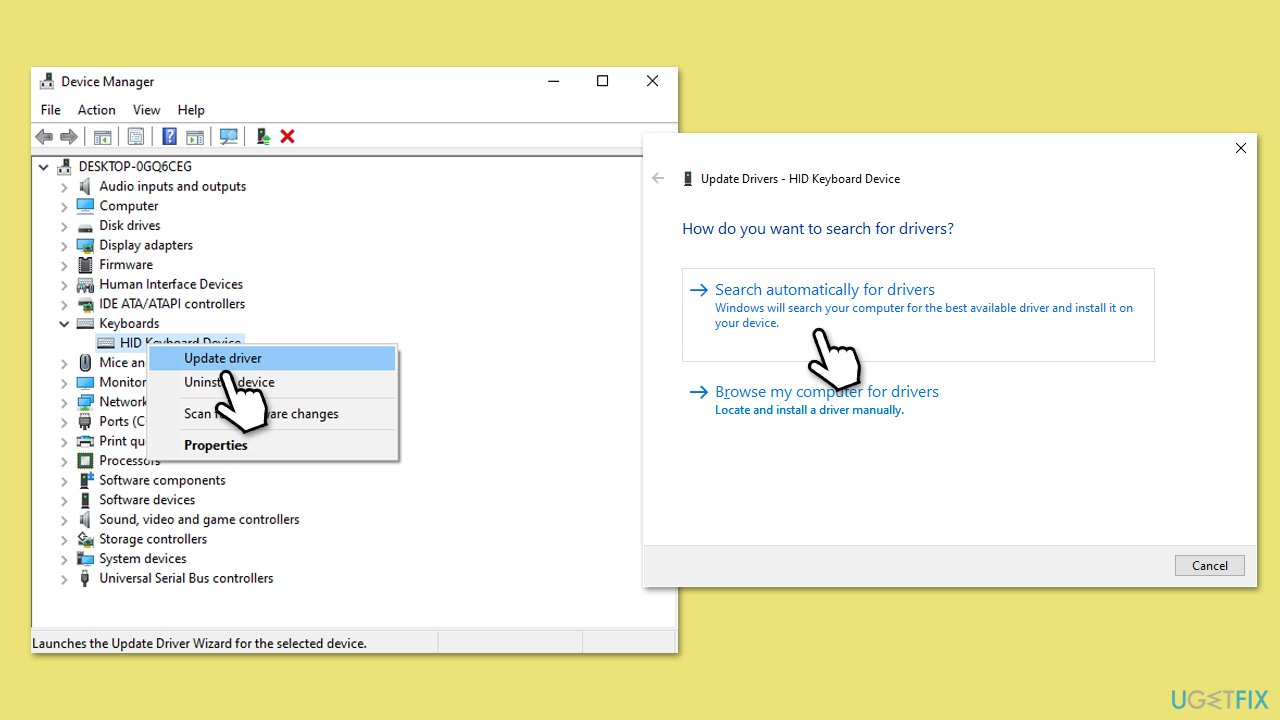
Fix 2. Update or reinstall keyboard drivers
Driver incompatibility after the 24H2 update is a common issue. Updating or reinstalling the keyboard driver can resolve it.
- Right-click on Start and pick Device Manager.
- Expand Keyboards section.
- Right-click on your keyboard and select Update driver.
- Pick Search automatically for drivers.
- Wait till the process is finished and then restart your computer.
- As an alternative, you can always rely on automatic driver update software, such as [rev id="DriverFix"].
Fix 3. Check for Windows updates
Sometimes, Microsoft releases patches to fix issues caused by recent updates, such as the keyboard not working after the 24H2 update.
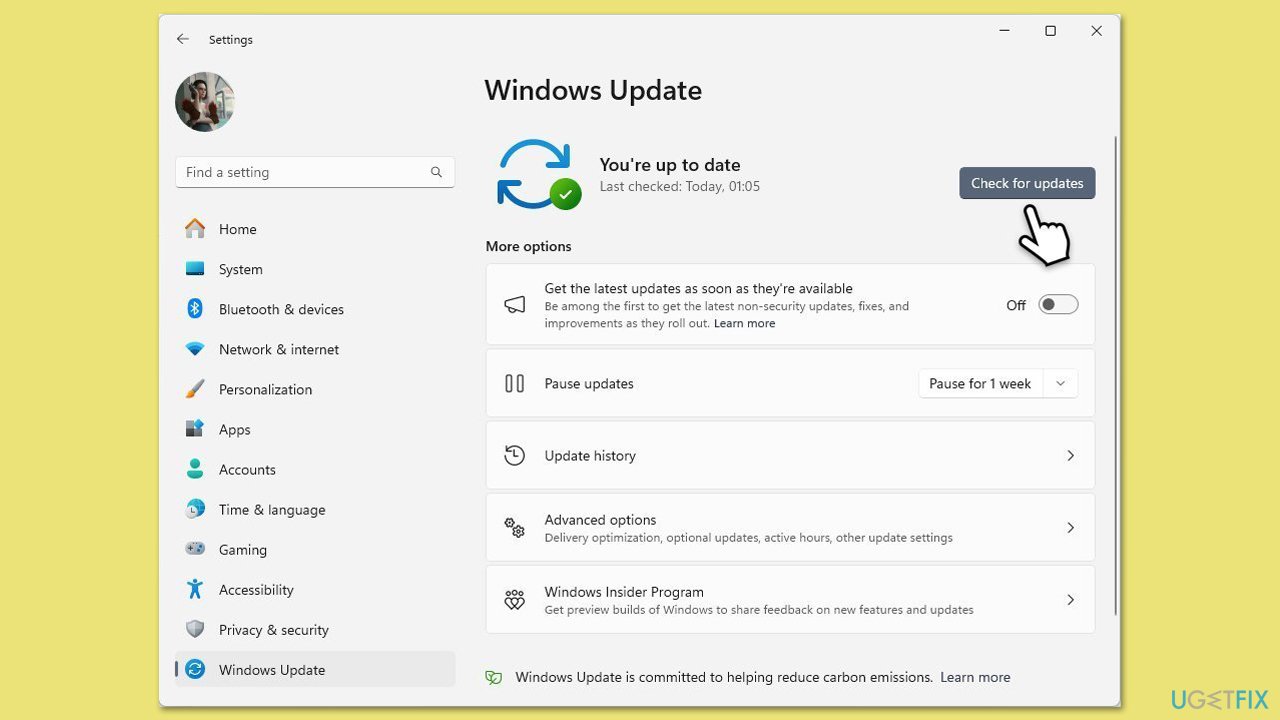
- Type Updates in the Windows search bar and press Enter.
- The new window will open and you should be notified about available updates - click Install all.
- If none are available, click Check for updates, and they should be installed automatically.
- Don't forget to install all the available optional updates.
- When done, reboot your device.
Fix 4. Use the keyboard troubleshooter
Windows includes a built-in troubleshooter that can detect and fix problems related to hardware like keyboards.
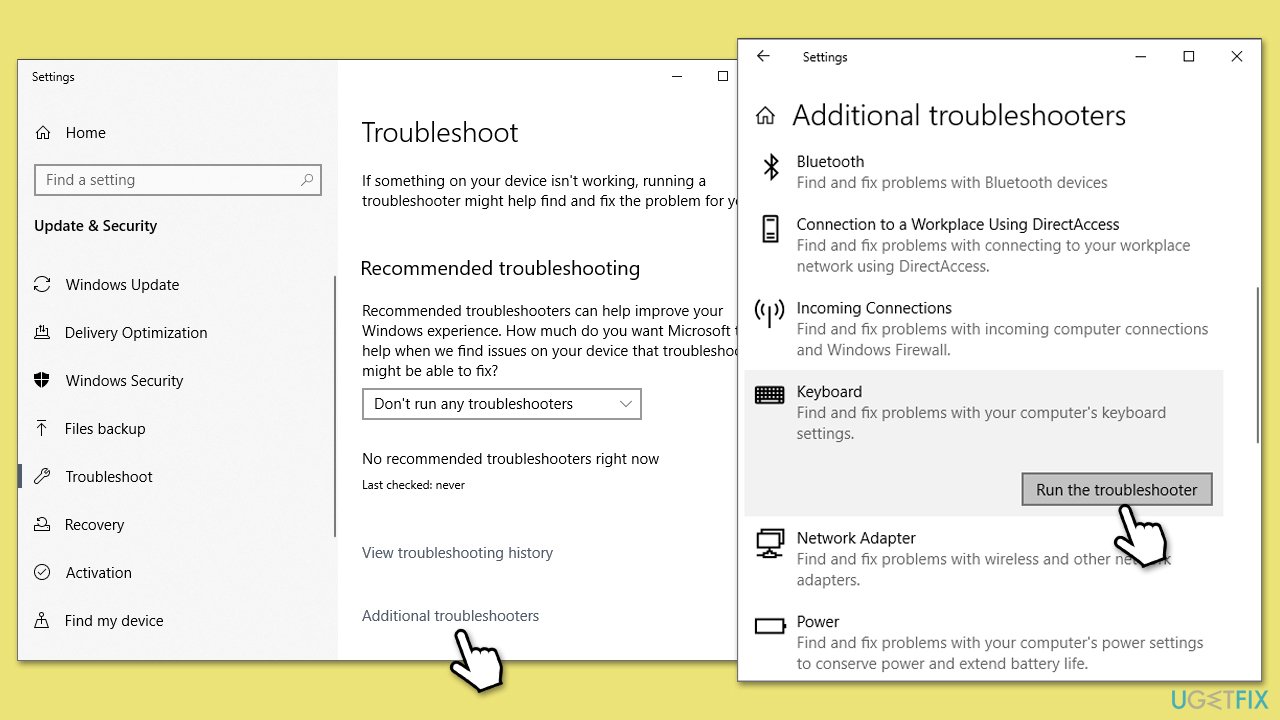
- Type troubleshoot in Windows search and press Enter.
- Select Other troubleshooter/Additional troubleshooter find and select Keyboard.
- Click on Run/Run the troubleshooter.
- Follow the on-screen instructions provided by the troubleshooter as it scans your system for keyboard-related issues and attempts to resolve them.
Fix 5. Perform a Clean Boot
A clean boot starts Windows with minimal drivers and startup programs, helping identify third-party software conflicts.
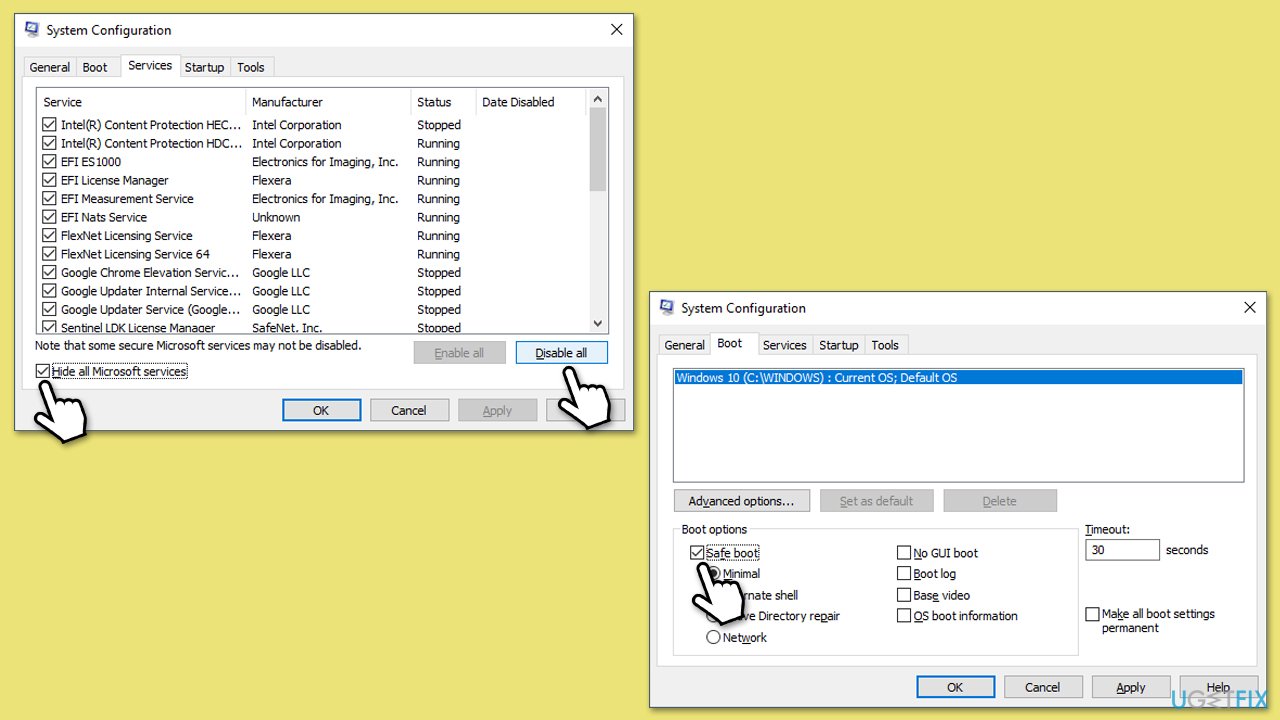
- Type msconfig in the Windows search box and press Enter.
- Pick the Services tab.
- Mark Hide all Microsoft services and select Disable all.
- Select the Startup tab and click Open Task Manager.
- In the Task Manager, right-click on each of the items and select Disable, then close the Task Manager.
- Go to the Boot tab, mark the Safe Boot option, then click Apply and OK.
- On the System Configuration window, click OK.
- Restart and check if the problem is resolved.
- Repeat, enabling services in smaller groups until the issue reappears.
- Once found, keep the problematic service disabled or consider updating it.
Fix 6. Enable keyboard services
Some system services essential for keyboard functionality might be disabled after the update.
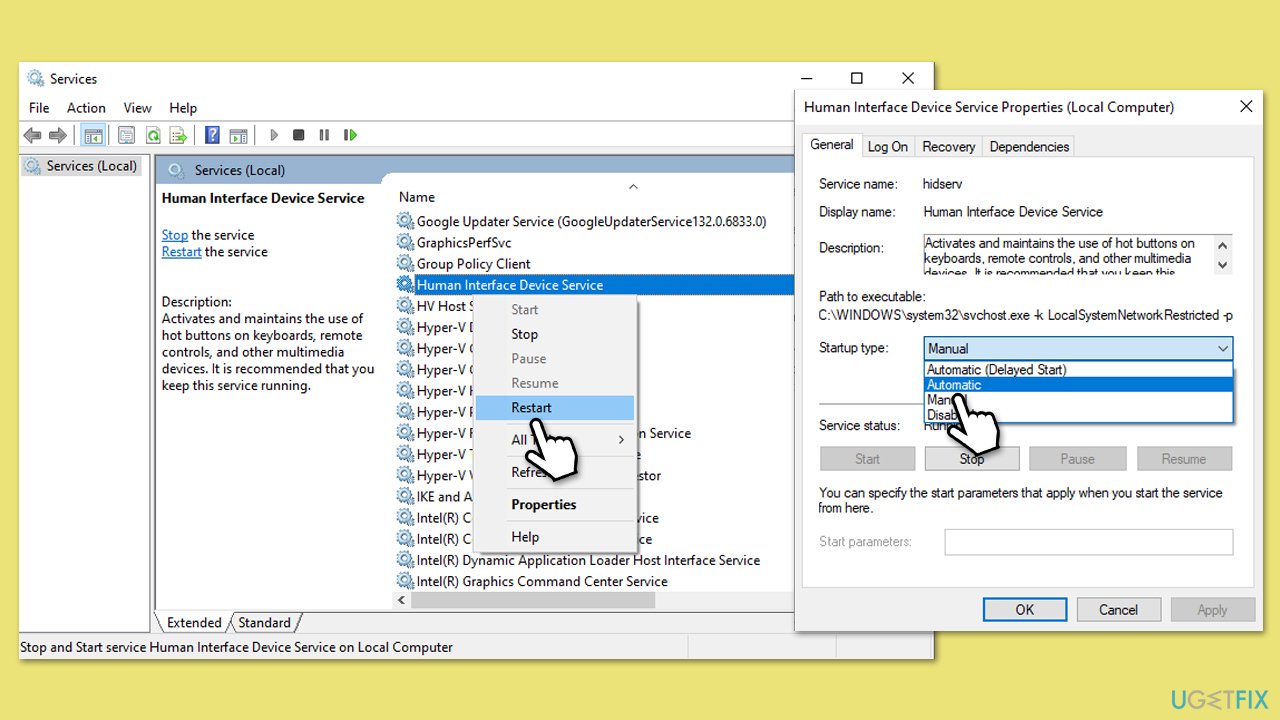
- Type in Services in Windows search and press Enter.
- Find Human Interface Device Service.
- If it is already running, right-click and pick Restart.
- If the service is not running, double-click it, and select Automatic under the Startup type from the drop-down menu.
- Click Start, Apply, and OK.
- Repeat this for the Keyboard and HID services.
Fix 7. Roll back the update
If none of the above solutions work, you can temporarily roll back the 24H2 update to restore keyboard functionality while awaiting a fix from Microsoft.
- Right-click on Start and click Settings.
- Go to System and find Recovery options.
- Find the Go back option and click Go back.
- Click Next and then follow up with No, thanks.
- In the next two prompts, simply select Next and Next again.
- Finally, click Go back to earlier build.
- Restart your system to go back to version 23H2.
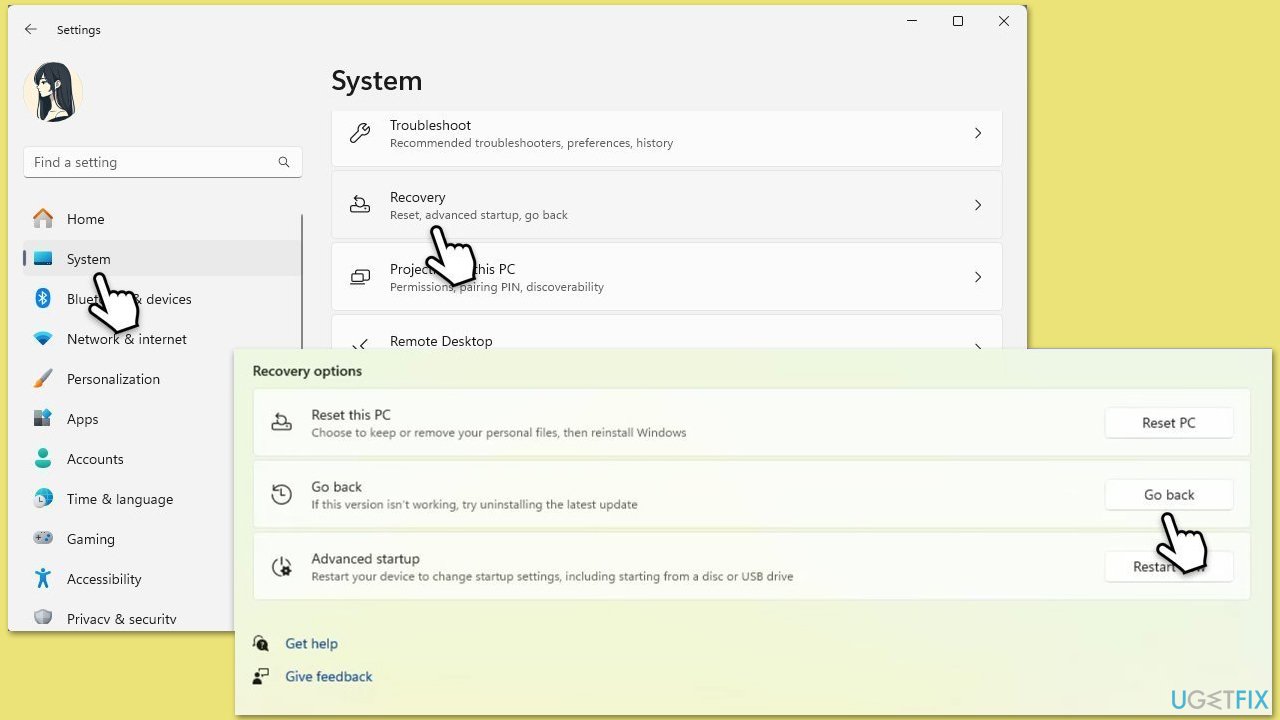
How that this option is only possible for a limited amount of time and "Go back to earlier build" option could be grayed out/inaccessible. In this case, please check out our guide for an alternative option.
Bottom line
To fix the keyboard issue after the Windows 11 24H2 update, users can try disabling the Fast Startup feature, updating or reinstalling keyboard drivers through the Device Manager, and ensuring all necessary system services are running correctly. If these solutions do not work, consider using the recommended repair app for automated diagnosis.
Frequently asked questions
Try restarting your computer first, as this can resolve temporary glitches. If the issue persists, check for driver updates in Device Manager and reinstall the keyboard drivers.
You can access the Device Manager using the mouse by right-clicking the Start menu and selecting 'Device Manager' from the list. Alternatively, you can use the on-screen keyboard by searching for it in the Start menu.
Yes, ensure that the keyboard is enabled in the Device Manager and check the settings under 'Ease of Access' to see if any features like 'Filter Keys' are turned on, as they can affect keyboard functionality.




Report an issue
What's wrong with this guide? We review every report and update or remove content.
Report received — thank you. We'll review and fix it.
You need a free account to submit a report.
Be the first to comment